The Audit Log
The Audit Log lists every change made in your company, newest first: each bill created and posted, each payment, void and reversal, each journal entry, each account or terms change, each import and each Books Closed change. For every change it shows when it happened, who made it, what was done and to which record, and the values that were entered.
Use it to answer "who posted this, and when?", to review a user's work, or to trace an unexpected balance back to the change that caused it. Entries in the log cannot be edited or deleted by anyone.
Before You Begin
- You need View or Edit access to Accounting. Company Admins, Accountants and Viewers have it; Project Managers do not. See Roles and Permissions.
Navigation
Accounting → Audit Log.
What Is Recorded
Each event is one completed change. Structally records it at the moment the change is saved, in the same step, so a change that was refused (for example a bill that would not post) leaves no event.
Not in the Audit Log:
- Opening pages, reports and records.
- Sign-ins and changes made in Users & Access.
Filtering the Log
- Open Accounting → Audit Log.
- Optionally set Start and End to limit the events to those dates.
- Optionally choose a Command (the kind of change) and a User.
- Click Filter.
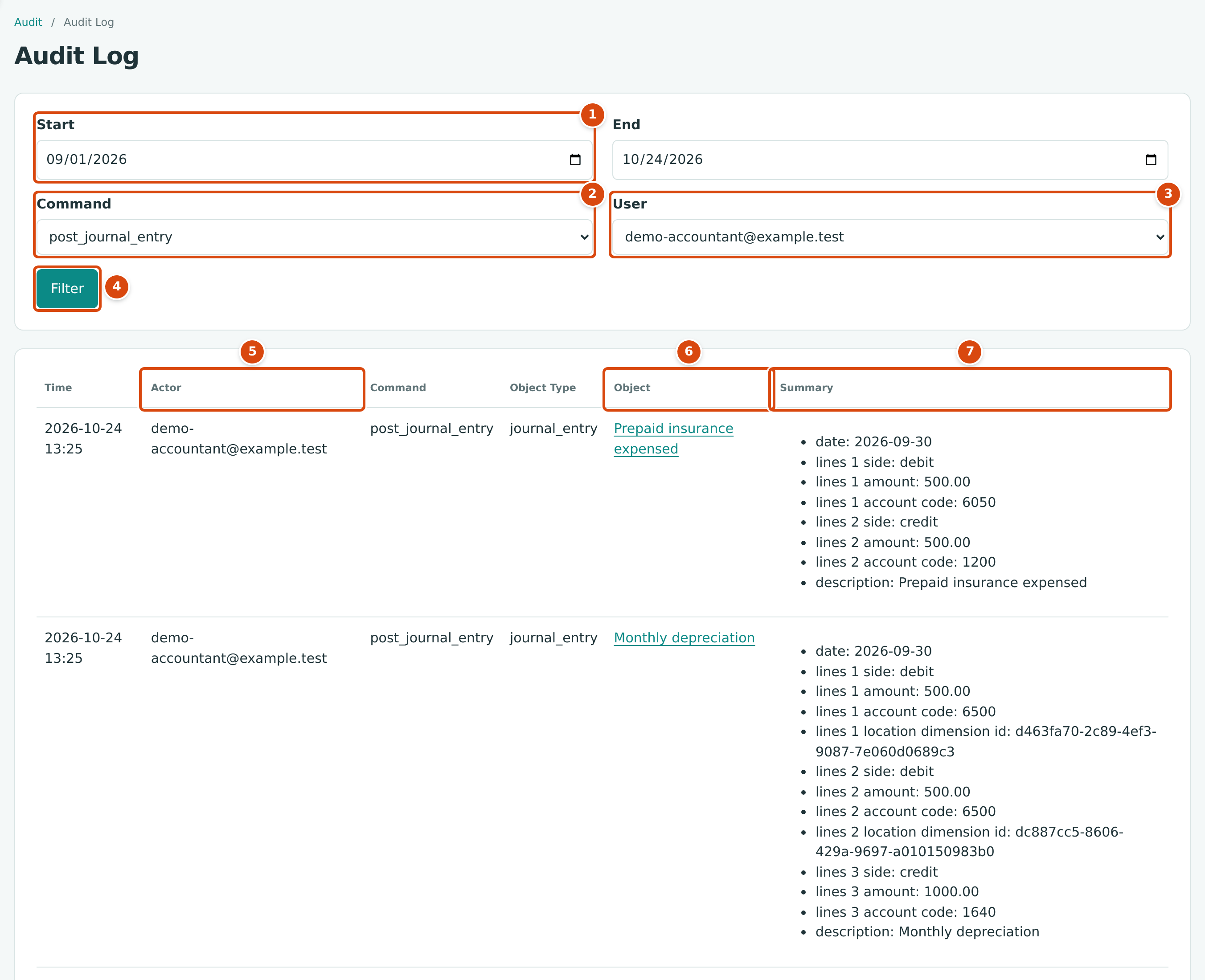
- Start and End: the days on which the changes were made. Leave them empty for all dates.
- Command: All Commands, or one kind of change. Only commands that have been used in your company are listed.
- User: All Users, or one user. Only users who have made changes are listed, by name or, if the user has no name, by email address.
- Filter applies the choices.
- Actor: who made the change.
- Object: the record changed, as a link to it.
- Summary: the values the change was made with.
The log shows 25 events per page; use Next and Previous below the table. Structally remembers your Command and User choices for the next time you open the Audit Log in this company. Choose All Commands and All Users and click Filter to see everything again.
Reading an Event
| Column | What It Shows |
|---|---|
| Time | When the change was saved, in your company's time zone. This is not the accounting date: a bill dated September 30 but entered on October 24 shows October 24 here. |
| Actor | The user who made the change. |
| Command | The kind of change, by its system name (see the table below). |
| Object Type | The kind of record, such as bill, payment, journal_entry or account. |
| Object | The record itself, such as BILL-2026-000140, a journal entry's description or 6600 Interest Expense. Click it to open the record. |
| Summary | The values the change was made with: dates, amounts, account codes, memos, and each line numbered (lines 1 amount: 500.00). |
Some summary values are long internal reference numbers made of letters, digits and dashes, for example after vendor id or location dimension id. They identify the vendor, class, location or other record used. To see it by name, open the record from the Object column.
Common Commands
| Command | Change |
|---|---|
create_bill, update_bill, post_bill, void_bill |
A bill was saved as a draft, changed, posted or voided. |
create_invoice, update_invoice, post_invoice, void_invoice |
The same for invoices. |
enter_expense, reverse_expense |
An expense was recorded or reversed. |
pay_bills, reverse_payment |
Bills were paid, or a payment was reversed. |
receive_payment, reverse_receipt |
A customer payment was received or reversed. |
create_vendor_credit, post_vendor_credit, apply_vendor_credit_note, unapply_vendor_credit |
A vendor credit was entered, posted, applied or unapplied. |
post_journal_entry, reverse_journal_entry |
A manual journal entry was posted or reversed. |
create_account, rename_account, set_account_parent, set_account_active |
An account was added, renamed, moved, or deactivated or reactivated. |
create_terms, update_terms |
Terms were added or changed. |
transfer_funds, make_deposit |
A transfer or a deposit was recorded. |
set_lock_date |
The Books Closed date was changed. |
post_opening_balances |
Opening Balances were posted. |
post_wip_schedule, transfer_job_cost |
A WIP schedule was posted, or a job cost was transferred. |
The Command list on the page shows every command used in your company.
A Record's History
Bills, invoices, expenses, vendor credits, credit memos, payments, receipts, transfers, deposits, refunds, journal entries and jobs also have a History section near the bottom of their page. It shows the same events for that one record, in plainer words.
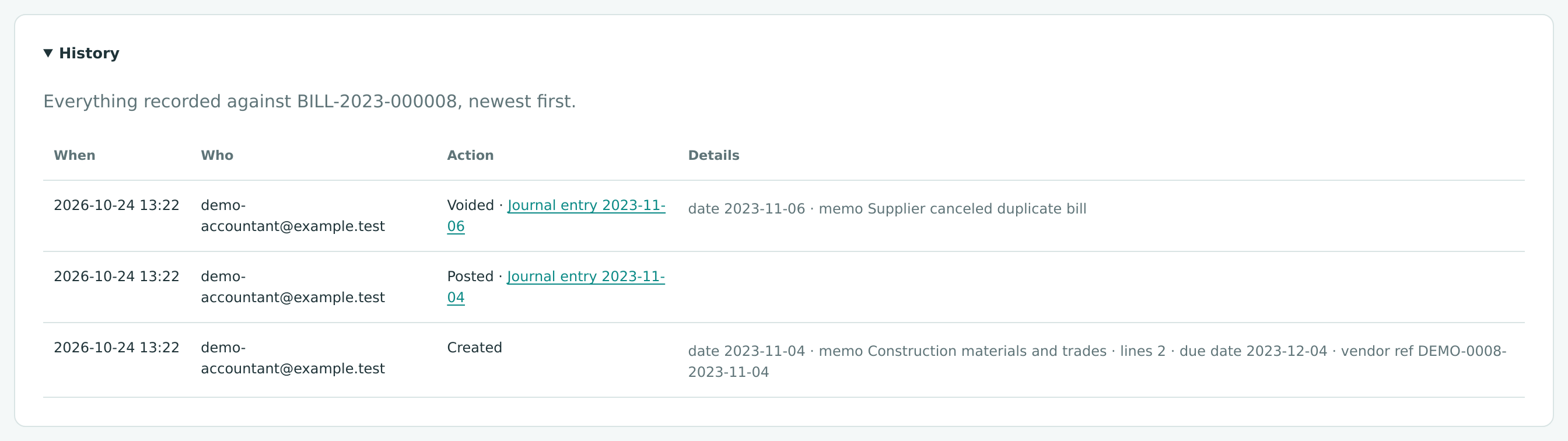
History lists When, Who, Action and Details. The action is written out (Created, Updated, Posted, Voided, Reversed, Credit applied, Credit unapplied and so on), with a link to the journal entry the change posted, and Details repeats the dates, amounts and memo. Click History to open or close it.
Worked Example: Who Posted September's Adjustments?
Cedar Ridge's controller wants to know who posted the month-end journal entries for September 2026.
- In Command choose post_journal_entry, in User choose demo-accountant@example.test, and set Start to 09/01/2026 and End to 10/24/2026.
- Click Filter. The figure above shows the result: Prepaid insurance expensed and Monthly depreciation, among others, each posted by demo-accountant@example.test.
- The Summary of Monthly depreciation reads date: 2026-09-30, two debits of 500.00 to account 6500 and a credit of 1000.00 to account 1640: debits 500.00 + 500.00 = credits 1,000.00.
- Click Monthly depreciation in Object to open the entry itself (see Journal Entries).
Note the difference between the Time (2026-10-24 13:25, when the entry was recorded) and date: 2026-09-30 in the summary (the accounting date it posted on).
Common Mistakes and Troubleshooting
| Message or Symptom | Why It Happens | What to Do |
|---|---|---|
| Start must be on or before end. | Start is after End. | Swap the dates. |
| The log shows fewer events than expected. | A Command or User filter is still selected from your last visit. | Choose All Commands and All Users and click Filter. |
| A user is missing from the User list. | The list holds only users who have made changes in this company. | That user has not changed anything yet. |
| An event's date looks wrong. | Time is when the change was saved, not the transaction date. | Read the date in the Summary. |
| A refused or canceled action is not in the log. | Only completed changes are recorded. | Nothing to do: nothing was saved. |