| Account | Debit | Credit |
|---|---|---|
| 5050 Equipment Rental (J-1030 · 09-300 · EQP) | 720.18 | |
| 2100 Company Credit Card | 720.18 |
Recording an Expense
An expense records a purchase that is already paid: fuel bought with the company card, a software subscription charged to the card every month, a permit paid at the counter, a bank fee. The expense records the cost and the payment in one step. It posts as soon as you save it, so there is no draft and nothing is left in accounts payable.
Use an expense only when the money has already left a bank, cash or credit card account. When you will pay the vendor later, enter a bill instead, then pay it with Pay Bills.
Before You Begin
- The account you paid from exists and is active: a bank or cash account (for example 1010 Operating Checking) or a credit card account (2100 Company Credit Card). See The Chart of Accounts.
- The vendor exists, if you want to name one (optional). You can also add it from the Vendor picker.
- For job costing: Jobs & Costing is turned on and the job is set up. See Coding Transactions to Jobs.
- You need Edit access to Vendors & Bills (Company Admins, Accountants, Project Managers, and Custom users with Edit). See Roles and Permissions.
Navigation
Vendors & Bills → Expenses → New Expense, or Create → New Expense. From a vendor's page, New Expense opens the form with that vendor chosen.
Step by Step
- Open Vendors & Bills → Expenses and click New Expense.
- In Paid From, choose the account the money came out of. Only active bank, cash and credit card accounts are listed.
- In Vendor, choose who you paid, or leave No Vendor. When you choose a vendor, Structally fills the first line's Account with the account used on that vendor's latest posted bill or expense, if the line is still empty.
- Set Date to the date of the purchase. It is the accounting date of the expense.
- In Reference, type the receipt, card slip or confirmation number.
- Optionally choose a Location for the whole expense.
- On each line, choose the Account charged, type a Description and the Amount, and optionally a Class. Click Add Line for more lines.
- Optionally type a Memo and attach the receipt under Attachments.
- Click Save Expense. The expense posts immediately.
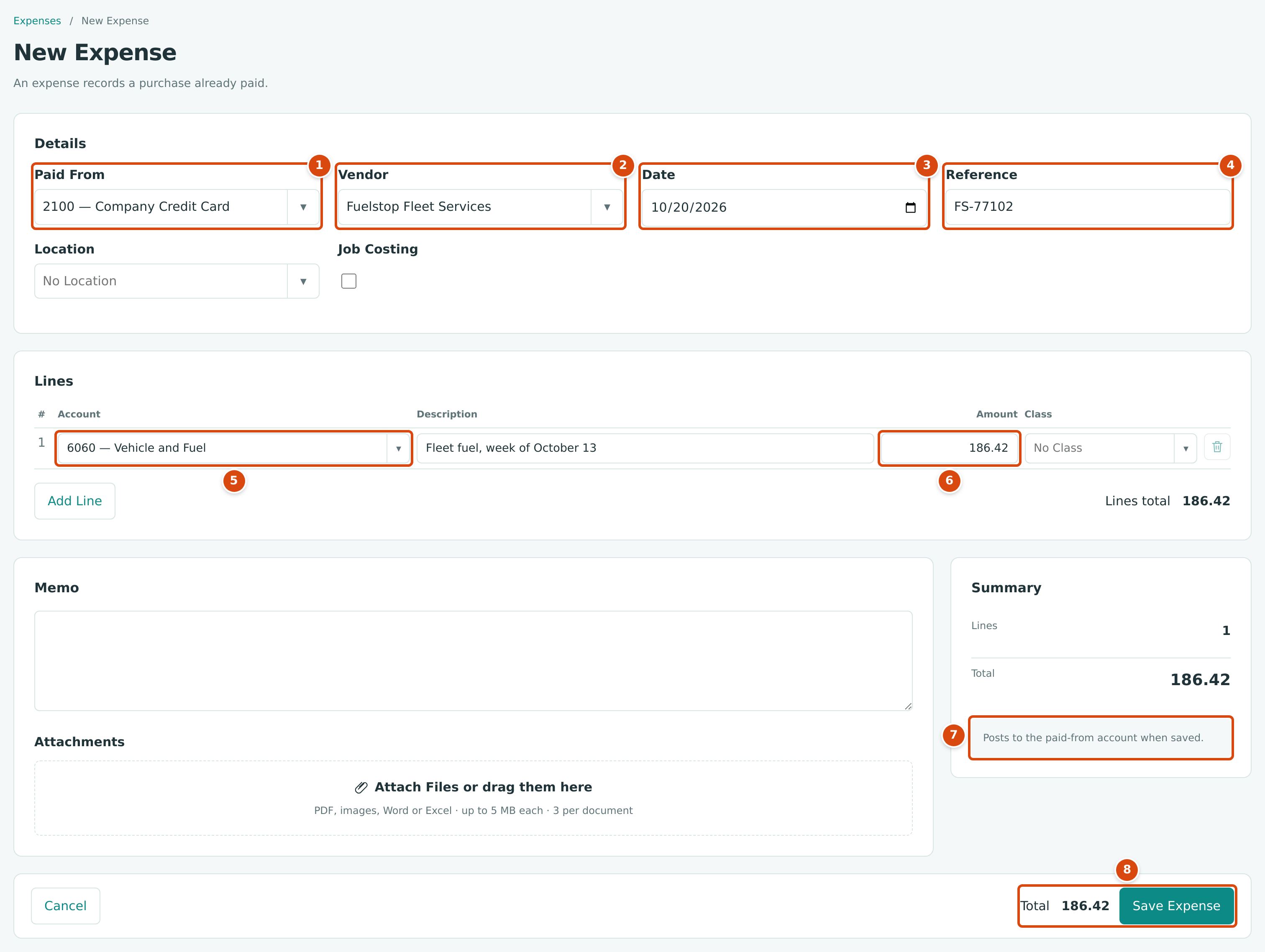
- Paid From: the bank, cash or credit card account that paid.
- Vendor: optional. Choosing Fuelstop Fleet Services filled Account with 6060, the account on its last expense.
- Date: the purchase date.
- Reference: the receipt or slip number.
- Account: what the money was spent on.
- Amount: a positive amount with up to two decimals.
- Posts to the paid-from account when saved. There is no draft.
- Total and Save Expense.
Structally confirms with Expense EXP-2026-000136 posted. (with the next number) and opens the expense. Expense numbers are assigned automatically as EXP-year-sequence.
Coding an Expense to a Job
Tick Job Costing to charge a line to a job. The lines gain Job, Cost Code, Cost Type and Split columns, and work exactly as on a bill (see Coding a Bill to a Job). An expense cannot be matched to a commitment and does not hold retainage; use a bill for subcontract and purchase order billings.
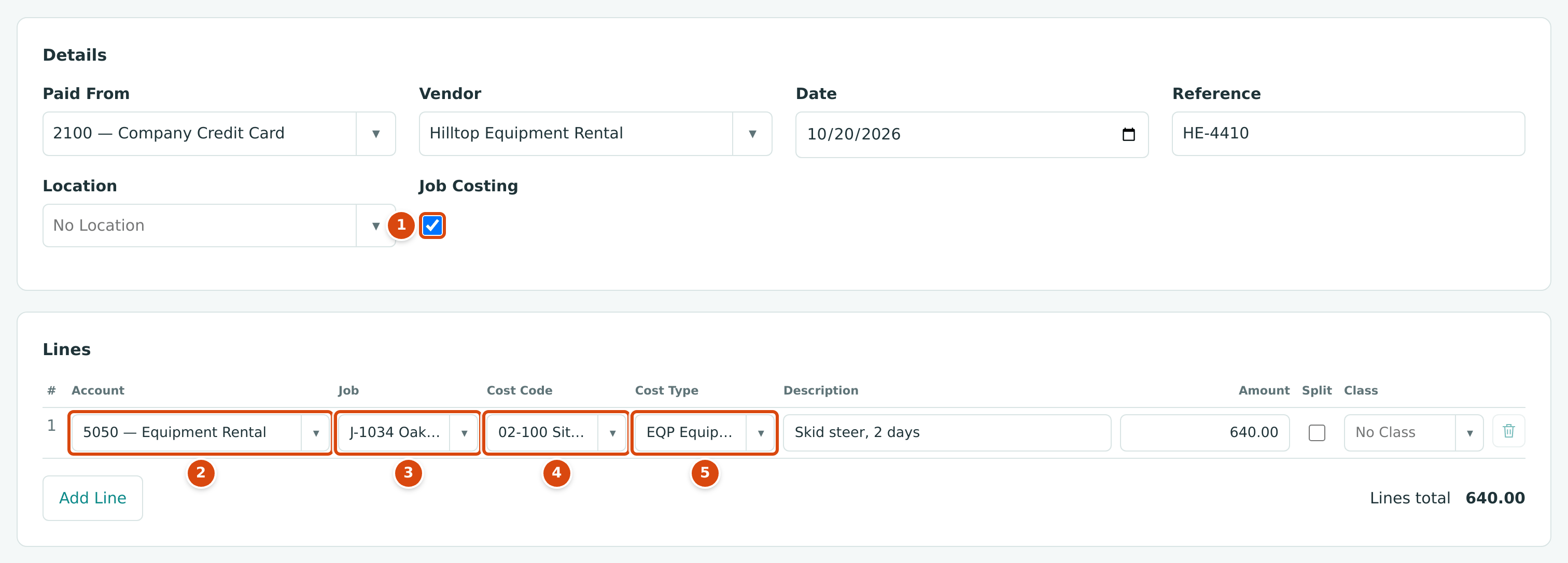
- Job Costing turned on.
- Account: a direct cost account, here 5050 — Equipment Rental.
- Job: the job the cost belongs to.
- Cost Code: only codes assigned to the job are offered.
- Cost Type: here EQP (Equipment).
Field Reference
| Field | Description | Required | Example |
|---|---|---|---|
| Paid From | The active bank, cash or credit card account the money came from. | Yes | 2100 — Company Credit Card |
| Vendor | Who you paid. Active vendors only. | No | Fuelstop Fleet Services |
| Date | Purchase date and accounting date. Must be after the Books Closed date. Starts as today. | Yes | 10/20/2026 |
| Reference | Receipt, slip or confirmation number, up to 60 characters. | No | FS-77102 |
| Location | A location for the whole expense. | No | East |
| Job Costing | Shows the job, cost code, cost type and split columns. Appears when Jobs & Costing is turned on. | No | Ticked |
| Account (line) | The account charged. Not the Paid From account, a retainage account or a WIP account. | Yes | 6060 — Vehicle and Fuel |
| Job, Cost Code, Cost Type (line) | Where the cost belongs in job costing. | With job costing | J-1034 · 02-100 · EQP |
| Description (line) | What the line is for, up to 100 characters. | No | Fleet fuel, week of October 13 |
| Amount (line) | A positive amount with up to two decimals. | Yes | 186.42 |
| Class (line) | A class for reports by class. | No | Remodel |
| Memo | An internal note. | No | Card statement October |
| Attachments | PDF, image, Word or Excel files, up to 5 MB each and 3 per expense. | No | receipt.pdf |
The Expenses List and the Expense Page
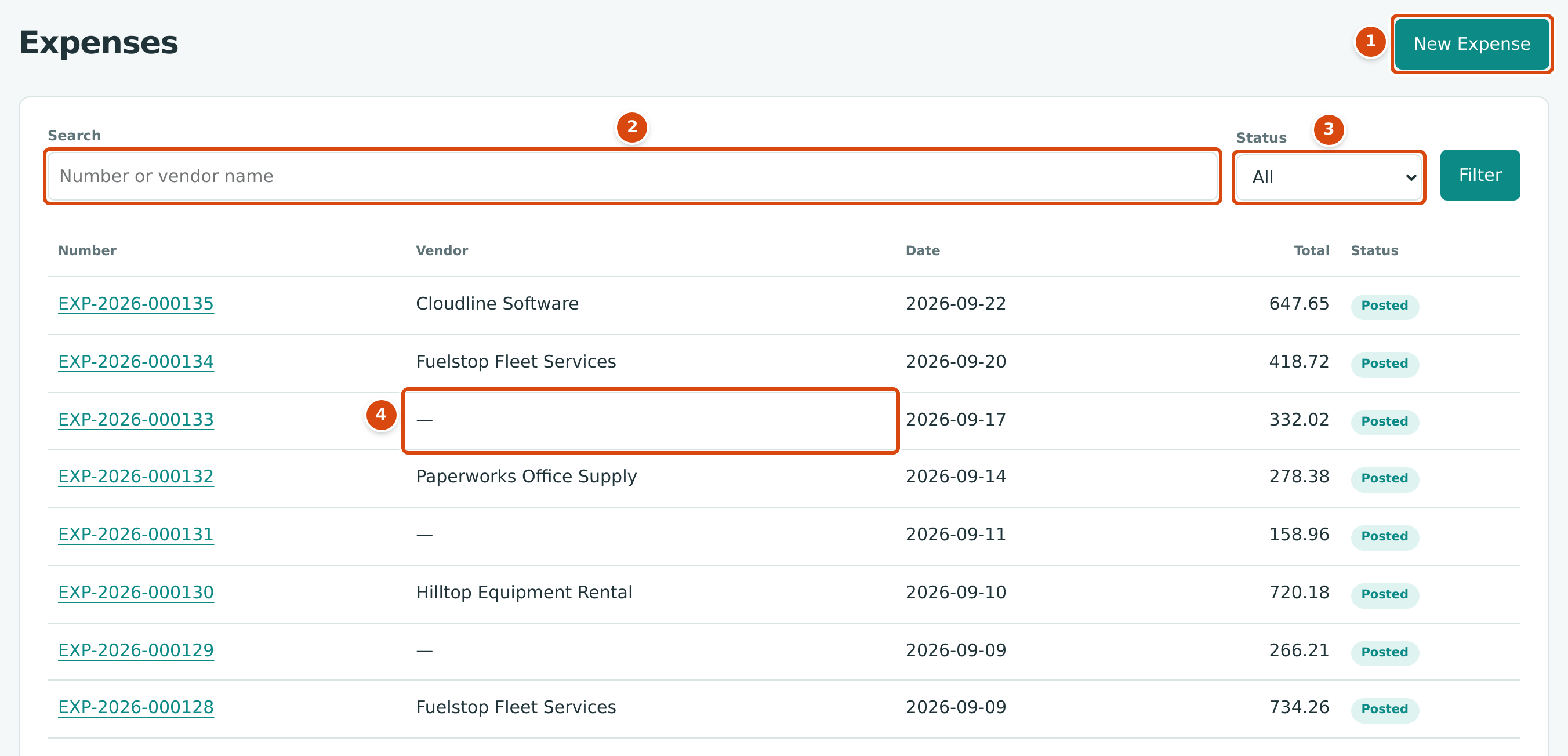
- New Expense opens the form.
- Search finds expenses by number or vendor name.
- Status: All (the default), Posted or Reversed.
- An expense recorded without a vendor shows a dash.
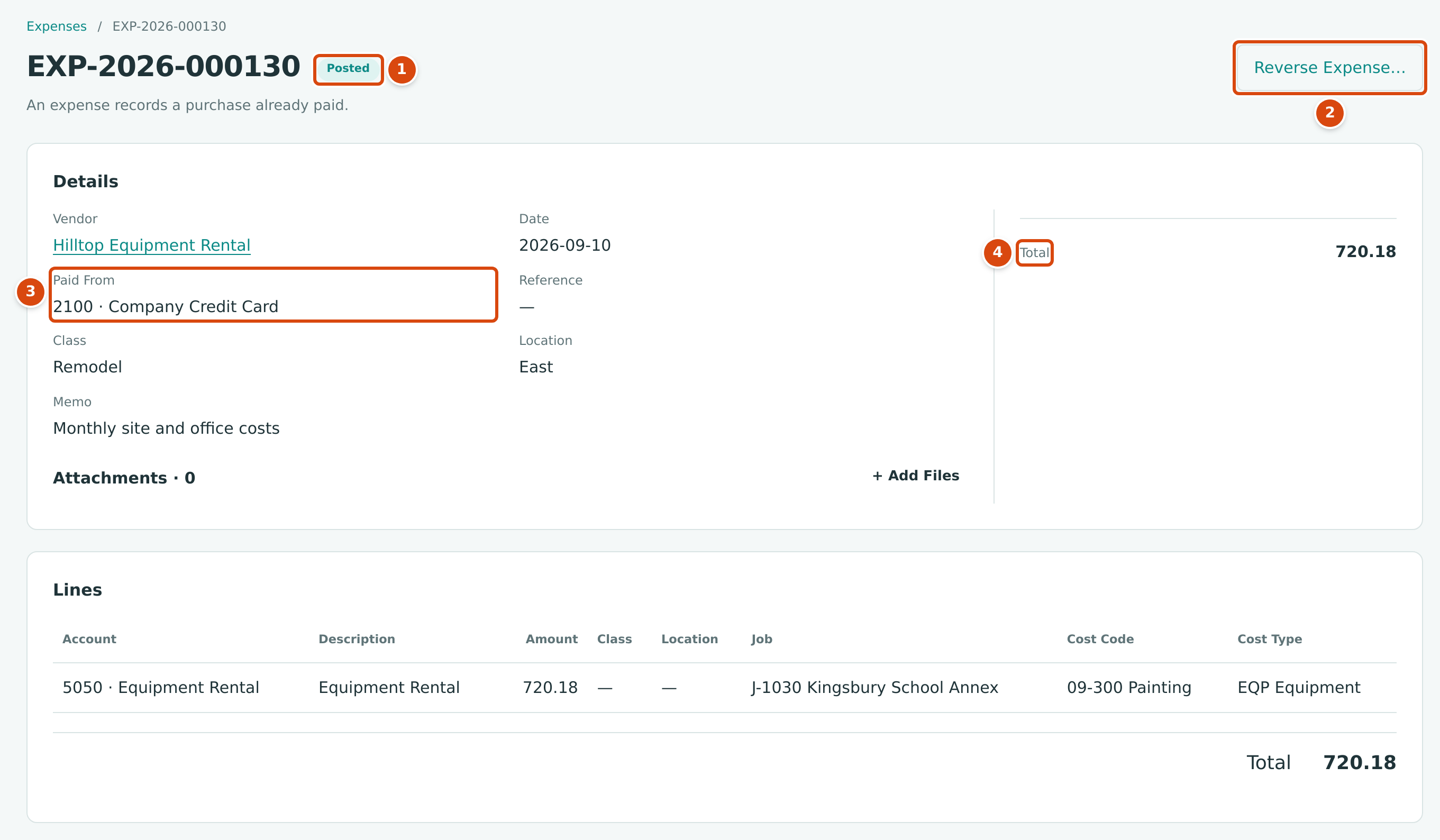
- The status: Posted, or Reversed after a reversal.
- Reverse Expense… opens the reversal drawer.
- Paid From: the account credited.
- Total: the amount paid.
Below the lines, Posting Entry shows the journal entry and History shows who entered the expense and any later actions, such as a bank feed match.
Worked Example: A Job Equipment Rental Paid by Card
On September 10, 2026, Cedar Ridge rented painting equipment from Hilltop Equipment Rental for job J-1030 Kingsbury School Annex and paid $720.18 with the company card. The expense EXP-2026-000130 charges 5050 Equipment Rental, coded to J-1030, cost code 09-300 Painting and cost type EQP, and is paid from 2100 Company Credit Card.
The Posting Entry
Saving the expense debits each line's account and credits the Paid From account for the total, on the expense date:
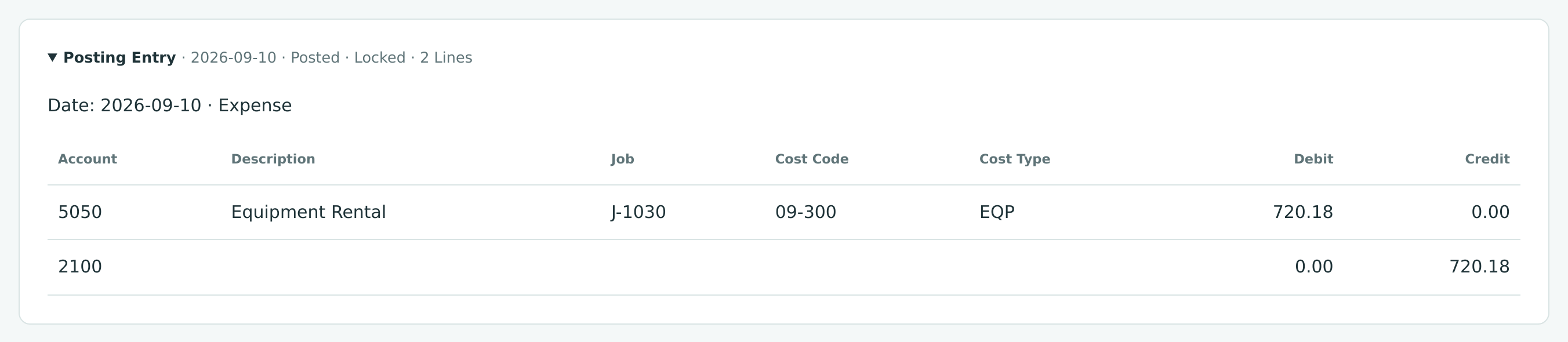
The cost is on job J-1030 at once, and the balance owed on the company card (a liability) grows by $720.18. Accounts payable is not touched, because nothing is owed to Hilltop.
What Happens After You Save
| After Save Expense | |
|---|---|
| Status | Posted |
| Journal entry | One entry on the expense date, locked |
| Accounts payable and the vendor's balance | Unchanged; the expense shows in the vendor's Recent Activity |
| Job costs | Updated for job-coded lines |
| The Payables Overview | Counted in Paid Expenses and Spending by Category for its period |
| Can be changed | No. Reverse it and enter it again. |
Reversing an Expense
Reverse an expense that was recorded by mistake, twice, or against the wrong account. Reversing posts the mirror image of the expense's entry on the date you choose and sets the status to Reversed. The original entry stays on its own date.
- Open the expense and click Reverse Expense….
- In Date, enter the date of the reversing entry. It starts as today, cannot be earlier than the expense date and must be after the Books Closed date.
- In Memo, type why. The memo becomes the reversing entry's description.
- Click Reverse Expense. Cancel closes the drawer.
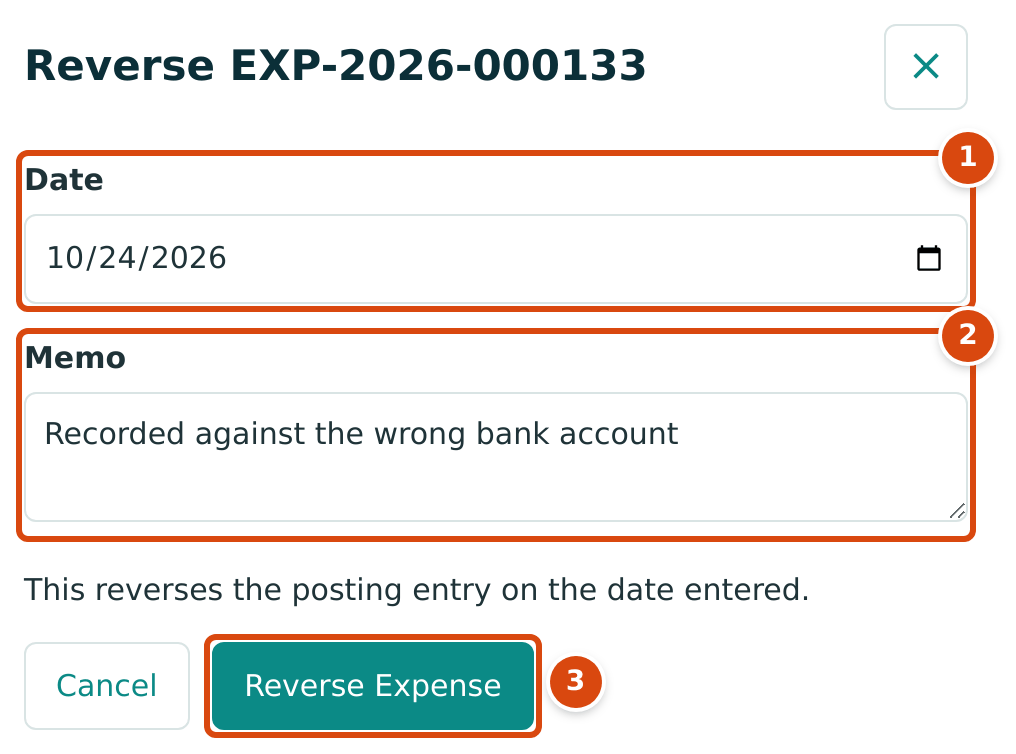
- Date: the accounting date of the reversing entry.
- Memo: the reason.
- Reverse Expense posts the reversal: This reverses the posting entry on the date entered.
The Reversing Entry
Reversing EXP-2026-000130 on October 24, 2026 would post the opposite entry, shown on the expense as Reversal Entry (type Expense Reversal):
| Account | Debit | Credit |
|---|---|---|
| 2100 Company Credit Card | 720.18 | |
| 5050 Equipment Rental (J-1030 · 09-300 · EQP) | 720.18 |
Expenses matched in the bank feed
An expense whose entry is matched to an imported bank or card statement line cannot be reversed until the line is unmatched in the Bank Feed. EXP-2026-000130 is matched in the sample company, so reversing it would be refused with Entry is matched to a bank line; unmatch it first. An expense created by categorizing a bank feed line is undone from the Bank Feed.
Common Mistakes and Troubleshooting
| Message or Symptom | Why It Happens | What to Do |
|---|---|---|
| The account you paid from is not in Paid From. | Only active bank, cash and credit card accounts are listed. | Check the account's role and status in the Chart of Accounts. |
| Expenses are paid from a bank or credit card account | The paid-from account is not a bank, cash or card account, or it is inactive. | Choose another Paid From account. |
| Line account 2100 is excluded. | A line uses the same account as Paid From. | Choose the account the money was spent on. |
| Line account 1450 is a WIP account. | WIP accounts cannot be charged from an expense. | Choose an expense or cost account. |
| Vendor must be active. | The vendor was deactivated. | Reactivate it, choose another vendor, or use No Vendor. |
| Accounting date must be after the company closing date. | The expense date is in a closed period. | Use a date after the Books Closed date. |
| Line descriptions must be at most 100 characters. | A line description is too long. | Shorten it. |
| Expense is already reversed | The expense was reversed before. | Nothing to do; enter a new expense if needed. |
| Entry is matched to a bank line; unmatch it first | The expense is matched in the Bank Feed. | Unmatch the bank line first. |
| Reversal date cannot be earlier than the journal entry date. | The reversal date is before the expense date. | Use the expense date or later. |
| There is no Save Draft and no Edit button. | Expenses post when saved and cannot be edited. | Reverse a wrong expense and enter it again. |
| You recorded an expense for a bill you had already entered. | The cost is now counted twice. | Reverse the expense and pay the bill with Pay Bills. |
Related Topics
- Entering a Bill, when you will pay later
- Paying Bills
- Coding Transactions to Jobs
- Reviewing the Bank Feed
- Reversing and Correcting Transactions