Signing In
You reach Structally through a web browser. Every user signs in with the email address their Company Admin used to give them access, and a password the user chose. One sign-in works for every company you have access to: after you log in you choose the company to work in (see Choosing a Company).
This page covers the Log In page, setting your password the first time from an invitation, resetting a forgotten password, the password rules, and signing out.
Before You Begin
- A Company Admin has added you to the company on Settings → Users & Access (see Users & Access), and you have received the invitation email.
- Signing in needs no particular role: every user with access to a company signs in the same way. What you can see after signing in depends on your role (see Roles and Permissions).
Navigation
Open your company's Structally web address in your browser. If you are not signed in, Structally shows the Log In page first. When you followed a link to a particular Structally page, you are taken to that page after you log in.
Logging In
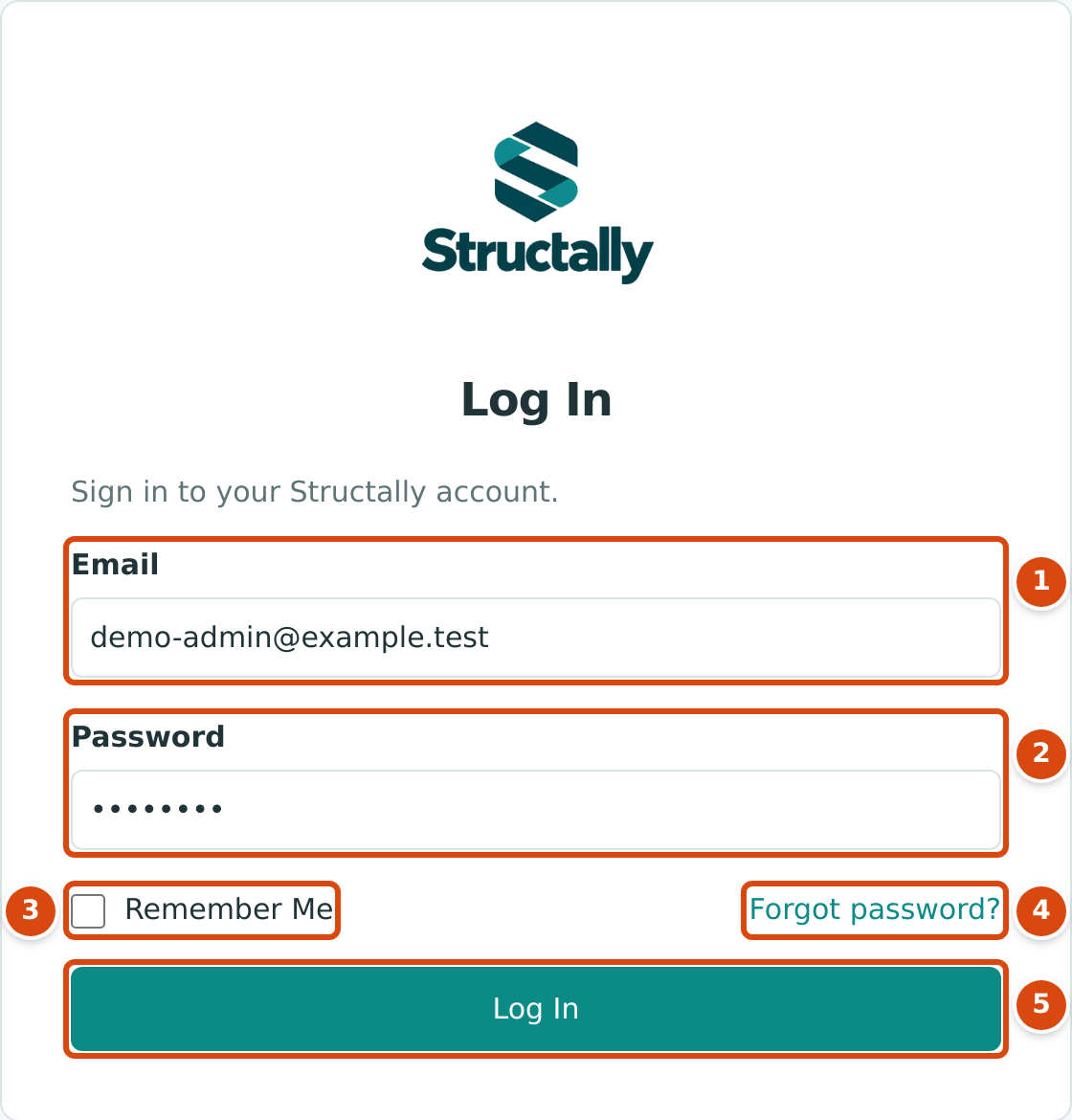
- Email: the email address your access was given to.
- Password: your Structally password. It is hidden as you type.
- Remember Me: keeps your email address filled in on this browser.
- Forgot password?: request a link to choose a new password.
- Log In: signs you in.
- Open the Log In page.
- In Email, type your email address in lowercase letters. Structally stores
sign-in addresses in lowercase and the Log In page does not change what
you type, so
Dana@Example.comis refused wheredana@example.comworks. - In Password, type your password. Passwords are case-sensitive.
- Tick Remember Me if this is your own computer (see below).
- Click Log In.
What opens next depends on your access:
| Your Access | What Opens |
|---|---|
| One company | That company's Home dashboard. |
| Several companies | The Your Companies page, where you choose one (see Choosing a Company). |
| No company, or access not yet active | The Your Companies page with the message No company access. |
If the email address or password is not right, the page opens again with a message above the fields and the password cleared:
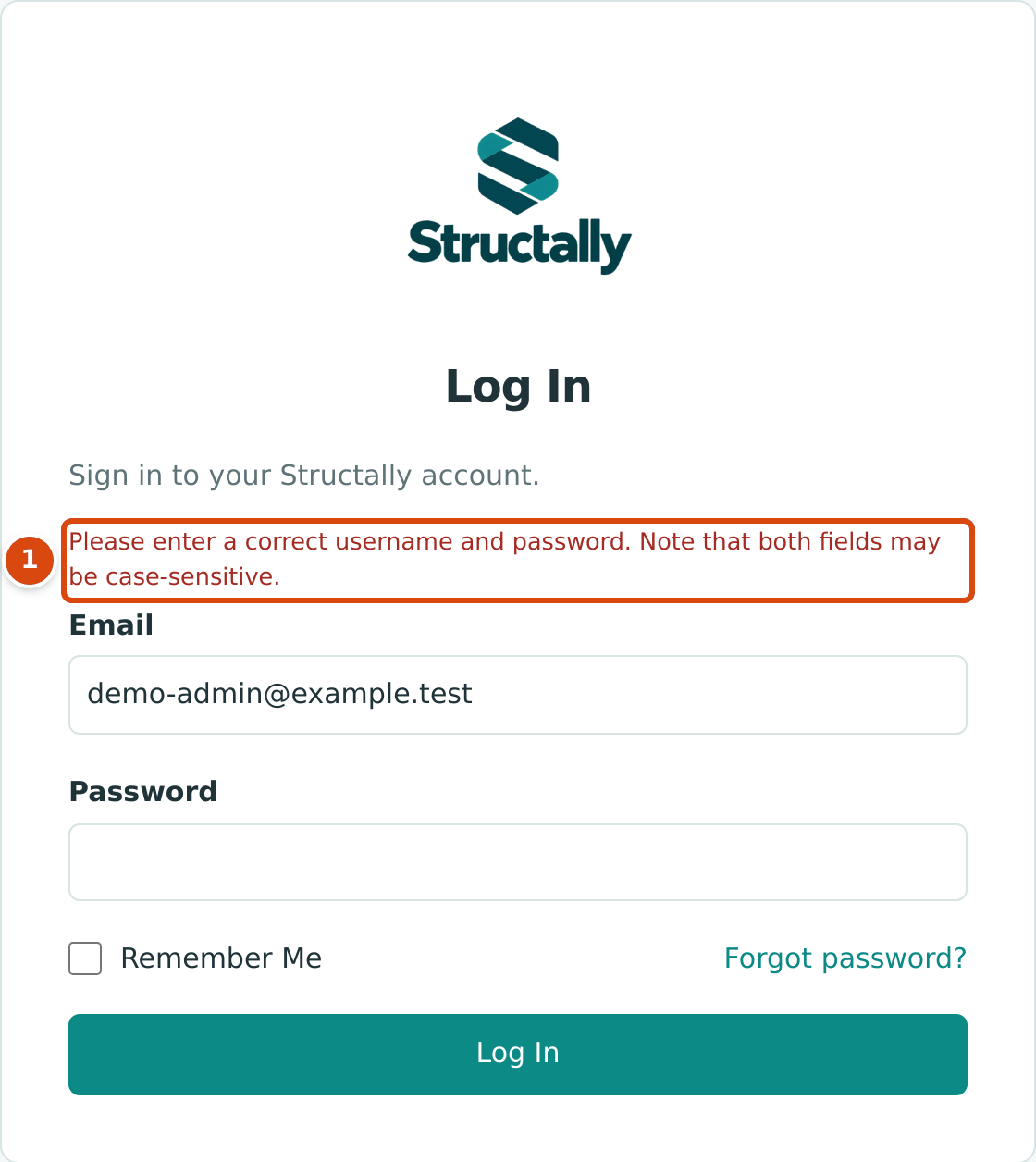
- The message names a "username": in Structally that is your email address. Check for capital letters in the email, then retype the password.
Remember Me
Remember Me saves your email address on this browser for one year, so the Email field is filled in the next time you open the Log In page. It does not keep you signed in and never saves your password. Log in once with Remember Me unticked to make the browser forget the address.
How Long You Stay Signed In
Your sign-in ends when you close the browser, and after eight hours in any case. Log in again to continue. Anything you had not saved on the page you were using is lost, so save drafts as you go.
Setting Your Password from an Invitation
When a Company Admin adds you, Structally emails you an invitation with the subject Your Structally invitation. It reads You have been invited to Structally for (your company's name). Set your password to sign in. and holds a link. The same link format is used when you reset a password.
-
Click the link in the email. The Set Your Password page opens.
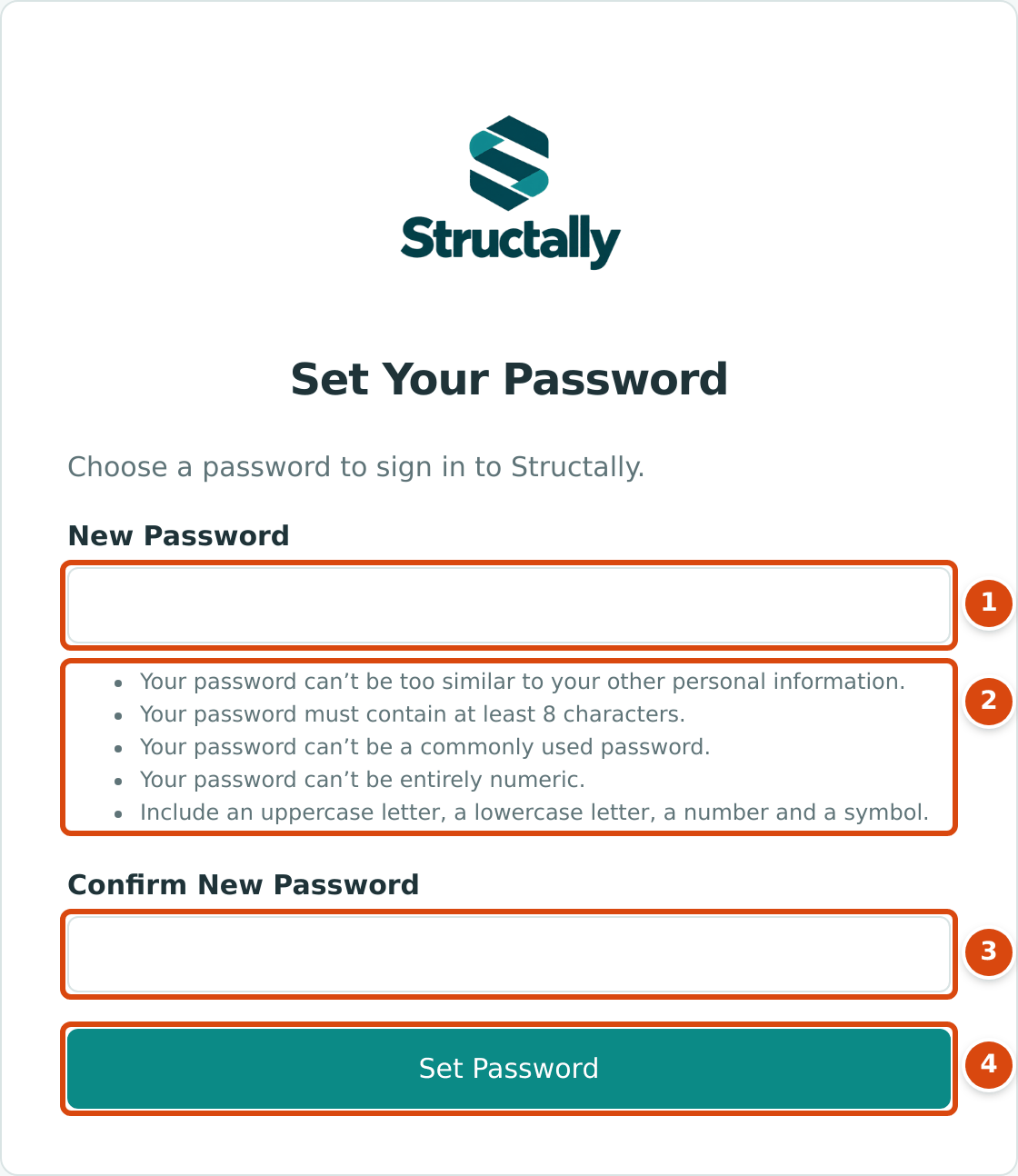
Figure 1-12 The Set Your Password page opened from an invitation link. 1. New Password: the password you want. 2. The rules a new password must meet (see Password Rules). 3. Confirm New Password: type the same password again. 4. Set Password: saves it. -
Type your new password in New Password and again in Confirm New Password.
-
Click Set Password. The Password Set page confirms Your password has been saved.
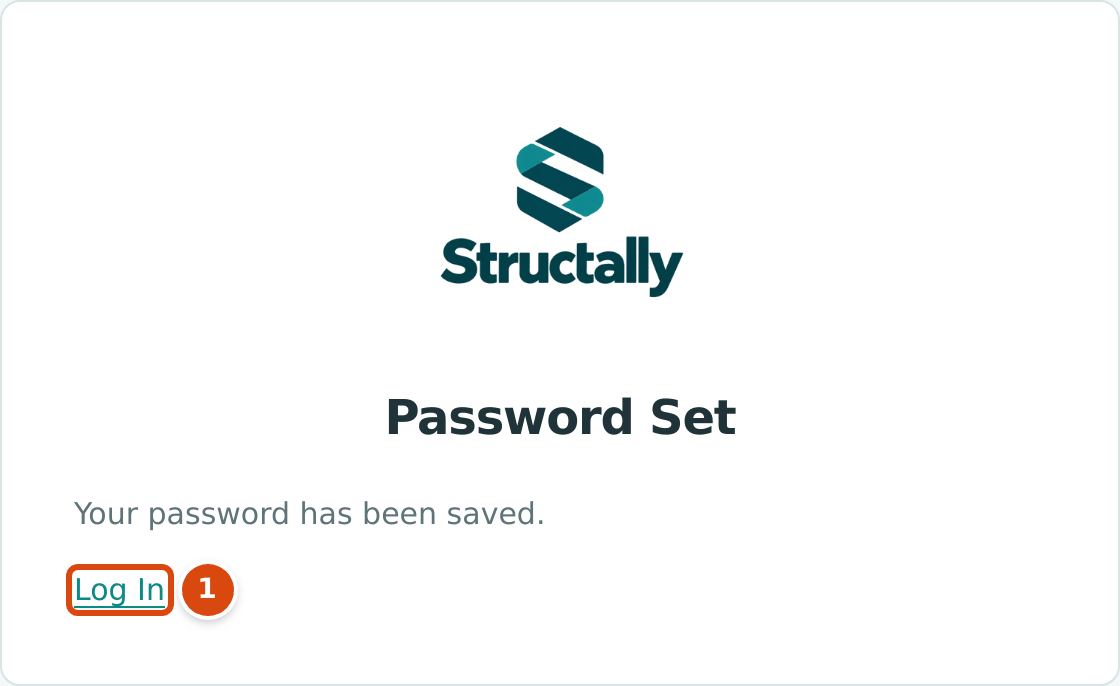
Figure 1-13 Your new password is saved. 1. Log In opens the Log In page. Setting a password does not sign you in. -
Click Log In and sign in with your email address and the new password.
A password link works for three days. It stops working once a password has been set with it, and also if you sign in before using it. An old or used link opens this page instead:
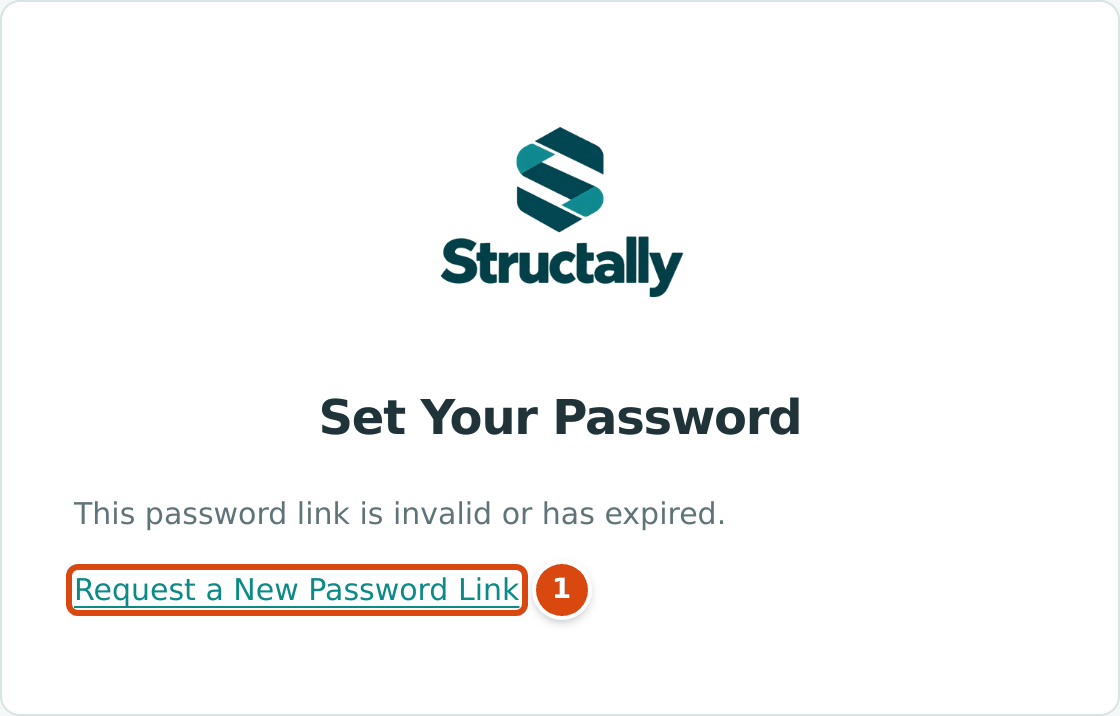
- Request a New Password Link opens Reset Your Password. If you never set a password from your invitation, ask your Company Admin to resend the invitation instead (see Troubleshooting).
Password Rules
A new password must meet every rule listed under New Password. Structally checks them when you click Set Password and lists each rule the password breaks:
| Rule on the Page | Message When It Is Not Met |
|---|---|
| Your password must contain at least 8 characters. | This password is too short. It must contain at least 8 characters. |
| Include an uppercase letter, a lowercase letter, a number and a symbol. | Add followed by what is missing, for example Add an uppercase letter and a symbol. or Add a symbol. |
| Your password can’t be a commonly used password. | This password is too common. |
| Your password can’t be entirely numeric. | This password is entirely numeric. |
| Your password can’t be too similar to your other personal information. | The password is too similar to the username. (your email address), or to your first name, last name or email address. |
| The two entries must be the same. | The two password fields didn’t match. |
A symbol is any character that is not a letter, a number or a space, such as
#, ! or -.
Forgot Your Password
-
On the Log In page, click Forgot password?. The Reset Your Password page opens.
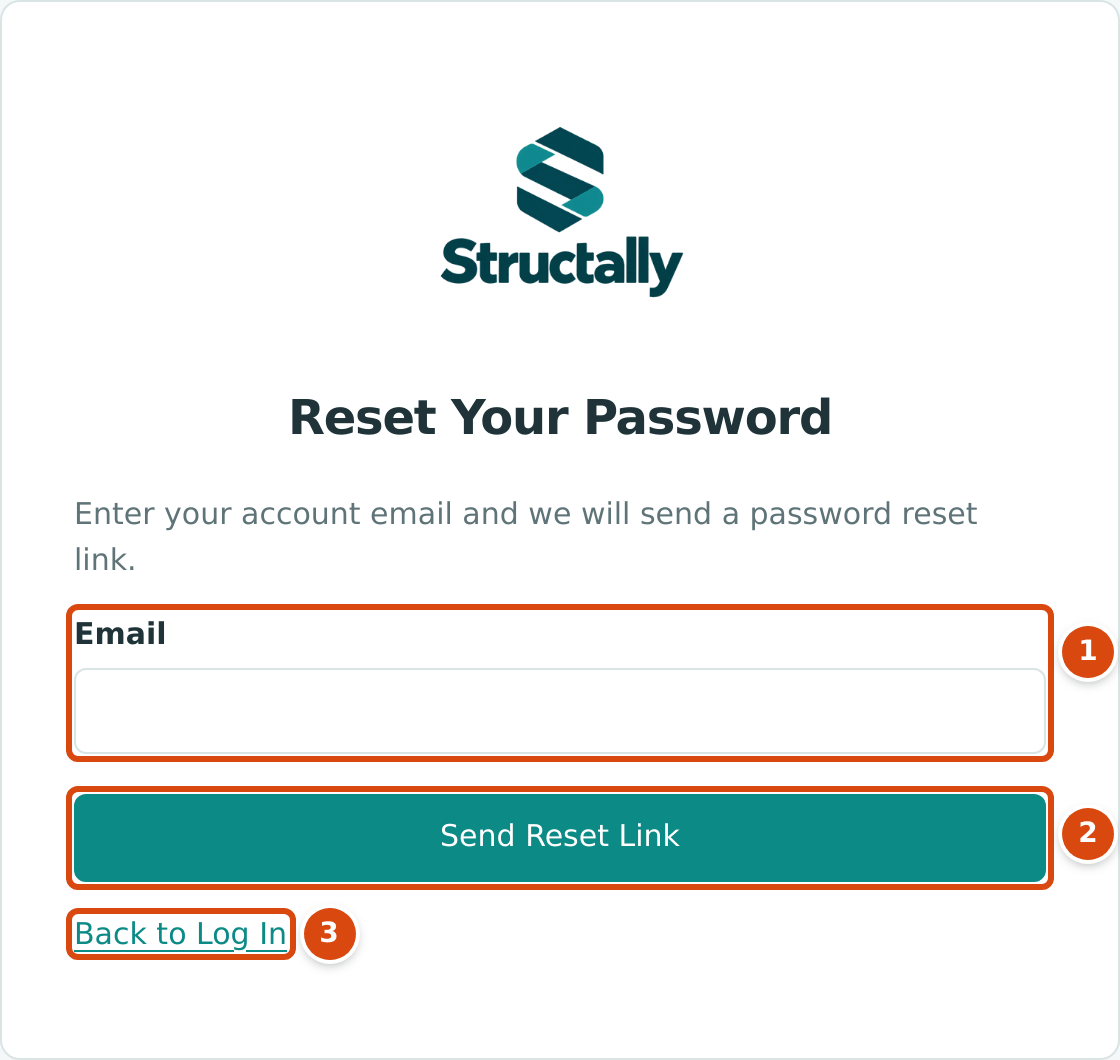
Figure 1-15 Requesting a password reset link. 1. Email: the address you sign in with. Capital letters do not matter here. 2. Send Reset Link: asks Structally to email you a link. 3. Back to Log In: returns without sending anything. -
Type your email address and click Send Reset Link. The Check Your Email page opens.
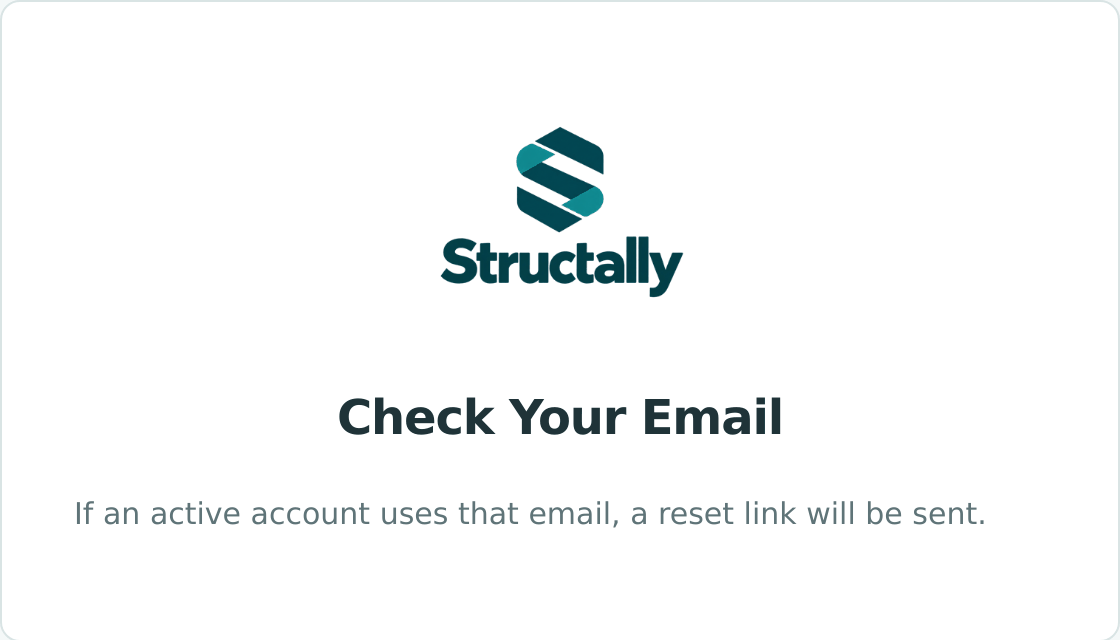
Figure 1-16 The confirmation shown after a reset request. -
Open the email with the subject Reset your Structally password and click its link. Continue as in Setting Your Password from an Invitation, from step 2.
The confirmation always reads If an active account uses that email, a reset link will be sent., whether or not the address belongs to a user, so the page never reveals who has a Structally sign-in. A reset email is sent only to an active sign-in that already has a password.
A Company Admin can also send you a reset link with Reset Password on the Users & Access page (see Users & Access).
Signing Out
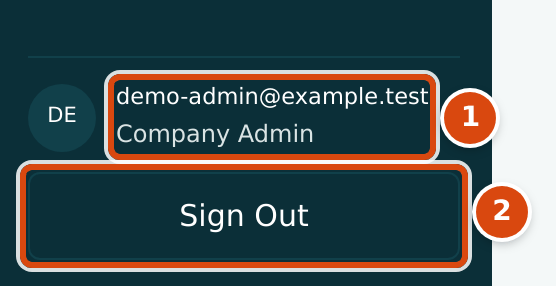
- Your email address and your role in the company you are working in.
- Sign Out ends your session and returns you to the Log In page.
Sign Out is at the bottom of the navigation on every company page, and below the list on the Your Companies page. When the navigation is hidden (see Finding Your Way Around), show it again to reach Sign Out. Sign out when you finish on a shared computer.
Field Reference
| Field | Description | Required | Example |
|---|---|---|---|
| Email (Log In) | The email address your access was given to, in lowercase. | Yes | dana@example.com |
| Password | Your password. Case-sensitive. | Yes | (hidden) |
| Remember Me | Keeps your email address filled in on this browser for one year. | No | Ticked |
| Email (Reset Your Password) | The address to send a reset link to. Not case-sensitive. | Yes | dana@example.com |
| New Password | The password you are choosing. Must meet the password rules. | Yes | (hidden) |
| Confirm New Password | The same password again. | Yes | (hidden) |
Worked Example
The figures in this example are illustrative. A new project accountant receives her invitation and tries three passwords on the Set Your Password page:
| Password Tried | Result |
|---|---|
sunrise2026 |
Refused: Add an uppercase letter and a symbol. |
Sunrise2026 |
Refused: Add a symbol. |
Sunrise#2026 |
Accepted: 12 characters, with an uppercase letter, lowercase letters, numbers and a symbol. |
She clicks Log In on the Password Set page and signs in. Because she has access to one company only, its Home dashboard opens straight away.
What Happens After You Sign In
| Result | |
|---|---|
| Your session | Lasts until you close the browser, and at most eight hours. |
| The page that opens | A page you asked for before signing in, otherwise Your Companies or your only company's Home dashboard. |
| A notice from Structally | If Structally has posted a notice for your companies, it opens over the page (see Notices). |
| Your password and email | Change only through a reset link. There is no profile page for changing them. |
Common Mistakes and Troubleshooting
| Message or Symptom | Why It Happens | What to Do |
|---|---|---|
| Please enter a correct username and password. Note that both fields may be case-sensitive. | The password is wrong, the email contains capital letters, or there is no active sign-in for this address. "Username" here means your email address. | Retype the email in lowercase and the password with the right capitals. If it still fails, use Forgot password?. |
| This password link is invalid or has expired. | The link is more than three days old, was already used, or you signed in after receiving it. | Click Request a New Password Link, or ask your Company Admin to resend your invitation. |
| No reset email arrives. | The address has no active sign-in, or you never set a password from your invitation. The Check Your Email page looks the same either way. | Check your spam folder. Ask your Company Admin to use Resend Invitation or Reset Password on Users & Access. |
| The two password fields didn’t match. | New Password and Confirm New Password differ. | Type the same password in both fields. |
| This password is too short. It must contain at least 8 characters. | Fewer than eight characters. | Choose a longer password. |
| This password is too common. | The password is on the list of widely used passwords. | Choose something less predictable. |
| The password is too similar to the username. | The password is close to your email address or name. | Choose a password unrelated to your name and email. |
| No company access. after logging in | Your access has not been given yet, is suspended or was removed. | Ask a Company Admin of your company (see Access Problems). |
| You are back on Log In in the middle of your work. | Your session ended after eight hours or when the browser closed. | Log in again. |
Related Topics
- Choosing a Company
- Finding Your Way Around
- Users & Access, for inviting users and resetting their passwords
- Roles and Permissions
- Access Problems