Vendors & Bills
Vendors & Bills is where you record everything your company buys: the supplier invoices and subcontractor billings you will pay later (bills), the purchases you have already paid by check, card or transfer (expenses), the money you send to settle bills (payments) and the amounts vendors owe you back (vendor credits). Together they keep accounts payable (the total you owe your vendors) correct, put each cost in the right account, and, when Jobs & Costing is turned on, on the right job and cost code.
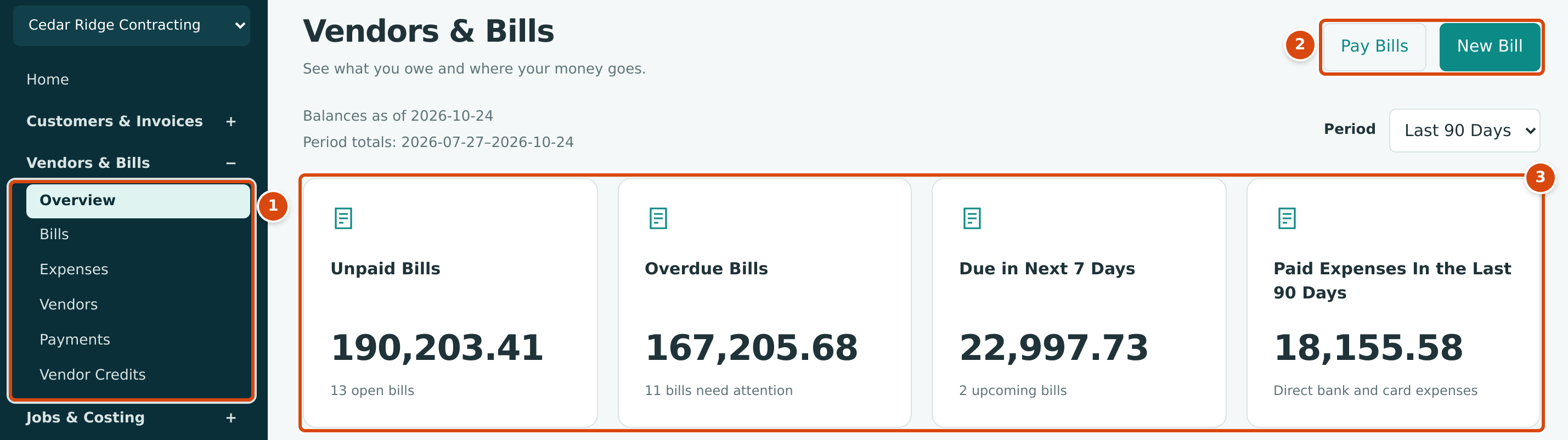
- The section's pages: Overview, Bills, Expenses, Vendors, Payments and Vendor Credits.
- Pay Bills and New Bill start the two most common tasks.
- The overview's balances: what you owe, what is overdue, what falls due in the next seven days and what you spent directly.
How the Pieces Fit Together
A purchase moves through Vendors & Bills in this order:
- Vendor. Every bill, payment and vendor credit belongs to a vendor. Add the vendor once (Managing Vendors), or add it from the bill while you type.
- Bill or expense. When the vendor's invoice arrives and you will pay later, enter a bill (Entering a Bill). When you have already paid, record an expense instead (Recording an Expense).
- Post. A bill can be saved as a Draft first; nothing reaches your books until you post it. Posting writes the journal entry and adds the amount due to accounts payable (Posting, Editing, and Voiding Bills). An expense posts as soon as you save it.
- Pay. Pay Bills settles one or more of a vendor's open bills from a bank or credit card account, in full or in part (Paying Bills). The bill moves from Open to Paid.
- Credits. When a vendor owes you money (a return, a rebate, an overcharge), post a vendor credit and apply it to the vendor's open bills (Vendor Credits). A credit you will not use against a bill can be refunded from Banking (Recording a Refund).
- Correct. Posted records are never edited. An open bill or vendor credit is voided; an expense or a payment is reversed. Both post a reversing entry on the date you choose (Reversing and Correcting Transactions).
Bill or Expense?
| Situation | Record | Why |
|---|---|---|
| The invoice arrived and you will pay it later (for example on Net 30 terms). | Bill | The amount goes to accounts payable, shows on the AP Aging report and waits for Pay Bills. |
| A subcontractor bills progress under a subcontract, with retainage held back. | Bill | Only bills can be matched to a commitment and hold retainage. |
| You paid at the counter with the company card, or the bank drafted the amount. | Expense | The cost and the payment are recorded together; nothing is left to pay. |
| A fee or purchase with no vendor you track (a bank fee, a parking meter). | Expense | An expense does not need a vendor. |
Starting From Anywhere
The Create menu at the top of every page offers New Bill, New Expense and Pay Bills to users who can edit Vendors & Bills.
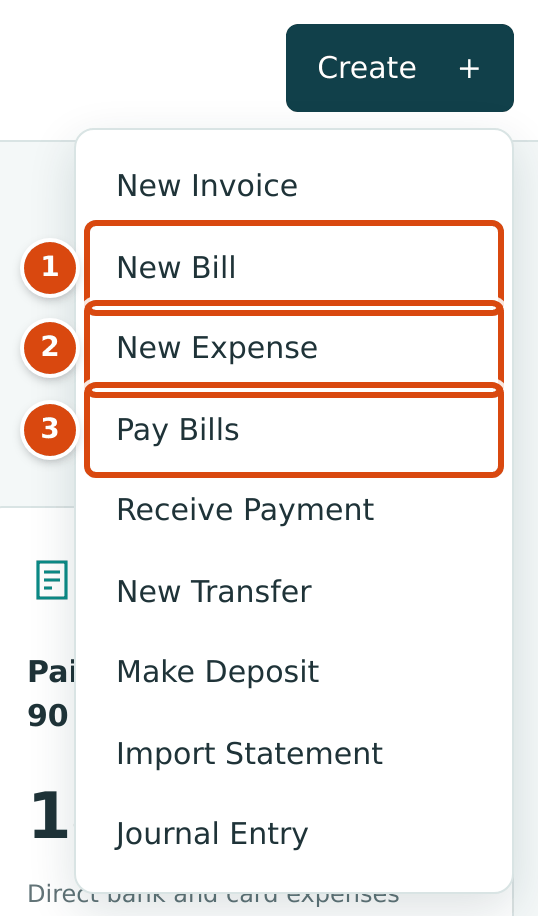
- New Bill opens the bill form.
- New Expense opens the expense form.
- Pay Bills opens the payment form.
Who Can Use Vendors & Bills
| Access | What the User Can Do |
|---|---|
| Company Admin, Accountant | Everything on these pages: vendors, bills, expenses, payments and vendor credits, including posting, voiding, reversing, applying and unapplying. |
| Project Manager | The same as an Accountant in Vendors & Bills (the role has Edit access to this area). |
| Viewer | Opens every page and record, but sees no buttons that create or change anything. |
| Custom | Follows the Vendors & Bills level set for the user: Edit works like an Accountant, View like a Viewer, No Access hides the section. |
Adding an account or payment terms from a picker on these forms also needs Edit access to Accounting; adding a class or location from a picker is for Company Admins. See Roles and Permissions.
Pages in This Section
- The Payables Overview: what you owe, what is overdue and where your money went, on one page.
- Managing Vendors: the vendor list, adding and editing vendors, the vendor page and deactivating a vendor.
- Entering a Bill: the bill form, job coding, commitments and retainage.
- Posting, Editing, and Voiding Bills: the Bills list, statuses, posting drafts and voiding an open bill.
- Recording an Expense: purchases already paid from a bank or credit card account.
- Paying Bills: paying one or many bills, partial payments, unapplied amounts and reversing a payment.
- Vendor Credits: recording what a vendor owes you and applying it to bills.
Related elsewhere: Releasing Retainage and Commitments in Jobs & Costing, Recording a Refund in Banking, and the AP Aging report.