B: Starting a New Project
Cedar Ridge Training has won its first project: a $480,000.00 expansion of a medical clinic for Lakeview Medical Partners, to be built between July 6 and October 30, 2026. The estimate behind the bid totals $360,000.00 of cost, for a planned gross profit of $120,000.00 (25%).
In this exercise you set the project up so that costs and billing can be recorded against it:
- add the customer;
- create job J-101 Lakeview Clinic Expansion with its contract and estimate;
- give the job its cost codes and make it active;
- enter and approve the original budget.
Before You Begin
- Exercise A is done: the company has payment terms, cost codes, and retainage and WIP accounts.
- You need Edit access to Customers & Invoices and Jobs & Costing. Approving a budget is done here by a Company Admin.
Step 1: Add the Customer
- Go to Customers & Invoices → Customers and click New Customer.
- Enter the details below and click Save.
| Field | Value |
|---|---|
| Name | Lakeview Medical Partners |
| Code | LMP |
| Primary Contact | Dana Whitfield |
| Primary Phone | (541) 555-0188 |
| Primary Email | ap@lakeviewmed.example.test |
| Billing Address | 2200 Lakeview Drive, Bend, OR 97702 |
| Payment Terms | Net 30 |
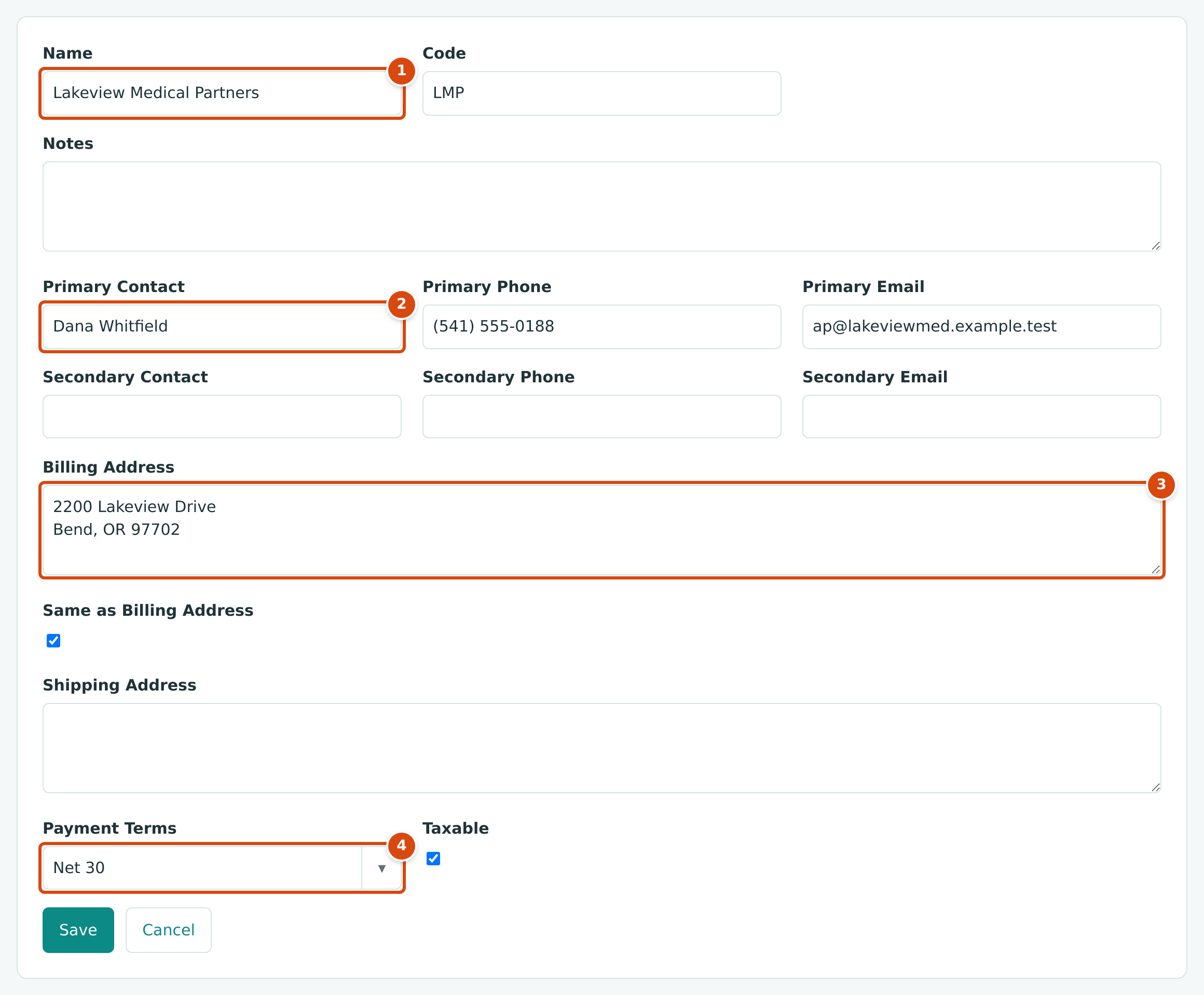
- Name: the customer's name as it appears on invoices.
- Primary Contact and the contact's phone and email.
- Billing Address: printed on invoices.
- Payment Terms: stored with the customer.
See Managing Customers for the other fields.
Step 2: Create the Job
- Go to Jobs & Costing → Jobs and click New Job.
- Complete the form as below and click Create Job.
| Field | Value | Why |
|---|---|---|
| Job Number | J-101 | Your own numbering. Each number can be used once. |
| Job Name | Lakeview Clinic Expansion | |
| Customer | Lakeview Medical Partners | The job's invoices go to this customer. |
| Start Date / End Date | 07/06/2026 to 10/30/2026 | The planned schedule. |
| Original Contract | 480,000.00 | The signed contract amount, before change orders. |
| Original Estimate | 360,000.00 | The estimated cost behind the bid. |
| Billing Retainage | 10.00 % | The retainage the customer withholds from each billing. |
| Address | 2200 Lakeview Drive, Bend, OR 97702 | The job site. |
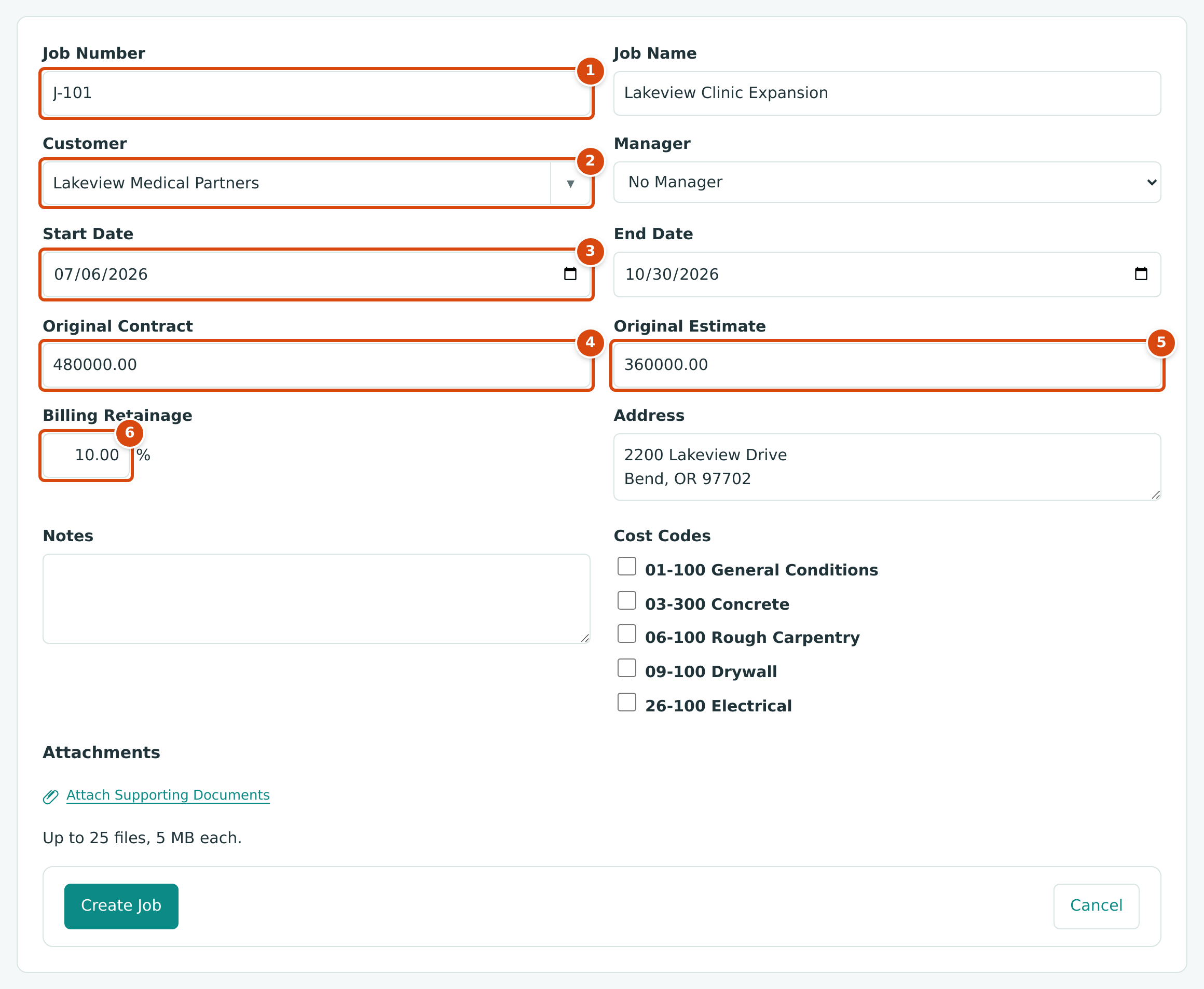
- Job Number: J-101.
- Customer: chosen from the list.
- Start Date: work starts July 6, 2026.
- Original Contract: $480,000.00.
- Original Estimate: $360,000.00.
- Billing Retainage: 10% of each billing is held back by the customer.
The form also lists the company's Cost Codes; you can tick them here. This exercise assigns them on the job page instead, in the next step. If you enter a job number that is already in use, Structally refuses it with Job number already in use.
A new job starts as a Draft: it exists, but cannot take costs or billing yet.
Step 3: Assign the Cost Codes and Activate the Job
On the job page:
- On the Cost Codes card, click Edit, then Add Codes.
- In the Add Cost Codes drawer, tick the five codes the job uses (01-100, 03-300, 06-100, 09-100 and 26-100) and click Add 5 Codes. Only codes on the job can be charged to it.
- Click Done.
The card lists the five codes. While it is in Edit, tick boxes and the buttons to change them appear:
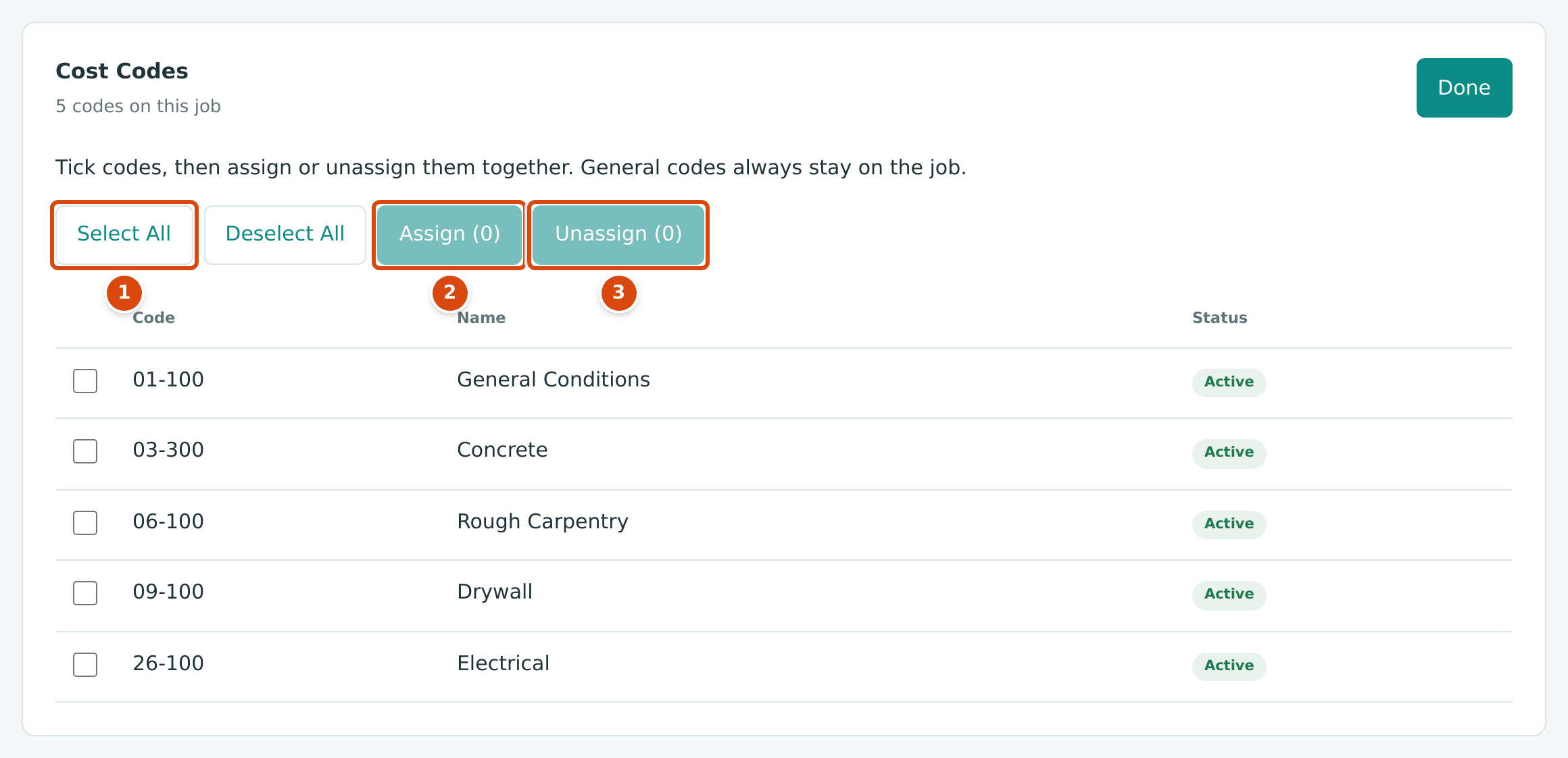
- Select All ticks every code (Deselect All clears them).
- Assign (n) puts the ticked codes back on the job.
- Unassign (n) takes the ticked codes off the job.
The figure was taken after the project, when every company code was already on J-101, so the card shows no Add Codes button. The drawer is pictured in Cost Codes and Cost Types.
-
In Status, choose Active. Structally asks you to confirm:
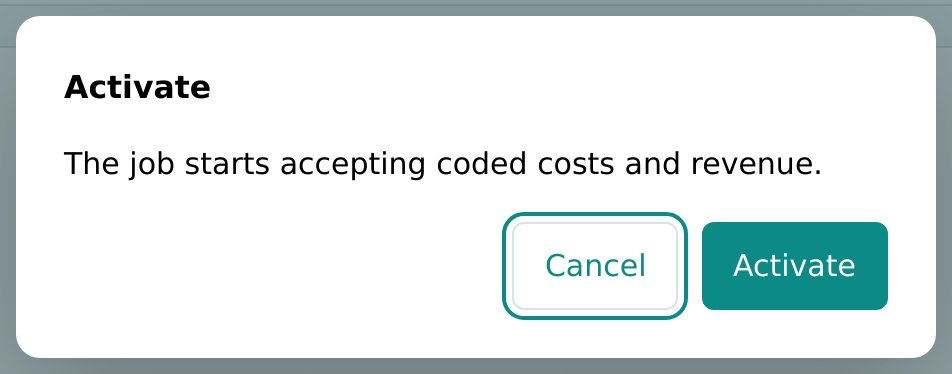
Figure 9-20 Activating the job. -
Click Activate.
The job is now Active. Its page brings together everything about the project: details, costs, budget, commitments, changes, billing, forecasts and WIP. All of them are empty for now.
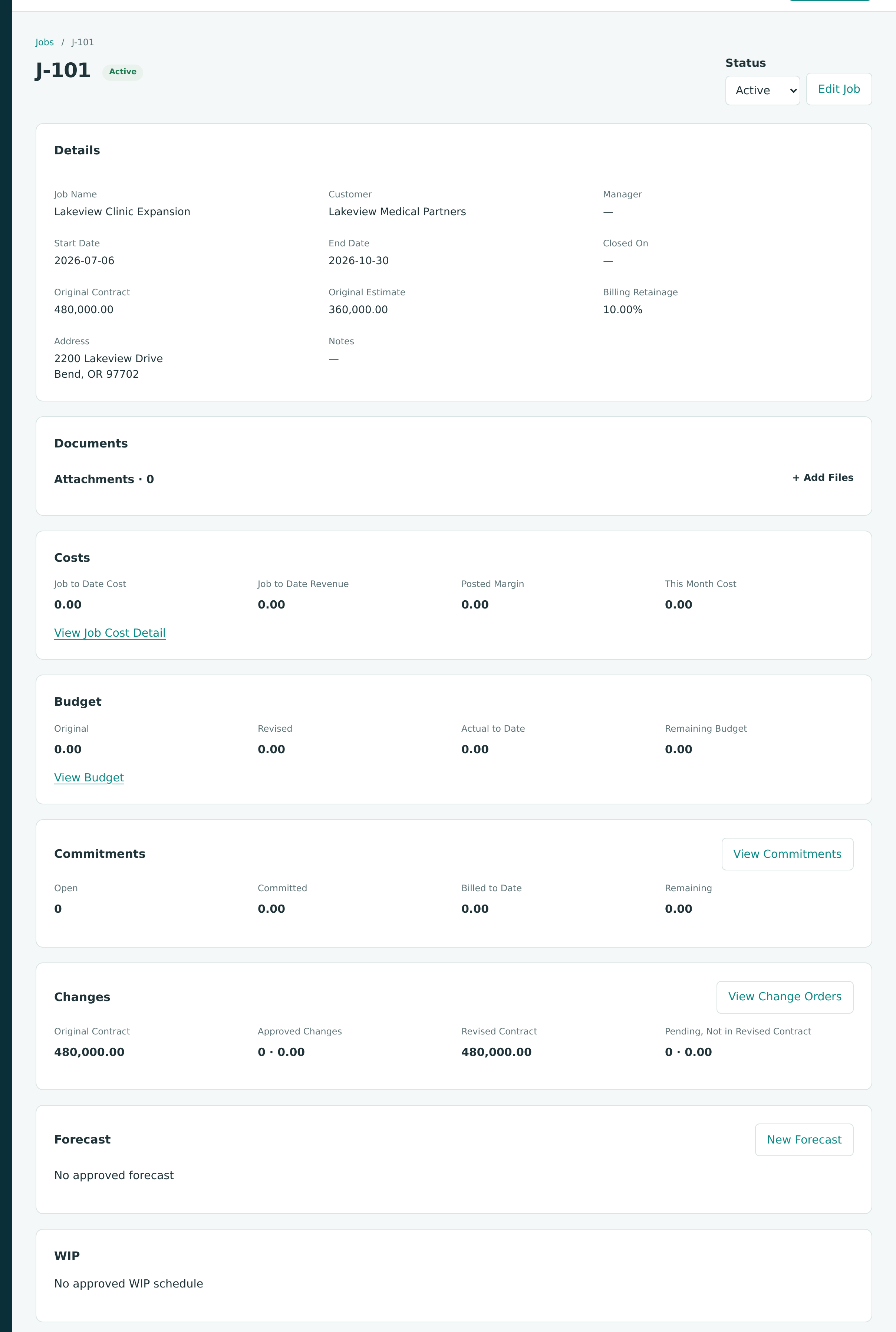
See Creating and Managing Jobs and Closing and Reopening Jobs.
Step 4: Enter the Original Budget
The budget breaks the $360,000.00 estimate down by cost code and cost type, so that actual costs and commitments can be compared with it line by line.
- On the job page, under Budget, click Add Budget.
- Keep Kind as Original, set Effective Date to 07/06/2026, and add a Note.
- Enter one line per cost code and cost type, clicking Add Line for each:
| Cost Code | Cost Type | Amount | What It Covers |
|---|---|---|---|
| 01-100 General Conditions | OTH Other | 24,000.00 | Site fencing, toilets, dumpsters |
| 03-300 Concrete | SUB Subcontract | 60,000.00 | Concrete subcontractor |
| 06-100 Rough Carpentry | MAT Materials | 48,000.00 | Framing lumber |
| 09-100 Drywall | SUB Subcontract | 96,000.00 | Drywall subcontractor |
| 26-100 Electrical | SUB Subcontract | 132,000.00 | Electrical subcontractor |
| Total | 360,000.00 | Equals the original estimate |
- Click Save Budget.
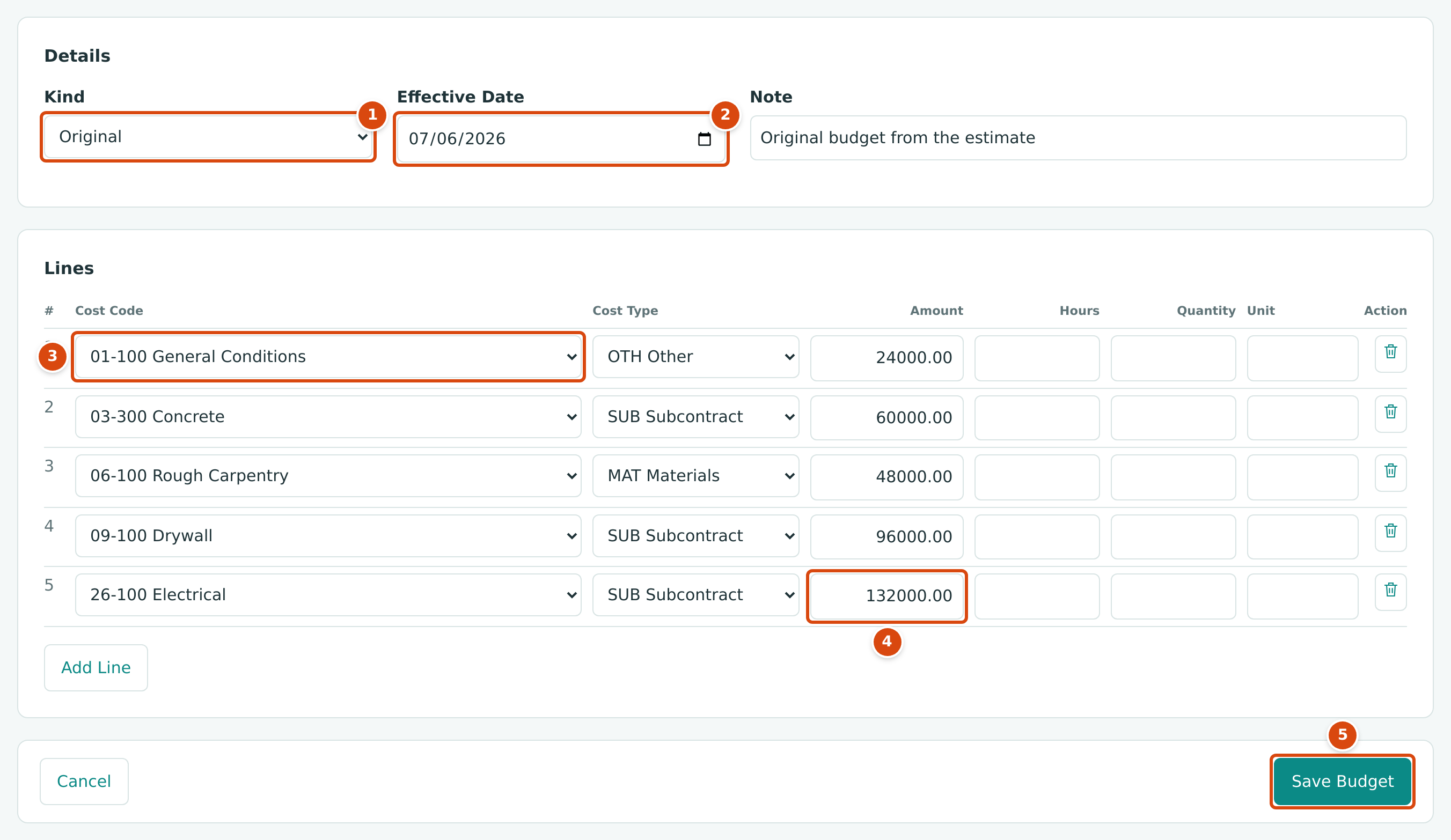
- Kind: Original for the first budget; later changes are revisions.
- Effective Date: when the budget takes effect.
- Each line is a cost code with a cost type.
- The last line's amount; Hours, Quantity and Unit are optional.
- Save Budget saves it as a draft revision.
Step 5: Approve the Budget
The budget is saved as revision 1 with the status Draft. It does not count until it is approved.
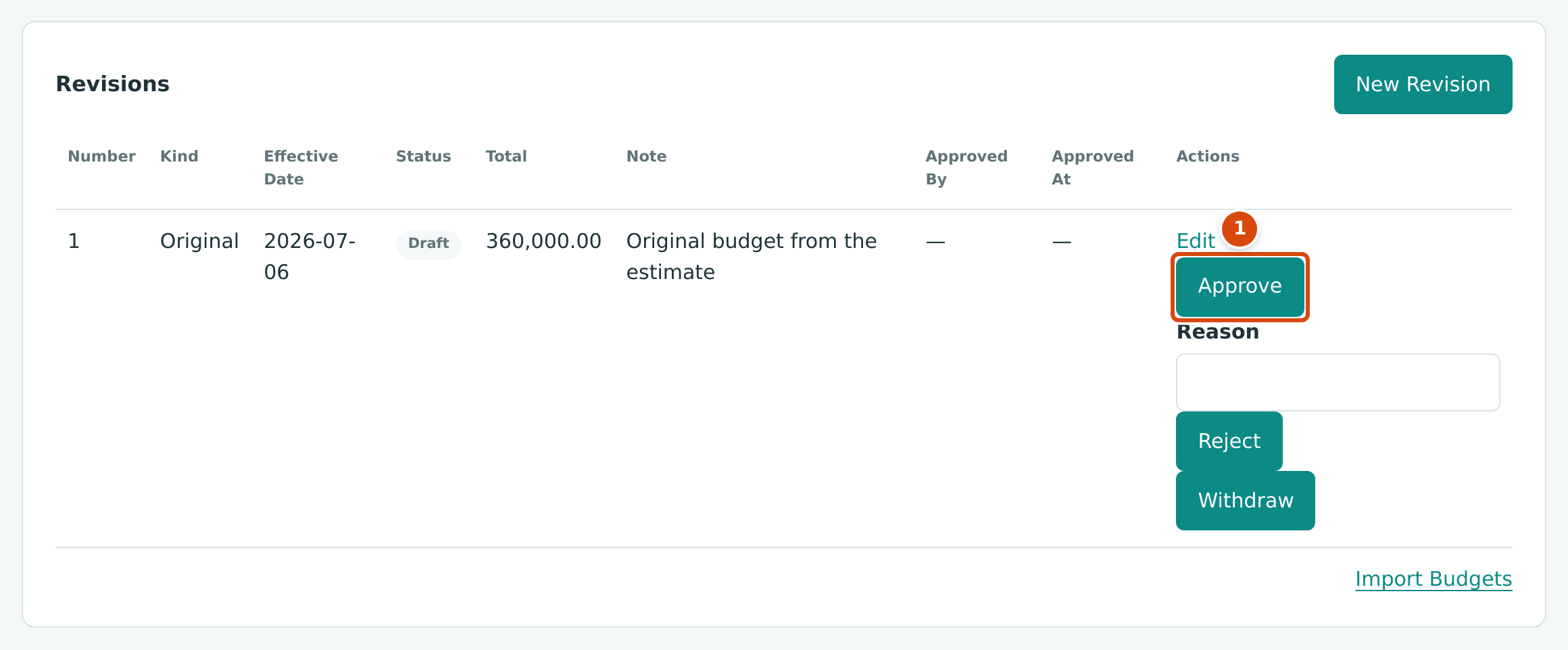
Click Approve. The budget page now shows the approved figures:
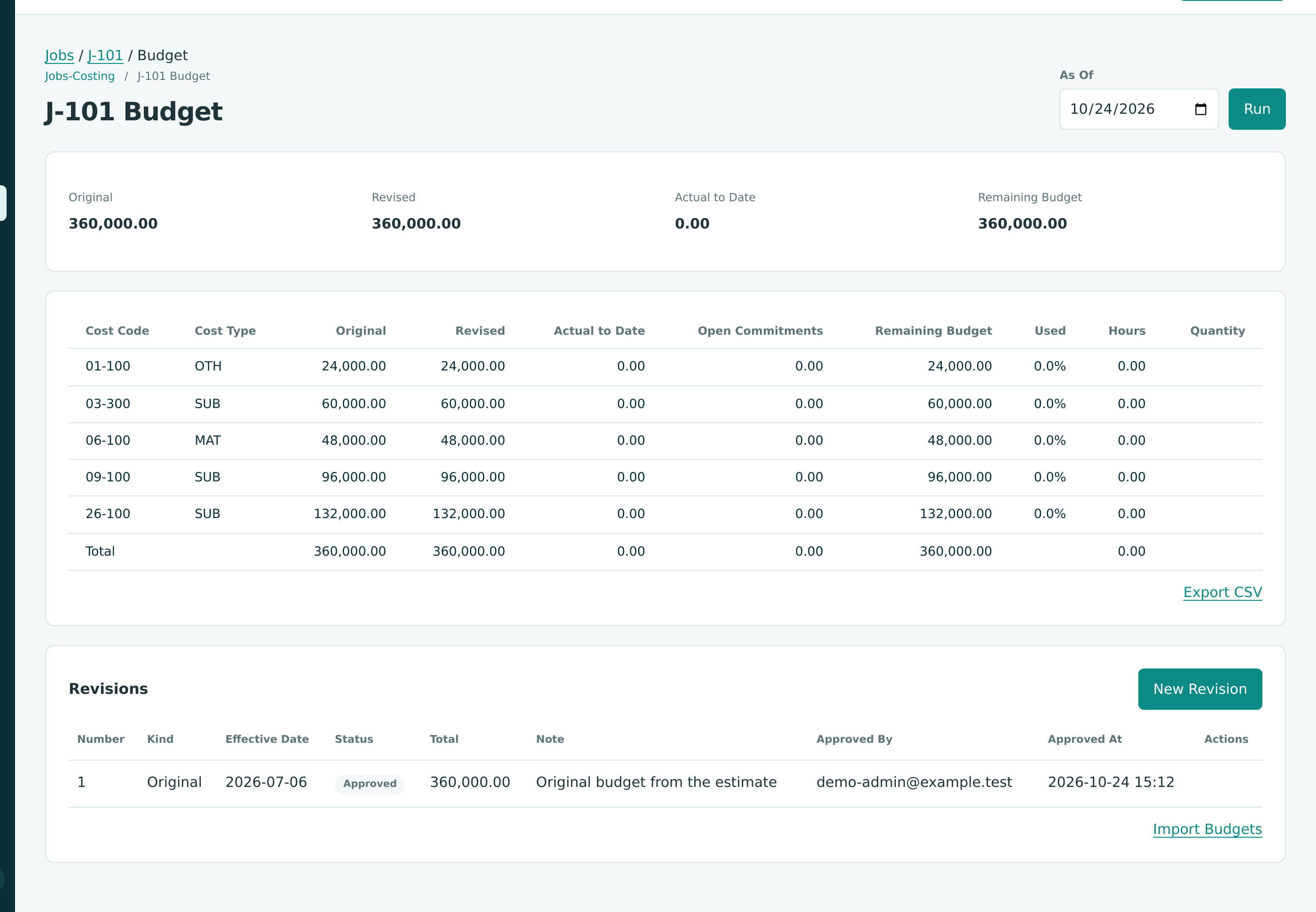
The columns you will watch for the rest of the project are Revised (the budget after approved changes), Actual to Date (posted costs), Open Commitments (subcontract and purchase order amounts not yet billed) and Remaining Budget.
See Job Budgets for revisions and the other kinds of budget.
Check Your Work
| Check | Where | Expected |
|---|---|---|
| Customer | Customers & Invoices → Customers | Lakeview Medical Partners |
| Job status | J-101 job page | Active |
| Contract | J-101 job page, Changes | Revised Contract 480,000.00 |
| Budget | J-101 Budget | Original and Revised 360,000.00 |
No money has moved yet: setting up a customer, a job and a budget writes no journal entries.
Next: C: Recording Project Costs.