Customers & Invoices
Customers & Invoices is where you bill the people you work for and record the money they pay you. Every invoice you post adds to accounts receivable (the money customers owe you); every receipt and every credit memo reduces it. The area keeps each customer's balance, shows what is overdue, and feeds the AR Aging and customer statement reports.
How the Pieces Fit Together
A sale moves through these steps:
- Set up the customer. Add the customer once, with contacts, a billing address and an email address for sending invoices. See Managing Customers.
- Set up products and services (optional). Items such as Carpentry labor (hour) carry a rate and an income account, so invoice lines fill themselves in. See Items.
- Create the invoice. Enter the lines with quantities and rates, and code revenue to jobs when Jobs & Costing is turned on. Save it as a draft or post it straight away. See Creating an Invoice.
- Post the invoice. Posting records the sale in your books (revenue and accounts receivable) and makes the invoice Open. A posted invoice cannot be edited; you correct it by voiding it. See Posting, Editing, and Voiding Invoices.
- Send it. Email the invoice as a PDF, or print it. See Sending and Printing Invoices.
- Receive the payment. Record the check or transfer and apply it to one or more invoices. A fully paid invoice becomes Paid. See Receiving Customer Payments.
- Deposit it. Receipts recorded into Undeposited Funds are moved into the bank with a deposit in Banking. See Making Deposits.
When you owe a customer a reduction instead (a goodwill credit, a billing error, a returned item), issue a credit memo and apply it to the customer's open invoices.
Contract jobs that bill through a schedule of values get their invoices from pay applications in Jobs & Costing, and retainage the customer withholds is billed later with a retainage release. Those invoices appear in this area next to the ones you create by hand, and you receive payments for them the same way.
The Area at a Glance
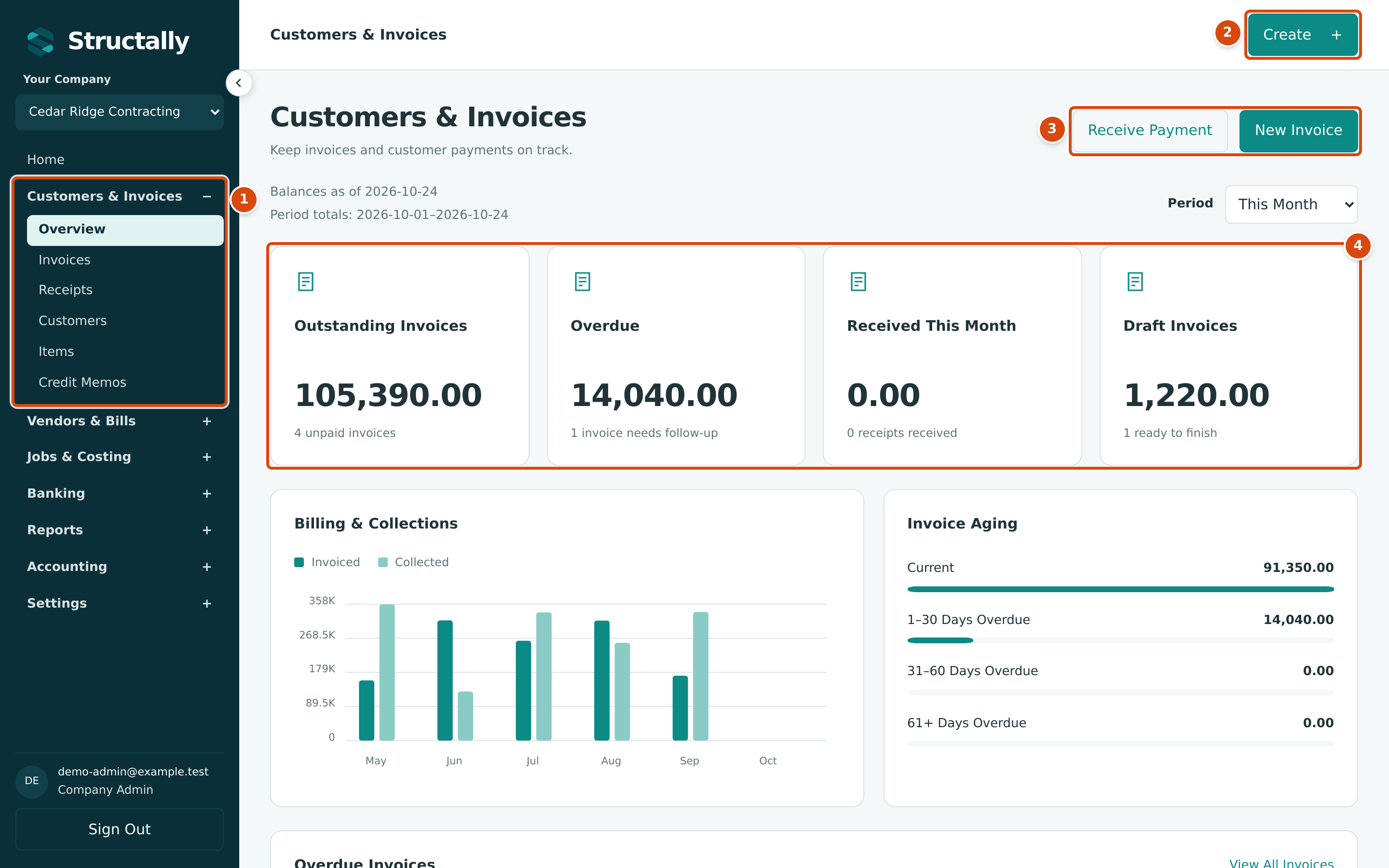
- Customers & Invoices in the navigation opens the area's pages: Overview, Invoices, Receipts, Customers, Items and Credit Memos.
- Create, at the top of every page, offers New Invoice and Receive Payment among the entries your access allows.
- Receive Payment and New Invoice start the two everyday tasks.
- The tiles total what customers owe, what is overdue, what you received in the period and the draft invoices waiting to be finished.
Who Can Use This Area
The area is listed in the navigation for users with View or Edit access to Customers & Invoices. Company Admins, Accountants and Project Managers have Edit access: they can create, post, void and send invoices, receive payments, issue credit memos and manage customers and items. Viewers can open every page here but cannot change anything (they can still print an invoice). A Custom user has whatever level was chosen for this area. See Roles and Permissions.
Pages in This Section
| Page | What It Covers |
|---|---|
| The Receivables Overview | The landing page: outstanding, overdue and received totals, billing and collections by month, invoice aging and overdue invoices. |
| Managing Customers | The customer list, adding a customer, the customer page with balances and recent activity, editing details, deactivating and reactivating. |
| Items | Items with a rate and an income account, how they fill invoice lines, and marking items active or inactive. |
| Creating an Invoice | The New Invoice form in full: items, quantities and rates, terms and due date, job coding, the Extra flag, retainage, attachments, Save Draft and Post Invoice. |
| Posting, Editing, and Voiding Invoices | Invoice statuses, posting a draft, editing drafts, voiding, and invoices billed by a pay application. |
| Sending and Printing Invoices | Emailing an invoice as a PDF, the print view, and where the document's look is set. |
| Receiving Customer Payments | Recording receipts, applying them to invoices, partial payments, unapplied credit, unapplying and reversing. |
| Credit Memos | Creating, posting, applying, unapplying and voiding credit memos. |
The related reports are in the Reports area: Aging Reports (AR Aging) and Customer Statements. Refunds of a customer's credit are recorded in Banking; see Recording a Refund.