Profit and Loss
The Profit and Loss (also called an income statement) shows what the company earned and spent over a period and the net income that is left. It groups your accounts into income, cost of goods sold (your direct job costs), operating expenses and other income and expenses, with gross profit and net operating income along the way.
It is the most flexible report in Structally. You can split it into columns by month, quarter or year, or by class, location, item or job; compare it with another period; add dollar and percentage columns; and switch between the accrual and cash basis.
Before You Begin
- The figures come from posted transactions. Post the period's invoices, bills and expenses, and the month's WIP schedule, before relying on it.
- You need View or Edit access to Reports. By Job columns also need access to Jobs & Costing. See Who Can Use Reports.
Navigation
Reports → Profit and Loss.
Step by Step
- Open Reports → Profit and Loss. It opens for this month to date.
- Enter Start and End, for example 07/01/2026 and 09/30/2026, or click a Report period button.
- Optionally choose Display Columns By, Compare To (with Compare From and Compare to Date for a custom period) and the Show boxes.
- Leave Accounting Basis on Accrual, or click Cash.
- Click Run Report.

- Start and End: the period, both days included.
- Display Columns By: one Total column, or one column per month, quarter, year, class, location, item, SKU or job.
- Compare To: add a comparison period.
- Compare From and Compare to Date: the comparison dates when Compare To is Custom Period.
- Show: extra columns: $ Change, % Change, % Of Row, % Of Income, % Of Expense.
- Report period: This Month, Last Month, This Fiscal Year, Last Fiscal Year.
- Accounting Basis: Accrual or Cash. Clicking the other one reruns the report at once.
- Run Report runs the report with these options.
Field Reference
| Field | Choices and Rules | Default |
|---|---|---|
| Start, End | The period. Start must be on or before End. | First of this month to today |
| Display Columns By | Total, Months, Quarters, Years; By Class and By Location (named after your company's labels for classes and locations) when active ones exist; By Item and By SKU when active items exist; By Job when Jobs & Costing is on, at least one job is Active, On Hold or Closed, and you can view Jobs & Costing. On the cash basis only Total, Months, Quarters and Years are offered. | Total |
| Compare To | None, Previous Period, Previous Year, Year to Date, Previous Year to Date, Custom Period. | None |
| Compare From, Compare to Date | The comparison period for Custom Period; both required, Compare From on or before Compare to Date. Ignored for the other choices. | Empty |
| Show | $ Change and % Change (only with a comparison), % Of Row (only with more than one column), % Of Income, % Of Expense. | None ticked |
| Accounting Basis | Accrual or Cash. | Accrual |
Reading the Profit and Loss
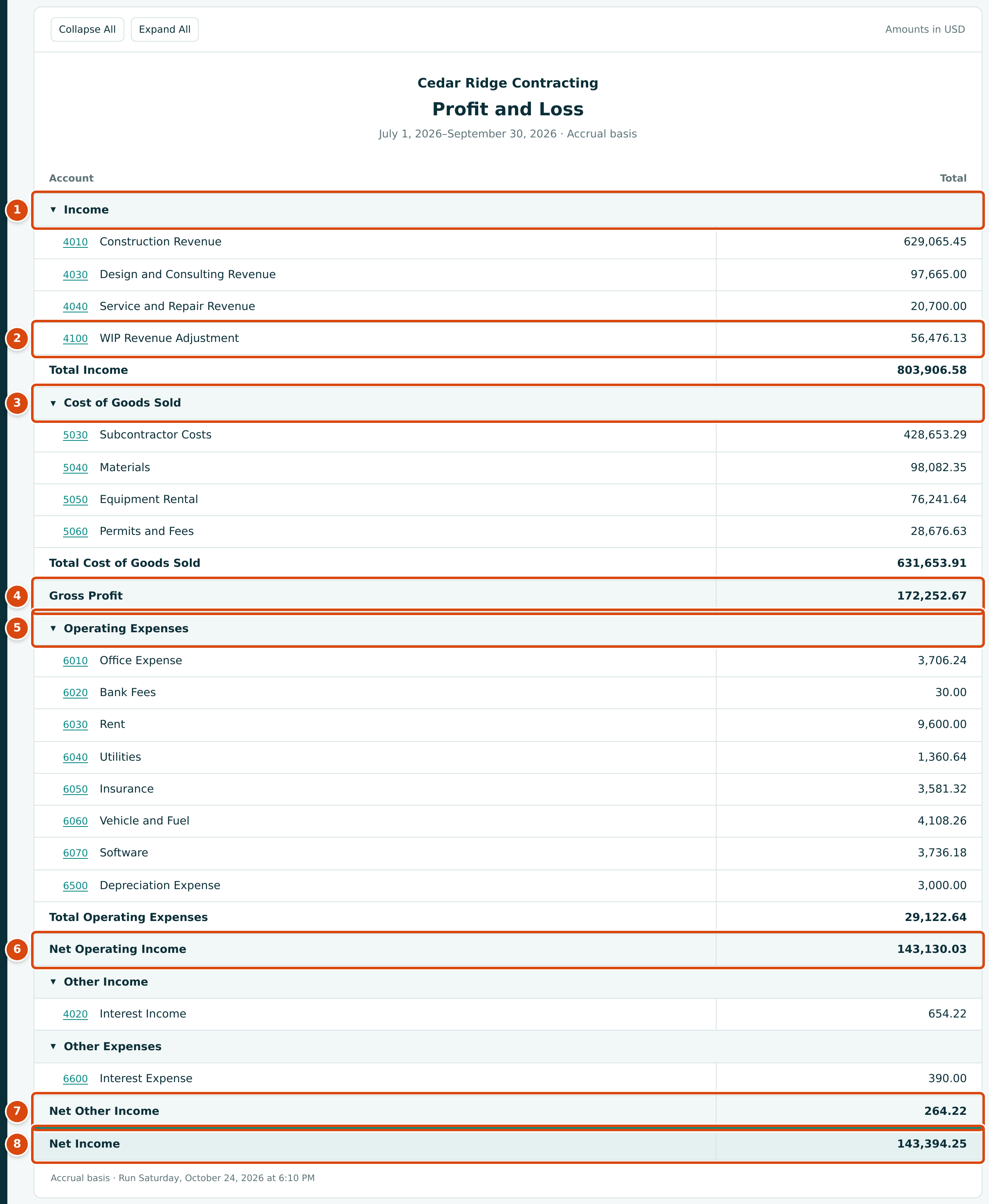
- Income: your revenue accounts, then Total Income.
- 4100 WIP Revenue Adjustment: the revenue adjustments posted by your monthly WIP schedules (see below).
- Cost of Goods Sold: your direct job cost accounts, then Total Cost of Goods Sold.
- Gross Profit: Total Income less Total Cost of Goods Sold.
- Operating Expenses: overhead such as rent, insurance and depreciation, then Total Operating Expenses.
- Net Operating Income: Gross Profit less Total Operating Expenses.
- Other Income and Other Expenses (such as interest), netted in Net Other Income.
- Net Income: Net Operating Income plus Net Other Income.
Each account appears in a section by its role in the Chart of Accounts:
| Section | Account Roles |
|---|---|
| Income | Revenue, WIP Revenue Adjustment |
| Cost of Goods Sold | Direct Materials, Direct Subcontract, Direct Equipment, Direct Labor, Direct Other, Contract Loss Expense, Uninstalled Materials Deferral |
| Operating Expenses | Operating Expense, Depreciation |
| Other Income | Other Income, Gain Loss |
| Other Expenses | Interest Expense, Tax Expense, Other Expense |
Only accounts with posted activity in the period appear, and the Other Income and Other Expenses headings appear only when they have an account to show. Click an account code to open its General Ledger for the same period.
WIP Revenue Adjustments
When you post a monthly WIP schedule, Structally adjusts each contract job's revenue to the revenue it has earned. The adjustments post to the WIP Revenue Adjustment account in Income: a positive amount when jobs are underbilled, a negative one when they are overbilled. Expected losses post to Contract Loss Expense and deferred uninstalled materials to Uninstalled Materials Deferral, both in Cost of Goods Sold. So the accrual Profit and Loss shows earned revenue, not just billed revenue.
In the sample company, 4100 WIP Revenue Adjustment was 42,393.91 in July, −64,057.62 in August and 78,139.84 in September (the figure under Columns by Month, Quarter or Year), for 56,476.13 in the quarter.
Columns by Month, Quarter or Year
Choose Months, Quarters or Years to split the period. Each column is the Profit and Loss for its own dates, and a Total column on the right equals the plain report. The title becomes Profit and Loss by Month (or by Quarter, by Year).
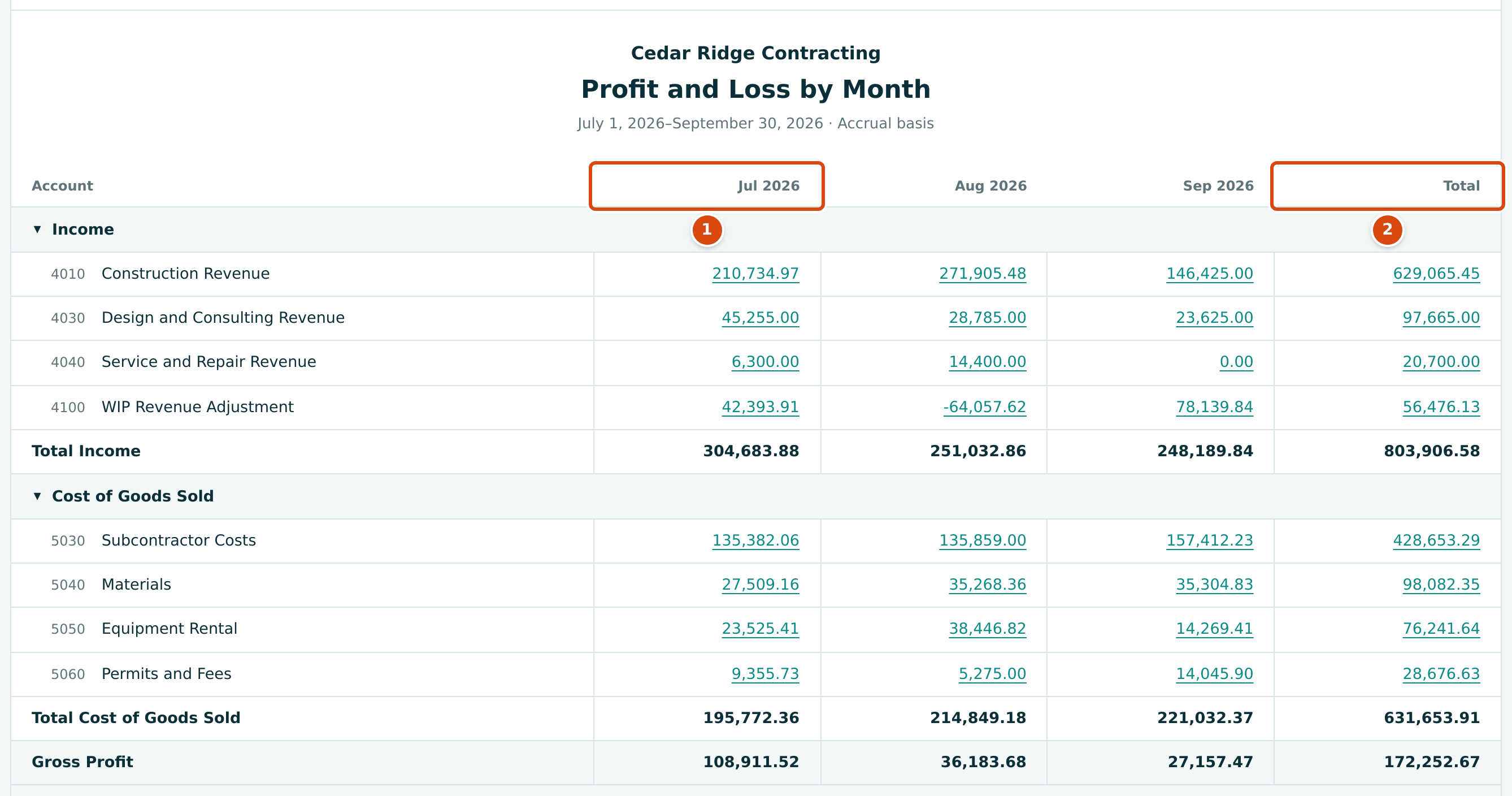
- A month column. Each amount is a link to the General Ledger for that account and month.
- Total: the whole period.
- Months are calendar months, labeled Jul 2026. Quarters and years follow your fiscal year, labeled Q3 2026 and 2026 for a company whose year starts in January (or FY2026 when it starts in another month).
- When Start or End cuts a month, quarter or year, that column is labeled with its actual dates, for example Feb 15, 2026–Mar 31, 2026.
- A request for more than 400 columns is refused with Choose a longer bucket or a shorter period.
Comparing Periods
Choose a Compare To option to add a Previous column beside each amount. The sheet header then reads, for example, July 1, 2026–September 30, 2026 compared with July 1, 2025–September 30, 2025 · Accrual basis.
| Compare To | Comparison Period | For July 1–September 30, 2026 |
|---|---|---|
| Previous Period | The same number of days, ending the day before Start. | March 31–June 30, 2026 |
| Previous Year | The same dates one year earlier (February 29 becomes February 28). | July 1–September 30, 2025 |
| Year to Date | From the start of the fiscal year containing End, through End. | January 1–September 30, 2026 |
| Previous Year to Date | Year to Date, one year earlier. | January 1–September 30, 2025 |
| Custom Period | Compare From to Compare to Date. | Any dates you enter |
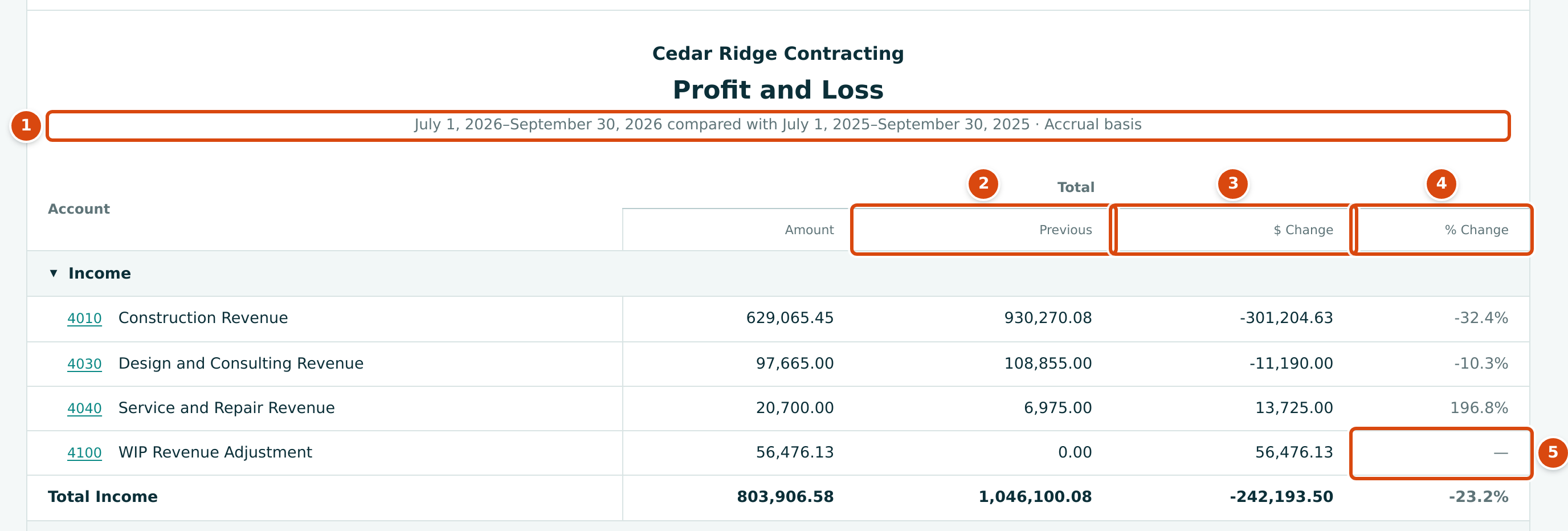
- The header names both periods.
- Previous: the amount for the comparison period.
- $ Change: the current amount less the previous amount.
- % Change: the change as a percentage of the previous amount.
- A dash (—) where the previous amount is 0.00, so no percentage can be worked out.
With time or dimension columns, every column gets its own comparison: months are paired month by month with the comparison period cut the same way, and classes, locations, items and jobs are paired with themselves. A class or job that has amounts only in the comparison period still gets a column.
When % Change is shown, the footer states the rule:

The Show Columns
| Show | What It Shows | Shown When |
|---|---|---|
| $ Change | Current amount − previous amount. | A comparison is chosen. |
| % Change | (Current − previous) ÷ the previous amount ignoring its sign, × 100. | A comparison is chosen. |
| % Of Row | This column's amount ÷ the row's Total, × 100. | There is more than one column (not on the Total column). |
| % Of Income | The amount ÷ the column's Total Income, × 100. | Always, when ticked. |
| % Of Expense | The amount ÷ the column's total expenses (Total Cost of Goods Sold + Total Operating Expenses + other expenses), × 100. | Always, when ticked. |
Percentages have one decimal, rounded half up, and show a dash (—) when the amount they divide by is 0.00. A box ticked where it does not apply is ignored.
Columns by Class, Location, Item or Job
Choose By Class, By Location, By Item, By SKU or By Job to give each class, location, item or job its own column. An Unassigned column holds everything posted without one, and Total equals the plain report.
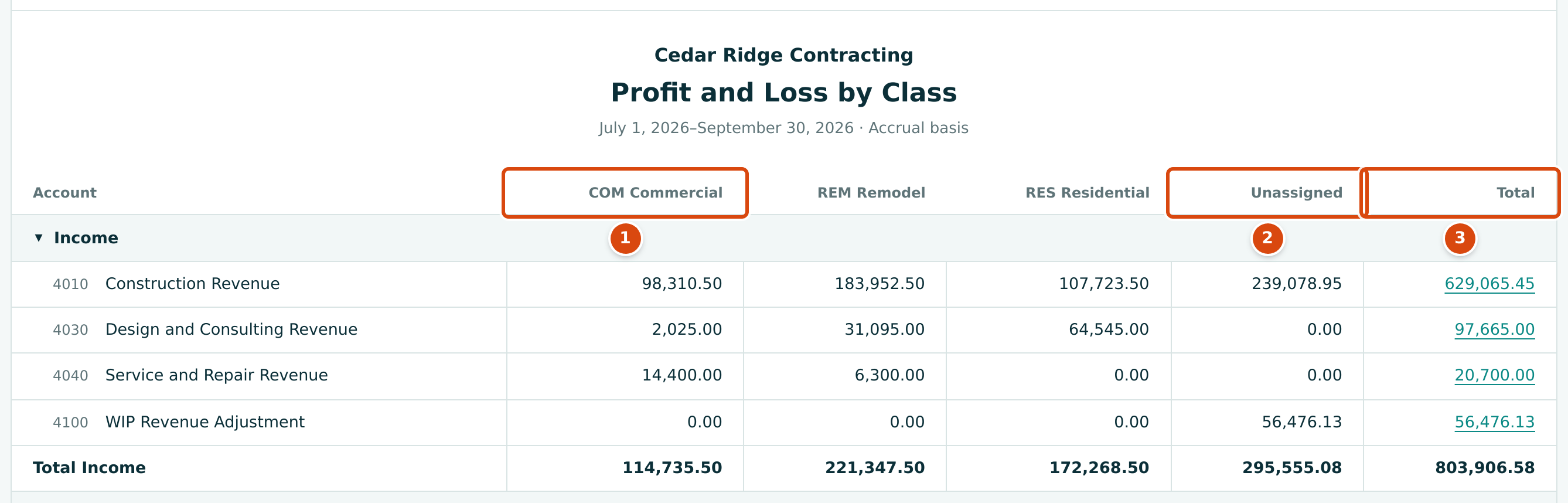
- A class column, headed by the class code and name.
- Unassigned: lines posted without a class. Here it includes all WIP revenue adjustments and most overhead.
- Total: its amounts are links to the General Ledger; the class columns are not.
| Columns | Headings | Notes |
|---|---|---|
| By Class, By Location | Code and name, such as COM Commercial or E East. | Active ones first; an inactive one with amounts shows (Inactive). The option is named after your company's label for classes or locations. |
| By Item | Item names, such as Concrete (cubic yard). | Items are recorded on invoice and credit memo lines, so costs and other revenue fall in Unassigned. |
| By SKU | Item SKUs, such as CONC. | The same columns as By Item, headed by SKU. |
| By Job | Job number and name, such as J-2004 Summit Tech Park Office Building. | One column per job, which can be very wide; use Export CSV to work with it. Only users who can view Jobs & Costing are offered it. |
Classes and locations come from Classes & Locations, items from Items, and jobs from Jobs & Costing.
Accrual or Cash
On the Accrual basis (the default), income counts on the invoice date and costs on the bill or expense date. On the Cash basis, invoice and bill lines count only when, and as far as, they are paid:
- Invoices and bills count on the dates they are paid or have a credit applied; credit memos and vendor credits count when they are applied or refunded. Each counts in proportion across its lines. A bill paid half in August and half in September counts half in each month.
- Retainage held on an invoice or bill counts when the retainage release is paid.
- Everything else (expenses, bank entries, manual journal entries, deposits and so on) counts on its own date, exactly as on the accrual basis.
- WIP schedule adjustments are left out entirely, so WIP Revenue Adjustment, Contract Loss Expense and Uninstalled Materials Deferral do not appear.
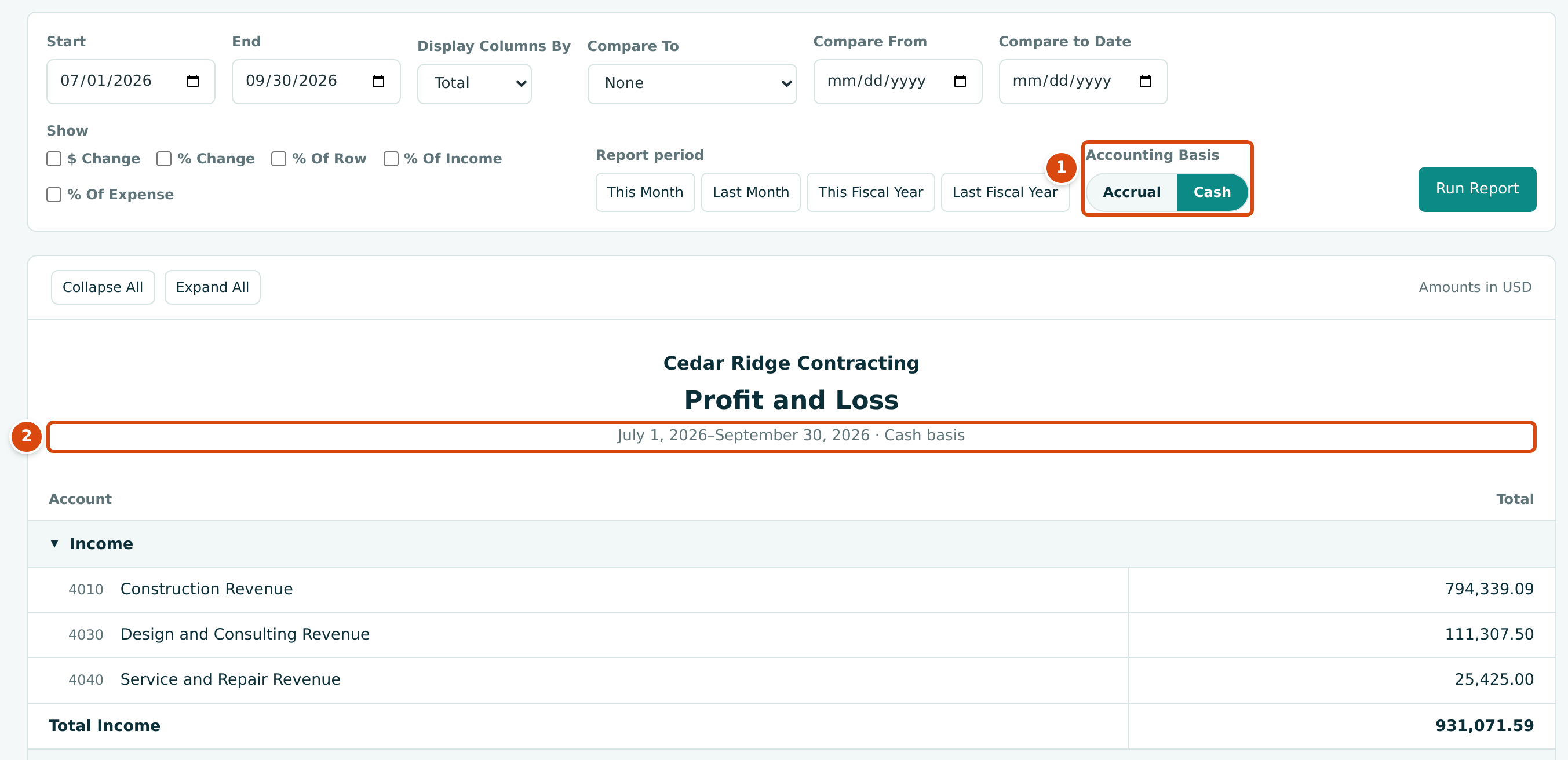
- Accounting Basis set to Cash.
- The header ends with Cash basis (the footer says so too).
On the cash basis:
- Display Columns By offers only Total, Months, Quarters and Years. Switching to Cash while class, location, item, SKU or job columns are chosen resets the columns to Total.
- Comparisons and Show columns work as on the accrual basis, with both periods on the cash basis.
- Account codes and amounts are not links.
- Export CSV names the file
profit-and-loss-cash-basis-…and adds a Basis column reading Cash.
Only the Profit and Loss has a cash basis. Every other report, and the Home dashboard, stays on the accrual basis.
Worked Example: The Third Quarter of 2026
Run the Profit and Loss from 07/01/2026 to 09/30/2026 on the accrual basis (the figure in Reading the Profit and Loss):
| Line | Arithmetic | Amount |
|---|---|---|
| Total Income | 629,065.45 + 97,665.00 + 20,700.00 + 56,476.13 | $803,906.58 |
| Total Cost of Goods Sold | 428,653.29 + 98,082.35 + 76,241.64 + 28,676.63 | $631,653.91 |
| Gross Profit | 803,906.58 − 631,653.91 | $172,252.67 |
| Total Operating Expenses | Eight overhead accounts | $29,122.64 |
| Net Operating Income | 172,252.67 − 29,122.64 | $143,130.03 |
| Net Other Income | 654.22 interest income − 390.00 interest expense | $264.22 |
| Net Income | 143,130.03 + 264.22 | $143,394.25 |
Now click Cash. Total Income becomes $931,071.59 and Net Income $237,625.73:
- Income is higher because more invoice revenue was paid in the quarter than was invoiced in it, even though the $56,476.13 of WIP revenue adjustments no longer counts.
- Operating Expenses are $29,122.64 on both bases in this quarter. Expenses and journal entries count on their own date on both bases.
Compare with Previous Year and tick $ Change and % Change (the figure in Comparing Periods): Total Income fell by $242,193.50, or −23.2%, from $1,046,100.08 in the third quarter of 2025. Net income still rose from $132,486.61 to $143,394.25.
Common Mistakes and Troubleshooting
| Message or Symptom | Why It Happens | What to Do |
|---|---|---|
| Start must be on or before end. | Start is after End. | Swap the dates. |
| This field is required. under Compare From or Compare to Date | Custom Period is chosen without both dates. | Enter both, or choose another Compare To option. |
| Compare from must be on or before compare to date. | The comparison dates are reversed. | Swap them. |
| Cash basis shows Total, Months, Quarters and Years. | A saved link asks for class, location, item, SKU or job columns on the cash basis. | Choose Total, Months, Quarters or Years, or switch to Accrual. |
| Choose a longer bucket or a shorter period | More than 400 columns were requested. | Use a longer bucket or a shorter period. |
| No eligible jobs defined. | By Job was requested, but no job is Active, On Hold or Closed. | Use another column choice. |
| A saved By Job link shows one Total column. | You cannot view Jobs & Costing, so job columns are not offered to you. | Ask a Company Admin for Jobs & Costing access. |
| No items defined | By Item or By SKU was requested, but the company has no items. | Add items, or use another column choice. |
| No classes defined or No locations defined shown above the report, with one Total column | A saved link asks for class or location columns, but the company has none. | Set them up in Classes & Locations. |
| $ Change, % Change or % Of Row is ticked but not shown. | They need a comparison, or more than one column. | Choose a Compare To option, or columns. |
| The class or location column choices are missing. | No class or location is active. | Activate one in Classes & Locations. |
| A Report period button cleared my columns or comparison. | Ready-made dates run the report with their dates only (keeping the basis). | Click the dates first, then set the other options and Run Report. |
| Codes are not underlined. | The report is on the cash basis, or has dimension columns (only Total links). | Use the accrual basis, or click amounts in the Total column. |
Related Topics
- Reports and The Report Frame
- Balance Sheet, whose Net Income equals this report for the fiscal year to date
- Cash Flow
- General Ledger
- WIP Schedules and Job Cost Reports
- Classes & Locations and Items