Commitments
A commitment is an agreement to pay a vendor for work or materials on a job:
- a Subcontract (numbered SC-year-sequence) for work a subcontractor performs, such as SC-2025-000008 for the drywall on J-2004;
- a Purchase Order (numbered PO-year-sequence) for materials or equipment, such as PO-2025-000004 for the rough carpentry lumber.
Each commitment has lines by cost code and cost type. Once it is issued, the vendor's bills are matched to its lines, so you always know how much of the commitment has been billed and how much is still to come (the open commitment). Commitments never post to your books; the bills you match to them do.
A commitment moves through four statuses:
| Status | Meaning | What You Can Do |
|---|---|---|
| Draft | Being prepared. | Edit, Approve, Discard |
| Approved | Approved internally, not yet sent to the vendor. | Issue, Withdraw (back to draft), Print |
| Issued | Sent to the vendor. Its lines are frozen and bills can be matched to it. | New Amendment, Close Commitment, Print, Release Retainage |
| Closed | Finished. The unused amount is recorded. |
Before You Begin
- The job is Draft, Active or On Hold, and the cost codes you need are assigned to it.
- The vendor exists and is active.
- You need Edit access to Jobs & Costing to create, approve, issue, amend and close commitments. Company Admins, Accountants and Project Managers have it. See Roles and Permissions.
Navigation
Jobs & Costing → Commitments → New Commitment. From a job's page, View Commitments on the Commitments card lists that job's commitments, and its New Commitment button starts with the job filled in.
The Commitments List
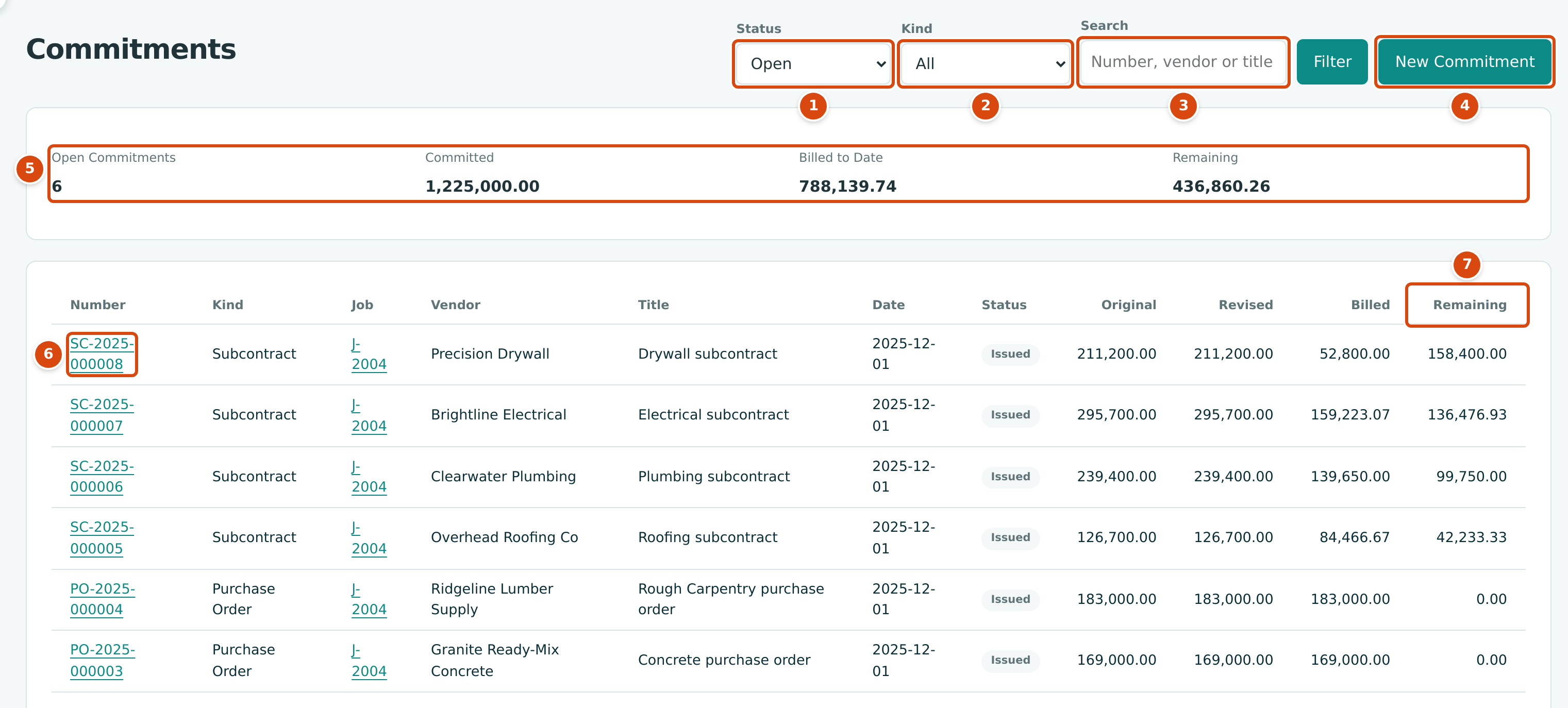
- Status: Open (draft, approved and issued; the default), Draft, Approved, Issued, Closed or All.
- Kind: All, Purchase Orders or Subcontracts.
- Search: part of the number, vendor name or title.
- New Commitment opens the form.
- Totals for the commitments listed: the number of open ones, and the Committed, Billed to Date and Remaining amounts of the issued and closed ones.
- Click a number to open the commitment.
- Remaining: the revised amount less what has been billed (and, for a closed commitment, less the unused amount).
The table shows Number, Kind, Job, Vendor, Title, Date, Status, Original, Revised, Billed and Remaining, newest first.
Step by Step: Creating a Commitment
- Click New Commitment.
- Choose the Kind: Purchase Order or Subcontract. Retainage fills in with the company's default for that kind (0.00 for purchase orders and 10.00 for subcontracts in the sample company).
- Choose the Job and the Vendor.
- Check the Date (it starts with today) and type a Title, such as Blocking and backing lumber.
- Optionally type Notes; they print on the commitment.
- On each line, choose the Cost Code (only the job's codes are offered) and the Cost Type, and type a Description.
- Enter either the Amount, or the Quantity, Unit and Unit Price. When both quantity and unit price are given, Structally works out the amount and locks it.
- Click Add Line for more lines; the Total updates as you type.
- Optionally attach the signed agreement or quote under Attachments.
- Click Save Commitment. Structally saves it as a draft, opens it and confirms with, for example, Commitment PO-2026-000001 saved as a draft.
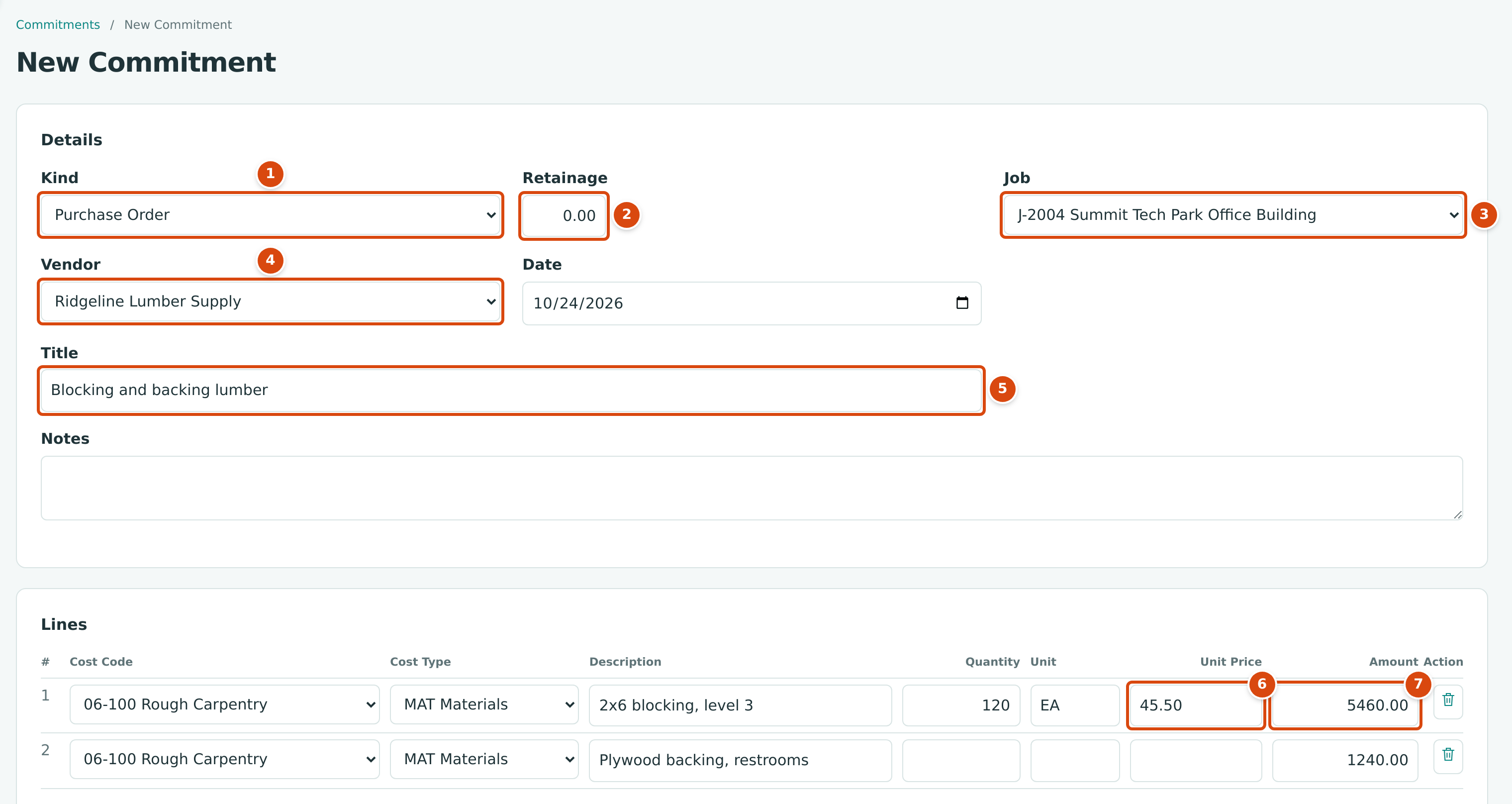
- Kind: Purchase Order or Subcontract.
- Retainage: the percent held back from the vendor's bills.
- Job: draft, active and on-hold jobs.
- Vendor: active vendors.
- Title: a short subject; it prints as the Subject.
- Unit Price: with a Quantity, it sets the amount.
- Amount: 120 × 45.50 = 5,460.00, worked out for you.
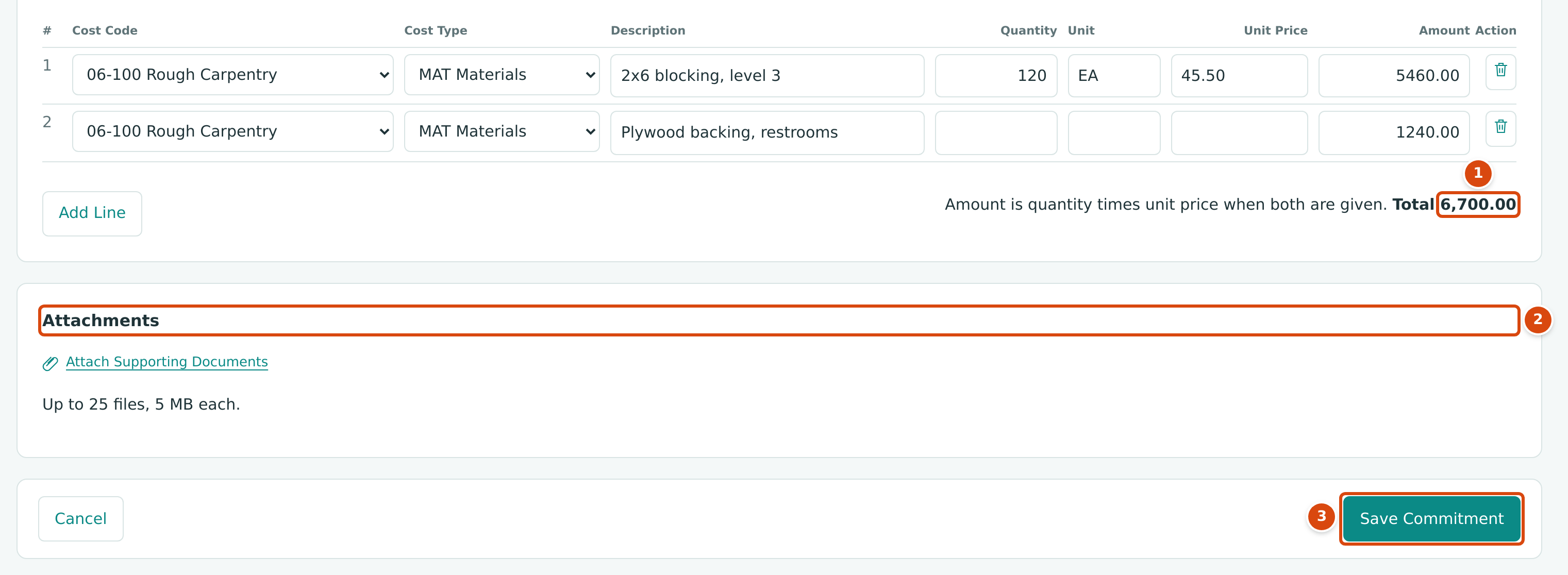
- Total: 5,460.00 + 1,240.00 = 6,700.00.
- Attachments: up to 25 files, 5 MB each.
- Save Commitment saves the draft.
Approving and Issuing
The buttons sit at the top right of the commitment page, like those of an issued commitment in The Commitment Page. Every commitment in Cedar Ridge Contracting is already issued or closed, so the two confirmation windows below come from the training company, Cedar Ridge Training.
On a draft commitment's page:
- Edit reopens the form. Kind, Job and Vendor cannot be changed once the commitment is saved.
- Approve asks Approve this commitment? and confirms with Commitment PO-2026-000001 approved.
- Discard asks Discard this draft commitment? This cannot be undone. and deletes the draft (Commitment PO-2026-000001 discarded.).
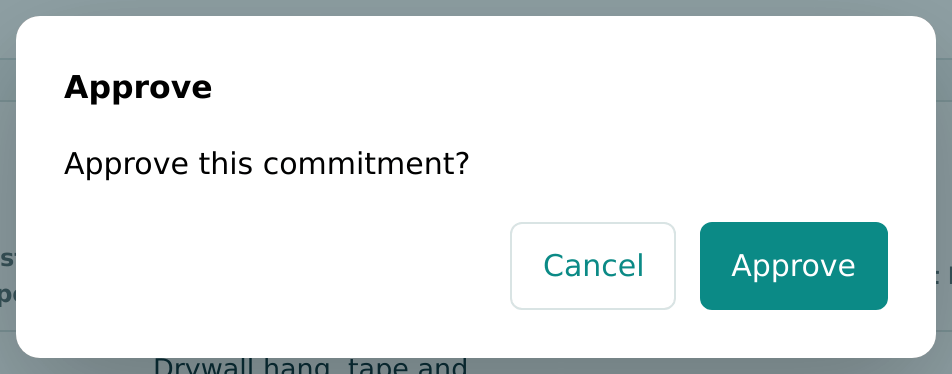
On an approved commitment:
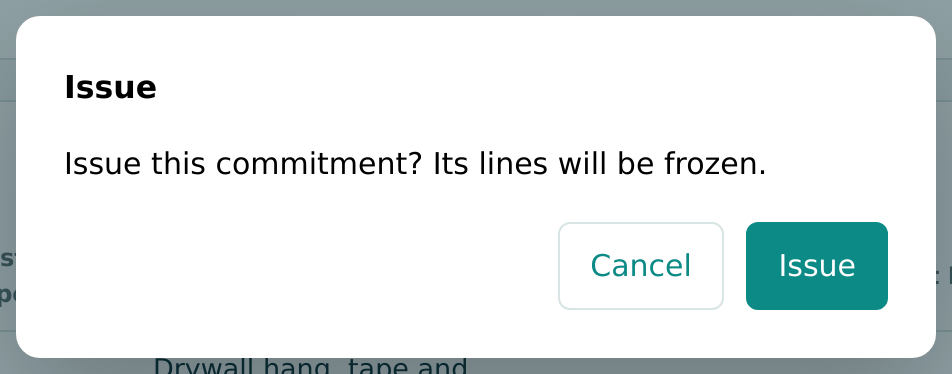
- Issue asks Issue this commitment? Its lines will be frozen. Issuing records Issued Version 1 with the total at that moment, and the commitment can now be matched on bills.
- Withdraw asks Withdraw this commitment to draft? and returns it to Draft so it can be edited again.
- Print opens the printable document.
The Commitment Page

- The status.
- Release Retainage starts a retainage release bill for the vendor and job (shown when retainage is held and you have Edit access to Vendors & Bills).
- Print opens the printable subcontract.
- New Amendment changes the issued commitment (see Commitment Amendments).
- Close Commitment closes it with the unused amount.
- Revised: Original plus approved Amendments.
- Remaining: Revised less Billed to Date and any closed unused amount.
- Retainage Held: retainage withheld on posted bills, less what was released.
The totals card shows Original, Amendments, Revised, Billed to Date, In Draft (on draft bills matched to the commitment), Remaining and, when retainage applies, Retainage, Retainage Held and Retainage Released. The line under the number repeats the title, vendor and job.
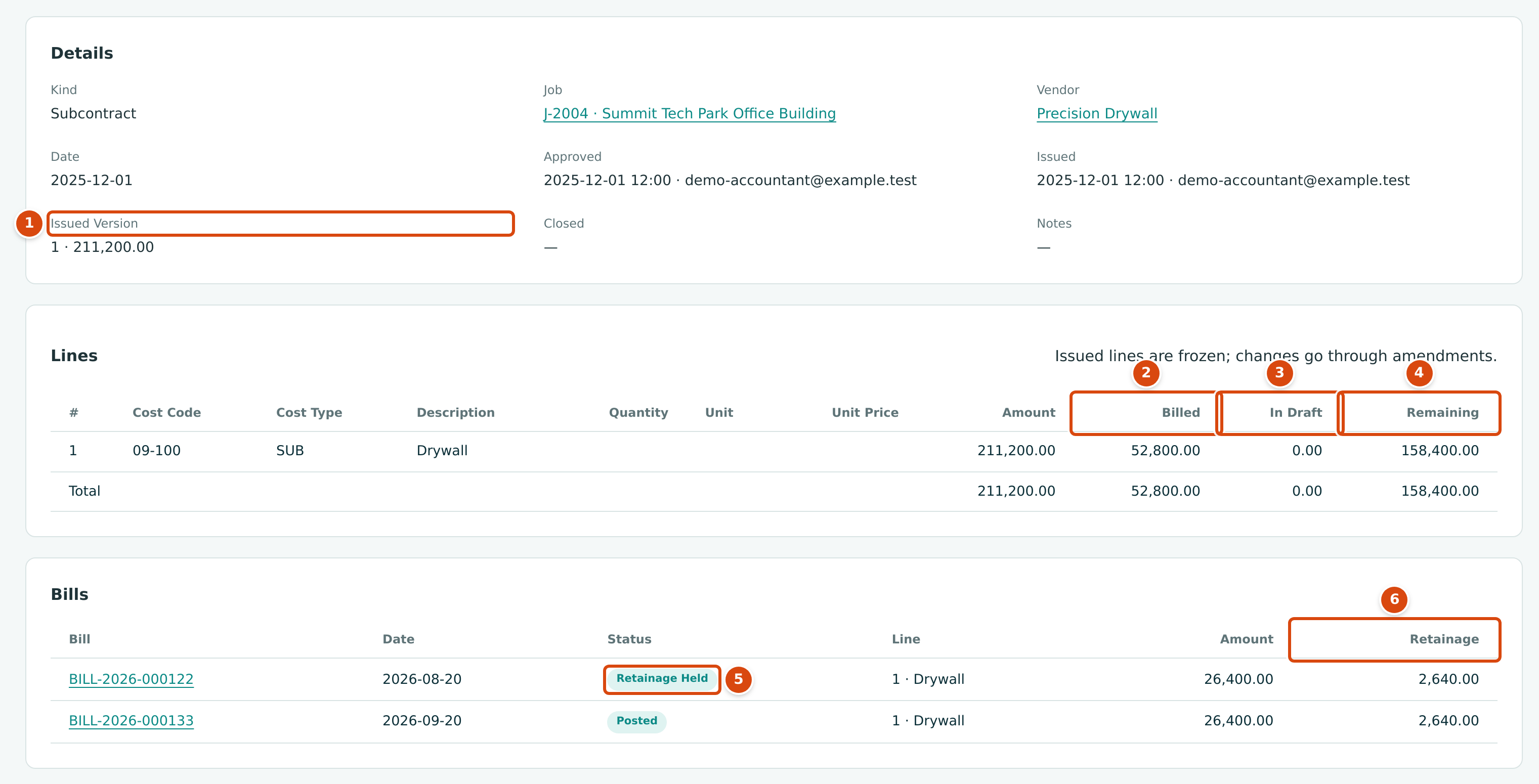
- Issued Version: the version number and total recorded when it was issued.
- Billed: posted bills matched to the line, less posted vendor credits.
- In Draft: draft bills matched to the line.
- Remaining: the line's amount plus approved amendments for its cost code and type, less Billed.
- A matched bill's status: Posted, or Retainage Held for a paid bill whose retainage has not been released yet.
- Retainage: the amount held on each bill line.
The Details card also shows Kind, Job, Vendor, Date, Approved and Issued (date, time and user), Closed (date, unused amount and reason) and Notes. Below the Bills table come the Amendments table and the Documents card for attachments. Vendor credits matched to the commitment are listed in the Bills table too, as negative amounts.
Matching Bills to a Commitment
Vendor bills are matched to an issued commitment on the bill itself: choose the vendor, then the commitment line in the bill line's Commitment column. Structally fills the job, cost code, cost type and retainage from the commitment. See Matching a Commitment and Holding Retainage. Only issued commitments of the bill's vendor can be matched. What happens when a bill goes over the commitment depends on the Commitment Overruns setting.
Printing a Commitment
Print opens the commitment as a document, ready for the browser's print dialog or to save as PDF.
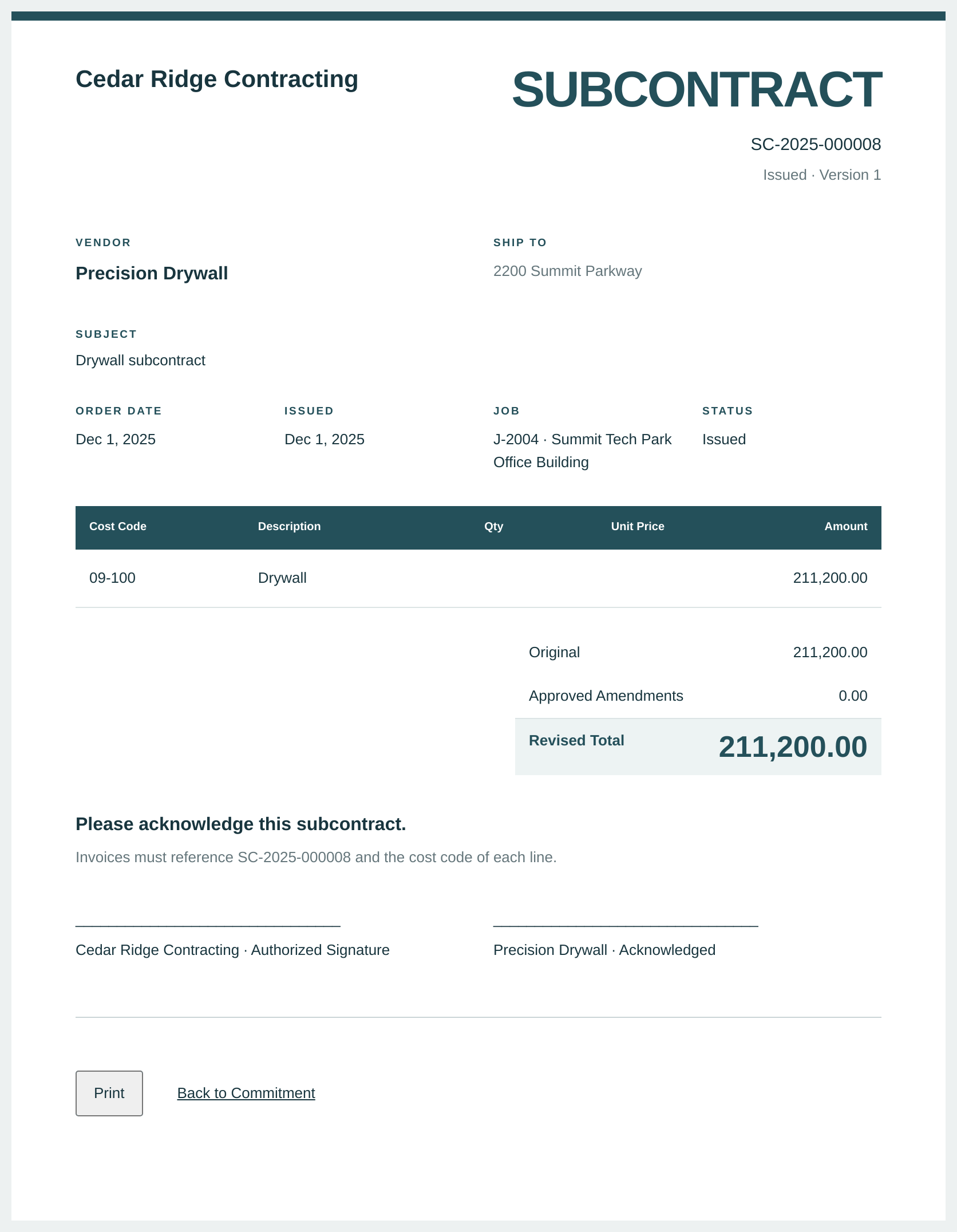
The document is titled SUBCONTRACT or PURCHASE ORDER and shows the number and version, the vendor and its billing address, the Ship To address, the Subject (the title), Order Date, Issued, Job and Status, the lines, and the Original, Approved Amendments and Revised Total. It ends with the acknowledgment line, Invoices must reference SC-2025-000008 and the cost code of each line., any notes, and optional standard terms and signature lines. Which parts appear, the acknowledgment wording and the ship-to address are set in Document Design. Click Print, or Back to Commitment.
Closing a Commitment
Close an issued commitment when no more bills will come, for example when the subcontractor has finished. Closing records the Unused Amount: the part of the revised amount you will never be billed for.
-
Click Close Commitment. The window asks for the Unused Amount and a Reason.
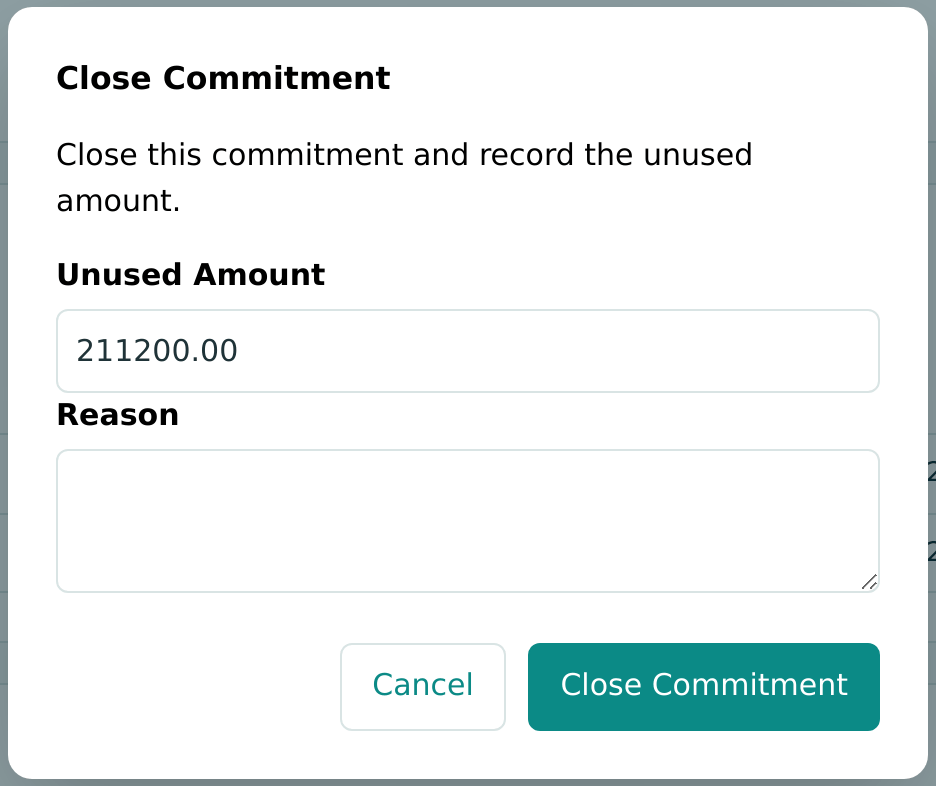
Figure 7-59 The Close Commitment window for SC-2025-000008. -
Replace the Unused Amount with the amount that will not be billed. It starts with the whole revised amount (211200.00 here), not the remaining amount; for SC-2025-000008 the remaining amount is 158,400.00.
- Type the Reason, such as Work complete.
- Click Close Commitment. Structally confirms with Commitment SC-2025-000008 closed.
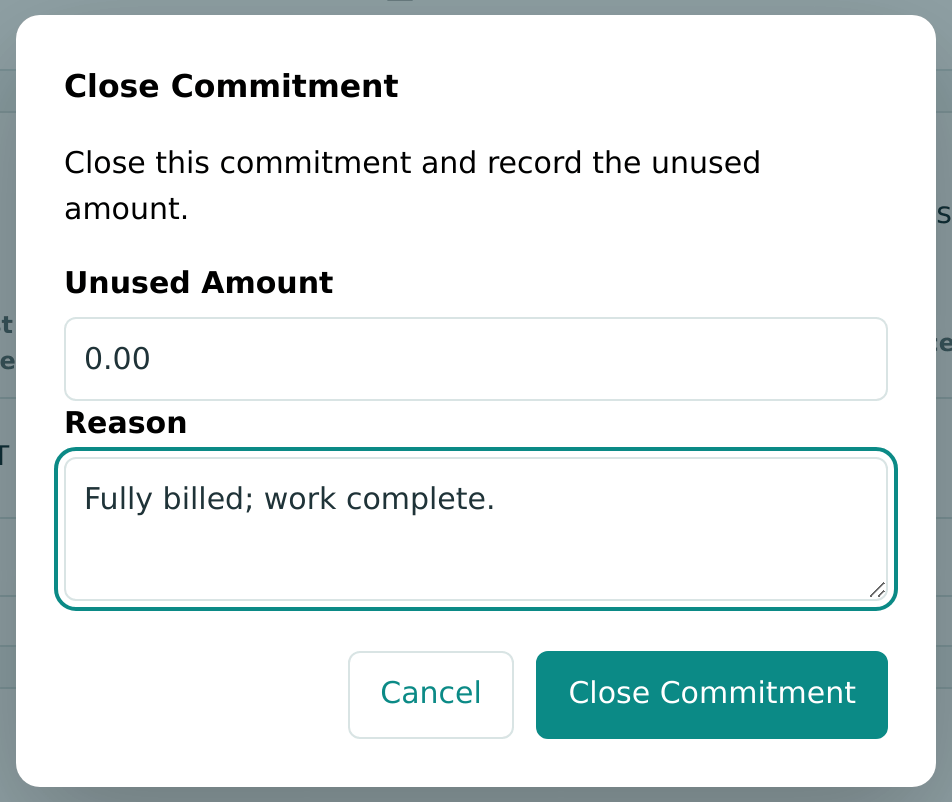
For a commitment that has been billed in full, the unused amount is 0.00. The training company, Cedar Ridge Training, closed such a subcontract this way:
Check the Unused Amount before you close
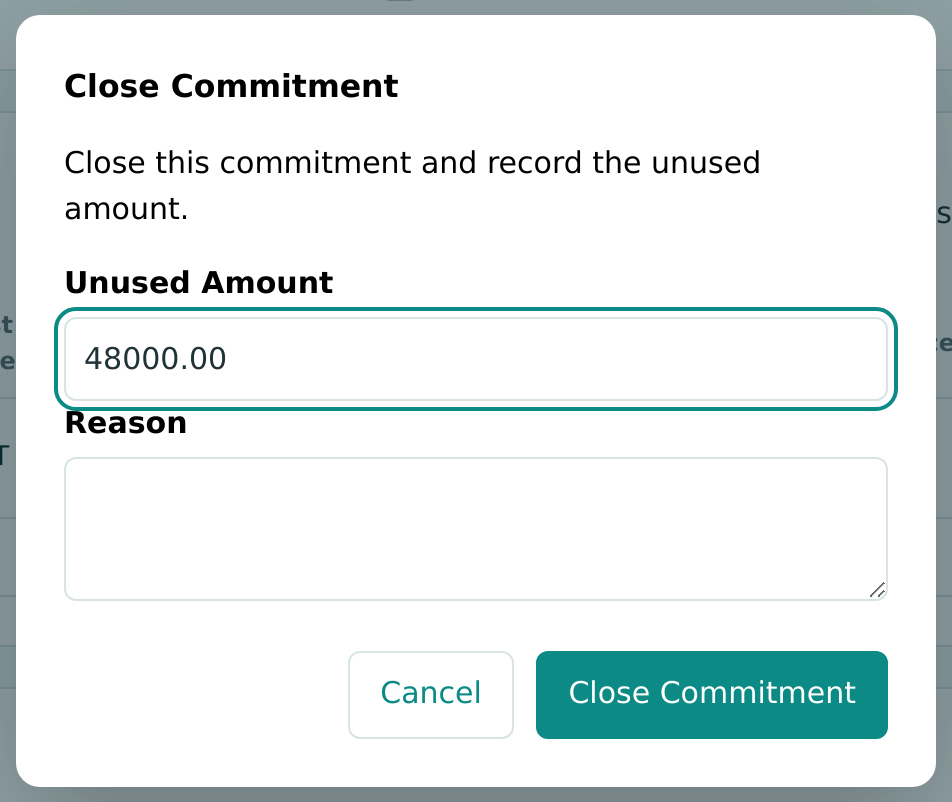
Structally accepts an unused amount up to the commitment's revised amount (less any amount already closed), even when part of it has been billed. An unused amount larger than the remaining amount makes Remaining negative. The window offers the revised amount even when nothing is left to bill: in the training company it offered 48000.00 for a subcontract whose remaining amount was 0.00.
Closing cannot be undone: a closed commitment cannot be reopened, amended or matched on new bills.
Field Reference
| Field | Description | Required | Example |
|---|---|---|---|
| Kind | Purchase Order or Subcontract. Sets the number prefix and the default retainage. Fixed once saved. | Yes | Purchase Order |
| Retainage | Percent held back on bills matched to the commitment, 0 to 100, two decimals. | No | 0.00 |
| Job | A draft, active or on-hold job. Fixed once saved. | Yes | J-2004 Summit Tech Park Office Building |
| Vendor | An active vendor. Fixed once saved. | Yes | Ridgeline Lumber Supply |
| Date | The commitment date; its year is part of the number. | Yes | 10/24/2026 |
| Title | 1 to 120 characters. Prints as the subject. | Yes | Blocking and backing lumber |
| Notes | Up to 2,000 characters. Print on the commitment. | No | |
| Cost Code (line) | A cost code assigned to the job. | Yes | 06-100 Rough Carpentry |
| Cost Type (line) | An active cost type. | Yes | MAT Materials |
| Description (line) | Up to 200 characters. | No | 2x6 blocking, level 3 |
| Quantity, Unit, Unit Price (line) | Optional. A unit is required with a quantity. Quantity × unit price sets the amount. | No | 120 · EA · 45.50 |
| Amount (line) | Not negative. | Yes, unless quantity and unit price are given | 5,460.00 |
| Attachments | Up to 25 files, 5 MB each. | No | Quote-4471.pdf |
| Unused Amount (closing) | The part of the revised amount that will not be billed. | Yes | 158,400.00 |
| Reason (closing) | Up to 200 characters. | Yes | Work complete |
Worked Example: SC-2025-000008, Drywall on J-2004
Cedar Ridge subcontracted the drywall on J-2004 to Precision Drywall: one line, 09-100 · SUB Drywall, 211,200.00, with 10% retainage, dated and issued December 1, 2025. Precision Drywall has billed twice, each bill matched to line 1:
| Bill | Date | Amount | Retainage Held (10%) |
|---|---|---|---|
| BILL-2026-000122 | 2026-08-20 | 26,400.00 | 2,640.00 |
| BILL-2026-000133 | 2026-09-20 | 26,400.00 | 2,640.00 |
| Total | 52,800.00 | 5,280.00 |
So the commitment page shows Billed to Date 52,800.00, Remaining 211,200.00 − 52,800.00 = 158,400.00, and Retainage Held 5,280.00. The same 158,400.00 appears as Open Commitments on row 09-100 · SUB of J-2004's budget. The posting entry of each bill is shown in Entering a Bill.
When the drywall is finished and Precision Drywall confirms there is nothing more to bill, you would close the subcontract with the unused amount still remaining at that point.
What Happens After Each Step
| Step | Status | Effect |
|---|---|---|
| Save Commitment | Draft | Counted in Open Commitments on the list; no amounts committed yet. |
| Approve | Approved | Approval date and user recorded. |
| Issue | Issued | Lines frozen, version 1 recorded. Counted in Committed and in the budget page's Open Commitments; bills can be matched. |
| New Amendment → approve | Issued | Revised changes (see Commitment Amendments). |
| Close Commitment | Closed | Unused amount, date, user and reason recorded. No longer in the budget page's Open Commitments; no new bills can be matched. |
None of these steps writes a journal entry. Every action is listed in the Audit Log.
Common Mistakes and Troubleshooting
| Message or Symptom | Why It Happens | What to Do |
|---|---|---|
| A commitment must total more than zero. | The lines add up to zero. | Enter the amounts. |
| A commitment needs at least one line. | No line has a cost code and type. | Complete at least one line. |
| Enter an amount or quantity and unit price. | A line has neither. | Enter one of them. |
| Amount must equal quantity times unit price. | The typed amount does not match quantity × unit price. | Clear the amount or correct the figures. |
| A unit is required with a quantity. | A quantity has no unit. | Type the unit. |
| Cost code is not assigned to this job. | The code is not on the job. | Assign it on the job page first. |
| Vendor is inactive. | The vendor was deactivated. | Reactivate the vendor. |
| Commitments cannot change on a closed or archived job. | The job is closed or archived. | Reopen the job first. |
| Only a draft commitment can be edited. | The commitment is approved or issued. | Withdraw an approved one to draft; amend an issued one. |
| A reason is required to close a commitment. / Enter an unused amount and a reason. | The close window was left incomplete. | Fill in both. |
| Unused amount cannot exceed the outstanding balance. | The unused amount is more than the revised amount less what is already closed. | Enter a smaller amount. |
| Commitment SC-2025-000008 is not issued. (on a bill) | Bills can be matched only to issued commitments. | Issue the commitment, or leave the line unmatched. |
| Commitment SC-2025-000008 belongs to another vendor. (on a bill) | The bill's vendor is not the commitment's vendor. | Choose the right vendor or commitment line. |
| Write Access Required when opening New Commitment | You have view access only. | Ask a Company Admin for Edit access to Jobs & Costing. |