Items
An item is something you bill again and again: an hour of carpentry labor, a square of roofing, a service call, a permit-handling fee. Each item has a SKU (a short code), a Name, a Rate and an Income Account. When you choose an item on an invoice or credit memo line, Structally fills in the account, the description, a quantity of 1.00 and the rate, and works out the amount as you change the quantity. Items save typing and keep revenue going to the right income account.
Items are optional. You can always write an invoice line with just an account and an amount.
Before You Begin
- The income accounts you will use exist in the Chart of Accounts. Only active income accounts can be chosen.
- To add, edit or deactivate items you need Edit access to Customers & Invoices. Company Admins, Accountants and Project Managers have it; Viewers can only look at the list. See Roles and Permissions.
Navigation
Customers & Invoices → Items.
The Items List
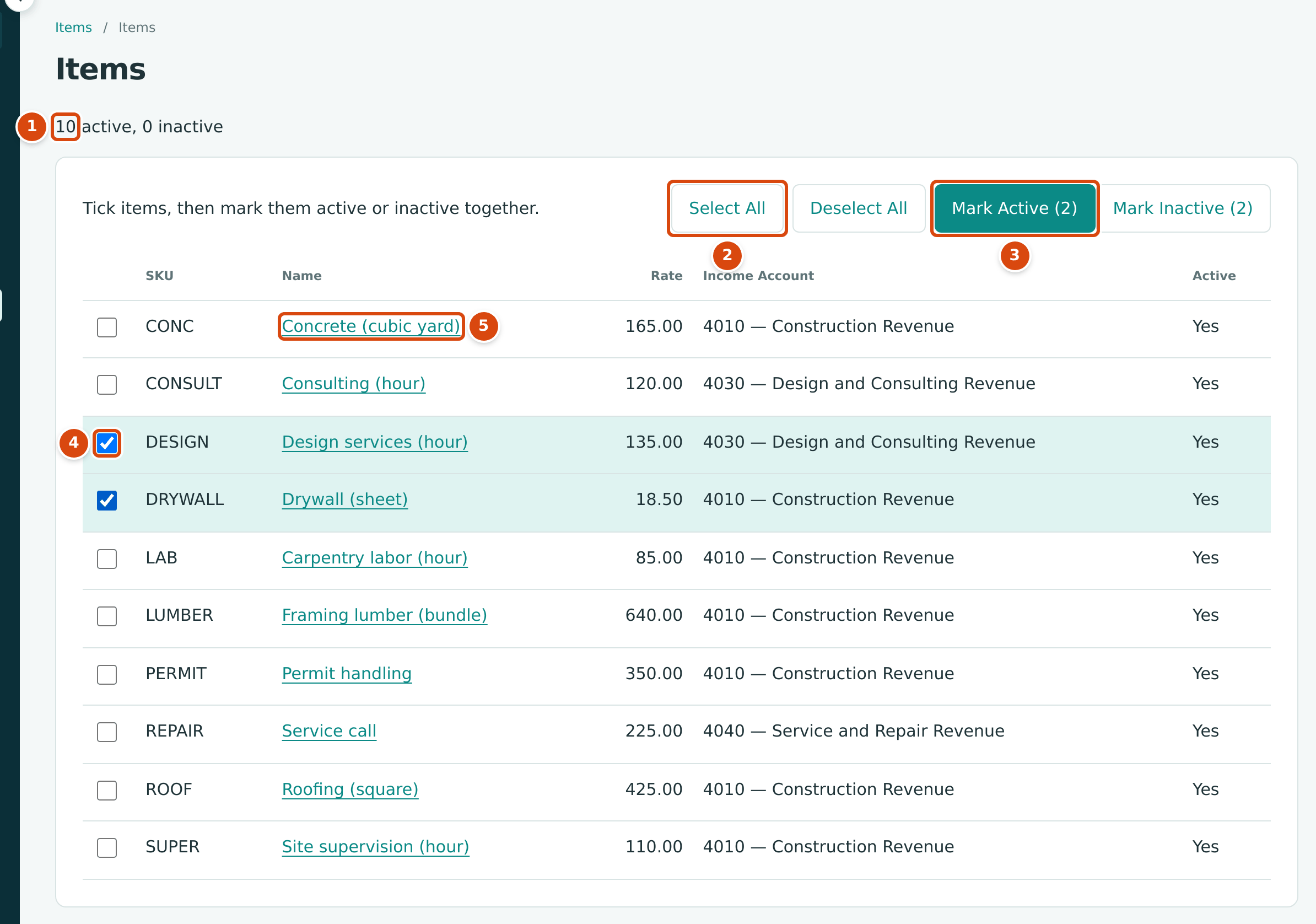
- How many items are active and how many inactive.
- Select All ticks every item on the page; Deselect All clears the ticks.
- Mark Active and Mark Inactive change every ticked item at once. The number in brackets counts the ticked items.
- The tick box of one item.
- The item's name opens its page.
The list is sorted by SKU, 25 items to a page, and shows each item's Rate, Income Account and whether it is Active. The tick boxes, the buttons and the Add Item card appear only with Edit access.
Adding an Item
- Open Customers & Invoices → Items.
- In the Add Item card below the list, type the SKU and the Name.
- Enter the Rate, the price of one unit.
- Choose the Income Account the sales are recorded in.
- Click Add Item. The new item's page opens.
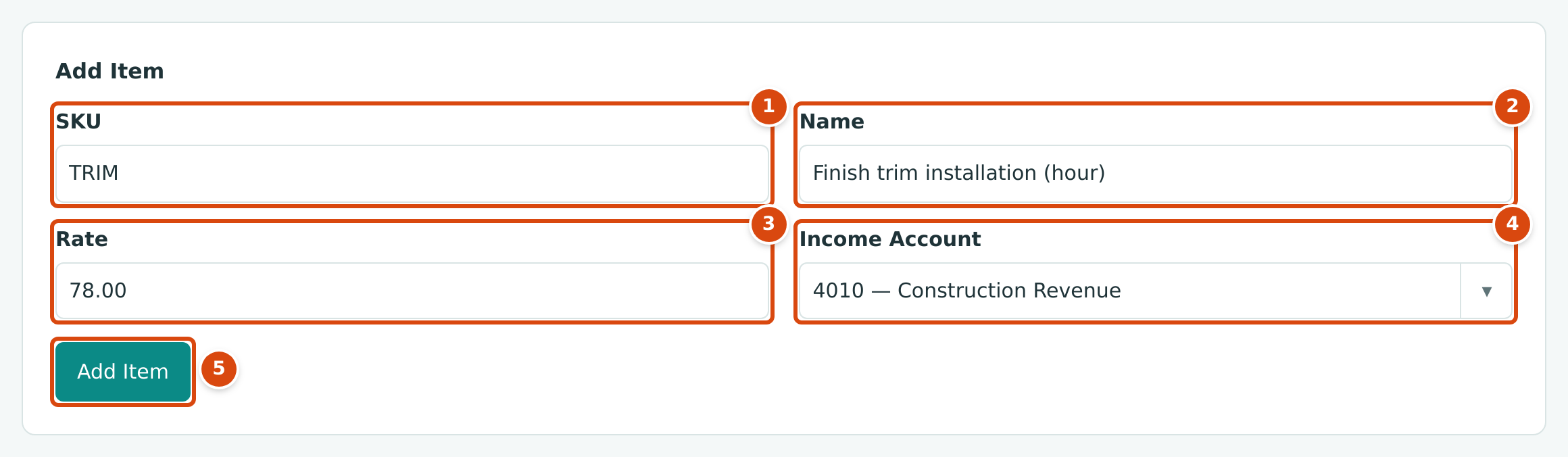
- SKU: a short, unique code, up to 40 characters.
- Name: what the customer sees on the invoice line, up to 120 characters. Putting the unit in the name, as the sample items do, keeps quantities clear.
- Rate: the price per unit, at least 0.01.
- Income Account: an active income account.
- Add Item saves the item.
Adding an Item While You Enter an Invoice
On an invoice or credit memo line, type in the Item list. If nothing matches, choose + Add New:
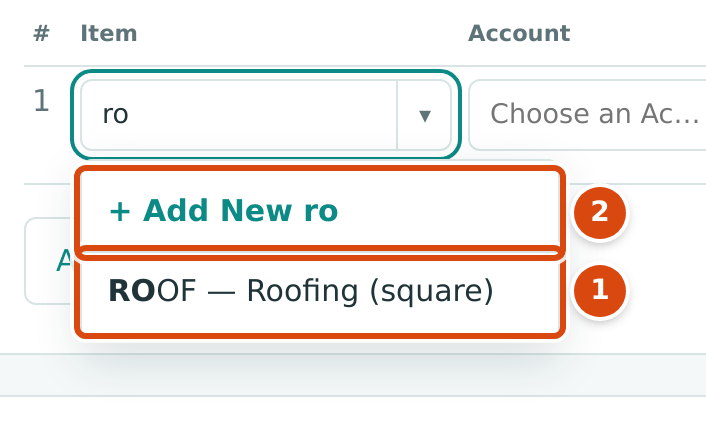
- An existing item that matches what you typed, by SKU or name.
- + Add New opens a panel to create an item.
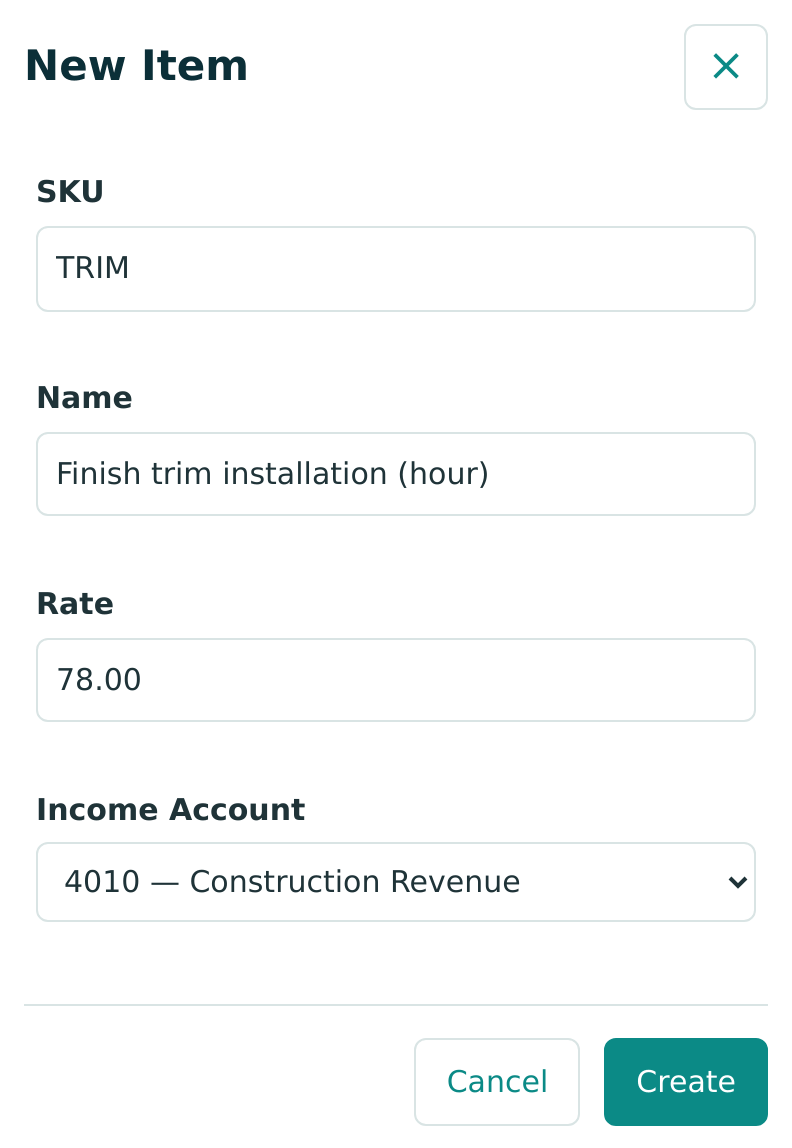
The New Item panel asks for the same four fields, with the name filled in from what you typed. Create adds the item and puts it on the line.
Editing an Item
- Click the item's name in the list. The item's page shows its Item Details.
- Click Edit.
- Change the SKU, Name, Rate, Income Account or Active.
- Click Save. Structally confirms Item saved. Cancel discards the changes.
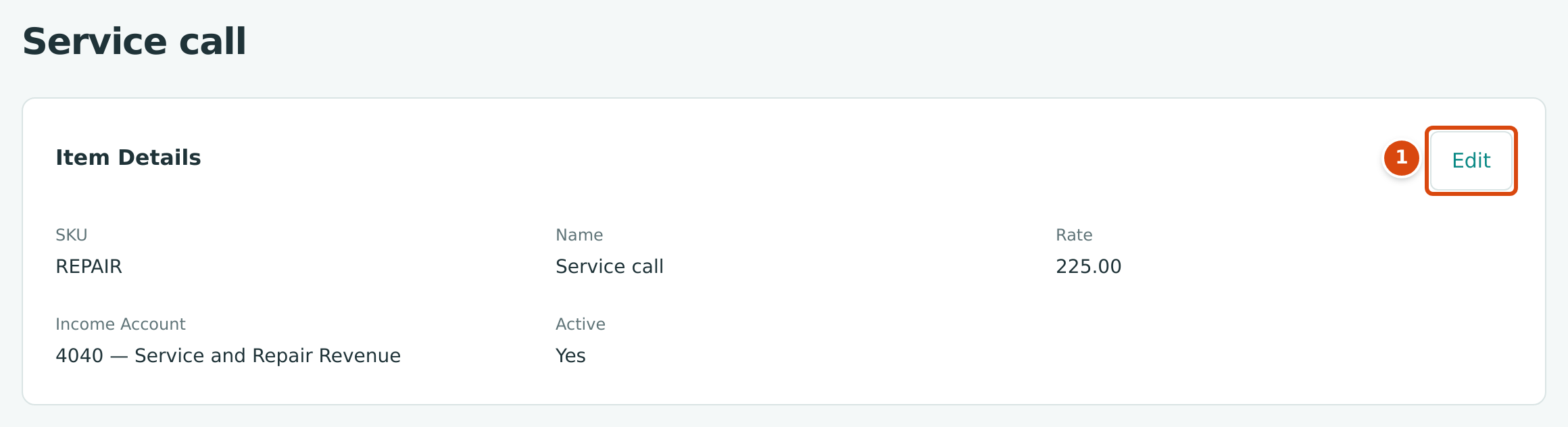
- Edit opens the details for editing.
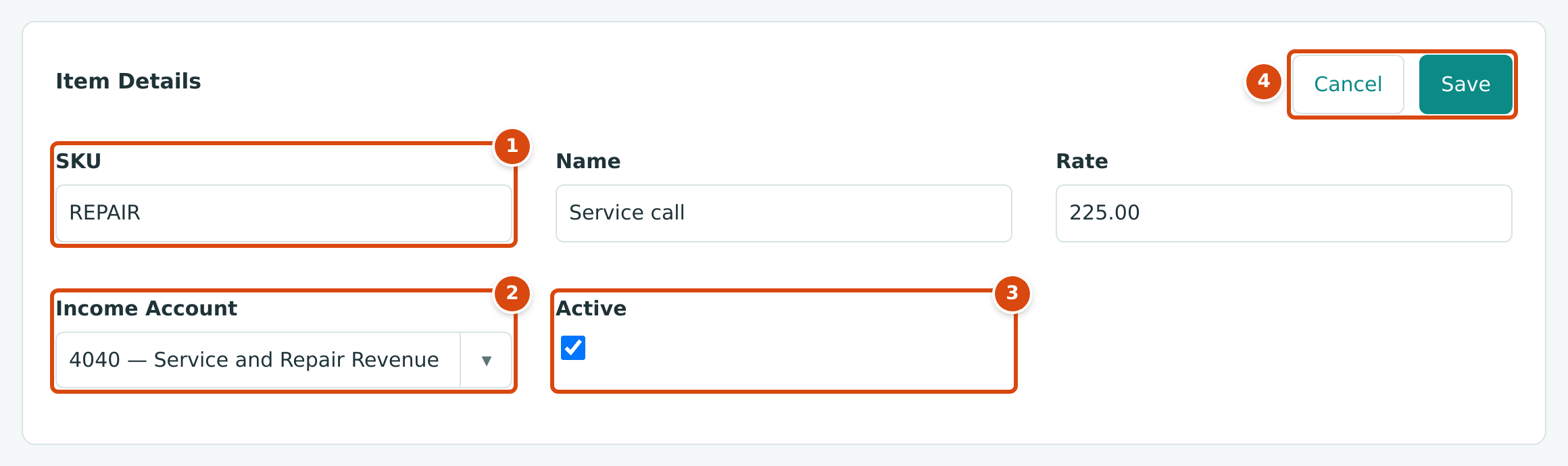
- SKU, Name and Rate can all be changed.
- Income Account: where future sales of the item are recorded.
- Active: untick it to stop offering the item on new lines.
- Cancel and Save.
Changing an item does not change invoices that already use it. Each invoice line keeps the quantity, rate, account and description it was saved with.
Marking Items Active or Inactive
Mark an item inactive when you stop selling it. Inactive items are not offered on new invoice and credit memo lines. Drafts that already use the item keep it, but they cannot be posted while the item is inactive: Structally refuses with a message that the item is inactive. Posted invoices are not affected. Items cannot be deleted.
- On the Items list, tick the items to change, or click Select All.
- Click Mark Inactive (or Mark Active to bring items back).
- Structally confirms, for example, 2 items marked inactive. and the counts above the list change.
To change a single item you can also untick or tick Active on its page.
How Items Fill Invoice Lines
When you choose an item on an invoice or credit memo line:
| Line Field | What Structally Fills In |
|---|---|
| Account | The item's Income Account. |
| Description | The item's Name. |
| Qty | 1.00 |
| Rate | The item's Rate. |
| Amount | Qty × Rate, rounded to the cent. While both are filled in, the amount is worked out for you and cannot be typed. |
Only empty fields are filled, and you can change any of them on the line. For example, choosing ROOF — Roofing (square) and entering a quantity of 52.00 gives 52.00 × 425.00 = 22,100.00 on account 4010 — Construction Revenue. See the figure in Creating an Invoice.
The item's name can also appear above the description on the printed invoice, if your Document Design is set to show it.
Field Reference
| Field | Description | Required | Example |
|---|---|---|---|
| SKU | A short code, unique in your company (capital and small letters count as the same). Up to 40 characters. | Yes | REPAIR |
| Name | The item's name, used as the invoice line description. Up to 120 characters. | Yes | Service call |
| Rate | The price of one unit, at least 0.01, with up to two decimals. | Yes | 225.00 |
| Income Account | An active income account where sales of the item are recorded. | Yes | 4040 — Service and Repair Revenue |
| Active | On the item's page only. Inactive items are not offered on new lines. | No | Ticked |
Common Mistakes and Troubleshooting
| Message or Symptom | Why It Happens | What to Do |
|---|---|---|
| Item SKU already in use | Another item has the same SKU, perhaps with different capitals. | Choose a different SKU. |
| Select at least one row. | Mark Active or Mark Inactive was clicked with nothing ticked. | Tick the items first. |
| Item must be active. | A new invoice or credit memo line uses an item that was marked inactive. | Mark the item active, or choose another item. |
| A draft cannot be posted: the message says an item is inactive. | An item on the draft was marked inactive after the draft was saved. | Mark the item active, post the draft, then mark the item inactive again; or edit the draft to use another item. |
| An item is missing from the Item list on a line. | The item is inactive. | Mark it active on the Items list. |
| The account you want is not in Income Account. | Only active income accounts are listed. | Add or reactivate the account in the Chart of Accounts. |