Creating and Managing Jobs
A job is a project you track costs and revenue for: a building you put up under contract, a remodel, or a small service call. Every job-coded cost and revenue line, budget, commitment, change order, pay application, forecast and WIP row belongs to a job. Create the job first; then budget it, commit costs against it and code its bills and invoices to it.
A new job starts as a Draft. While it is a draft you can still change its number and original amounts, but no cost or revenue can be posted to it. Activate it when work starts (see Closing and Reopening Jobs).
Before You Begin
- Jobs & Costing is turned on for your company (see Jobs & Costing).
- The cost codes you need exist (see Cost Codes and Cost Types).
- The customer exists, or you add it from the form with + Add New in the Customer list (if your role can create customers).
- You need Edit access to Jobs & Costing to create or change a job. Company Admins, Accountants and Project Managers have it; Viewers can open jobs but not change them. See Roles and Permissions.
Navigation
Jobs & Costing → Jobs → New Job.
The Jobs List
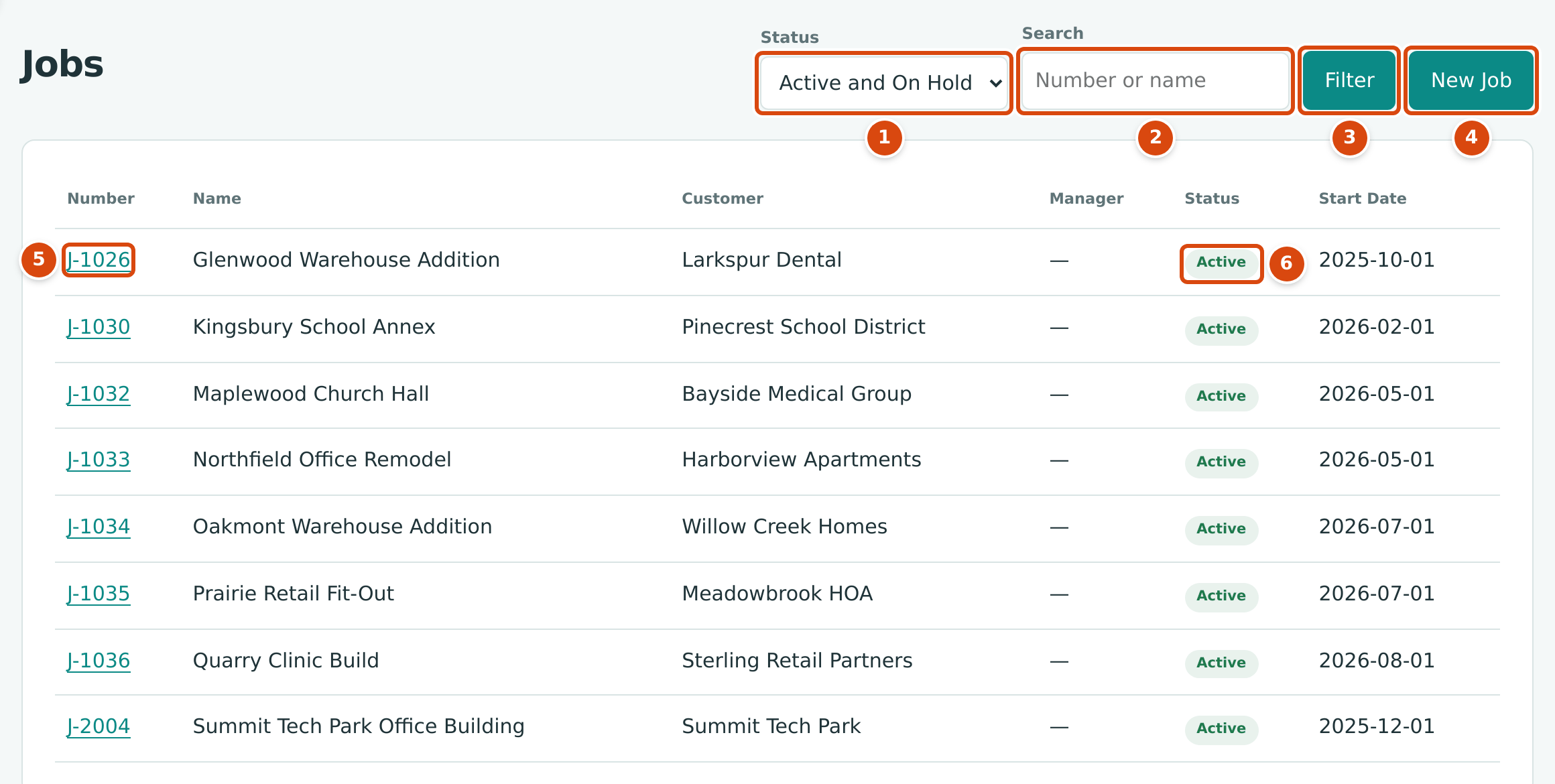
- Status: Active and On Hold (the default), Draft, Active, On Hold, Closed, Archived or All.
- Search: part of a job number or name.
- Filter applies the status and search.
- New Job opens the New Job form (users with Edit access only).
- Click a job number to open the job.
- The job's status.
The list shows Number, Name, Customer, Manager, Status and Start Date, sorted by job number, 25 jobs to a page. Archived jobs appear only when you choose Archived or All.
Step by Step: Creating a Job
- Open Jobs & Costing → Jobs and click New Job.
- Type the Job Number and Job Name.
- Choose the Customer the job is for. Type to search; No Customer is allowed (for example, for internal work).
- Optionally choose a Manager, one of the users with access to the company.
- Enter the Start Date and, if known, the End Date.
- Enter the Original Contract (what the customer agreed to pay) and the Original Estimate (what you expect the work to cost).
- Check Billing Retainage. It starts with the company's Customer Invoices default from Job Costing Settings.
- Optionally type the job Address and Notes.
- Tick the Cost Codes the job will use.
- Optionally attach the contract or other documents under Attachments.
- Click Create Job. Structally opens the new job's page.
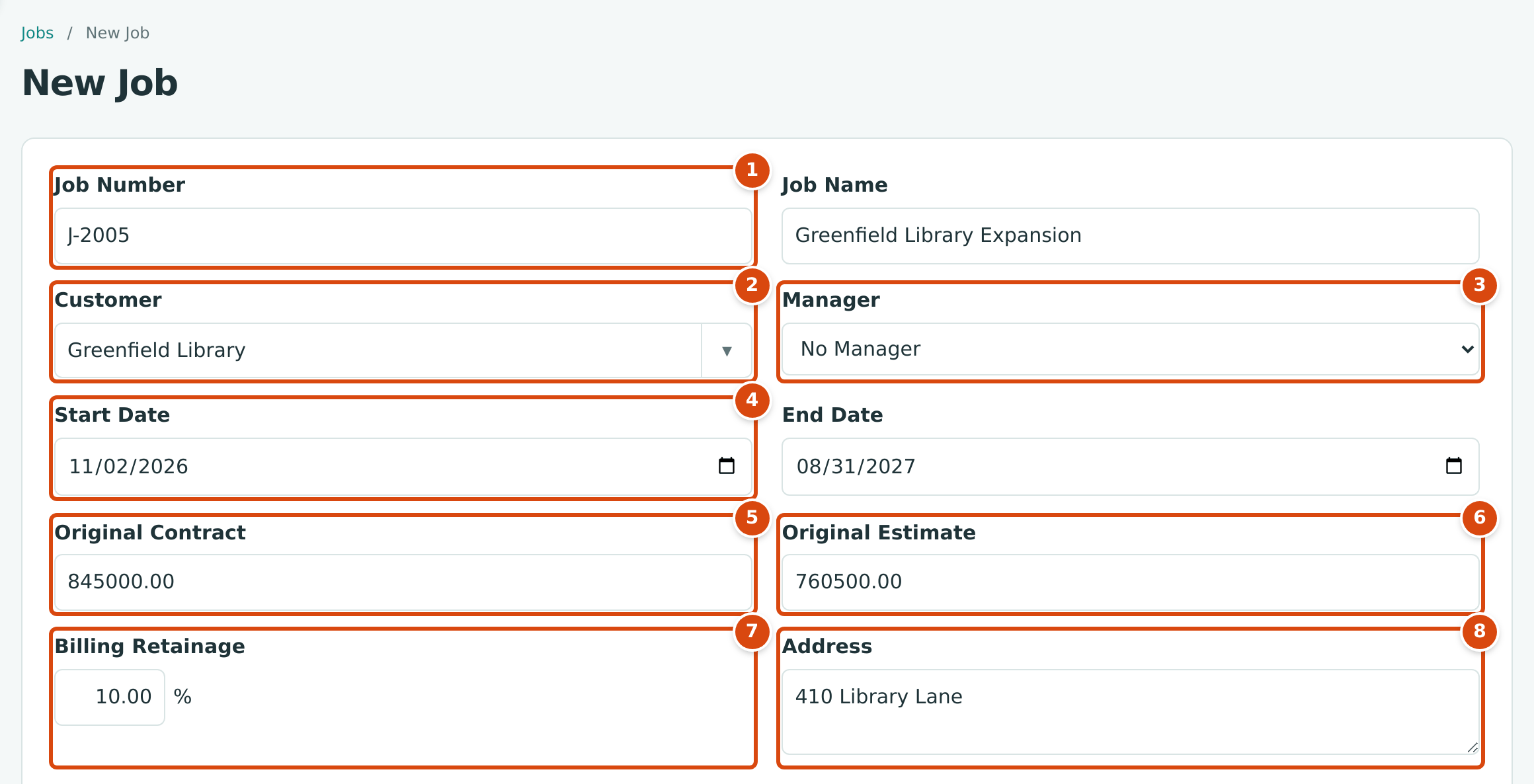
- Job Number: unique in the company.
- Customer: active customers only.
- Manager: the user responsible for the job.
- Start Date and End Date.
- Original Contract: the contract amount before change orders.
- Original Estimate: the expected cost before changes.
- Billing Retainage: the percent the customer holds back from your billings.
- Address: the job site, used as the ship-to address on purchase orders when your document design says so.
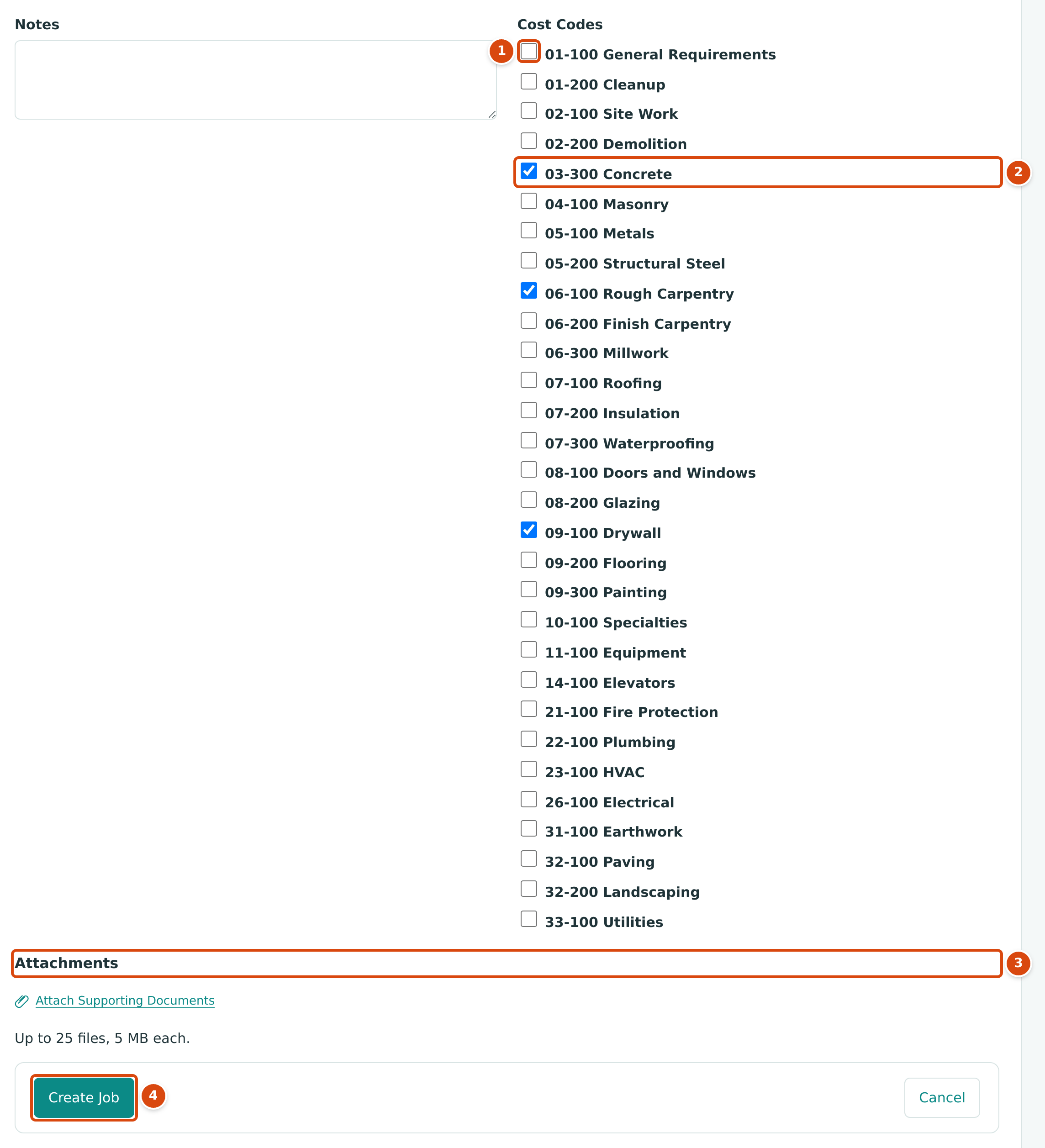
- Cost Codes: every active code in the company. General codes, such as 01-100 General Requirements, are assigned to every job whether or not you tick them.
- A ticked code is assigned to the new job.
- Attachments: up to 25 files, 5 MB each.
- Create Job saves the job as a draft.
Field Reference
| Field | Description | Required | Example |
|---|---|---|---|
| Job Number | 1 to 30 characters, unique in the company whatever the capitalization. Can be changed only while the job is a draft. | Yes | J-2005 |
| Job Name | 1 to 120 characters. | Yes | Greenfield Library Expansion |
| Customer | The customer the job is for. Active customers only. | No | Greenfield Library |
| Manager | A user with active access to the company. Shown in the Jobs list and on the job. | No | No Manager |
| Start Date | When work starts. | No | 11/02/2026 |
| End Date | Planned finish. Cannot be before the start date. | No | 08/31/2027 |
| Original Contract | The contract value before change orders. At least 0.01 when entered. Once the job leaves Draft, an amount already entered cannot change. | No | 845,000.00 |
| Original Estimate | The expected total cost before changes. At least 0.01 when entered. Once the job leaves Draft, an amount already entered cannot change. | No | 760,500.00 |
| Billing Retainage | Percent held back on billings to the customer, 0 to 100 with up to two decimals. New pay applications and invoice lines for the job start with it. | No | 10.00 |
| Address | The job site address. | No | 410 Library Lane |
| Notes | Internal notes. | No | |
| Cost Codes | The codes the job accepts. On the New Job form only; later, use the job page. | No | 03-300, 06-100, 09-100 |
| Attachments | Up to 25 files, 5 MB each. | No | Contract.pdf |
The Job Page
The job page brings together everything about the job. It opens with the header and the Details card.
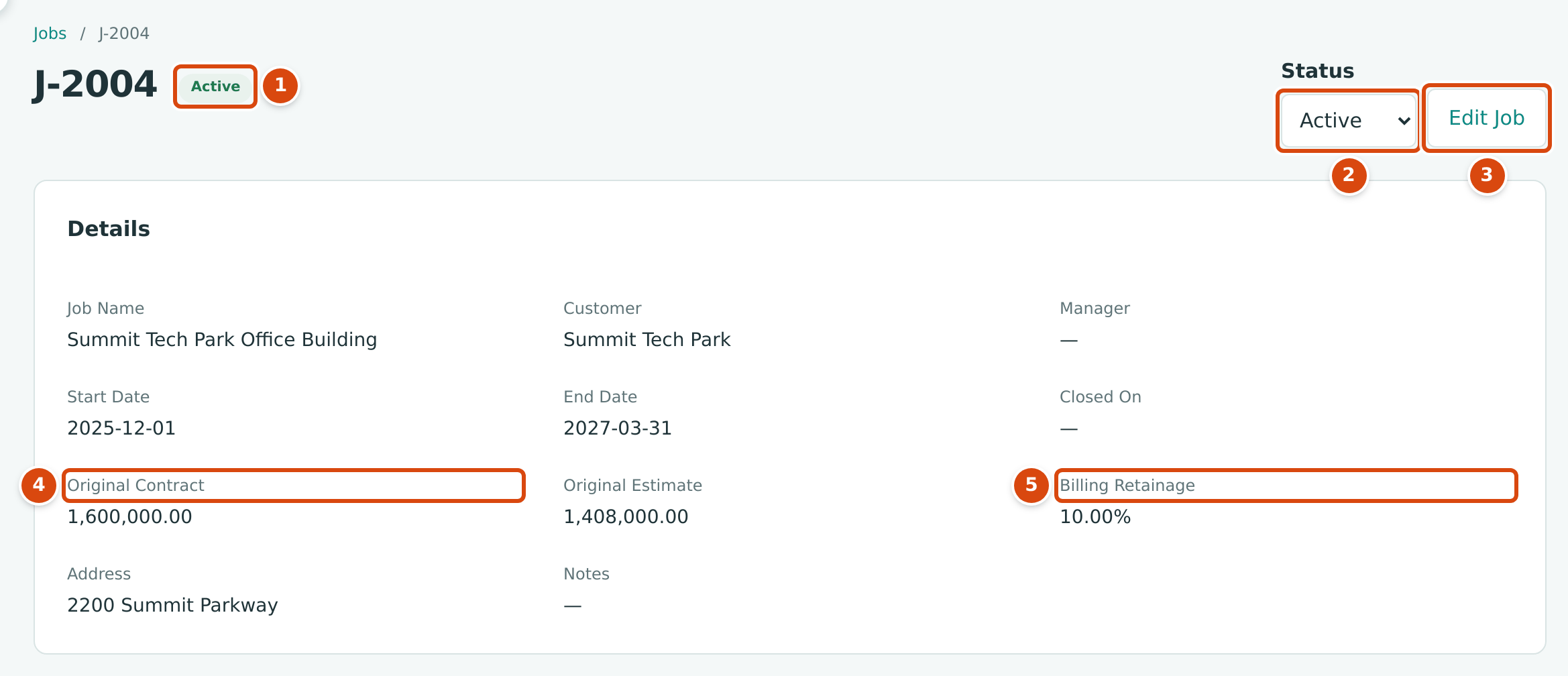
- The job's status.
- Status: choose a new status to activate, hold, close, reopen or archive the job (see Closing and Reopening Jobs).
- Edit Job opens the job's form.
- Original Contract and Original Estimate, as entered.
- Billing Retainage.
The Details card lists Job Name, Customer, Manager, Start Date, End Date, Closed On, Original Contract, Original Estimate, Billing Retainage, Address and Notes.
Below it, a series of cards summarizes the job's money:
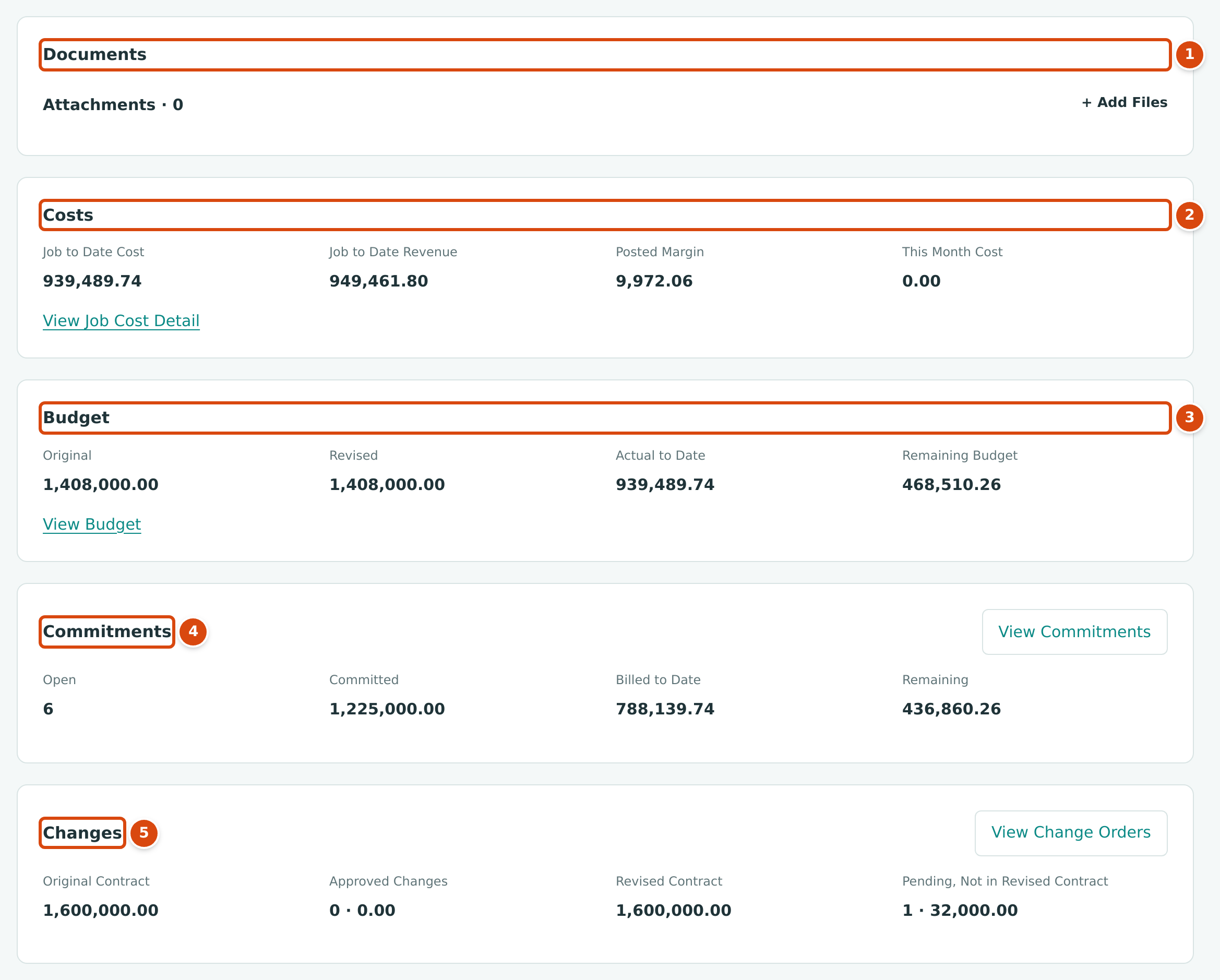
- Documents: the job's attachments; + Add Files adds more.
- Costs: Job to Date Cost, Job to Date Revenue, Posted Margin (revenue less cost) and This Month Cost. View Job Cost Detail opens the job cost detail report for this month.
- Budget: Original, Revised, Actual to Date and Remaining Budget, with View Budget (see Job Budgets). A job without a budget shows No budget yet and Add Budget.
- Commitments: the number of Open commitments (draft, approved and issued), and the Committed, Billed to Date and Remaining amounts of the issued and closed ones. View Commitments lists them (see Commitments).
- Changes: Original Contract, Approved Changes (count and amount), Revised Contract and Pending, Not in Revised Contract, with View Change Orders (see Change Orders).
Jobs billed through a schedule of values also have a Billing card. Every job has a Forecast and a WIP card:
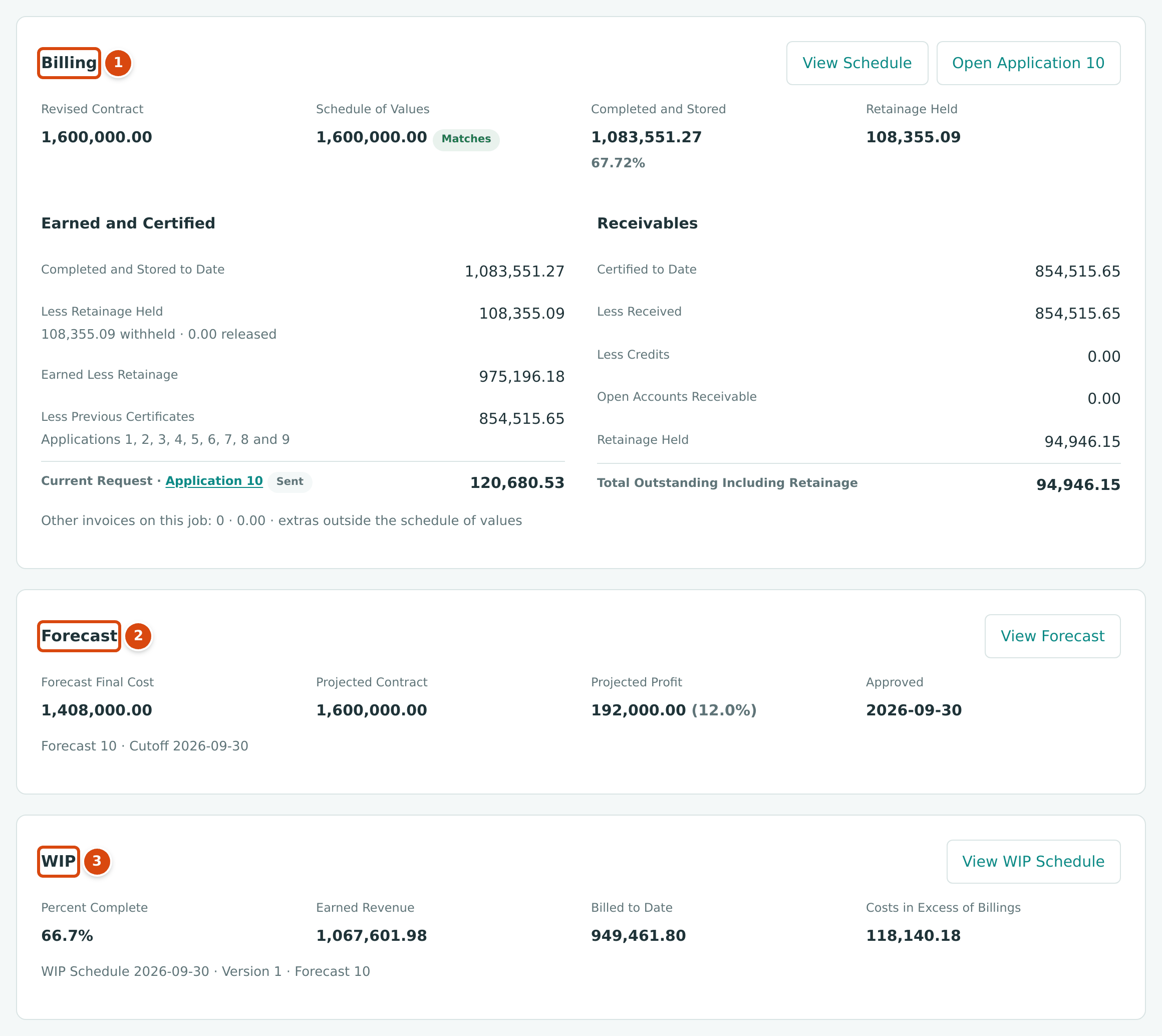
- Billing: the schedule of values against the revised contract, what has been completed and stored, retainage held, and the current pay application. See Schedules of Values and Pay Applications.
- Forecast: the latest approved forecast, or No approved forecast. See Forecasts.
- WIP: the job's row of the latest approved WIP schedule, or No approved WIP schedule. See WIP Schedules.
At the bottom of the page:
- Cost Codes lists the codes assigned to the job and how many there are. Edit switches the card to edit mode, where you tick codes to Assign or Unassign them and Add Codes adds more (see Assigning Cost Codes to a Job).
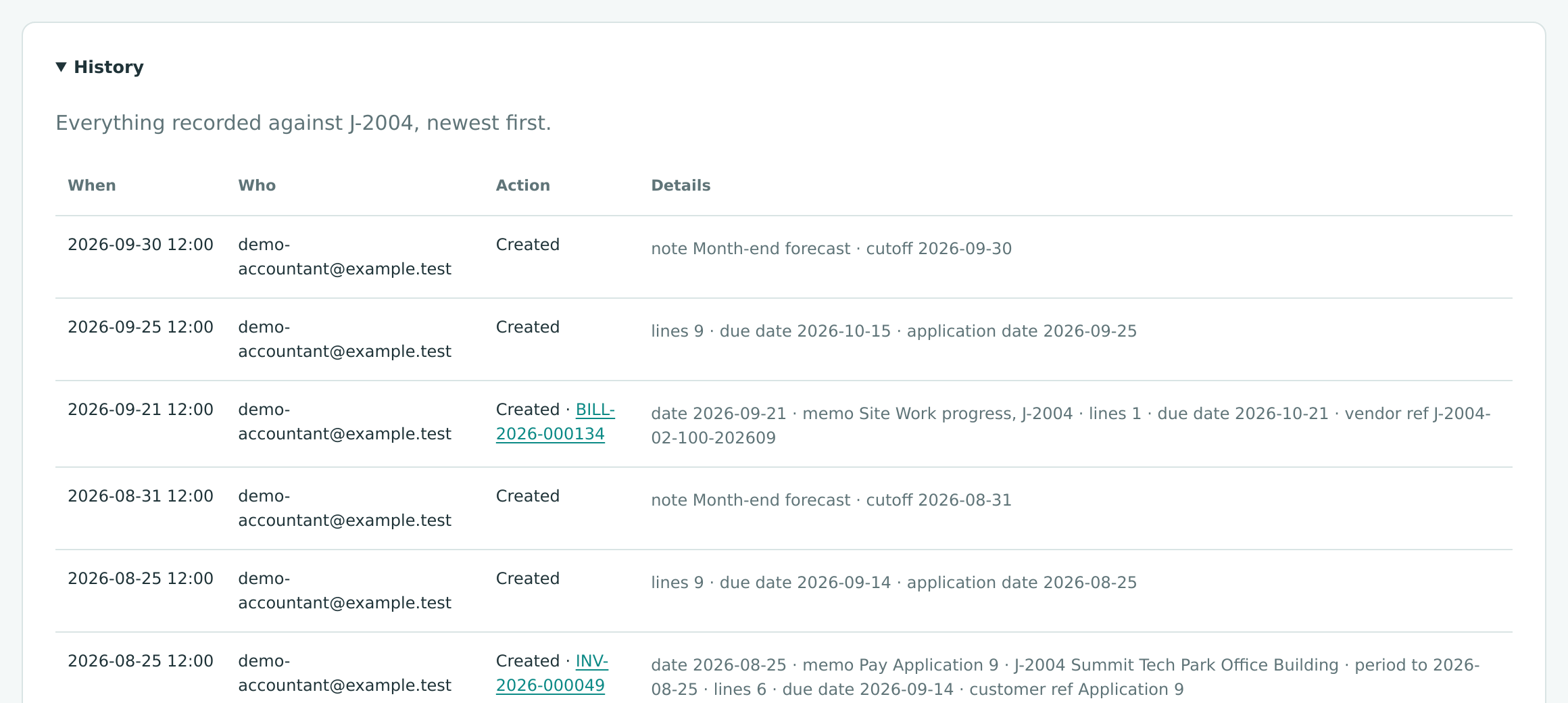
- History lists everything recorded against the job, newest first. Click History to open it.
Editing a Job
- On the job page, click Edit Job.
- Change the fields you need. Cost codes are not on this form; manage them in the Cost Codes card on the job page.
- Click Save Job. Structally opens the job page again.
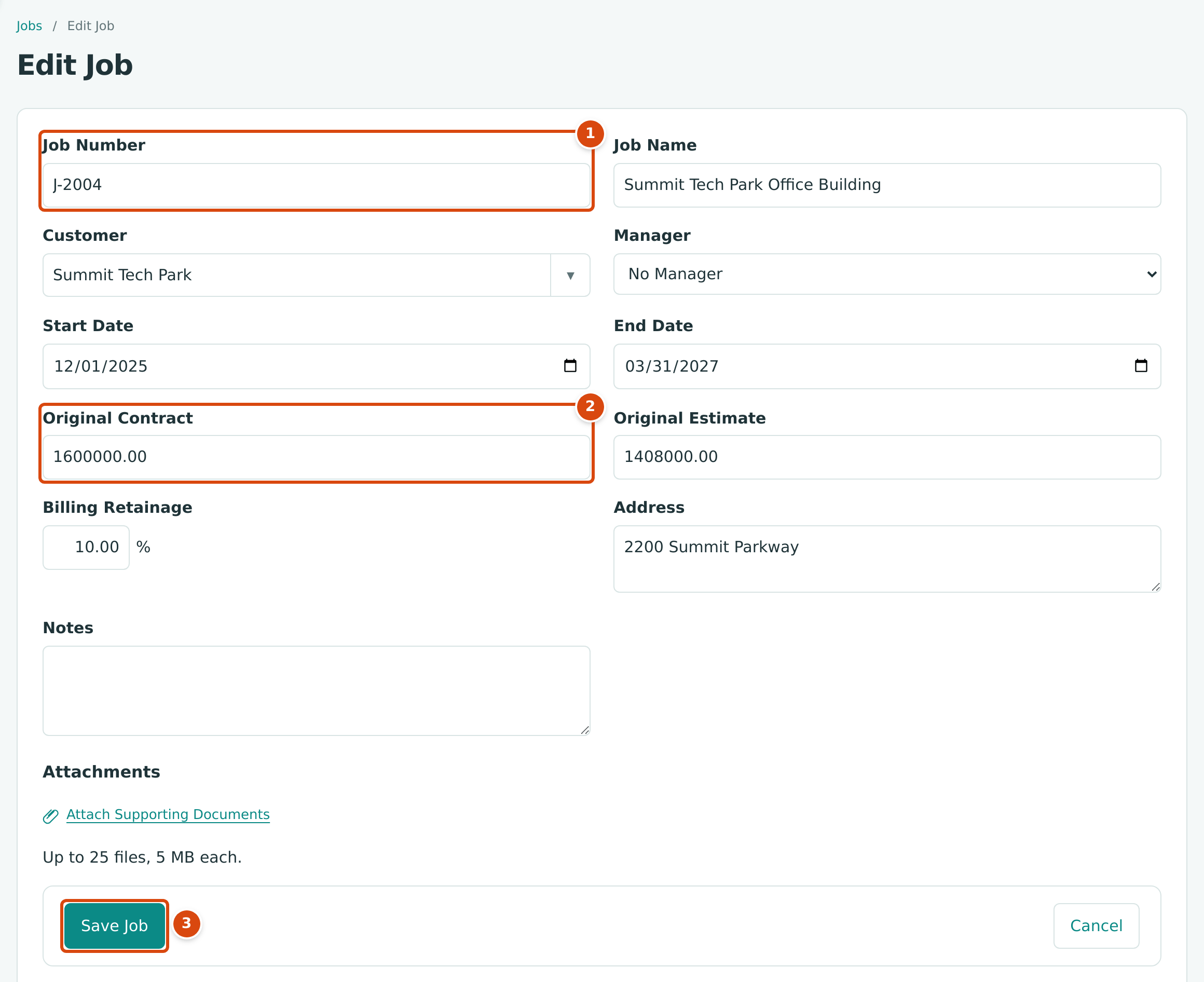
- Job Number: can be changed only while the job is a draft.
- Original Contract and Original Estimate: once the job is no longer a draft, an amount that was entered cannot be changed. Contract changes go through change orders, cost changes through budget revisions.
- Save Job saves the changes.
An archived job cannot be edited: its page has no Edit Job button.
Worked Example: J-2004 Summit Tech Park Office Building
Cedar Ridge Contracting signed a 1,600,000.00 contract with Summit Tech Park for an office building at 2200 Summit Parkway, with work from December 1, 2025 to March 31, 2027. Its estimate was 1,408,000.00, and the owner holds back 10% of each billing. The job was created with:
| Field | Value |
|---|---|
| Job Number | J-2004 |
| Job Name | Summit Tech Park Office Building |
| Customer | Summit Tech Park |
| Start Date / End Date | 2025-12-01 / 2027-03-31 |
| Original Contract | 1,600,000.00 |
| Original Estimate | 1,408,000.00 |
| Billing Retainage | 10.00% |
| Address | 2200 Summit Parkway |
| Cost codes | 02-100, 03-300, 06-100, 07-100, 09-100, 22-100, 26-100, 31-100, plus the general code 01-100 |
The planned profit is 1,600,000.00 − 1,408,000.00 = 192,000.00, or 12.0% of the contract; the job's approved September forecast shows the same Projected Profit of 192,000.00 (12.0%). After activation the job collected 939,489.74 of cost and 949,461.80 of revenue by September 30, 2026, as the Costs card shows.
What Happens After You Save
| After Create Job | After Save Job | |
|---|---|---|
| Status | Draft | Unchanged |
| Cost codes | The ticked codes plus every General code | Unchanged |
| Journal entry | None; jobs never post on their own | None |
| Can still be changed | Everything | Number and original amounts only while Draft |
| Next step | Add a budget, then activate the job | — |
A draft job does not appear in the Job lists of bills, expenses and invoices; it does appear when you create budgets, commitments and change orders.
Common Mistakes and Troubleshooting
| Message or Symptom | Why It Happens | What to Do |
|---|---|---|
| Job number already in use | Another job has the same number, whatever the capitalization. | Use a different number. |
| Job number must be 1 to 30 characters. | The number is empty or too long. | Shorten it. |
| Job name must be 1 to 120 characters. | The name is empty or too long. | Shorten it. |
| Customer must be active. | The customer was deactivated. | Reactivate the customer, or choose another. |
| A message that the manager must be a user of the company | The chosen manager no longer has active access to the company. | Choose another manager or No Manager. |
| End date cannot be before the start date. | The dates are reversed. | Correct the dates. |
| Retainage percent must be from 0 to 100 with at most two decimals. | Billing Retainage is out of range. | Enter a value such as 10 or 5.5. |
| Job number can only be changed while the job is a draft. | The job is active, on hold or closed. | Keep the number. |
| Original contract and estimate are frozen once the job is active. | You changed an original amount after the job left Draft. | Use a change order or a budget revision instead. |
| Inactive cost codes cannot be assigned. | A ticked cost code was deactivated meanwhile. | Untick it, or reactivate it. |
| This job was changed by someone else. Reload the page and try again. | Someone saved the job after you opened it. | Reload the page and make your change again. |
| This page is read-only. on New Job | You have view access only. | Ask a Company Admin for Edit access to Jobs & Costing. |
| A new job is not in the bill's Job list | The job is still a draft. | Activate it. |