Managing Vendors
A vendor is anyone your company buys from: a supplier, a subcontractor, a rental yard, a utility, a permit office. Every bill, payment and vendor credit names a vendor, and expenses can. The vendor record holds the contact details your team needs, and the vendor page brings together what you owe the vendor, what is past due, any credit you can use and everything you have recorded with them.
Before You Begin
- To add or change vendors you need Edit access to Vendors & Bills (Company Admins, Accountants, Project Managers, and Custom users with Edit). Viewers can open the list and every vendor page but see no buttons that change anything. See Roles and Permissions.
- Payment terms you want to record on a vendor exist in Payment Terms, or you add them from the Payment Terms picker (this needs Edit access to Accounting).
Navigation
Vendors & Bills → Vendors. Click a vendor's name to open its page, or New Vendor to add one.
The Vendors List
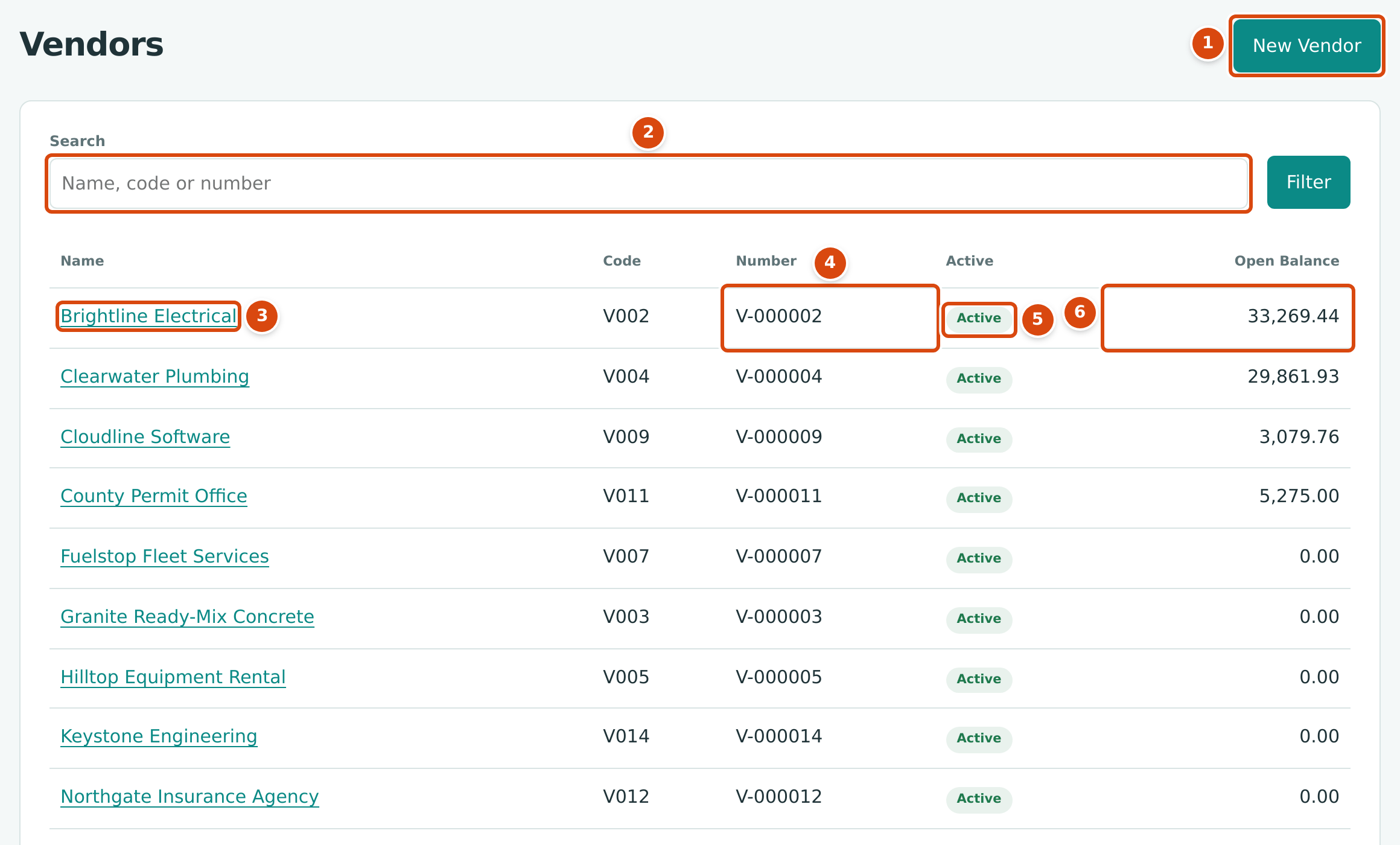
- New Vendor opens the form for a new vendor.
- Search finds vendors whose name, code or number contains what you type. Click Filter to apply it.
- The vendor's name opens the vendor page.
- Number: assigned by Structally when the vendor is created (V-000001, V-000002 and so on). Code is your own short code.
- Active or Inactive. The list shows both.
- Open Balance: what you owe the vendor today: posted bills not yet paid, less unapplied payments and vendor credits.
The list shows 25 vendors per page, in name order.
Adding a Vendor
- Click Vendors & Bills → Vendors → New Vendor.
- Type the Name as it appears on the vendor's invoices.
- Fill in any of the other fields (see Field Reference).
- Click Save. Structally assigns the next vendor number and opens the new vendor's page. Cancel returns to the list without saving.
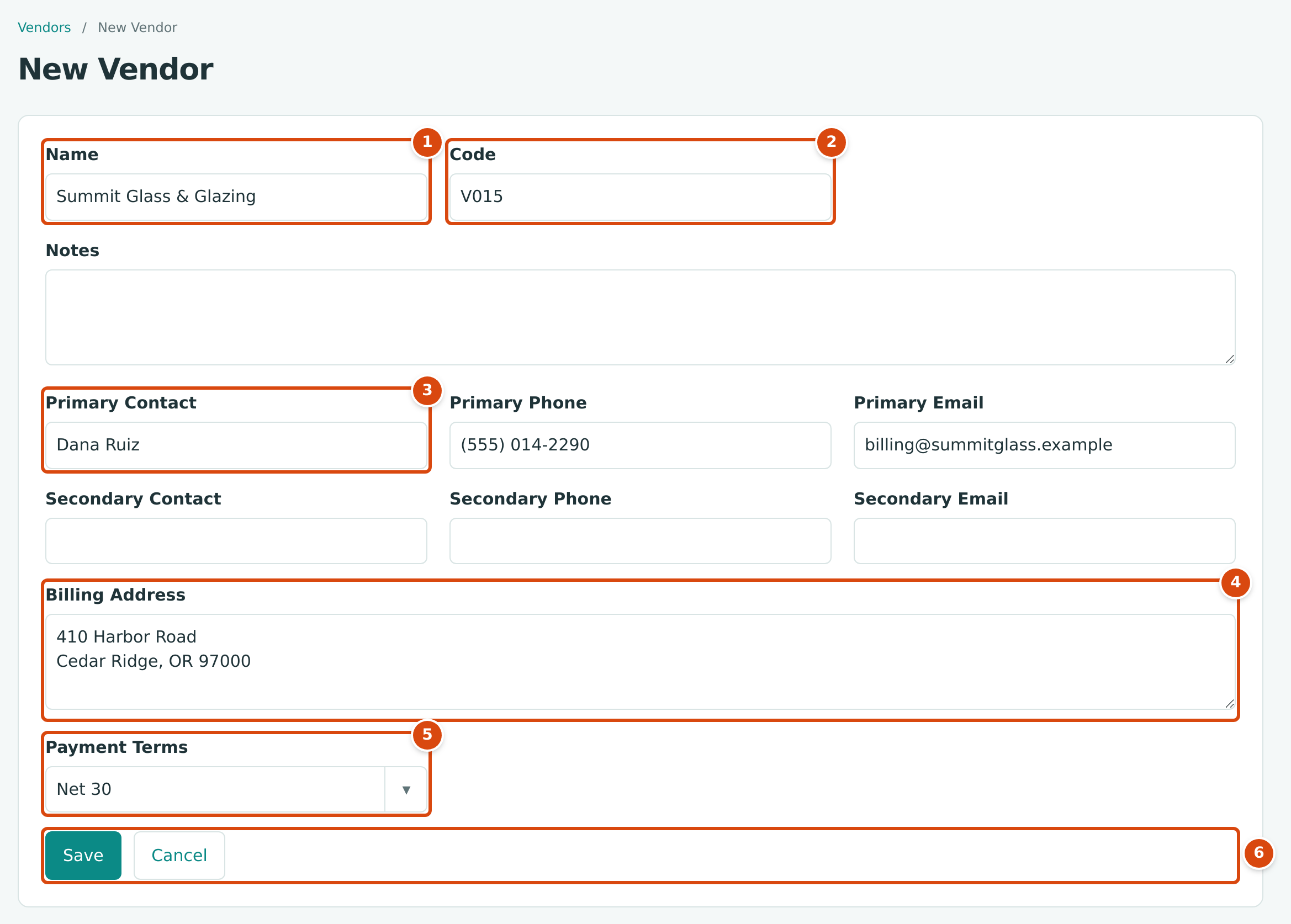
- Name: required.
- Code: optional, unique among your vendors.
- Contact details: Primary Contact, Primary Phone, Primary Email, and the same for a secondary contact.
- Billing Address: as many lines as you need.
- Payment Terms: the terms this vendor usually gives you, for reference.
- Save creates the vendor; Cancel leaves without saving.
Adding a vendor without leaving a bill
On the bill, expense, vendor credit and Pay Bills forms, type a new name in the Vendor picker and choose + Add New to create the vendor in a side panel. See Adding a Vendor While You Enter a Bill.
The Vendor Page
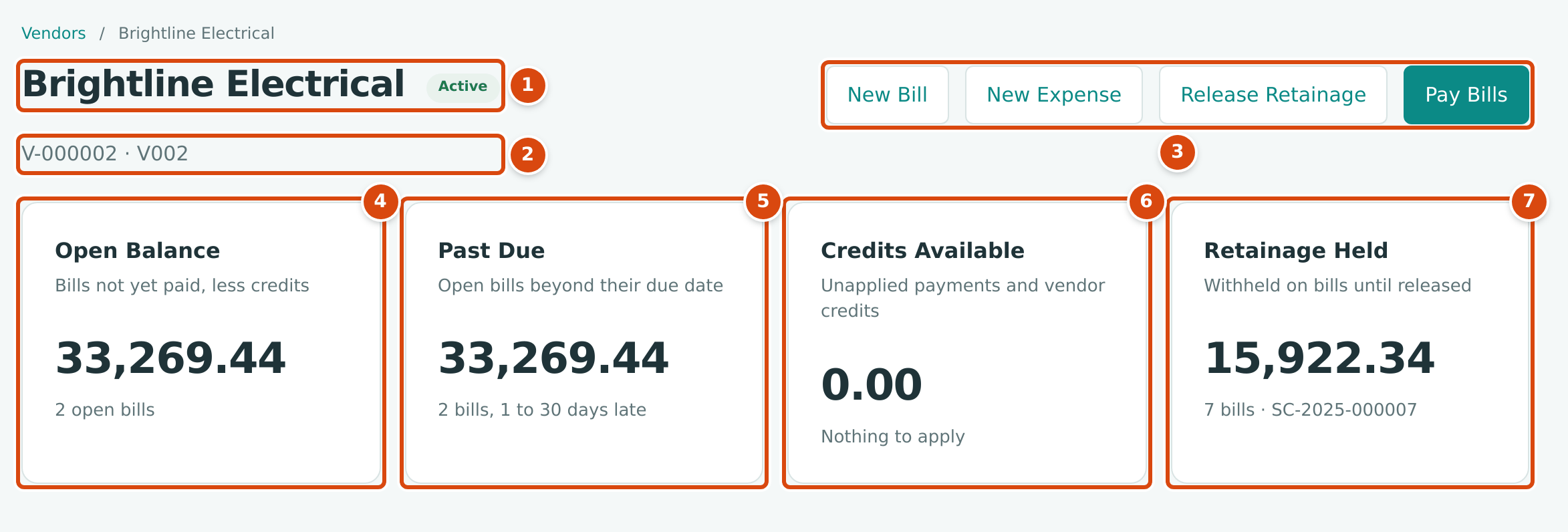
- The vendor's name and its Active or Inactive status.
- The vendor number and code.
- Shortcuts: New Bill and New Expense open the form with this vendor chosen. Release Retainage appears when retainage is held on this vendor's bills (see Releasing Retainage). Pay Bills appears when the vendor has open bills.
- Open Balance: bills not yet paid, less credits, with the number of open bills.
- Past Due: the part of the open balance beyond its due dates, with how late the oldest bill is (1 to 30 days, 31 to 60 days, 61 to 90 days or over 90 days).
- Credits Available: unapplied payments and vendor credits you can apply to this vendor's bills.
- Retainage Held: retainage withheld on this vendor's bills and not yet released. This tile appears only when your company has a Retainage Payable account.
Vendor Details
The Vendor Details card lists the contacts, Billing Address, Payment Terms, Code and Notes. A dash (—) means the field is empty.
Payment terms on a vendor
A vendor's Payment Terms are a reference for your team. A new bill starts with your company's default terms whichever vendor you choose, so pick the vendor's terms on the bill when they differ. See Entering a Bill.
Recent Activity
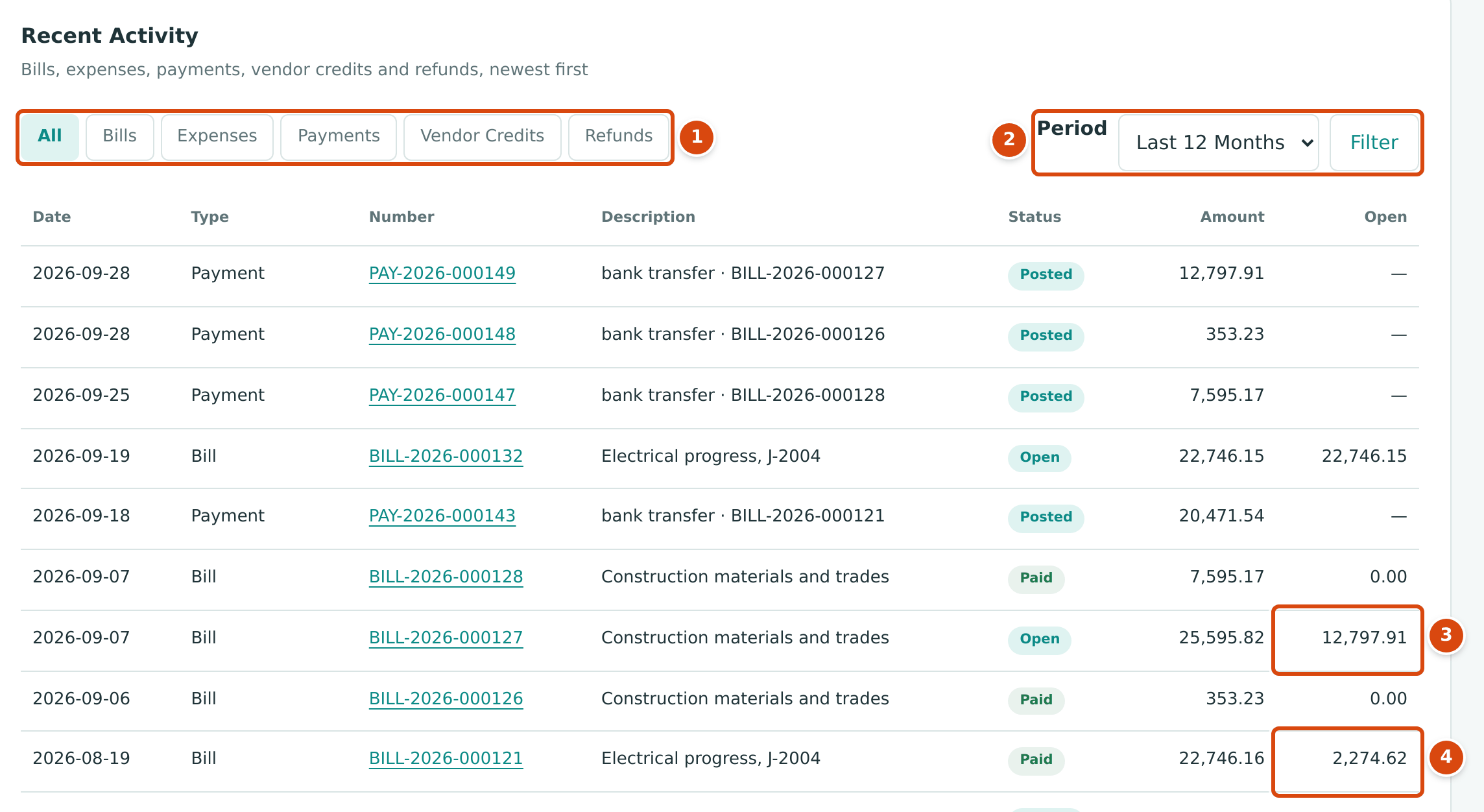
- Show All transactions, or only Bills, Expenses, Payments, Vendor Credits or Refunds.
- Period: Last 12 Months (the default), Last 90 Days, This Fiscal Year or All Time. Click Filter to apply it.
- Open: what is still unpaid on a bill, or still unused on a vendor credit. Payments, expenses and refunds show a dash.
- On a paid bill that held retainage, Open shows the retainage still held (here 2,274.62), even though the bill's status is Paid.
Draft bills and draft vendor credits are not listed; only posted records are. Each number opens the record. Under the table, the count of transactions in the period appears beside View Full History, which switches the period to All Time:

- View Full History shows every transaction with this vendor.
Editing a Vendor
- Open the vendor page and click Edit Details in the Vendor Details card. The card turns into a form.
- Change any field: Name, Code, Notes, the contacts, Billing Address or Payment Terms.
- Click Save. Structally confirms Vendor updated. Cancel closes the form without saving.
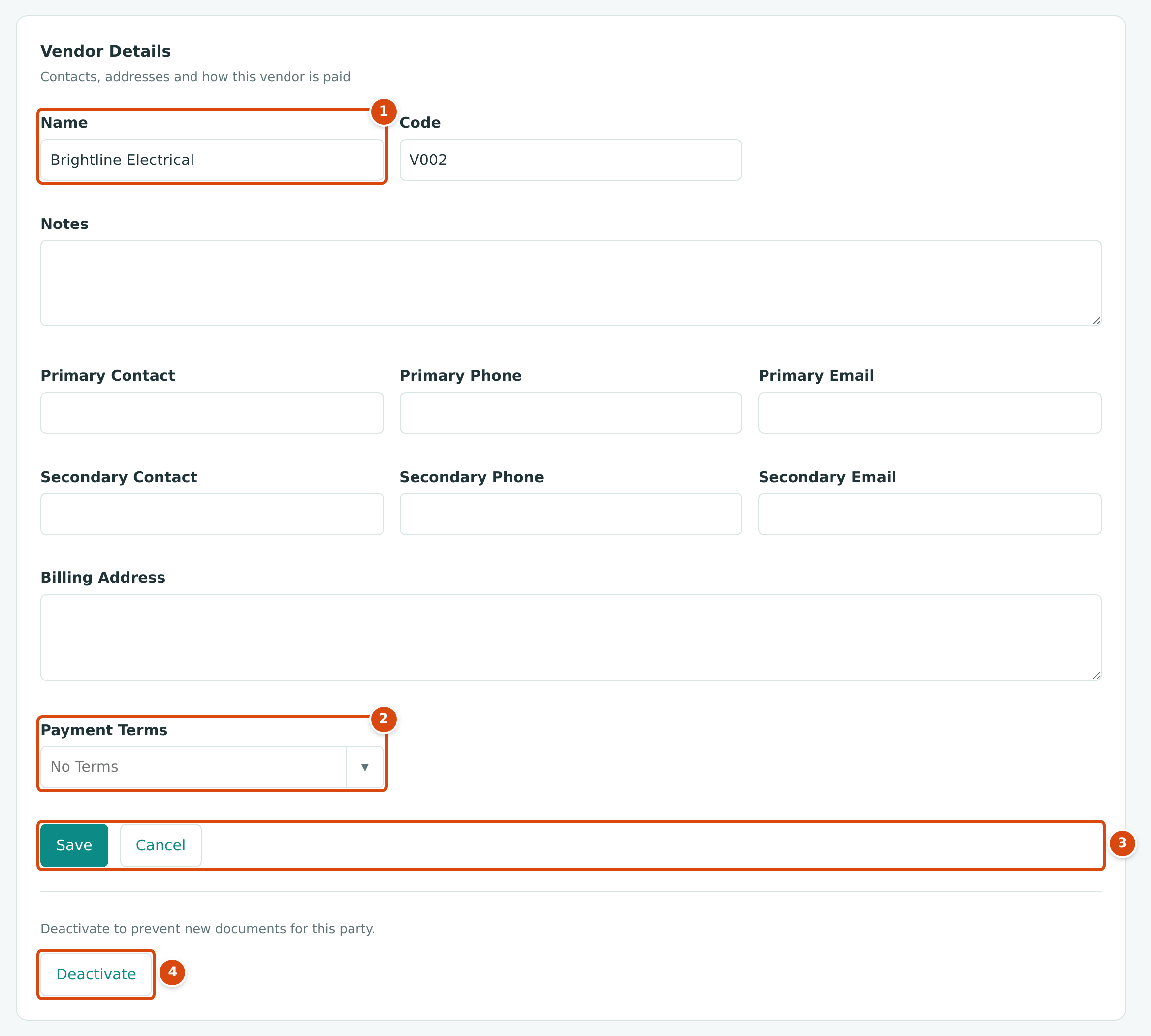
- Name and the other fields, filled with the current values.
- Payment Terms: No Terms or one of your active terms.
- Save and Cancel.
- Deactivate (or Reactivate on an inactive vendor), below the form.
A new name appears on the vendor's existing bills, payments and reports, because they all point to the same vendor. If you open a separate full-page form titled with the vendor's name (for example from a saved link), it holds the same fields: change them and click Save.
Deactivating and Reactivating a Vendor
Deactivate a vendor you no longer buy from, so nobody chooses it by mistake. Nothing is deleted: the vendor's posted bills, payments and credits, and its place in reports, stay as they are.
- Open the vendor page and click Edit Details.
- Under the form, read Deactivate to prevent new documents for this party. and click Deactivate.
- Structally confirms Vendor deactivated. The page shows Inactive.
To undo it, click Edit Details → Reactivate (the note reads Reactivate to allow new documents for this party.). Structally confirms Vendor reactivated.
| While a Vendor Is Inactive | Result |
|---|---|
| New bills, expenses, vendor credits and Pay Bills | The vendor is not offered in the Vendor picker. |
| Saving or posting one of its draft bills or vendor credits | Refused: Vendor must be active. |
| Paying its open bills | Refused: Vendor must be active. Reactivate the vendor first. |
| Voiding its open bills or credits, reversing its payments | Allowed. |
| The vendor list, its page, its history and reports | Unchanged; the vendor shows Inactive. |
Structally does not stop you deactivating a vendor that still has open bills. Pay or void them first if you want the vendor's balance to be zero.
Field Reference
| Field | Description | Required | Example |
|---|---|---|---|
| Name | The vendor's name, up to 100 characters. | Yes | Summit Glass & Glazing |
| Code | Your own short code, up to 50 letters, digits, hyphens or underscores, unique among vendors. Searchable. | No | V015 |
| Notes | Free text for your team. | No | Ask for lien waivers with each draw |
| Primary Contact, Primary Phone, Primary Email | The main contact. The email must be a valid address. | No | Dana Ruiz · (555) 014-2290 |
| Secondary Contact, Secondary Phone, Secondary Email | A second contact. | No | Accounts payable desk |
| Billing Address | The vendor's address, several lines allowed. | No | 410 Harbor Road, Cedar Ridge, OR 97000 |
| Payment Terms | The terms the vendor usually gives you. For reference only. | No | Net 30 |
| Number | Assigned automatically; cannot be changed. | — | V-000015 |
Worked Example: Brightline Electrical's Balance
Brightline Electrical's page on October 24, 2026 (figures above) shows an Open Balance of 33,269.44 from 2 open bills:
| Bill | Total | Retainage Held | Paid | Still Owed |
|---|---|---|---|---|
| BILL-2026-000127 | 25,595.82 | 0.00 | 12,797.91 | 12,797.91 |
| BILL-2026-000132 | 22,746.15 | 2,274.62 | 0.00 | 20,471.53 |
| Open Balance | 33,269.44 |
Both bills are past their due dates (October 7 and October 19, 2026), so Past Due is also 33,269.44, 2 bills, 1 to 30 days late. The 2,274.62 withheld on BILL-2026-000132 is not in the open balance; it is part of the Retainage Held tile (15,922.34 on 7 bills under subcontract SC-2025-000007), which becomes payable only through a retainage release.
Common Mistakes and Troubleshooting
| Message or Symptom | Why It Happens | What to Do |
|---|---|---|
| Vendor code already in use | Another vendor has the same code. | Choose a different code, or leave Code empty. |
| Vendor code must contain only letters, digits, hyphens and underscores. | The code has a space or another character. | Use letters, digits, - or _ only. |
| Vendor name must be 1 to 100 characters. | The name is only spaces, or too long. | Type a name of up to 100 characters. |
| Enter a valid email address. | Primary Email or Secondary Email is not an email address. | Correct it, or leave it empty. |
| Vendor must be active. | You are saving, posting or paying a document of an inactive vendor. | Reactivate the vendor, then try again. |
| The vendor does not appear in the Vendor picker. | The vendor is inactive. | Reactivate it on its page. |
| Edit Details, New Bill or Pay Bills is missing. | You have View access, or the vendor has no open bills (Pay Bills only). | Ask a Company Admin for Edit access. |
| A vendor cannot be deleted. | Structally has no delete for vendors; history must stay complete. | Deactivate it instead. |