| Account | Debit | Credit |
|---|---|---|
| 5040 Materials | 6,517.80 | |
| 2010 Accounts Payable | 6,517.80 |
Posting, Editing, and Voiding Bills
Once a bill is entered, its life is short and strict. A draft can be changed freely and has no effect on your books. Posting the draft writes its journal entry and makes the amount due payable. A posted bill can no longer be edited: if it is wrong, you void it, which posts a reversing entry, and enter it again. This page covers the Bills list, the bill page and those three actions. To enter a new bill, see Entering a Bill.
Before You Begin
- To edit, post or void bills you need Edit access to Vendors & Bills (Company Admins, Accountants, Project Managers, and Custom users with Edit). Viewers can open the list and every bill but see no action buttons. See Roles and Permissions.
- Posting and voiding dates must be after your company's Books Closed date (July 31, 2026 in the sample company).
Navigation
Vendors & Bills → Bills, then click a bill number.
The Bills List
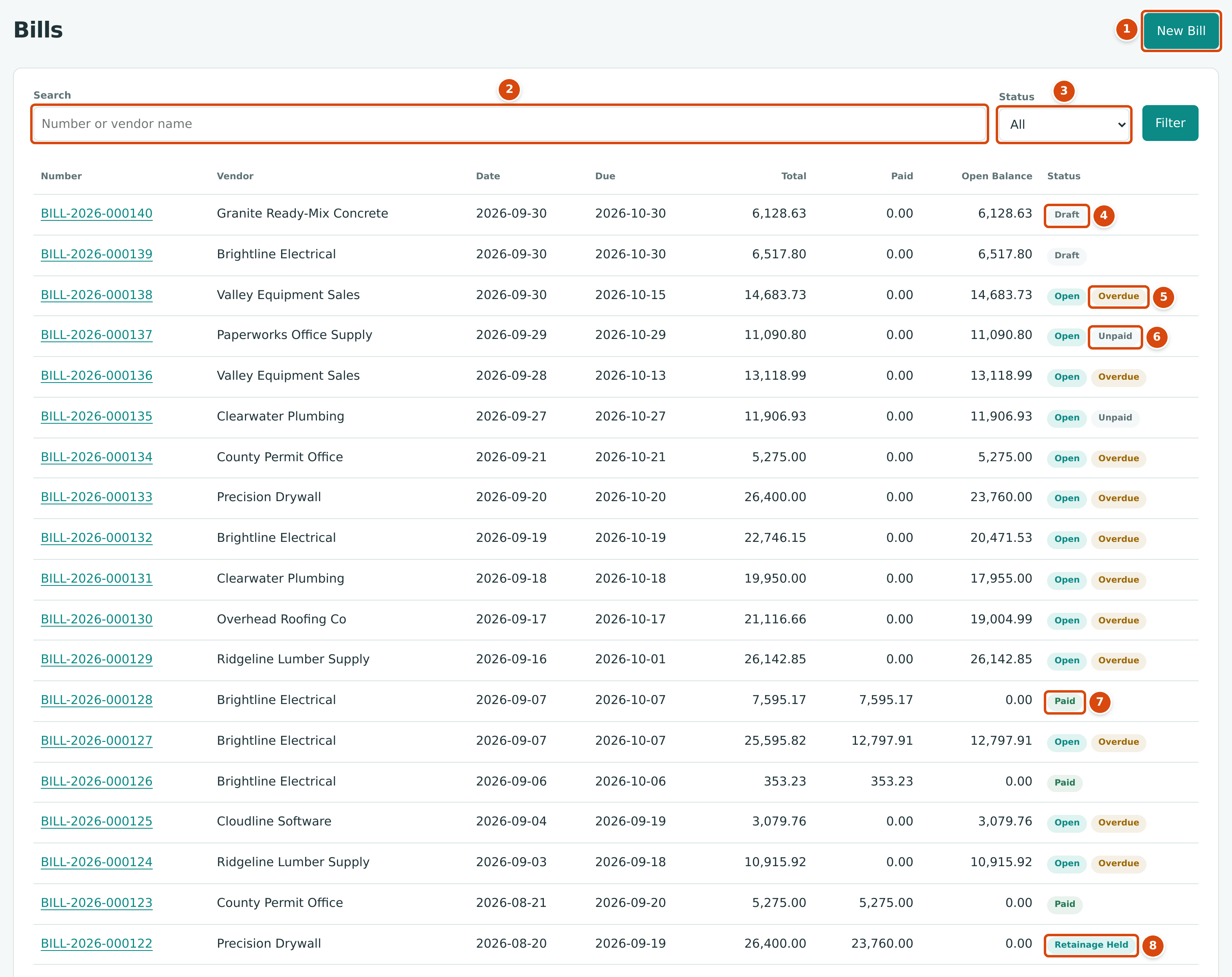
- New Bill opens the bill form.
- Search finds bills whose number or vendor name contains what you type.
- Status filters the list; click Filter to apply it. The list opens on Draft and Open.
- Draft: saved, not posted.
- Open with Overdue: posted, unpaid or partly paid, and past its due date.
- Open with Unpaid: posted, nothing paid yet, not yet due.
- Paid: fully settled by payments or credits.
- Retainage Held: the amount due is paid, but retainage withheld on the bill has not been released yet.
The columns show the bill Number, Vendor, Date, Due date, Total, how much is Paid (payments and credits applied), the Open Balance still owed and the Status. Open Balance excludes retainage held, which is paid later through a retainage release. Retainage release bills carry a Retainage Release tag beside their number.
Statuses and Filters
| Status Shown | Meaning | Status Filter That Finds It |
|---|---|---|
| Draft | Saved with Save Draft; no journal entry. | Draft and Open (the default), Draft |
| Open · Unpaid | Posted; nothing paid; due date today or later (or none). | Draft and Open, Open |
| Open · Partly Paid | Posted; part paid; not yet due. | Draft and Open, Open, Partly Paid |
| Open · Overdue | Posted; not fully paid; due date has passed (paid or not). | Draft and Open, Open, Overdue |
| Paid | Amount due fully settled. | Paid |
| Retainage Held | Paid, with retainage still withheld. | Paid |
| Void | Voided; its entry has been reversed. | Void |
Choose All to see every bill. The list shows 25 bills per page, newest first.
The Bill Page
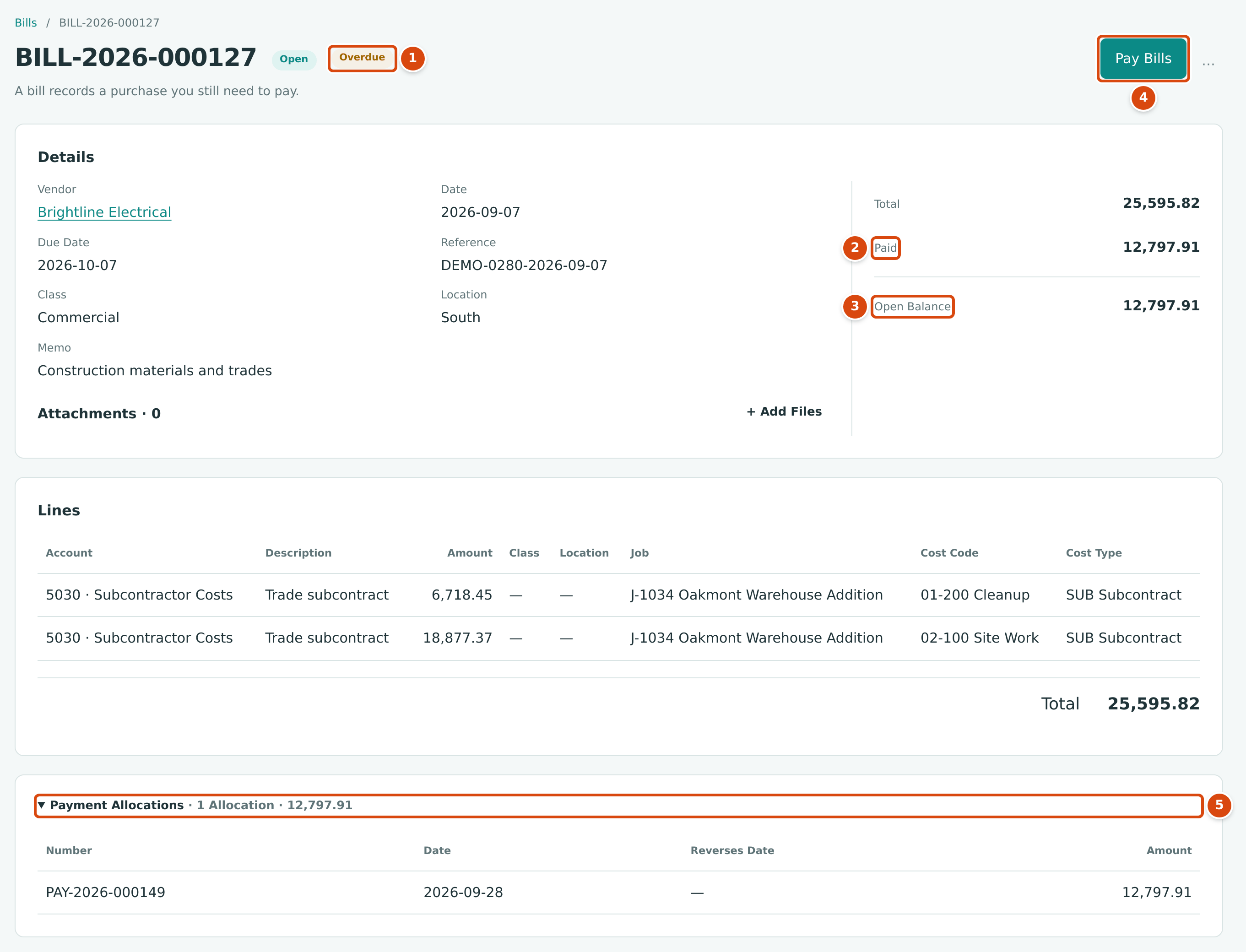
- The status (Open) and the payment state (Overdue).
- Paid: payments and credits applied so far.
- Open Balance: what is still owed on the bill.
- Pay Bills opens a payment to this vendor with this bill's open balance entered. It appears while the bill is open.
- Payment Allocations: each payment applied to the bill, with its date. A negative row shows a payment that was unapplied or reversed.
Below the lines, a posted bill can also show:
- Retainage Releases, when the bill held retainage, with a Release Retainage button while retainage is still held.
- Credits Applied: vendor credits applied to the bill (see Vendor Credits).
- Posting Entry: the journal entry the bill posted. Click it to expand.
- Reversal Entry: the entry that voided the bill, on a void bill.
- History: who created, posted, voided or attached files to the bill, and when.
Editing a Draft Bill
A draft can be changed as often as you like before it is posted.
- Open the draft from the Bills list (status Draft).
- Click Edit Draft. The bill form opens with the bill number as its title.
- Change the date, terms, due date, reference, location, lines, memo or attachments. The Vendor cannot be changed; to bill another vendor, enter a new bill.
- Click Save Draft. When editing, the form has no Post Bill button: post from the bill page.
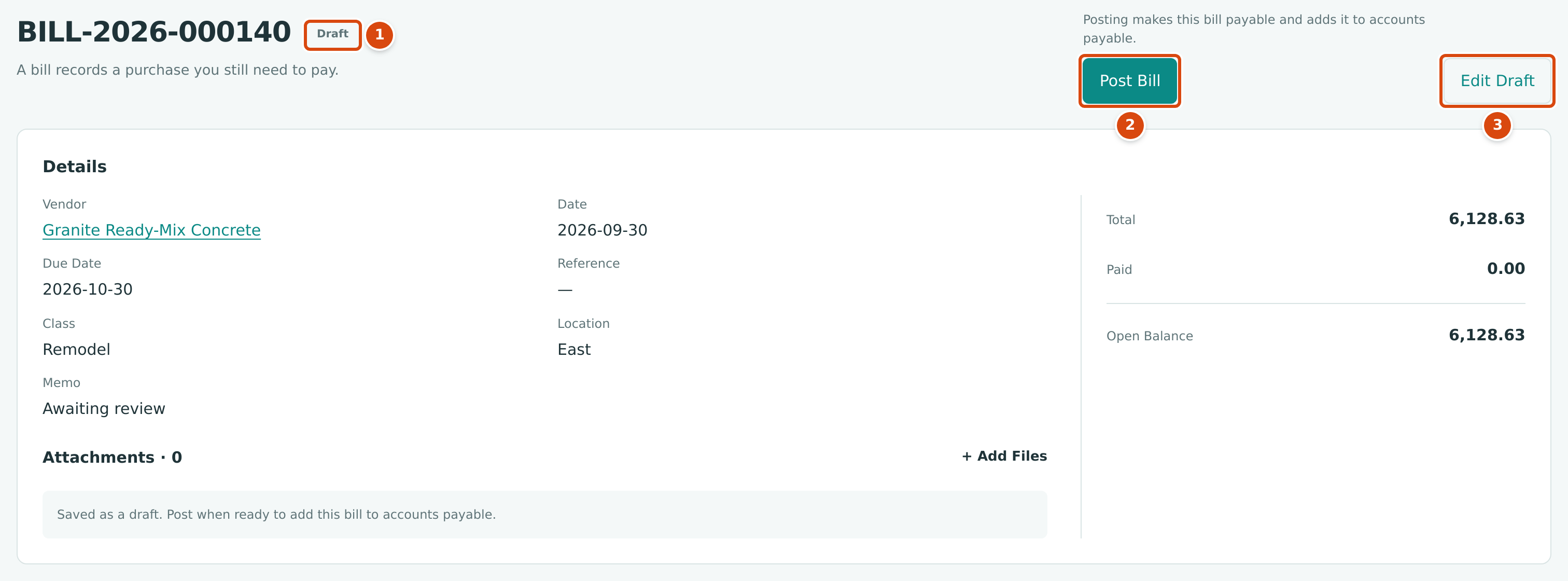
- The Draft status.
- Post Bill posts the draft as it stands.
- Edit Draft reopens the form.
No discard button
There is no button on screen to delete or discard a draft bill. A draft you do not need stays in the list with the status Draft. It never affects your books, balances or reports. Edit it into the bill you need, or leave it.
Posting a Draft Bill
- Open the draft bill.
- Check the lines and the date. The bill date is the accounting date of the entry.
- Click Post Bill. The note beside the button reads Posting makes this bill payable and adds it to accounts payable.
Structally confirms Bill BILL-2026-000139 posted to accounts payable. (with your bill's number). The status becomes Open, the Edit Draft button disappears, and Pay Bills and the ⋯ menu appear.
Posting runs the same checks as Post Bill on the form: the vendor must be active, every account and class must still be active, job coding must meet your Job Costing Settings, commitment overruns are checked, and the date must be after the Books Closed date. A draft that breaks a rule stays a draft; the message tells you what to fix (see Common Mistakes and Troubleshooting).
The Posting Entry
Posting debits each line's account (with its job, cost code and cost type) and credits 2010 Accounts Payable for the amount due. If the bill holds retainage, 2020 Retainage Payable is credited for the retained part. The entry is dated on the bill date and is locked. Draft BILL-2026-000139 from Brightline Electrical (6,517.80 of materials, dated September 30, 2026) would post:
The More Menu
On an open bill, the ⋯ button (More Actions) beside Pay Bills opens a menu with Void Bill….
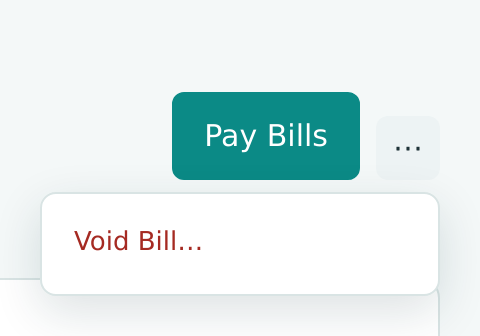
A Paid bill has no ⋯ menu: void is available only while the bill is Open. On a retainage release the menu offers Reverse Release… instead (see Releasing Retainage).
Voiding an Open Bill
Void a posted bill that should never have been posted: a duplicate, a bill entered for the wrong vendor or amount, an invoice the vendor canceled. Voiding keeps the bill and its original entry, posts an exact reversing entry on the date you choose, and sets the status to Void.
A bill can be voided only when all of these are true:
| Condition | If Not, Structally Says | What to Do First |
|---|---|---|
| No payment is applied to it. | Bill has payments applied; reverse them first | Reverse the payment, or unapply it from this bill (see Paying Bills). |
| No vendor credit is applied to it. | Bill has credits applied; unapply them first | Unapply the credit on the vendor credit's page (see Vendor Credits). |
| No posted retainage release draws on it. | Bill has retainage releases; reverse them first | Reverse the release (see Releasing Retainage). |
| It is Open. | Only open bills can be voided | Drafts are never posted, so there is nothing to void. |
| Its entry is not matched to a bank feed line. | Entry is matched to a bank line; unmatch it first | Unmatch it in the Bank Feed. |
- Open the bill and click ⋯ → Void Bill…. The Void drawer opens.
- In Date, enter the date of the reversing entry. It starts as today. It cannot be earlier than the bill date, and it must be after the Books Closed date.
- In Memo, type why the bill is being voided. The memo becomes the description of the reversing entry.
- Click Void Bill. Cancel closes the drawer without voiding.
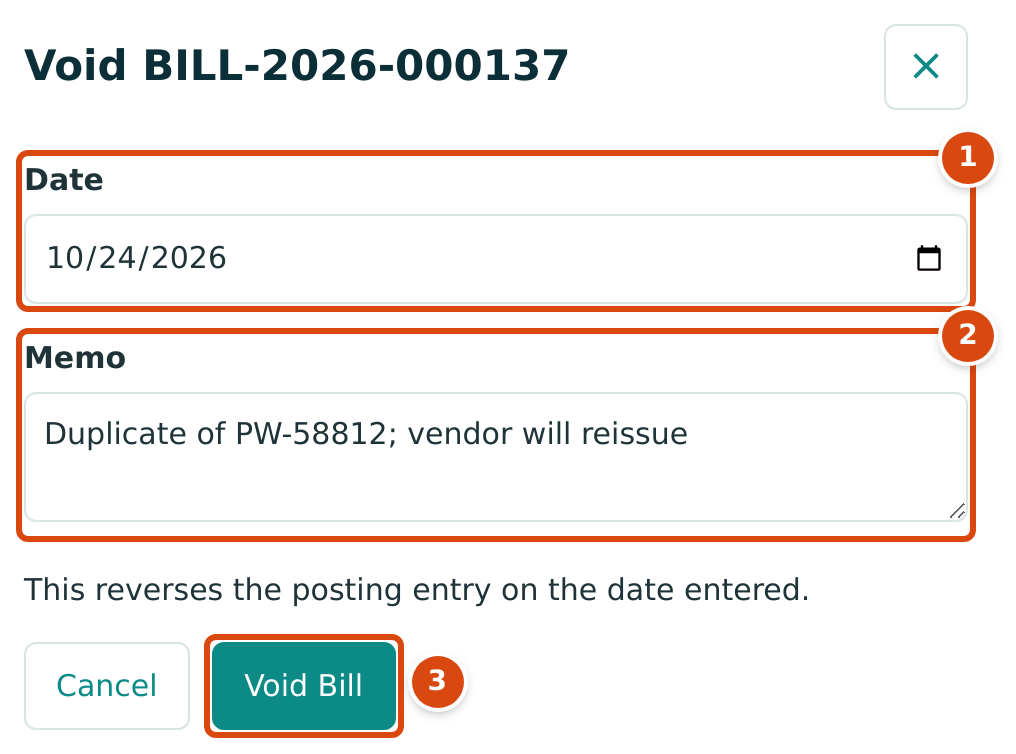
- Date: the accounting date of the reversing entry.
- Memo: the reason, kept on the reversing entry.
- Void Bill posts the reversal; This reverses the posting entry on the date entered.
Voiding cannot be undone
A void bill stays void. To bring the purchase back, enter a new bill.
Field Reference: The Void Drawer
| Field | Description | Required | Example |
|---|---|---|---|
| Date | Date of the reversing entry. On or after the bill date, after the Books Closed date. | Yes | 10/24/2026 |
| Memo | Why the bill was voided. Becomes the reversing entry's description (at most 200 characters). | No | Supplier canceled duplicate bill |
Worked Example: A Voided Duplicate Bill
On November 4, 2023, Cedar Ridge posted BILL-2023-000008 from Keystone Engineering for $24,666.75 of site materials on job J-1002 (two lines: 1,482.46 to cost code 07-300 and 23,184.29 to 08-100). Two days later the supplier canceled it as a duplicate. Nothing had been paid or applied, so the bill was voided on November 6, 2023 with the memo Supplier canceled duplicate bill.
| Debit | Credit | |
|---|---|---|
| Original entry (2023-11-04): 5040 Materials, J-1002 07-300 MAT | 1,482.46 | |
| Original entry: 5040 Materials, J-1002 08-100 MAT | 23,184.29 | |
| Original entry: 2010 Accounts Payable | 24,666.75 | |
| Reversing entry (2023-11-06): 5040 Materials, J-1002 07-300 MAT | 1,482.46 | |
| Reversing entry: 5040 Materials, J-1002 08-100 MAT | 23,184.29 | |
| Reversing entry: 2010 Accounts Payable | 24,666.75 |
After the void, accounts payable, the vendor's balance and job J-1002's materials cost are each back where they were before the bill: the net of the two entries is zero.
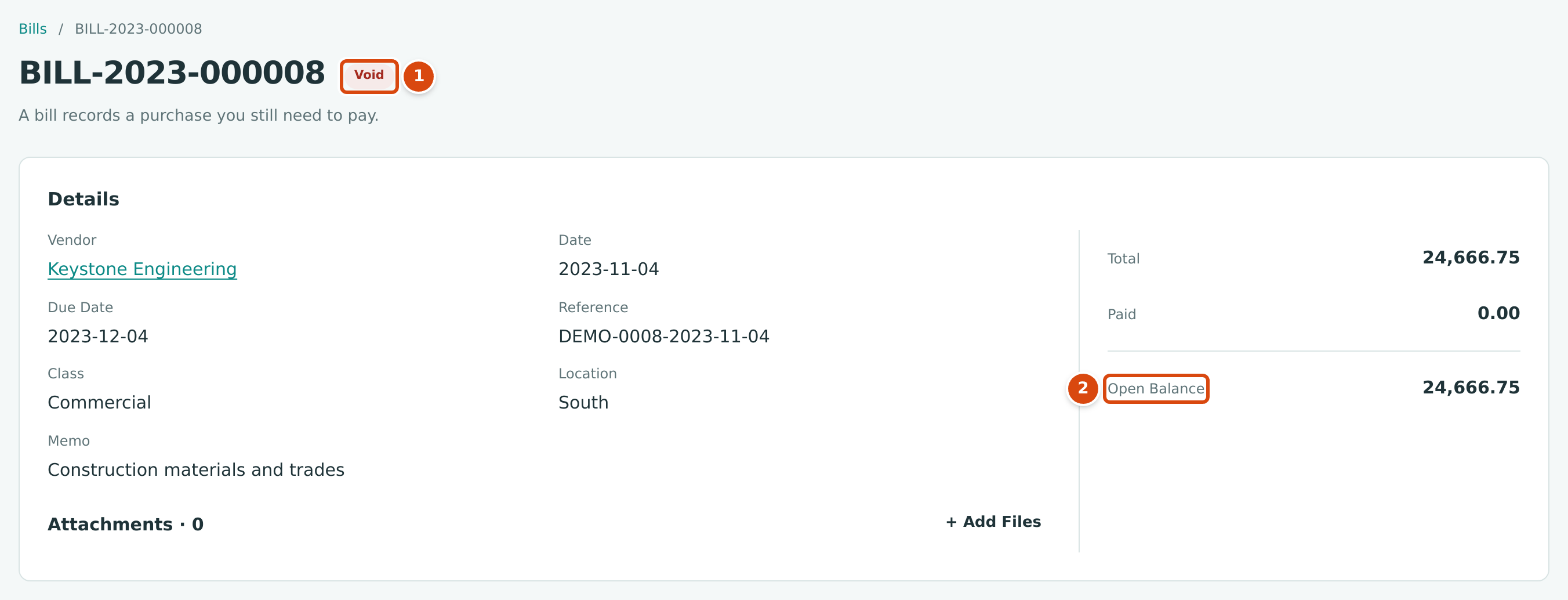
- The status is Void.
- Open Balance on a void bill still shows the amount that was due (the total less any retainage held), although nothing is owed. The bill is not counted in accounts payable, the vendor's balance or Pay Bills.
The Reversal Entry
Open Reversal Entry on the void bill to see the mirror image of the posting entry, dated on the void date (the figure below).
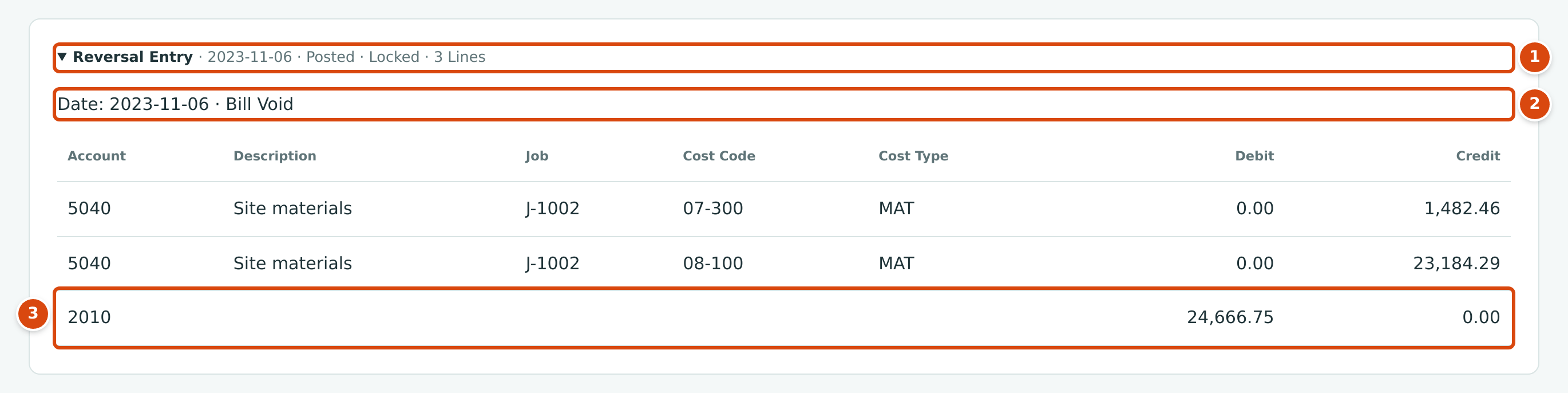
- Reversal Entry, its date and Posted · Locked.
- The entry's type, Bill Void.
- Accounts Payable is debited for the amount the bill had credited.
What Happens After You Post or Void
| Post a Draft | Void an Open Bill | |
|---|---|---|
| Status | Open (later Paid) | Void |
| Journal entry | One entry on the bill date | A reversing entry on the void date; the original stays on its own date |
| Accounts payable and the vendor's balance | Increased by the amount due | Reduced by the same amount |
| Job costs and a commitment's billed to date | Increased | Reduced again |
| Reports for the original period | Include the bill | Unchanged; the reversal shows in the period of the void date |
| Can be changed | No; void it and enter it again | No |
See all corrections in one place in Reversing and Correcting Transactions.
Common Mistakes and Troubleshooting
| Message or Symptom | Why It Happens | What to Do |
|---|---|---|
| There is no Edit Draft on a posted bill. | Posted bills cannot be changed. | Void it and enter a corrected bill. |
| There is no ⋯ menu on the bill. | The bill is Paid, Draft or Void, or you have View access. | Unapply or reverse its payments first to reopen it. |
| Bill has payments applied; reverse them first | A payment is still applied. | Unapply the payment from this bill, or reverse the payment. |
| Bill has credits applied; unapply them first | A vendor credit is applied. | Unapply it on the vendor credit's page. |
| Bill has retainage releases; reverse them first | A posted release draws on this bill's retainage. | Reverse the release first. |
| Entry is matched to a bank line; unmatch it first | The bill's entry is matched in the Bank Feed. | Unmatch the bank line, then void. |
| Reversal date cannot be earlier than the journal entry date. | The void date is before the bill date. | Use the bill date or later. |
| Accounting date must be after the company closing date; 2026-07-15 is on a closed period. | The void date is on or before the Books Closed date. | Use a date after the Books Closed date. The original bill stays in the closed period. |
| Accounting date must be after the company closing date. | You are posting a draft dated in a closed period. | Edit the draft's date, or ask a Company Admin about the Books Closed date. |
| Description must be at most 200 characters. | The void memo is too long. | Shorten the memo. |
| Line descriptions must be at most 100 characters. | A line description is longer than 100 characters. The draft saves, but posting refuses it. | Shorten the description with Edit Draft. |
| Every account must be active, non-root, and belong to the company. | An account on the draft was deactivated after you saved it. | Edit the draft and choose an active account, or reactivate the account. |
| Vendor must be active. | The vendor was deactivated after the draft was saved. | Reactivate the vendor. |
| Set up retainage in Job Costing Settings before posting bills with retainage. | No Retainage Payable account is set up. | Ask a Company Admin to set one up in Job Costing Settings. |
| A draft bill cannot be deleted. | There is no discard button for drafts. | Leave it as a draft, or edit it into the bill you need. |
| The search does not find the vendor's invoice number. | Search looks at the bill number and vendor name only. | Search by vendor, then read the Reference on each bill. |