| Account | Debit | Credit |
|---|---|---|
| 5040 Materials (J-2002 · 06-100 · MAT) | 6,400.00 | |
| 5040 Materials (J-2001 · 06-100 · MAT) | 6,400.00 |
Job Costs and Cost Transfers
The Job Costs page shows what has actually been posted to each job: the cost and revenue for a period you choose, the cost and revenue to date, and the posted margin (revenue to date less cost to date). Each job opens into its cost codes (the work categories, such as 09-100 Drywall) and cost types (the kind of cost, such as SUB for subcontract). Below the table, a GL Bridge proves that the job-coded amounts agree with the general ledger, and an Exceptions list points at postings that need a second look.
Use the page at month end to review job costs before you prepare forecasts and WIP schedules, and whenever you need to answer "what has this job cost so far?". When a cost was posted to the wrong job, cost code or cost type, move it with a cost transfer (see Transferring a Cost).
The Job Costs page shows posted amounts only. Budgets, committed amounts and remaining budget are on other screens; see Budget, Committed, Actual and Remaining.
Before You Begin
- Jobs & Costing is turned on for your company and costs have been posted with job coding (see Coding Transactions to Jobs).
- Which accounts count as job cost and job revenue is set in Job Cost Accounts in Job Costing Settings.
- To open the page you need View or Edit access to Jobs & Costing. Company Admins, Accountants, Viewers and Project Managers have it.
- To transfer a cost you need Edit access to Jobs & Costing: Company Admins, Accountants and Project Managers, and Custom users given Edit on Jobs & Costing. See Roles and Permissions.
Navigation
Jobs & Costing → Job Costs, or Reports → Job Costs. The Job Cost This Month and Unassigned This Month tiles on the Jobs & Costing Overview open the same page.
The Job Costs Page
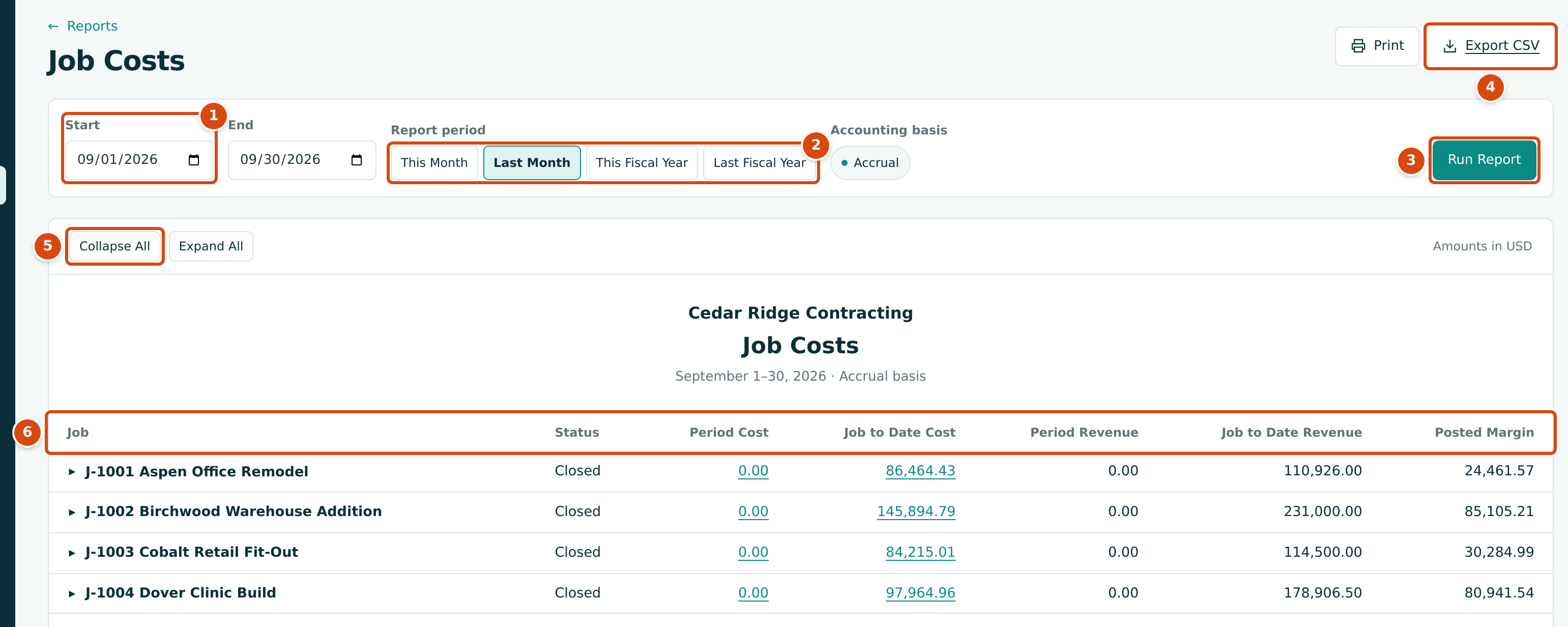
- Start and End: the period. When you open the page from the menu it covers the current month up to today.
- Report period: shortcuts for This Month, Last Month, This Fiscal Year and Last Fiscal Year. The highlighted one matches the dates shown.
- Run Report: runs the page for the dates you typed.
- Export CSV: downloads the table as a CSV file. Print prints the page.
- Collapse All and Expand All: hide or show the cost code rows of every job. Click a job's name to open or close just that job.
- The columns, explained in Reading the Table.
Step by Step
- Open Jobs & Costing → Job Costs.
- Type a Start and an End date, or click a Report period shortcut. For a closed month, use its first and last day (for example 09/01/2026 to 09/30/2026).
- Click Run Report. The heading under the company name repeats the period, for example September 1–30, 2026 · Accrual basis.
- Click Collapse All to see one line per job, then click a job's name to open its cost codes.
- Click an amount in Period Cost or Job to Date Cost to open the Job Cost Detail report for that job and the same Start and End dates.
- Scroll down to check the GL Bridge and the Exceptions.
If the start date is after the end date, the page shows Start must be on or before end. and no figures.
Both links open the same period
The Job to Date Cost link opens Job Cost Detail for the report's Start and End dates, not from the start of the job. To list every line to date, change Start in Job Cost Detail to the job's first month.
Reading the Table
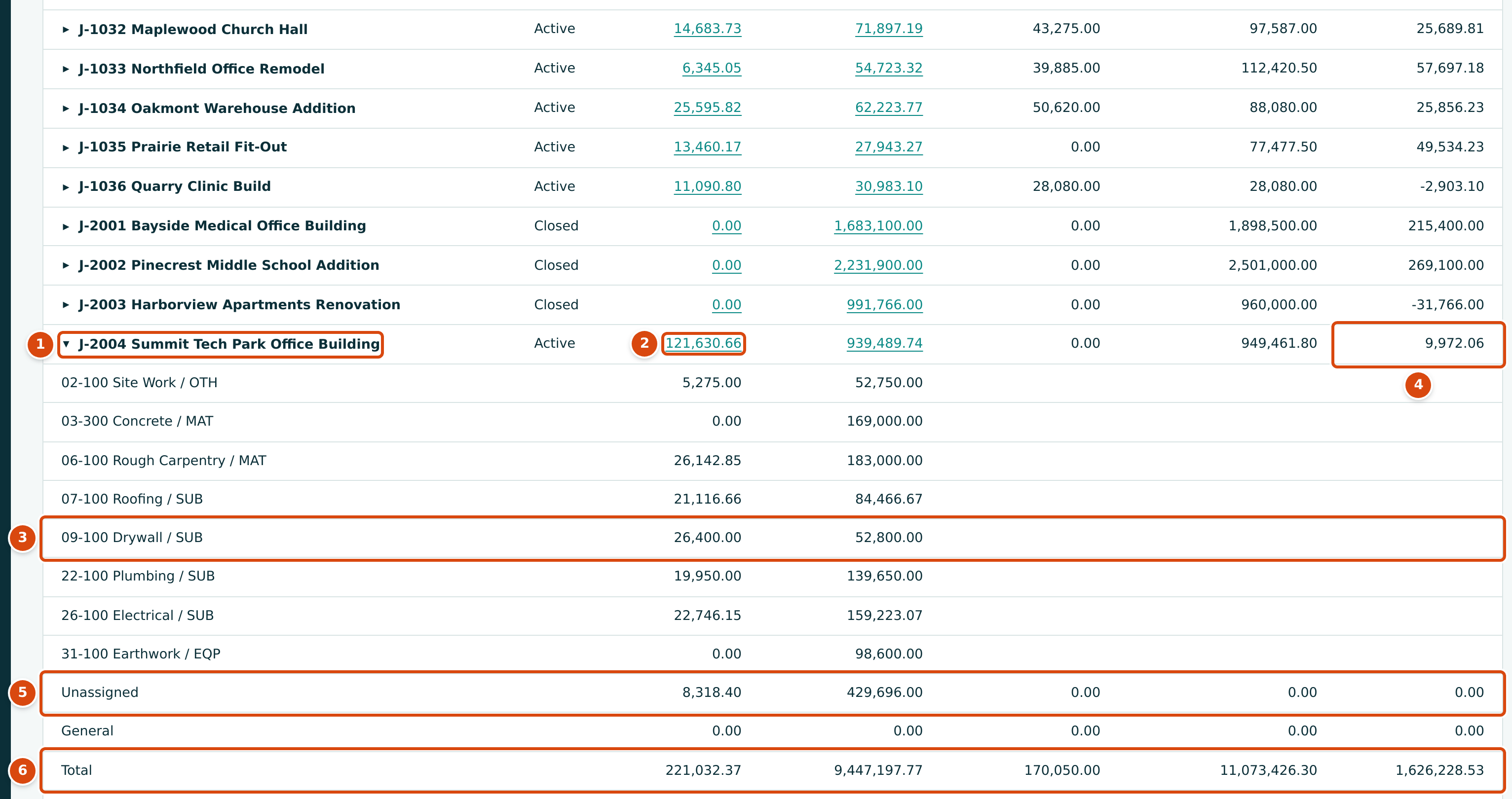
- The job. Click its name to show or hide its cost code rows.
- Period Cost: 121,630.66 of cost was posted to J-2004 in September. The amount is a link to the job's Job Cost Detail for the same dates.
- A cost code row: 26,400.00 of 09-100 Drywall, cost type SUB, this month, and 52,800.00 to date.
- Posted Margin: job to date revenue less job to date cost (949,461.80 − 939,489.74 = 9,972.06).
- Unassigned: cost on job cost accounts posted without a job.
- Total: the sum of the job rows.
| Column or Row | What It Shows |
|---|---|
| Job | The job number and name. Jobs that are Active, On Hold or Closed are always listed; a Draft or Archived job appears only if something was posted to it. |
| Status | The job's status today. |
| Period Cost | Cost posted to the job between Start and End: debits less credits on job cost accounts. |
| Job to Date Cost | Cost posted to the job from the first posting in your books up to End. |
| Period Revenue | Revenue posted to the job in the period: credits less debits on job revenue accounts, such as invoice lines coded to the job. |
| Job to Date Revenue | Revenue posted to the job up to End. |
| Posted Margin | Job to Date Revenue less Job to Date Cost. It is based on what has been billed, not on percent complete; for earned revenue see WIP Schedules. |
| Cost code rows | Under each job, one row per cost code and cost type, written code name / type, with its period and to date cost. |
| Unassigned | Cost posted to job cost accounts with no job. With the default settings, expense accounts are job cost accounts, so ordinary overhead such as rent and utilities lands here. It is not part of Total. |
| General | Cost coded to cost codes marked General (such as 01-100 General Requirements). It is already included in the job rows and in Total. |
| Total | The sum of all job rows. |
What Counts as Job Cost and Job Revenue
Job Costs adds up posted journal lines that carry a job:
- Job cost comes from accounts whose Eligibility is Direct Cost in Job Costing Settings. By default that is every direct cost account and every expense account, so an overhead bill coded to a job counts as job cost too.
- Job revenue comes from accounts whose Eligibility is Revenue: by default the income accounts, such as 4010 Construction Revenue.
- Accounts set to Excluded never count. That includes the WIP accounts, so WIP adjustments (4100 WIP Revenue Adjustment and the others) do not change Job to Date Revenue or Posted Margin.
- Only posted entries count. Draft bills and invoices with job coding are listed under Exceptions as provisional instead.
Reading J-2004 for September 2026
J-2004 Summit Tech Park Office Building shows Period Cost 121,630.66: six bills posted between September 16 and 21 (rough carpentry 26,142.85, roofing 21,116.66, plumbing 19,950.00, electrical 22,746.15, drywall 26,400.00 and site work 5,275.00). Job to Date Cost is 939,489.74 and Job to Date Revenue is 949,461.80, so Posted Margin is 9,972.06. Period Revenue is 0.00 because Pay Application 10 was sent but not yet accepted, so it has not been invoiced.
Budget, Committed, Actual and Remaining
The Job Costs page has no budget or commitment columns. Each of those figures has its own place in the product, and they are worked out like this:
| Figure | Where You See It | How It Is Worked Out |
|---|---|---|
| Original and Revised budget | Budget card on the job page; Budgets | Approved budget revisions with an effective date up to today. |
| Actual to Date | Budget card on the job page; Budgets | Posted job cost up to today, the same rule as Job to Date Cost here. |
| Remaining Budget | Budget card on the job page; Budgets | Revised less Actual to Date. Negative means over budget. |
| Committed, Billed to Date, Remaining | Commitments card on the job page; Commitments | Issued and closed subcontracts and purchase orders including approved amendments; what has been billed against them; and the difference. |
| Open Commitments per line | The job's budget page (View Budget on the job page) | What is still unbilled on issued commitments today, whatever As Of date is chosen. |
| Open Commitments at a date | Each line of a forecast | What is still unbilled on issued commitments at the forecast's cutoff date. |
| Forecast Final Cost | Forecasts | Actual cost plus open commitments plus still to buy, plus any adjustment. |
For J-2004 at the end of September 2026: revised budget 1,408,000.00, actual to date 939,489.74, remaining budget 468,510.26; committed 1,225,000.00, billed to date 788,139.74, remaining on commitments 436,860.26. The job page figure is in Job Cost Reports.
The job's budget page puts these figures side by side for each cost code and cost type, as of the date in As Of:
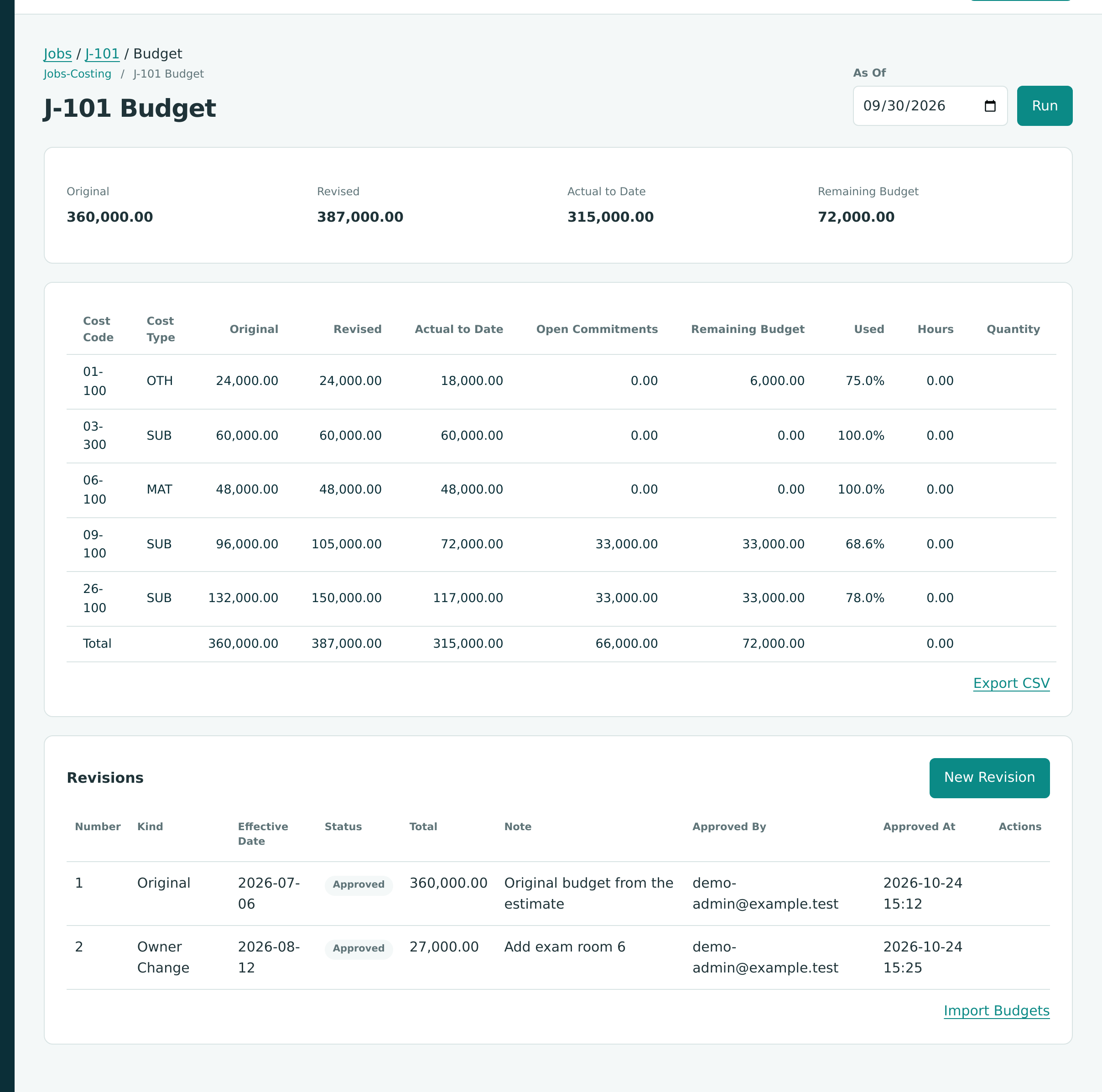
On the 09-100 Drywall line, for example: revised budget 105,000.00, actual to date 72,000.00, still open on the subcontract 33,000.00, remaining budget 105,000.00 − 72,000.00 = 33,000.00, and 72,000.00 ÷ 105,000.00 = 68.6% used. Remaining Budget does not subtract open commitments; a forecast does.
GL Bridge
The GL Bridge proves that job costing agrees with the books for the period. For each account that requires job coding or that has job-coded lines in the period, it splits the account's movement into the job-coded part and the unassigned part.
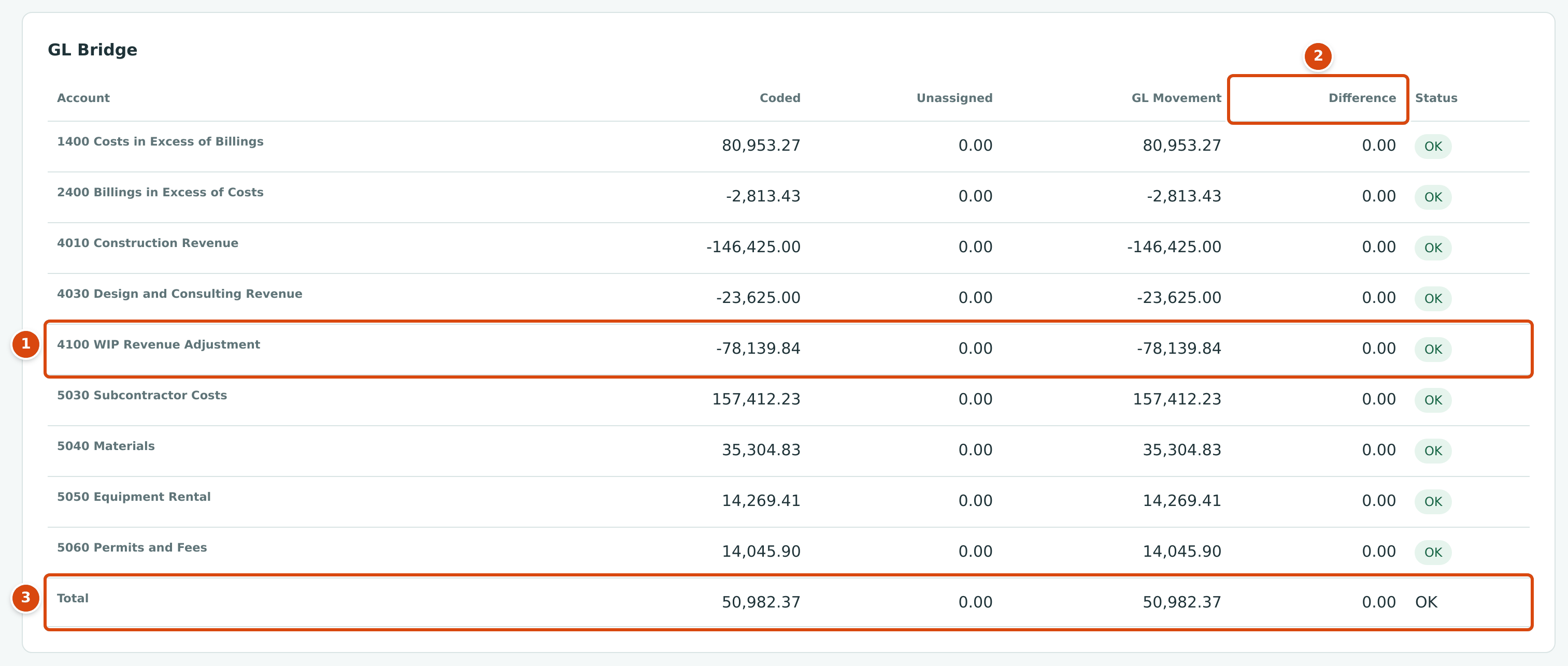
- An account row. WIP accounts appear here too, because WIP entries carry the job on every line.
- Difference: Coded plus Unassigned less GL Movement. It should always be 0.00, with the status OK.
- Total: OK when every account reconciles, otherwise Check.
| Column | Meaning |
|---|---|
| Account | The account code and name. |
| Coded | Net amount of the account's lines that carry a job (debits less credits, so revenue accounts show as negative). |
| Unassigned | Net amount of the account's lines without a job. |
| GL Movement | The account's movement in the period. |
| Difference | Coded + Unassigned − GL Movement. |
| Status | OK when the difference is 0.00, Check otherwise. |
The overview's Needs Attention list repeats the result as GL bridge: all accounts reconcile or, when something is off, GL bridge: 2 accounts need a check.
Exceptions
The Exceptions card lists postings that are not wrong in themselves but deserve a review before you close the month. When there is nothing to show it says No exceptions.
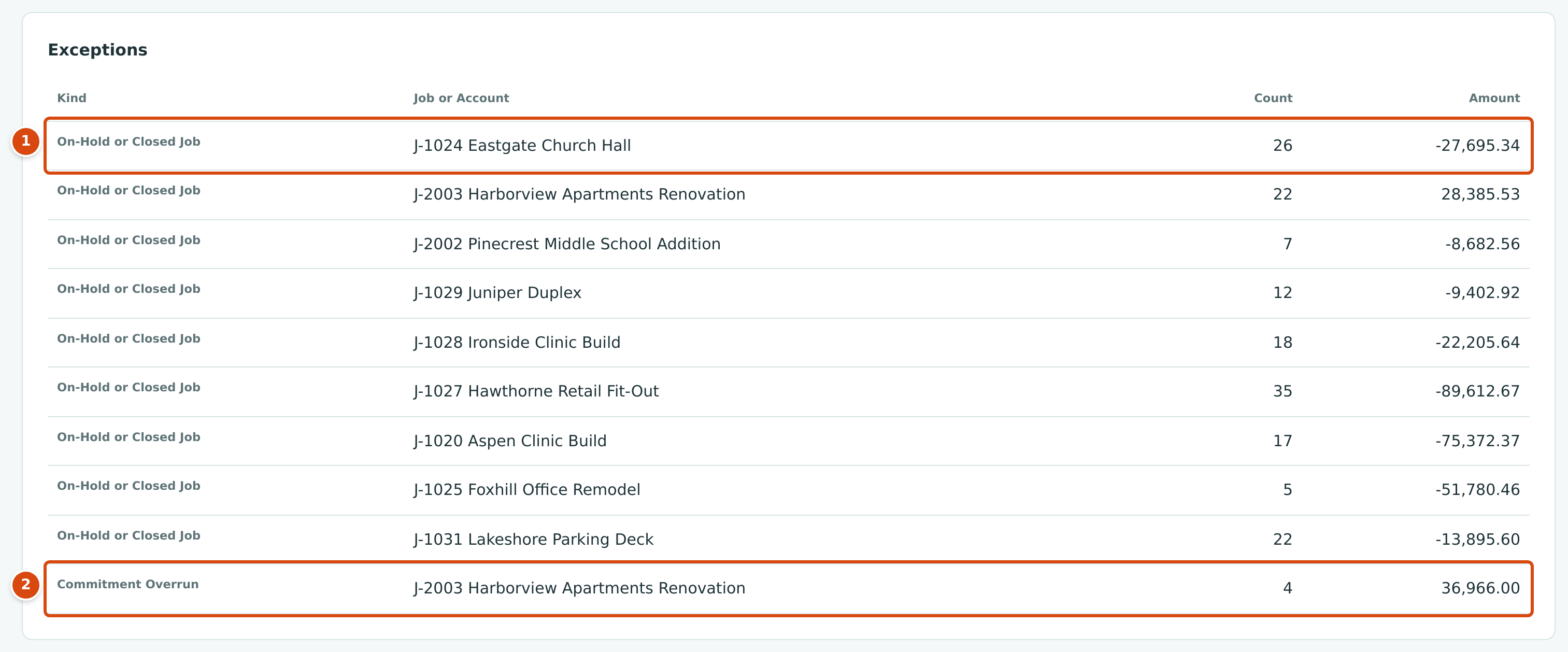
- On-Hold or Closed Job: lines in the period coded to a job whose status is now On Hold or Closed. Count is the number of lines; Amount is their net (debits less credits, so revenue lowers it).
- Commitment Overrun: posted bills in the period that went over their commitment line. Amount is the total over: 36,966.00 on four J-2003 lines.
| Kind | When It Appears |
|---|---|
| Unassigned Required Coding | Cost with no job on an account whose Coding is Required in Job Costing Settings. |
| On-Hold or Closed Job | Lines in the period coded to a job that is On Hold or Closed today. The test uses today's status, so normal costs posted before the job closed are listed too. |
| General-Coded Cost and General-Coded Cost, All Jobs | Cost coded to a cost code marked General, per job and for all jobs. |
| Coding Outside Cost or Revenue | Job coding on an account that is neither a job cost nor a job revenue account. |
| Provisional: Bills, Provisional: Vendor Credits, Provisional: Invoices, Provisional: Credit Memos | Draft documents that carry job coding, with their count and total, whatever their date. They are in no figure until they are posted. |
| Commitment Overrun | Posted bills dated in the period with an amount over the commitment line they bill. |
Transferring a Cost
A cost transfer moves cost that is already posted from one job, cost code or cost type to another. Use it when a bill was coded to the wrong job or phase and the bill itself is correct (it is paid, or it is in a closed period). The transfer leaves the original document alone and posts one balanced journal entry that takes the cost off the old coding and puts it on the new one.
You start a transfer from the Job Cost Detail report, so you can see the cost you are moving.
Step by Step
- Open Jobs & Costing → Job Costs, run the period, and click the job's Period Cost. Job Cost Detail opens for that job.
- Optionally pick the Cost Code and Cost Type you are moving from and click Run Report. Keep Lines on Cost.
- Click Transfer Cost at the top of the page. The Transfer Cost panel opens with From filled in from the report's job, cost code and cost type.
- Enter the Date of the transfer and the Amount.
- Choose the Account that holds the cost (for materials, 5040 Materials).
- Check the From job, cost code and cost type.
- Choose the To job, cost code and cost type. Leave the To Account on Same Account, or choose another job cost account if the cost also belongs on a different account.
- Type a Reason. It is required.
- Click Transfer Cost. Structally confirms with a message such as Transferred 6400.00 to J-2002. and runs the report again.
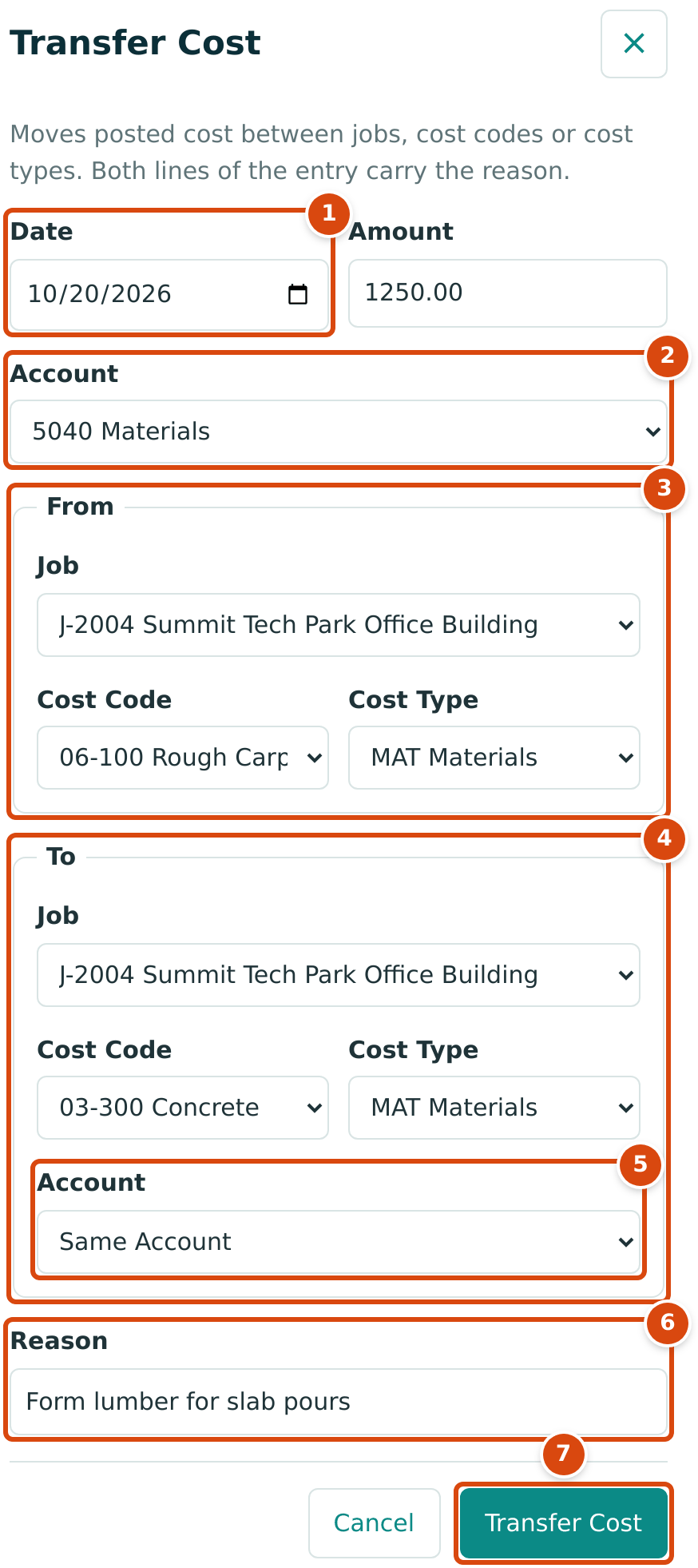
- Date (today unless you change it) and Amount.
- Account: the job cost account the cost sits on.
- From: the job, cost code and cost type that lose the cost.
- To: the job, cost code and cost type that receive it.
- Account under To: Same Account, or a different job cost account.
- Reason: why the cost moves. It becomes the entry's description.
- Transfer Cost posts the entry; Cancel closes the panel.
The figure shows an illustrative transfer: $1,250.00 of form lumber that was billed to 06-100 Rough Carpentry on J-2004 belongs to 03-300 Concrete on the same job.
Field Reference
| Field | Description | Required | Example |
|---|---|---|---|
| Date | The accounting date of the transfer entry. Must be after the Books Closed date. | Yes | 10/20/2026 |
| Amount | A positive amount with up to two decimals. | Yes | 1,250.00 |
| Account | An active job cost account (Eligibility Direct Cost). | Yes | 5040 Materials |
| From Job, Cost Code, Cost Type | Where the cost is taken from. | Yes | J-2004 · 06-100 · MAT |
| To Job, Cost Code, Cost Type | Where the cost goes. The cost code must be assigned to the To job. | Yes | J-2004 · 03-300 · MAT |
| To Account | Same Account, or another job cost account. | No | Same Account |
| Reason | Why you move the cost. | Yes | Form lumber for slab pours |
A job that is On Hold or Closed can give or receive a transfer; the reason is recorded with it. A Draft or Archived job cannot.
Worked Example: Lumber Billed to the Wrong Job
The sample company holds a real transfer. On October 20, 2024, $6,400.00 of framing lumber billed to J-2001 Bayside Medical Office Building was used on J-2002 Pinecrest Middle School Addition. The transfer moved it, keeping the same account, cost code and cost type:
| Field | Value |
|---|---|
| Date | 10/20/2024 |
| Amount | 6,400.00 |
| Account | 5040 Materials |
| From | J-2001 · 06-100 Rough Carpentry · MAT Materials |
| To | J-2002 · 06-100 Rough Carpentry · MAT Materials |
| Reason | Lumber for Pinecrest billed to Bayside |
The Transfer Entry
The entry is numbered like any journal entry (here JE-2024-000645) and its description is Job cost transfer: Lumber for Pinecrest billed to Bayside. The 5040 balance does not change; J-2001's cost falls by $6,400.00 and J-2002's rises by $6,400.00.
What Happens After You Transfer
- One posted, locked journal entry is written on the transfer date. Its type is Job Cost Transfer on the journal entry page.
- In Job Cost Detail the receiving job shows a debit line and the giving job a credit line. Both lines show the entry description, and the Type column shows Journal Entry.
- Job Costs, budgets (actual to date), and forecasts and WIP schedules prepared after the transfer use the new coding.

- Type: transfers are listed as Journal Entry in this report.
- Description: Job cost transfer: followed by the reason.
- Debit: the cost added to J-2002.
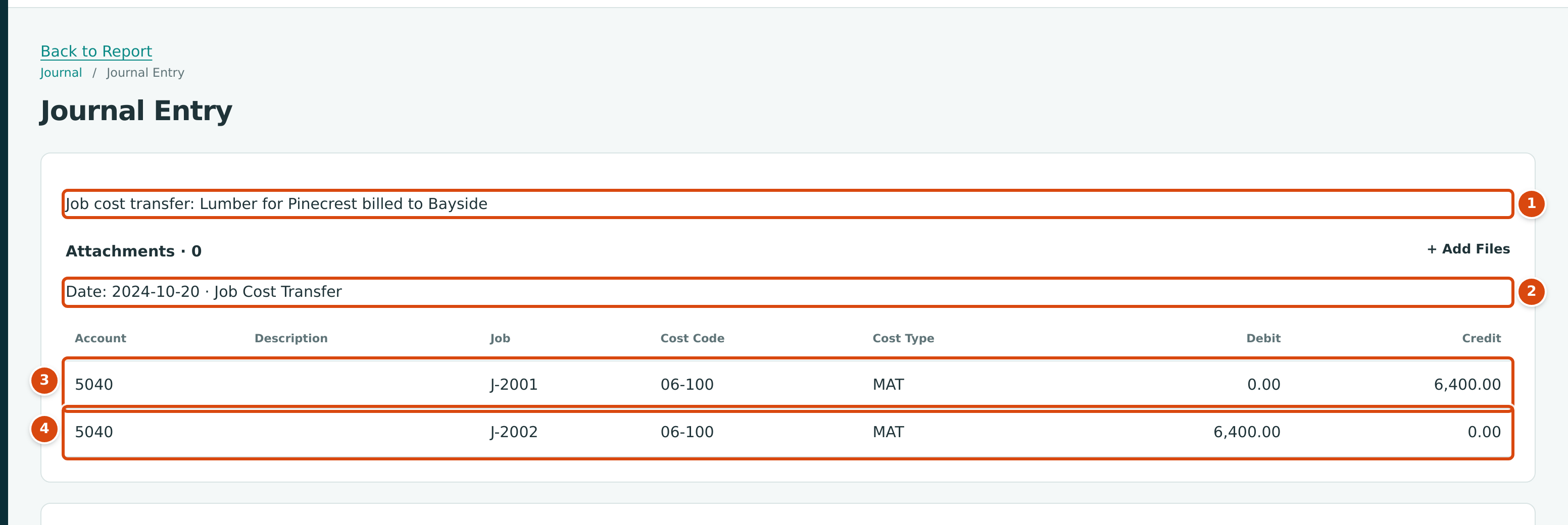
- The entry description, built from the reason.
- The entry date and the type Job Cost Transfer.
- The credit that takes the cost off J-2001.
- The debit that puts it on J-2002.
Correcting a Transfer
A posted transfer cannot be edited, and its journal entry page has no Reverse button (only manual journal entries have one). To undo a transfer, post a second transfer for the same amount in the opposite direction, with a reason that says what it corrects. Structally does not check that the From job still has that much cost, so check Job Cost Detail before you transfer.
Common Mistakes and Troubleshooting
| Message or Symptom | Why It Happens | What to Do |
|---|---|---|
| Start must be on or before end. | The dates are the wrong way round. | Swap the dates and run the report again. |
| A job's figures look too low. | The End date is before the last postings, or the costs went to accounts set to Excluded. | Check the dates; review Job Cost Accounts in Job Costing Settings. |
| Unassigned is not zero. | Costs on job cost accounts were posted without a job; with the default settings this includes overhead such as rent. | Nothing, if it is overhead. A transfer needs a From job, so it cannot move unassigned cost; correct the original document instead. |
| GL Bridge shows Check. | Job-coded and unassigned amounts do not add up to the account movement. | Note the account and the period and contact support. |
| Transfer Cost is not shown. | Lines is set to Revenue, or you have View access only. | Set Lines to Cost; ask for Edit access to Jobs & Costing. |
| Transfer reason is required. | Reason is empty. | Type why the cost moves. |
| This field is required. | A Date, Amount, account, job, cost code or cost type is missing. | Complete every field except the To account. |
| Amounts must be positive Decimals with no more than two decimal places. | The amount is zero or negative. | Enter a positive amount; to move cost back, swap From and To. |
| Cost code 03-300 is not assigned to job J-2004. | The cost code is not on that job. | Assign the cost code to the job on its page, or pick an assigned code. |
| Cost code 06-100 is inactive. or Cost type MAT is inactive. | The code or type was deactivated. | Reactivate it in Cost Codes and Cost Types. |
| Job J-1008 is not active yet. | The job is still a draft. | Activate the job first. |
| Job J-1027 is archived. | Archived jobs accept no postings. | Choose another job. |
| Transfer accounts must be direct cost accounts. | An account is not a job cost account. | Choose an account with Eligibility Direct Cost. |
| Accounting date must be after the company closing date. | The date is on or before the Books Closed date. | Use a date in an open period. |
| Permission denied for transfer_job_cost. | Your access does not allow transfers. | Ask a Company Admin for Edit access to Jobs & Costing. |
Related Topics
- Job Cost Reports: Job Cost Detail and the other job views
- Coding Transactions to Jobs
- Job Budgets and Commitments
- Forecasts and WIP Schedules
- Job Costing Settings