Document Design
Document Design decides how the documents you send look: invoices, purchase orders, subcontracts and change orders, on screen, in print, as PDFs and as the PDF attached to an emailed invoice. One design covers them all. The logo, layout, accent color, company block and footer line are shared; each kind of document then has its own options and wording.
The design is applied whenever a document is shown or printed, so a change applies to every document from then on, including documents created before the change.
Before You Begin
- To change the design you need Edit access to Settings: Company Admins, and Custom users given Settings Edit. Custom users with Settings View can open the page and the previews but not change anything. See Roles and Permissions.
- The company block prints the details from Company Details; enter them first.
- For a logo: a PNG or JPG file of at most 2 MB and at most 1600 by 600 pixels.
Navigation
Settings → Document Design, or the Document Design card on the Settings overview.
The Page
The page has four cards. Each opens in read mode, listing the current choices, and has its own Edit button, so you change and save one card at a time.
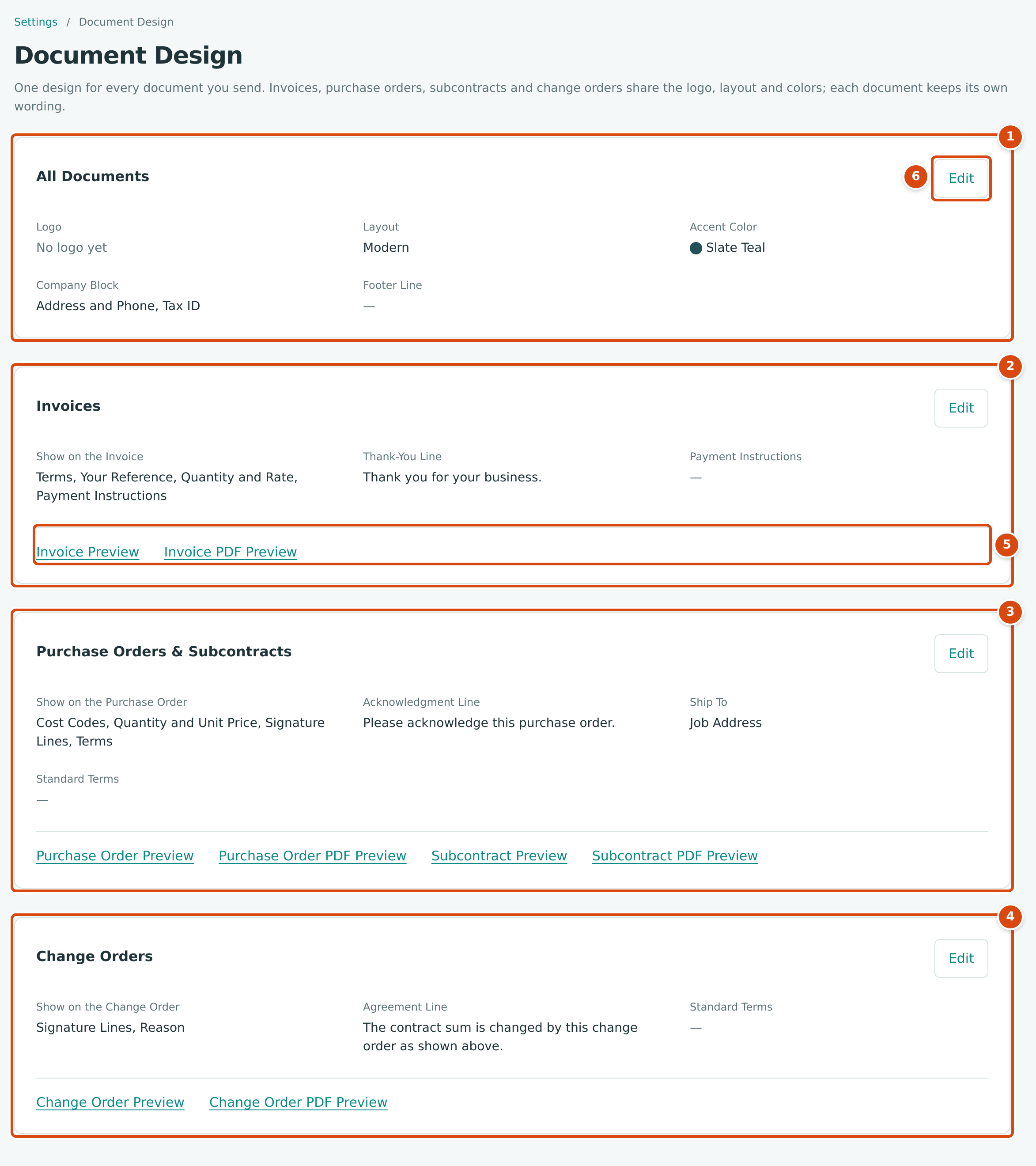
- All Documents: logo, layout, accent color, company block and footer line, shared by every document.
- Invoices: what an invoice shows and its wording.
- Purchase Orders & Subcontracts: what a commitment shows and its wording.
- Change Orders: what a change order shows and its wording.
- The preview links of each card open a sample document with the saved design in a new browser tab, as a web page or as a PDF.
- Edit turns a card into a form with Cancel and Save.
All Documents
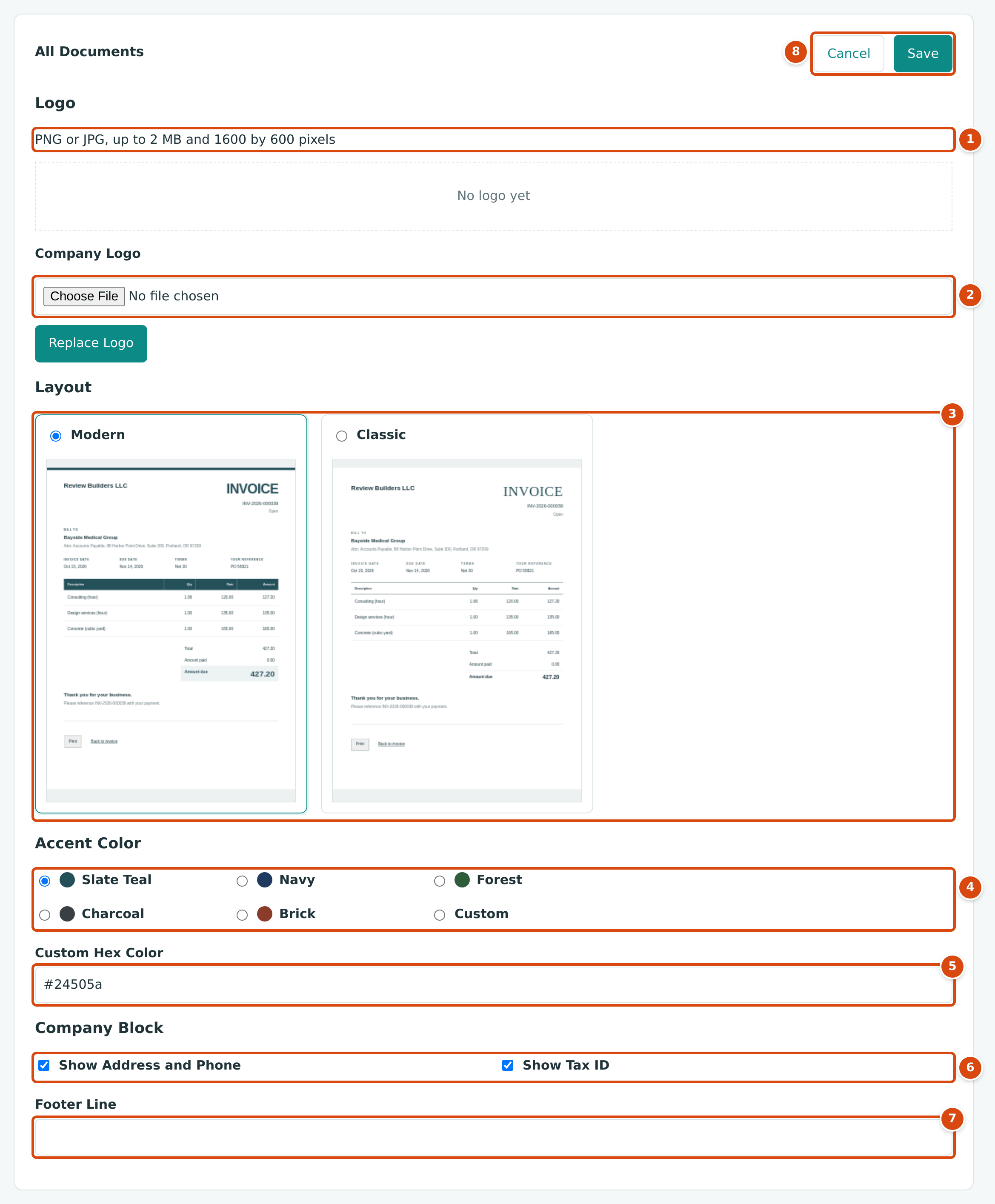
- The logo rules: PNG or JPG, up to 2 MB and 1600 by 600 pixels. The current logo (or No logo yet) is shown below them.
- Company Logo: choose the file, then click Replace Logo. Remove appears once a logo is saved.
- Layout: Modern or Classic; the pictures show the difference.
- Accent Color: five named colors, or Custom.
- Custom Hex Color: a color code such as #24505a, used when Custom is chosen.
- Company Block: Show Address and Phone and Show Tax ID.
- Footer Line: one line printed at the bottom of every document.
- Cancel and Save for the layout, color, company block and footer line.
Uploading or Removing the Logo
- Click Edit on All Documents.
- Under Company Logo, click Choose File and pick the image.
- Click Replace Logo. The button reads Replace Logo even when there is no logo yet. The logo is saved straight away; you do not need to click Save.
- To take the logo off your documents, click Remove under the current logo.
The logo prints at the top left of every document, above the company name, and is shown on this page. Its size counts toward your company's file storage.
Layout, Accent Color, Company Block and Footer
- Click Edit on All Documents.
- Choose Modern or Classic.
- Choose an accent color: Slate Teal (the default), Navy, Forest, Charcoal or Brick. For another color, choose Custom and type its code in Custom Hex Color: a # followed by six digits or letters A to F. Typing a code that matches a named color selects that color.
- Tick Show Address and Phone to print the address, phone and email under the company name, and Show Tax ID to print the tax ID.
- Type a Footer Line if you want one, for example your license number.
- Click Save. Structally confirms with Document design saved.
The accent color is used for the document title (such as INVOICE), the small headings and the band behind the column headings; the Modern layout also has a colored bar across the top of the page.
Invoices
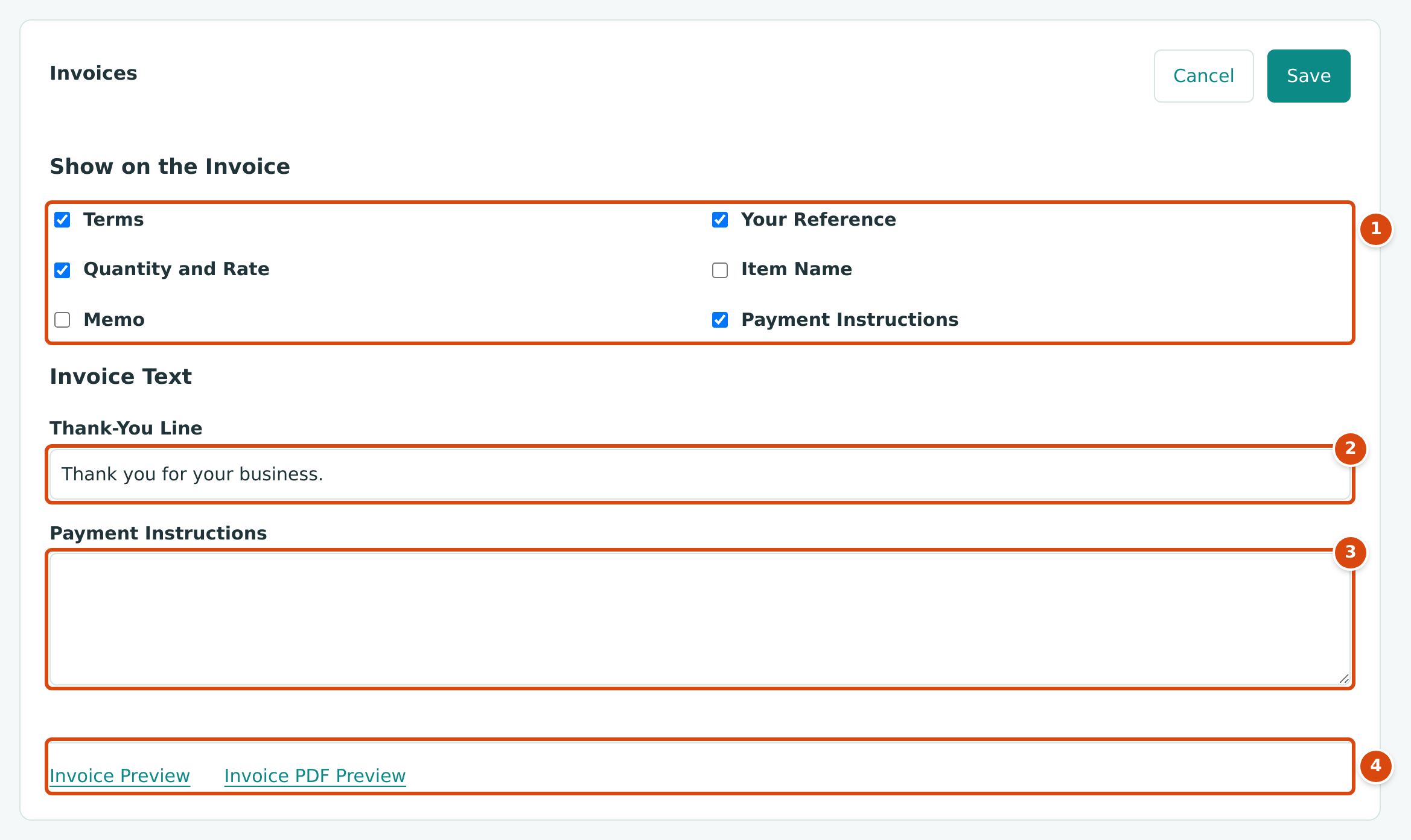
- Show on the Invoice: the parts of the invoice you can turn on or off.
- Thank-You Line: printed in bold under the totals. Required.
- Payment Instructions: how customers should pay you, for example bank details.
- Invoice Preview and Invoice PDF Preview.
| Option | When Ticked | Default |
|---|---|---|
| Terms | The invoice's payment terms print beside the dates. | On |
| Your Reference | The customer's reference (such as their purchase order number) prints beside the dates. | On |
| Quantity and Rate | The lines show Qty and Rate columns. | On |
| Item Name | Each line shows the product or service name before its description. | Off |
| Memo | The invoice's memo prints under Memo. | Off |
| Payment Instructions | The Payment Instructions text prints under the thank-you line. | On |
Every invoice also prints "Please reference" followed by the invoice number "with your payment." under the thank-you line. These options also apply to the invoice PDF attached when you email an invoice (see Sending and Printing Invoices).
Purchase Orders and Subcontracts
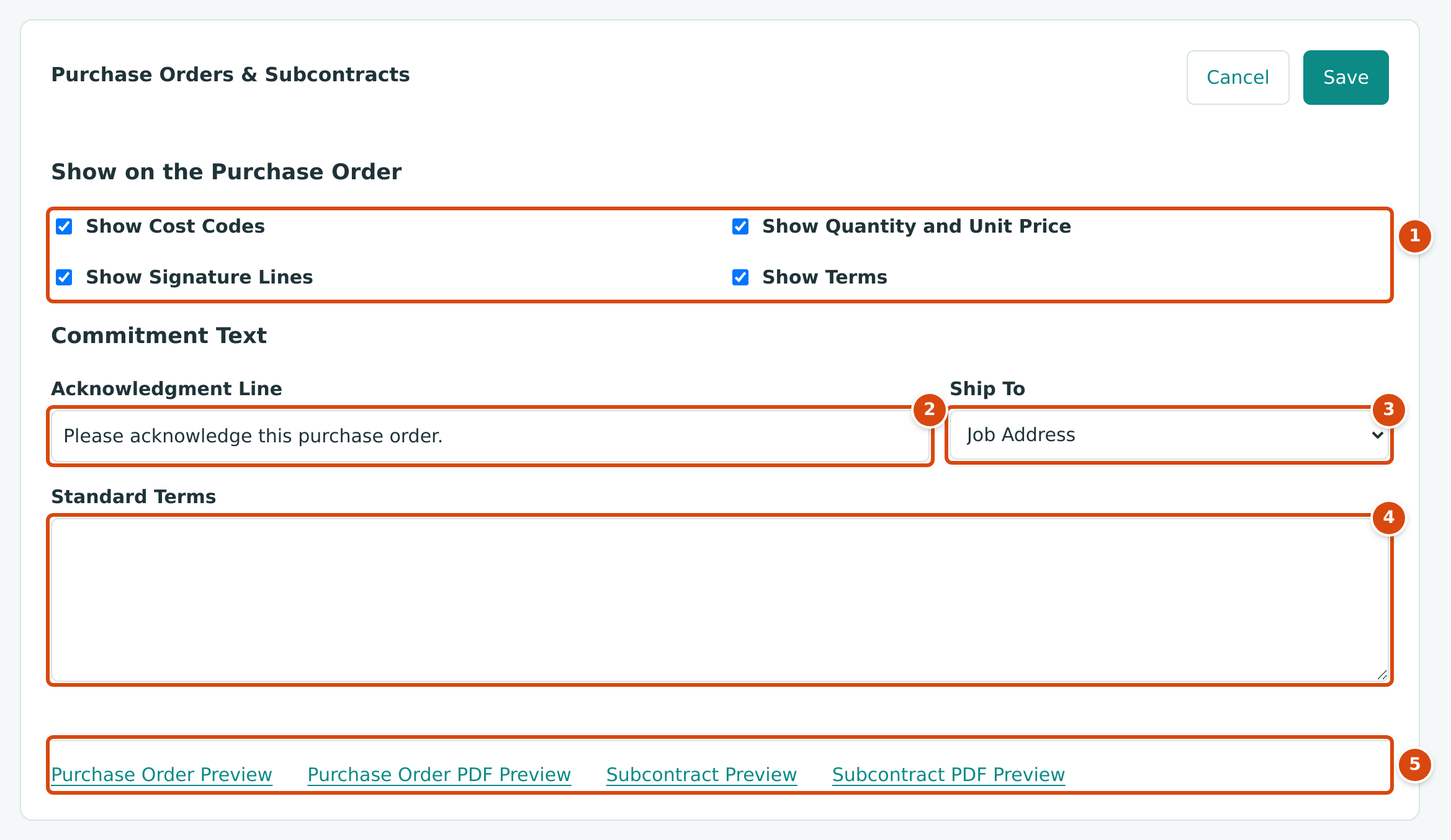
- Show on the Purchase Order: Show Cost Codes, Show Quantity and Unit Price, Show Signature Lines and Show Terms, all on by default.
- Acknowledgment Line: the sentence asking the vendor to acknowledge. Required.
- Ship To: Job Address (the default), Company Address or Leave Blank.
- Standard Terms: your standard conditions, printed when Show Terms is on.
- Previews of a purchase order and a subcontract, as a web page or a PDF.
- Show Cost Codes adds the Cost Code column; Show Quantity and Unit Price adds the Qty and Unit Price columns.
- Show Signature Lines prints a signature line for your company (the legal name followed by "Authorized Signature") and one for the vendor ("Acknowledged").
- The default Acknowledgment Line is "Please acknowledge this purchase order." On a subcontract, the words "purchase order" in it print as "subcontract".
- Ship To with Job Address prints the job's address, or your company address when the job has none. Leave Blank leaves the Ship To block off the document.
These settings apply to commitments printed from Jobs & Costing (see Commitments).
Change Orders
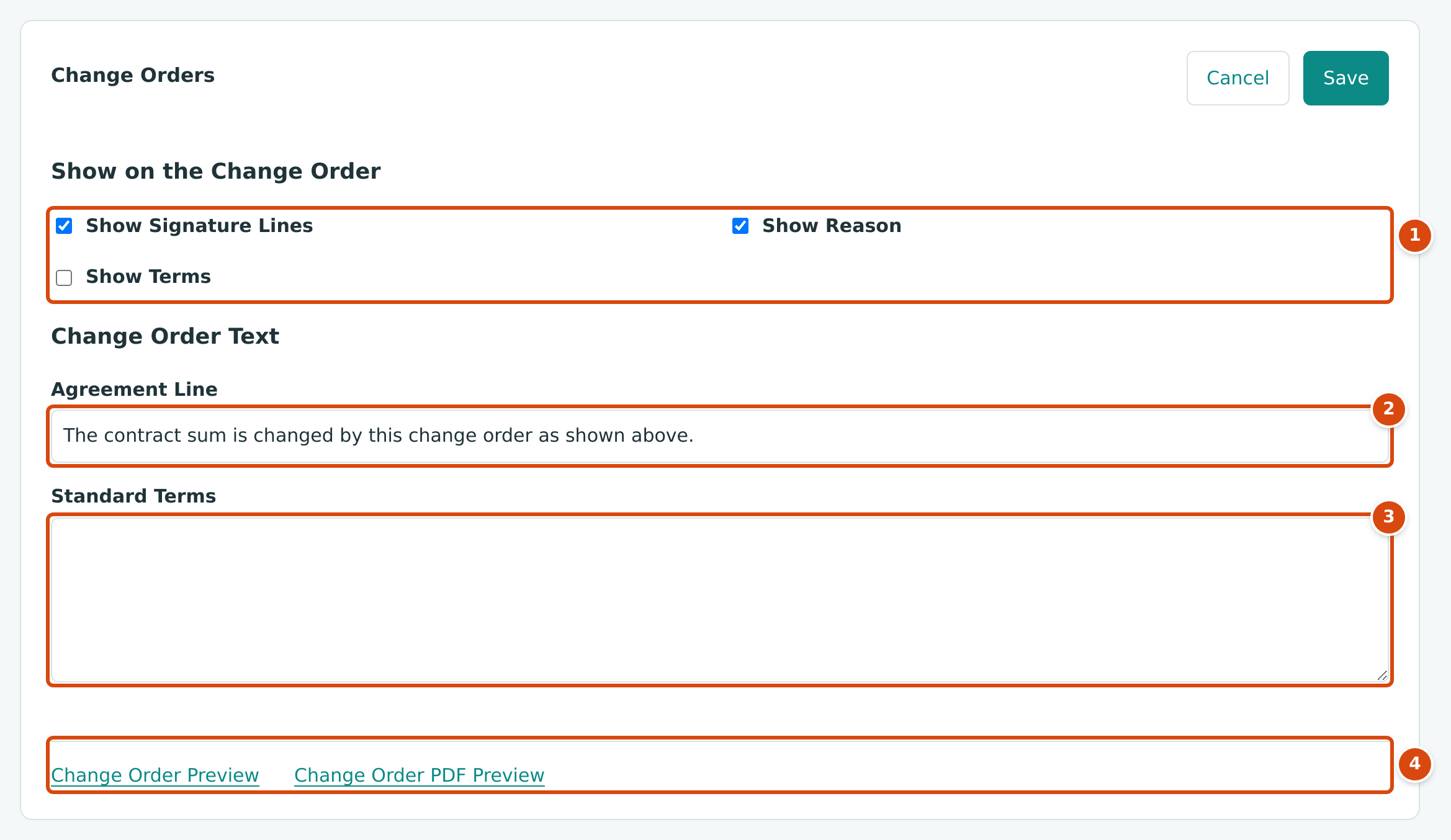
- Show on the Change Order: Show Signature Lines and Show Reason (on by default) and Show Terms (off by default).
- Agreement Line: the sentence printed under the totals. Required. The default is "The contract sum is changed by this change order as shown above."
- Standard Terms: printed when Show Terms is on; up to 2,000 characters.
- Change Order Preview and Change Order PDF Preview.
Show Reason prints the change order's reason under its title; Show Signature Lines prints Accepted by Customer and Approved by your company, each with Name, Signature and Date lines. See Change Orders.
Previewing Documents
Each card has preview links that open in a new browser tab:
| Link | Opens |
|---|---|
| Invoice Preview, Invoice PDF Preview | A sample invoice, INV-2026-000039 to Bayside Medical Group for 427.20 |
| Purchase Order Preview, Purchase Order PDF Preview | A sample purchase order, PO-2026-000012 |
| Subcontract Preview, Subcontract PDF Preview | A sample subcontract, SC-2026-000004 |
| Change Order Preview, Change Order PDF Preview | A sample change order, CO-1 for 10,000.00 |
The previews use fixed sample content, not your records, with your saved design, logo and company details. Save a card before you preview it: changes you have not saved are not shown.
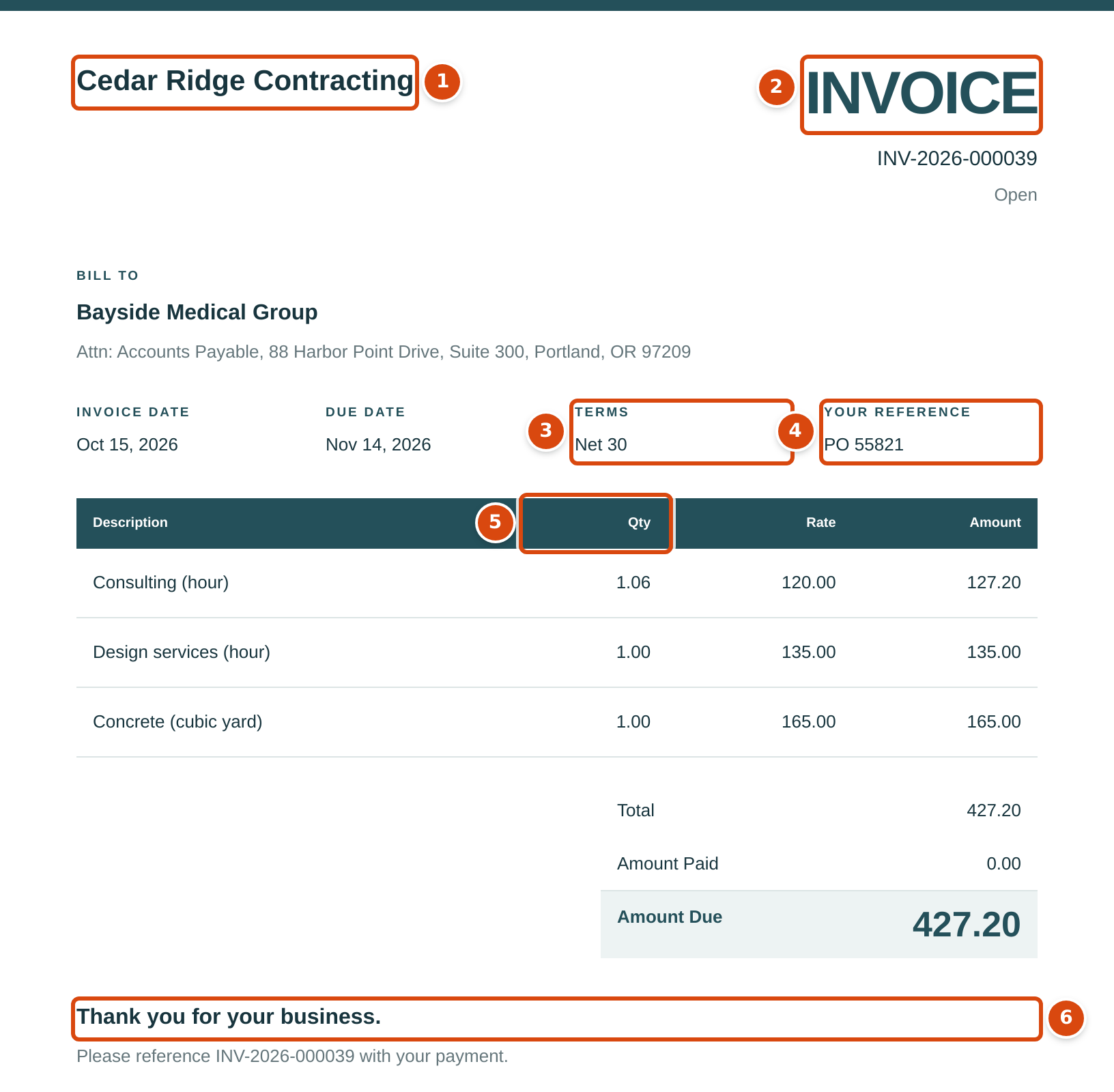
- The company name (the legal name once entered), with the logo above it if there is one.
- The title in the accent color, here Slate Teal, with the Modern layout's bar across the top.
- Terms, shown because Terms is ticked.
- Your Reference, shown because Your Reference is ticked.
- The Qty and Rate columns, shown because Quantity and Rate is ticked.
- The Thank-You Line.
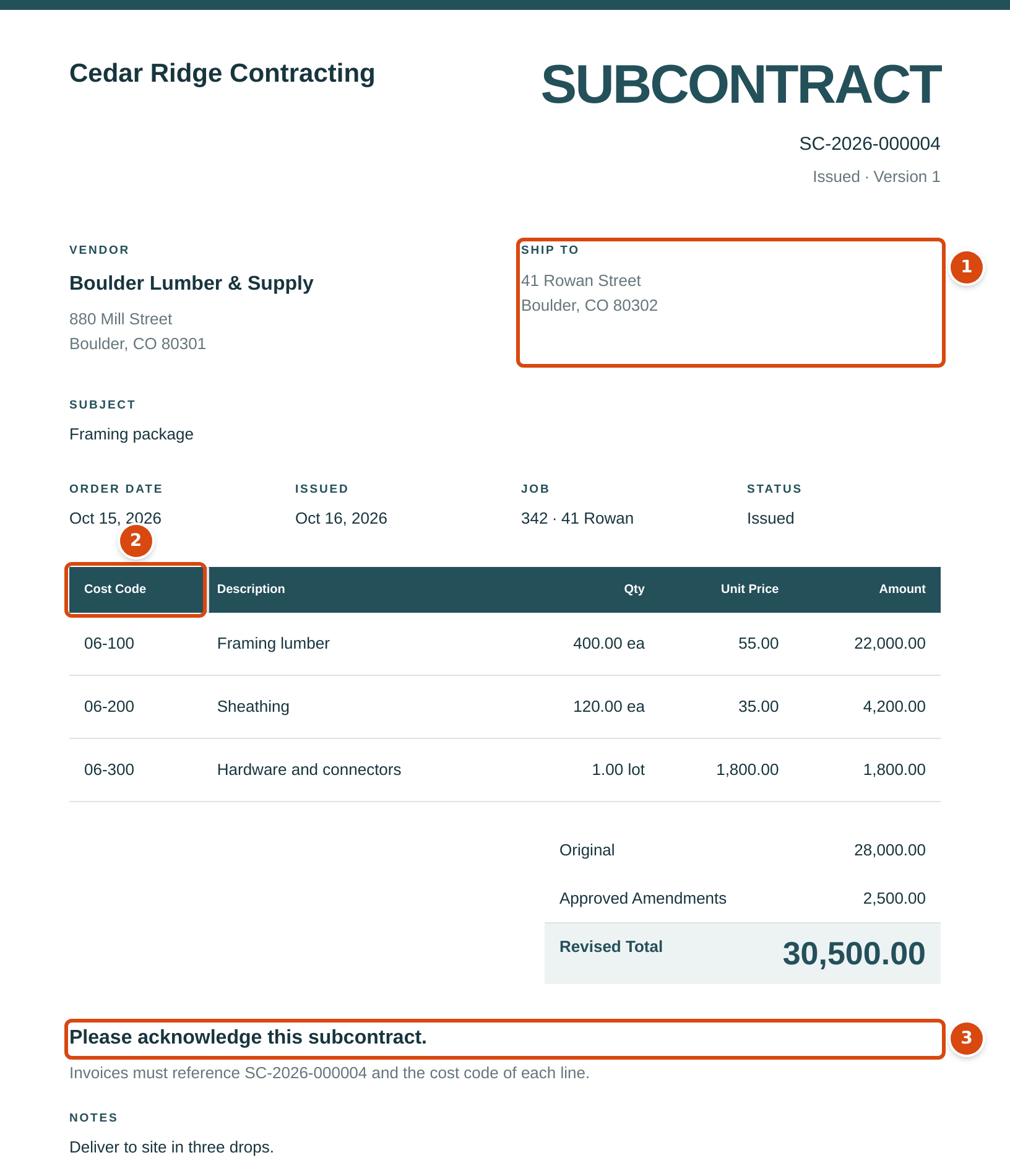
- Ship To: the job address, because Ship To is Job Address.
- The Cost Code column, from Show Cost Codes.
- The Acknowledgment Line, with "subcontract" in place of "purchase order".
- The signature lines, from Show Signature Lines.
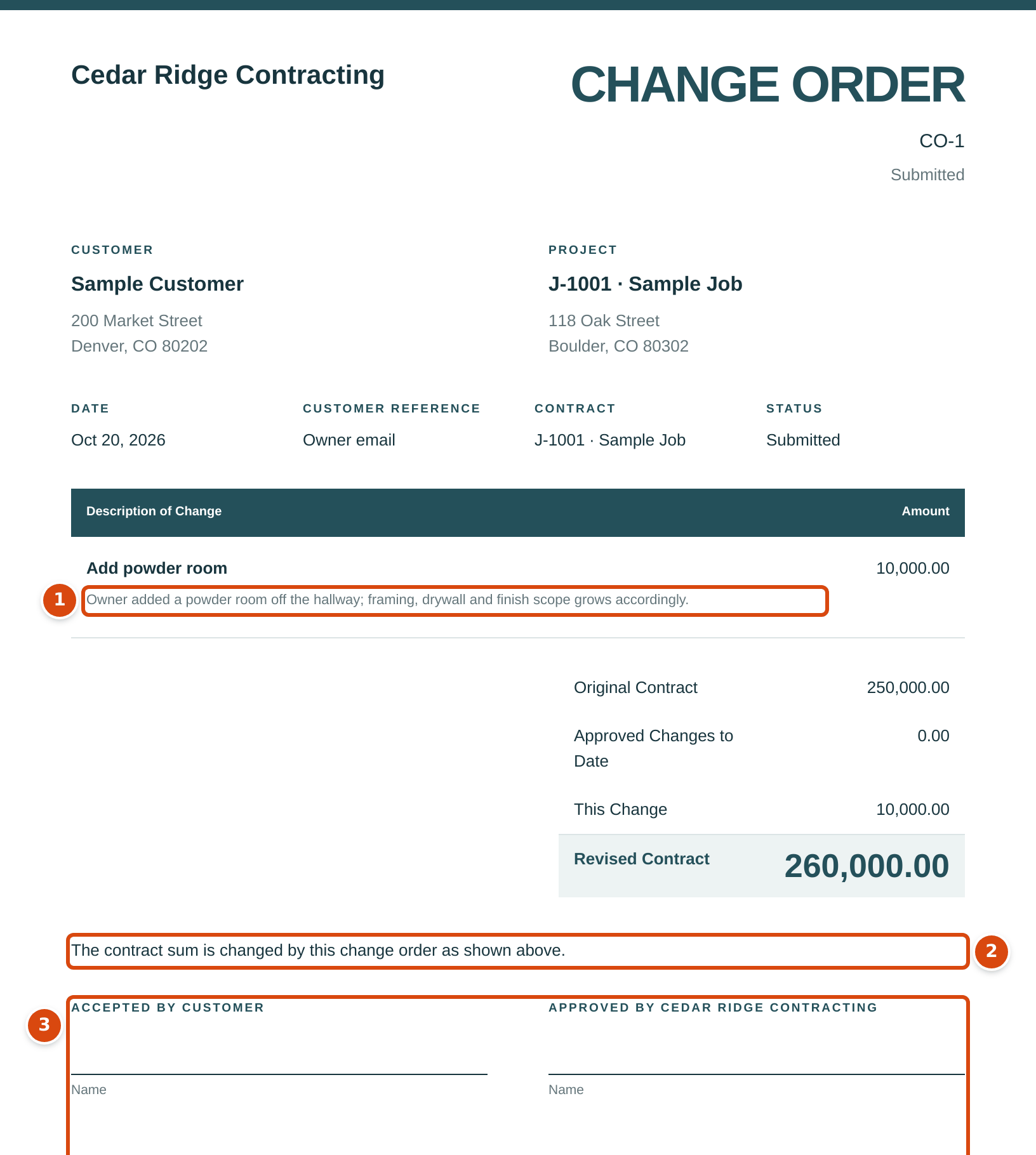
- The reason, from Show Reason.
- The Agreement Line.
- The signature blocks, from Show Signature Lines.
Field Reference
| Field | Card | Description | Required | Default |
|---|---|---|---|---|
| Company Logo | All Documents | PNG or JPG, up to 2 MB and 1600 by 600 pixels. | No | None |
| Layout | All Documents | Modern or Classic. | Yes | Modern |
| Accent Color | All Documents | Slate Teal, Navy, Forest, Charcoal, Brick or Custom. | Yes | Slate Teal |
| Custom Hex Color | All Documents | # and six hexadecimal digits. | With Custom | #24505a |
| Show Address and Phone | All Documents | Prints the address, phone and email. | No | On |
| Show Tax ID | All Documents | Prints the tax ID. | No | On |
| Footer Line | All Documents | Up to 200 characters, bottom of every document. | No | Empty |
| Terms, Your Reference, Quantity and Rate, Item Name, Memo, Payment Instructions (options) | Invoices | See the table under Invoices. | No | See the table |
| Thank-You Line | Invoices | 1 to 200 characters. | Yes | Thank you for your business. |
| Payment Instructions | Invoices | Up to 1,000 characters. | No | Empty |
| Show Cost Codes, Show Quantity and Unit Price, Show Signature Lines, Show Terms | Purchase Orders & Subcontracts | Columns and blocks of the printed commitment. | No | All on |
| Acknowledgment Line | Purchase Orders & Subcontracts | 1 to 200 characters. | Yes | Please acknowledge this purchase order. |
| Ship To | Purchase Orders & Subcontracts | Job Address, Company Address or Leave Blank. | Yes | Job Address |
| Standard Terms | Purchase Orders & Subcontracts | Up to 2,000 characters. | No | Empty |
| Show Signature Lines, Show Reason, Show Terms | Change Orders | Blocks of the printed change order. | No | On, On, Off |
| Agreement Line | Change Orders | 1 to 200 characters. | Yes | The contract sum is changed by this change order as shown above. |
| Standard Terms | Change Orders | Up to 2,000 characters. | No | Empty |
Worked Example
Cedar Ridge Contracting uses the default design: Modern layout, Slate Teal accent, both company block options on, and the default invoice options (Terms, Your Reference, Quantity and Rate and Payment Instructions on; Item Name and Memo off). The invoice preview above shows the result: the sample invoice's three lines (1.06 hours of consulting at 120.00 = 127.20, 1.00 hour of design services at 135.00 = 135.00 and 1.00 cubic yard of concrete at 165.00 = 165.00) total 427.20, with the terms Net 30 and the reference PO 55821 beside the dates. No payment instructions print, because the Payment Instructions text is empty.
To add payment instructions, click Edit on Invoices, type the instructions (for example "Pay by ACH to account ending 4421"), click Save, and open Invoice Preview again: the text now prints under Payment Instructions below the thank-you line (the example text is illustrative).
What Happens After You Save
- Each card saves on its own; Structally confirms with Document design saved. A logo upload or removal takes effect immediately.
- The new design applies to every document shown, printed, downloaded or emailed from then on, old and new alike. Nothing is posted.
Common Mistakes and Troubleshooting
| Message or Symptom | Why It Happens | What to Do |
|---|---|---|
| Choose a PNG or JPG logo. | Replace Logo was clicked with no file chosen. | Choose a file first. |
| Logo must be a PNG or JPG image. | The file is another format, or not a valid image. | Save the logo as PNG or JPG. |
| Logo must be at most 2 MB. | The file is too large. | Save a smaller version. |
| Logo must be at most 1600 by 600 pixels. | The image is too wide or too tall. | Resize it, keeping it at most 1600 pixels wide and 600 high. |
| The Custom Hex Color is refused. | It is not # followed by six digits or letters A to F. | Type a code such as #1f3a5f. |
| Acknowledgment line must be 1 to 200 characters. | The line is empty or too long. | Type a shorter sentence. |
| Agreement line must be 1 to 200 characters. | The line is empty or too long. | Type a shorter sentence. |
| Standard terms must be at most 2000 characters. | The terms are too long. | Shorten them. |
| The preview does not show my change. | The card was not saved. | Click Save, then open the preview again. |
| The address or tax ID does not print. | The detail is empty in Company Details, or its Show option is off. | Enter it and tick the option. |
| There is no Edit button. | You have Settings View, not Edit. | Ask a Company Admin. |