Forecasts
A forecast is your estimate of what a job will cost by the time it is finished, prepared at a cutoff date (usually a month end). It is built line by line, one line per cost code and cost type: what the budget says, what has been spent, what is already committed to subcontractors and suppliers, and what you still expect to buy. The total is the Forecast Final Cost, also called the estimate at completion. Compared with the Projected Contract, it gives the job's Projected Profit, or a Projected Loss.
Approved forecasts drive the WIP schedule: the forecast final cost is what percent complete is measured against. A forecast itself never posts anything to your books.
Before You Begin
- The job is Active, On Hold or Closed, and its Original Contract is set on the job (see Creating and Managing Jobs). A forecast can be prepared without it, but not approved.
- Every job cost is coded to a cost code and a cost type (see Coding Transactions to Jobs).
- A budget is helpful but not required; lines without a budget are marked Unbudgeted.
- To view forecasts you need View or Edit access to Jobs & Costing. To create, edit, add lines to or discard a draft you need Edit (Company Admins, Accountants, Project Managers, and Custom users with Edit on Jobs & Costing). Only Company Admins and Accountants can approve a forecast. See Roles and Permissions.
Navigation
Jobs & Costing → Forecasts & WIP, on the Forecasts tab. From a job's page, use New Forecast or View Forecast on its Forecast card.
The Forecasts List
The Forecasts tab lists every job that is Active, On Hold or Closed, with its latest forecast.
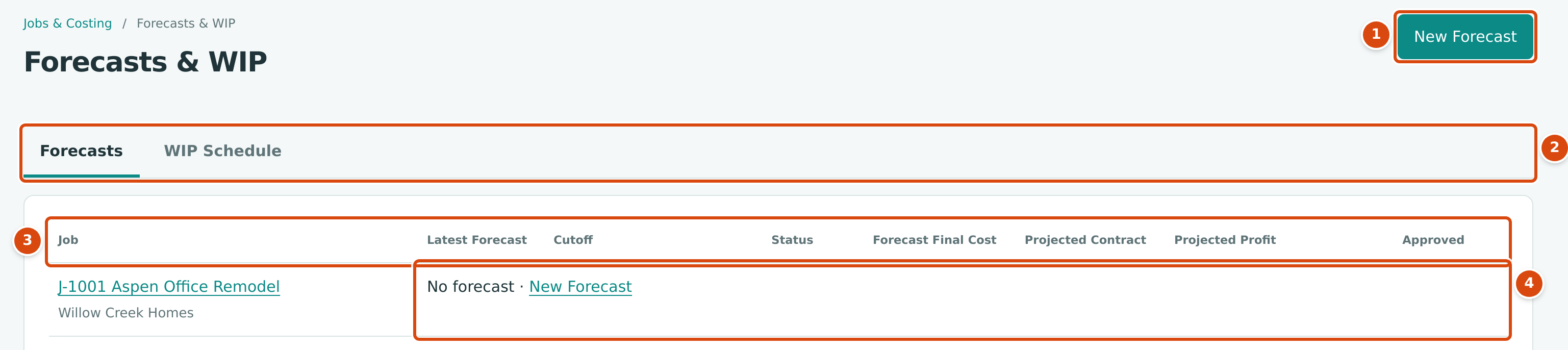
- New Forecast: starts a forecast for any job. Shown to users who can edit.
- The Forecasts and WIP Schedule tabs.
- The columns of the list.
- A job with no forecast yet. New Forecast here starts one with the job already chosen.

- Latest Forecast: the job's newest forecast, draft or approved. Click it to open the forecast.
- Older Cutoff: the forecast's cutoff is before the end of last month, so it may be out of date.
- Projected Loss: the forecast final cost is more than the projected contract.
- Forecast Final Cost of J-2004's Forecast 10: 1,408,000.00.
- The margin: projected profit as a percent of the projected contract, 192,000.00 ÷ 1,600,000.00 = 12.0%.
| Column | What It Shows |
|---|---|
| Job | The job and its customer. Click to open the job. |
| Latest Forecast | The newest forecast for the job, or No forecast. |
| Cutoff | The forecast's cutoff date, with Older Cutoff when it is before the end of last month. |
| Status | Draft or Approved. |
| Forecast Final Cost | The total estimated cost at completion. |
| Projected Contract | Original contract plus approved contract change orders. |
| Projected Profit | Projected contract less forecast final cost, with the margin percent, or Projected Loss. |
| Approved | The date the forecast was approved. |
Creating a Forecast
- On the Forecasts tab click New Forecast (or New Forecast in the job's row or on the job page).
- Choose the Job. Only Active, On Hold and Closed jobs are listed.
- Check the Cutoff. It starts as the last day of last month. The forecast uses the budget, costs and commitments as of this date. It cannot be later than today.
- Optionally type a Note, such as Month-end forecast.
- Click Create Forecast. Structally confirms with Forecast 11 created. (the next number for that job) and opens the draft.
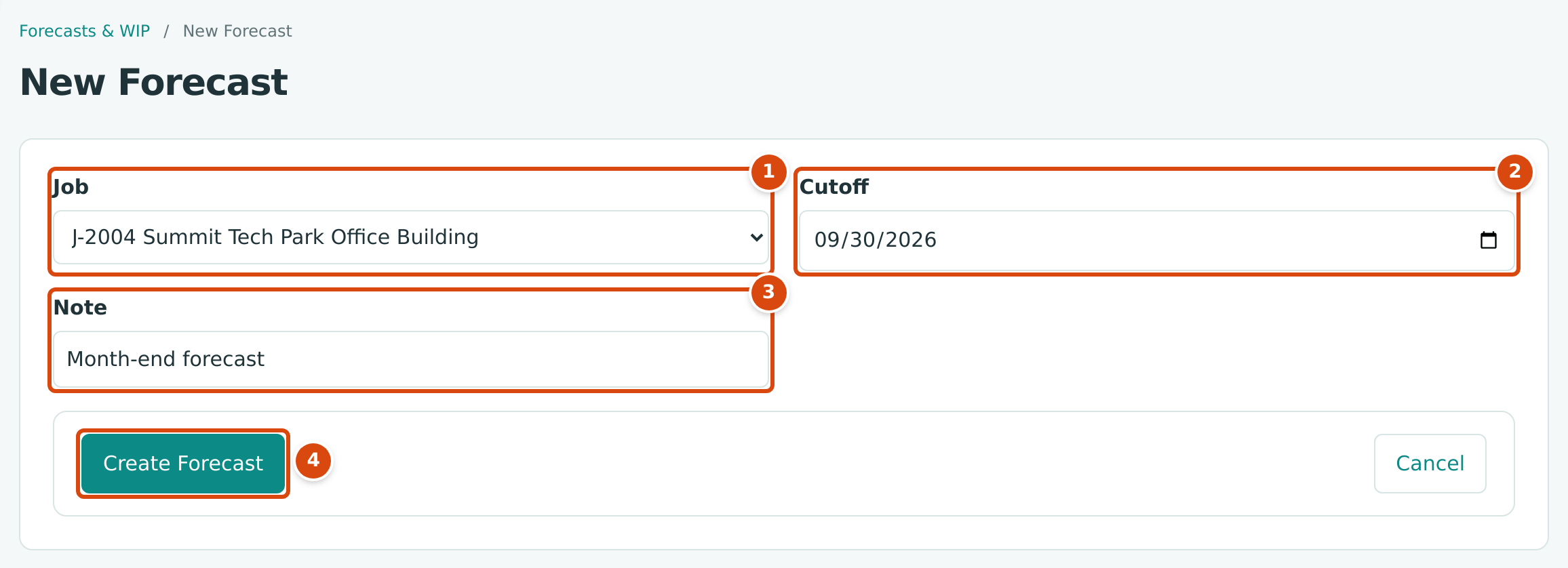
- Job: the job to forecast.
- Cutoff: the date the figures are taken at.
- Note: an optional note, up to 500 characters.
- Create Forecast creates the draft; Cancel returns to the list.
What Structally Fills In
The new draft gets one line for every cost code and cost type that has a revised budget, posted cost or an open commitment at the cutoff, plus every line of the job's last approved forecast. Each line starts with:
- Previous Final: that line's Forecast Final Cost on the last approved forecast (empty on a job's first forecast).
- Still to Buy: what is left to reach the previous final cost (or, on a first forecast, the revised budget) after actual cost and open commitments, and never less than zero.
- Adjustment: 0.00.
So a new month's forecast starts from last month's estimate, and you only change the lines where your expectation has moved.
Forecast Lines
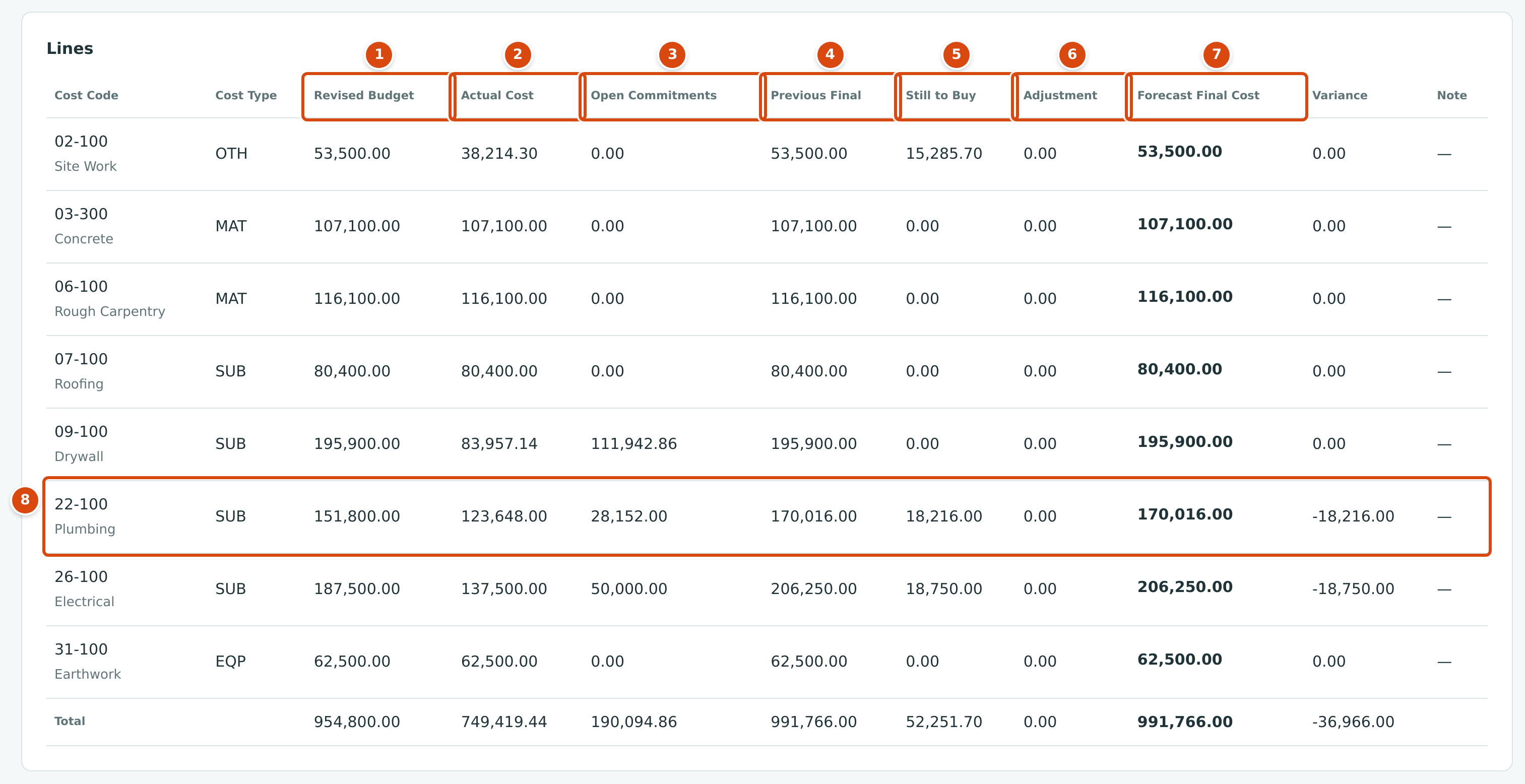
- Revised Budget for the line at the cutoff.
- Actual Cost posted to the line up to the cutoff.
- Open Commitments: unbilled amounts on issued commitments at the cutoff.
- Previous Final: the line's final cost on the last approved forecast.
- Still to Buy: your estimate of cost not yet incurred or committed.
- Adjustment: an extra amount, positive or negative.
- Forecast Final Cost = actual cost + open commitments + still to buy + adjustment.
- A line forecast over budget: 22-100 Plumbing, explained in the worked example.
| Column | What It Means | Can You Change It? |
|---|---|---|
| Cost Code | The cost code and its name. Unbudgeted marks a line with no revised budget. | No |
| Cost Type | The cost type code. | No |
| Revised Budget | Approved budget revisions for the line with an effective date on or before the cutoff. | No |
| Actual Cost | Posted job cost on the line from the start of your books to the cutoff. | No |
| Open Commitments | For issued commitments dated on or before the cutoff: the commitment line plus approved amendments, less bills (net of vendor credits) posted against it up to the cutoff, never below zero. | No |
| Previous Final | The line's Forecast Final Cost on the last approved forecast. | No |
| Still to Buy | Cost you still expect to incur that is not yet committed (the estimate to complete beyond commitments). Zero or more. | Yes, on a draft |
| Adjustment | A correction, positive or negative, for anything the other columns miss. | Yes, on a draft |
| Forecast Final Cost | Actual Cost + Open Commitments + Still to Buy + Adjustment. | Worked out |
| Variance | Revised Budget − Forecast Final Cost. Negative means the line is expected to finish over budget. | Worked out |
| Note | A note for the line, up to 200 characters. | Yes, on a draft |
On a draft, Revised Budget, Actual Cost, Open Commitments and the contract figures are read live as of the cutoff, so they change if postings are added for dates up to the cutoff. When the forecast is approved they are frozen.
Two warnings can appear on a line:
- Below Actual Cost: the forecast final cost is less than what is already spent. A forecast with such a line cannot be approved.
- Below Open Commitments: the final cost less the actual cost is less than the open commitments, so the forecast assumes some committed work will not be billed. The page then says, for example, 1 line is below its open commitments: 22-100 SUB (final cost less actual cost 20,000.00, open commitments 28,152.00). Approval needs an explanation.
Editing a Draft
A draft shows the Draft status, a card with Cutoff, Note, Prepared By and Started From (the approved forecast it started from), the Contract and Forecast cards, and the Lines table with input boxes in Still to Buy, Adjustment and Note. The buttons at the top are Discard Draft, Save Draft and, for Company Admins and Accountants, Approve.
- Open the draft from the Forecasts list, or with Open Draft on the job's Forecast card or on an approved forecast of the same job.
- Change Still to Buy, Adjustment or Note on the lines that need it. As you type, the line's Forecast Final Cost and Variance, the totals, and the Forecast Final Cost, Variance and Projected Profit at the top are worked out again.
- Change Cutoff or Note at the top if needed. Saving a new cutoff adds lines for any cost code and cost type that has budget, cost or commitments at the new date; it never removes lines.
- Click Save Draft. Structally confirms with Forecast 11 saved.
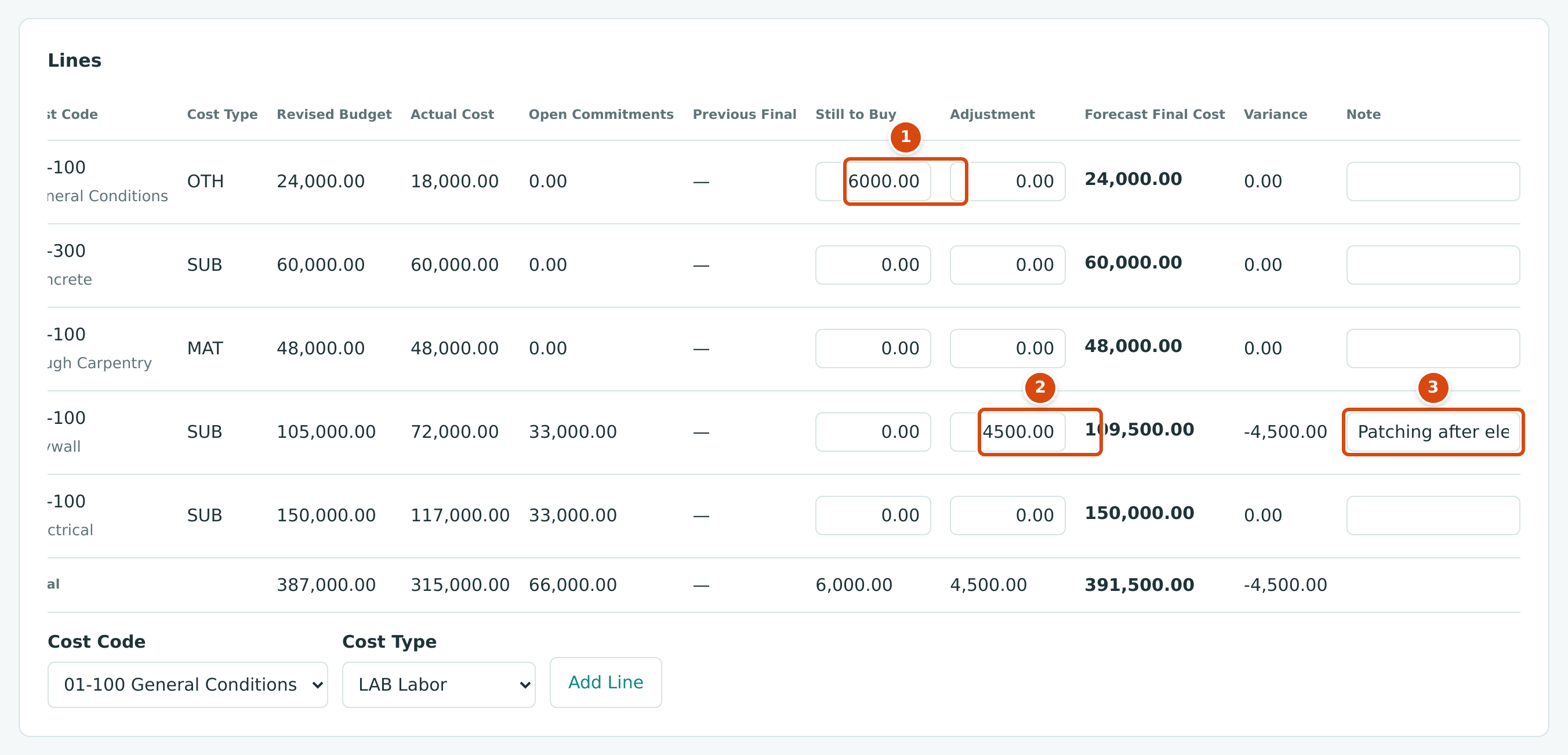
- Still to Buy: 6,000.00 of general conditions still to come on 01-100 (18,000.00 spent + 6,000.00 = 24,000.00, the budget).
- Adjustment: 4,500.00 added to 09-100 Drywall for patching that is not yet committed, so the line's final cost is 72,000.00 + 33,000.00 + 4,500.00 = 109,500.00 and its Variance is −4,500.00.
- Note: why the line changed.
The cards above the lines follow every keystroke:

With a projected contract of $516,000.00 (original contract $480,000.00 plus $36,000.00 of approved change orders), the projected profit is 516,000.00 − 391,500.00 = $124,500.00, and the margin is 124,500.00 ÷ 516,000.00 = 24.1%.
Adding a Line
When you expect cost on a cost code and cost type that has no line yet (for example a phase that has not started and has no budget), add it below the lines table:
- Choose the Cost Code (only active codes assigned to the job are offered) and the Cost Type.
- Click Add Line. Structally confirms with Line added. The new line starts with Still to Buy and Adjustment at 0.00.
- Enter its Still to Buy and click Save Draft.
Save the lines you changed before you add a line; adding a line reloads the draft.
Approving a Forecast
Company Admins and Accountants approve forecasts.
- On the draft, click Approve. The Approve Forecast dialog shows the Forecast Final Cost, the Projected Profit and any line that is below its open commitments.
- If a line is below its open commitments, type an Explanation. Without one the dialog says Enter an explanation.
- Click Approve Forecast. Structally saves the draft, approves it and confirms with Forecast 11 approved.
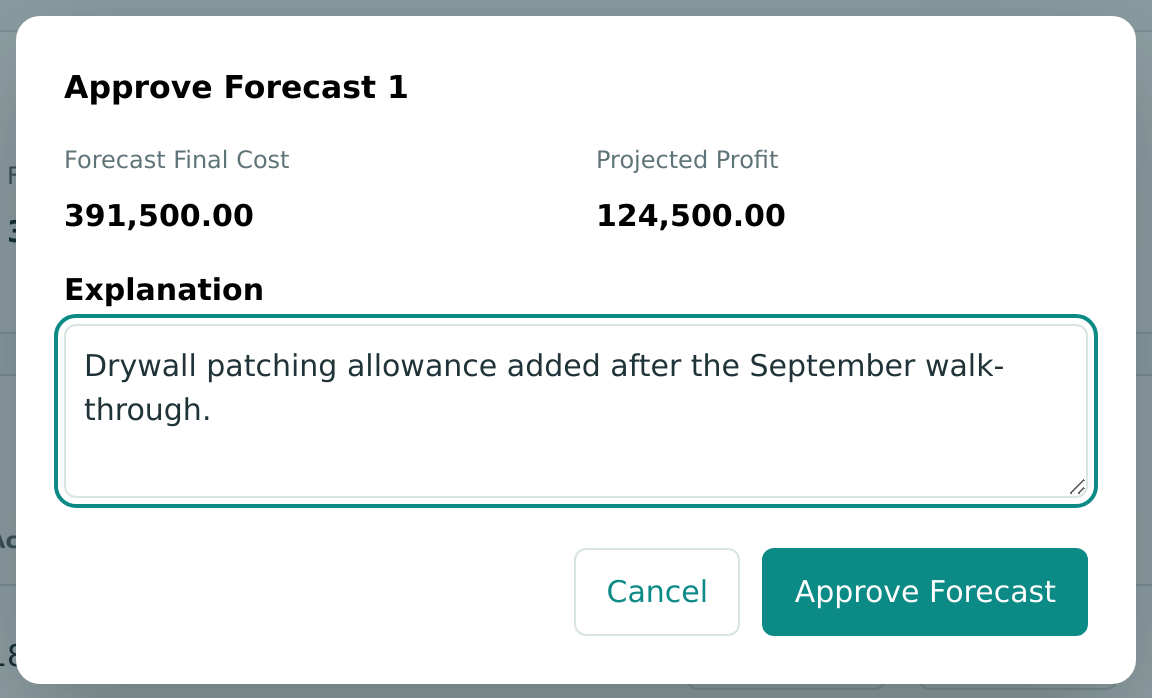
The Explanation is optional unless a line is below its open commitments. Whatever you type is kept on the approved forecast's Approval card.
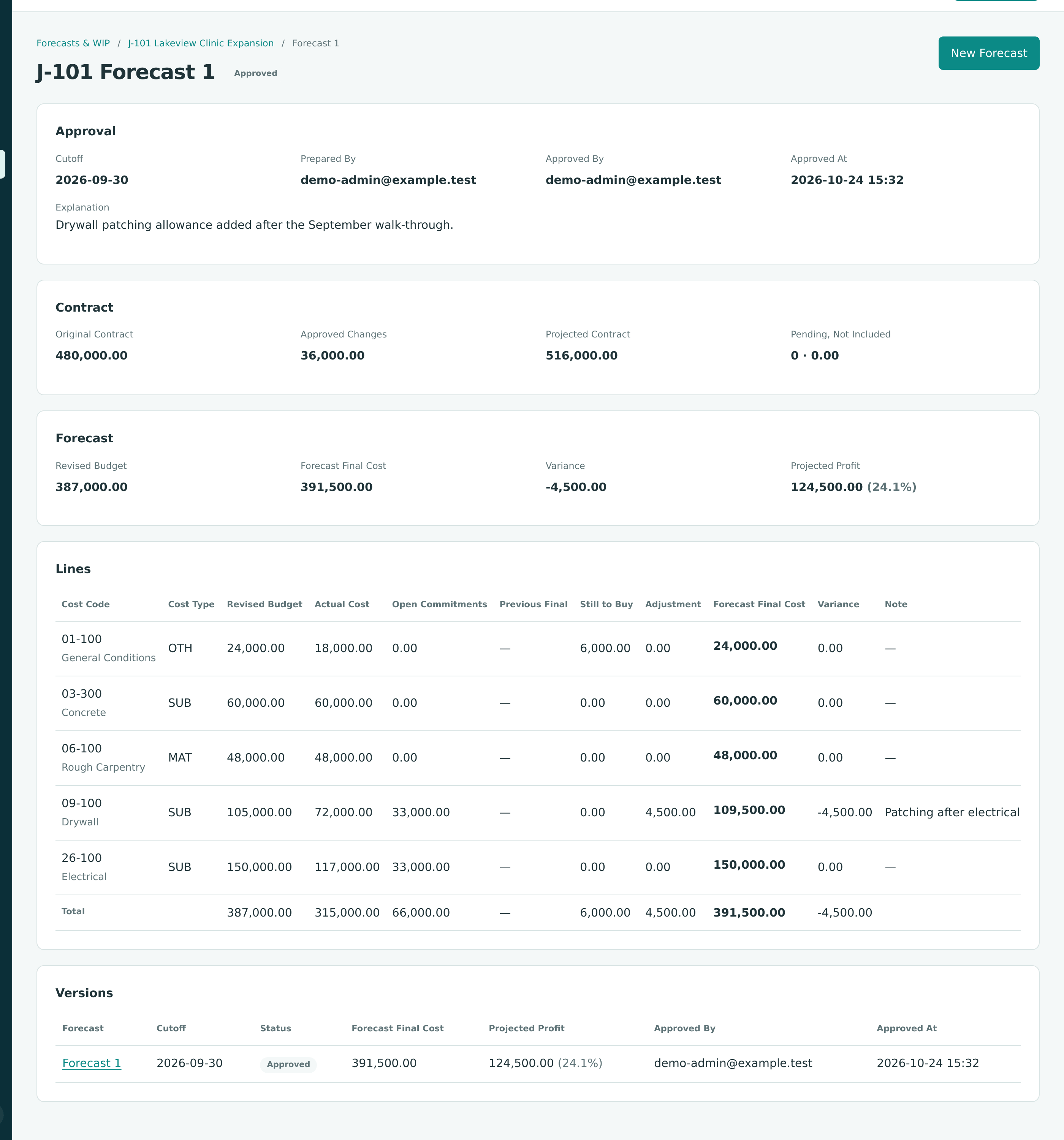
Approval records who approved it and when, freezes every figure on the forecast (budget, actual cost, open commitments, final cost and the contract figures), and makes it the job's current approved forecast. An approved forecast cannot be changed; next month you create a new one, which starts from it.
Discarding a Draft
Click Discard Draft, then Discard Draft again in the Discard Forecast 11? dialog. The draft and its lines are deleted, Structally confirms with Forecast 11 discarded. and returns to the list. Approved forecasts cannot be discarded. A job can have only one draft forecast at a time.
An Approved Forecast
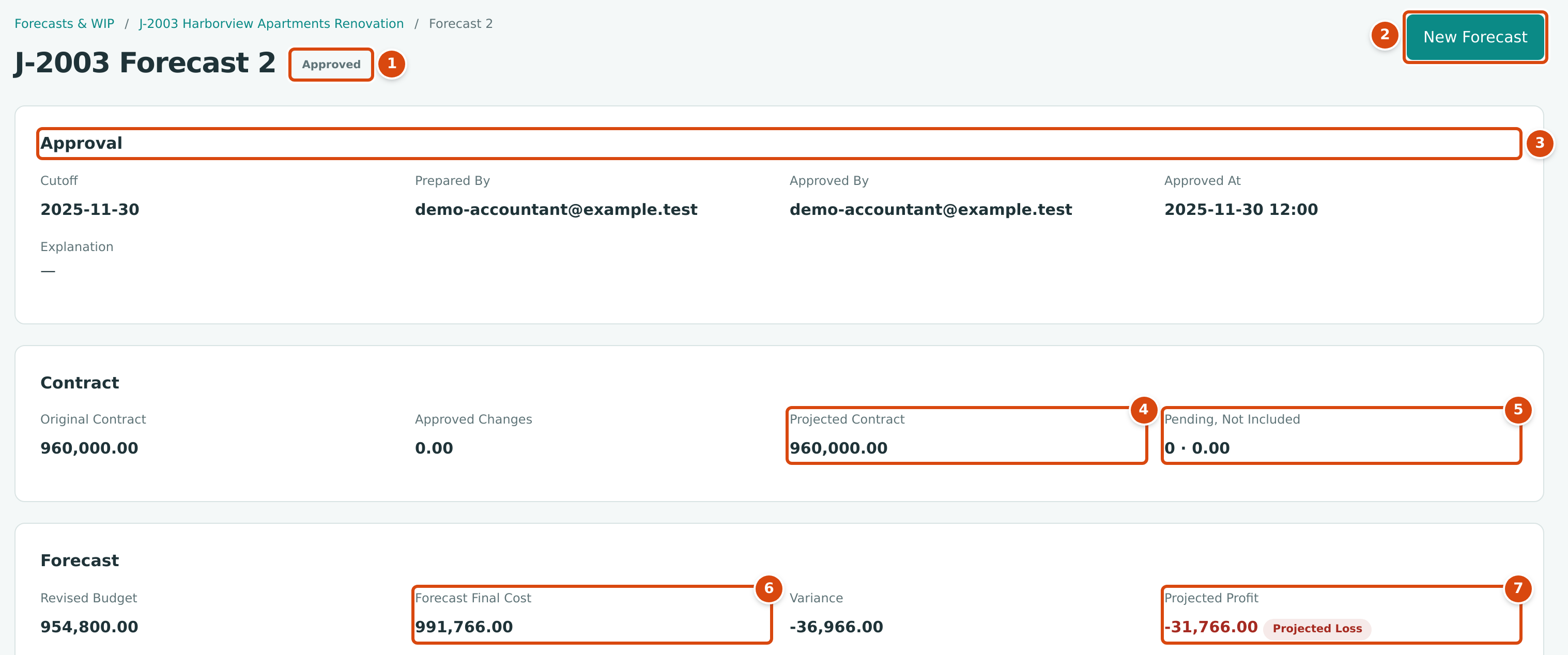
- The status, Approved.
- New Forecast starts the job's next forecast (Open Draft when a draft already exists).
- Approval: the cutoff, who prepared and approved it, when, and the explanation given at approval.
- Projected Contract: Original Contract plus Approved Changes.
- Pending, Not Included: the number and amount of contract change orders submitted but not approved by the cutoff. They are not in the projected contract.
- Forecast Final Cost: the total of the lines.
- Projected Profit, here a loss of 31,766.00 with the Projected Loss badge.
Below the lines, an approved forecast shows Versions: every forecast of the job, newest first, with its cutoff, status, final cost, projected profit and approval.
Projected Profit and Margin
| Figure | How It Is Worked Out |
|---|---|
| Projected Contract | Original Contract on the job + Approved Changes (approved contract change orders dated on or before the cutoff). |
| Revised Budget (total) | The sum of the lines' revised budgets. |
| Forecast Final Cost (total) | The sum of the lines' forecast final cost. |
| Variance (total) | Revised Budget − Forecast Final Cost. |
| Projected Profit | Projected Contract − Forecast Final Cost. |
| Margin (in brackets) | Projected Profit ÷ Projected Contract × 100, rounded to one decimal place. Shown only when the profit is zero or more. |
| Projected Loss | Shown instead of a margin when Projected Profit is below zero. The job page shows the loss amount, for example 10,455.76 · Forecast 12 · Cutoff 2026-09-30. |

- View Forecast opens the latest approved forecast (New Forecast when the job has none).
- Projected Profit from that forecast.
- The projected loss amount, the forecast number and its cutoff.
How Forecasts Feed WIP
When you prepare a WIP schedule, each job uses its latest approved forecast with a cutoff on or before the schedule's cutoff. Its total Forecast Final Cost becomes the schedule's Forecast Final Cost, and:
- Percent Complete = cost to date ÷ forecast final cost (with adjustments for uninstalled materials), never more than 100%.
- A forecast final cost above the contract creates a Loss Provision for the part of the loss not yet recognized.
- A job with no approved forecast at the cutoff stops the schedule from being approved (No approved forecast at the cutoff.). A job whose forecast is from an earlier month is marked Older Forecast.
Approve each job's forecast for the month before you prepare that month's WIP schedule.
Closing Out a Finished Job
A new forecast starts from the job's last approved forecast and carries its final cost forward through Still to Buy (an earlier Adjustment is folded into Still to Buy, and the new Adjustment starts at 0.00). On a job that is finished, that carried amount is cost that will never come, and it keeps the job below 100% complete on the WIP schedule. Set Still to Buy to 0.00 on every line of the closeout forecast.
The training company shows what happens. On J-101, Forecast 1 had added $4,500.00 for drywall patching. When the job finished, all $387,000.00 of cost was posted and the patching was not needed:
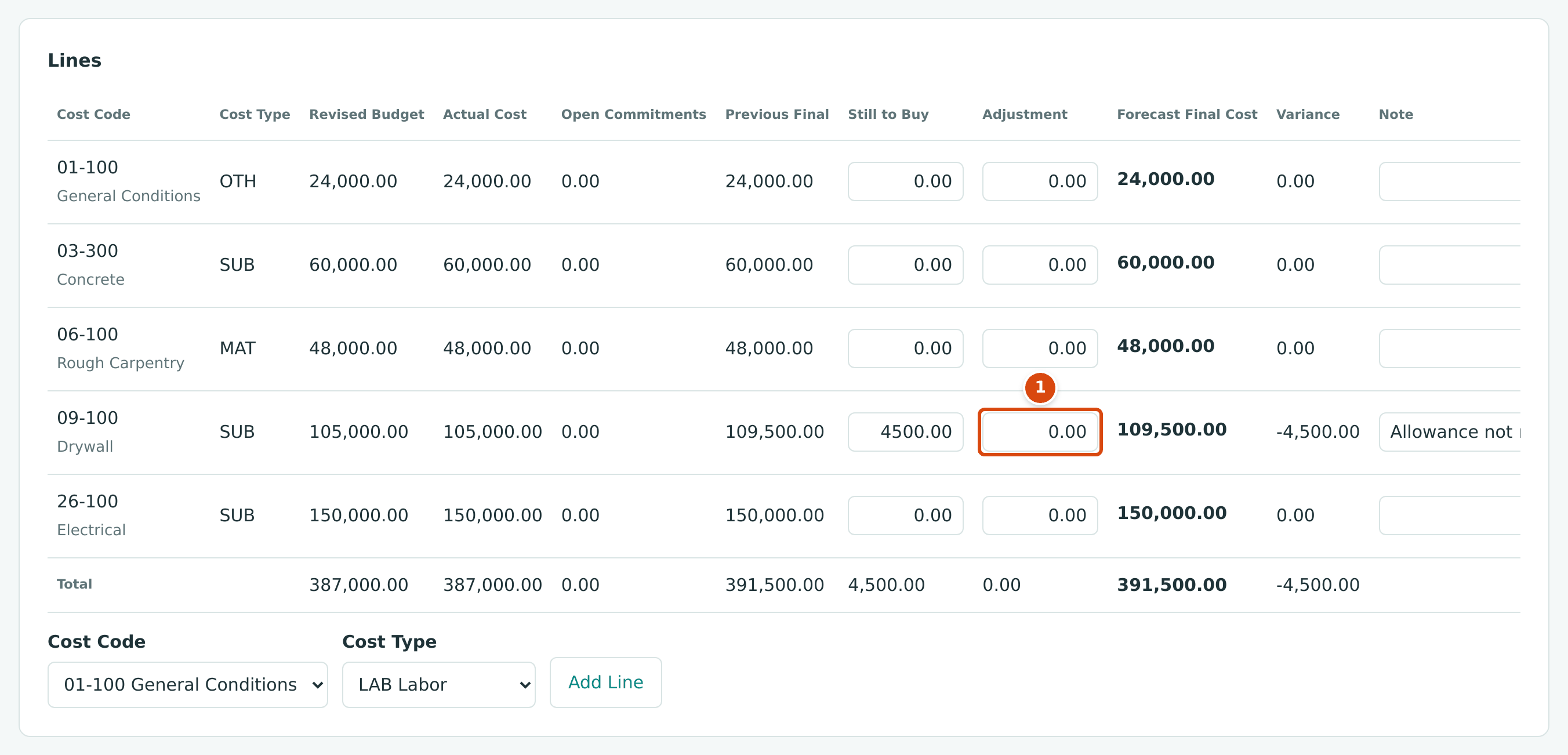
- Adjustment is back to 0.00; the 4,500.00 now sits in Still to Buy (previous final 109,500.00 − actual 105,000.00 − open commitments 0.00).
Forecast 3 was approved as it was, with a final cost of $391,500.00, so the closeout WIP schedule showed J-101 only 98.9% complete. The next forecast fixed it by setting the drywall Still to Buy to 0.00:
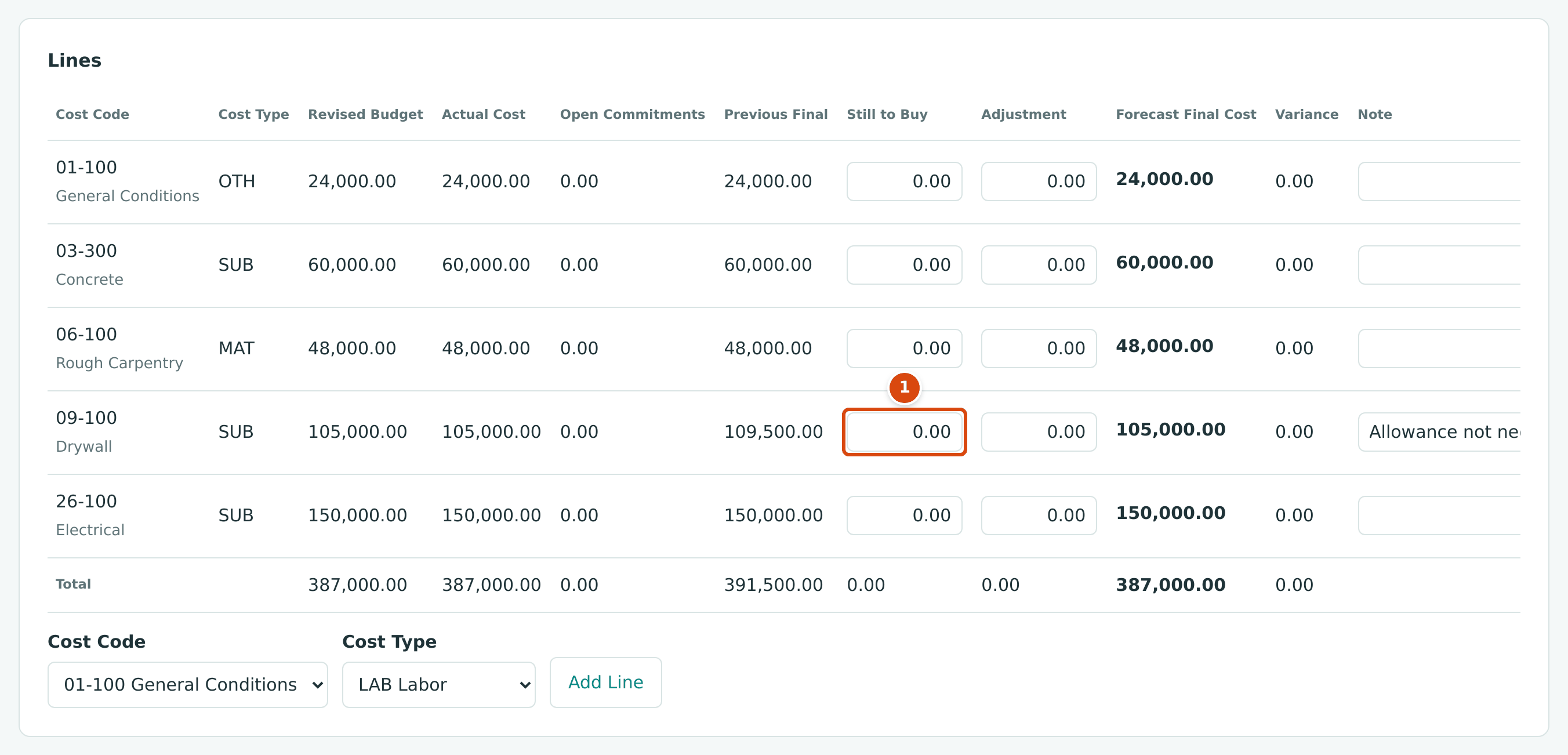
- Still to Buy set to 0.00, so the drywall final cost equals its actual cost of 105,000.00 and the forecast total equals cost to date, 387,000.00.
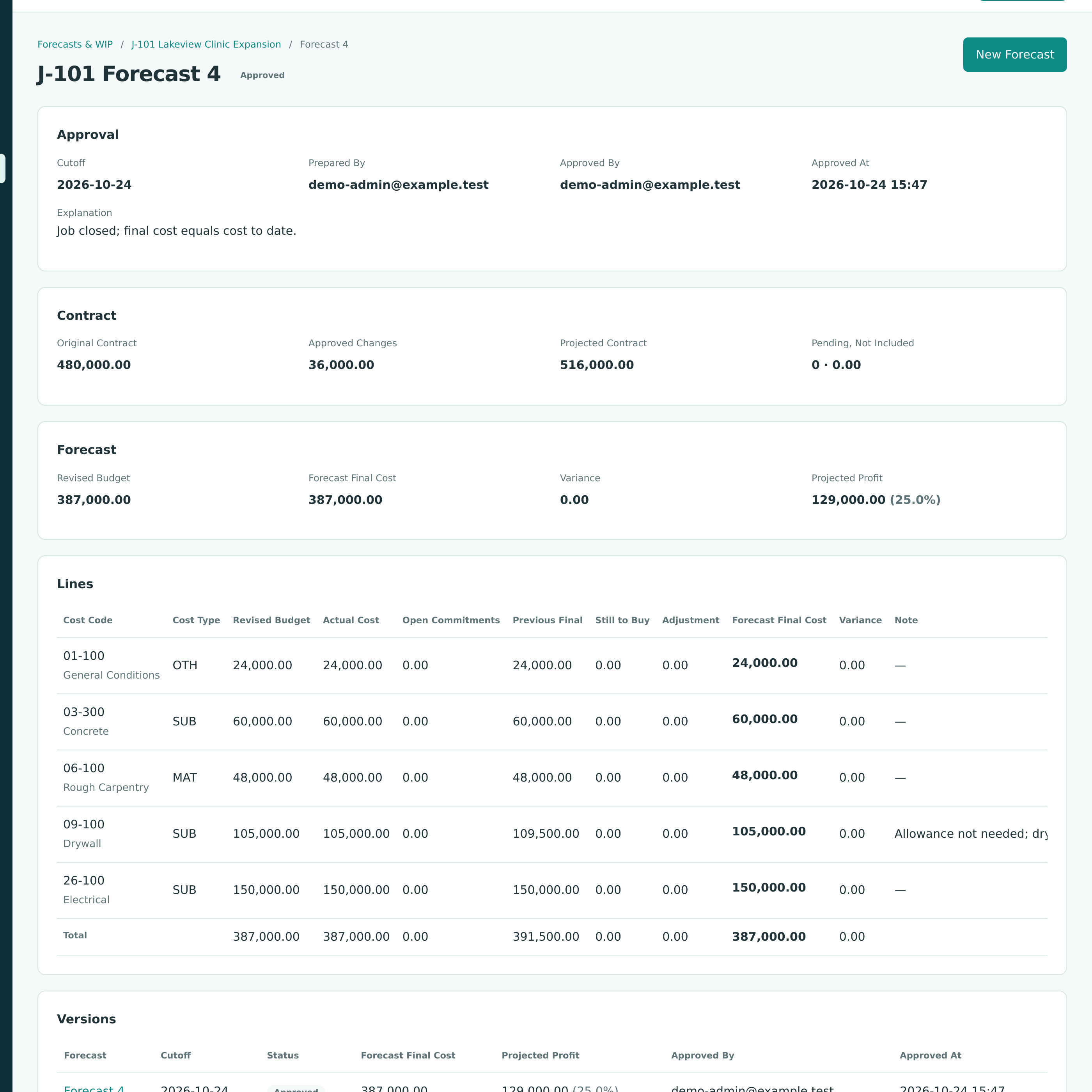
The projected profit is now 516,000.00 − 387,000.00 = $129,000.00 (25.0%). To carry the change into a WIP schedule that is already approved and posted, create a new version of it; see Correcting a Posted Schedule.
Worked Example: A Loss Job and a Job Whose Outlook Changed
J-2003 Harborview Apartments Renovation, Forecast 2 (cutoff November 30, 2025). The plumbing line, 22-100 SUB, had a revised budget of $151,800.00. By the cutoff $123,648.00 was billed and $28,152.00 was still open on the subcontract. The previous forecast had already raised the line's final cost to $170,016.00, so the draft started with the remainder as still to buy:
| Item | Amount |
|---|---|
| Previous Final | 170,016.00 |
| Less Actual Cost | 123,648.00 |
| Less Open Commitments | 28,152.00 |
| Still to Buy (start value) | 18,216.00 |
| Forecast Final Cost (123,648.00 + 28,152.00 + 18,216.00 + 0.00) | 170,016.00 |
| Variance (151,800.00 − 170,016.00) | −18,216.00 |
With the electrical line also over by $18,750.00, the whole forecast came to $991,766.00 against a revised budget of $954,800.00 (variance −$36,966.00). The projected contract was $960,000.00, so:
Projected Profit = 960,000.00 − 991,766.00 = −31,766.00, shown as a Projected Loss. On the WIP schedule this loss is provided for in full at once (see the J-2003 example).
J-1026 Glenwood Warehouse Addition: the outlook changes month by month. J-1026 is a service job with a contract of $222,500.00. Its versions show how the estimate moved as costs came in above plan:
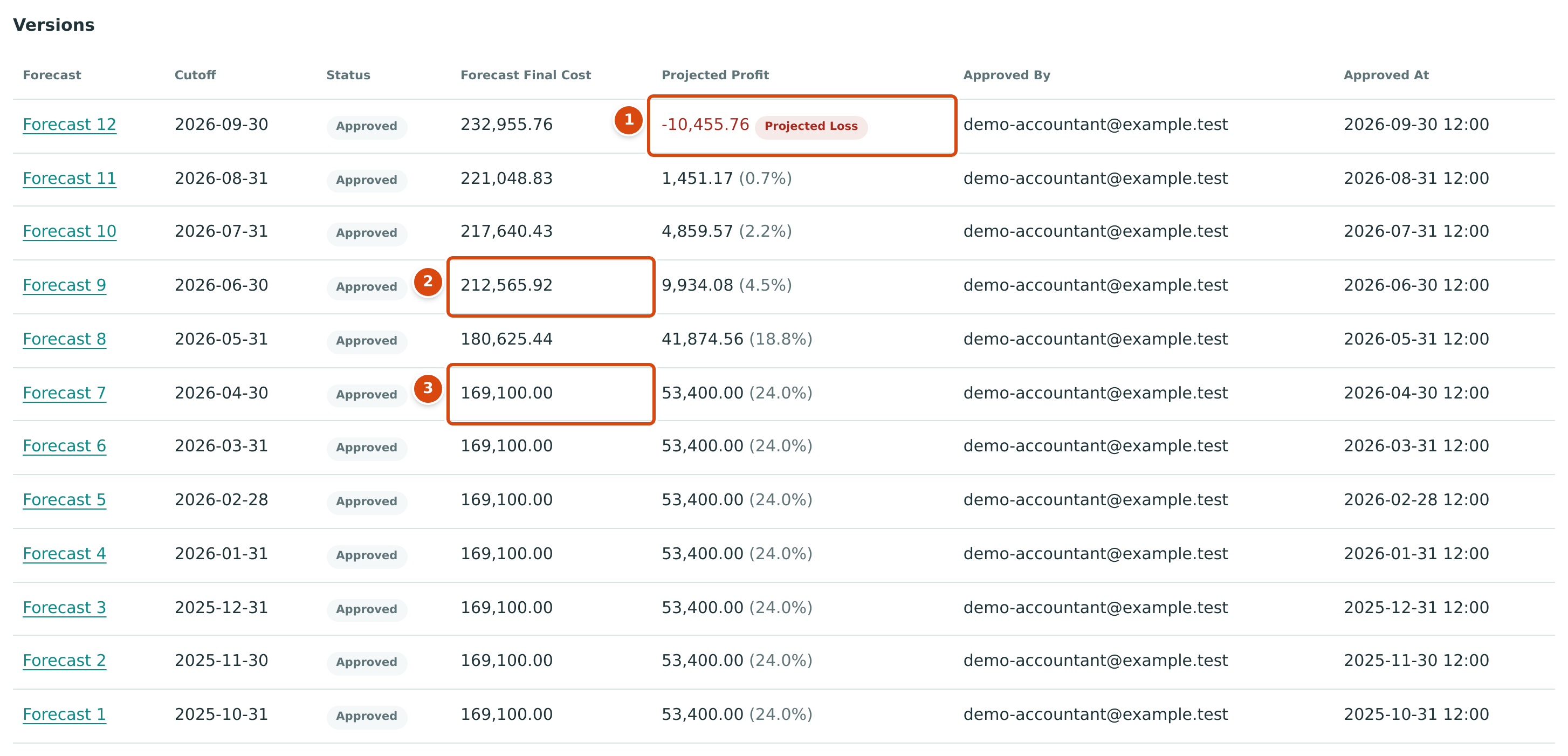
- Forecast 12 (September 30, 2026): the job turns into a projected loss.
- Forecast 9 (June 30, 2026): the final cost has risen to 212,565.92.
- Forecast 7 (April 30, 2026): still the original estimate of 169,100.00.
| Forecast | Cutoff | Forecast Final Cost | Projected Profit | Margin |
|---|---|---|---|---|
| 7 | 2026-04-30 | 169,100.00 | 53,400.00 | 53,400.00 ÷ 222,500.00 = 24.0% |
| 8 | 2026-05-31 | 180,625.44 | 41,874.56 | 18.8% |
| 9 | 2026-06-30 | 212,565.92 | 9,934.08 | 4.5% |
| 10 | 2026-07-31 | 217,640.43 | 4,859.57 | 2.2% |
| 11 | 2026-08-31 | 221,048.83 | 1,451.17 | 0.7% |
| 12 | 2026-09-30 | 232,955.76 | −10,455.76 | Projected Loss |
From Forecast 8 on, the actual cost had passed the original estimate, so the forecast final cost equals the cost to date. In September's WIP schedule that makes J-1026 100.0% complete: earned revenue is capped at the $222,500.00 contract, the $10,455.76 loss is already in the costs, and no loss provision is needed.
What Happens After You Save or Approve
| Draft (Save Draft) | Approved (Approve) | |
|---|---|---|
| Status | Draft | Approved |
| Figures | Budget, actual cost, open commitments and contract read live as of the cutoff | Frozen at approval |
| Journal entry | None | None. Forecasts never post. |
| Can be changed | Yes, by users with Edit on Jobs & Costing | No. Create the next forecast instead. |
| Used by WIP schedules | No | Yes, as the job's forecast for cutoffs on or after its own |
| Can be deleted | Yes, with Discard Draft | No |
Common Mistakes and Troubleshooting
| Message or Symptom | Why It Happens | What to Do |
|---|---|---|
| This job already has a draft forecast. | A job can have one draft at a time. | Open the draft from the list or the job page, or discard it. |
| Forecasts need an active, on hold or closed job. | The job is a draft or archived. | Activate the job first. |
| Cutoff cannot be after today. | The cutoff is in the future. | Use today or an earlier date, normally the last month end. |
| Code all job cost to a cost code and cost type before preparing a forecast. | Some cost on the job has no cost code or cost type. | Find it in Job Cost Detail (lines with a dash in Cost Code) and correct the coding. |
| Choose an active cost code of this job and an active cost type. | The cost code is not assigned to the job, or the code or type is inactive. | Assign the code to the job or reactivate it. |
| This cost code and cost type are already on the forecast. | The line exists. | Change the existing line instead. |
| Line 1 still to buy must be zero or more with at most two decimals. | A negative still to buy. | Use Adjustment for a reduction. |
| Set the original contract on the job before approving a forecast. | The job has no original contract amount. | Edit the job and enter its contract. |
| Forecast final cost is below actual cost on 22-100 SUB. | A line's final cost is less than what is spent. | Raise Still to Buy or Adjustment on that line. |
| Explain the commitment shortfall before approving. | A line is below its open commitments and no explanation was given. | Type an Explanation in the approval dialog. |
| Approve is not shown. | Only Company Admins and Accountants approve. | Save the draft and ask one of them to approve it. |
| This job was changed by someone else. Reload the page and try again. | Someone saved the forecast after you opened it. | Reload the page and make your changes again. |
| Only a draft forecast can be changed. | The forecast is already approved. | Create a new forecast. |