| Account | Debit | Credit |
|---|---|---|
| 2010 Accounts Payable | 25,000.00 | |
| 1010 Operating Checking | 25,000.00 |
Paying Bills
Pay Bills records money you send a vendor and settles the vendor's open bills with it. One payment can pay several bills of the same vendor, pay a bill in part, or leave part of the amount unapplied to use against a later bill. The payment posts at once: it reduces accounts payable and the bank or card account it came from.
Before You Begin
- The bills are posted (status Open). Drafts cannot be paid; see Posting, Editing, and Voiding Bills.
- The vendor is active.
- The account you pay from is an active bank, cash or credit card account.
- You need Edit access to Vendors & Bills (Company Admins, Accountants, Project Managers, and Custom users with Edit). Viewers can open payments but not create, apply, unapply or reverse them. See Roles and Permissions.
Navigation
Vendors & Bills → Payments → Pay Bills, or Create → Pay Bills. Pay Bills on a vendor's page and on an open bill, and Pay Bill on the Payables Overview, open the same form with the vendor (and the bill) already chosen.
Step by Step
Choose the Vendor
- Open Vendors & Bills → Payments and click Pay Bills.
- In Vendor, choose the vendor. Its open bills load at once.
- Balance Date starts as today. Change it and click Load Open Items to see the bills and balances as of another date; the payment Date starts with the same date.
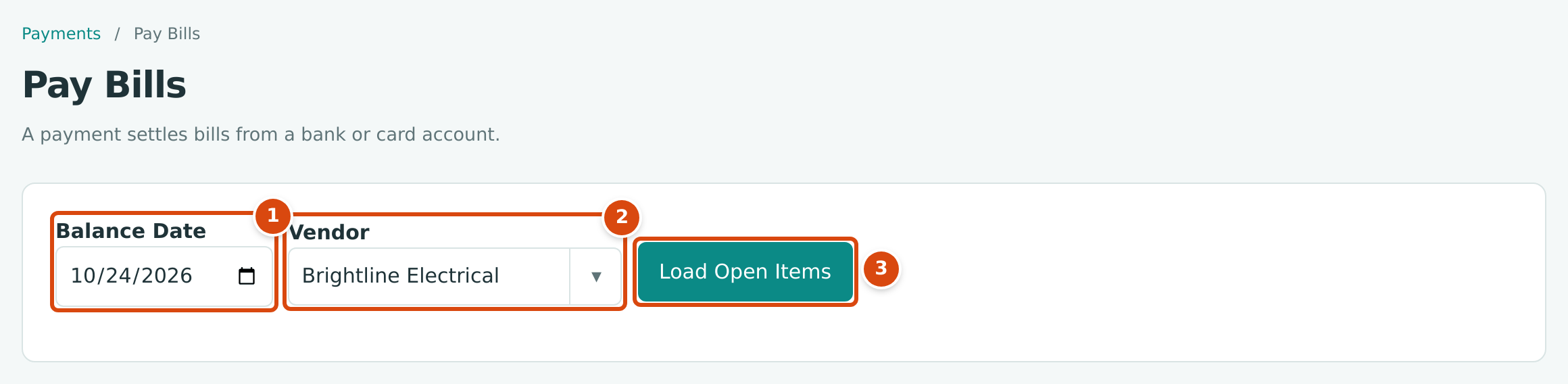
- Balance Date: the date at which open bills and balances are shown.
- Vendor: active vendors. You can also add a vendor here with + Add New.
- Load Open Items reloads the open bills for the vendor and date.
Enter the Payment and Allocate It
- Check Date: the payment date and its accounting date.
- In Funds Account, choose the account the money comes from.
- In Amount, type the total you are paying.
- Optionally fill Method (check, ACH, wire), Reference (the check or confirmation number) and Memo, and attach a remittance with Attach Supporting Documents.
- In Allocations, type in Allocate how much of the payment goes to each bill. Leave a bill's box empty to leave it unpaid. Summary shows the Amount, the total Allocated and what stays Unapplied.
- Click Pay Bills. Cancel leaves without paying.
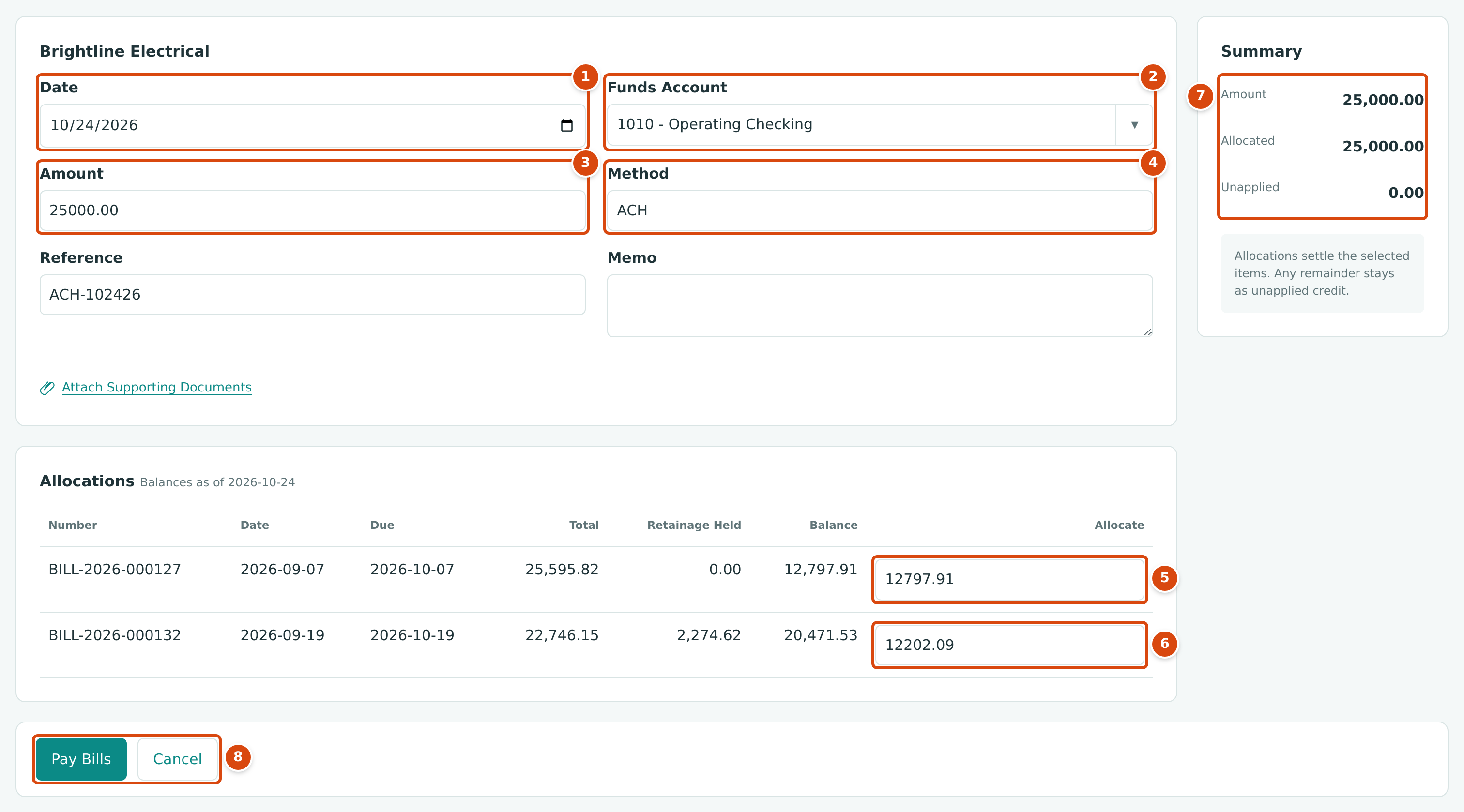
- Date: the payment date. It cannot be earlier than any bill it pays.
- Funds Account: bank, cash and credit card accounts.
- Amount: the total paid.
- Method and, below it, Reference and Memo.
- Allocate on the first bill: its whole balance, 12,797.91.
- Allocate on the second bill: 12,202.09, part of its 20,471.53 balance.
- Summary: Amount 25,000.00, Allocated 25,000.00, Unapplied 0.00.
- Pay Bills posts the payment.
The Allocations table lists the vendor's posted bills that still have an open balance on that date, oldest first: Number, Date, Due, and Balance (what is still owed). When any bill holds retainage, Total and Retainage Held columns appear too. No open items at this date. means the vendor has nothing to pay. Structally opens the new payment when it is saved. Payment numbers are assigned automatically as PAY-year-sequence.
Partial Payments and Unapplied Amounts
- Paying part of a bill. Allocate less than the bill's Balance. The bill stays Open, shows the new open balance, and is marked Partly Paid (or Overdue once its due date has passed). Pay the rest later with another payment.
- Paying more than you allocate. Whatever is not allocated stays on the payment as Unapplied credit with the vendor. It lowers the vendor's open balance and shows in the vendor's Credits Available tile. Apply it to a bill later (see Applying an Unapplied Payment). You can also save a payment with nothing allocated, for example a deposit paid before the vendor's bill arrives.
- Retainage. The Balance of a bill that holds retainage excludes the retainage. Retainage is paid after a retainage release makes it payable; the release then appears in Allocations as its own bill, tagged Retainage Release.
Bills for both equipment and everyday costs
When a bill you are paying has lines on equipment or property accounts and on other accounts, Pay Bills shows Split Needed beside its amount and, when you click Pay Bills, opens Split This Payment: you say how much of the payment is for Equipment and Property (Investing) and how much for Operating Costs (Operating), so the Cash Flow report classifies it correctly. Structally proposes a split in proportion to the bill. The split is saved with the payment and shown on it as Cash-Flow Split.
No Sample Bill for the Split
The sample company has no open bill that mixes equipment and other accounts, so this guide has no screenshot of Split This Payment.
Field Reference
| Field | Description | Required | Example |
|---|---|---|---|
| Balance Date | Date at which open bills and balances are listed. Also the starting payment date. | No | 10/24/2026 |
| Vendor | The vendor being paid. Active vendors only. | Yes | Brightline Electrical |
| Date | Payment date and accounting date. Not before the date of any bill it pays; after the Books Closed date. | Yes | 10/24/2026 |
| Funds Account | The active bank, cash or credit card account paid from. | Yes | 1010 - Operating Checking |
| Amount | The total payment, a positive amount with up to two decimals. | Yes | 25000.00 |
| Method | How you paid, up to 20 characters. | No | ACH |
| Reference | Check, transfer or confirmation number, up to 60 characters. | No | ACH-102426 |
| Memo | An internal note. | No | September progress, both bills |
| Allocate (per bill) | Amount of this payment applied to the bill. At most the bill's balance. | No | 12,797.91 |
| Attach Supporting Documents | PDF, image, Word or Excel files, up to 5 MB each and 3 per payment. | No | remittance.pdf |
Worked Example: One Payment, Two Bills
On October 24, 2026, Cedar Ridge sends Brightline Electrical $25,000.00 by ACH from 1010 Operating Checking (the figure above). Brightline has two open bills:
| Bill | Balance Before | Allocated | Balance After | Status After |
|---|---|---|---|---|
| BILL-2026-000127 | 12,797.91 | 12,797.91 | 0.00 | Paid |
| BILL-2026-000132 | 20,471.53 | 12,202.09 | 8,269.44 | Open · Overdue |
| Total | 33,269.44 | 25,000.00 | 8,269.44 |
12,797.91 + 12,202.09 = 25,000.00, so nothing is left unapplied, and Brightline's open balance falls from $33,269.44 to $8,269.44 (20,471.53 − 12,202.09). BILL-2026-000132's retainage of $2,274.62 is not part of either figure.
The Payment Entry
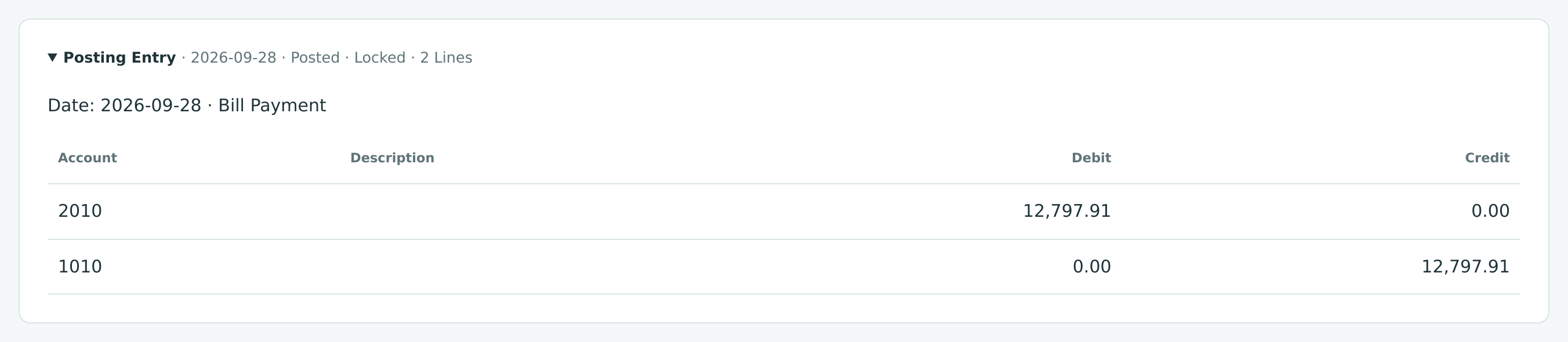
A payment debits 2010 Accounts Payable and credits the funds account for the payment amount, on the payment date:
The sample company's PAY-2026-000149, which paid the first half of BILL-2026-000127 on September 28, 2026, posted the same kind of entry for 12,797.91:
The Payment Page
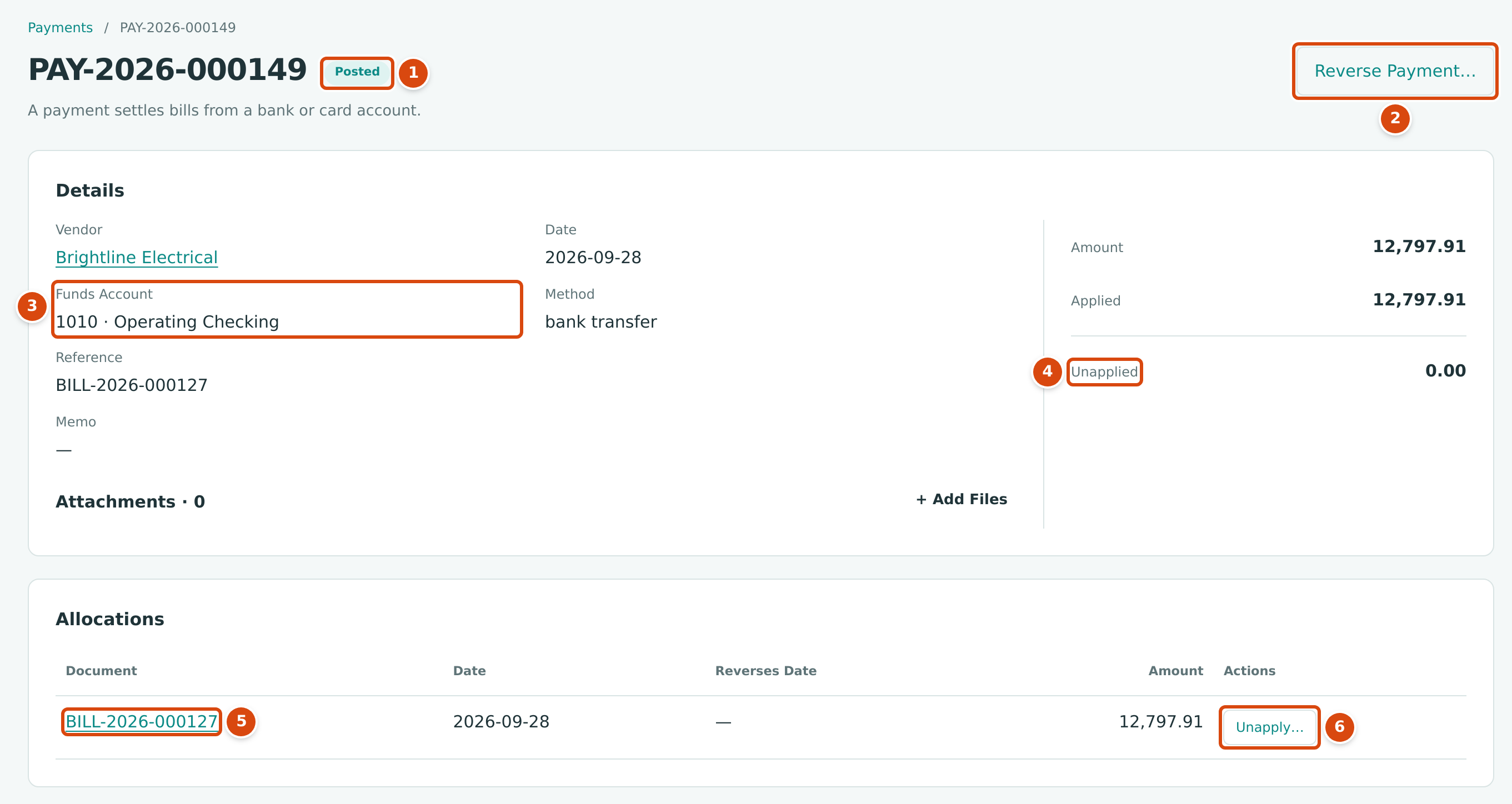
- The status: Posted, or Reversed.
- Reverse Payment… opens the reversal drawer.
- Funds Account, with Method and Reference beside and below it.
- Amount, Applied and Unapplied. An Apply Credit button appears at the top when Unapplied is more than zero.
- Allocations: each bill the payment was applied to, with the date applied.
- Unapply… takes the payment off that bill.
The page also shows the Posting Entry, any Refunds of this payment, and the History of the payment.
Applying an Unapplied Payment
When a payment has an Unapplied amount, its page shows an Apply Credit section: Allocate unapplied credit to the selected open items.
- Open the payment and click Apply Credit.
- Set Date: the date of the application. It cannot be earlier than the payment date or the bill's date.
- Type amounts in Allocate against the vendor's open bills.
- Click Apply Credit.
No journal entry is posted: the money already left the bank and accounts payable was already reduced when the payment was saved. Applying only decides which bill the money paid. A bill that is fully settled becomes Paid.
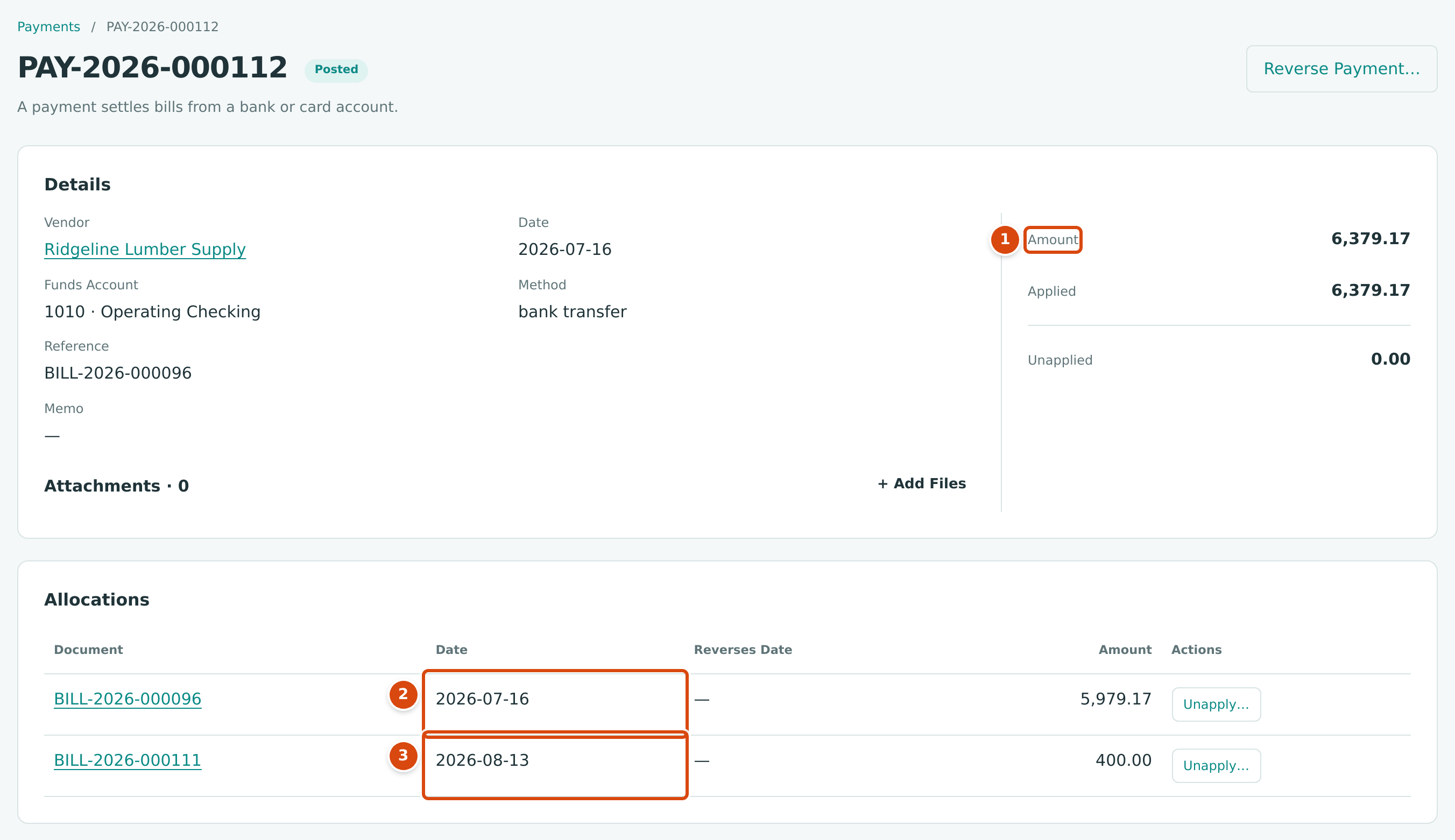
- The payment amount, 6,379.17.
- Applied to BILL-2026-000096 when the payment was made, on July 16, 2026.
- The remaining 400.00, applied to the next bill, BILL-2026-000111, on August 13, 2026.
Apply Credit Form Not Shown
No payment in the sample company has an unapplied amount today, so the Apply Credit section cannot be shown with real data. It has a Date field, the same Allocations table as Pay Bills, and an Apply Credit button.
Unapplying a Payment From a Bill
Unapply a payment when it was applied to the wrong bill, or before you void the bill.
- Open the payment. In Allocations, click Unapply… on the bill's row.
- Set Date: the date of the unapply. It starts as today and cannot be earlier than the date the payment was applied.
- Click Unapply.
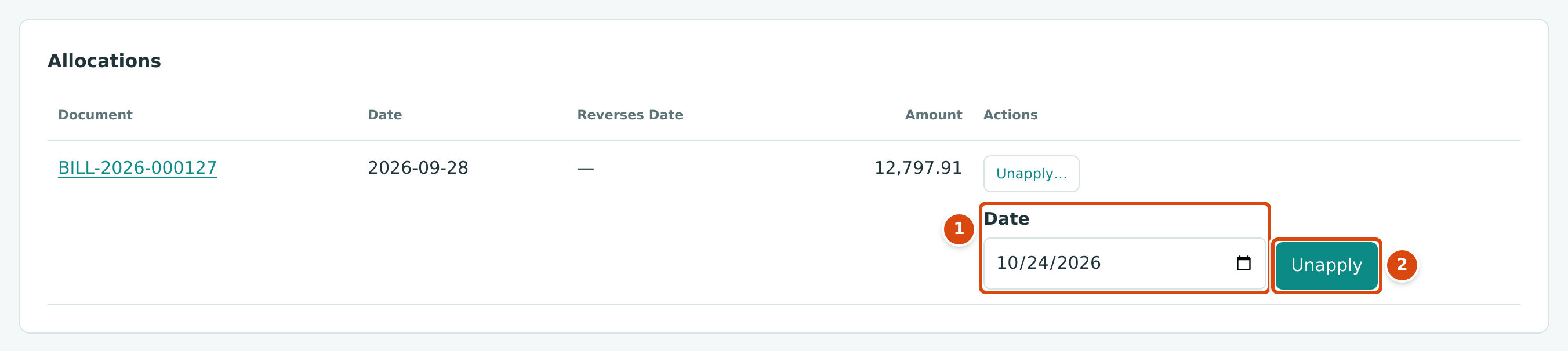
- Date of the unapply.
- Unapply removes the allocation.
Structally adds a negative row to Allocations, dated on the unapply date, with the original date in Reverses Date. The bill is Open again for that amount, and the amount becomes Unapplied on the payment, ready to apply to another of the vendor's bills. No journal entry is posted.
Reversing a Payment
Reverse a payment that did not happen or was recorded wrongly: a check that was voided, an ACH the bank returned, the wrong funds account. Reversing posts the mirror image of the payment's entry on the date you choose, takes the payment off every bill it paid, and sets its status to Reversed.
- Open the payment and click Reverse Payment….
- In Date, enter the date of the reversing entry. It starts as today, cannot be earlier than the payment date and must be after the Books Closed date.
- In Memo, type why. It becomes the reversing entry's description.
- Click Reverse Payment. Cancel closes the drawer.
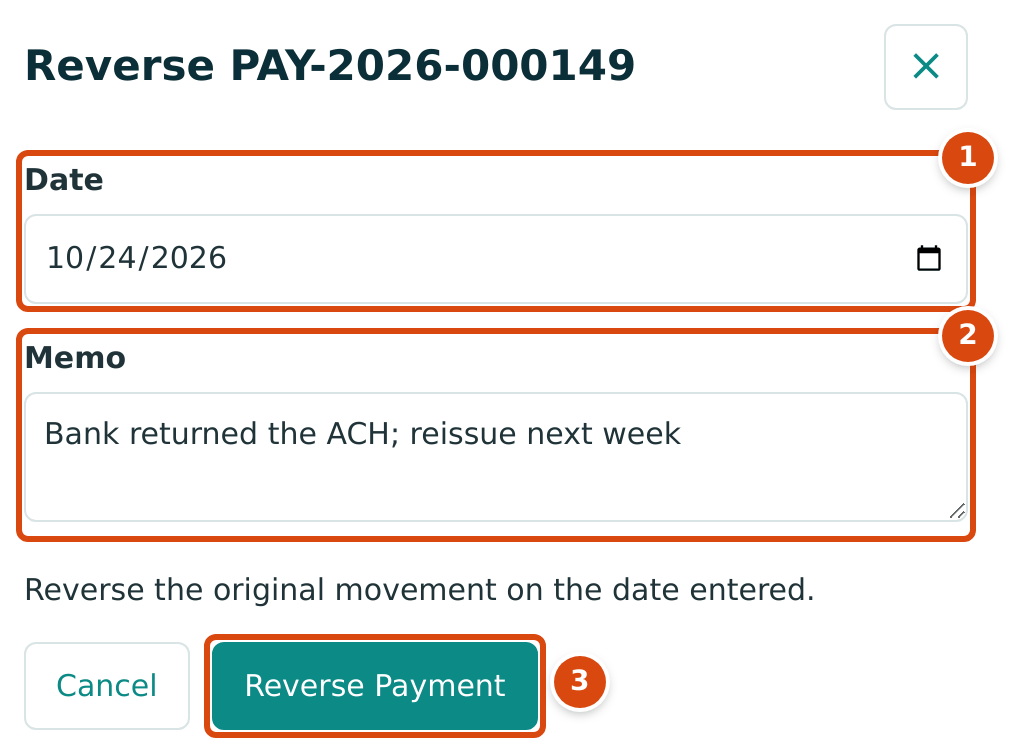
- Date: the accounting date of the reversal.
- Memo: the reason.
- Reverse Payment: Reverse the original movement on the date entered.
A payment cannot be reversed while a refund draws on it (Payment has refunds; reverse them first) or while its entry is matched to a bank feed line (Entry is matched to a bank line; unmatch it first).
The sample company reversed PAY-2024-000013 (Ridgeline Lumber Supply, $17,705.44, February 13, 2024) the next day with the memo Canceled before settlement; replacement follows:
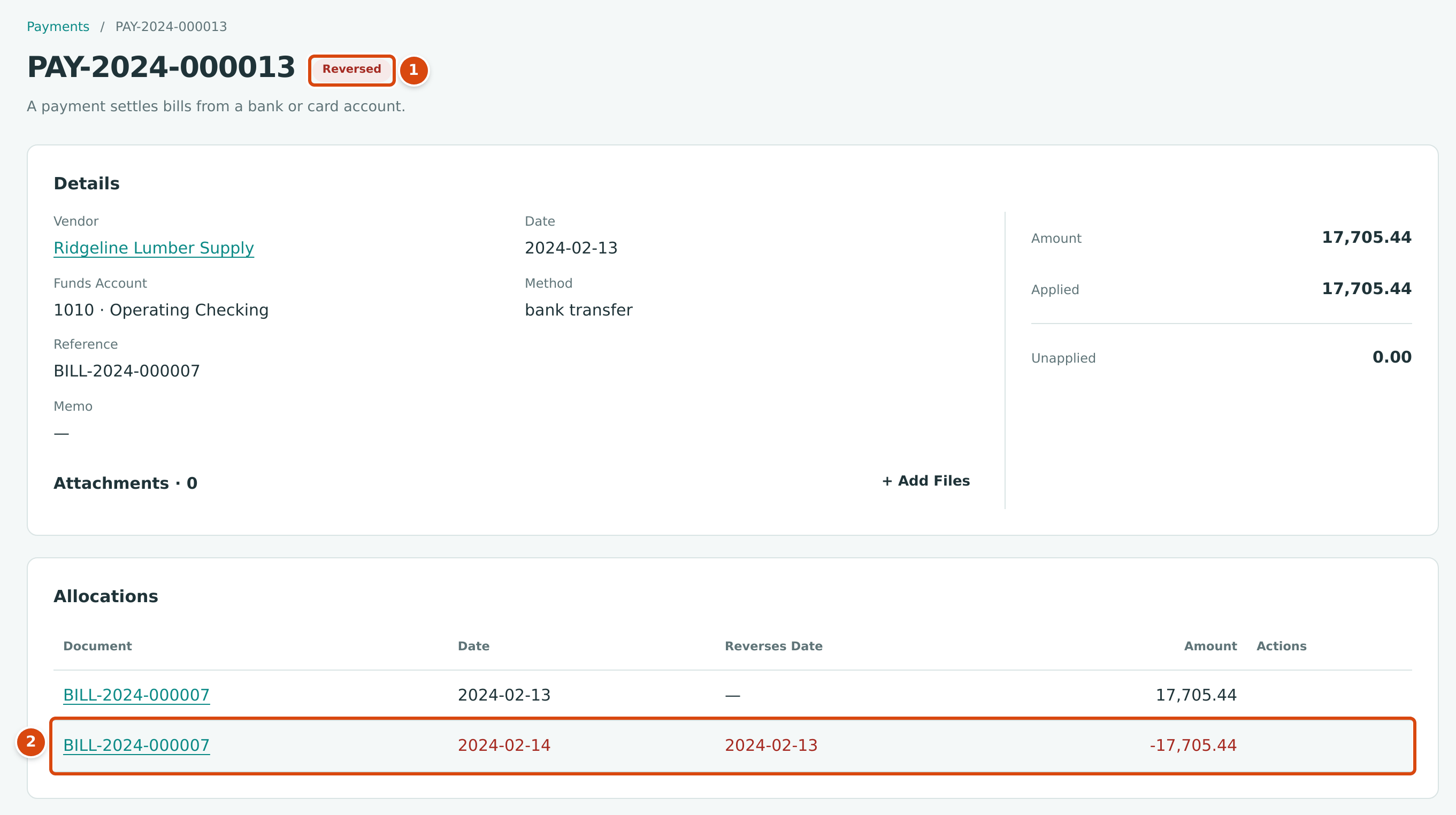
- The status is Reversed.
- The allocation to BILL-2024-000007 is taken off on the reversal date, so the bill was open again from that date.
The Reversing Entry
The reversal debits the funds account and credits Accounts Payable, on the reversal date. It appears on the payment as Reversal Entry, type Payment Reversal:
| Account | Debit | Credit |
|---|---|---|
| 1010 Operating Checking | 17,705.44 | |
| 2010 Accounts Payable | 17,705.44 |
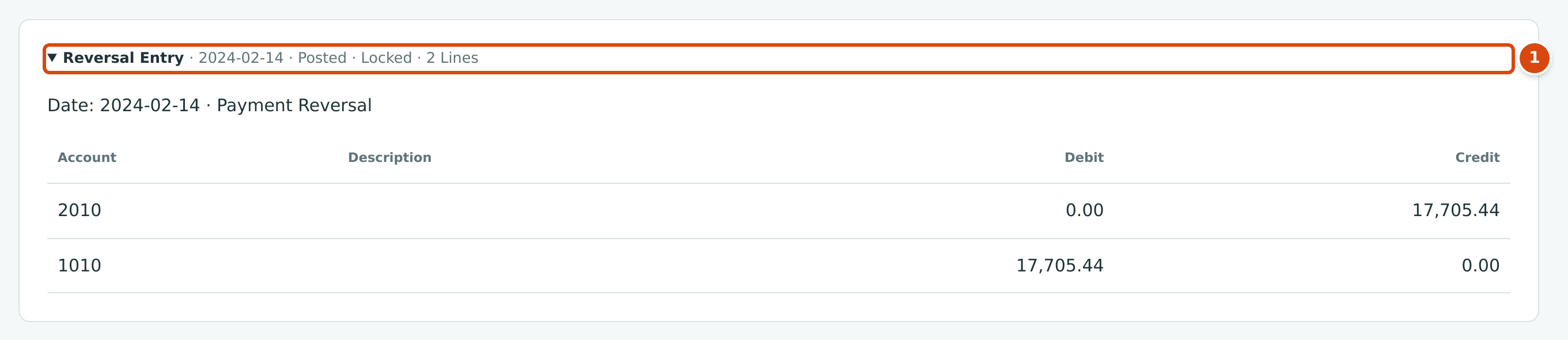
- Reversal Entry, dated February 14, 2024, posted and locked.
The Payments List
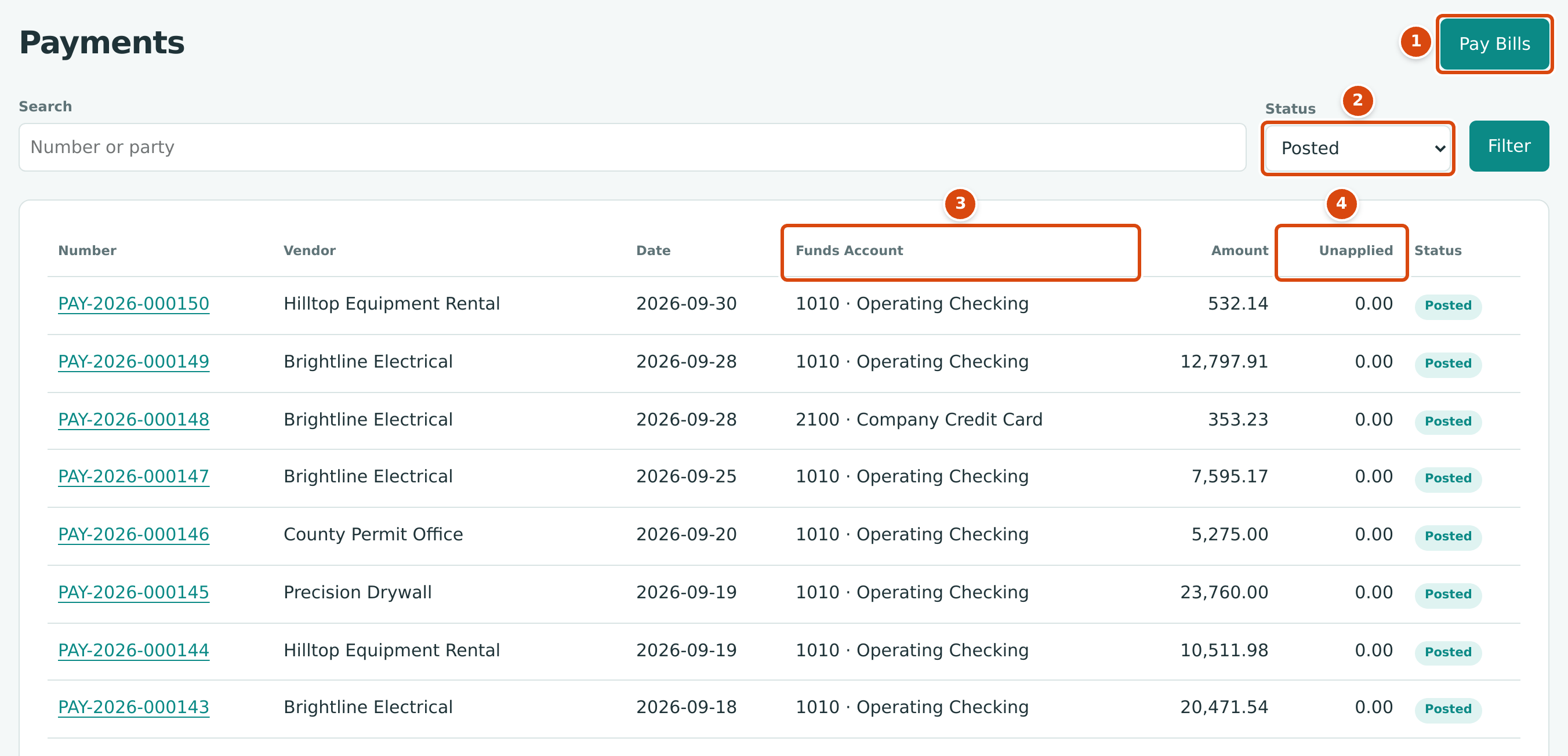
- Pay Bills starts a new payment.
- Status: Posted (the default) or Reversed.
- Funds Account: the account each payment came from.
- Unapplied: the part of each payment not yet applied to a bill.
Search finds payments by number or vendor name.
What Happens After You Pay
| After Pay Bills | |
|---|---|
| Payment status | Posted |
| Journal entry | Debit Accounts Payable, credit the funds account, on the payment date; locked |
| Each bill paid | Open balance reduced; Paid when nothing is left |
| The vendor's balance | Reduced by the payment amount (allocated or not) |
| Unapplied amount | Kept on the payment as credit for later bills |
| Can be changed | No. Unapply it from a bill, or reverse it and pay again. |
Common Mistakes and Troubleshooting
| Message or Symptom | Why It Happens | What to Do |
|---|---|---|
| Allocations exceed payment amount | The Allocate amounts add up to more than Amount. | Raise Amount or lower the allocations. |
| Allocation exceeds bill balance | An allocation is larger than what is owed on the bill on the payment date. | Allocate at most the bill's Balance. |
| Payment date is before bill date | The payment is dated before a bill it pays. | Date the payment on or after the bill date. |
| Payments are made from a bank or credit card account | The funds account is inactive or not a bank, cash or card account. | Choose another Funds Account. |
| Vendor must be active. | The vendor was deactivated. | Reactivate the vendor on its page. |
| Accounting date must be after the company closing date. | The payment date is in a closed period. | Use a date after the Books Closed date. |
| A bill is missing from Allocations. | It is a draft, already paid, void, or dated after the Balance Date. | Post the draft, or change Balance Date and click Load Open Items. |
| Payment has refunds; reverse them first | A refund was recorded against this payment's unapplied amount. | Reverse the refund in Banking first. |
| Payment is already reversed | The payment was reversed before. | Nothing to do. |
| Entry is matched to a bank line; unmatch it first | The payment is matched in the Bank Feed. | Unmatch the bank line, then reverse. |
| Reversal date cannot be earlier than the journal entry date. | The reversal is dated before the payment. | Use the payment date or later. |
| Allocation date is before payment date | An Apply Credit date is before the payment date. | Use the payment date or later. |
| Payment has no unapplied credit | The whole payment is already applied. | Unapply it from a bill first if you need to move it. |
| Allocations exceed unapplied payment amount | Apply Credit amounts add up to more than Unapplied. | Lower the amounts. |
| Unapply date is before allocation date | The unapply date is earlier than the date the payment was applied. | Use that date or later. |
| Allocation is already unapplied | The allocation was unapplied before. | Nothing to do. |
| The Split This Payment drawer says The two amounts must add up to this payment. | The investing and operating amounts do not equal the allocation. | Adjust them so they add up. |