| Account | Debit | Credit |
|---|---|---|
| 2400 Billings in Excess of Costs (J-101) | 4,896.56 | |
| 4100 WIP Revenue Adjustment (J-101) | 4,896.56 |
WIP Schedules
A work in progress (WIP) schedule measures, at a month end, how much of each contract you have actually earned, and compares it with what you have billed. Construction companies bill on a schedule that rarely matches the work done, so the invoices alone overstate or understate revenue. The WIP schedule corrects that:
- Percent complete is cost to date as a share of the job's forecast final cost (the cost-to-cost method).
- Earned revenue is that percentage of the contract.
- When earned revenue is more than billed, the difference is Costs in Excess of Billings (under billing, an asset). When billed is more than earned, it is Billings in Excess of Costs (over billing, a liability).
- A job forecast to lose money gets a Loss Provision so the whole loss is booked at once.
- Materials bought but not yet installed can be kept out of percent complete.
When the schedule is approved, Post WIP Entries writes one journal entry that brings the WIP balances on your Balance Sheet, and the matching revenue and cost adjustments on your Profit and Loss, in line with the schedule.
Before You Begin
- Each job on the schedule has an approved forecast with a cutoff on or before the schedule's cutoff. Approve this month's forecasts first.
- Costs and progress billings for the month are posted (see Job Costs and Pay Applications).
- The seven WIP accounts exist. A Company Admin creates them with Create Accounts on the WIP Accounts card in Job Costing Settings. The sample company uses 1400, 1450, 2400, 2450, 4100, 5900 and 5950.
- Only Company Admins and Accountants can create, refresh, change, approve, discard and post WIP schedules. Other users with View or Edit access to Jobs & Costing can open them read-only. See Roles and Permissions.
Navigation
Jobs & Costing → Forecasts & WIP → WIP Schedule tab. The WIP card on a job's page links to the latest approved schedule with View WIP Schedule.
The WIP Schedule List
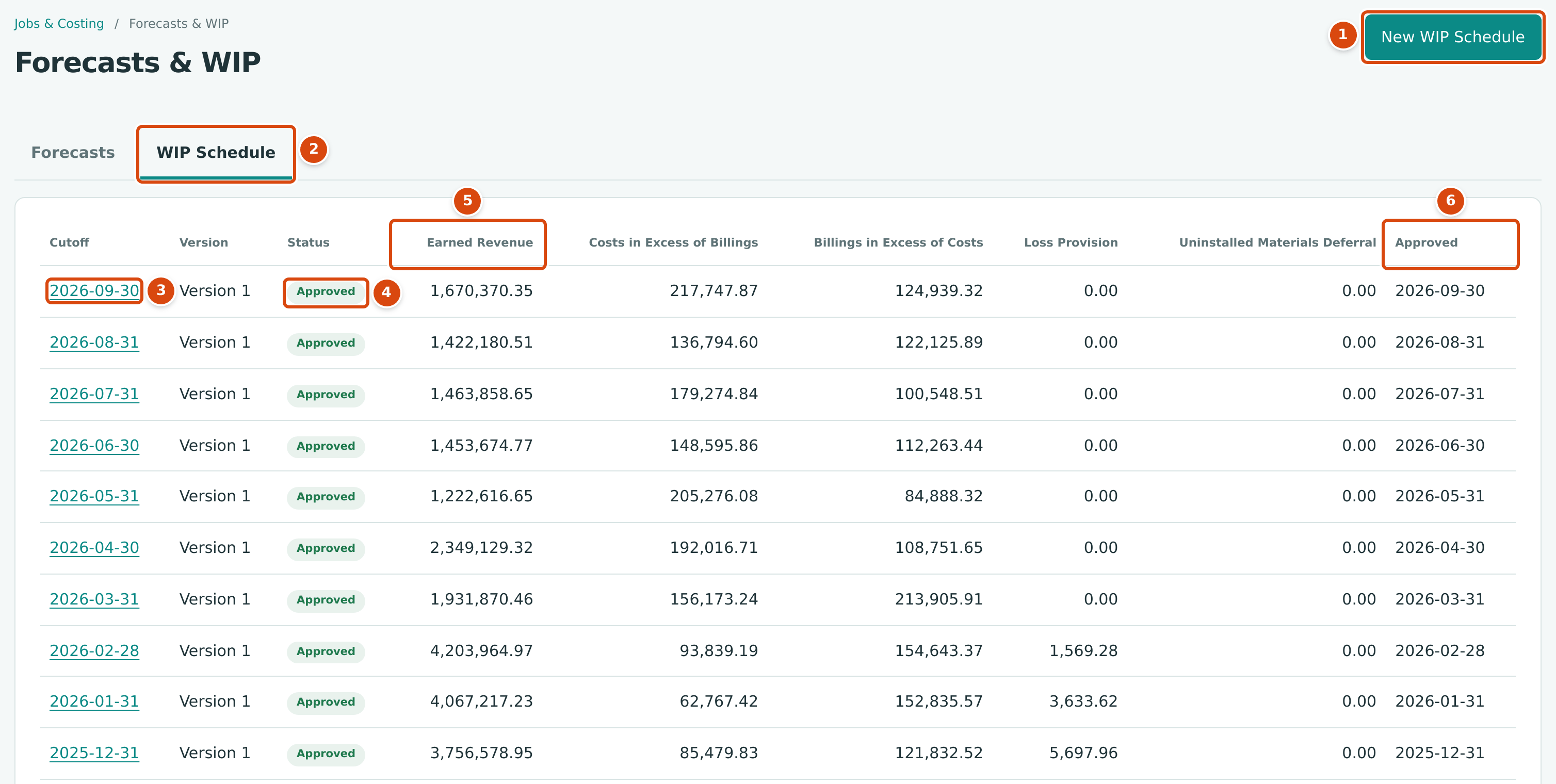
- New WIP Schedule: shown to Company Admins and Accountants.
- The WIP Schedule tab.
- Cutoff: the month end of the schedule. Click it to open the schedule.
- Status: Draft, Approved or Replaced (an approved version that a later version of the same cutoff replaced).
- The schedule's totals. Drafts show a dash until they are approved.
- Approved: the date of approval.
The list is newest first. Each cutoff can have several versions (Version 1, Version 2 and so on); only one of them is Approved at a time.
Creating a WIP Schedule
- Approve the month's forecasts and post the month's costs and billings.
- On the WIP Schedule tab click New WIP Schedule.
- Check the Cutoff. It starts as the last day of last month and cannot be later than today.
- Optionally type a Note, such as Month-end WIP.
- Click Create WIP Schedule. Structally builds the schedule, confirms with WIP schedule 2026-09-30 created. and opens it as a Draft.
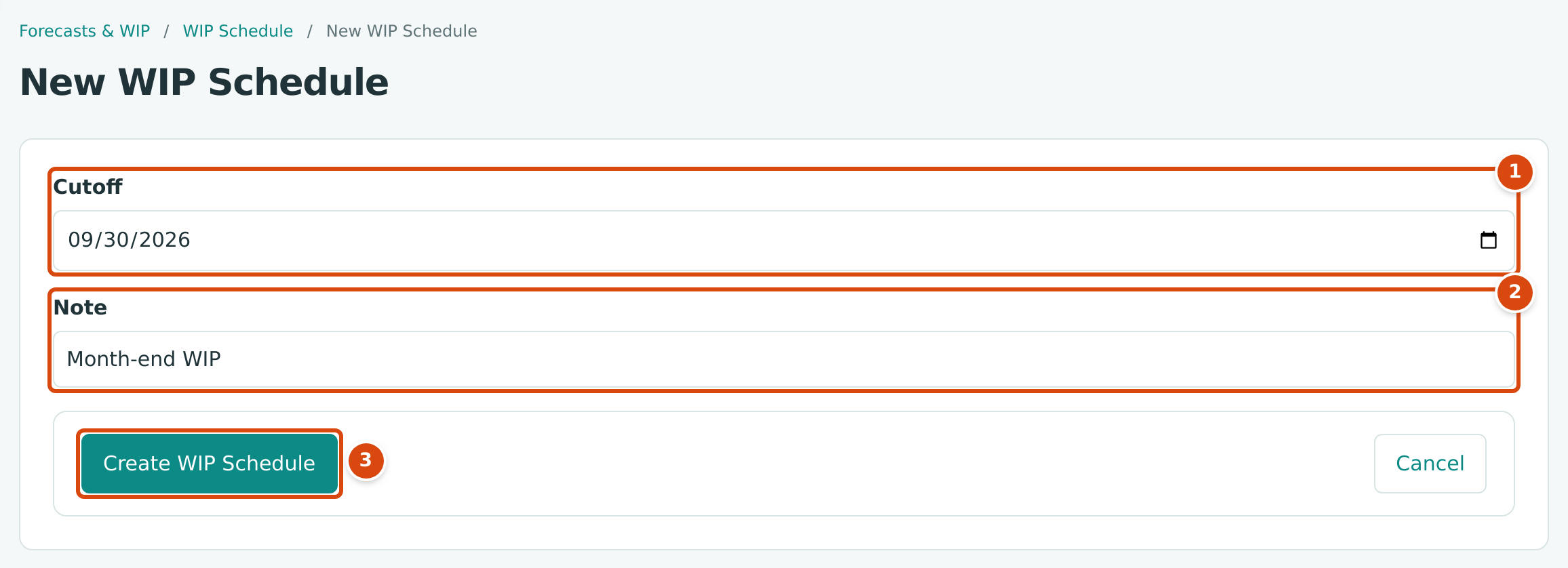
- Cutoff: the date every figure is measured at.
- Note: an optional note, up to 500 characters.
- Create WIP Schedule builds the draft; Cancel returns to the list.
Only one draft WIP schedule can exist at a time in a company. A new schedule for a cutoff that already has one gets the next version number.
Which Jobs Are Included
A job is on the schedule when, at the cutoff, it has posted cost, billings, an approved forecast or a WIP balance, and it is one of these:
- an Active or On Hold job;
- a Closed job that closed in the cutoff month or later (or has no closing date);
- any job that still has a balance in the WIP accounts, so that the balance can be cleared.
Draft and archived jobs are not included unless they hold a WIP balance.
Reading the Schedule
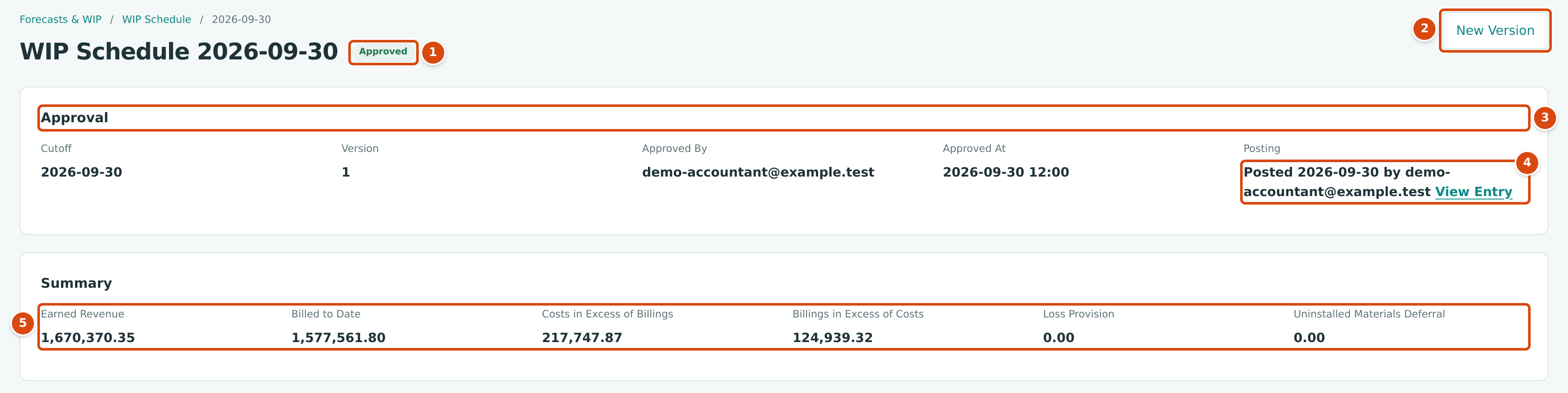
- The status.
- New Version: starts a corrected draft for the same cutoff (see Correcting a Schedule).
- Approval: cutoff, version, who approved it and when.
- Posting: Posted with the date, the user and a View Entry link, or Not Posted. A schedule that needed no entry shows no entry needed.
- Summary: the schedule's totals.
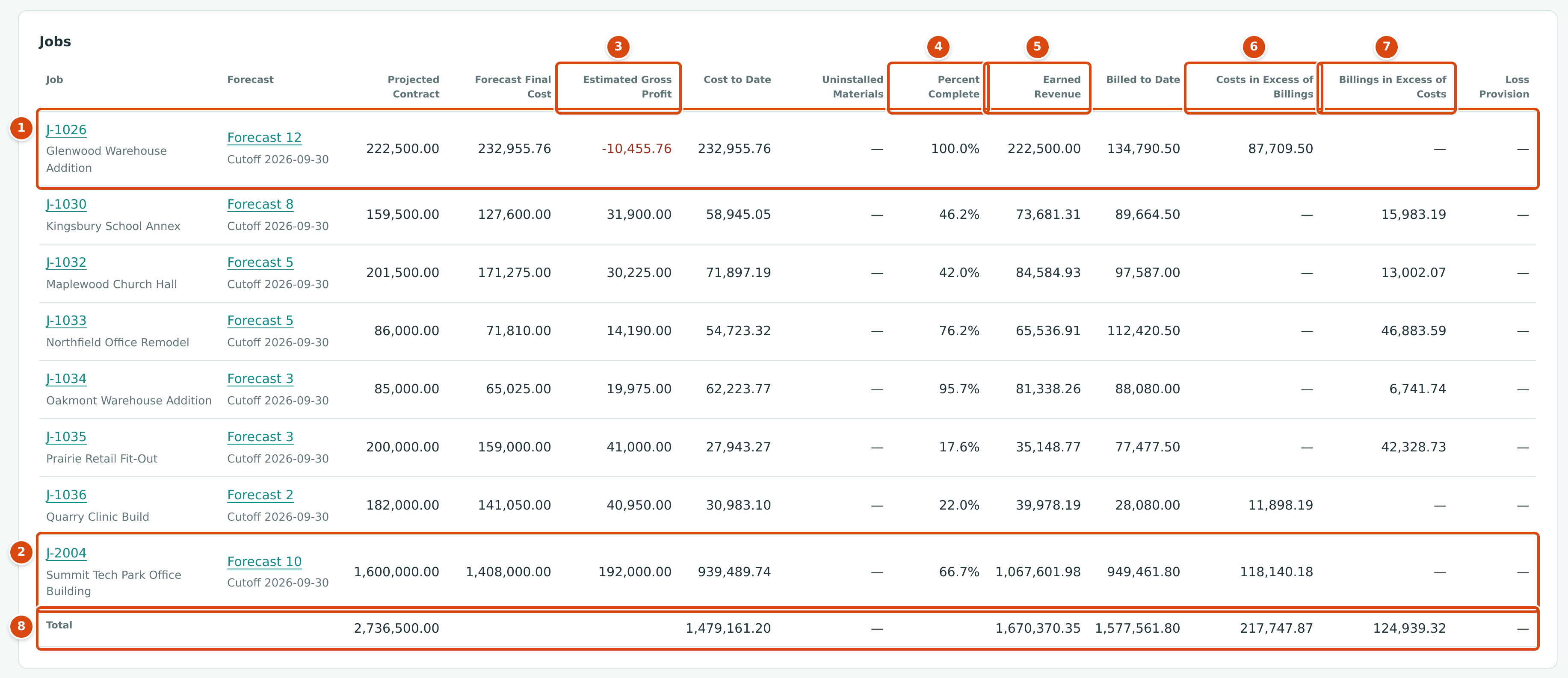
- J-1026: forecast final cost equals cost to date, so it is 100.0% complete and earns its full contract; its loss is already in cost.
- J-2004, explained in the worked example.
- Estimated Gross Profit: projected contract less forecast final cost.
- Percent Complete, shown to one decimal place.
- Earned Revenue.
- Costs in Excess of Billings: earned more than billed.
- Billings in Excess of Costs: billed more than earned.
- Total for the schedule.
Column Reference
A dash means zero, or that the job has an issue and was not calculated.
| Column | What It Shows |
|---|---|
| Job | The job, its name, a Closed or On Hold badge, Older Forecast when the forecast used is from an earlier month, and Incomplete when the job has an issue. |
| Forecast | The approved forecast used (Forecast 10, with its cutoff), or No approved forecast. |
| Projected Contract | Original contract + approved contract change orders dated on or before the cutoff. Pending change orders are left out. |
| Forecast Final Cost | The total of the forecast's lines. |
| Estimated Gross Profit | Projected Contract − Forecast Final Cost. |
| Cost to Date | Posted job cost up to the cutoff. |
| Uninstalled Materials | Materials in cost to date that are not yet installed, with their treatment (Revenue at Cost or Deferred). See Uninstalled Materials. |
| Percent Complete | The share of the forecast cost incurred, from 0% to 100%. |
| Earned Revenue | The contract revenue earned so far. |
| Billed to Date | Invoices coded to the job dated up to the cutoff, including retainage held, less credit memos. Voided invoices drop out from their void date. |
| Costs in Excess of Billings | Earned Revenue − Billed to Date, when positive. |
| Billings in Excess of Costs | Billed to Date − Earned Revenue, when positive. |
| Loss Provision | The part of a projected loss not yet in the job's recognized cost. |
The Summary card adds up Earned Revenue, Billed to Date, Costs in Excess of Billings, Billings in Excess of Costs, Loss Provision and Uninstalled Materials Deferral for the jobs without an issue (billed to date covers every job).
How the Figures Are Worked Out
Structally works each job out like this, with D the deferred uninstalled materials and A the uninstalled materials treated as revenue at cost:
| Figure | Formula |
|---|---|
| Projected Contract (C) | Original contract + approved changes. |
| Percent Complete (P) | (Cost to Date − A − D) ÷ (Forecast Final Cost − A), kept between 0% and 100%. |
| Earned Revenue (E) | P × (C − A) + A, rounded to the cent (half a cent rounds up). P is used unrounded; the screen shows it to one decimal. |
| Recognized cost | Cost to Date − D. |
| Gross profit to date | E − recognized cost. |
| Projected loss | Forecast Final Cost − C, when positive. |
| Loss already recognized | Recognized cost − E, when positive. |
| Loss Provision | Projected loss − loss already recognized, when positive. |
| Costs in Excess of Billings | E − Billed to Date, when positive. |
| Billings in Excess of Costs | Billed to Date − E, when positive. |
| Uninstalled Materials Deferral | D. |
Issues That Block Approval
A job with an issue shows Incomplete, a dash in its calculated columns, and a line at the top of a draft under 1 item needs attention before approval (or 3 items need attention before approval):
| Message | Cause | Fix |
|---|---|---|
| J-1036: No approved forecast at the cutoff. | The job has no approved forecast dated on or before the cutoff. | Approve a forecast for the job, then Refresh Figures. |
| J-2003: Uninstalled materials exceed cost to date. | The uninstalled materials entered are more than the job's cost to date. | Lower or remove the entries. |
| J-2003: Forecast cost base is zero or negative. | The forecast final cost, less materials treated as revenue at cost, is zero or less. | Correct the forecast or the treatment. |
| J-1026: Forecast final cost is below cost to date. | Costs posted after the forecast passed its final cost. | Approve a new forecast at or above cost to date, then refresh. |
| J-2004: Confirm the uninstalled materials before approval. | An uninstalled materials entry is still Unconfirmed. | Choose its treatment and click Confirm. |
The job numbers in the table are examples.
Working on a Draft
A draft shows the Draft status, Version 1 · Refreshed with the date and time under the title, the attention list when something needs fixing, and the buttons Discard Draft, Refresh Figures and Approve (Approve cannot be clicked while anything needs attention). The Uninstalled Materials card gets an Add Material button and an Actions column.
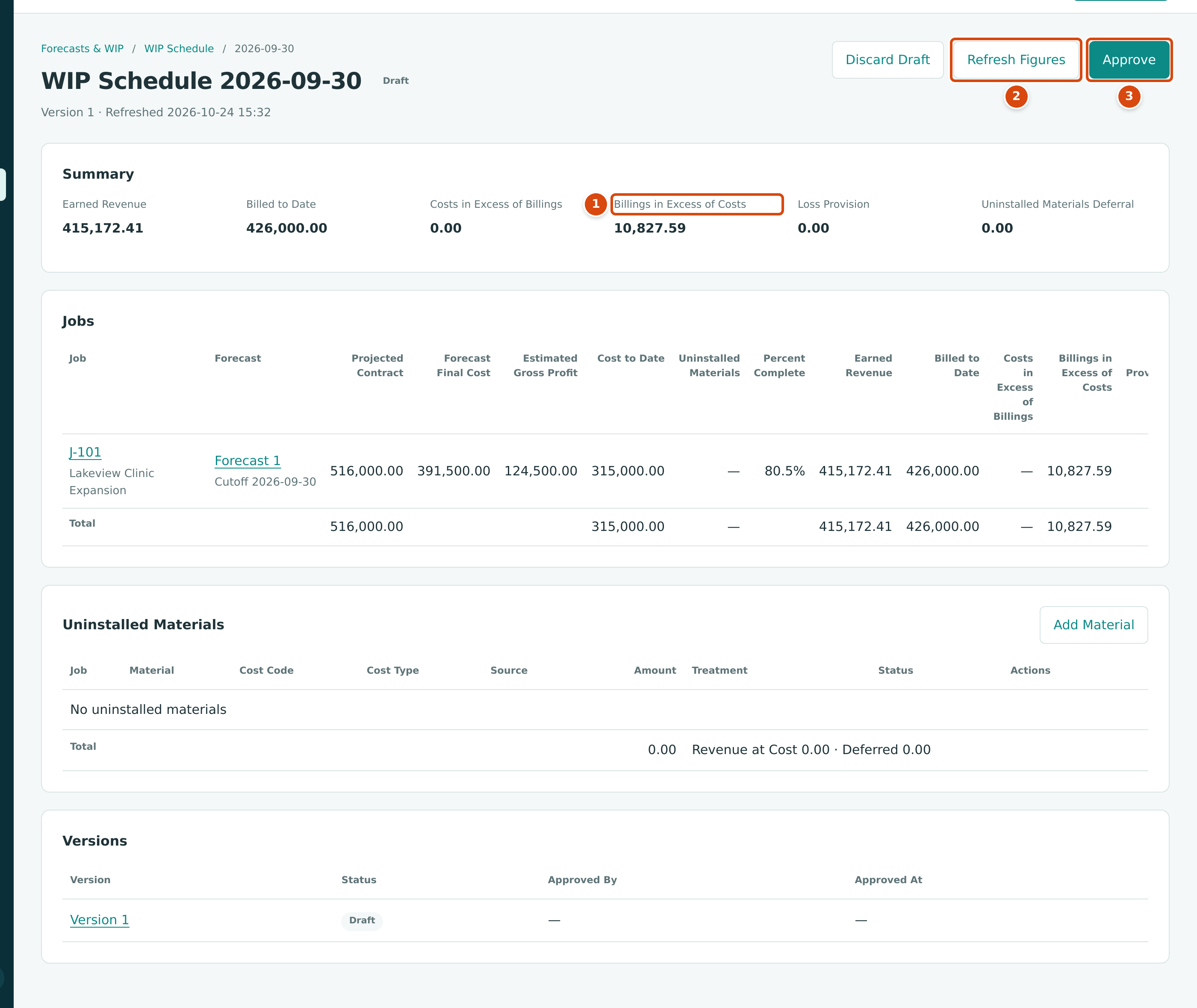
- Billings in Excess of Costs: J-101 has billed more than it has earned.
- Refresh Figures: reads every figure again.
- Approve: freezes the schedule. It is available here because nothing needs attention.
In this draft J-101 Lakeview Clinic Expansion has a projected contract of $516,000.00, a forecast final cost of $391,500.00 and $315,000.00 of cost to date:
| Step | Calculation | Result |
|---|---|---|
| Percent complete | 315,000.00 ÷ 391,500.00 = 0.8045977 | 80.5% |
| Earned revenue | 0.8045977 × 516,000.00 = 415,172.4138 | 415,172.41 |
| Billings in Excess of Costs | 426,000.00 billed − 415,172.41 | 10,827.59 |
Refreshing Figures
A draft keeps the figures it read when it was created or last refreshed. After you post more costs or invoices, approve a forecast, or approve a contract change order dated on or before the cutoff, click Refresh Figures. Structally reads everything again, adds or removes jobs, keeps the uninstalled materials you entered, and confirms with Figures refreshed.
Approve checks that nothing changed since the last refresh. If something did, it stops with Figures changed since the last refresh. Refresh the schedule and review it again.
Approving
- Clear every item in the attention list.
- Click Approve. Structally confirms with WIP schedule 2026-09-30 approved.
The schedule's figures are frozen. If another version of the same cutoff was approved before, it becomes Replaced. An approved schedule cannot be edited or discarded.
Discarding a Draft
Click Discard Draft. There is no confirmation step: the draft and its uninstalled materials are deleted, Structally confirms with Draft discarded. and returns to the list. Only drafts can be discarded.
Uninstalled Materials
Uninstalled materials are materials charged to a job (delivered and billed by the supplier) but not yet built into the work. Counting them as progress would overstate percent complete, so a WIP schedule lets you list them and choose a Treatment:
| Treatment | Effect |
|---|---|
| Deferred | Taken out of cost to date for percent complete and out of the recognized cost. The posting moves the amount to 1450 Uninstalled Materials (an asset) and credits 5950 Uninstalled Materials Deferral, which lowers cost on the Profit and Loss. |
| Revenue at Cost | Taken out of percent complete, but revenue equal to its cost is earned now (no margin on it). Nothing is deferred. |

- Material: what the entry is. This one was entered by hand, so its Source is Manual.
- Treatment: Deferred or Revenue at Cost.
- Status: Confirmed, or Unconfirmed until someone confirms it.
- Total, split into Revenue at Cost and Deferred.
There are two kinds of entries:
- Manual entries you add yourself. On a draft, click Add Material, choose the Job, and fill a row for each item: Material, optionally Cost Code and Cost Type, Amount and Treatment (default Deferred). Add Row adds a row and × removes one. Click Save; Structally confirms with Uninstalled materials saved. To change a job's entries later, click Edit on one of them; saving that panel replaces all of that job's manual entries. Manual entries are confirmed as you save them.
- Cost Type entries that Structally adds by itself for cost types whose Counts Toward Progress setting is No (set on each cost type in Cost Codes and Cost Types). Their amount is the job's cost to date on that cost type, their treatment starts from the cost type's Uninstalled Default, and they are Unconfirmed the first time they appear. Choose the Treatment and click Confirm; Structally confirms with Treatment confirmed. A confirmed one can be changed with Change Treatment.
When you create next month's schedule, each job's manual entries and confirmed treatments are copied from its last approved schedule, marked Carried from the earlier cutoff. Edit or remove entries once the materials are installed.
No Screenshot of the Uninstalled Materials Panel
Neither company has a draft schedule with uninstalled materials, so the Add Uninstalled Materials panel (a Job list and rows of Material, Cost Code, Cost Type, Amount and Treatment, with Add Row, Cancel and Save) and the Confirm and Change Treatment buttons are described here rather than shown.
Posting WIP Entries
Approving does not touch your books. Posting does.
- Open the approved schedule and click Post WIP Entries.
- Review the Post WIP Entries page. For each job it lists the WIP accounts that change, with the Target Balance (from the schedule), the Recorded Balance (what the job holds in that account in the ledger at the cutoff), and the Debit or Credit that closes the gap. Credit balances are shown with Cr.
- Click Post Entries. Structally confirms with WIP entries posted for 2026-09-30. If the ledger already matches, it says WIP schedule 2026-09-30 posted with no entry needed.
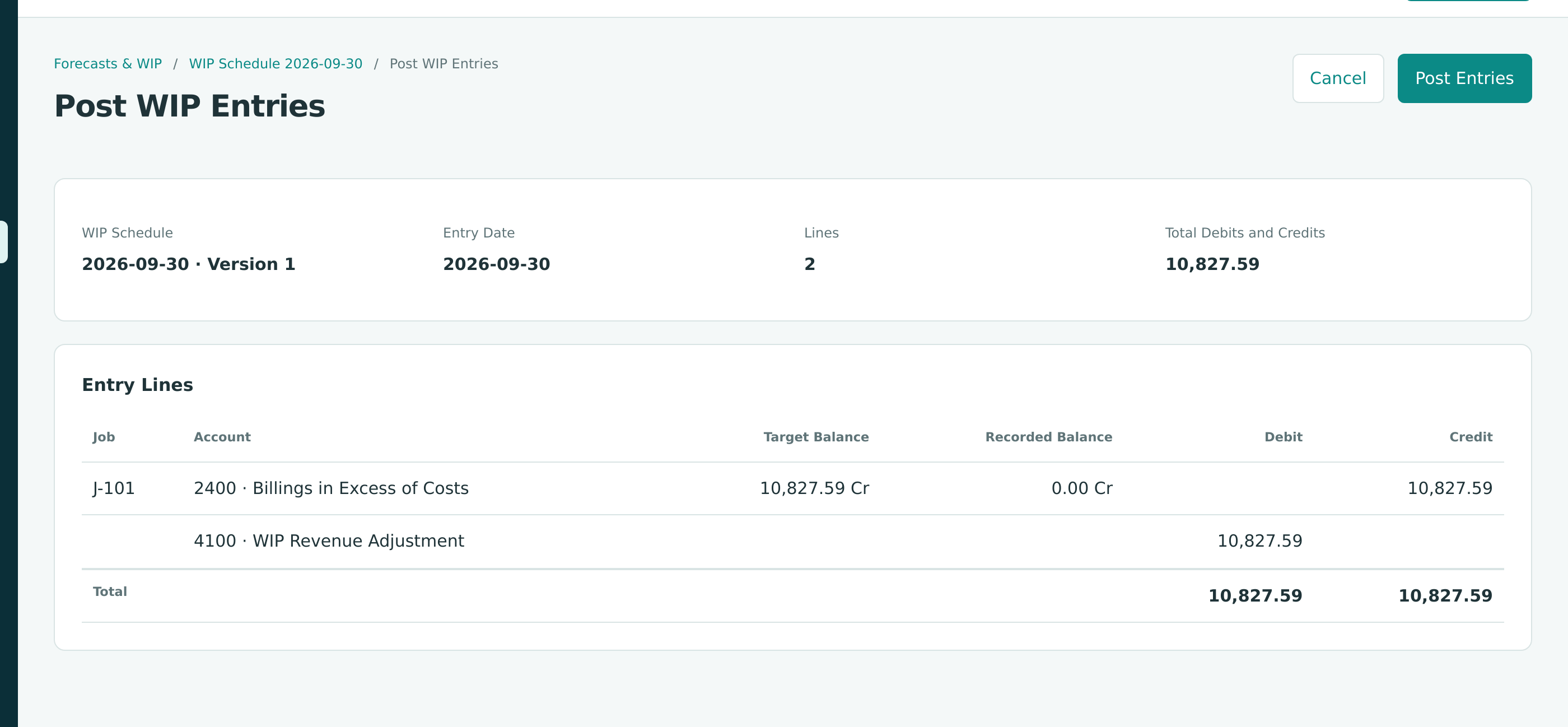
This is J-101's first posted schedule, so nothing is recorded yet: 2400 must go from 0.00 to its 10,827.59 target, a credit, and 4100 WIP Revenue Adjustment is debited the same amount, taking back revenue billed ahead of the work. The entry date is the cutoff, 2026-09-30.
Once a schedule is posted, the same page shows the entry that was posted:
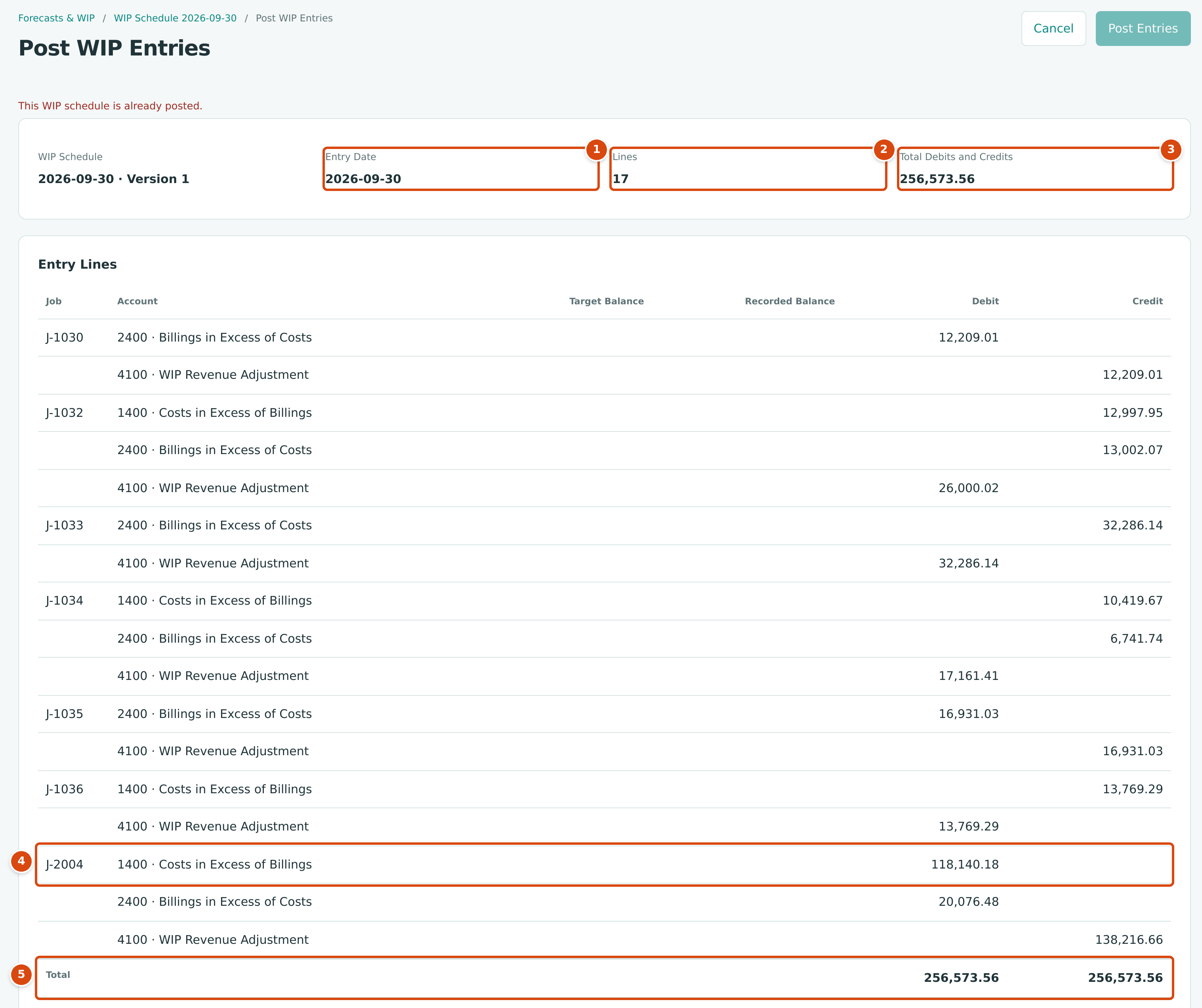
- Entry Date: always the schedule's cutoff.
- Lines in the entry.
- Total Debits and Credits.
- J-2004's three lines, worked out in the example below.
- The totals, equal on both sides.
For a schedule that is already posted, the page shows This WIP schedule is already posted., the Post Entries button cannot be clicked, and the lines are read from the posted entry (without target and recorded balances).
The Posting Entry
The entry is a true-up. For each job, Structally compares the schedule's targets with what the job already holds in the four WIP balance accounts, and posts only the difference:
| Balance Account | Target From the Schedule | Offset Account |
|---|---|---|
| 1400 Costs in Excess of Billings (current asset) | Costs in Excess of Billings | 4100 WIP Revenue Adjustment |
| 2400 Billings in Excess of Costs (current liability) | Billings in Excess of Costs | 4100 WIP Revenue Adjustment |
| 1450 Uninstalled Materials (current asset) | Uninstalled Materials Deferral | 5950 Uninstalled Materials Deferral |
| 2450 Provision for Contract Losses (current liability) | Loss Provision | 5900 Contract Loss Expense |
- An increase in 1400 is a debit to 1400; an increase in 2400 is a credit to 2400. The 4100 line is the 1400 change less the 2400 change: credited when revenue goes up, debited when it goes down.
- An increase in 1450 is debited to 1450 and credited to 5950.
- An increase in 2450 is credited to 2450 and debited to 5900.
- Every line carries the job and the description J-2004 WIP adjustment; the entry's description is WIP adjustment, schedule 2026-09-30 version 1, and its type on the journal entry page is WIP Adjustment.
The entry does not reverse at the next cutoff. Next month's posting starts from the balances this one left and moves them to next month's targets. After each posting, a job whose invoices post to revenue accounts shows revenue to date (billings plus the WIP revenue adjustment) equal to its earned revenue.
The WIP accounts accept postings only from WIP schedules: bills, invoices and manual journal entries cannot use them.
Rules for Posting
| Message | Why |
|---|---|
| Only an approved WIP schedule can be posted. | Drafts and replaced versions cannot be posted. |
| This WIP schedule is already posted. | Each version posts once. |
| A WIP schedule with a later cutoff is already posted. | Post cutoffs in date order. Once a month is posted, no earlier month can be posted. |
| Create the WIP accounts first. | One or more WIP accounts are missing. The page links to Job Costing Settings. |
| Accounting date must be after the company closing date. | The cutoff is on or before the Books Closed date. |
Correcting a Schedule With a New Version
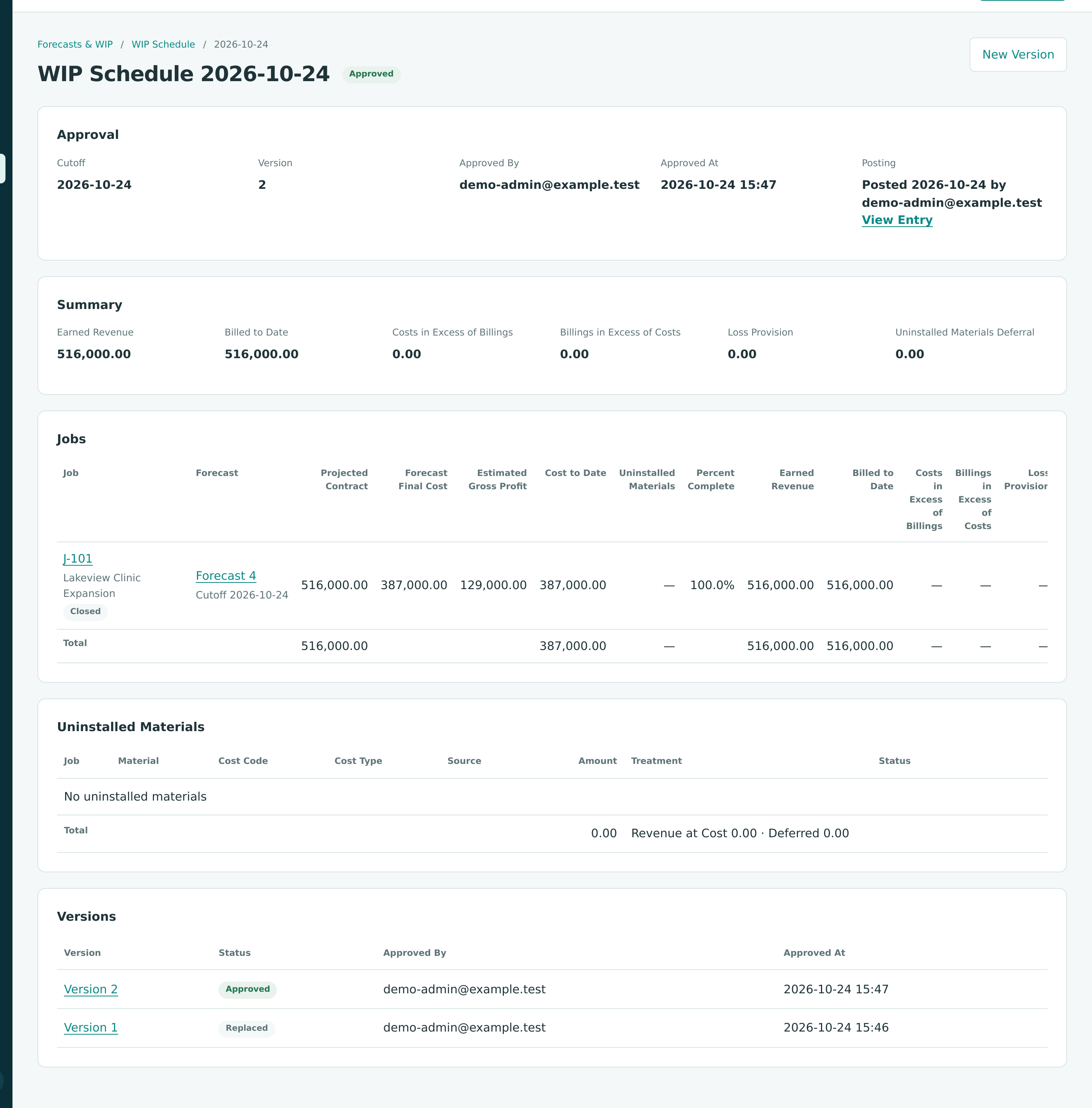
To correct an approved schedule (posted or not), open it and click New Version. Structally creates a draft for the same cutoff with the next version number, reading every figure again, and confirms with Version 2 created. Make your changes, approve it (the old version becomes Replaced) and post it. Because posting is a true-up, the new version posts only the difference between its targets and what the earlier version already posted.
A new version cannot be posted if a schedule with a later cutoff is already posted. In that case, let the next month's schedule carry the correction: its true-up brings every balance to the right figure at its own cutoff.
Worked Example: Correcting a Posted Closeout Schedule
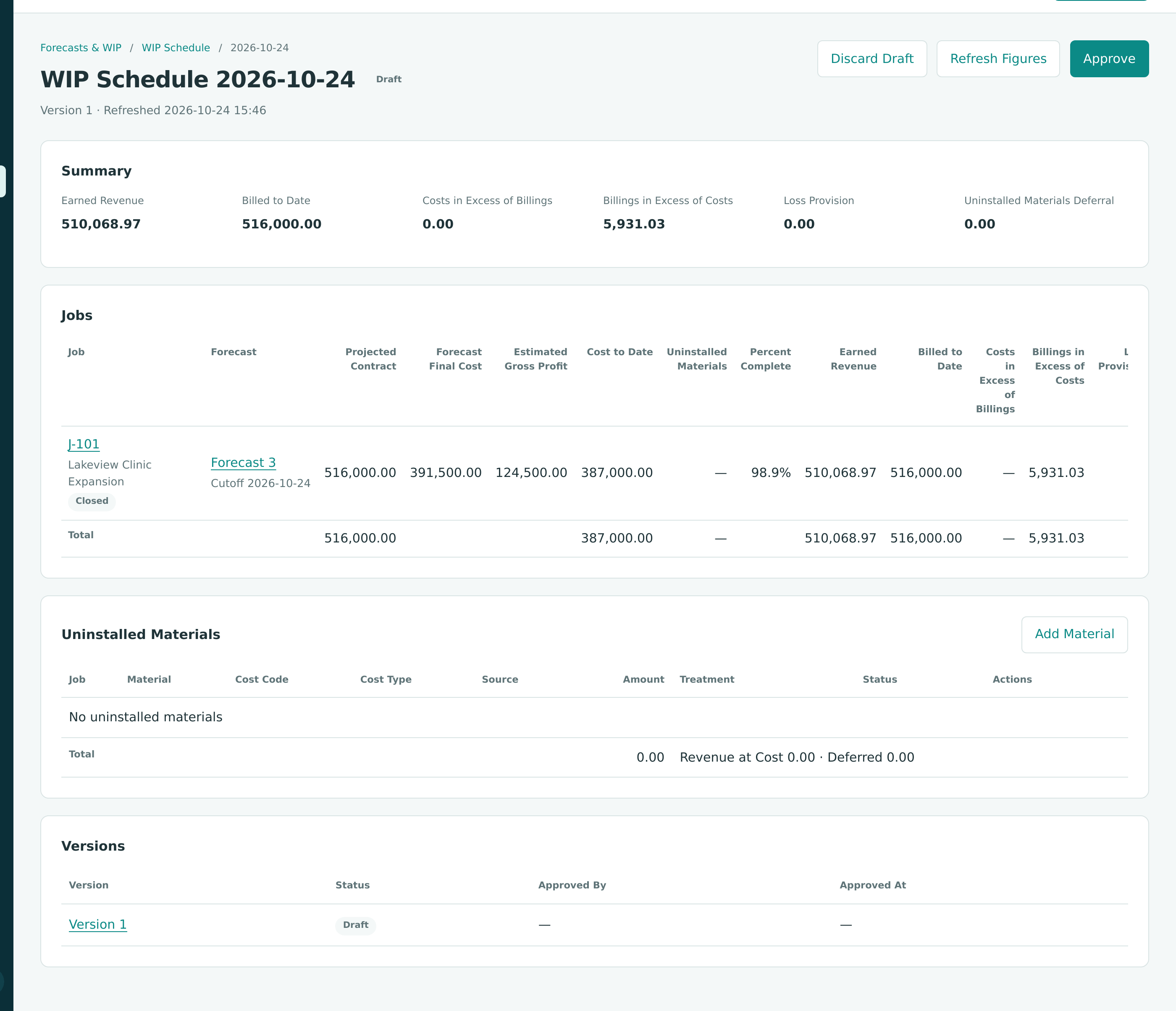
In the training company, J-101 finished in October. All $387,000.00 of cost and all $516,000.00 of billings were posted, and the job was closed. A closeout WIP schedule with the cutoff October 24, 2026 was prepared, but the job's forecast at the time (Forecast 3) still carried $4,500.00 of drywall still to buy (see Closing Out a Finished Job).
Version 1. The schedule measured the job against a final cost of $391,500.00 instead of $387,000.00:
| Step | Calculation | Result |
|---|---|---|
| Percent complete | 387,000.00 ÷ 391,500.00 = 0.9885057 | 98.9% |
| Earned revenue | 0.9885057 × 516,000.00 = 510,068.9655 | 510,068.97 |
| Billings in Excess of Costs | 516,000.00 − 510,068.97 | 5,931.03 |
It was approved and posted. September had left 10,827.59 in 2400, so the posting moved 2400 down to 5,931.03:
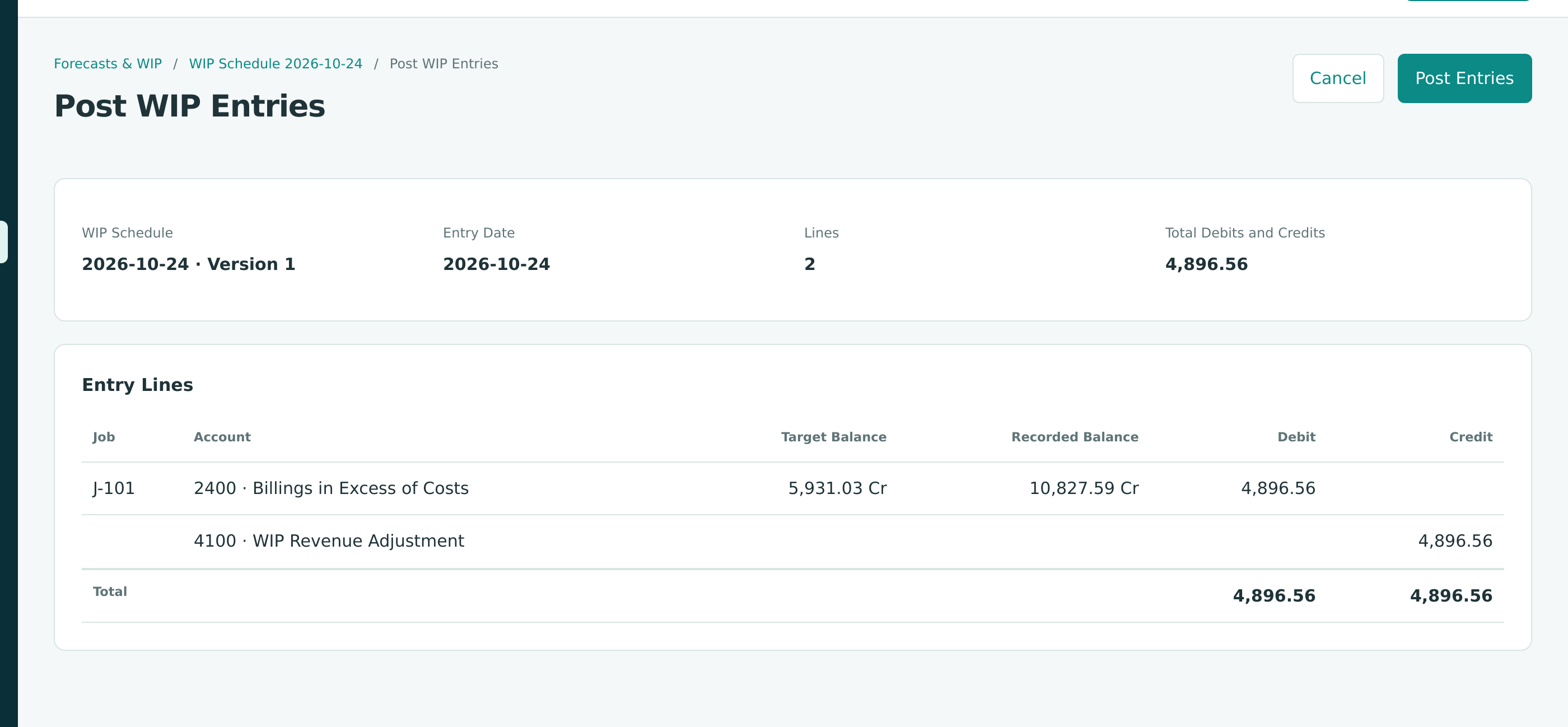
A finished job should have earned its whole contract, so this left $5,931.03 of revenue unrecognized.
Version 2. After approving Forecast 4 with every Still to Buy at 0.00 (final cost $387,000.00), the schedule was corrected:
- Open the approved, posted schedule for October 24, 2026 and click New Version. Structally creates Version 2 as a draft and reads every figure again, including the latest approved forecast, Forecast 4.
- Review the draft: J-101 is now 100.0% complete and earns 516,000.00, exactly what was billed, so Billings in Excess of Costs is 0.00.
- Click Approve. Version 1 becomes Replaced.
- Click Post WIP Entries and Post Entries.
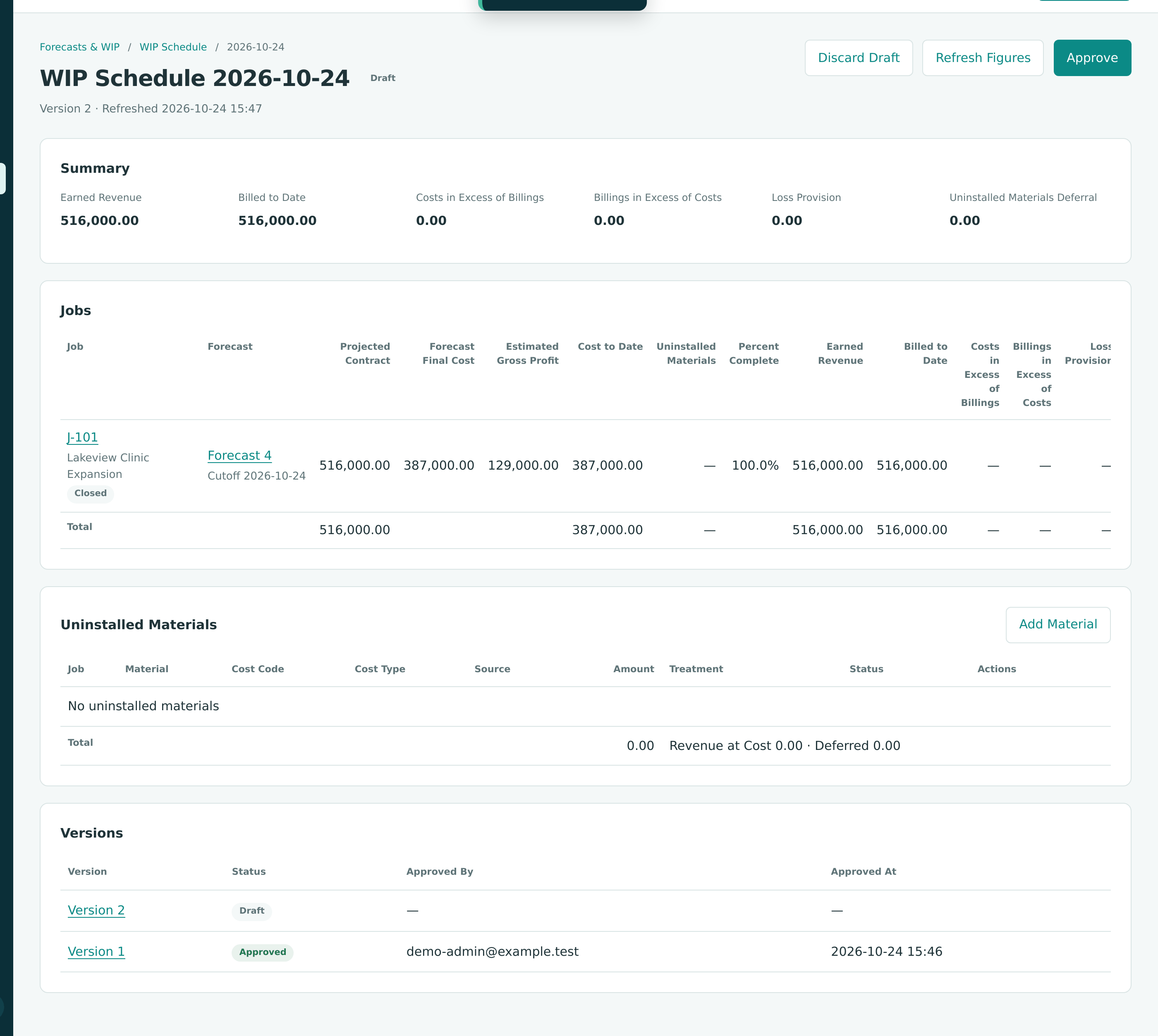
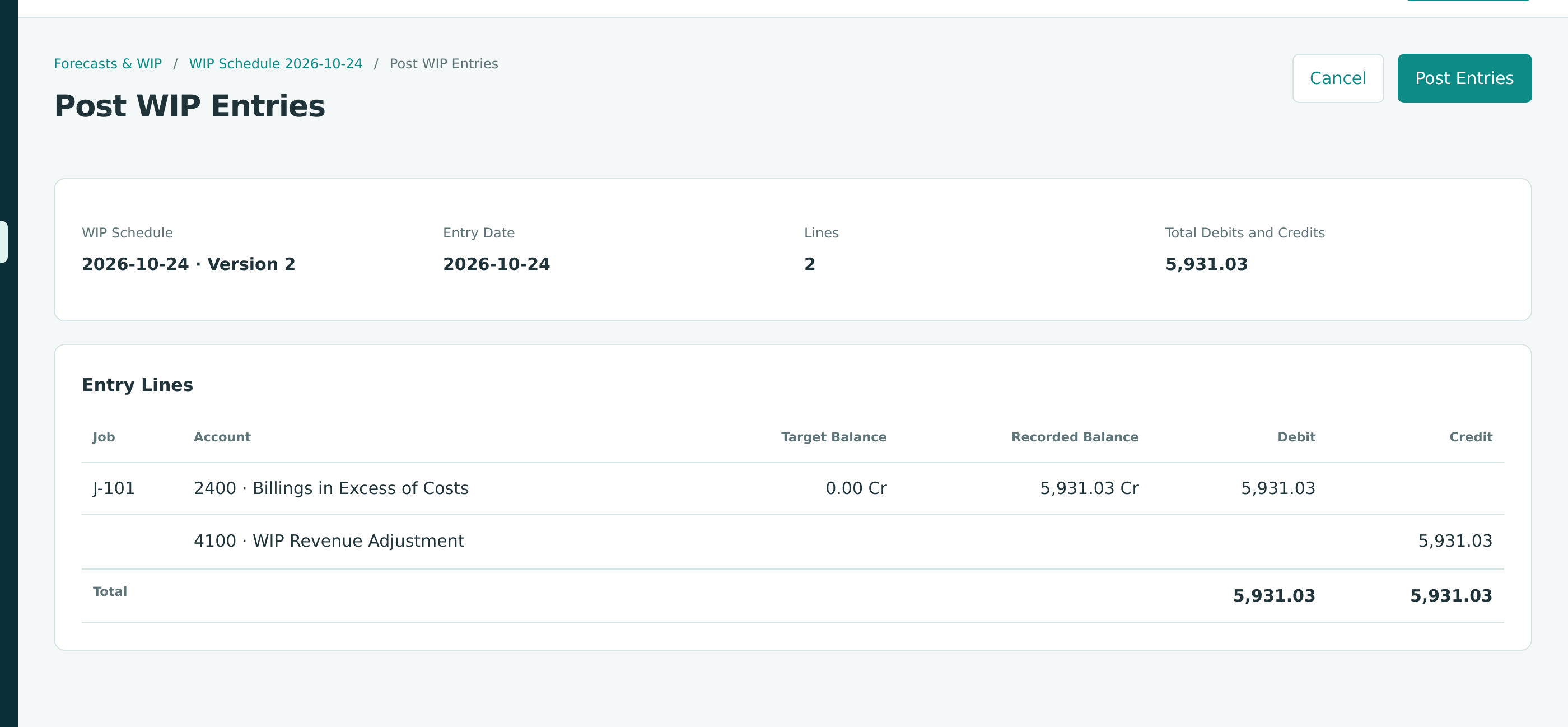
The Version 2 Entry
| Account | Debit | Credit |
|---|---|---|
| 2400 Billings in Excess of Costs (J-101) | 5,931.03 | |
| 4100 WIP Revenue Adjustment (J-101) | 5,931.03 |
Version 1's entry stays posted. Version 2 posts only the gap between its target (0.00) and what Version 1 left (5,931.03). After both entries, J-101 holds nothing in the WIP accounts and its revenue to date equals its $516,000.00 contract.
Worked Example: J-2004 at September 30, 2026
The September 2026 schedule (Version 1, approved and posted) shows these figures for J-2004 Summit Tech Park Office Building:
| Input | Amount |
|---|---|
| Original contract (no approved changes; one pending change order of 32,000.00 is left out) | 1,600,000.00 |
| Forecast final cost (Forecast 10, cutoff 2026-09-30) | 1,408,000.00 |
| Cost to date | 939,489.74 |
| Billed to date (including retainage held) | 949,461.80 |
| Uninstalled materials | 0.00 |
The arithmetic, following the product's formulas:
| Step | Calculation | Result |
|---|---|---|
| Percent complete | 939,489.74 ÷ 1,408,000.00 | 0.6672512358 (shown as 66.7%) |
| Earned revenue | 0.6672512357954… × 1,600,000.00 = 1,067,601.9773 | 1,067,601.98 (rounded) |
| Gross profit to date | 1,067,601.98 − 939,489.74 | 128,112.24 |
| Estimated gross profit | 1,600,000.00 − 1,408,000.00 | 192,000.00 |
| Costs in Excess of Billings | 1,067,601.98 − 949,461.80 | 118,140.18 |
| Billings in Excess of Costs | billed is less than earned | 0.00 |
| Loss provision | forecast is below the contract | 0.00 |
At the end of August, J-2004 had been over billed: the August schedule left a Billings in Excess of Costs balance of $20,076.48 in 2400 and nothing in 1400. September's posting moves both balances to the new targets:
| Account | Target | Recorded | Change |
|---|---|---|---|
| 1400 Costs in Excess of Billings | 118,140.18 | 0.00 | +118,140.18 |
| 2400 Billings in Excess of Costs | 0.00 | 20,076.48 Cr | −20,076.48 |
| 4100 WIP Revenue Adjustment | 118,140.18 − (−20,076.48) = 138,216.66 more revenue |
J-2004's Lines in the September 2026 WIP Entry
| Account | Debit | Credit |
|---|---|---|
| 1400 Costs in Excess of Billings (J-2004) | 118,140.18 | |
| 2400 Billings in Excess of Costs (J-2004) | 20,076.48 | |
| 4100 WIP Revenue Adjustment (J-2004) | 138,216.66 |
These are three of the 17 lines of the September entry, which totals $256,573.56 on each side. After posting, J-2004's revenue to date is 949,461.80 billed + 118,140.18 net WIP adjustment = 1,067,601.98, its earned revenue.
Worked Example: A Loss Job With Uninstalled Materials
On the October 31, 2025 schedule, J-2003 Harborview Apartments Renovation (the sample company's loss job) had a $960,000.00 contract, a forecast final cost of $991,766.00, cost to date of $668,888.80 and billings of $684,462.08. Framing lumber of $16,585.71 was on site but not installed, entered as a Deferred uninstalled material.
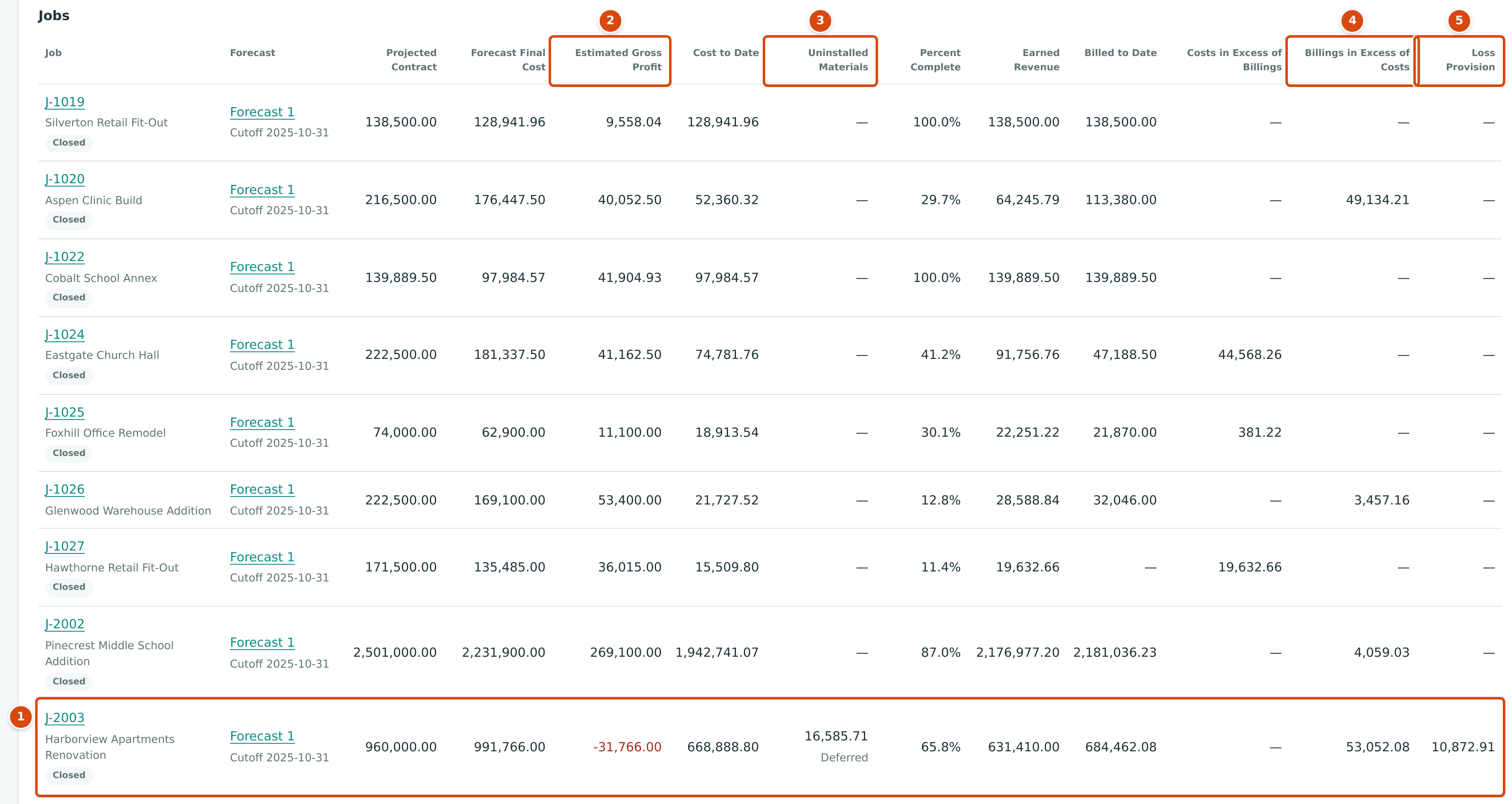
- J-2003, a projected loss job.
- Estimated Gross Profit: 960,000.00 − 991,766.00 = −31,766.00.
- Uninstalled Materials: 16,585.71, Deferred.
- Billings in Excess of Costs: 53,052.08.
- Loss Provision: 10,872.91.
| Step | Calculation | Result |
|---|---|---|
| Percent complete | (668,888.80 − 16,585.71) ÷ 991,766.00 = 652,303.09 ÷ 991,766.00 | 65.8% |
| Earned revenue | 0.6577187462 × 960,000.00 = 631,409.9963 | 631,410.00 |
| Recognized cost | 668,888.80 − 16,585.71 | 652,303.09 |
| Loss already recognized | 652,303.09 − 631,410.00 | 20,893.09 |
| Projected loss | 991,766.00 − 960,000.00 | 31,766.00 |
| Loss provision | 31,766.00 − 20,893.09 | 10,872.91 |
| Billings in Excess of Costs | 684,462.08 − 631,410.00 | 53,052.08 |
It was the first posted schedule, so nothing was recorded yet and the entry posts the full targets:
J-2003's Lines in the October 2025 WIP Entry
| Account | Debit | Credit |
|---|---|---|
| 2400 Billings in Excess of Costs (J-2003) | 53,052.08 | |
| 4100 WIP Revenue Adjustment (J-2003) | 53,052.08 | |
| 1450 Uninstalled Materials (J-2003) | 16,585.71 | |
| 5950 Uninstalled Materials Deferral (J-2003) | 16,585.71 | |
| 2450 Provision for Contract Losses (J-2003) | 10,872.91 | |
| 5900 Contract Loss Expense (J-2003) | 10,872.91 |
The whole projected loss is now on the books: 20,893.09 through earned revenue below cost, plus the 10,872.91 provision, equals 31,766.00. As the job progresses, the provision shrinks month by month and is gone at 100% complete, when the loss is fully in cost.
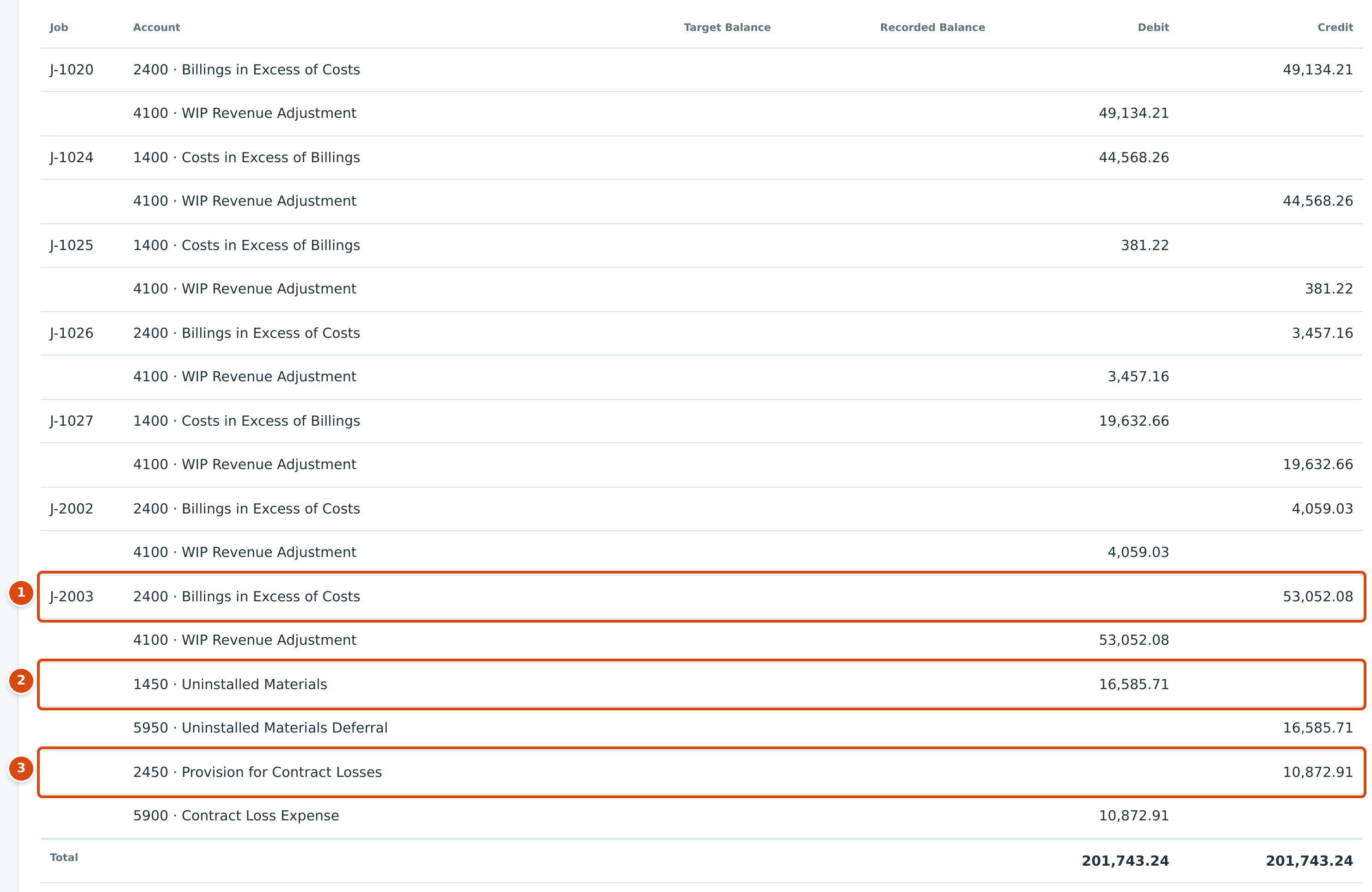
- Over billing for J-2003, offset to 4100.
- The deferred materials moved to 1450, offset to 5950.
- The loss provision, offset to 5900.
What Happens After You Approve or Post
| Draft | Approved | Posted | |
|---|---|---|---|
| Figures | Read at creation or the last refresh | Frozen | Frozen |
| Journal entry | None | None | One entry dated the cutoff, or none if nothing changed |
| Can be changed | Yes (refresh, materials, confirm) | No; use New Version | No; use New Version |
| Can be deleted | Yes, Discard Draft | No | No |
After posting, the effect shows on your financial statements:
- Balance Sheet: 1400 Costs in Excess of Billings and 1450 Uninstalled Materials under Current Assets; 2400 Billings in Excess of Costs and 2450 Provision for Contract Losses under Current Liabilities. At September 30, 2026 the sample company shows 217,747.87 in 1400 and 124,939.32 in 2400, the schedule's totals. See the Balance Sheet.
- Profit and Loss: 4100 WIP Revenue Adjustment under Income (78,139.84 for September 2026); 5900 Contract Loss Expense and 5950 Uninstalled Materials Deferral are direct cost accounts, reported with the job costs under Cost of Goods Sold. See Profit and Loss.
- The job's WIP card shows the latest approved schedule's percent complete, earned revenue, billed to date and the over or under billing.
- The posted lines carry the job, so they appear in the GL Bridge on Job Costs; they do not change the job's posted cost, revenue or margin there.
Common Mistakes and Troubleshooting
| Message or Symptom | Why It Happens | What to Do |
|---|---|---|
| Finish or discard the draft WIP schedule first. | Another draft exists (one per company). | Open the draft from the list and approve or discard it. |
| Cutoff cannot be after today. | The cutoff is in the future. | Use the last month end. |
| Approve cannot be clicked. | Items need attention. | Fix each item listed at the top; see Issues That Block Approval. |
| Figures changed since the last refresh. Refresh the schedule and review it again. | Postings, forecasts or change orders changed after the last refresh. | Click Refresh Figures, review, and approve again. |
| Entry 1 description must be 1 to 200 characters. | A material row has no Material text. | Describe the material, or clear the row. |
| Entry 1 amount must be more than zero with at most two decimals. | A material row has no amount, zero or a negative amount. | Enter a positive amount. |
| A material entry from last month is still listed. | Manual entries carry forward to the next schedule. | Edit the job's entries and remove what is installed. |
| This job was changed by someone else. Reload the page and try again. | Someone changed the schedule after you opened it. | Reload the page and repeat your change. |
| Reload the page and try again. | The page was out of date when you clicked a button. | Reload the page. |
| A WIP schedule with a later cutoff is already posted. | Cutoffs post in date order. | Carry the correction into the next schedule. |
| Create the WIP accounts first. | WIP accounts are missing. | A Company Admin clicks Create Accounts on the WIP Accounts card in Job Costing Settings. |
| New WIP Schedule and the buttons are missing. | Only Company Admins and Accountants prepare WIP. | Ask one of them. |