Change Orders
A change order records a change to the work on a job after the contract was signed: extra work the owner asks for, work the owner deletes, or a cost the company absorbs. In Structally a change order changes two things, and only when it is approved:
- the revised contract: what the customer will pay for the job, and
- the revised budget: what the job is expected to cost, by cost code and cost type.
A change order never posts to the general ledger. Its effects reach your books later, through the pay applications that bill the changed contract and the bills that carry the changed costs.
Before You Begin
- Jobs & Costing is turned on for your company, and the job has the status Draft, Active or On Hold. Change orders cannot be added to or changed on a closed or archived job. See Creating and Managing Jobs.
- The cost codes you will use are assigned to the job, and the cost types are active. See Cost Codes and Cost Types.
- To enter, edit, submit, withdraw or discard change orders you need Edit access to Jobs & Costing. Company Admins, Accountants and Project Managers have it, and so do Custom users given Edit on that area. Viewers can only look.
- Only Company Admins and Accountants can approve or reject a change order. See Roles and Permissions.
Navigation
Jobs & Costing → Change Orders. To see one job's change orders, open the job and click View Change Orders.
The Three Kinds of Change Order
Choose the kind when you create the change order. It cannot be changed afterwards.
| Kind | Use It When | Contract Amount | Lines | When Approved |
|---|---|---|---|---|
| Contract | The customer agrees to pay more (or less) for added or deleted work. | The change to the contract price. A deduction is a negative amount. | Optional: the change to the cost budget. | The revised contract changes by the contract amount. The lines become a new budget revision. If the job has a schedule of values and the amount is more than zero, a schedule line is added. |
| Cost | The cost of the job changes but the contract price does not, for example a concealed condition the company absorbs. | Must be zero. | The change to the cost budget. | The lines become a new budget revision. The contract does not change. |
| Internal Transfer | You move budget from one cost code or cost type to another. | Must be zero. | Lines that net to zero, for example -20,000.00 on one line and 20,000.00 on another. | The lines become a new Internal Transfer budget revision. The contract does not change. |
How a change order reaches the rest of the job:
- Budget. Approving a change order with lines creates the next budget revision of the job (for example Revision 3), effective on the change order's date, holding the change order's lines. A change order with no lines creates no budget revision. See Job Budgets.
- Contract. Only approved Contract change orders change the revised contract: the original contract plus all approved contract amounts. Submitted contract changes are shown separately as pending, for example as Pending, Not in Revised Contract on the job page.
- Schedule of values and billing. When a Contract change order with an amount above zero is approved on a job that has a schedule of values, Structally adds a line numbered CO-n to the schedule, so you can bill it on the next pay application. A negative change removes nothing: you revise the schedule and lower existing lines yourself. See Schedules of Values.
- Commitments. A change order does not change any subcontract or purchase order. If the change also changes what you owe a subcontractor or supplier, enter a commitment amendment and choose the approved change order in its Change Order field. The amendment then appears under Related Amendments on the change order.
Statuses
| Status | Meaning | What You Can Do Next |
|---|---|---|
| Draft | Being prepared. Has no effect. | Edit, Submit, Discard, Print (contract kind) |
| Submitted | Waiting for a decision. Counted as Pending. | Withdraw; a Company Admin or Accountant can Approve… or Reject… |
| Approved | Decided in favor. The contract, budget and schedule effects above are applied. | Print (contract kind). Nothing can be changed. |
| Rejected | Decided against, with a decision reason. | Nothing. Enter a new change order if the change comes back. |
| Withdrawn | Taken back before a decision. | Nothing. A withdrawn change order cannot be submitted again. |
The Change Orders List
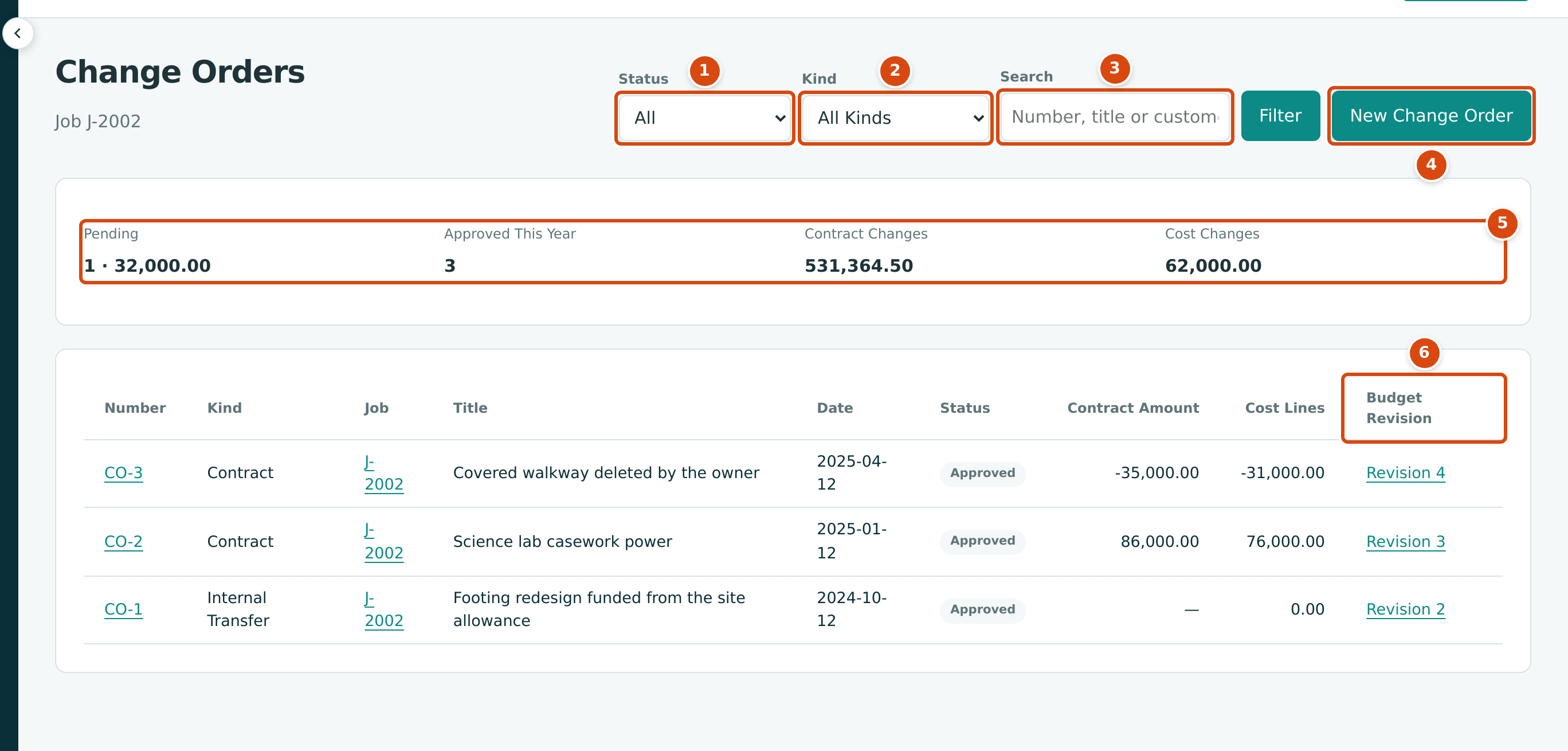
- Status: Open (the default) shows Draft and Submitted change orders. Choose a single status or All, then click Filter.
- Kind: All Kinds, Contract, Cost or Internal Transfer.
- Search: a number such as CO-3, or words from the title or customer reference.
- New Change Order starts a change order, for the job you are viewing if any.
- The summary for the whole company: Pending (the number and value of submitted change orders), Approved This Year, Contract Changes (approved contract amounts) and Cost Changes (the lines of approved Cost change orders). These figures do not follow the filters.
- Budget Revision: the budget revision an approved change order created. Click it to open the job's budget.
For each change order the list shows the Number, Kind, Job, Title, Date, Status, Contract Amount (a dash for kinds without one) and Cost Lines (the total of its lines). Numbers restart at CO-1 on every job, so read the number together with the job. The list is sorted by job, newest change order first.
Step by Step
Enter a Change Order
- Go to Jobs & Costing → Change Orders and click New Change Order.
- Choose the Kind.
- For a Contract change order, type the Contract Amount: the change to the contract price, negative for a deduction.
- Choose the Job. Jobs that are Draft, Active or On Hold are listed.
- Type the Customer Reference (for example the owner's change request number), the Date (the effective date of the change and of its budget revision) and a Title. Add a Reason to explain the change.
- Under Lines, enter the cost budget change: a Cost Code, a Cost Type, a Description and an Amount on each line. Once a job is chosen, the cost code list shows only the codes assigned to that job. Amounts can be negative. Use Add Line for more lines and the trash icon to remove one.
- Optionally attach the owner's request or your pricing with Attach Supporting Documents (up to 25 files of 5 MB each).
- Click Save Change Order. Structally confirms Change order CO-2 saved as a draft. and opens it.
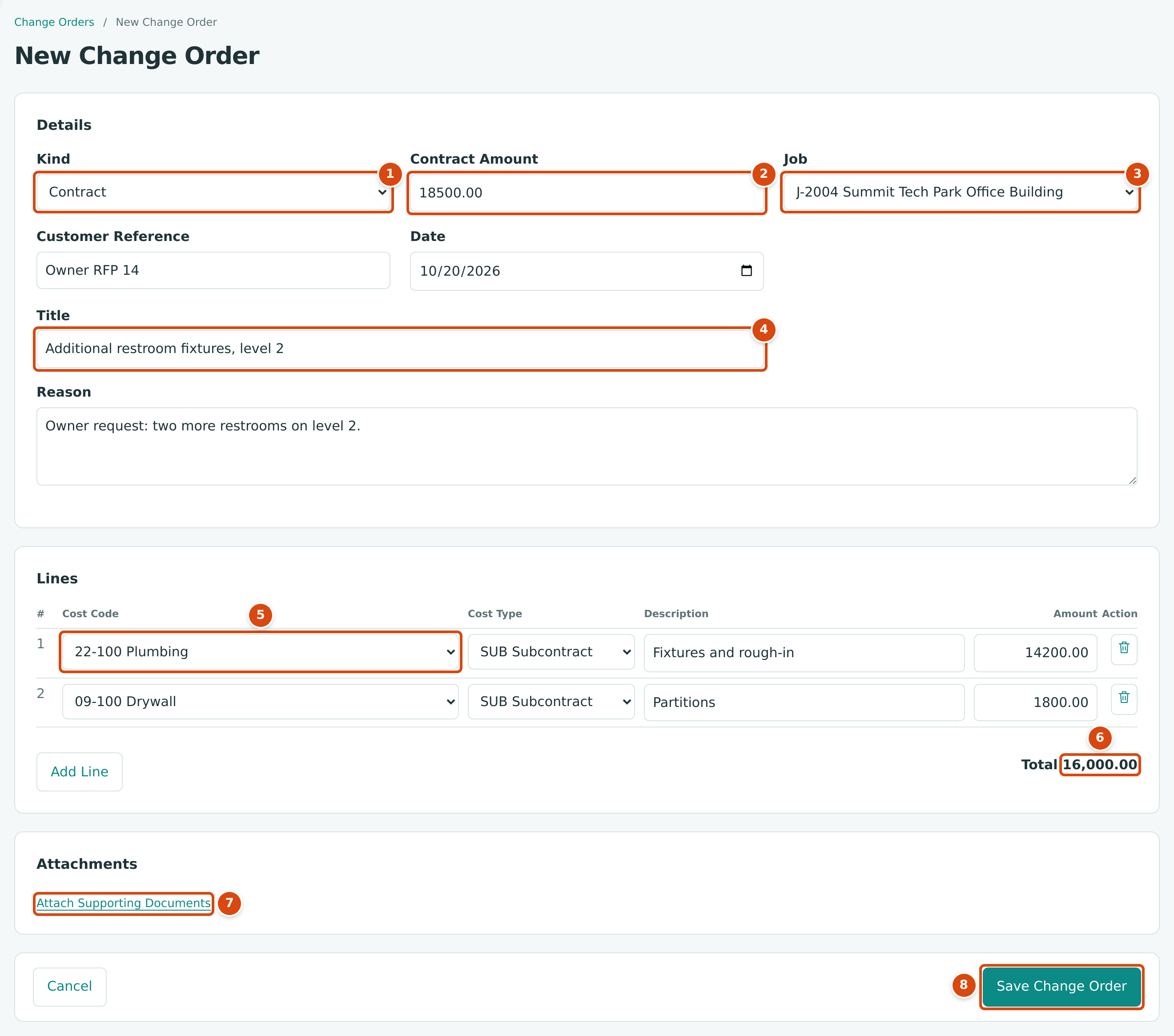
- Kind: Contract, Cost or Internal Transfer.
- Contract Amount: the price change the customer agrees to.
- Job: the job being changed.
- Title: what the change is. It prints as the description of the change.
- Lines: the cost budget change by cost code and cost type.
- The total of the lines: here 16,000.00 of cost against an 18,500.00 price change.
- Attach Supporting Documents adds files to the change order.
- Save Change Order saves a draft. Saving never approves.
Edit or Discard a Draft
- Open the draft and click Edit. The Kind and Job are locked; everything else can be changed. If you open the edit page of a change order that is no longer a draft, Structally returns you to it with Only a draft change order can be edited.
- To throw a draft away, click Discard and confirm Discard this draft change order? This cannot be undone. Structally confirms Change order CO-2 discarded. Only drafts can be discarded.
Submit, Withdraw, Approve or Reject
The buttons on a change order follow its status. Each one asks you to confirm first.
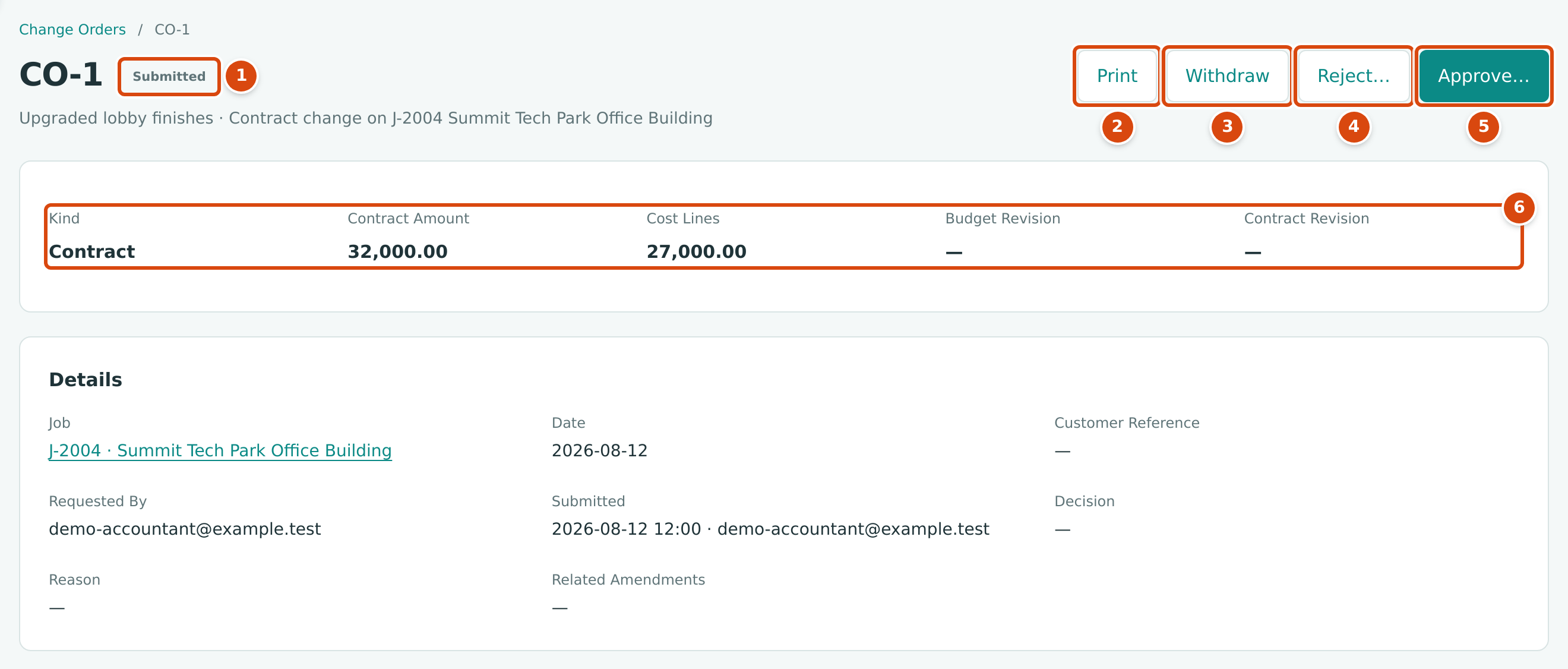
- The status, here Submitted.
- Print opens the printable change order (contract kind only).
- Withdraw takes the change order back. It cannot be submitted again.
- Reject… records a decision against it, with a reason.
- Approve… applies it. Only Company Admins and Accountants see Reject… and Approve….
- The facts: Kind, Contract Amount, Cost Lines, and after approval the Budget Revision and Contract Revision it created.
-
On a draft, click Submit and confirm Submit CO-1 for approval? The change order becomes Submitted and counts as pending.
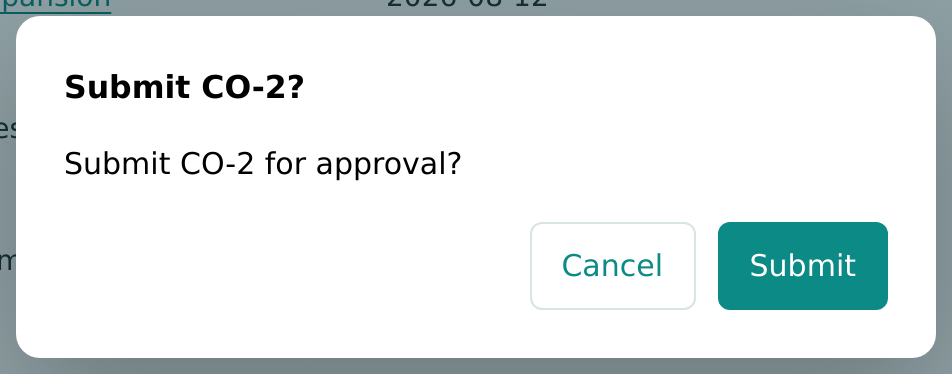
Figure 7-70 Submitting a draft, from the training company Cedar Ridge Training. -
A Company Admin or Accountant opens it and clicks Approve…. The dialog says exactly what approval will do. Type an optional Decision Reason and click Approve.
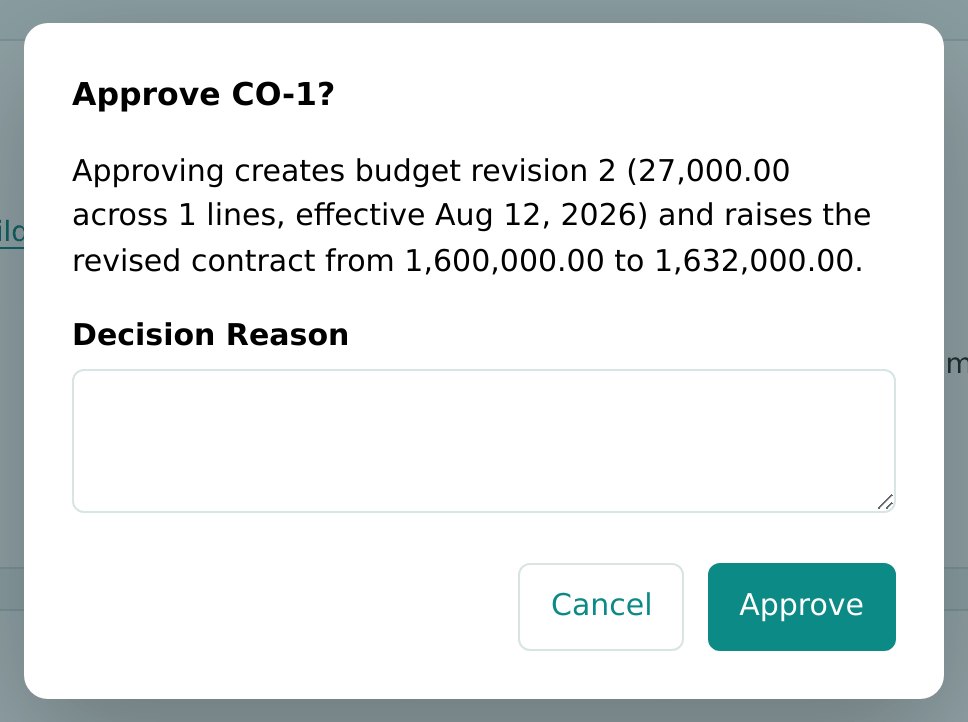
Figure 7-71 The approval dialog of J-2004 CO-1, closed again without approving. -
To decide against it, click Reject…, type the Decision Reason (required; the dialog shows Enter a reason. while it is empty) and click Reject.
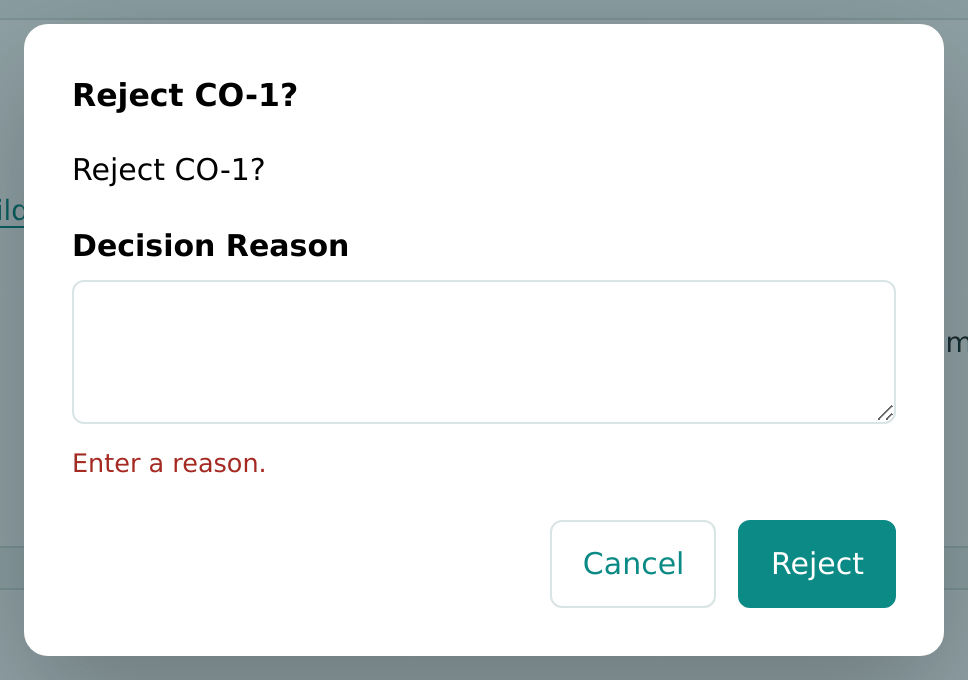
Figure 7-72 Rejecting needs a decision reason. -
While it is still submitted, anyone with Edit access can click Withdraw and confirm Withdraw CO-1?
Figure 7-73 Withdrawing a duplicate change order, from the training company Cedar Ridge Training.
Structally confirms each step with Change order CO-1 submitted., Change order CO-1 withdrawn., Change order CO-1 approved. or Change order CO-1 rejected. When approval adds a schedule line, the message continues, for example Line CO-1 was added to the J-2004 schedule of values.
Print a Contract Change Order
Click Print on a Contract change order that is Draft, Submitted or Approved to open a page you can print or save as PDF and send to the customer for signature. Change orders of the other kinds have no printed form.
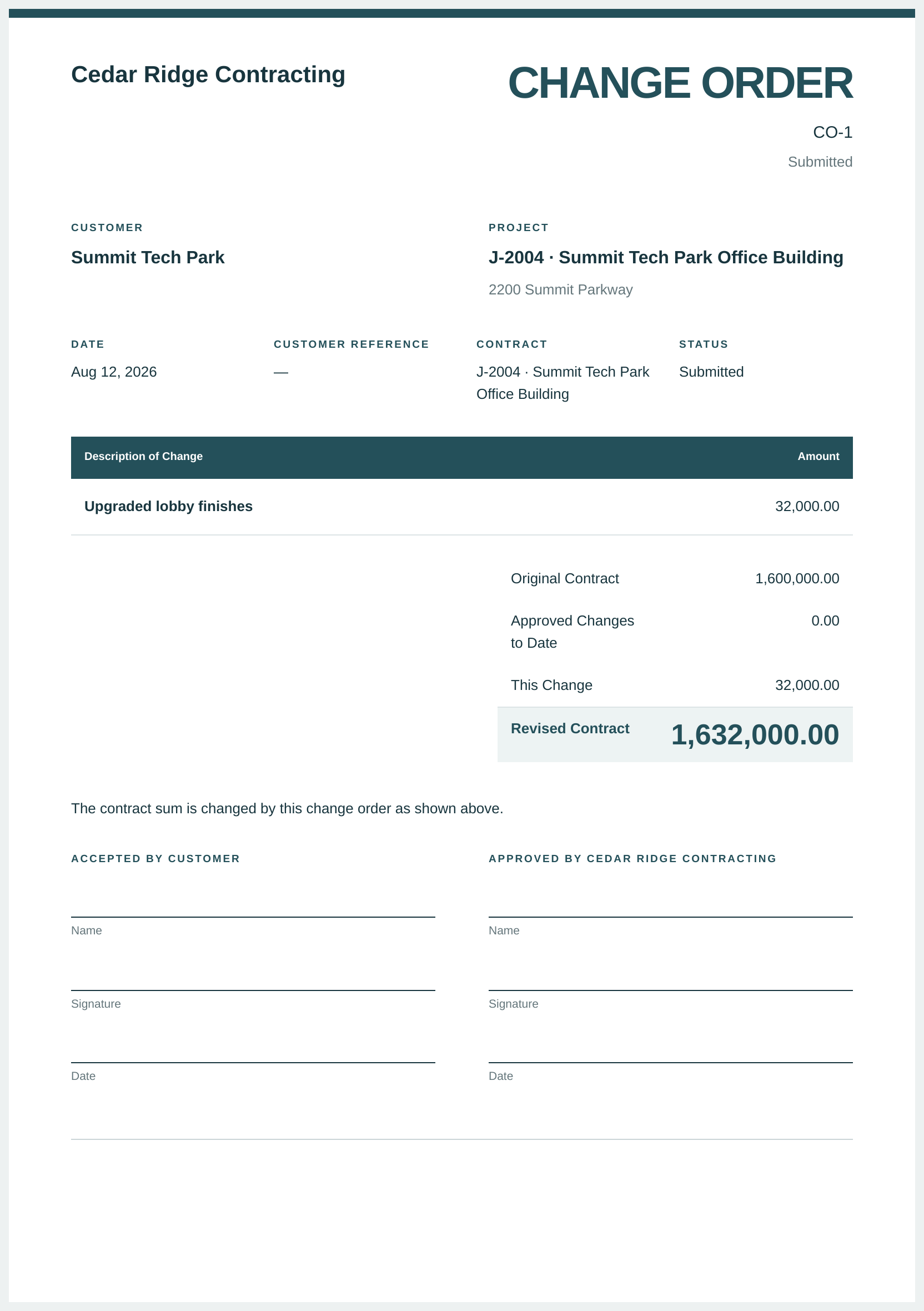
The printed change order shows:
- your company name (with logo, address and phone when your Document Design includes them), the title CHANGE ORDER, the number and the status;
- Customer with the billing address, and Project with the job number, name and address;
- Date, Customer Reference, Contract and Status;
- Description of Change (the title, plus the reason when Show Reason is on) and the Amount;
- the totals Original Contract, Approved Changes to Date (the approved contract change orders numbered before this one), This Change and Revised Contract;
- the agreement line, the standard terms when Show Terms is on, and signature blocks for the customer and for your company when Show Signature Lines is on.
These options (Agreement Line, Standard Terms, Show Reason, Show Terms, Show Signature Lines) are set in Document Design. Use Print on the page to print, or Back to Change Order to return.
The Change Order Page After Approval
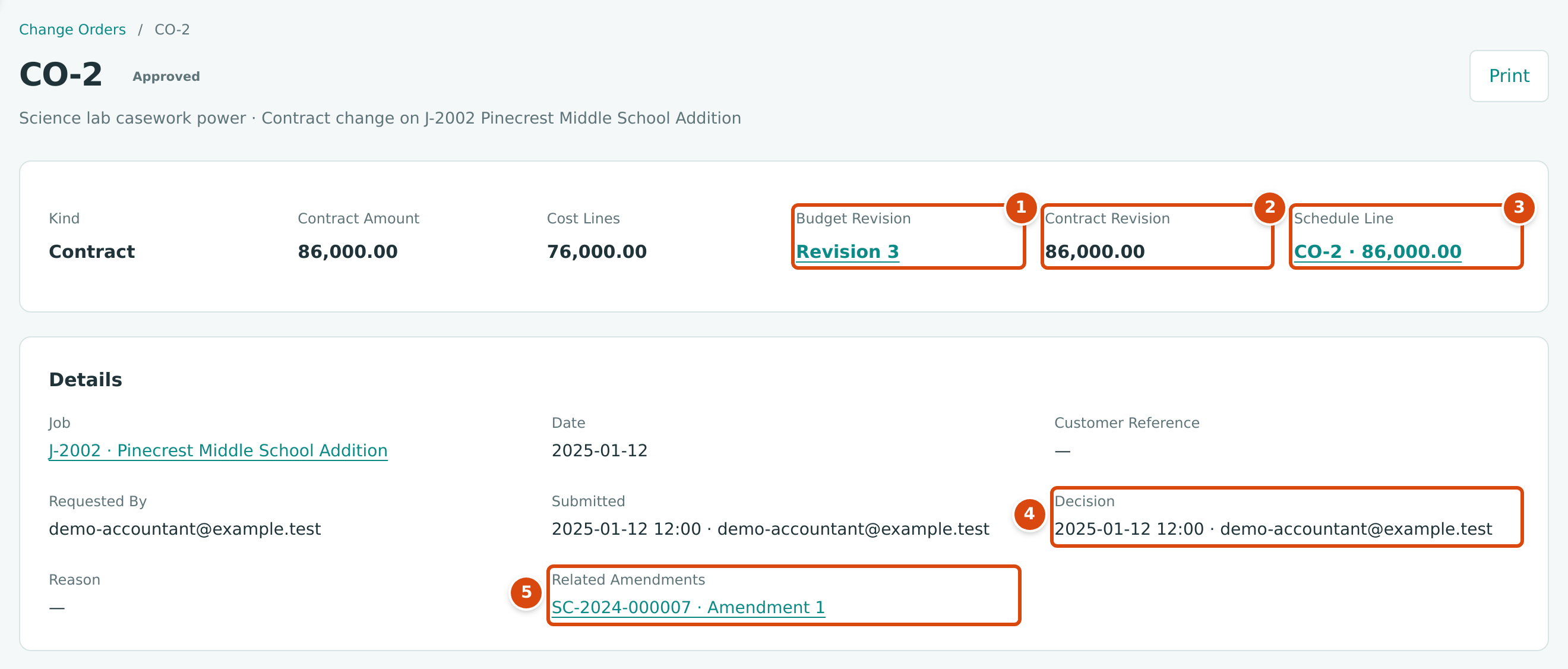
- Budget Revision: the budget revision created from the lines. It links to the job's budget.
- Contract Revision: the amount added to the revised contract.
- Schedule Line: the line added to the schedule of values. It links to the schedule.
- Decision: when and by whom it was decided, followed by the decision reason if one was given.
- Related Amendments: commitment amendments that name this change order.
The Lines card lists the cost lines and their total, and Documents holds the attachments.
Field Reference
| Field | Description | Required | Example |
|---|---|---|---|
| Kind | Contract, Cost or Internal Transfer. Cannot be changed after the first save. | Yes | Contract |
| Contract Amount | The change to the contract price, positive or negative. Must be zero or empty unless the kind is Contract. | For contract changes | 32,000.00 |
| Job | The job being changed: Draft, Active or On Hold. Cannot be changed after the first save. | Yes | J-2004 Summit Tech Park Office Building |
| Customer Reference | The customer's own reference, up to 60 characters. Searchable in the list. | No | Owner RFP 14 |
| Date | The effective date. The budget revision created on approval takes this date. | Yes | 08/12/2026 |
| Title | A short name for the change, 1 to 120 characters. Prints as the description of the change. | Yes | Upgraded lobby finishes |
| Reason | Why the change is needed, up to 2,000 characters. | No | Owner request |
| Cost Code (line) | A cost code assigned to the job. | Yes, per line | 09-100 Drywall |
| Cost Type (line) | An active cost type. Each cost code and cost type pair can appear only once. | Yes, per line | SUB Subcontract |
| Description (line) | Up to 200 characters. | No | Partitions |
| Amount (line) | The budget change, positive or negative, never zero. Internal transfer lines must net to zero. | Yes, per line | 27,000.00 |
| Attachments | PDF, JPG, PNG, HEIC, Word, Excel or CSV files, up to 5 MB each and 25 per change order. | No | owner-request.pdf |
| Decision Reason | Typed in the Approve or Reject dialog, up to 200 characters. | To reject | Owner declined the price. |
Worked Example: Three Changes on J-2002
Job J-2002 Pinecrest Middle School Addition started with an original contract of $2,450,000.00. The sample company holds three approved change orders on it, all shown in the list figure above:
| Change Order | Kind | Contract Amount | Lines | Created on Approval |
|---|---|---|---|---|
| CO-1 Footing redesign funded from the site allowance (October 12, 2024) | Internal Transfer | — | 02-100 Site Work, Other: -20,000.00; 03-300 Concrete, Materials: 20,000.00 | Budget Revision 2 (nets to 0.00) |
| CO-2 Science lab casework power (January 12, 2025) | Contract | 86,000.00 | 26-100 Electrical, Subcontract: 76,000.00 | Budget Revision 3, a contract revision of 86,000.00 and schedule line CO-2 |
| CO-3 Covered walkway deleted by the owner (April 12, 2025) | Contract | -35,000.00 | 07-100 Roofing, Subcontract: -31,000.00 | Budget Revision 4 and a contract revision of -35,000.00 |
The revised contract is the original contract plus the approved contract amounts:
| Amount | |
|---|---|
| Original contract | $2,450,000.00 |
| CO-2 | + $86,000.00 |
| CO-3 | - $35,000.00 |
| Revised contract | $2,501,000.00 |
CO-1 changes no contract figure; it only moves $20,000.00 of budget. CO-2 adds $10,000.00 more to the contract than to the cost budget ($86,000.00 against $76,000.00): that difference is the markup on the change. The subcontract side of CO-2 was handled by amendment 1 of SC-2024-000007, and that of CO-3 by amendment 1 of SC-2024-000005.
On the billing side, approving CO-2 added line CO-2 for $86,000.00 to the schedule of values. CO-3 lowered the contract, so the schedule total was then $35,000.00 above the revised contract until a revision of the schedule lowered the Roofing line from $213,900.00 to $178,900.00. See the worked example in Schedules of Values.
The active job J-2004 has one change order waiting for a decision: CO-1 Upgraded lobby finishes, a contract change of $32,000.00 with one cost line of $27,000.00 on 09-100 Drywall, Subcontract. The approval dialog above shows what approving it would do: create budget revision 2 for $27,000.00 effective August 12, 2026, and raise the revised contract from $1,600,000.00 to $1,632,000.00. Because J-2004 has an approved schedule of values, approval would also add line CO-1 for $32,000.00 to the schedule.
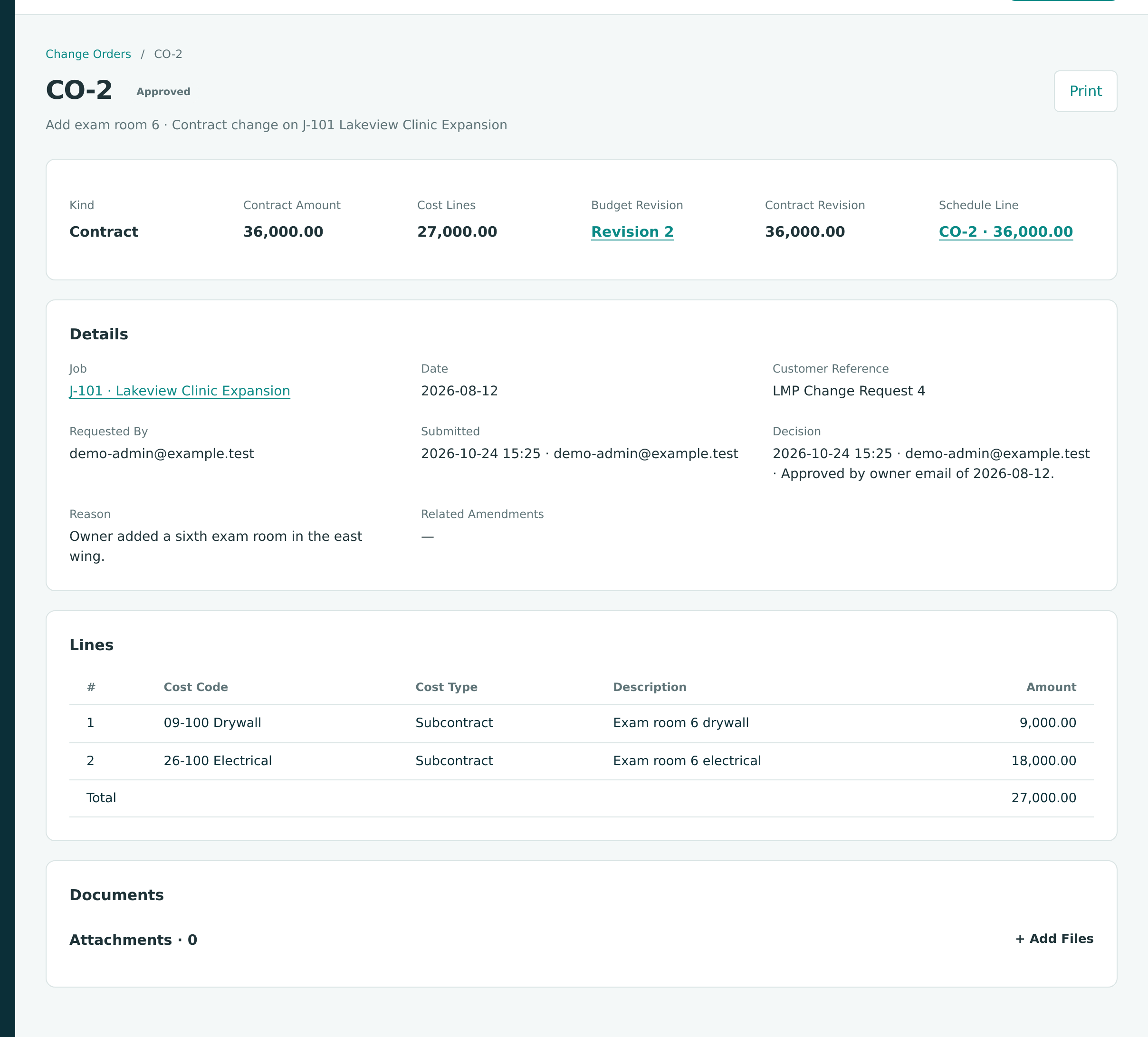
The training company Cedar Ridge Training shows the same change carried through to the end: on job J-101, CO-2 Add exam room 6 (customer reference LMP Change Request 4) was a contract change of $36,000.00 with two subcontract lines, 09-100 Drywall $9,000.00 and 26-100 Electrical $18,000.00. Approving it created budget revision 2 for $27,000.00, raised the revised contract from $480,000.00 to $516,000.00, and added schedule line CO-2 · 36,000.00 to the approved schedule of values without a schedule revision. The next pay application billed that line for the first time (see Pay Applications).
What Happens After You Save or Approve
| Draft or Submitted | Approved | |
|---|---|---|
| Revised contract | Unchanged (a submitted contract change shows as pending) | Changed by the contract amount (contract kind) |
| Budget | Unchanged | A new budget revision from the lines, if there are lines |
| Schedule of values | Unchanged | A CO-n line for a positive contract amount, when the job has a schedule |
| Commitments | Unchanged | Unchanged; enter a commitment amendment |
| Journal entry | None | None |
| Can be changed | A draft, yes. A submitted change order can only be withdrawn or decided. | No |
No Journal Entry
Change orders never post. The approved contract change is billed through the job's pay applications, which post invoices, and the approved cost change becomes actual cost only when bills and other costs are coded to the job. Forecasts and WIP schedules read the approved and pending changes; see Forecasts and WIP Schedules.
Common Mistakes and Troubleshooting
| Message or Symptom | Why It Happens | What to Do |
|---|---|---|
| Change orders cannot change on a closed or archived job. | The job is Closed or Archived. | Reopen the job first if the change is real. See Closing and Reopening Jobs. |
| Contract amount applies to contract changes only. | A Cost or Internal Transfer change order has a contract amount. | Clear the Contract Amount, or enter a Contract change order instead. |
| Internal transfer lines must net to zero. | The lines of an internal transfer do not add up to 0.00. | Adjust the lines so the decreases equal the increases. |
| Cost code is not assigned to this job. | A line uses a cost code the job does not have, or one that was made inactive. | Choose an assigned code, or assign the code to the job first. |
| Duplicate cost code and cost type. | Two lines use the same cost code and cost type. | Combine them into one line. |
| Line amount cannot be zero. | A line has a zero amount. | Enter the amount or remove the line. |
| Title must be 1 to 120 characters. | The title is empty or too long. | Type a shorter title. |
| Line 1 would take 07-100 SUB below zero. | When you submit or approve, a negative line is larger than the revised budget of that cost code and cost type on the change order's date. | Reduce the negative amount, or move budget to that cost code first. |
| Enter a reason. (in the dialog) or A reason is required to reject a change order. | Reject was clicked with an empty Decision Reason. | Type the reason. |
| Reason must be at most 200 characters. | The decision reason is too long. | Shorten it. |
| This change order was changed by someone else. Reload the page and try again. | Another user changed it after you opened it. | Reload the page and repeat the step. |
| A change order can have at most 25 attachments. | The change order already has 25 files. | Remove a file first, or combine documents. |
| There is no Approve… button. | You are not a Company Admin or Accountant, or the change order is not Submitted. | Submit it, and ask a Company Admin or Accountant to decide. |
| There is no Print button. | The change order is a Cost or Internal Transfer change, or it was rejected or withdrawn. | Only contract changes that are Draft, Submitted or Approved print. |
| The contract went down but the schedule of values did not. | A negative contract change never edits the schedule. | Revise the schedule and lower its lines. See Revising an Approved Schedule. |
Related Topics
- Job Budgets
- Commitment Amendments
- Schedules of Values and Pay Applications
- Forecasts and WIP Schedules
- Document Design, for the printed change order
- Training exercise E: Managing Change Orders