Reconciling an Account
Reconciling proves that your books agree with the bank. You take the statement's opening and ending balances, mark (clear) every transaction that appears on the statement, and Structally checks the arithmetic:
Difference = Ending Balance − Opening Balance − Cleared Total
When the difference is 0.00, every movement on the statement is in your books and you can complete the reconciliation. Transactions in your books that are not on the statement yet (a check the payee has not cashed, a deposit made on the last day) simply stay uncleared and wait for the next statement.
Structally offers two methods:
| Method | When to Use It | What You Clear |
|---|---|---|
| Imported Bank Statement | You imported the statement into the bank feed. | The statement's bank lines, once each is matched or categorized. |
| Paper or PDF Statement | You have the statement on paper or as a PDF and imported nothing. | The transactions in your books that appear on the statement, ticked one by one. |
Before You Begin
- The account has the Cash or Credit Card role and is active.
- For the imported method: the statement is imported and its lines are reviewed (see Reviewing the Bank Feed).
- The account's previous statement is completed. Each account has at most one open reconciliation, and statements go in date order.
- You need Edit access to Banking. Company Admins and Accountants have it; Viewers can open and print reconciliations; Project Managers have no Banking access. See Roles and Permissions.
Navigation
Banking → Reconciliation → Start Reconciliation. An account's Bank Transactions page also has a Reconcile button.
The Reconciliation Page
Banking → Reconciliation lists every bank and card account with its statement history. Click an account to open or close its history; Structally remembers which accounts you left open.
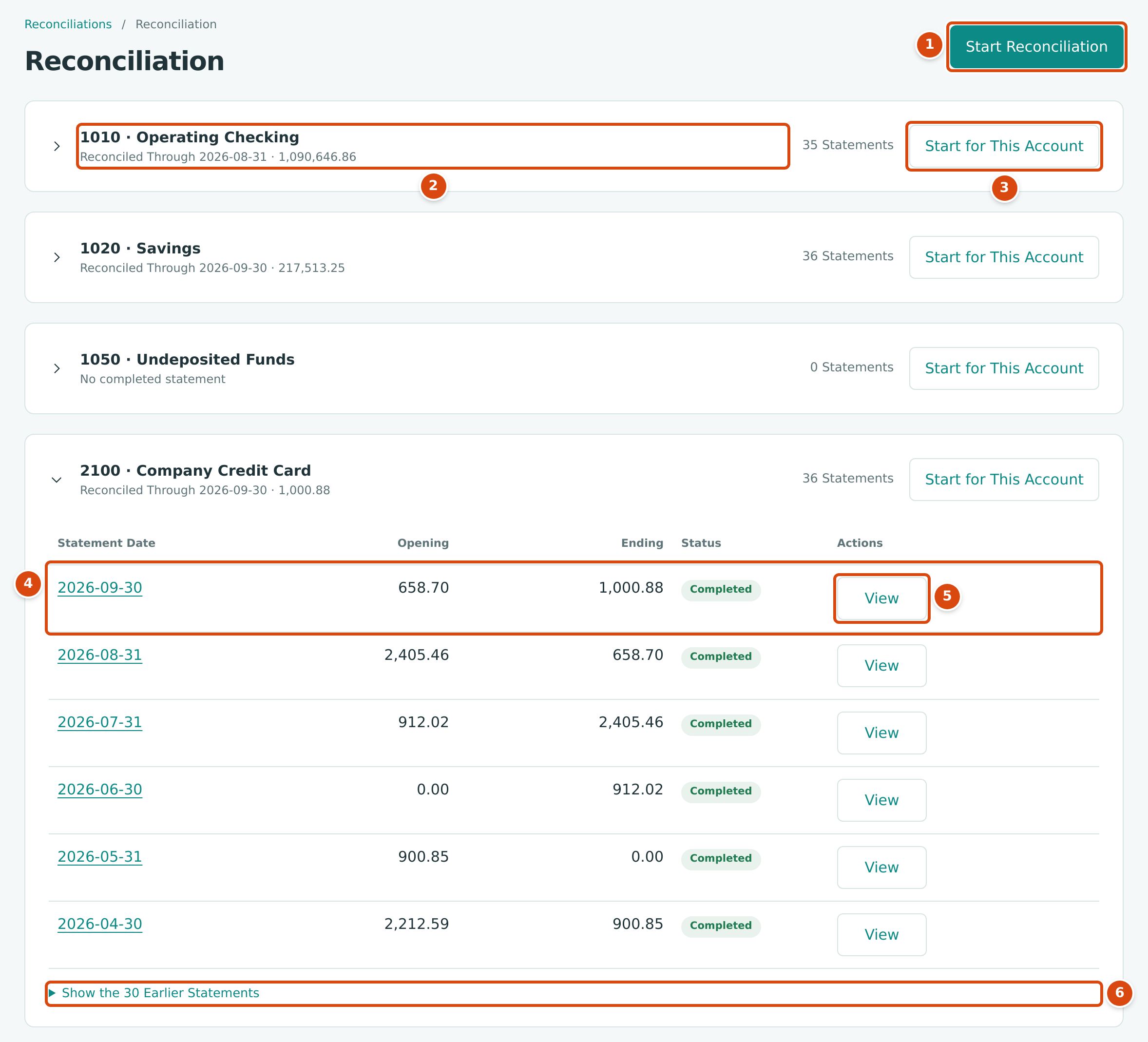
- Start Reconciliation starts a statement for any account.
- The account and Reconciled Through: the date and ending balance of its last completed statement (or No completed statement). An account with an open statement also shows In Progress.
- Start for This Account starts a statement with the account already chosen.
- Each statement: Statement Date, Opening, Ending and Status (Open or Completed), newest first.
- Continue opens an open statement; View opens a completed one.
- Older statements are under Show the N Earlier Statements.
Starting a Reconciliation
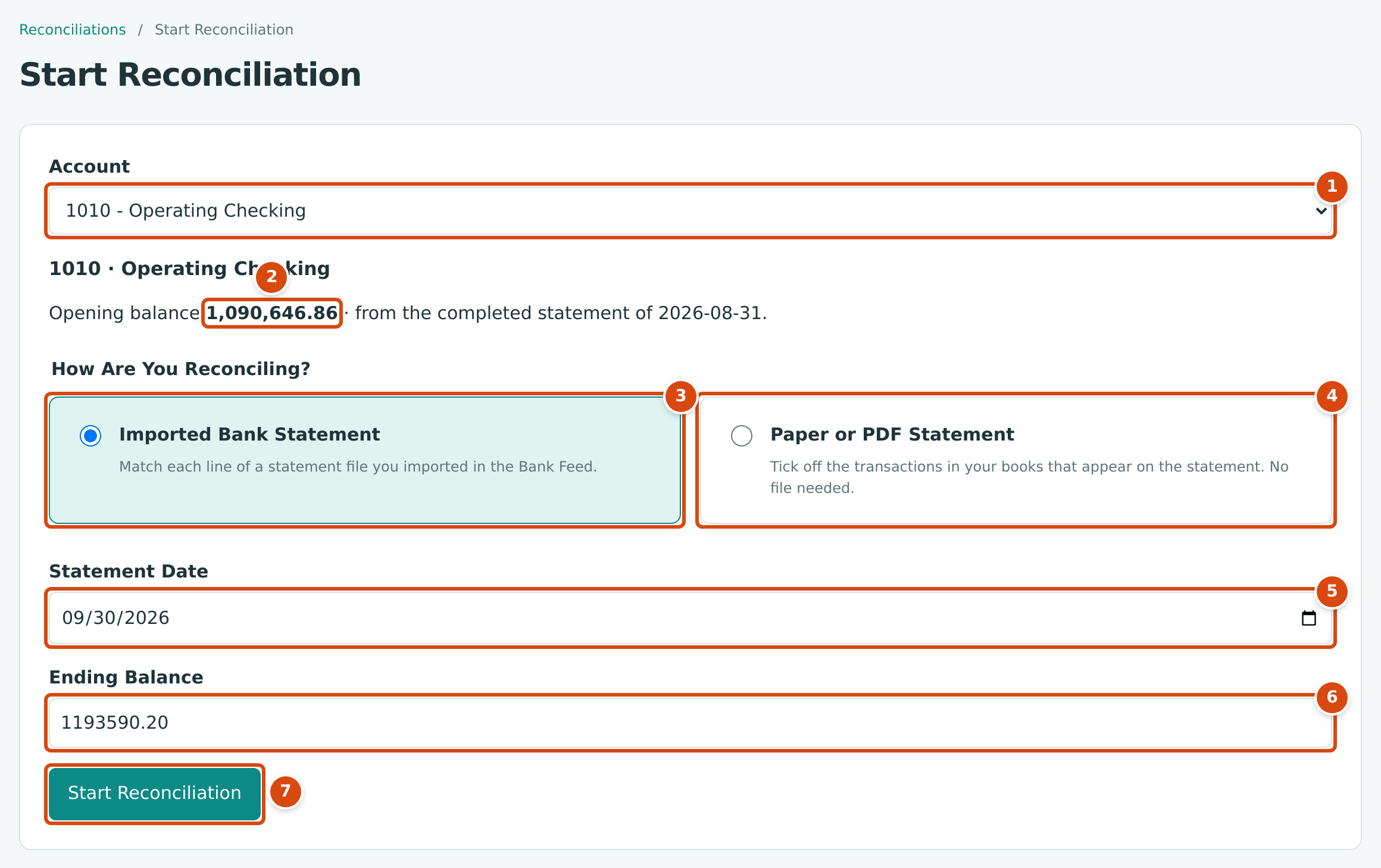
- Account: the bank or card account. Choosing it reloads the page.
- The opening balance, taken from the last completed statement: the ending balance of August 31, 2026.
- Imported Bank Statement: Match each line of a statement file you imported in the Bank Feed.
- Paper or PDF Statement: Tick off the transactions in your books that appear on the statement. No file needed.
- Statement Date: the closing date printed on the statement.
- Ending Balance: the closing balance printed on the statement. Here 1,193,590.20, the ending balance of the bank's September 2026 statement for this account, which Cedar Ridge Contracting has not reconciled yet.
- Start Reconciliation creates the statement and opens it.
- Open Banking → Reconciliation and click Start Reconciliation (or Start for This Account).
- Choose the Account.
- Under How Are You Reconciling?, choose Imported Bank Statement or Paper or PDF Statement.
- Type the Statement Date and the Ending Balance from the statement. For a credit card, the ending balance is the amount owed.
-
Check the opening balance. After the first statement it is the previous statement's ending balance and cannot be changed. For an account's first reconciliation, type the Opening Balance from the statement (it starts at 0.00):
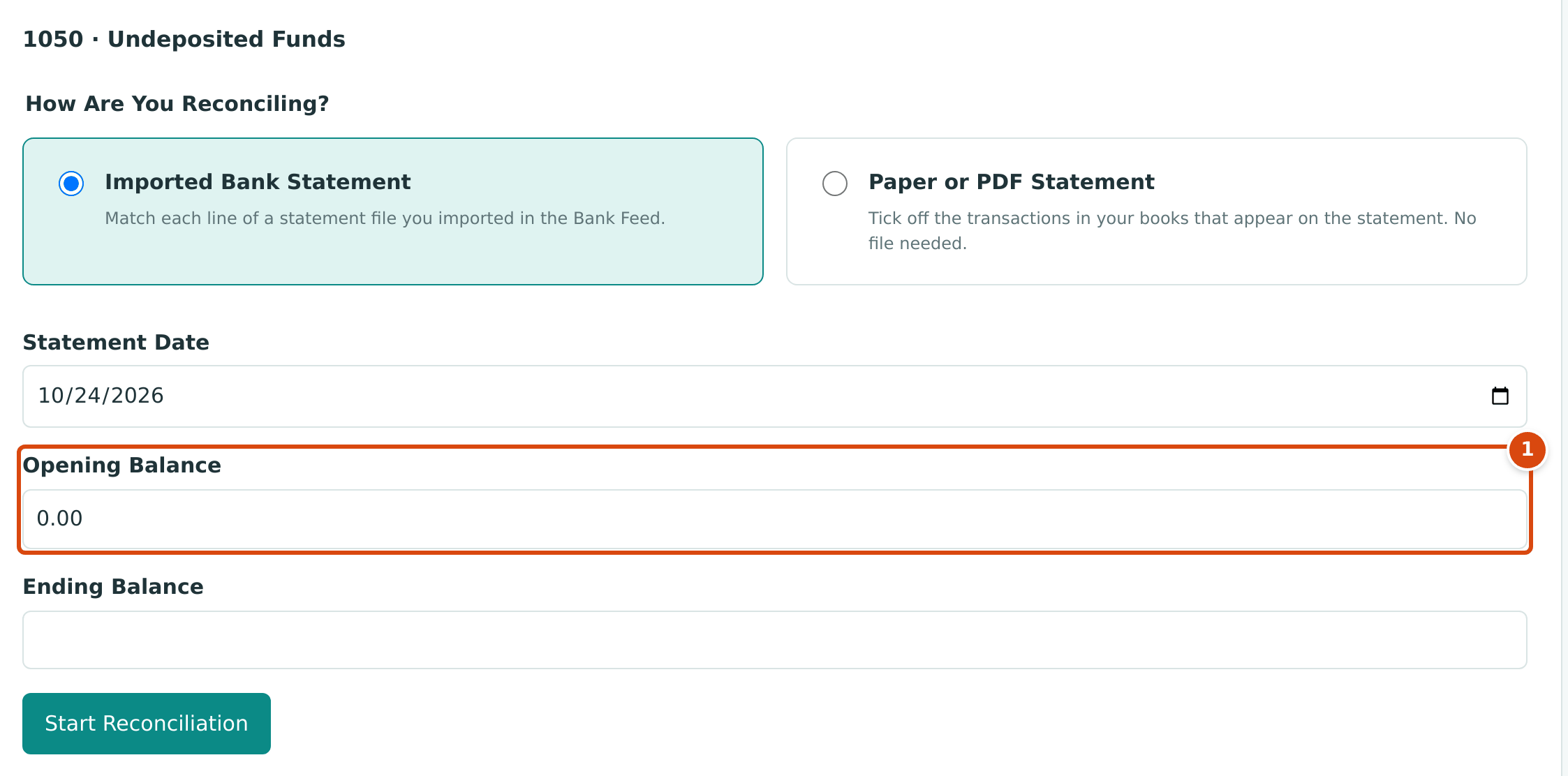
Figure 4-39 An account's first reconciliation asks for the opening balance. 1. Opening Balance: shown only for an account's first reconciliation. -
Click Start Reconciliation. The statement opens with the status Open.
Reconciling an Imported Statement
Every reconciliation in Cedar Ridge Contracting is completed, so the figures in this section come from the training company, Cedar Ridge Training. It imported and reviewed its checking statement for August and September 2026, then started the account's first reconciliation:
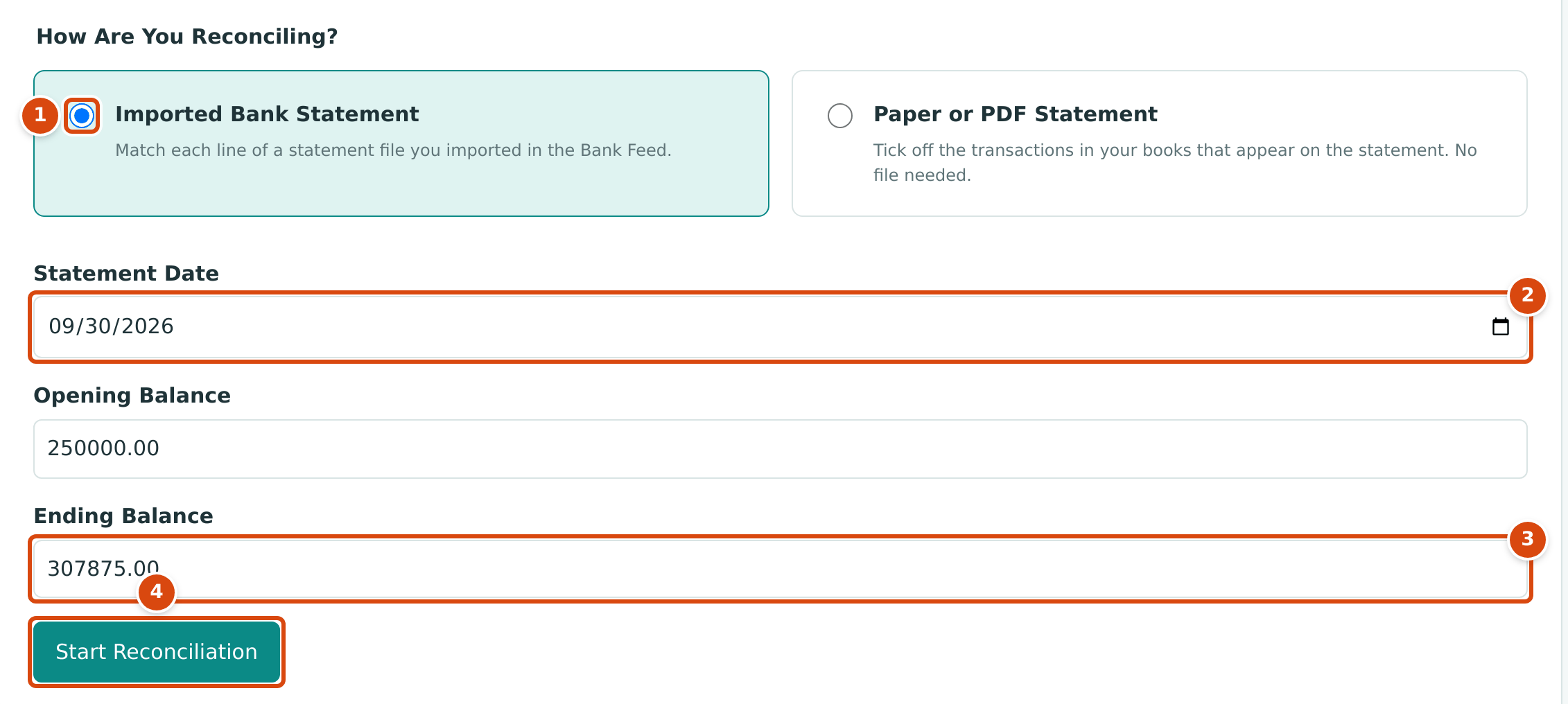
- Imported Bank Statement: the statement's lines are in the bank feed.
- Statement Date: 09/30/2026.
- Ending Balance: 307,875.00 from the bank statement. The Opening Balance above it (250,000.00) is asked for because this is the account's first reconciliation.
- Start Reconciliation opens the statement.
An open imported statement shows four totals at the top: Opening Balance, Cleared Total (with the number of cleared lines), Ending Balance and Difference. Under Difference, After selected changes shows what the difference will be once the lines you have ticked are cleared or uncleared, and a note counts the lines that still need review. Below the totals you can filter the lines by Search, Start, End and Direction.
1. Review the Remaining Lines
Under Uncleared Lines, the lines of this account dated on or before the statement date that are still New or Flagged are listed as Need review, with Date, Description, Money Out, Money In and a Suggestion (the posting Structally would match, or No entry in the books).
- For a line with a suggestion, click Match to match it, or Review… to open the line.
- To match many lines at once, tick them (only lines with a suggestion can be ticked, or use Select All) and click Match Selected. Structally reports the result, for example Matched 5 of 6 selected lines, 1 without a suggestion.
- For a line without a suggestion, click Categorize… to open the line and categorize it, or Exclude to exclude it.
The line pages opened from here have a Back to Statement link. See Reviewing the Bank Feed.
2. Clear the Lines on the Statement
Ready to Clear lists the matched and categorized lines dated on or before the statement date that are not cleared yet, with their Date, Description and Amount.
- Tick the lines that appear on the statement, or click Select All.
- Watch After selected changes under Difference.
- Click Clear. The lines move to Cleared Lines and Cleared Total changes.
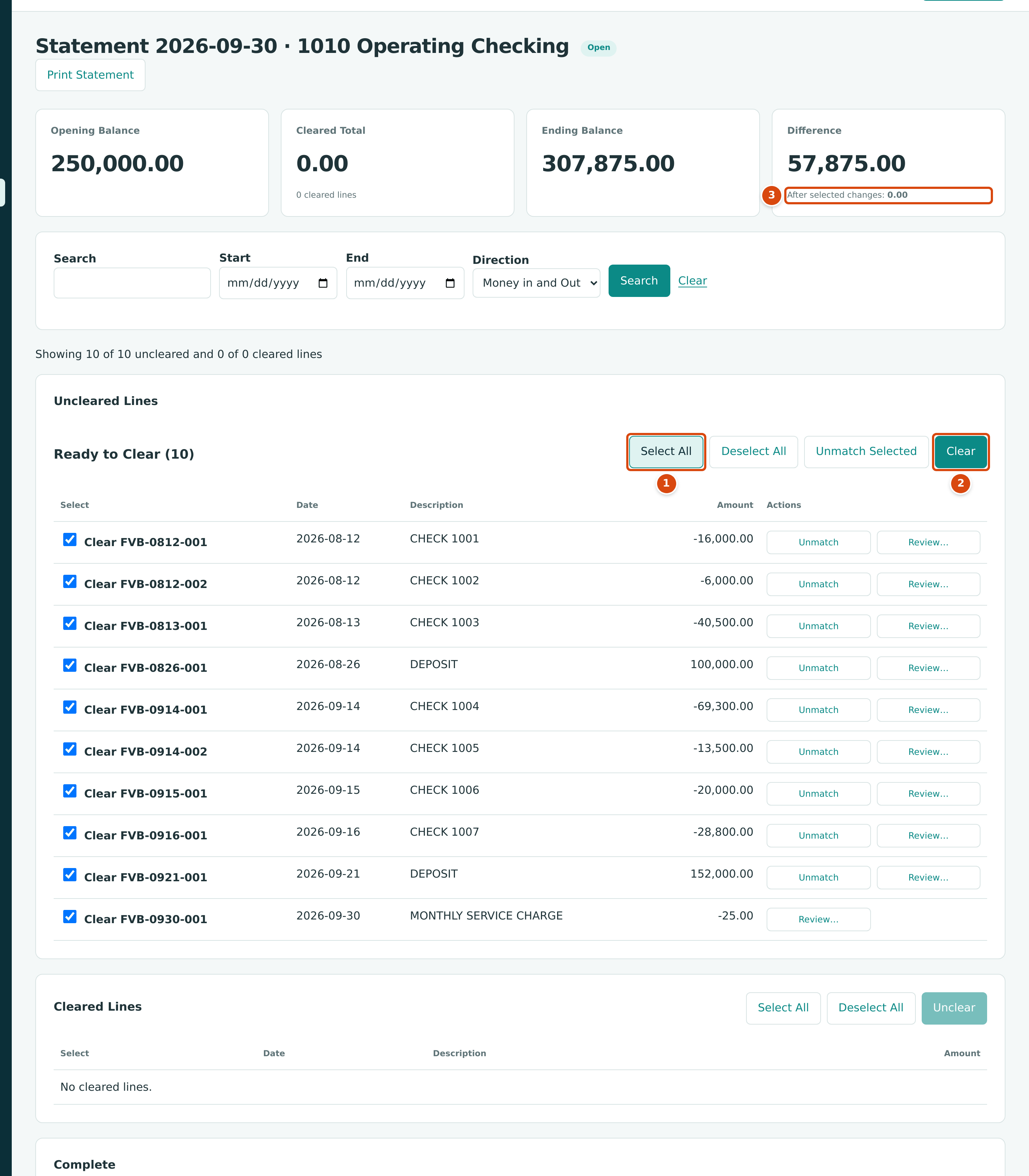
- Select All ticks every line under Ready to Clear (10).
- Clear clears the ticked lines.
- After selected changes: 0.00: clearing the ticked lines would bring the Difference from 57,875.00 to 0.00.
Each matched line has Unmatch and Review… buttons; the categorized service charge has Review… only. After Clear, the lines are listed under Cleared Lines with a box to unclear each, Cleared Total reads 57,875.00 (10 cleared lines) and Difference reads 0.00:
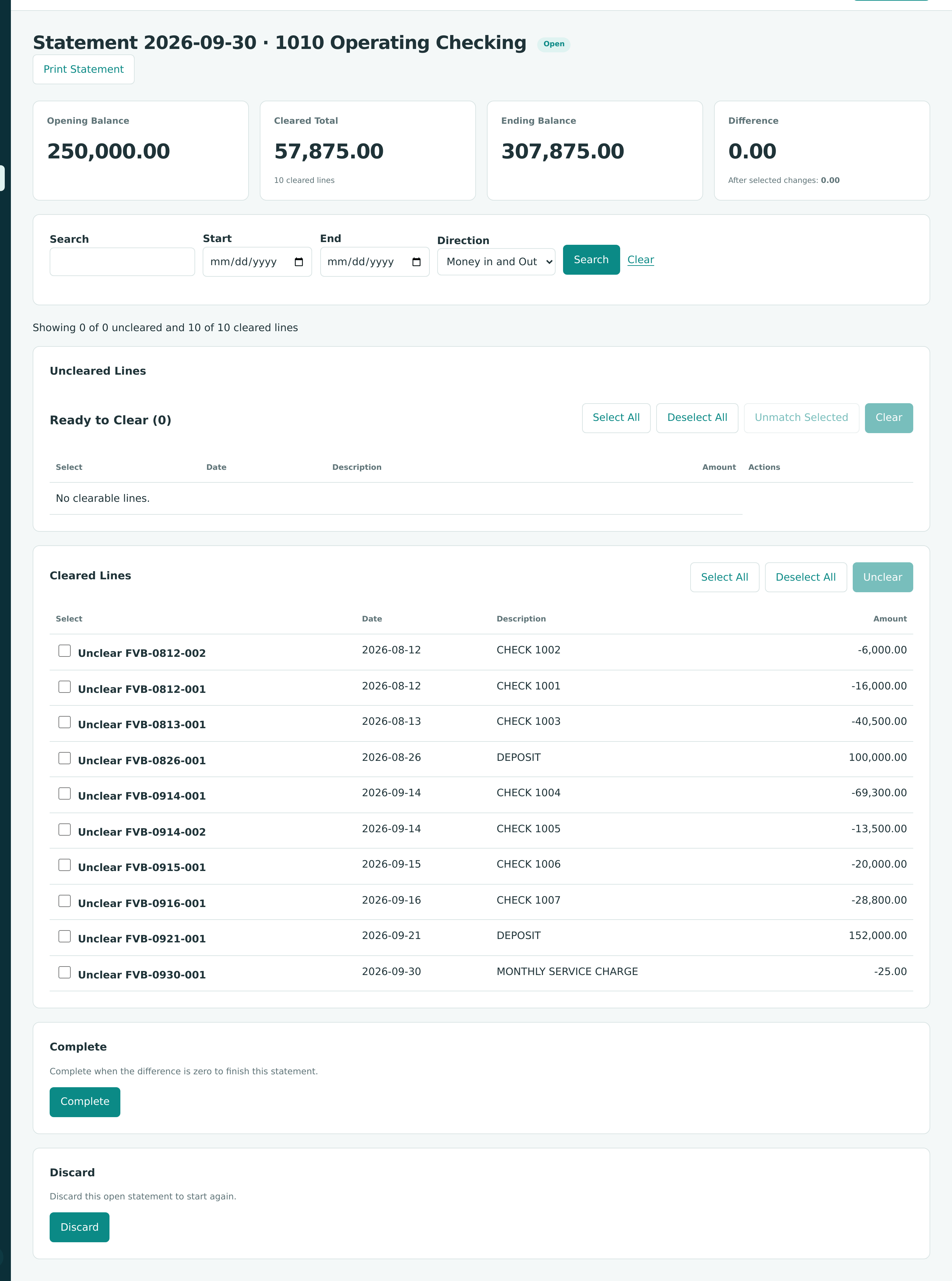
A line matched to the wrong posting can be unmatched from here: click Unmatch on its row, or tick several and click Unmatch Selected. The line goes back to Need review.
To take a line out again, tick it under Cleared Lines and click Unclear.
3. Complete
When Difference is 0.00 and no line needs review, click Complete in the Complete section. The statement's status becomes Completed.
Complete is available when every line dated on or before the statement date is reviewed and the difference is zero. Until then the button is disabled. When the statement is ready, the section reads Complete when the difference is zero to finish this statement.
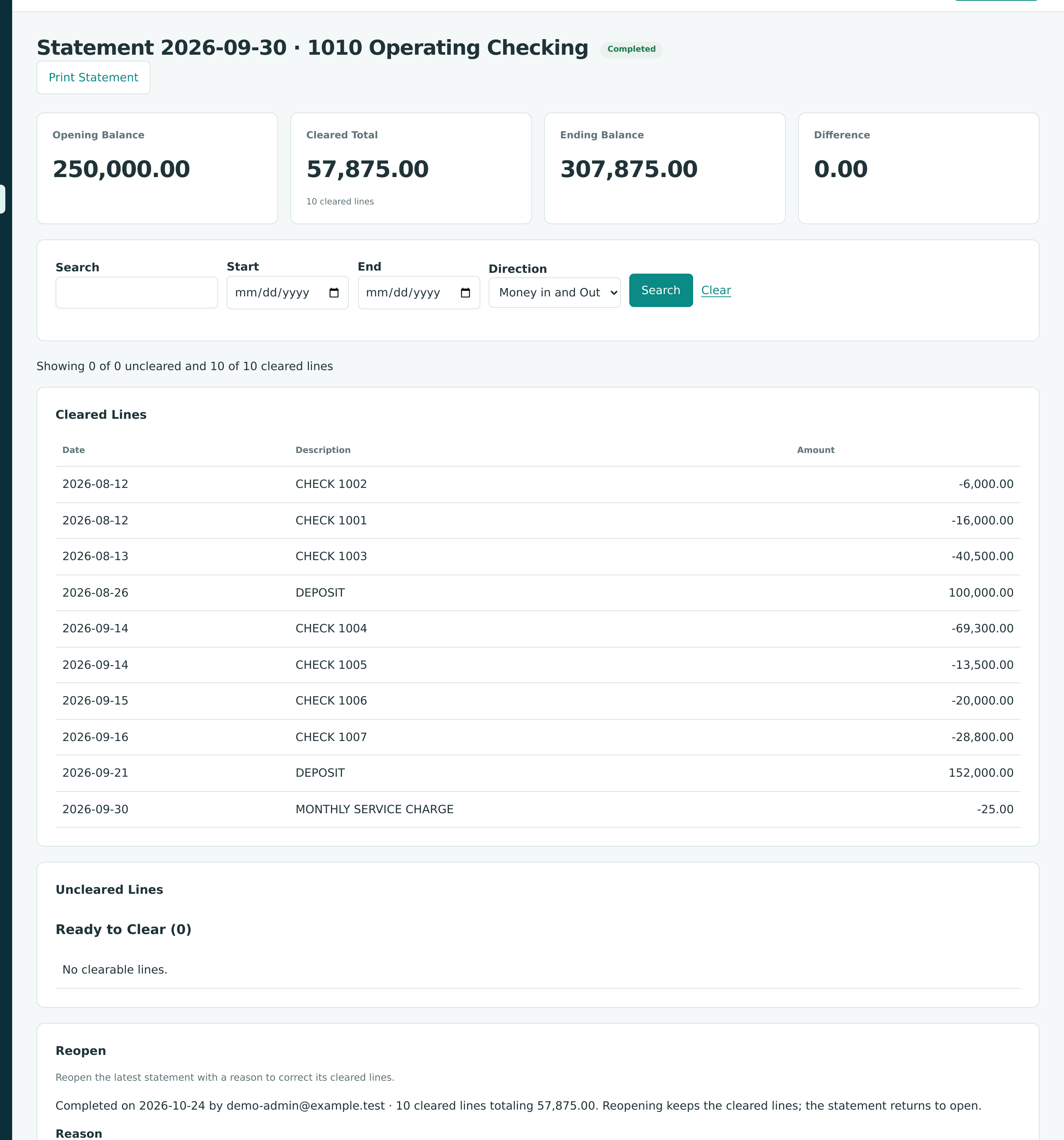
The completed statement lists its Cleared Lines without boxes, and the Reopen section replaces Complete and Discard.
Reconciling a Paper or PDF Statement
A paper statement lists the transactions in your books rather than imported lines. Nothing has to be imported.
No paper reconciliation in the sample company
The sample company reconciles with imported statements only, so the paper screen cannot be shown without starting one. It is described here from the product.
The paper statement shows Opening Balance, Cleared Total (N transactions ticked), Ending Balance and Difference, which reads Ready to finish at 0.00 and otherwise Statement ending balance minus cleared balance.
- In Tick What Is on Your Statement, Structally lists the transactions in the account dated on or before the statement date that are not yet reconciled, with Date, Type, Number, Payee or Description, and Payment and Deposit columns (for a credit card: Charge and Payment). Tabs show All, Payments or Deposits (for a card, Charges or Payments).
- Tick each transaction that appears on the paper statement. Select All and Deselect All act on the tab you are looking at. The totals update as you tick.
- Click Save for Later to keep your ticks and come back later. Structally reports 1 change saved., 2 changes saved. and so on, or No changes saved.
-
If the statement shows a transaction that is not in your books, open Add Missing Transaction:
- Bank Entry: Date, Direction (Payment or Deposit; for a card Charge or Payment), Amount, Account, Description, Reference and Memo, then Add Bank Entry.
- Expense: Date, Vendor, Reference, Memo and lines (Account, Description, Amount), then Add Expense.
Structally posts the bank entry or expense, dated on or before the statement date, and ticks it on this statement. 5. When Difference is 0.00, click Finish Reconciliation. Your ticks are saved and the statement is completed in one step.
Field Reference
| Field | Description | Required | Example |
|---|---|---|---|
| Account | An active Cash or Credit Card account. | Yes | 1010 - Operating Checking |
| How Are You Reconciling? | Imported Bank Statement (the default) or Paper or PDF Statement. | Yes | Imported Bank Statement |
| Statement Date | The statement's closing date. Starts as today. Must be later than the last completed statement. | Yes | 09/30/2026 |
| Opening Balance | The statement's opening balance. Asked only for the account's first reconciliation; afterward it is the previous ending balance. | First time only | 0.00 |
| Ending Balance | The statement's closing balance. For a card, the amount owed. | Yes | 1,193,590.20 |
| Reason (Reopen) | Why a completed statement is reopened, up to 240 characters. | Yes | Correct a line cleared twice |
Worked Example: The Training Company's September Statement
Cedar Ridge Training's bank statement for 1010 Operating Checking covers August and September 2026. It opens at $250,000.00 and ends at $307,875.00, and lists ten transactions: seven checks, two deposits and a $25.00 service charge.
| Statement Lines | Amount |
|---|---|
| Deposits on 2026-08-26 and 2026-09-21 (100,000.00 + 152,000.00) | 252,000.00 |
| Checks 1001 to 1007 | −194,100.00 |
| Monthly service charge | −25.00 |
| Cleared Total | 57,875.00 |
The nine checks and deposits matched payments and deposits already in the books, and the service charge was categorized as bank entry BE-2026-000001 to 6020 Bank Fees. Clearing all ten lines gives:
| Amount | |
|---|---|
| Ending Balance | 307,875.00 |
| − Opening Balance | 250,000.00 |
| − Cleared Total | 57,875.00 |
| Difference | 0.00 |
The books show $301,875.00 in the account at September 30, $6,000.00 less than the bank, because check 1008 (PAY-2026-000008, dated September 10, 2026) had not reached the bank by the statement date: 307,875.00 − 6,000.00 = 301,875.00. It has no bank line yet, so it does not appear on this statement at all; it will clear on the next one. The checks total 16,000.00 + 6,000.00 + 40,500.00 + 69,300.00 + 13,500.00 + 20,000.00 + 28,800.00 = 194,100.00.
What Happens After You Complete
- The statement's status is Completed, with the date and the user who completed it. The account's Reconciled Through date and balance update.
- Its ending balance becomes the next statement's opening balance.
- The cleared lines are locked: they cannot be unmatched, excluded, uncategorized or uncleared, and the postings they are matched to cannot be reversed, until the statement is reopened.
- In the account register, the cleared movements show Cleared as Yes.
Completing posts nothing to your books.
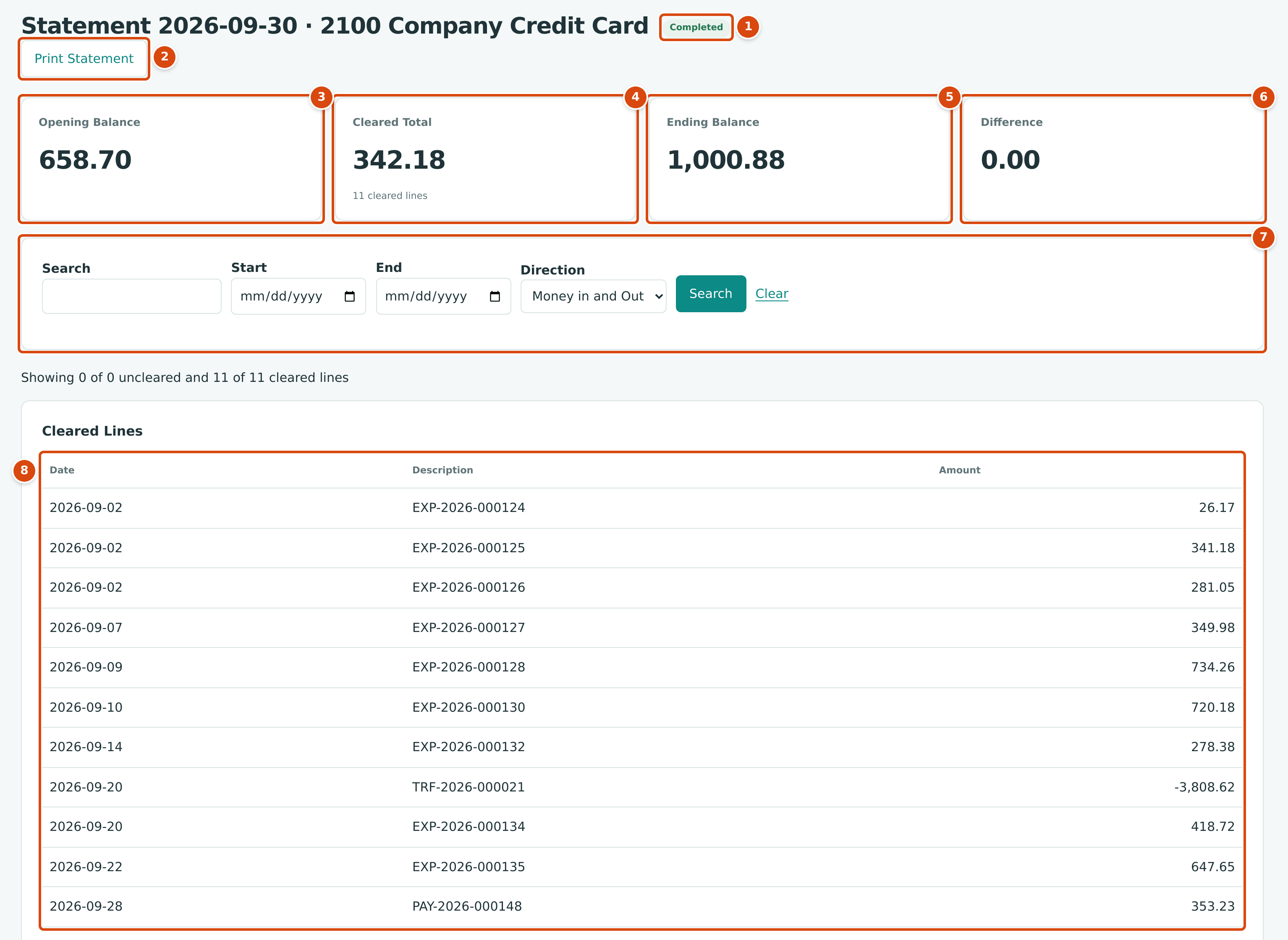
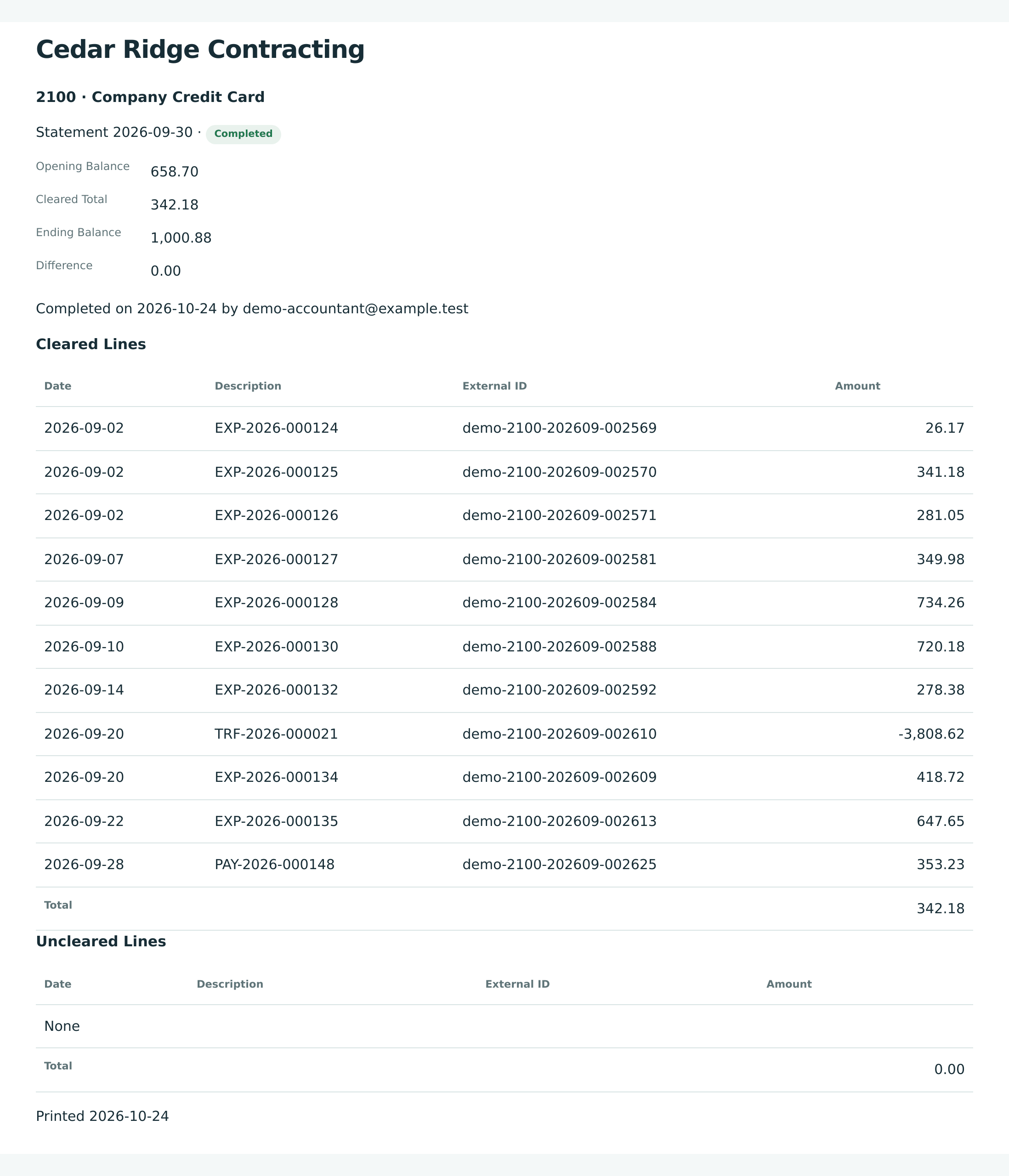
- The status Completed.
- Print Statement opens a printable summary.
- Opening Balance: 658.70, the August statement's ending balance.
- Cleared Total: 342.18 from 11 cleared lines.
- Ending Balance: 1,000.88, the amount owed on the card at September 30.
- Difference: 1,000.88 − 658.70 − 342.18 = 0.00.
- Filters for the lines below.
- Cleared Lines: the charges (positive) and the card payment TRF-2026-000021 (−3,808.62).
Reconciling posts nothing
Starting, clearing, completing, reopening and discarding a reconciliation write no journal entries. Only categorizing a line, or Add Missing Transaction on a paper statement, posts an expense, transfer or bank entry.
Printing a Statement
Click Print Statement on any statement, open or completed. The printable page shows the company name, the account, the statement date and status, Opening Balance, Cleared Total, Ending Balance, Difference, who completed it and when, a Cleared Lines table and an Uncleared Lines table (each with Date, Description, External ID, Amount and a Total), and the date printed. Use your browser's print command to print it or save it as a PDF.
Reopening a Completed Statement
Reopen the latest completed statement of an account to correct it, for example when a line was cleared that is not on the statement.
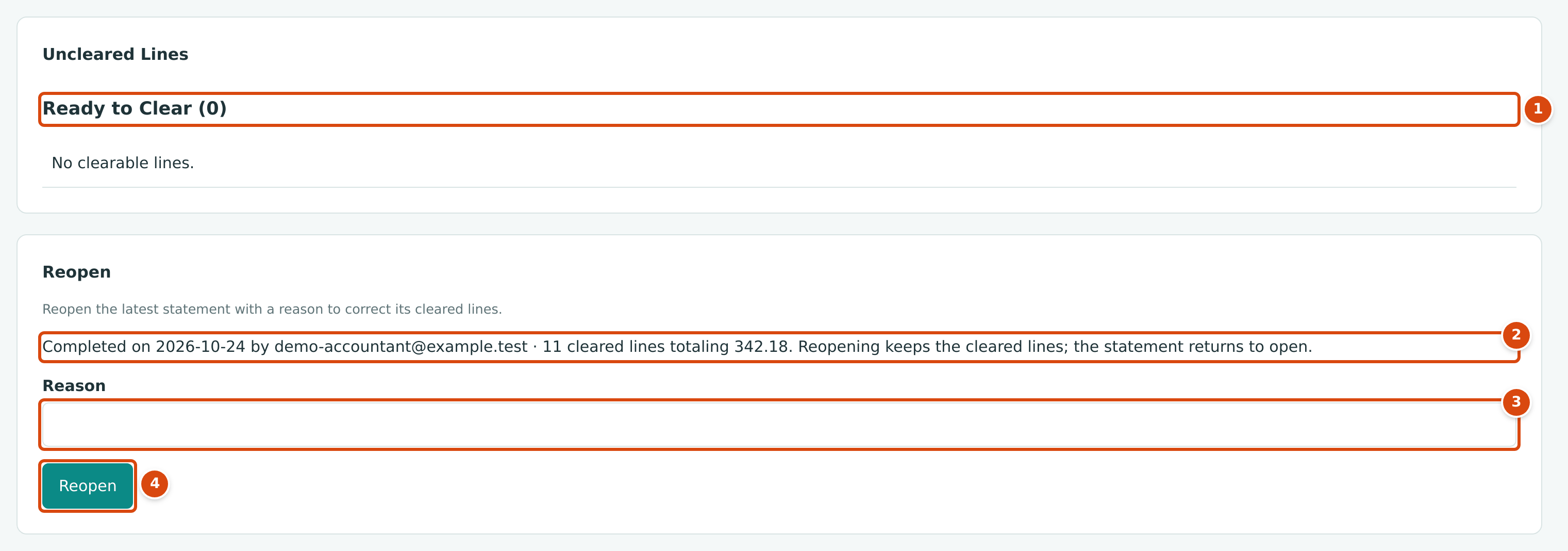
- Ready to Clear: matched or categorized lines of this account, dated on or before the statement date, that are in no statement. None here.
- Who completed the statement and when, with its cleared lines and total.
- Reason: required.
- Reopen returns the statement to Open.
- Open the statement and type a Reason in the Reopen section.
- Click Reopen.
Reopening keeps the cleared lines; the statement returns to open. The statement then shows Reopened on the date, by the user, and the reason. Make your corrections and complete it again.
Only the latest statement can be reopened: a statement with a later statement for the same account (open or completed) is refused.
Discarding an Open Statement
An open statement can be discarded to start again: click Discard in the Discard section (Discard this open statement to start again.). The statement and its cleared marks are deleted; the bank lines stay matched or categorized. For a paper statement, the ticks are removed, but transactions added with Add Missing Transaction stay posted. A completed statement cannot be discarded; reopen it first.
Common Mistakes and Troubleshooting
| Message or Symptom | Why It Happens | What to Do |
|---|---|---|
| Complete is disabled. | The difference is not 0.00, or lines dated on or before the statement date still need review. | Review the lines under Need review, then clear until the difference is 0.00. |
| Reconciliation difference is 15.00; it must be 0.00 (for example) | The difference is not zero when completing or finishing. | Find the missing line: a bank fee not yet categorized, a line cleared twice, or a wrong ending balance. |
| An open reconciliation exists for this account | The account already has an open statement. | Continue it, or discard it. |
| Statement date must be after 2026-08-31 (for example) | The date is not later than the last completed statement. | Use the new statement's closing date. |
| Reconciliations are for bank or credit card accounts | The account is inactive or not a Cash or Credit Card account. | Choose another account. |
| Only lines linked to the ledger can be cleared | A line still needs review. | Match or categorize it first. |
| Line is dated after the statement | The line belongs to a later statement. | Leave it for the next statement. |
| Line is already cleared | The line is cleared in this or another statement. | Nothing to do. |
| Reconciliation is completed; reopen it first | You tried to change a completed statement. | Reopen it. |
| A later statement exists; discard or reopen it first | You tried to reopen a statement that is not the latest. | Work backward from the latest statement. |
| A reason is required to reopen | The Reason is empty. | Type a reason. |
| Only open reconciliations can be discarded | The statement is completed. | Reopen it first. |
| Transaction is dated after the statement | A missing transaction is dated after the statement date. | Use a date on or before the statement date. |
| Line is cleared in a reconciliation; unclear it first | You tried to unmatch or undo a cleared line. | Unclear it in the open statement. |