| Account | Debit | Credit |
|---|---|---|
| 1010 Operating Checking | 250,000.00 | |
| 1630 Equipment and Vehicles | 85,000.00 | |
| 2500 Equipment and Vehicle Loans | 40,000.00 | |
| 3900 Opening Balance Equity | 295,000.00 |
A: Setting Up a New Company
In this exercise you are the Company Admin of Cedar Ridge Training, a general contractor in Bend, Oregon, that has just moved its books to Structally. Structally has created the company with the standard chart of accounts and given you access. By the end you will have:
- the company's details and time zone;
- classes and a location for reporting;
- cost codes, retainage accounts and WIP accounts for job costing;
- opening balances as of June 30, 2026, and the books closed through that date;
- a second user, the company's accountant;
- the payment terms its customers and vendors will use.
Every step below was performed in Structally exactly as written, and every figure shows the result. The later exercises continue in the same company.
Before You Begin
- You are a Company Admin of the new company (the setup pages in this exercise are for Company Admins).
- You have the closing figures from your old system: in this exercise, the June 30, 2026 balances of the bank account, equipment and the equipment loan.
Step 1: Open the Company
Sign in (see Signing In). If you have access to more than one company, Structally lists them under Your Companies; click Open beside Cedar Ridge Training.
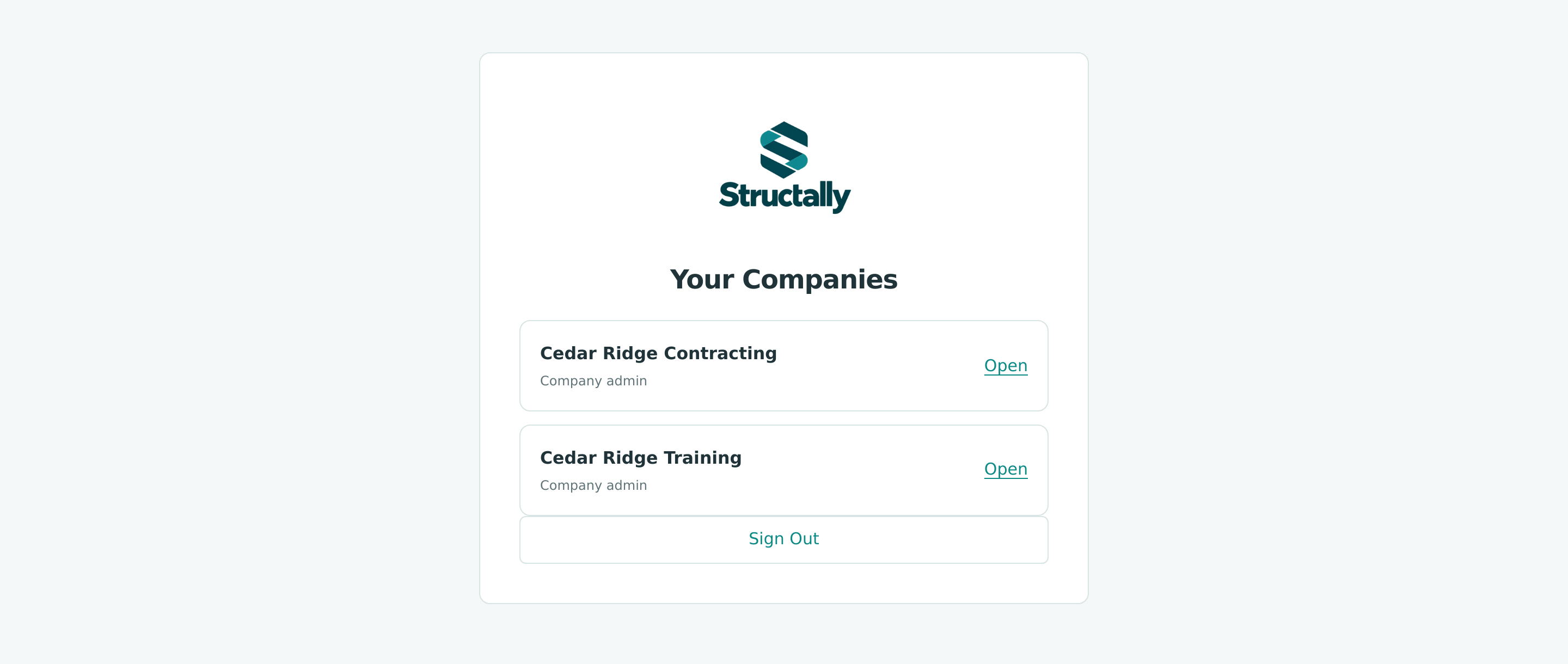
A new company has no transactions yet, so the Home dashboard shows zeros. Later you can move between companies with Your Company at the top of the navigation (see Choosing a Company).
Step 2: Enter the Company Details
These details print on invoices and statements.
- Go to Settings → Company Details and click Edit on Company & Invoice Details.
- Enter the values below, then click Save.
| Field | Value |
|---|---|
| Legal Name | Cedar Ridge Training LLC |
| Phone | (541) 555-0142 |
| office@cedarridge-training.example.test | |
| Address | 410 Timberline Way, Bend, OR 97701 (two lines) |
| Tax ID | 93-0000001 |
| Time Zone | Pacific (Los Angeles) |
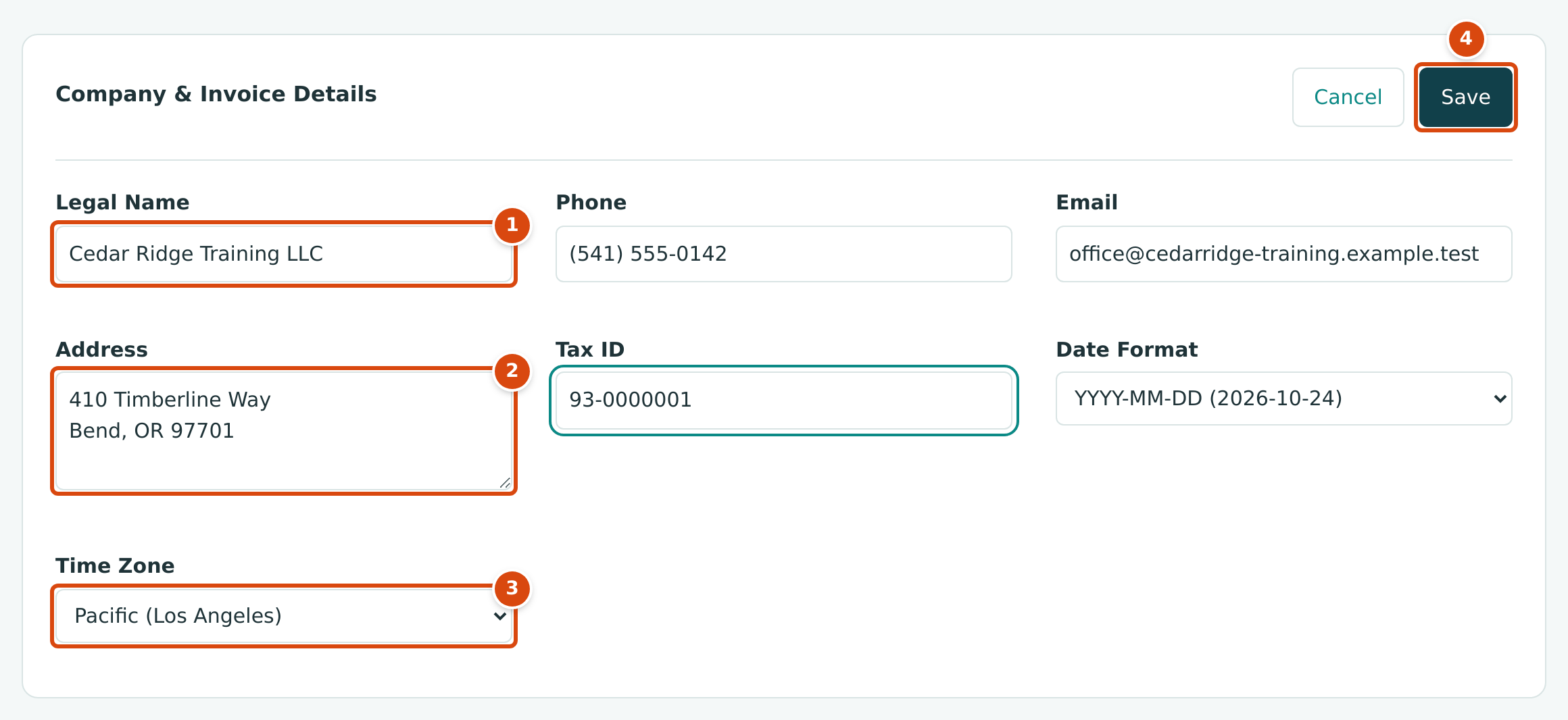
- Legal Name: the name printed on documents.
- Address: press Enter for a new line.
- Time Zone: the zone that decides what "today" is for the company.
- Save stores all the details at once.
Because the time zone changes, Structally asks you to confirm:
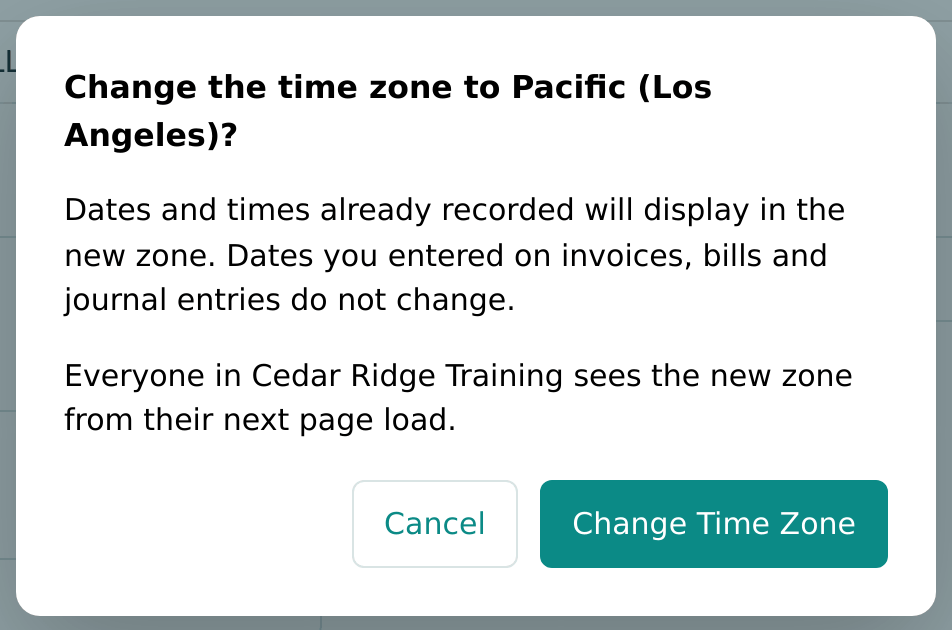
Click Change Time Zone. Dates already entered on documents do not change; only the display of recorded times and the meaning of "today" do. See Company Details for every field.
Step 3: Review the Chart of Accounts
Open Accounting → Chart of Accounts. The standard chart already holds the accounts a contractor needs: bank and Undeposited Funds accounts, receivable and payable control accounts, equity, contract revenue, direct cost accounts (labor, subcontractors, materials, equipment rental, other job costs) and operating expenses.
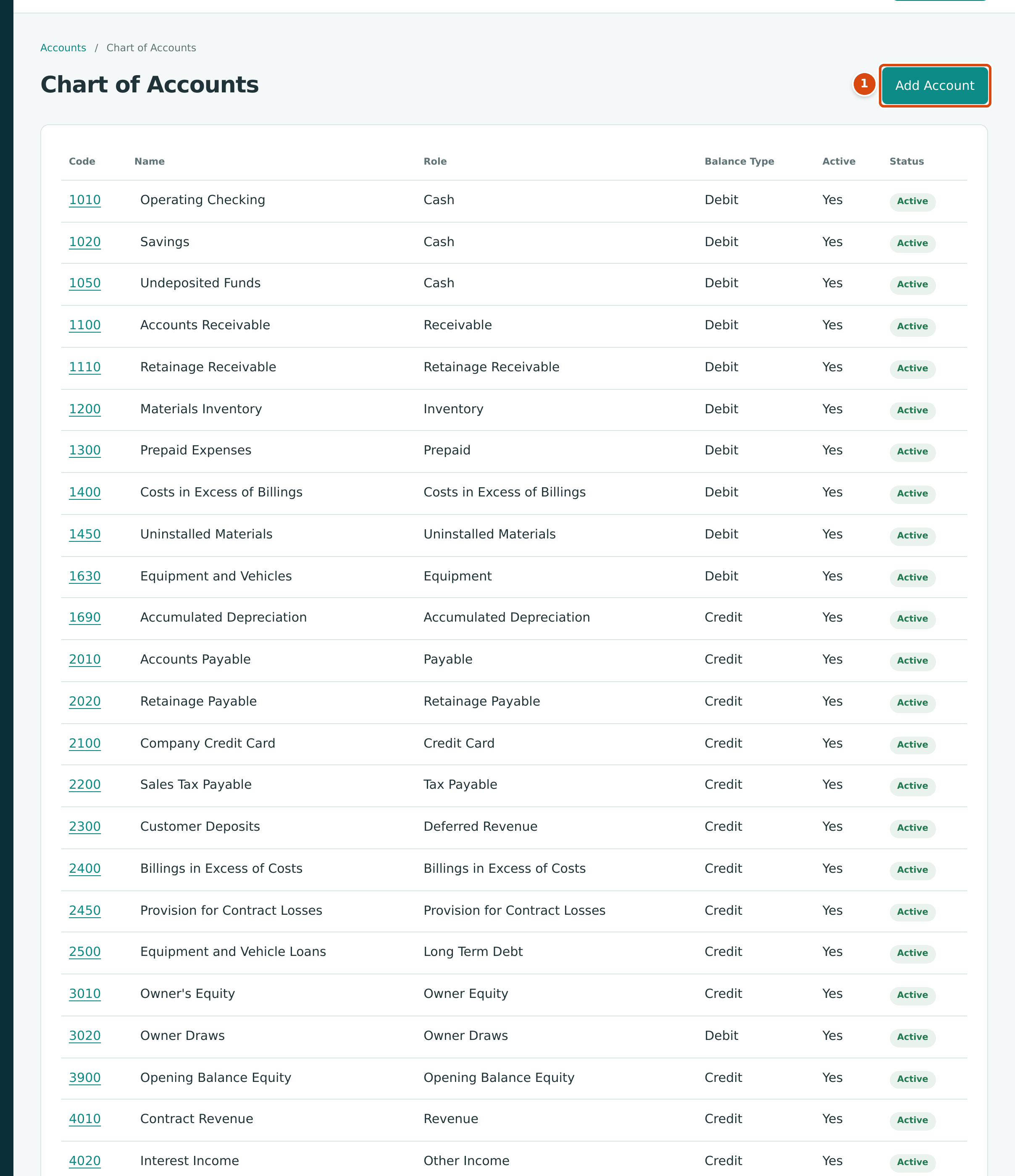
- Add Account opens a drawer for a new account.
You can rename accounts and add your own at any time (see Creating and Editing Accounts). Cedar Ridge Training keeps the standard chart.
Step 4: Add Classes and a Location
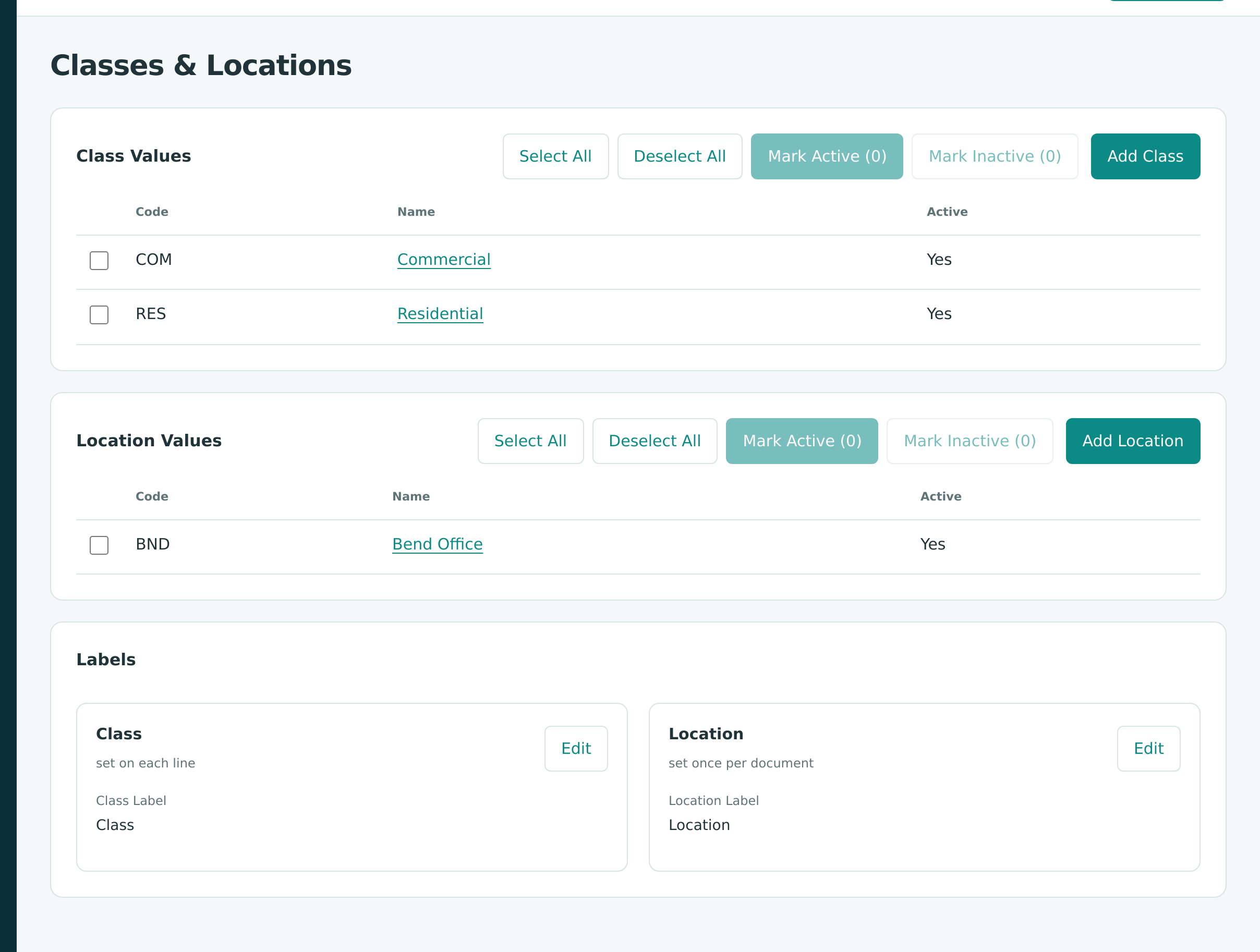
Classes and locations let reports split results. A class is chosen on each line of a transaction; a location once per document.
- Go to Settings → Classes & Locations.
-
Click Add Class, enter Code COM and Name Commercial, and click Create Class.
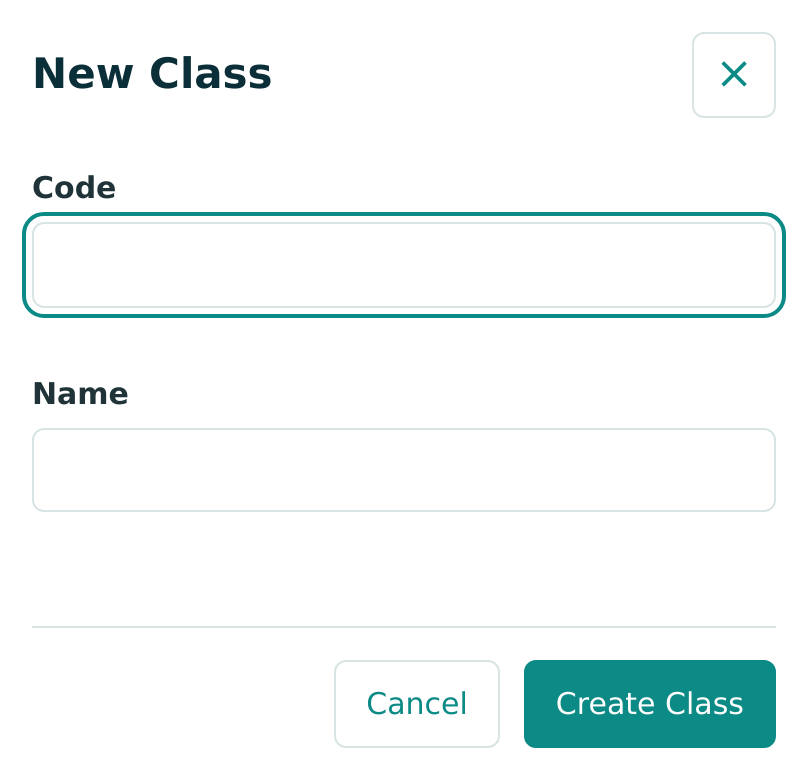
Figure 9-5 Adding a class. -
Add a second class, RES Residential, the same way.
- Click Add Location and create BND Bend Office.
Step 5: Prepare Job Costing
Jobs & Costing is turned on for the company, and the seven standard cost types (labor, burden, materials, subcontract, equipment, overhead, other) are already there. Three things remain.
Add the Cost Codes
- Go to Jobs & Costing → Job Costing Settings.
-
In Cost Codes, click Add Cost Code, enter the Code and Name, leave Active ticked, and click Create Cost Code.
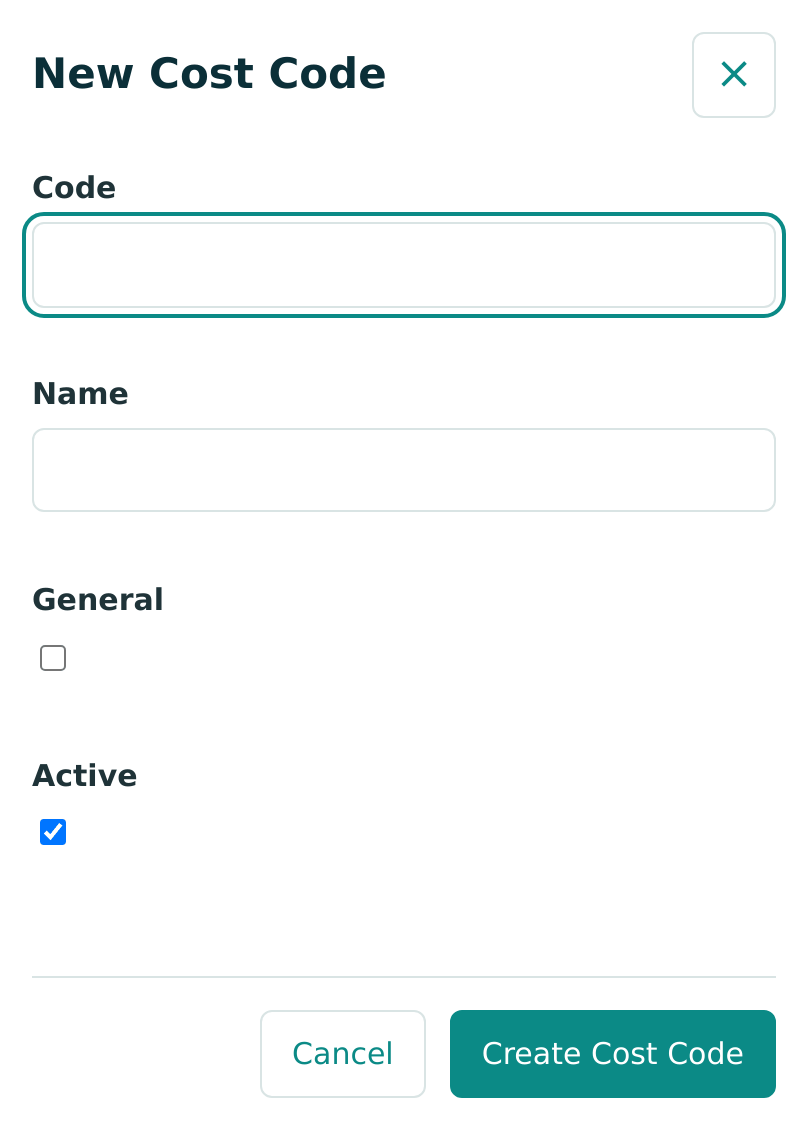
Figure 9-7 Adding a cost code. -
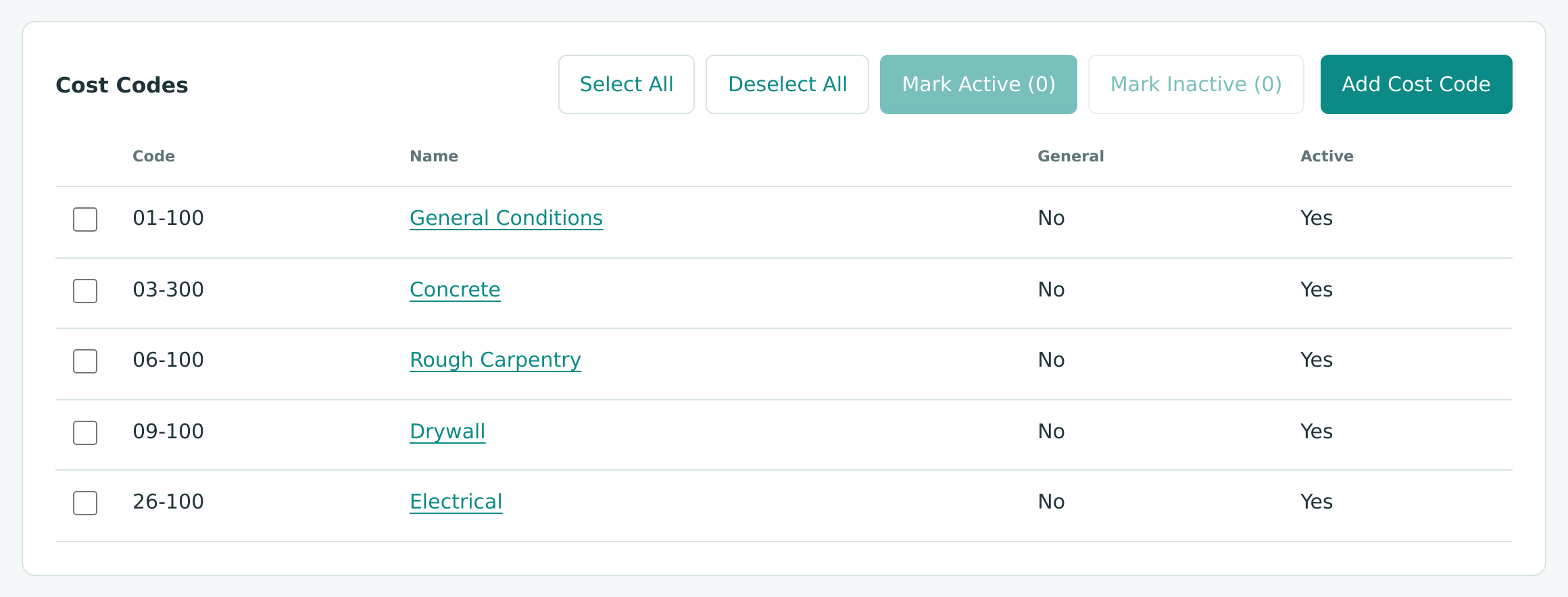
Repeat for each code below.
| Code | Name |
|---|---|
| 01-100 | General Conditions |
| 03-300 | Concrete |
| 06-100 | Rough Carpentry |
| 09-100 | Drywall |
| 26-100 | Electrical |
Create the Retainage and WIP Accounts
Still on Job Costing Settings:
- Under Retainage Payable Account, click Create Account. Structally creates 2020 Retainage Payable and selects it.
- Under Retainage Receivable Account, click Create Account. Structally creates 1110 Retainage Receivable.
- Under WIP Accounts, click Create Accounts. Structally creates the seven accounts that work-in-progress schedules post to.
The default retainage percentages stay as they are: 10% on subcontracts, 0% on purchase orders and 10% on customer invoices.
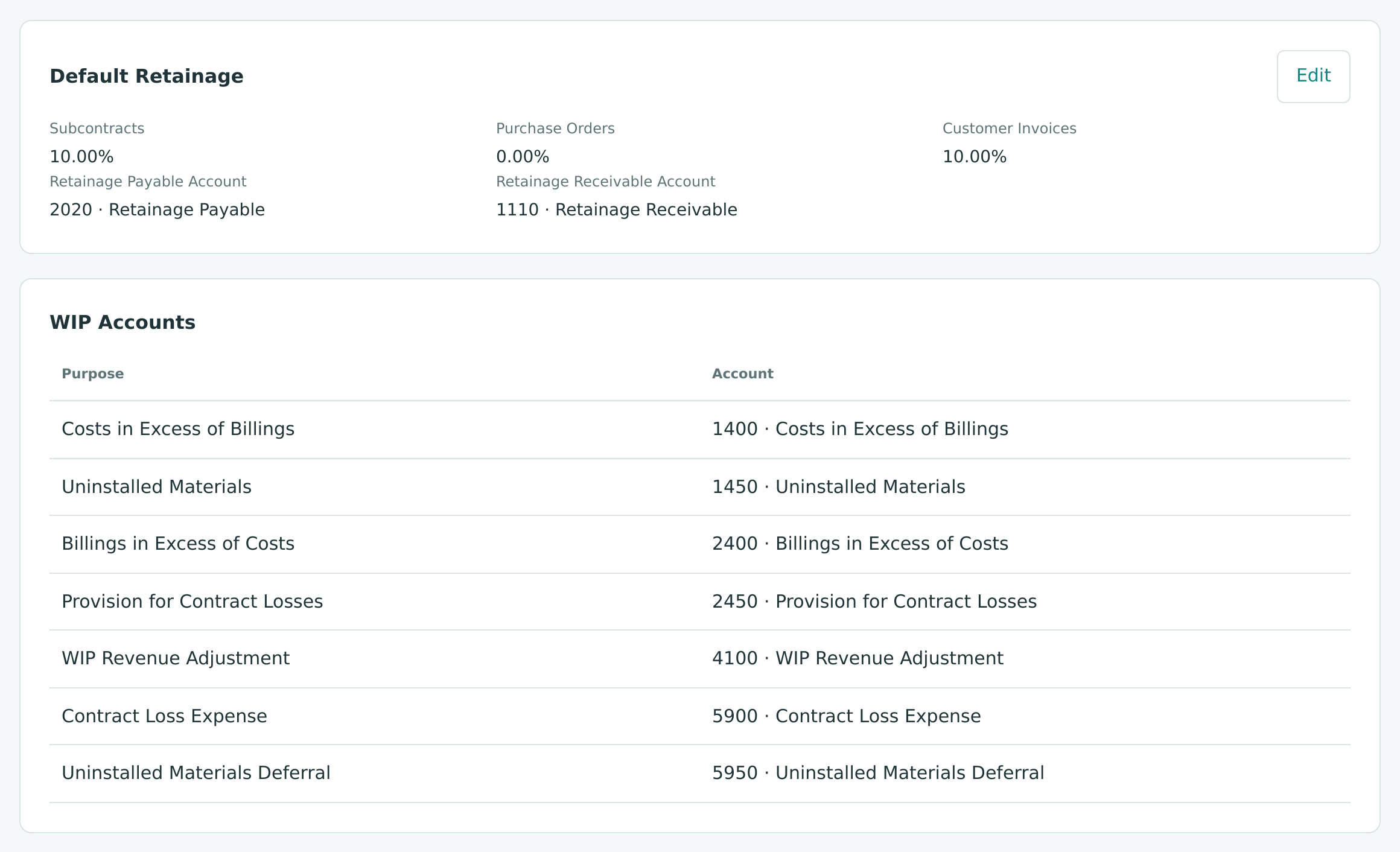
Only a Company Admin can change these settings. See Job Costing Settings for the other choices on the page, such as which accounts may carry job coding and the Commitment Overruns rule.
Step 6: Enter the Opening Balances
Cedar Ridge Training starts its books in Structally on July 1, 2026. Its old system shows these balances at the close of June 30, 2026:
| Account | Balance |
|---|---|
| 1010 Operating Checking | $250,000.00 (debit) |
| 1630 Equipment and Vehicles | $85,000.00 (debit) |
| 2500 Equipment and Vehicle Loans | $40,000.00 (credit) |
- Go to Settings → Opening Balances.
- Set Books Start to 07/01/2026, the first day you will record in Structally.
- Enter one line per account: choose the Account, the Side (Debit or Credit) and the Amount, with an optional Description. Click Add Line for each further line.
- Click Post Opening Balances.
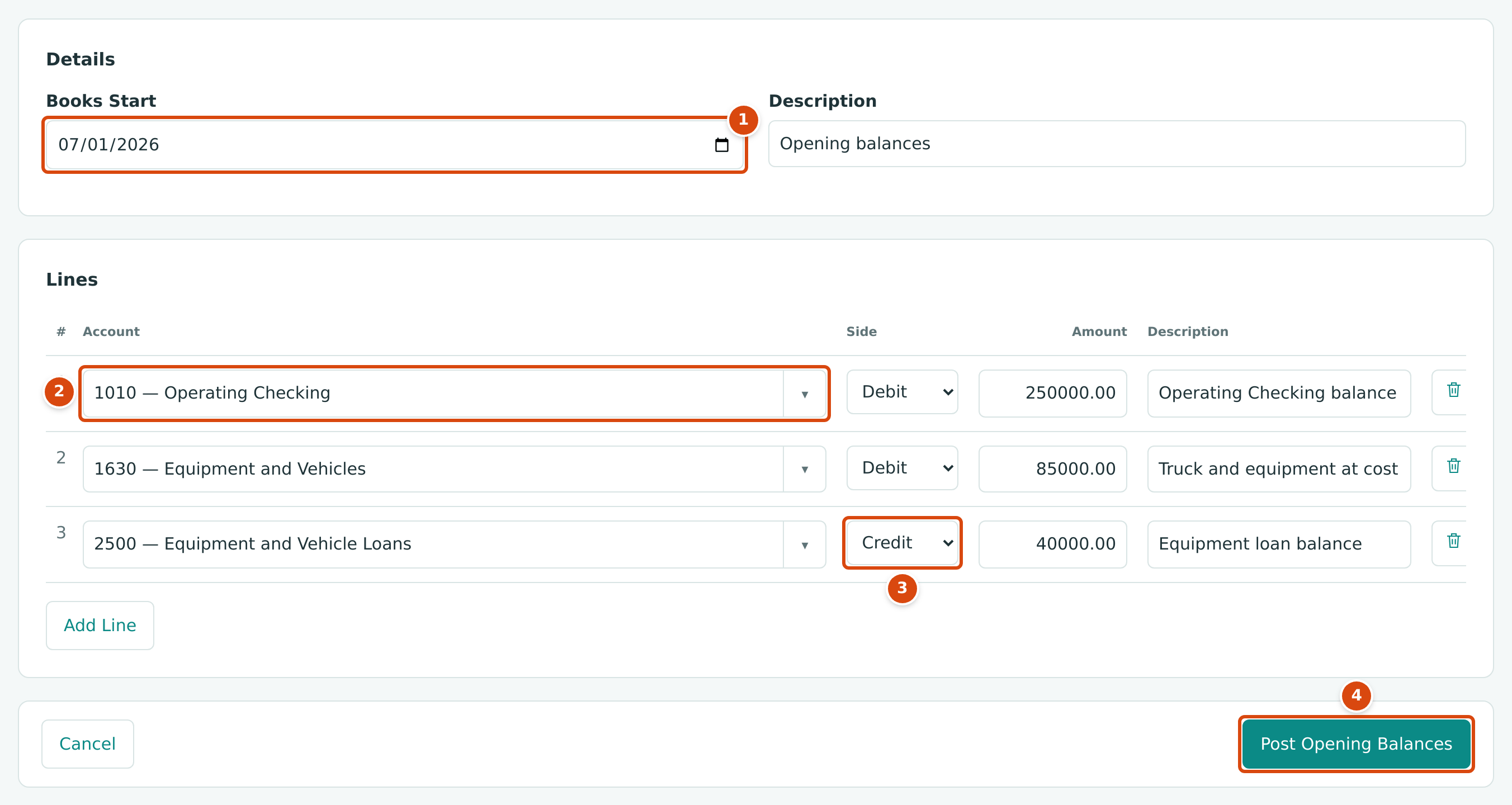
- Books Start: the first day of activity in Structally. It can be set once.
- The account of each balance.
- Side: Debit for assets, Credit for liabilities.
- Post Opening Balances posts the entry.
You do not enter the equity balance. Structally balances the entry to 3900 Opening Balance Equity and dates it the day before Books Start:
| Amount | |
|---|---|
| Debits: 250,000.00 + 85,000.00 | 335,000.00 |
| Credits entered: 40,000.00 | 40,000.00 |
| Credit to 3900 Opening Balance Equity: 335,000.00 − 40,000.00 | 295,000.00 |
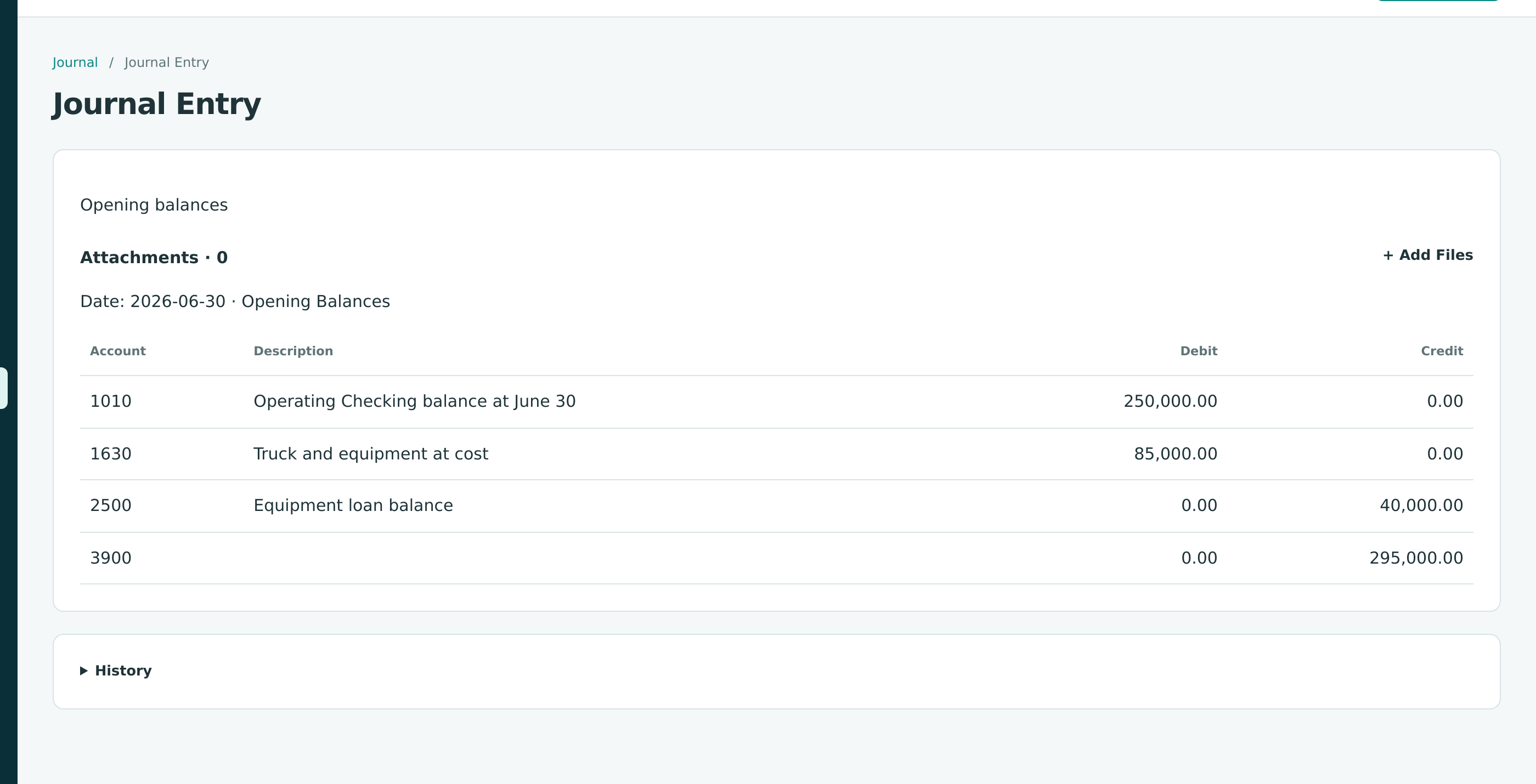
Accounting Effect
Dated June 30, 2026. Your accountant may later move the Opening Balance Equity balance to the owner's equity accounts with a journal entry.
Step 7: Close the Books Through June 30
The opening balances should never change by accident. Closing the books through June 30, 2026 stops anyone from posting any entry dated on or before that date, including a void or reversal dated in the closed period.
- Go to Settings → Books Closed. The Closed Through card reads Open: no period is closed yet.
- Click Set a Date, enter Lock Date 06/30/2026 and click Save.
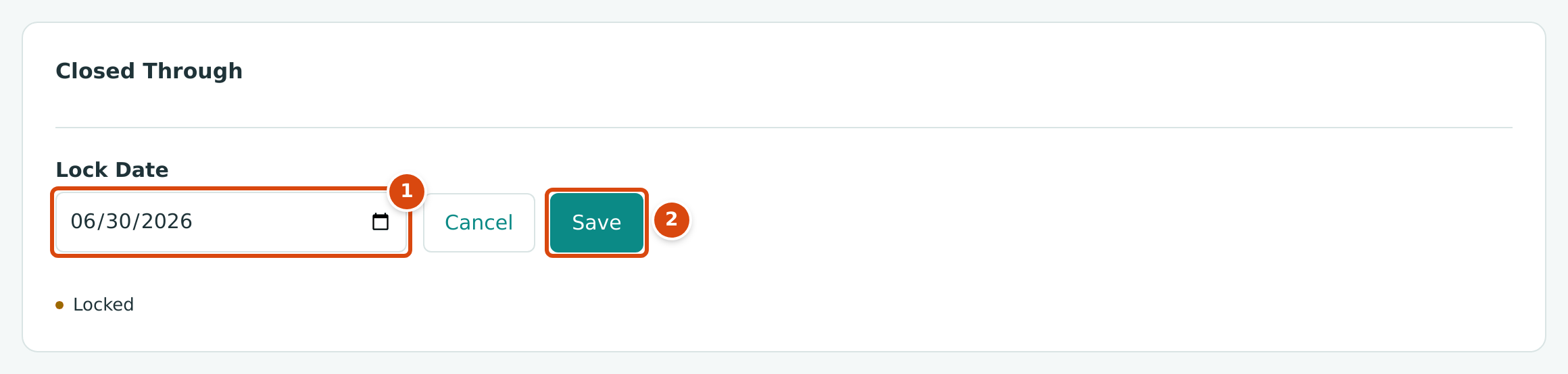
- Lock Date: the last day of the closed period.
- Save closes the books through that date.
The card then shows Jun 30, 2026 and Locked, with Change Date and Reopen (you see it after a later month-end in Exercise F).
You will move this date forward at each month-end in Exercise F. See Books Closed.
Step 8: Give Your Accountant Access
- Go to Settings → Users & Access.
- Under Add User, enter the accountant's Email. This accountant already has a Structally sign-in, so the existing name is used and the Full Name box is not needed.
- Choose Role Accountant and click Add User.
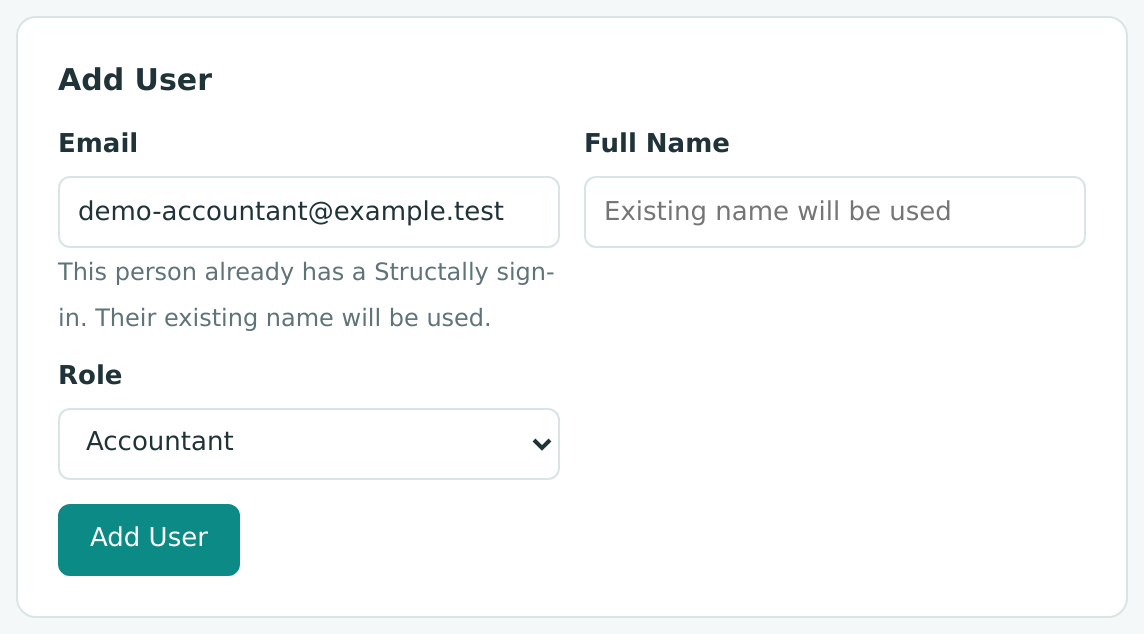
A person who already has a Structally sign-in can open the company at once. A new person receives an invitation email to set a password first. Each user takes one seat; the company here uses 2 of its 5 seats.
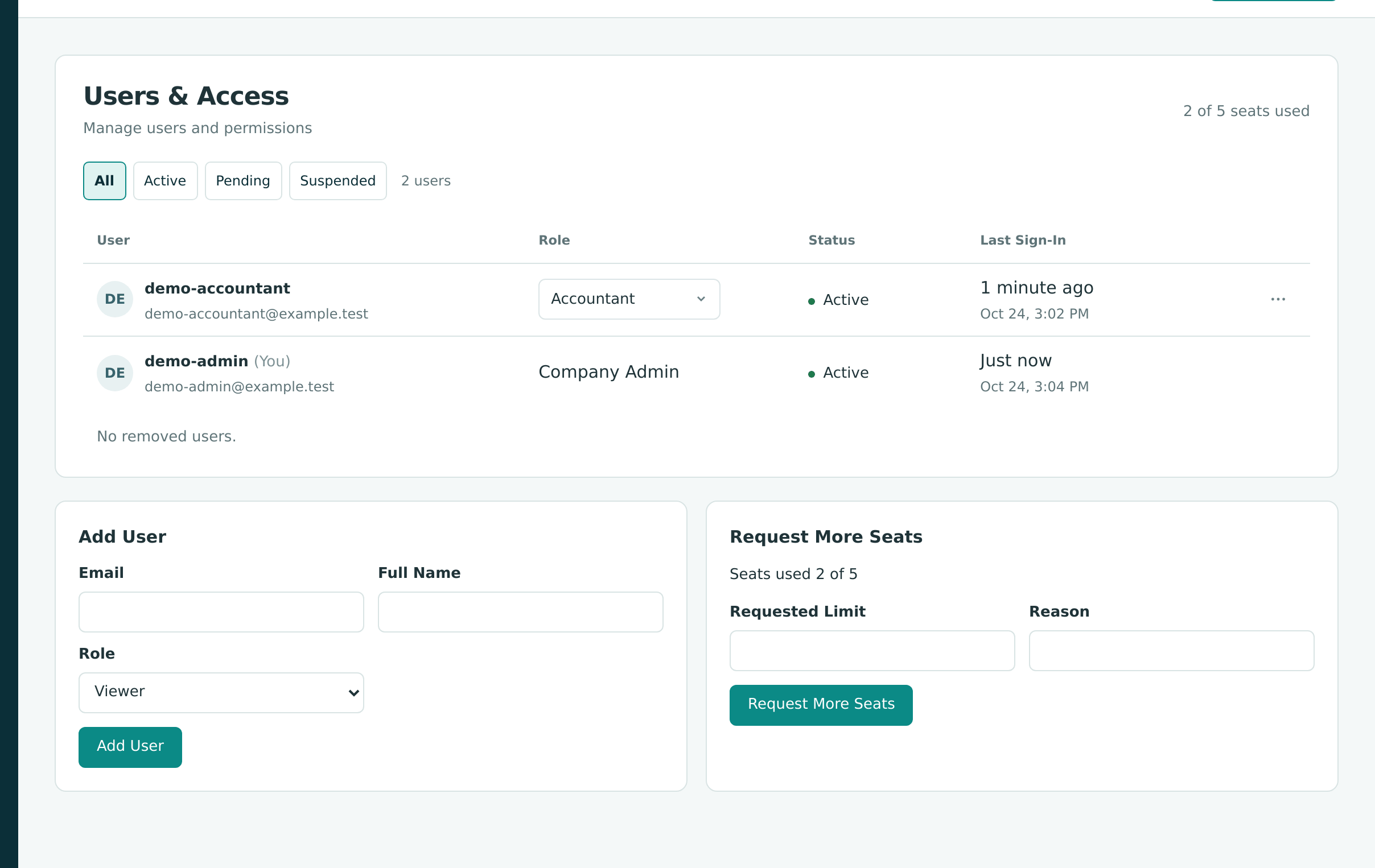
See Users & Access and Roles and Permissions.
Step 9: Set Up Payment Terms
A new company has no payment terms, and the customers and vendors of the next exercises need them. Cedar Ridge Training uses three:
| Name | Days | Company Default |
|---|---|---|
| Due on Receipt | 0 | |
| Net 15 | 15 | |
| Net 30 | 30 | Ticked |
- Go to Accounting → Terms and click New Terms.
- In the New Terms drawer, enter the Name and Days, tick Company Default for Net 30 only, and click Add Terms.
- Repeat for each of the three terms.
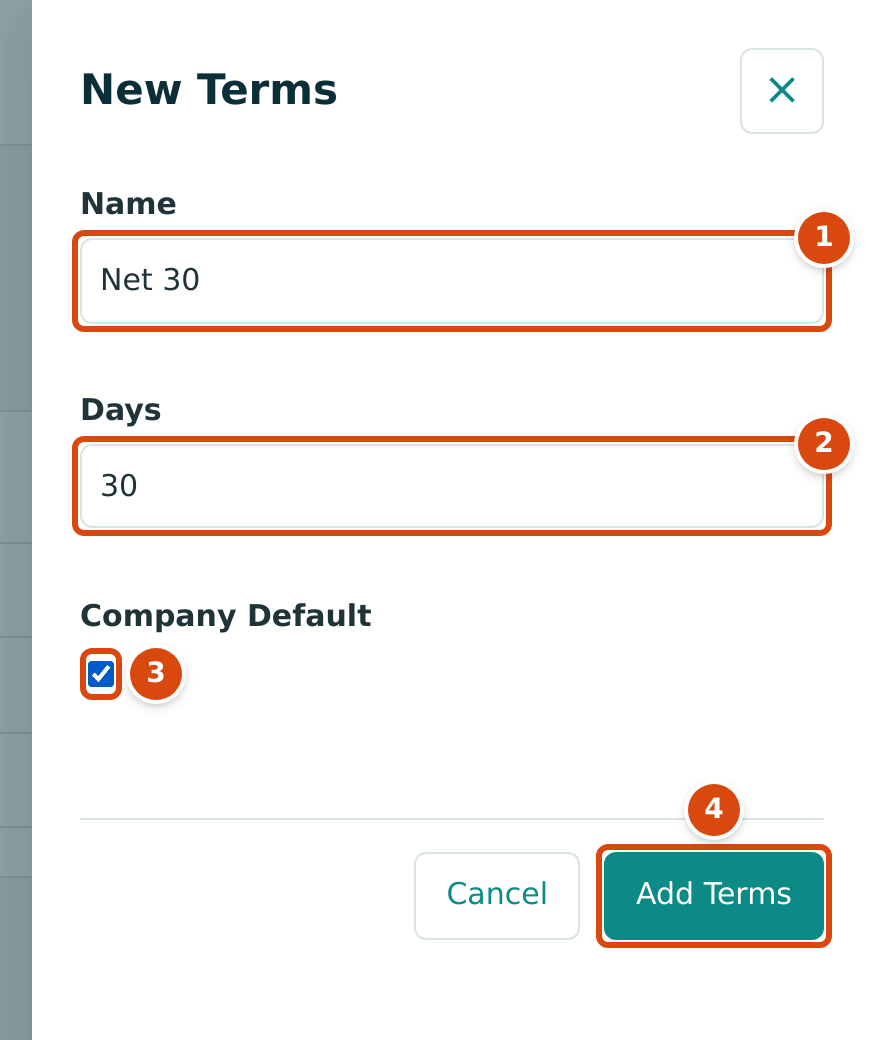
- Name: how the terms appear in the pickers.
- Days: the due date is this many days after the document date.
- Company Default: the terms new bills and invoices start with.
- Add Terms saves them.
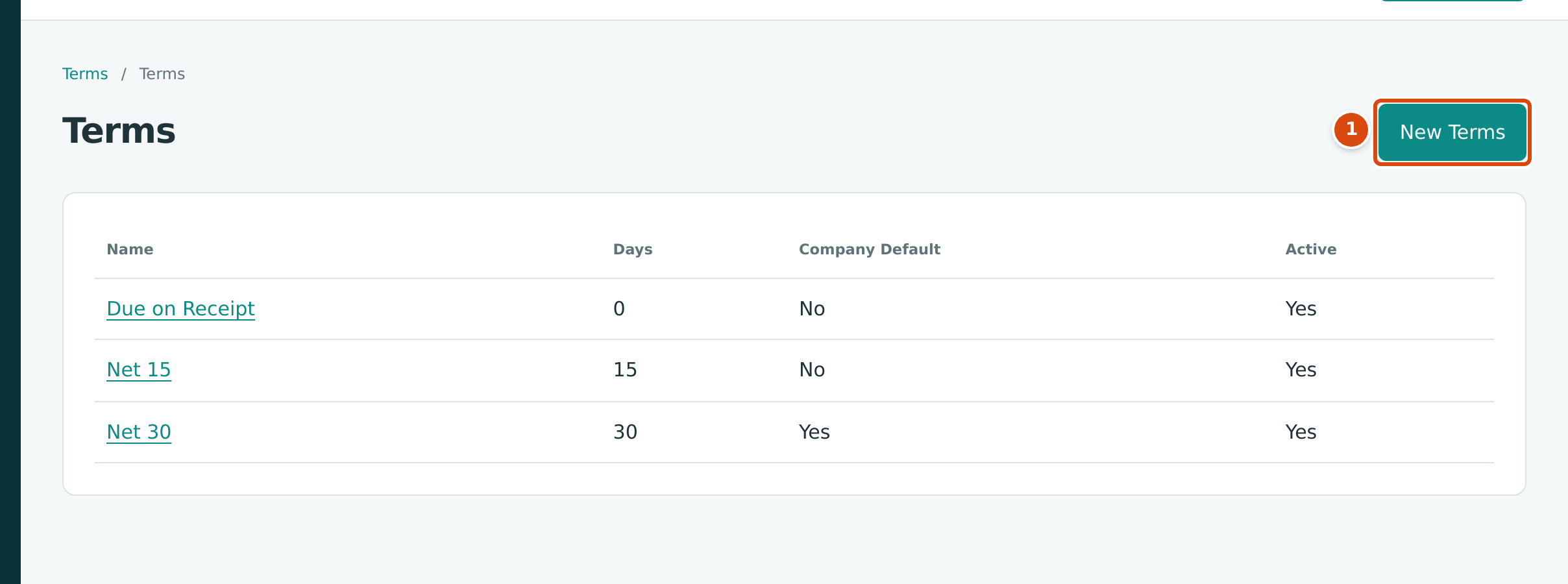
- New Terms opens the drawer for another set of terms.
Terms only set due dates; adding them posts nothing. See Payment Terms.
Check Your Work
| Check | Where | Expected |
|---|---|---|
| Opening cash | Accounting → Chart of Accounts, 1010 | 250,000.00 |
| Opening equity | Reports → Balance Sheet as of 2026-06-30 | Opening Balance Equity 295,000.00 |
| Closed period | Settings → Books Closed | Jun 30, 2026, Locked |
| Users | Settings → Users & Access | 2 of 5 seats used |
| Terms | Accounting → Terms | Due on Receipt, Net 15, Net 30 (Company Default) |
The company is ready for its first project.
Next: B: Starting a New Project.