Cost Codes and Cost Types
Every job cost in Structally is classified two ways:
- A cost code is the work category: a phase, trade or division of the work, such as 06-100 Rough Carpentry or 09-100 Drywall. Many contractors number their codes after the CSI divisions, as the sample company does.
- A cost type is the kind of cost within that work: LAB Labor, BUR Burden, MAT Materials, SUB Subcontract, EQP Equipment, OVH Overhead or OTH Other.
Budgets, commitments and job-coded cost lines all use the pair, so you can see, for example, that the drywall budget on J-2004 is 211,200.00 of subcontract cost (09-100 · SUB). This page explains how to keep both lists and how to choose which cost codes each job uses.
Before You Begin
- Jobs & Costing is turned on for your company (see Jobs & Costing).
- Adding, changing and assigning codes and types needs Edit access to Jobs & Costing. Company Admins, Accountants and Project Managers have it; Viewers do not. See Roles and Permissions.
Navigation
Jobs & Costing → Job Costing Settings. The Cost Codes card is at the top; Cost Types follows it. A job's own codes are in the Cost Codes card near the bottom of the job's page; click Edit on that card to change them.
Cost Codes
The Cost Codes card lists every code with its Code, Name, General and Active columns. Click a name to open the code's page.
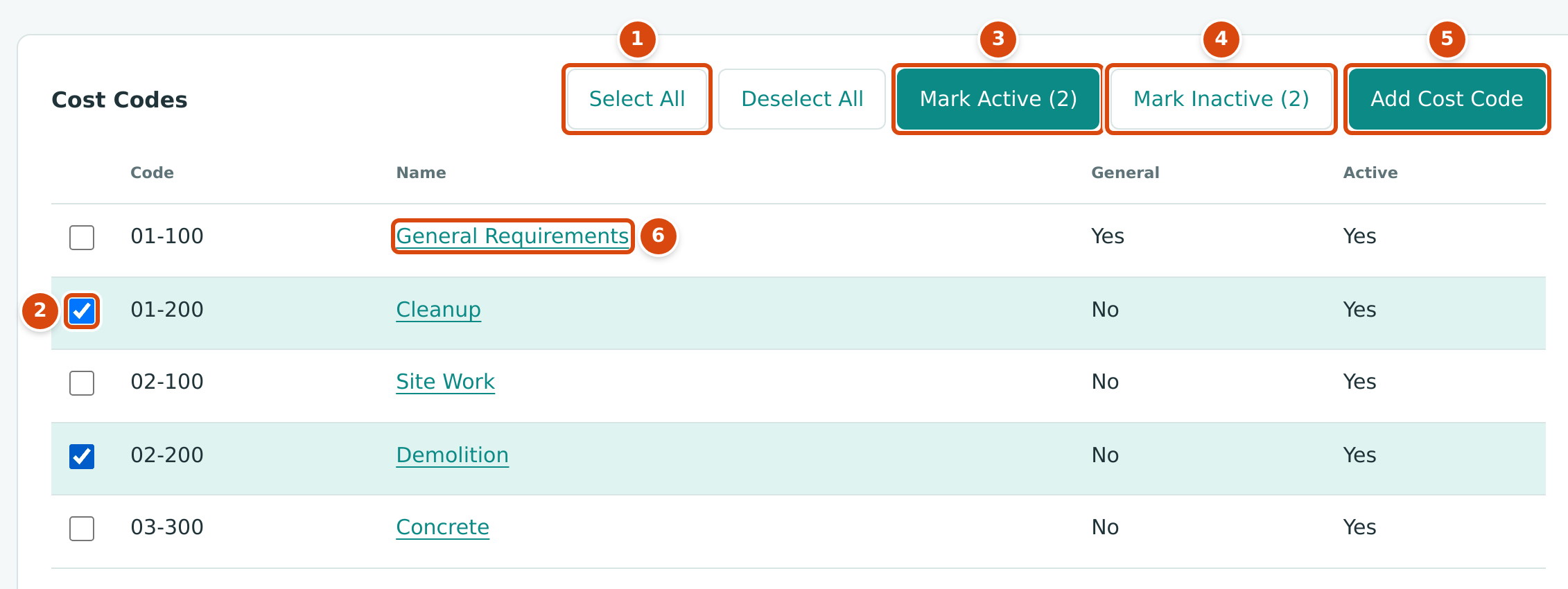
- Select All ticks every code; Deselect All clears the ticks.
- The tick box of a code.
- Mark Active makes the ticked codes active. The number in brackets is how many are ticked.
- Mark Inactive makes the ticked codes inactive.
- Add Cost Code opens the New Cost Code panel.
- Click a name to open the code's page.
General Cost Codes
A cost code marked General is assigned to every job automatically, including jobs you create later, and cannot be unassigned from a job. Use it for codes every job needs, such as 01-100 General Requirements in the sample company. Turning General on for an existing code assigns it to every job that is not archived.
Adding a Cost Code
- On Job Costing Settings, click Add Cost Code.
- Type the Code (letters, digits, hyphens or periods, up to 20 characters) and the Name (up to 120 characters).
- Tick General if every job should have the code.
- Leave Active ticked to use the code right away.
- Click Create Cost Code. Structally confirms with Cost code 09-400 added.
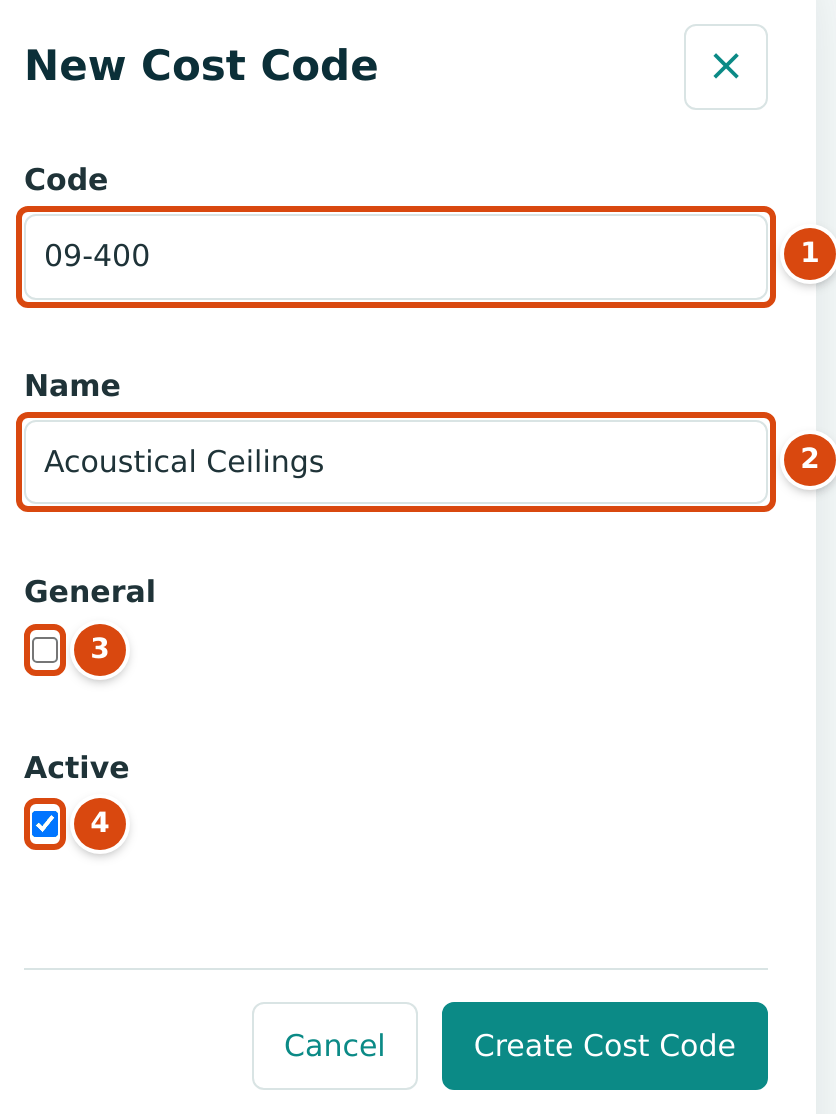
- Code: unique in the company, whatever the capitalization.
- Name: what the work is.
- General: assign the code to every job.
- Active: the code can be used on new lines.
A new cost code that is not General is not on any job yet. Assign it to the jobs that need it (see Assigning Cost Codes to a Job).
The Cost Code Page and Editing a Code
The code's page shows Cost Code Details: Code, Name, General and Active.
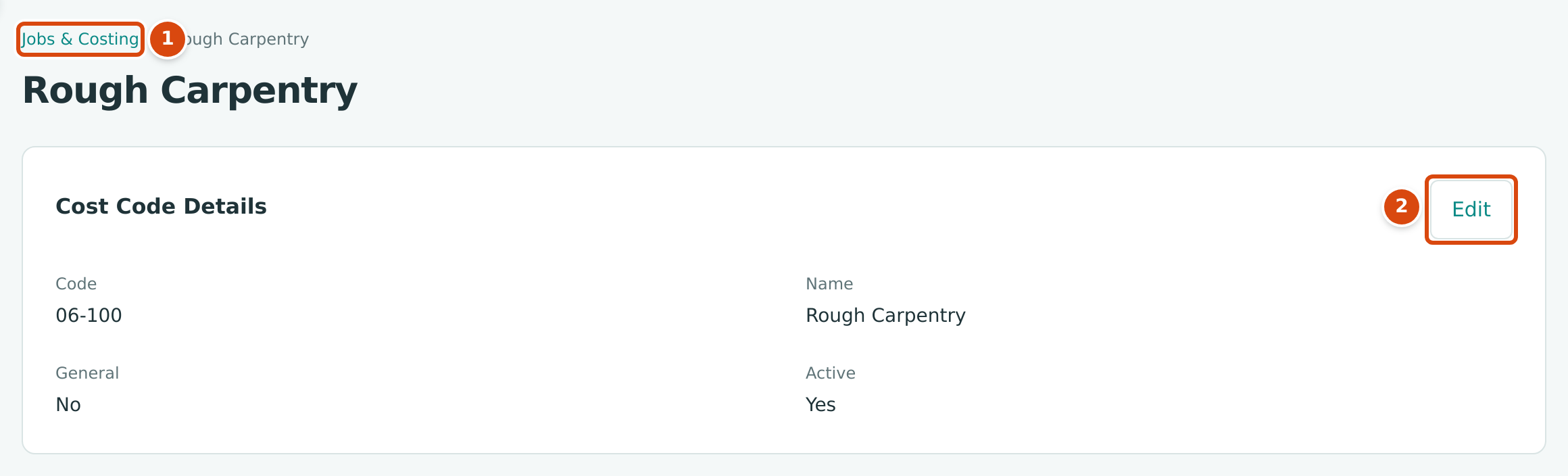
- The breadcrumb leads back to Jobs & Costing.
- Edit opens the details for changes.
- Click Edit.
- Change the Code, Name, General or Active as needed.
- Click Save (or Cancel). Structally confirms with Cost code saved.
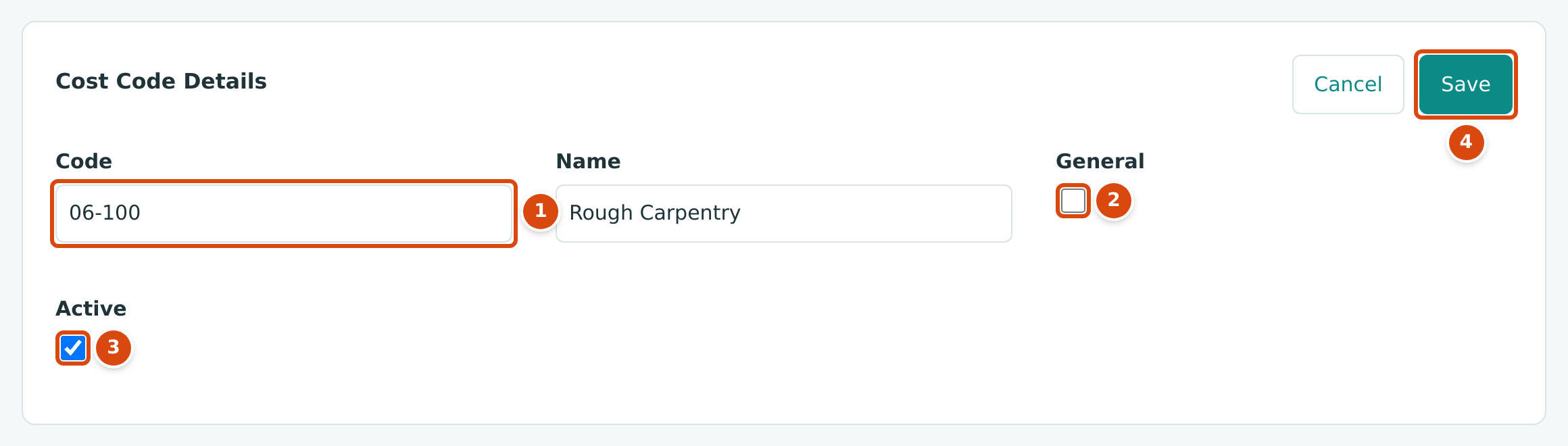
- Code: you can renumber a code. Lines already posted keep pointing to the same code and show the new number.
- General: tick to assign the code to every job.
- Active: untick to stop the code from being used on new lines.
- Save the change.
Cost Types
The Cost Types card lists every type with its settings. Structally adds the seven standard types when Jobs & Costing is turned on for a company:
| Code | Name | WIP Group | Sort Order |
|---|---|---|---|
| LAB | Labor | Labor and Subcontract | 10 |
| BUR | Burden | Labor and Subcontract | 20 |
| MAT | Materials | Material and Other | 30 |
| SUB | Subcontract | Labor and Subcontract | 40 |
| EQP | Equipment | Material and Other | 50 |
| OVH | Overhead | Material and Other | 60 |
| OTH | Other | Material and Other | 70 |
All seven start with Counts Toward Progress set to Yes and Uninstalled Default set to Deferred. You can rename, change or deactivate them, and add your own.
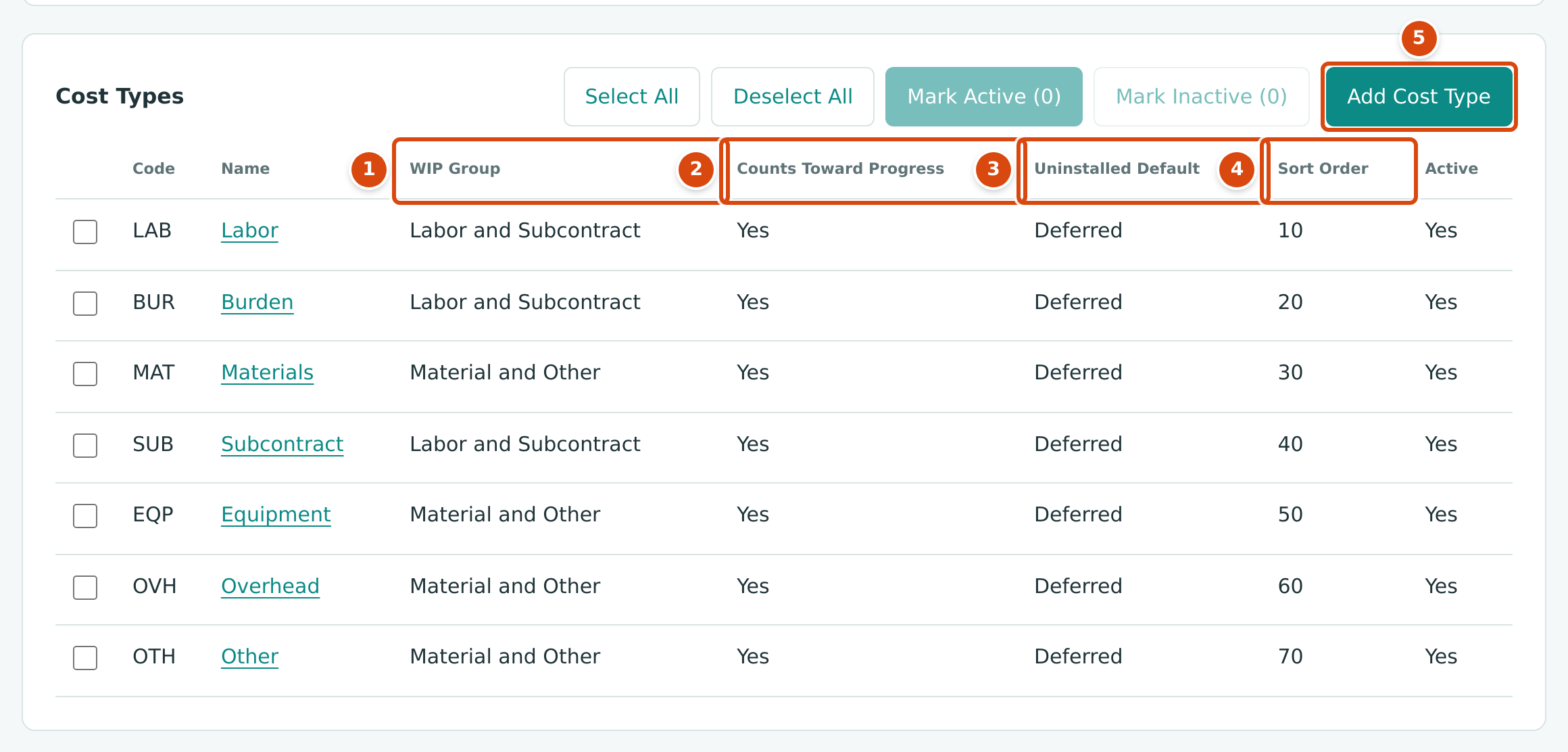
- WIP Group: Labor and Subcontract or Material and Other.
- Counts Toward Progress: whether the type's costs measure progress on the WIP schedule.
- Uninstalled Default: how the WIP schedule treats the type's costs when they do not count toward progress.
- Sort Order: the order of the types in lists.
- Add Cost Type opens the New Cost Type panel.
What the settings do:
- Counts Toward Progress: when set to No, costs of this type are left out of the percentage of completion on the WIP schedule and are listed there automatically as uninstalled materials.
- Uninstalled Default: the treatment those listed costs start with on the WIP schedule, Deferred or Revenue at Cost. See WIP Schedules.
- WIP Group: a grouping label shown on the cost type. In this version Structally does not use it in any calculation or report.
- Sort Order: a whole number from -32768 to 32767; lower numbers come first in the cost type lists.
Adding or Editing a Cost Type
- On Job Costing Settings, click Add Cost Type, or click a type's name and then Edit on its page.
- Type the Code (letters and digits only, up to 10 characters) and the Name (up to 60 characters).
- Choose the WIP Group, Counts Toward Progress and Uninstalled Default, and type the Sort Order.
- Leave Active ticked to use the type right away.
- Click Create Cost Type (or Save on the type's page). Structally confirms with Cost type SAF added. or Cost type saved.
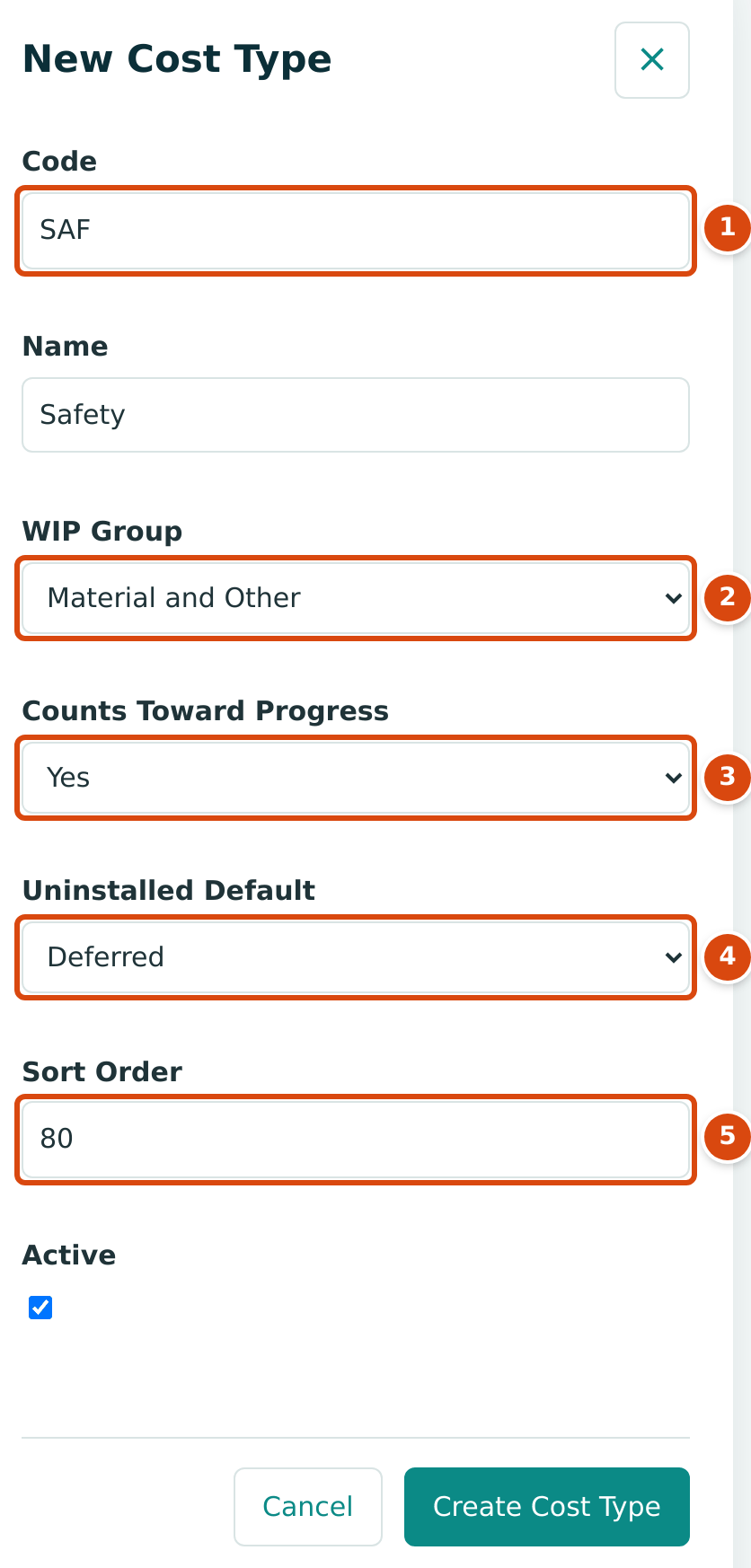
- Code: unique in the company, whatever the capitalization.
- WIP Group.
- Counts Toward Progress.
- Uninstalled Default.
- Sort Order: 80 places the new type after OTH (70).
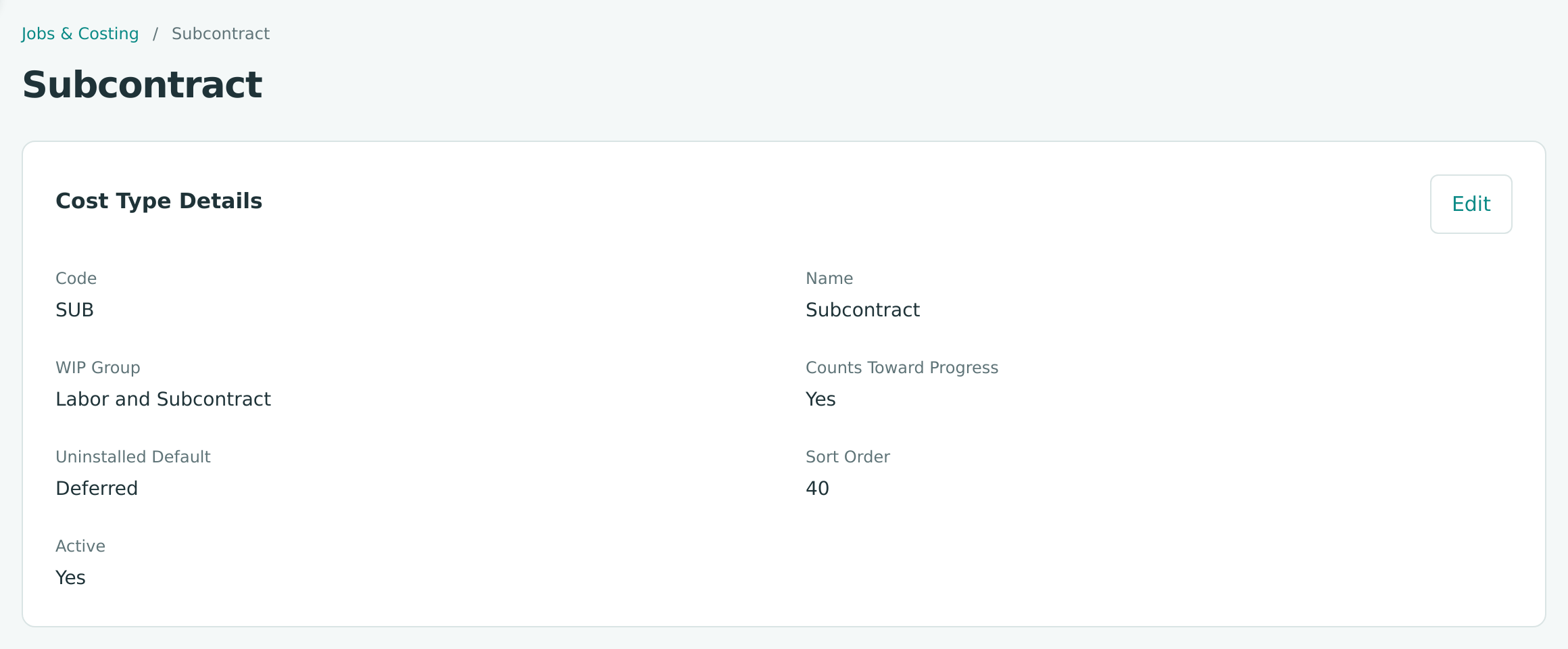
The type's own page shows the same details as a list:
Activating and Deactivating Codes and Types
You cannot delete a cost code or cost type. When you no longer need one, make it inactive:
- On Job Costing Settings, tick the codes (or types) to change, or click Select All.
- Click Mark Inactive (or Mark Active). Structally confirms with, for example, 2 cost codes marked inactive.
You can also untick Active on the code's or type's own page.
An inactive code or type:
- is no longer offered on bills, expenses, journal entries, budgets and commitments, and a line that still names it is refused with Cost code 01-200 is inactive. or Cost type OVH is inactive.;
- stays on every posted line and in every report;
- shows as Inactive in the Cost Codes card of each job.
Assigning Cost Codes to a Job
A job accepts only the cost codes assigned to it. You choose the first codes on the New Job form (see Creating and Managing Jobs); afterwards you manage them in the Cost Codes card near the bottom of the job's page, above History. The card opens read-only, listing each code with its Code, Name and Status.
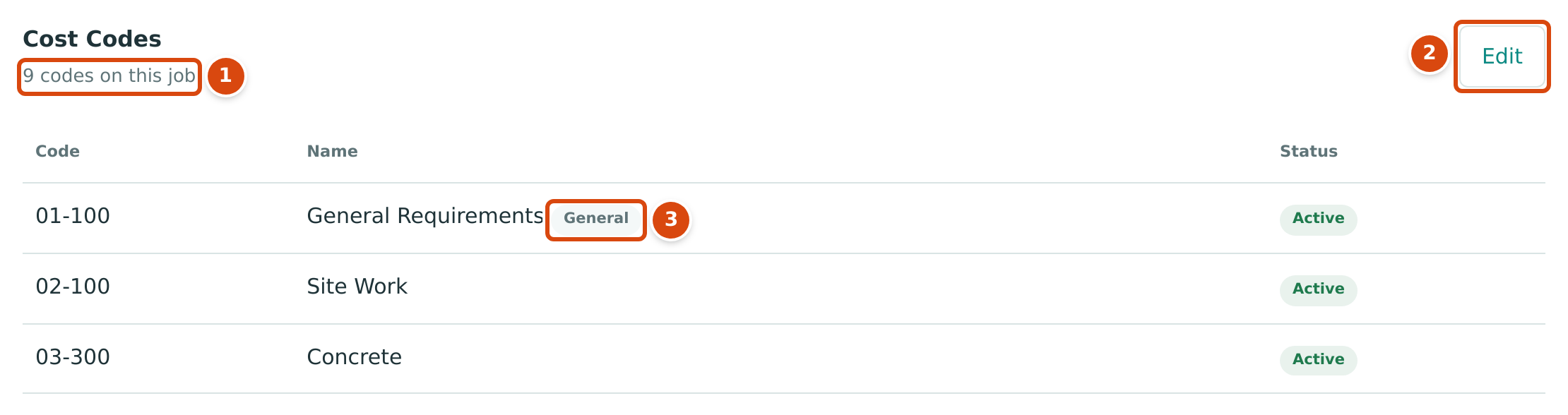
- How many codes the card lists, here 9 codes on this job.
- Edit turns on edit mode, with tick boxes, Add Codes and Done. It is shown to users with Edit access to Jobs & Costing, and not on archived jobs.
- General codes are assigned to every job and always stay on it.
Adding Codes to a Job
- On the job page, click Edit on the Cost Codes card.
- Click Add Codes. The Add Cost Codes drawer opens on the right.
- Under Available, tick each code to add, or click Select All. Deselect All clears the ticks.
- Scroll to the bottom of the drawer and click Add 2 Codes (the number follows your ticks). Cancel (or ×) closes the drawer without adding anything.
Structally adds the codes and opens the job page again, with the card read-only. If the codes cannot be added, the drawer opens again and the reason appears at the top of the page.
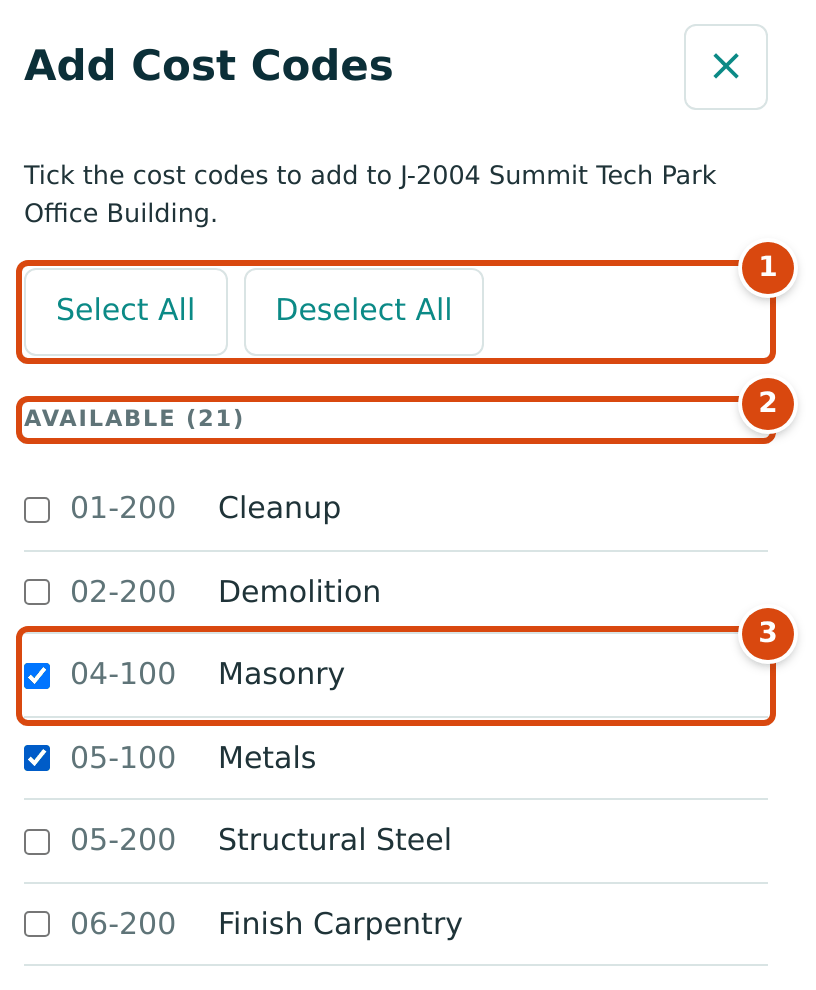
- Select All and Deselect All tick or untick every available code.
- Available: the active codes that are not on the job yet, with their count.
- A ticked code, here 04-100 Masonry.
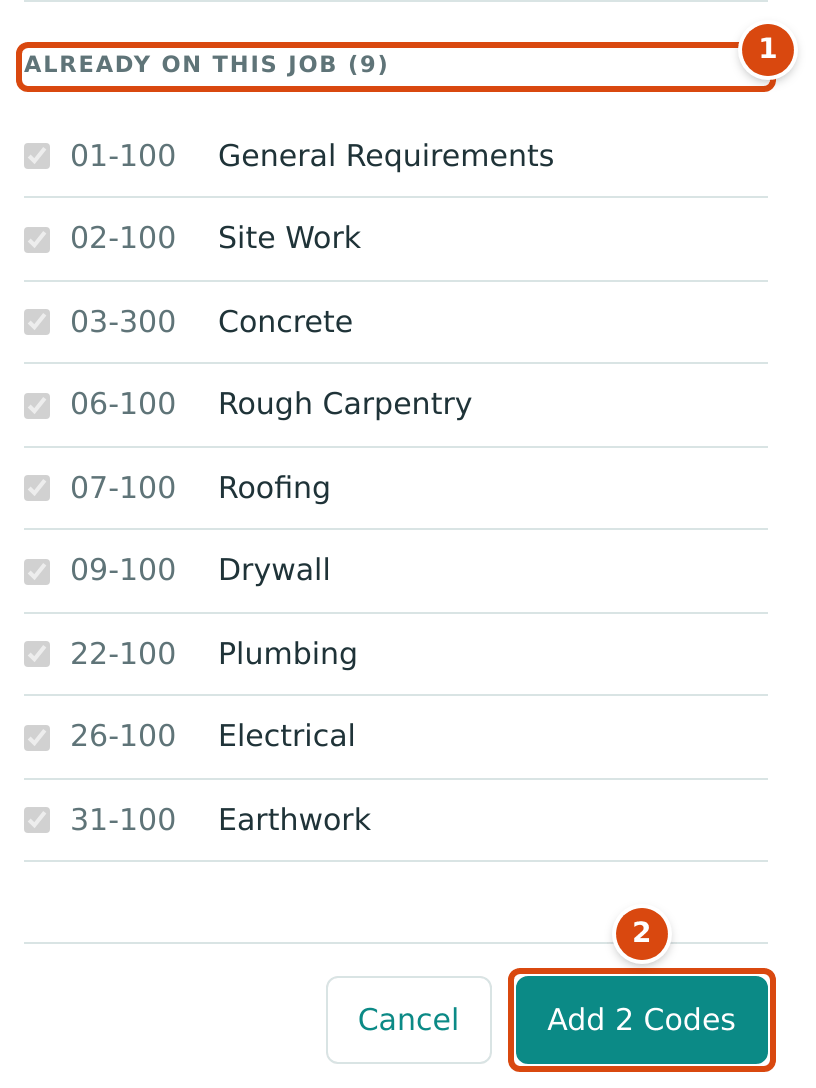
- Already on This Job: the codes the job has now. They are shown ticked and grayed out.
- Add 2 Codes adds the ticked codes. With nothing ticked it reads Add Codes and cannot be clicked.
Add Codes is not shown when every active code is already on the job.
Unassigning and Reassigning Codes
- On the job page, click Edit on the Cost Codes card. A tick box appears before each code.
- Tick the codes to change, or click Select All. Deselect All clears the ticks.
- Click Unassign to take the ticked codes off the job, or Assign to put back ticked codes that were unassigned. Each button shows how many of the ticked codes it applies to: Unassign (2) counts the ticked codes that are assigned to the job, Assign (1) the ticked codes that were unassigned.
- Click Done to leave edit mode. Done also clears any ticks.
An unassigned code stays in the card with the status Inactive. To use it on the job again, tick it and click Assign, or add it with Add Codes, where it is listed under Available.
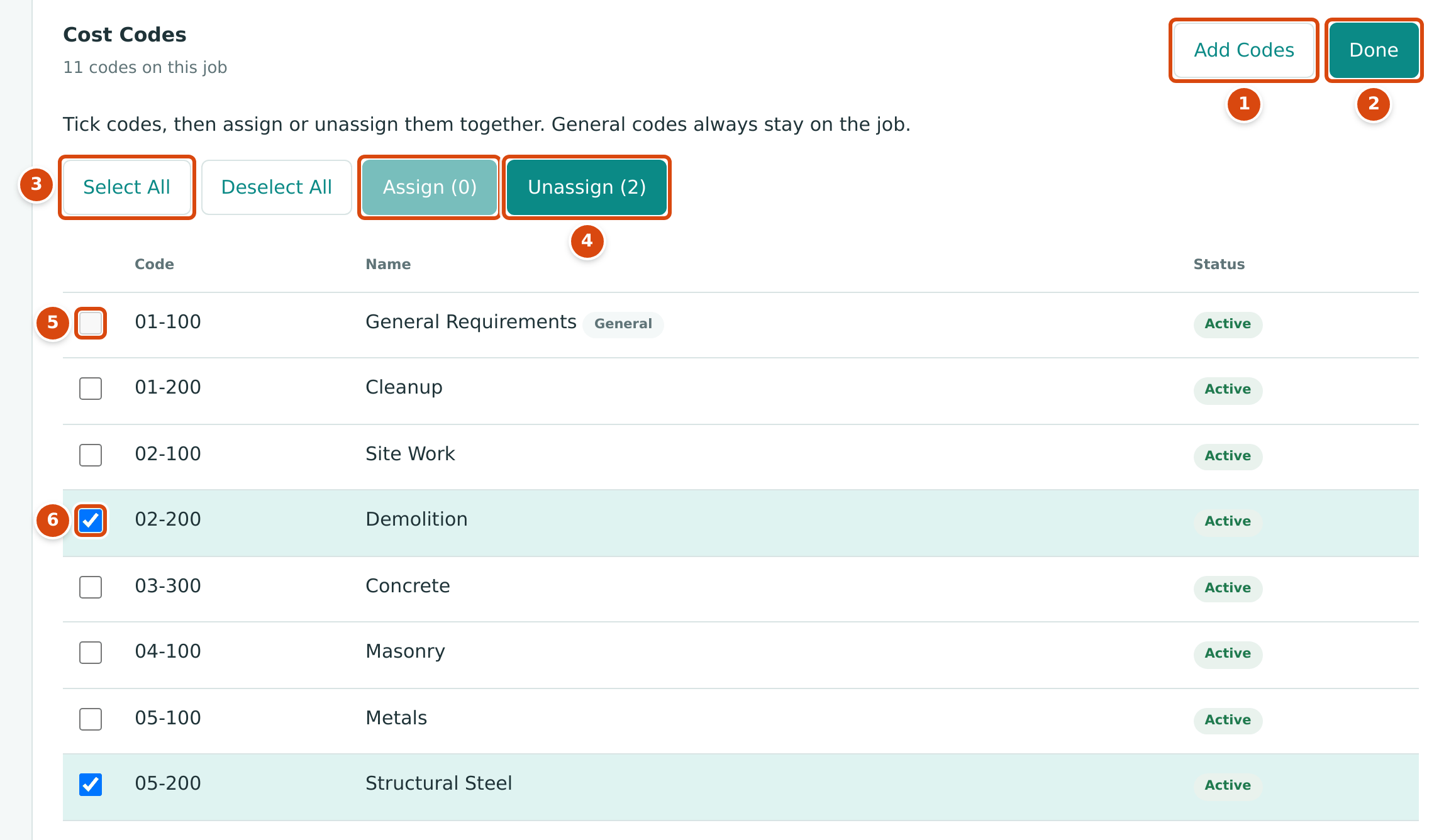
- Add Codes opens the Add Cost Codes drawer.
- Done leaves edit mode.
- Select All ticks every code except General codes.
- Assign (0) and Unassign (2): each count follows the ticks. A button with nothing to change cannot be clicked.
- A General code's tick box is grayed out: General codes stay on every job.
- A ticked code, here 02-200 Demolition.
If Structally refuses a change, the job page opens again with the card in edit mode and the reason at the top of the page, and none of the ticked codes is changed.
Rules for assignments:
- You cannot unassign a code that already has posted lines on the job: Cost code 06-100 has posted lines on this job and stays assigned. If one ticked code has posted lines, Unassign changes none of them.
- You cannot unassign a General code: General cost codes stay assigned to every job. Its tick box is grayed out in edit mode.
- You cannot assign an inactive code: Inactive cost codes cannot be assigned. Inactive codes are not listed in the Add Cost Codes drawer.
- An archived job's codes cannot be changed: its Cost Codes card has no Edit button.
- Budget lines and commitment lines can use only the codes assigned to the job: Cost code is not assigned to this job.
Importing Cost Codes and Cost Types
To load a long list, use Settings → Import Data and choose Cost
Codes (columns code, name and general) or Cost Types (columns code, name,
wip_group and sort_order). See Import Data.
Field Reference
| Field | Description | Required | Example |
|---|---|---|---|
| Code (cost code) | 1 to 20 letters, digits, hyphens or periods; unique in the company. | Yes | 09-400 |
| Name (cost code) | 1 to 120 characters. | Yes | Acoustical Ceilings |
| General | Assigns the code to every job. | No | Unticked |
| Active | Whether the code can be used on new lines. | No | Ticked |
| Code (cost type) | 1 to 10 letters or digits; unique in the company. | Yes | SAF |
| Name (cost type) | 1 to 60 characters. | Yes | Safety |
| WIP Group | Labor and Subcontract, or Material and Other. | Yes | Material and Other |
| Counts Toward Progress | Yes or No. | Yes | Yes |
| Uninstalled Default | Deferred or Revenue at Cost. | Yes | Deferred |
| Sort Order | A whole number from -32768 to 32767. | Yes | 80 |
| Active (cost type) | Whether the type can be used on new lines. | No | Ticked |
Worked Example: Adding a Code for a New Scope
The owner of J-2004 Summit Tech Park Office Building asks Cedar Ridge to price acoustical ceilings. The company has no code for that work. (This example is illustrative.)
- On Job Costing Settings, click Add Cost Code, type 09-400 and Acoustical Ceilings, leave General unticked, and click Create Cost Code.
- Open J-2004, click Edit on the Cost Codes card and then Add Codes. In the Add Cost Codes drawer, tick 09-400 Acoustical Ceilings under Available and click Add 1 Code.
- The code can now be used on J-2004's budget revisions, commitments and cost lines, for example 09-400 · SUB for the ceiling subcontractor. Other jobs still cannot use it until it is assigned to them.
Common Mistakes and Troubleshooting
| Message or Symptom | Why It Happens | What to Do |
|---|---|---|
| Cost code already in use | Another code has the same code, whatever the capitalization. | Use another code, or open the existing one. |
| Cost code must be 1 to 20 letters, digits, hyphens or periods. | The code is empty, too long or has spaces or other characters. | Use only letters, digits, hyphens and periods. |
| Cost type code must be 1 to 10 letters or digits. | A cost type code has other characters or is too long. | Use letters and digits only. |
| Cost type already in use | The type code exists already. | Use another code. |
| Mark Active and Mark Inactive are grayed out | No row is ticked. | Tick at least one row. |
| A new code is missing from a bill line's Cost Code list | The code is not assigned to the job chosen on the line. | Assign it to the job first. |
| Cost code 06-100 is not assigned to job J-1036. | A line names a code that is not assigned to its job. | Pick an assigned code, or assign the code to the job. |
| Cost code 06-100 has posted lines on this job and stays assigned. | One of the ticked codes has posted costs or revenue on the job, so none of them was unassigned. | Untick that code and click Unassign again for the others. |
| There is no Delete button | Codes and types are kept for history. | Mark them inactive instead. |
| A job's Cost Codes card has no Edit button. | You have View access to Jobs & Costing, or the job is archived. | Ask a user with Edit access to Jobs & Costing. An archived job's codes cannot be changed. |
| Assign and Unassign are grayed out in edit mode. | No ticked code can be changed that way: Assign counts only unassigned codes, Unassign only codes on the job. | Tick the codes the button should change. |
| There is no Add Codes button in edit mode. | Every active cost code is already on the job. | Add a cost code in Job Costing Settings first. |