Users & Access
Users & Access is where a Company Admin decides who can sign in to the company and what each person can do there. Every user has one role in the company, which sets their access to each area of Structally (see Roles and Permissions for what each role allows). From this page you add users, change their roles, give a Custom user exactly the access they need, suspend or remove access, resend invitations, send password resets, and ask Structally for more seats.
A person can work in several companies with one sign-in and a different role in each. Everything on this page applies to this company only.
Before You Begin
- You must be a Company Admin. This page is not available to any other role, including Custom users with Settings access.
- Adding or reactivating a user needs a free seat (see Seats).
Navigation
Settings → Users & Access, or the Users & Access card on the Settings overview.
The User List
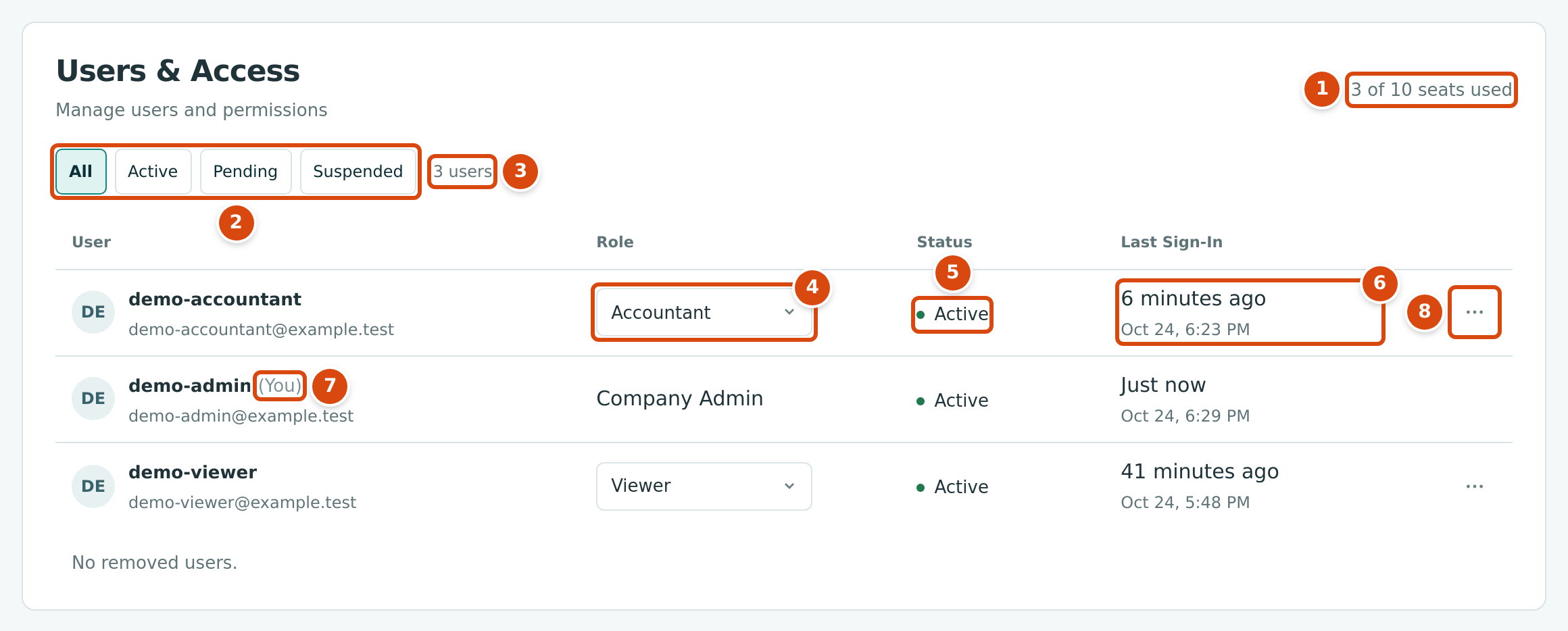
- The seats in use and the company's seat limit: 3 of 10 seats used.
- Status filters: All, Active, Pending and Suspended. Structally remembers your choice for the next visit.
- How many users the filter shows.
- Role: choose another role to change it (see Changing a Role).
- Status of the user's access.
- Last Sign-In: how long ago and when the user last signed in. A user who has not yet signed in shows Never and the date of the invitation.
- (You) marks your own row. You cannot change your own role or access, so your row has no role selector and no menu.
- The ⋯ menu holds the other actions for the user.
The list shows everyone with access to the company, in order of email address, except Structally's own support staff. There is no column sorting; use the status filters to narrow the list. The name is the user's full name, or the part of the email before the @ when no name is known.
| Status | Meaning |
|---|---|
| Active | The user can sign in and open the company. |
| Pending | The user was added but has not yet set a password from the invitation email. Pending users can be given a role and do use a seat. |
| Suspended | Access is paused. The user cannot open this company until reactivated. |
Users whose access was removed are listed separately under Removed Users (or the page says No removed users.).
Adding a User
- In Add User, type the person's Email.
- Type their Full Name.
- Choose the Role. It starts as Viewer.
- Click Add User.
Structally confirms with User added. The user appears in the list.
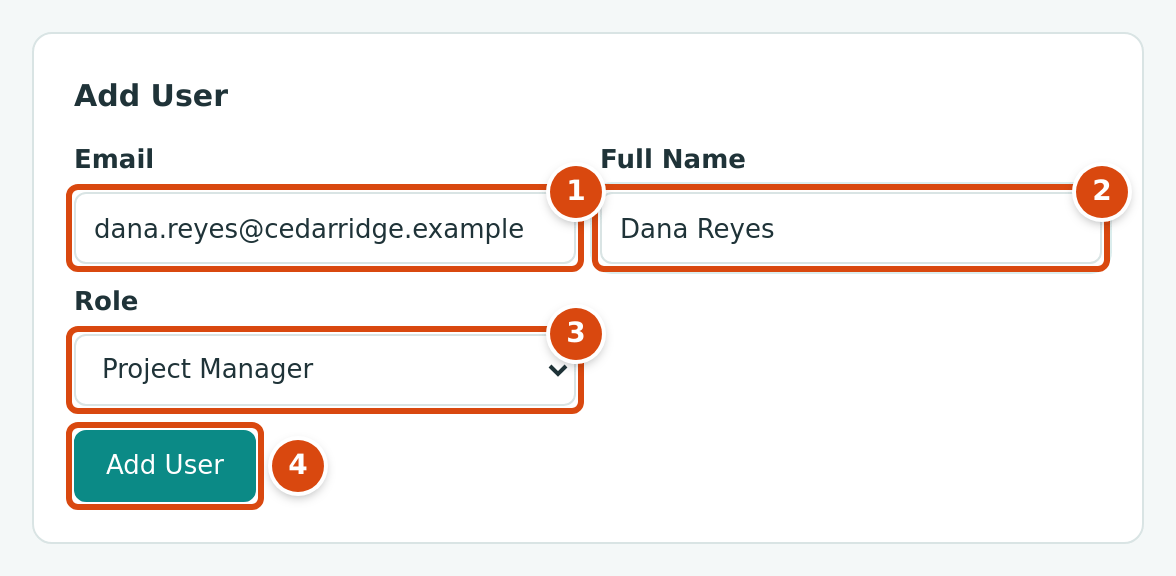
- Email: the address the person signs in with.
- Full Name: how the person appears in Structally.
- Role: Company Admin, Accountant, Viewer, Project Manager or Custom.
- Add User.
What happens next depends on whether the email already has a Structally sign-in:
- A new person gets an invitation email to set a password. Until they do, their status is Pending.
- Someone who already signs in to Structally (for another company, for example) keeps their sign-in and name. As soon as you leave the Email field, Structally checks the address and, if it is known, shows This person already has a Structally sign-in. Their existing name will be used. and disables Full Name. The confirmation then reads User added. They already had a Structally sign-in, so their existing name is used. The person finds the company in their company list the next time they sign in (see Choosing a Company).
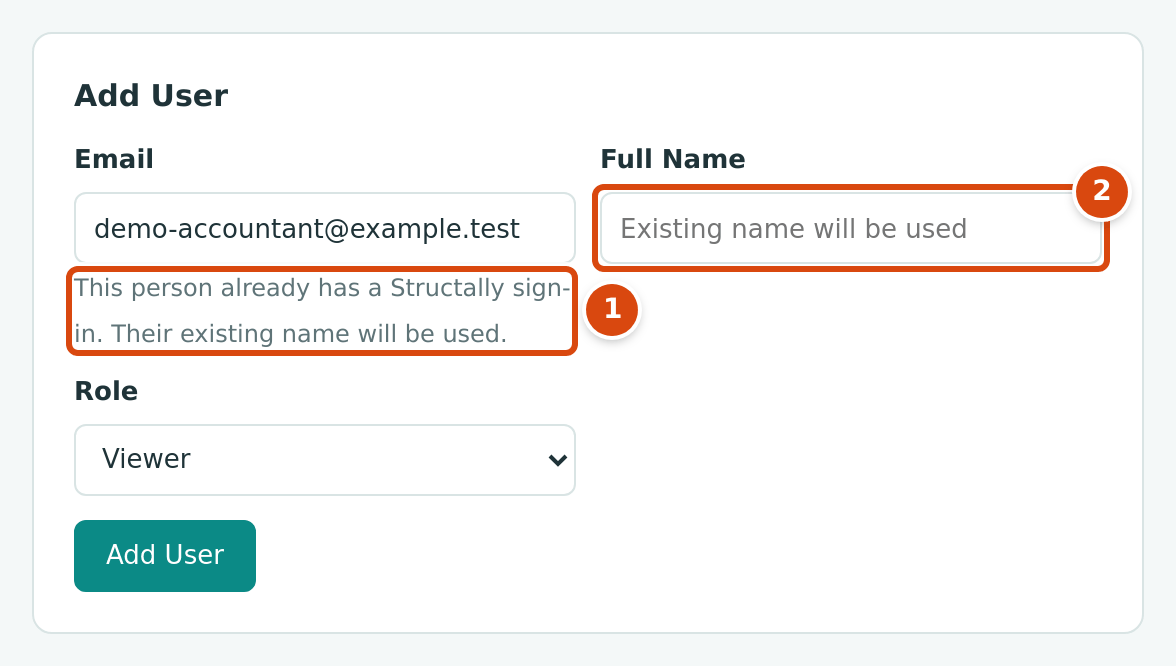
- The notice that the person already has a sign-in.
- Full Name is disabled: "Existing name will be used".
A user added with the Custom role starts with No Access to every area. Open Edit Access next to give them access (see Custom Access).
Changing a Role
- In the user's row, choose the new role in the Role list.
- Your browser asks you to confirm, naming the user (by full name, or by email when no name is known) and the new role, for example "Change demo-viewer@example.test to Accountant?". Click OK to save it at once, or Cancel to keep the old role.
The new role applies from the user's next page. When you change someone to Custom, they start with No Access to every area; open Edit Access to choose. Changing a Custom user to another role discards their custom choices.
Custom Access
A Custom user's access is chosen area by area. For a Custom user, the ⋯ menu has Edit Access, which opens a Custom Access card under the list with the user's name:
| Area | No Access | View | Edit |
|---|---|---|---|
| Customers & Invoices | ○ | ○ | ○ |
| Vendors & Bills | ○ | ○ | ○ |
| Jobs & Costing | ○ | ○ | ○ |
| Banking | ○ | ○ | ○ |
| Reports | ○ | ○ | ○ |
| Accounting | ○ | ○ | ○ |
| Settings | ○ | ○ | ○ |
- Choose No Access, View or Edit for each of the seven areas.
- Click Save Access, or Cancel to leave it unchanged.
As the card explains, Edit allows creating, posting and changing records in that area. View shows pages and reports only. Whatever you choose, a Custom user cannot perform the approval steps or the actions reserved for Company Admins (see Roles and Permissions). The Project Manager role is the same as Custom with Edit on Customers & Invoices, Vendors & Bills and Jobs & Costing and No Access elsewhere.
No Screenshot of the Custom Access Card
The sample company has no Custom user, and giving someone the Custom role would change the sample company, so the Custom Access card is described from the product rather than shown. It lists the seven areas as rows with No Access, View and Edit columns, a short explanation above, the note quoted above below, and the Save Access and Cancel buttons.
The Actions Menu
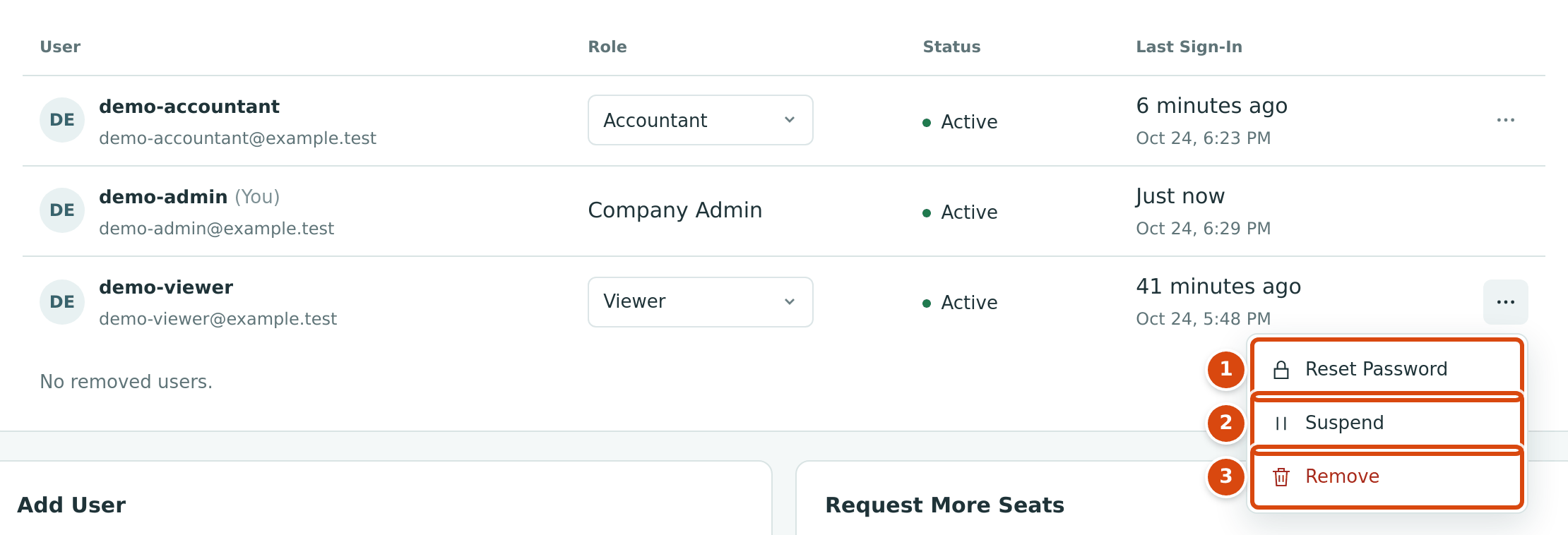
- Reset Password: emails the user a link to choose a new password.
- Suspend: pauses the user's access to this company.
- Remove: takes the user's access away.
The menu shows only the actions that fit the user's status. Each takes effect at once, without a confirmation step.
| Action | Offered For | What It Does |
|---|---|---|
| Edit Access | Custom users | Opens the Custom Access card. |
| Resend Invitation | Pending users | Emails a fresh invitation to set a password. |
| Reset Password | Active users | Emails a link to choose a new password. You never see or set the password yourself. |
| Suspend | Active and Pending users | The user can no longer open this company. Their seat is freed. |
| Reactivate | Suspended users, and users under Removed Users | Gives access back with the same role. Needs a free seat. |
| Remove | Every user except you | Moves the user to Removed Users. Their seat is freed. |
Suspending or removing a user affects this company only; their other companies are not touched. Records they created stay in the company and keep showing who created them (see Suspended and Removed Access).
Rules That Protect Access
- You cannot change your own access. Your row has no controls; if a change reaches Structally another way, it is refused with You cannot change your own access. Ask another Company Admin.
- At least one Company Admin must stay. A change that would leave the company without an active Company Admin (changing the role, suspending or removing the last one) is refused with At least one company admin must remain.
- Seats. Adding or reactivating a user when every seat is taken is refused (see below).
Seats
Your company's plan includes a number of seats. Each Active or Pending user uses one; suspended and removed users and Structally support staff do not. The count appears at the top of the list and on the Settings overview.
When the seats are all used, ask for more:
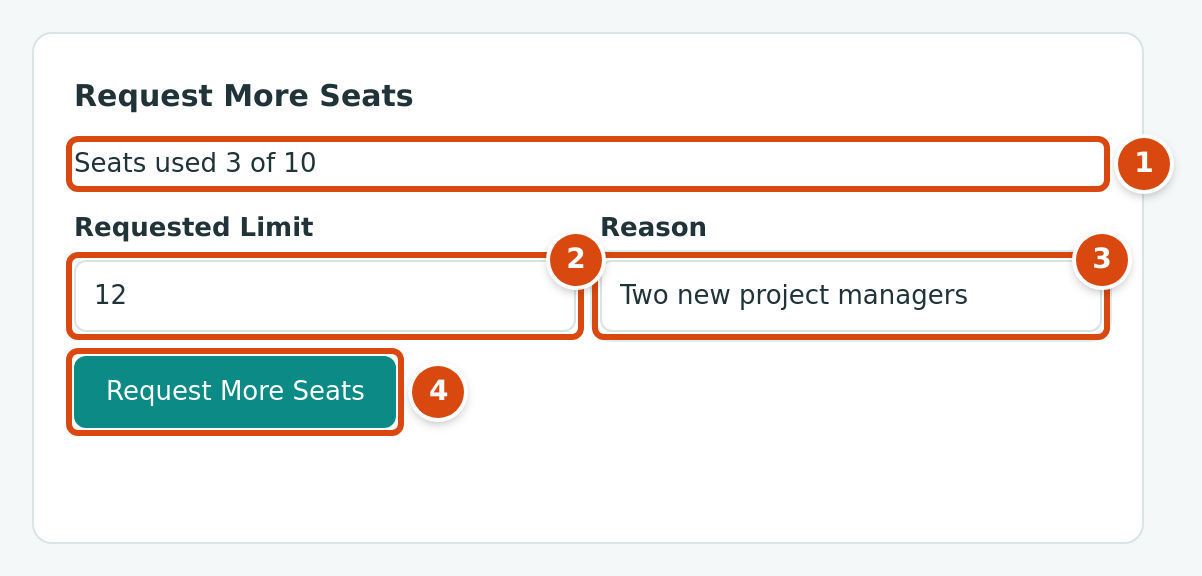
- The seats used and the current limit.
- Requested Limit: the new total number of seats you want, above the current limit and at most 1000.
- Reason: optional, up to 240 characters.
- Request More Seats sends the request to Structally.
While a request is waiting, the card shows "Requested" with the number of seats, the date and your reason, and no new request can be sent. Once Structally decides, the card shows Approved or Rejected with Structally's note; an approved request raises the seat limit.
Field Reference
| Field | Description | Required | Example |
|---|---|---|---|
| Email (Add User) | The person's email address; it becomes their sign-in. | Yes | dana.reyes@cedarridge.example |
| Full Name (Add User) | Up to 150 characters. Ignored when the email already has a sign-in. | No | Dana Reyes |
| Role (Add User and list) | Company Admin, Accountant, Viewer, Project Manager or Custom. | Yes | Project Manager |
| Area levels (Custom Access) | No Access, View or Edit for each of the seven areas. | Yes | Edit on Jobs & Costing |
| Requested Limit | The new seat limit you are asking for. | Yes | 12 |
| Reason | Why you need the seats. Up to 240 characters. | No | Two new project managers |
Worked Example
The sample company has three users on a limit of 10 seats: demo-accountant (Accountant), demo-admin (Company Admin) and demo-viewer (Viewer), all Active, so the page reads 3 of 10 seats used.
Suppose the company hires a project manager (illustrative). The Company Admin adds dana.reyes@cedarridge.example as Project Manager, as in the figure above. The list then shows four users, Dana Reyes with the status Pending and Never under Last Sign-In, and the count becomes 4 of 10. Dana receives an invitation, sets her password, and her status becomes Active. When she later leaves, suspending her frees the seat again (3 of 10) while keeping her history.
Common Mistakes and Troubleshooting
| Message or Symptom | Why It Happens | What to Do |
|---|---|---|
| That person already has access. | The email already has active or suspended access to this company. | Find the user in the list; reactivate them if suspended. |
| Approved seat limit reached for Cedar Ridge Contracting (with your company's name) | Every seat is in use. | Suspend or remove someone, or request more seats. |
| You cannot change your own access. | The change was for your own row. | Ask another Company Admin. |
| At least one company admin must remain. | The change would leave no active Company Admin. | Make another user Company Admin first. |
| Only a custom user has an access matrix. | Access was saved for a user whose role is not Custom. | Change the role to Custom first. |
| Identity has not accepted its invitation yet; resend the invitation instead. | A password reset was sent to a user who never set a password. | Use Resend Invitation. |
| Identity already has a password | An invitation was resent to a user who has since set a password. | Nothing to do; the user can sign in. Use Reset Password if they forgot it. |
| Requested limit must be above the current limit of 10 and at most 1000. (with your limit) | The requested limit is not above the current one, or is over 1000. | Enter a larger number, at most 1000. |
| A seat request is already pending. | You already asked and Structally has not decided yet. | Wait for the decision. |
| A new user did not get the invitation. | The email went to spam, or the address was mistyped. | Check the address in the list; use Resend Invitation, or remove the user and add the right address. |
| Users & Access is not in the navigation. | You are not a Company Admin. | Ask a Company Admin; the locked page names them. |