Sending and Printing Invoices
Once an invoice is posted, you can email it to the customer straight from Structally. The customer receives your message with the invoice attached as a PDF, laid out the same way as the printed invoice, plus any supporting files you choose. You can also open the print view to print the invoice or save it as a PDF from your browser.
How invoices look (layout, color, logo, which details show) is set once for the company in Document Design, and how email is sent in Email Sending. Both are in Settings and are managed by a Company Admin.
Before You Begin
- The invoice is posted: Open or Paid. Drafts and void invoices cannot be sent. Any invoice can be printed.
- To send, you need Edit access to Customers & Invoices. Company Admins, Accountants and Project Managers have it. Anyone who can open the invoice can print it. See Roles and Permissions.
- It helps to have the customer's Primary Email on the customer's page (see Managing Customers); otherwise you type the address when sending.
Navigation
Open the invoice (Customers & Invoices → Invoices → the invoice number), then click Send, or ⋯ → Print. Users who cannot edit see a Print button below the invoice details instead.
Sending an Invoice by Email
- Open the invoice and click Send. The send panel opens over the page.
- Check To. It starts with the customer's Primary Email; type an address if it is empty.
- Optionally add Cc addresses, separated by commas.
- Check the Subject and Message. They are filled in from your company's email templates, with this invoice's number, customer, amounts and due date; change them for this email if you like.
- Under Attached to This Email, the invoice PDF is always included. Tick any of the invoice's own attachments to include them too (at most three).
- Choose whether to Send Me a Copy, and, if the customer has no primary email yet, whether to Save as the Customer's Primary Email.
- Click Send Invoice. Cancel closes the panel without sending.
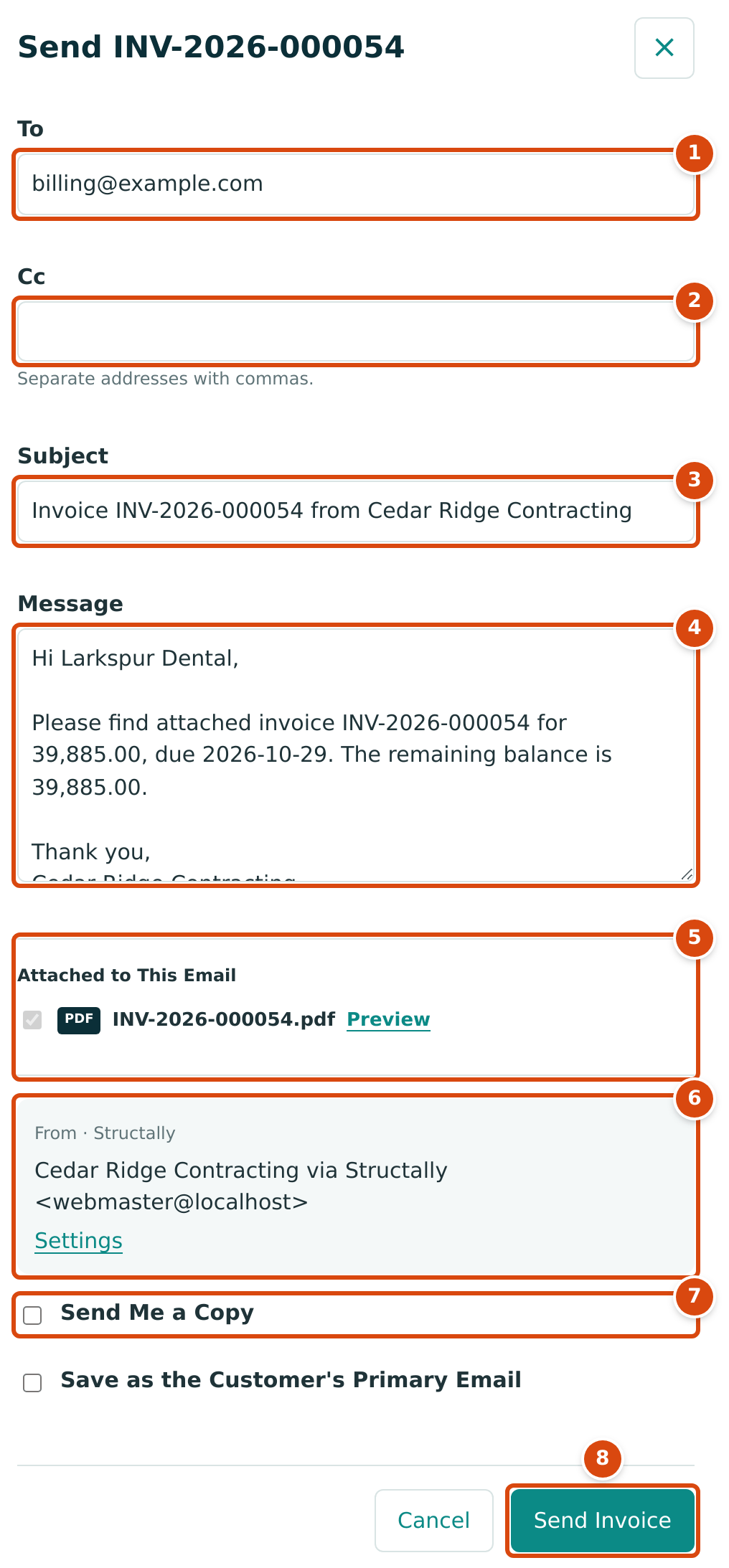
- To: the customer's address (required).
- Cc: more recipients, separated by commas.
- Subject: here Invoice INV-2026-000054 from Cedar Ridge Contracting.
- Message: the body of the email, filled in from your template.
- Attached to This Email: the invoice PDF, which cannot be removed; Preview opens the print view in a new tab. The invoice's own attachments, when it has any, are listed below it with tick boxes.
- From: how the email is sent and from which address. Settings opens the company settings, where a Company Admin manages email sending.
- Send Me a Copy: sends a hidden copy to the email address in your Company Details. It starts ticked when that address is set. Save as the Customer's Primary Email, below it, appears only while the customer has no primary email.
- Send Invoice sends the email.
Structally confirms Queued to billing@example.com. The email is prepared and sent in the background, usually within moments. When it has gone out, a Sent label appears next to the invoice's status.
What the Customer Receives
- An email with your Subject and Message.
- The invoice as a PDF named after its number, for example INV-2026-000054.pdf, laid out like the print view below.
- The attachments you ticked.
When email goes Through Structally (the panel shows From · Structally), the sender appears as your company's name followed by via Structally, and replies go to the email address in your Company Details, shown in the panel as Replies go to … when one is set. In the sample company no company email is set, and the sending address shown is the test system's own. When your company sends through its own email account, the panel shows From · Your SMTP Account and your own sender name and address. See Email Sending.
Following a Delivery
After the first send, the invoice page has a Deliveries section. Open it to see every attempt, newest first, with When, To, Status and Details. The status is Queued while the email waits, Sent once it has been handed to the mail service, or Failed, with the reason in Details.
Deliveries Not Shown
The sample company has never emailed an invoice and the guide does not send email, so there is no screenshot of the Deliveries section or of the Sent label.
If a delivery failed, correct the cause (often the address, or the company's email settings) and send the invoice again.
Without the panel
If your browser does not open the panel, Send opens a Send Invoice page with the same fields and a Cancel link back to the invoice.
Printing an Invoice
- Open the invoice and click ⋯ → Print (or the Print button, for users who cannot edit). The print view opens in place of the page.
- Click Print to open your browser's print dialog. To keep a file, choose your browser's Save as PDF option there.
- Click Back to Invoice to return.
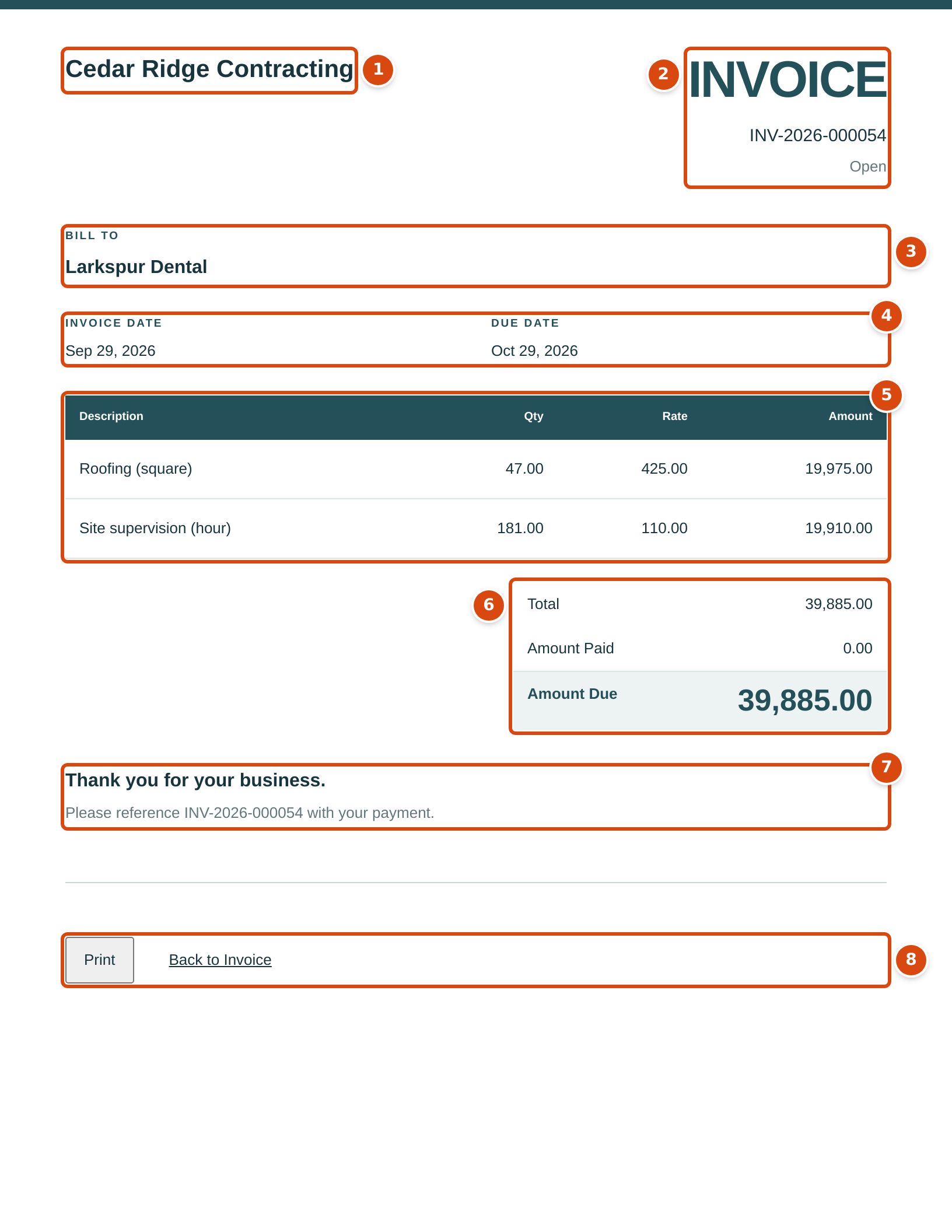
- Your company's name (the legal name, if one is set in Company Details), with the logo, address, phone, email and tax ID when they are set and your Document Design shows them.
- INVOICE, the invoice number and its status.
- Bill To: the customer's name and billing address.
- Invoice Date and Due Date, plus Terms and Your Reference when the invoice has them and your Document Design shows them.
- The lines: Description, Qty, Rate and Amount, and a Retainage column when retainage is held.
- Total, Less Retainage Held (when retainage is held), Amount Paid and Amount Due.
- Your thank-you line and Please reference INV-2026-000054 with your payment., followed by payment instructions and the memo when your Document Design includes them.
- Print and Back to Invoice. They do not appear on paper.
Amount Paid and Amount Due are worked out on the day you print or send: an invoice printed after a partial payment shows what is still due. A void invoice shows an amount due of 0.00. In the emailed PDF, each page carries your footer line and a page number.
Pay Application Invoices
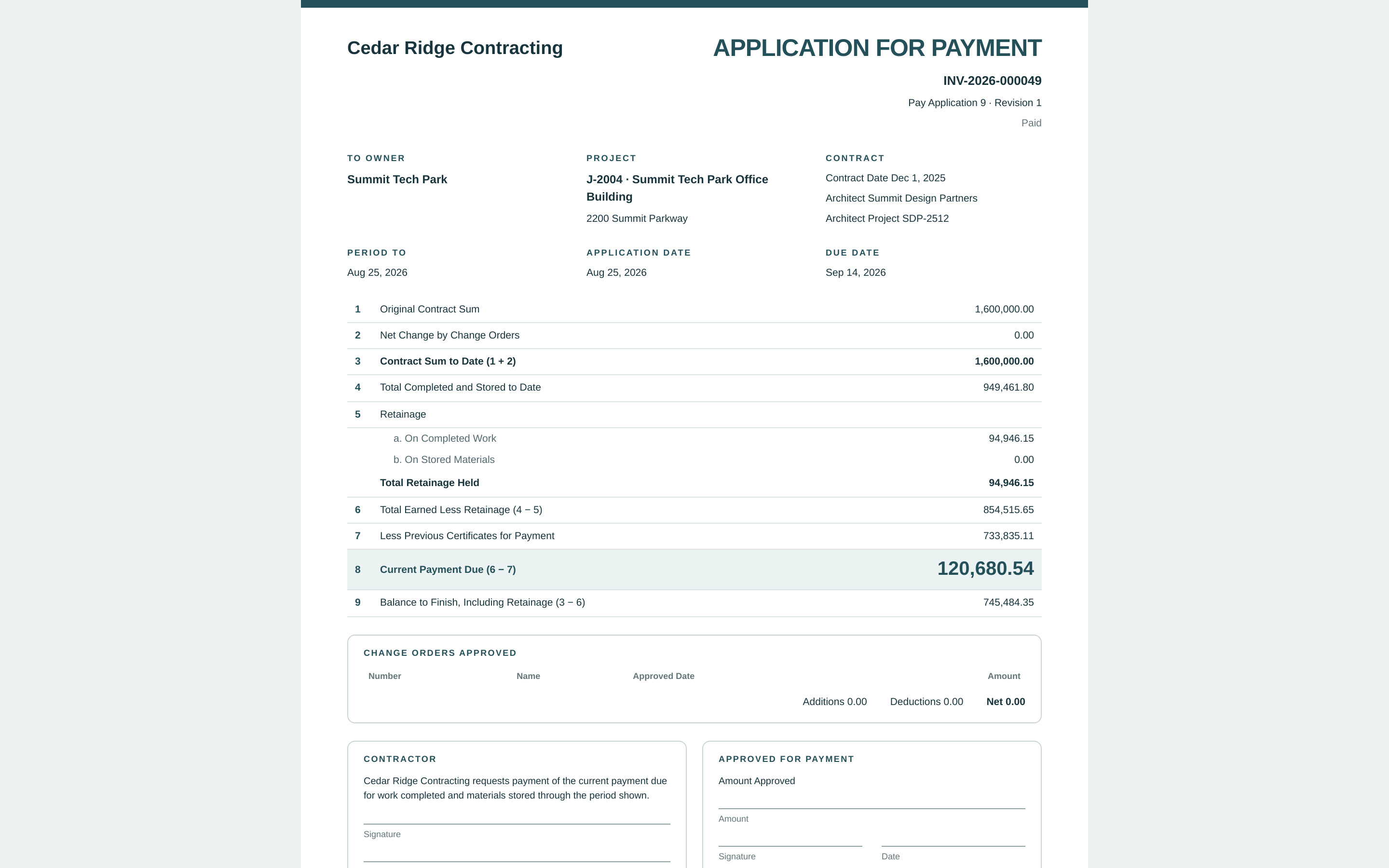
An invoice created by a pay application prints as an Application for Payment instead, with the contract summary and the schedule of values, and is sent the same way.
Changing How Invoices Look
A Company Admin sets the look of printed and emailed invoices in Settings → Document Design: the Modern or Classic layout, the accent color, the logo, which details appear (address and phone, tax ID, reference, terms, quantity and rate, item names, payment instructions, memo), the thank-you line and the footer. The subject and message templates for email are in Settings → Email Sending. See Document Design and Email Sending.
Common Mistakes and Troubleshooting
| Message or Symptom | Why It Happens | What to Do |
|---|---|---|
| There is no Send button. | The invoice is a draft or void, or you do not have Edit access. | Post the draft first; ask a user with Edit access to send it. |
| This field is required. under To | No address was entered. | Type the customer's email address. |
| Enter a valid email address. | To or one of the Cc addresses is incomplete. | Correct the address; separate several Cc addresses with commas. |
| Only posted invoices can be sent. | The invoice was a draft or was voided. | Post the draft, or send the corrected invoice instead. |
| Choose attachments of this invoice. | More than three attachments were ticked. | Tick at most three. |
| A delivery shows Failed. | The mail service refused the email; Details gives the reason. | Correct the address or ask a Company Admin to check Email Sending, then send again. |
| Settings in the panel leads to a page you cannot open. | Settings is limited to Company Admins (and users given Settings access). | Ask a Company Admin to change the sending settings. |
| Send Me a Copy never arrives. | No email address is set in Company Details. | Ask a Company Admin to add one in Company Details. |