Setting Up a New Company
When Structally creates your company, it is empty apart from a starting chart of accounts and, if Jobs & Costing is turned on, the standard cost types. Before your team starts entering invoices and bills, the Company Admin works through a short setup. This page gives the steps in the order that avoids rework, with a link to the page that explains each one.
Before You Begin
- You are the company's Company Admin: you received the invitation from Structally, set your password and signed in (see Signing In).
- Decide your books start date: the first day whose transactions you will enter in Structally. Have your trial balance for the day before it at hand.
- If you will use Jobs & Costing, check that it appears in the navigation. Structally turns modules on; when it shows a padlock, ask Structally.
Navigation
Most steps start from Settings. Click Settings in the navigation to open the overview of every setting.
The Settings Overview
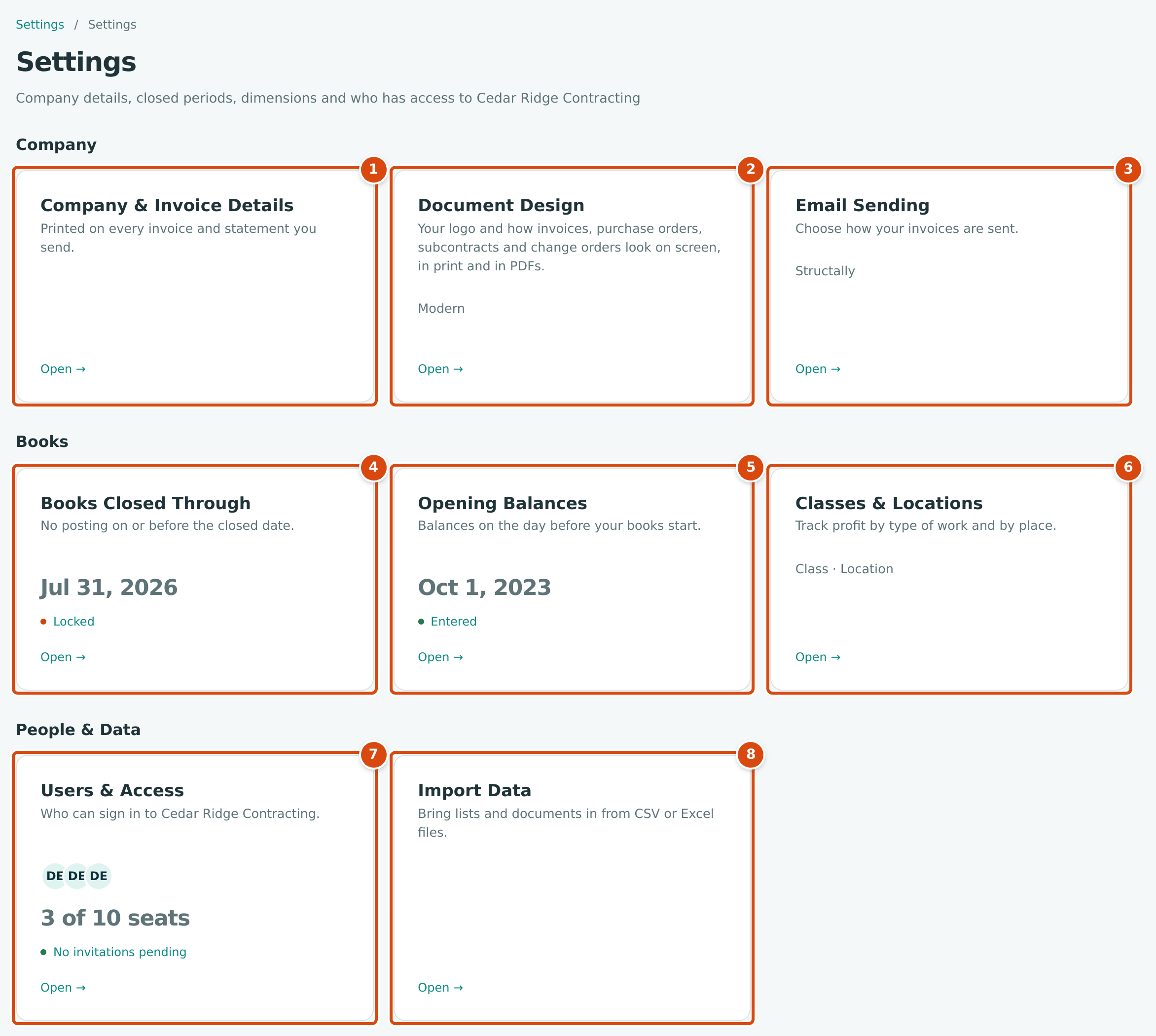
- Company & Invoice Details: name, address, tax ID, date format and time zone (the Company Details page).
- Document Design: your logo and the look of invoices and other documents.
- Email Sending: how invoices are emailed.
- Books Closed Through: the date up to which the books are locked.
- Opening Balances: the balances on the day before your books start.
- Classes & Locations: tags for profit by type of work and by place.
- Users & Access: who can sign in, with seats used and invitations pending.
- Import Data: lists and documents from CSV or Excel files.
Each card shows the current state (for example the closed date, or Books start not set) and opens its page with Open →.
The Setup Checklist
Work through the steps in this order. Steps 1 to 3 shape everything entered later; steps 7 and 8 depend on the accounts and lists being complete.
| Step | What to Do | Who Can Do It | Where It Is Explained |
|---|---|---|---|
| 1. Company details and time zone | Enter the legal name, address, phone, email and tax ID printed on your documents, and choose the Date Format and Time Zone. The time zone decides what "today" is for due dates and the Home dashboard. | Company Admin | Company Details |
| 2. Chart of accounts | Review the starting chart: rename accounts to your names, add the income, cost and expense accounts you need, and deactivate those you will not use. You can also import a chart from a file. | Company Admin, Accountant | The Chart of Accounts, Creating and Editing Accounts |
| 3. Bank and card accounts | Make sure there is one account with the Cash role for each bank account (plus Undeposited Funds for payments waiting to be deposited) and one with the Credit Card role for each card. | Company Admin, Accountant | Bank and Cash Accounts |
| 4. Payment terms | Add the terms you use (for example Net 30) on Accounting → Terms and mark one as Company Default. A new company has none. | Company Admin, Accountant | Payment Terms |
| 5. Classes and locations | Optional. Add the classes and locations you want to report by, and rename the labels if you prefer other words. | Company Admin | Classes & Locations |
| 6. Jobs & Costing settings | If the module is on: add your cost codes (a new company has none) and check the standard cost types; then set the job cost account rules, commitment overruns, retainage accounts and defaults, and the WIP accounts. | Cost codes and types: anyone with Edit on Jobs & Costing. Account rules, overruns, retainage and WIP accounts: Company Admin | Job Costing Settings, Cost Codes and Cost Types |
| 7. Import your lists | Bring in customers, vendors, items, cost codes and cost types from CSV or Excel files instead of typing them. | Company Admin | Import Data |
| 8. Opening balances | Enter the balance of each balance sheet account on the day before your books start. The difference goes to Opening Balance Equity, and the first posting sets the books start date. | Company Admin | Opening Balances |
| 9. Books Closed | Once the opening balances are checked, set Books Closed so that nothing can be posted on or before the day they were entered. | Company Admin | Books Closed |
| 10. Document design and email sending | Upload your logo, choose the document layout, and choose whether invoices are sent through Structally or your own email account. Send a test email. | Company Admin | Document Design, Email Sending |
| 11. Users and access | Invite your team and give each person a role, or a Custom set of area levels. The Users & Access card shows how many of your seats are in use. | Company Admin | Users & Access, Roles and Permissions |
A Custom role with Edit access to Settings can also do steps 7 to 10. Company Details, Classes & Locations and Users & Access stay with Company Admins.
Jobs & Costing Settings
Job Costing Settings is the last page of the Jobs & Costing group in the navigation, not part of Settings:
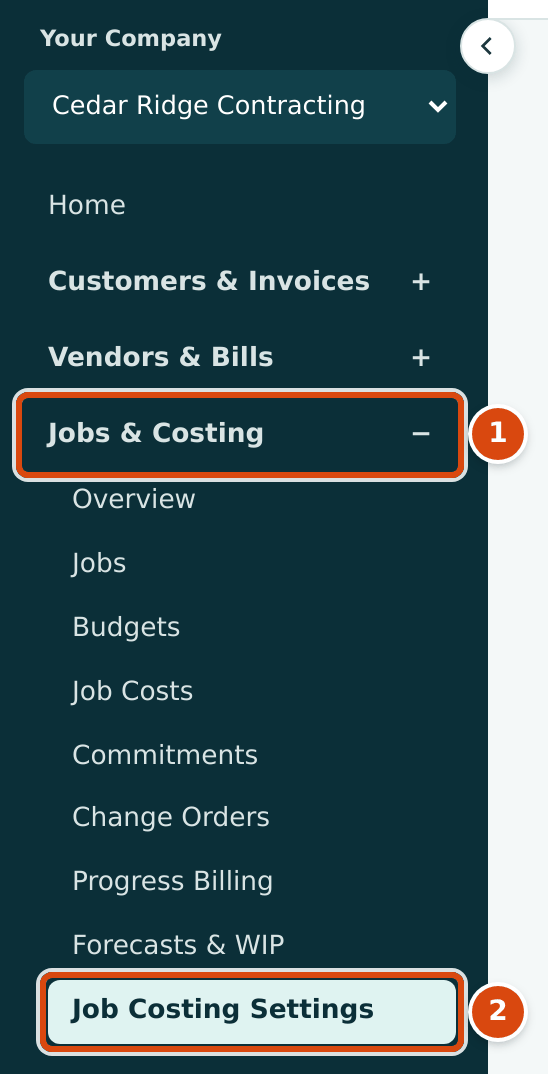
- The Jobs & Costing group.
- Job Costing Settings: cost codes, cost types and job cost accounts.
What You Start With
| Item | In a New Company |
|---|---|
| Chart of accounts | The standard chart (42 accounts such as 1010 Operating Checking, 1100 Accounts Receivable, 2010 Accounts Payable, 3900 Opening Balance Equity, 4010 Contract Revenue, 5040 Materials, 6030 Rent), unless Structally created the company to receive your own chart, in which case only the six section accounts (Assets, Liabilities, Equity, Income, Direct Costs, Expenses) exist. |
| Fiscal year | Set by Structally when the company is created. |
| Cost types | With Jobs & Costing on, the standard cost types are added for you. |
| Cost codes, jobs, customers, vendors, items, terms, classes, locations | None. |
| Users | You, as Company Admin. |
Worked Example
The figures in this example are illustrative. A remodeling contractor starts using Structally with books starting January 1, 2027:
- On Company Details the Company Admin enters the company's address and tax ID and sets Time Zone to the company's local time.
- In the chart of accounts, they rename 4010 Contract Revenue to match their statements, add an account for their second bank, and deactivate accounts they will not use.
- On Terms they add Net 30 (30 days) and Due on receipt (0 days) and make Net 30 the company default.
- They import 85 customers, 60 vendors and 40 cost codes from their old system's exports.
- On Opening Balances they enter the December 31, 2026 balances of each bank, receivables, payables and loan account, then set Books Closed to December 31, 2026.
- Finally they invite their bookkeeper as Accountant and two project managers as Project Manager.
Training Exercise A: Setting Up a New Company walks through the same steps in detail.
Common Mistakes and Troubleshooting
| Message or Symptom | Why It Happens | What to Do |
|---|---|---|
| Company Details, Classes & Locations or Users & Access is missing from the navigation. | These pages are for Company Admins only. | Sign in as the Company Admin, or ask one. |
| Jobs & Costing shows a padlock. | The module is not turned on for the company. | Ask Structally to turn it on. |
| Accounting date must be after the company closing date. while entering opening figures | Books Closed was set before the opening balances were entered. | A Company Admin moves the Books Closed date back, enters the balances, then closes again. |
| Invited users cannot sign in. | Their invitation link expired after three days, or they have not set a password. | Use Resend Invitation on Users & Access. |