| Account | Debit | Credit |
|---|---|---|
| 5030 Subcontractor Costs (J-2004 · 09-100 · SUB) | 26,400.00 | |
| 2010 Accounts Payable | 23,760.00 | |
| 2020 Retainage Payable | 2,640.00 |
Entering a Bill
A bill records a purchase your company has received but has not paid yet: a supplier's invoice for materials, a subcontractor's monthly progress billing, a utility statement. Entering the bill puts the cost in the right accounts (and, for construction work, on the right job and cost code) on the date you incurred it, and adds what you owe to accounts payable until you pay it.
Enter a bill when you will pay the vendor later. If you have already paid (by check, card or bank transfer at the time of purchase), record an expense instead.
Before You Begin
- The vendor exists, or you add it from the bill (see Adding a Vendor While You Enter a Bill).
- The accounts you will charge exist in the Chart of Accounts.
- For job costing: Jobs & Costing is turned on for your company, the job is Active, and the cost codes you need are assigned to it. See Coding Transactions to Jobs.
- For retainage: a Retainage Payable account is set up in Job Costing Settings.
- You need Edit access to Vendors & Bills. Company Admins, Accountants and Project Managers have it; Viewers do not. See Roles and Permissions.
Navigation
Vendors & Bills → Bills → New Bill, or Create → New Bill at the top of any page.
The New Bill Form
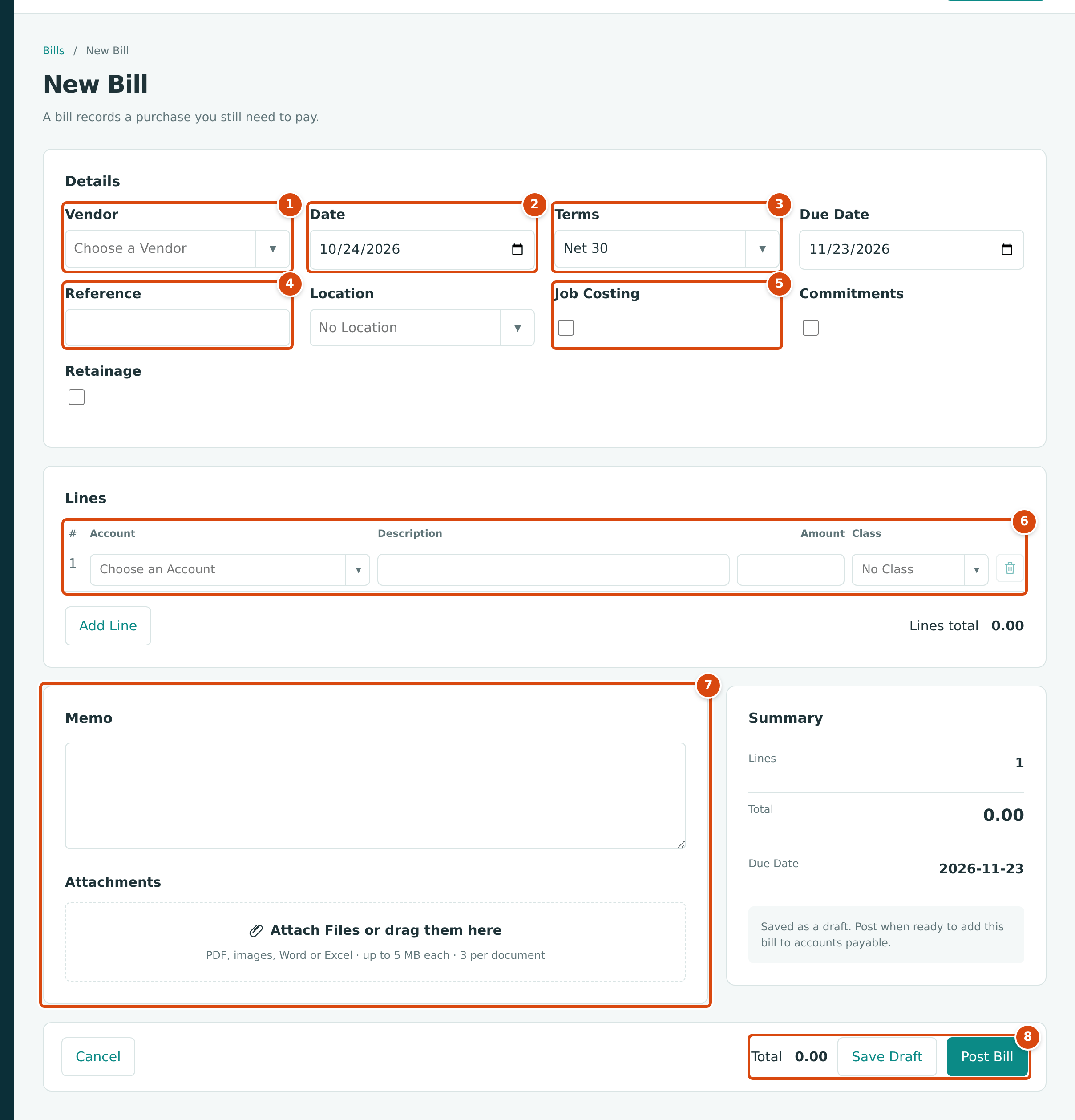
- Vendor: who sent the bill. Type to search; only active vendors are listed.
- Date: the bill date. It is the accounting date of the cost and of the amount owed. It starts as today.
- Terms and Due Date: the payment terms work out the due date from the bill date. You can change either one.
- Reference: the vendor's own invoice number, shown on the bill so you can match it to the vendor's paperwork.
- Job Costing, Commitments and Retainage: switches that add job, commitment and retainage columns to the lines. They appear only when Jobs & Costing is turned on (and, for retainage, a Retainage Payable account is set up).
- Lines: what the bill is for, one row per account (and job) charged.
- Memo and Attachments: an internal note and the vendor's PDF or photo.
- Total, Save Draft and Post Bill: the running total and the two ways to finish.
Step by Step
Enter the Details
- Open Vendors & Bills → Bills and click New Bill.
- In Vendor, start typing the vendor's name and choose it from the list. Structally fills the first line's Account with the account used on this vendor's last bill, if there is one. If the vendor has an issued commitment, Structally also turns on Commitments and Job Costing (see Matching a Commitment and Holding Retainage).
- Set Date to the date on the vendor's invoice.
- Check Terms. It starts with your company's default terms (Net 30 in the sample company), and choosing a vendor does not change it, so pick the terms printed on the vendor's invoice if they differ. Due Date follows the terms; you can also type a due date directly.
- In Reference, type the vendor's invoice number.
- Optionally choose a Location for the whole bill.
Enter the Lines
- On the first line, choose the Account to charge: an expense account such as 6010 — Office Expense, a direct cost account such as 5040 — Materials, or an asset account for something you will capitalize. Accounts Payable, retainage accounts and WIP accounts are not offered.
- Type a Description (optional, but it appears in reports) and the Amount.
- Optionally choose a Class for the line.
- Click Add Line for each additional account or job; the trash icon removes a line. Lines total and the footer Total update as you type.
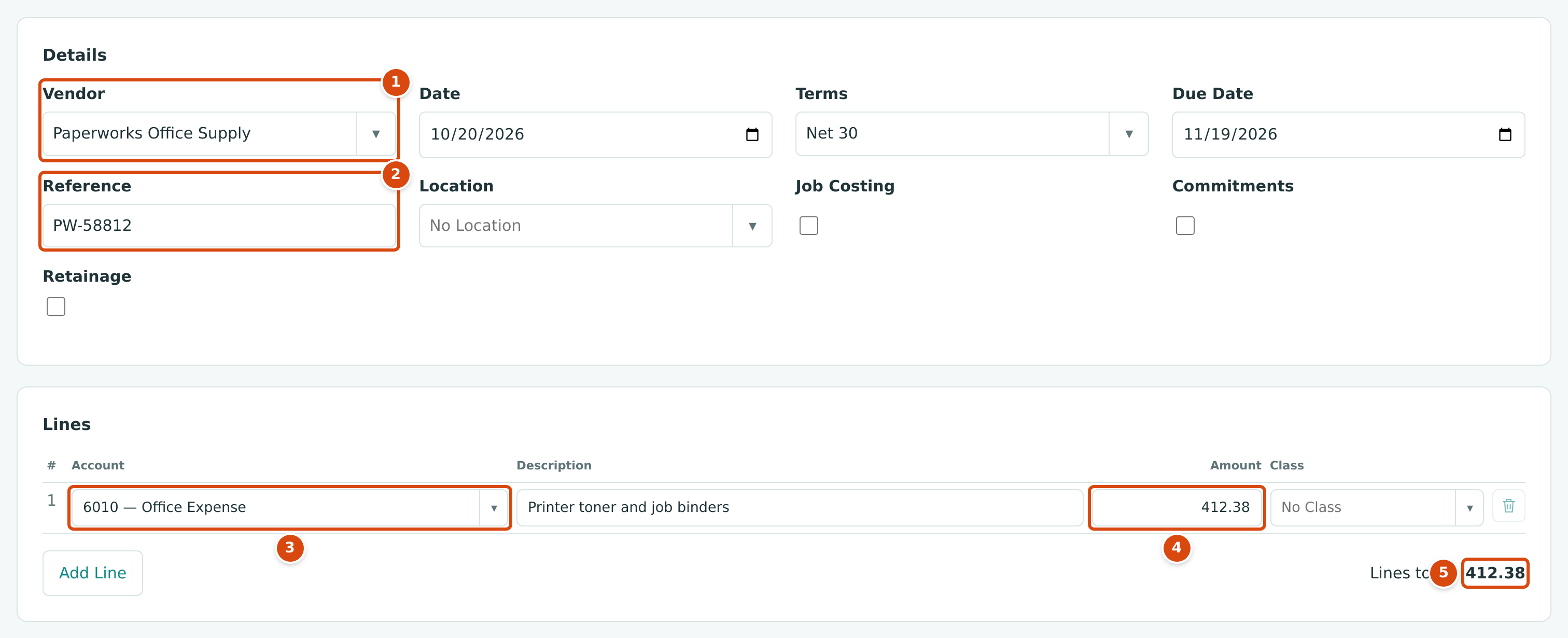
- The vendor, chosen from the list.
- The vendor's invoice number in Reference.
- The account charged, 6010 — Office Expense.
- The line amount.
- Lines total adds up every line.
Finish: Save Draft or Post Bill
- Click Save Draft to keep the bill without touching your books. Drafts show the status Draft in the Bills list and are counted on the Home dashboard under Needs Attention. You can change anything on a draft except the vendor.
- Click Post Bill to record it. Posting adds the bill to accounts payable and writes its journal entry. A posted bill cannot be edited; to correct one, void it and enter it again (see Posting, Editing, and Voiding Bills).
Structally confirms with a message such as Bill BILL-2026-000141 saved as a draft. or Bill BILL-2026-000141 posted to accounts payable. and opens the bill. Bill numbers are assigned automatically as BILL-year-sequence.
Coding a Bill to a Job
Tick Job Costing to charge a bill line to a job. The lines gain Job, Cost Code, Cost Type and Split columns.
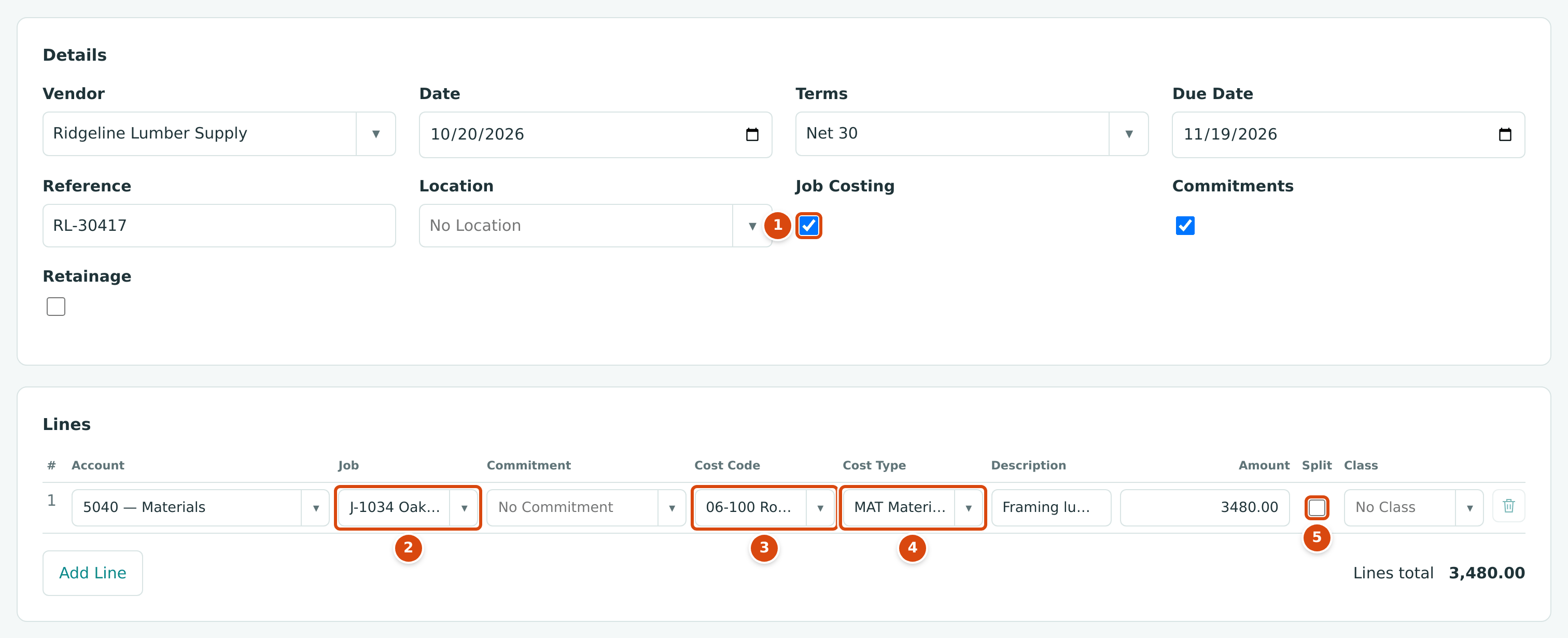
- Job Costing turned on. Ridgeline Lumber Supply has an issued purchase order, so Commitments came on as well; leave a line's Commitment empty when the purchase is not under a commitment.
- Job: the job the cost belongs to. Active jobs are listed, plus jobs that are (On Hold) or (Closed).
- Cost Code: the work category. The list shows only the codes assigned to the chosen job.
- Cost Type: labor, materials, subcontract, equipment and so on.
- Split: share one line among several jobs or cost codes.
- Tick Job Costing.
- On each job-cost line, choose the Job, then the Cost Code and the Cost Type. A direct cost line that names a job needs both a cost code and a cost type.
- Overhead lines (rent, office supplies) can stay without a job, unless your company requires job coding on that account in Job Costing Settings.
Jobs on hold or closed
You can still charge a job that is On Hold or Closed, but you must type an Adjustment Reason on the line to explain the late cost.
Splitting a Line
Tick Split on a line to divide its amount among allocation rows (up to 20), each with its own job, cost code, cost type, description and amount. Use it when one line of a vendor's invoice covers more than one job or phase.
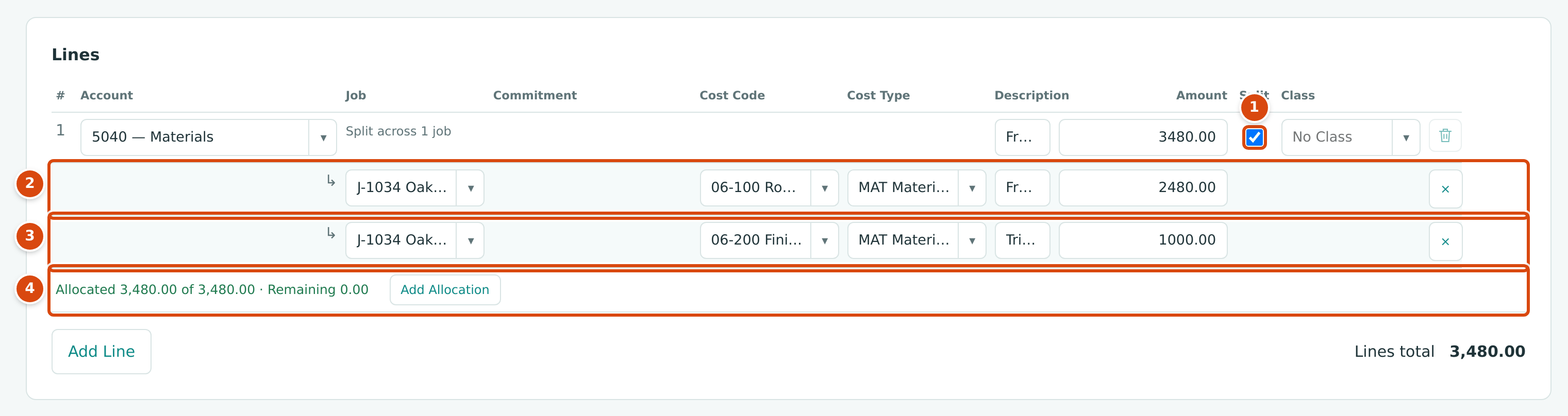
- Split ticked on the line.
- The first allocation: 2,480.00 to 06-100 Rough Carpentry.
- The second allocation: 1,000.00 to 06-200 Finish Carpentry.
- The running check. Remaining must reach 0.00. Use Add Allocation for more rows.
The allocations must add up exactly to the line amount. Each allocation posts as its own journal line, so job cost reports show each job and cost code separately.
Matching a Commitment and Holding Retainage
When a bill is for work under a subcontract or purchase order, match each line to the commitment line it bills. Matching keeps the commitment's Billed to Date and Remaining current, and carries the commitment's job, cost code, cost type and retainage percentage onto the bill.
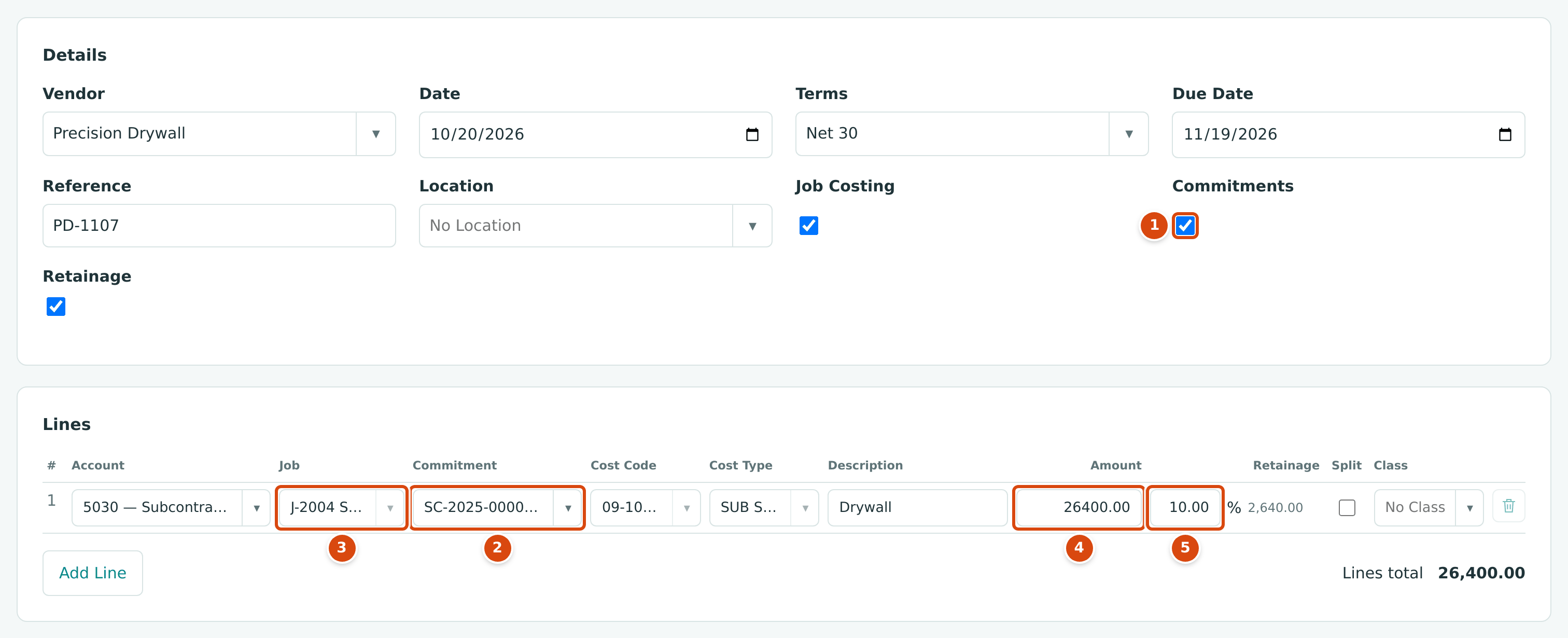
- Commitments turned on. Structally does this for you when the vendor has an issued commitment.
- Commitment: the commitment line being billed. The list shows the commitment number, line, cost code, cost type and the amount remaining.
- Job, Cost Code and Cost Type are filled from the commitment and locked while the line is matched.
- Amount: Structally proposes the whole remaining amount; replace it with this bill's amount.
- Retainage: the commitment's retainage percentage, with the amount held shown beside it.
- Choose the vendor. If it has issued commitments, Commitments and Job Costing turn on, and only that vendor's commitment lines can be chosen.
- In Commitment, choose the commitment line. Structally fills the job, cost code, cost type, description (if empty), the amount remaining and the retainage percentage.
- Check the line's Account. Matching a commitment does not choose it: Structally may already have filled it from the vendor's last bill, but for a new vendor you must pick the cost account, such as 5030 — Subcontractors. Otherwise the bill is refused with This field is required.
- Change Amount to the amount on the vendor's invoice.
- If the bill holds retainage, make sure Retainage is ticked and check the percentage on each line. A line that holds retainage must have a job.
The footer then shows both the Total and the Amount Due (the total less the retainage held):

- Total: everything the vendor billed. This is the cost to the job.
- Amount Due: what you pay now. The retained part is paid later through a retainage release.
When a Bill Goes Over the Commitment
When you post, Structally compares each matched line with what is left on its commitment line. What happens next depends on the Commitment Overruns setting in Job Costing Settings:
| Setting | What Happens When a Line Is Over |
|---|---|
| Warn (the default) | The bill posts. The amount over is recorded on the line and appears in commitment and job cost reports. |
| Block | Posting is refused with a message such as Line 1 exceeds commitment SC-2025-000008 line 1 by 1,250.00. A Company Admin or Accountant then sees Post Over the Commitment?, can type an Override Reason and click Post Anyway. Other users ask one of them, or amend the commitment first. |
Adding a Vendor While You Enter a Bill
You do not have to leave the bill to add a missing vendor.
- In Vendor, type the new vendor's name. The list starts with + Add New followed by what you typed.
- Click + Add New. The New Vendor panel opens with the name filled in.
- Complete Name (required) and any of Code, Primary Contact, Phone, Email, Billing Address and Terms, then click Create Vendor. The panel closes and the new vendor is selected on the bill.
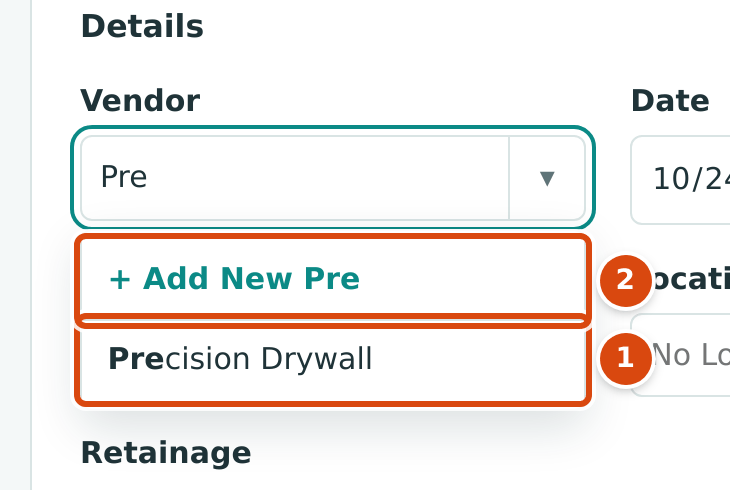
- An existing vendor that matches what you typed.
- + Add New opens a short form to create the vendor.
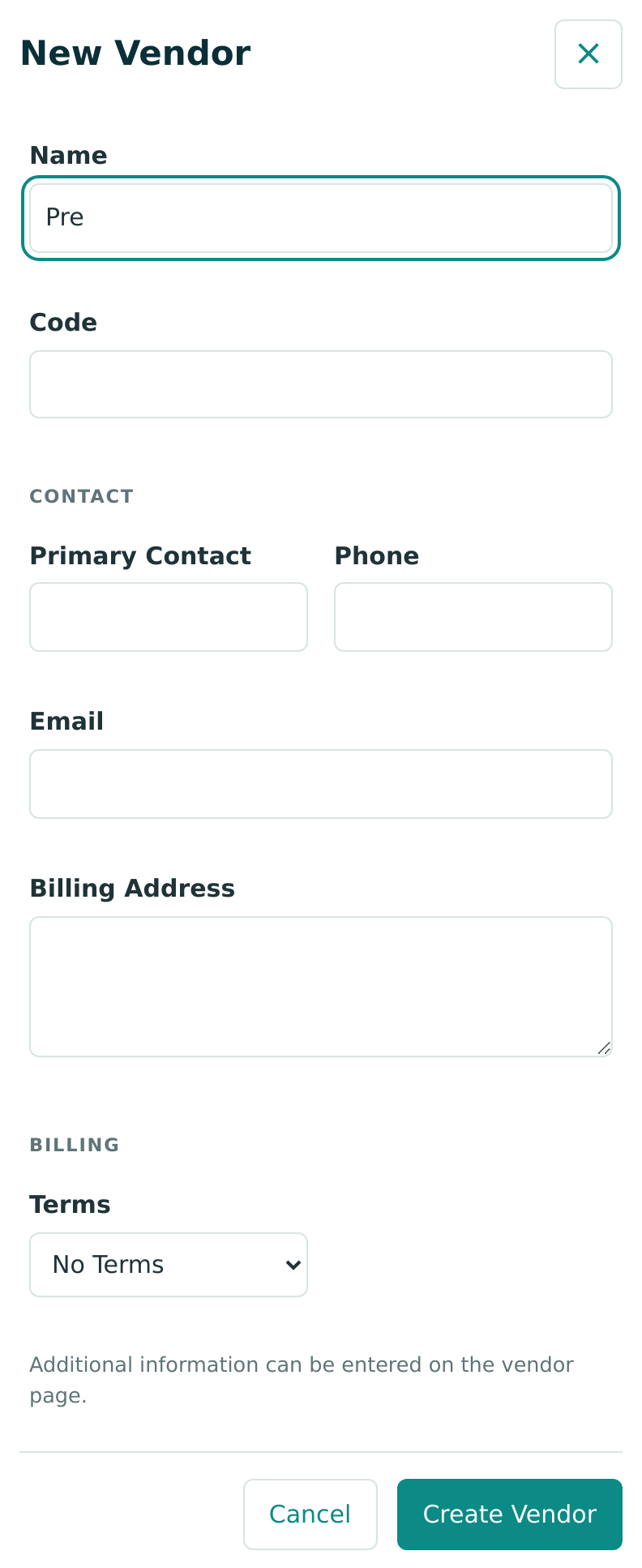
Accounts, payment terms, classes and locations can be added the same way from their own pickers, if your role allows creating them. Complete the vendor's other details later on its page (see Managing Vendors).
Field Reference
| Field | Description | Required | Example |
|---|---|---|---|
| Vendor | The vendor who sent the bill. Active vendors only. Cannot be changed after the first save. | Yes | Precision Drywall |
| Date | Bill date and accounting date. Must be after the Books Closed date to post. | Yes | 10/20/2026 |
| Terms | Payment terms used to work out the due date. Starts with the company default. | No | Net 30 |
| Due Date | When payment is due. Drives the Overdue status and the AP Aging report. | No | 11/19/2026 |
| Reference | The vendor's invoice number, shown on the bill. The Bills list searches by bill number and vendor name, not by reference. | No | PD-1107 |
| Location | A location for the whole bill, for reports by location. | No | North |
| Job Costing | Shows the job, cost code, cost type and split columns. | No | Ticked |
| Commitments | Shows the Commitment column for matching lines to subcontracts and purchase orders. | No | Ticked |
| Retainage | Shows the Retainage percentage column. | No | Ticked |
| Account (line) | The account charged. Not Accounts Payable, a retainage account or a WIP account. | Yes | 5030 — Subcontractor Costs |
| Job, Cost Code, Cost Type (line) | Where the cost belongs in job costing. A job-coded direct cost needs all three. | With job costing | J-2004 · 09-100 · SUB |
| Commitment (line) | The commitment line this bill line bills. | No | SC-2025-000008 · 1 |
| Description (line) | What the line is for. | No | Drywall, level 2 |
| Amount (line) | A positive amount with up to two decimals. | Yes | 26,400.00 |
| Retainage (line) | Percent of the line held back, from 0 to 100. | No | 10.00 |
| Split (line) | Divides the line among allocation rows. | No | Ticked |
| Adjustment Reason (line) | Why a cost goes to an on-hold or closed job. | For on-hold or closed jobs | Late delivery invoice |
| Class (line) | A class for the line, for reports by class. | No | Commercial |
| Memo | An internal note shown on the bill. | No | Drywall progress, level 2 |
| Attachments | PDF, image, Word or Excel files, up to 5 MB each and 3 per bill. | No | PD-1107.pdf |
Worked Example: A Subcontractor's Progress Bill
On October 20, 2026, Precision Drywall sends invoice PD-1107 for $26,400.00 of drywall on the Summit Tech Park Office Building (job J-2004), billed under subcontract SC-2025-000008. The subcontract holds 10% retainage.
| Item | Amount |
|---|---|
| Work billed this period | $26,400.00 |
| Retainage held (10% × $26,400.00) | $2,640.00 |
| Amount due to Precision Drywall now | $23,760.00 |
You choose Precision Drywall, match the line to SC-2025-000008 · 1, enter 26,400.00 and keep the 10.00% retainage. The footer shows Total 26,400.00 and Amount Due 23,760.00, as in the figures above. Posting records this entry:
The full $26,400.00 is job cost on J-2004 now. Only $23,760.00 becomes payable now; the $2,640.00 waits in Retainage Payable until you release it.
The sample company holds a bill just like this one, posted on September 20, 2026: BILL-2026-000133. Its posting entry appears in the next section.
What Happens After You Save or Post
| Draft (Save Draft) | Posted (Post Bill) | |
|---|---|---|
| Status | Draft | Open; later Partly Paid and Paid as you pay it. Overdue is added after the due date. |
| Journal entry | None | One balanced entry on the bill date, locked |
| Accounts payable and the vendor's balance | Unchanged | Increased by the amount due |
| Job costs and the commitment's billed to date | Unchanged | Updated |
| Can be changed | Yes, with Edit Draft (except the vendor) | No; void it and enter it again |
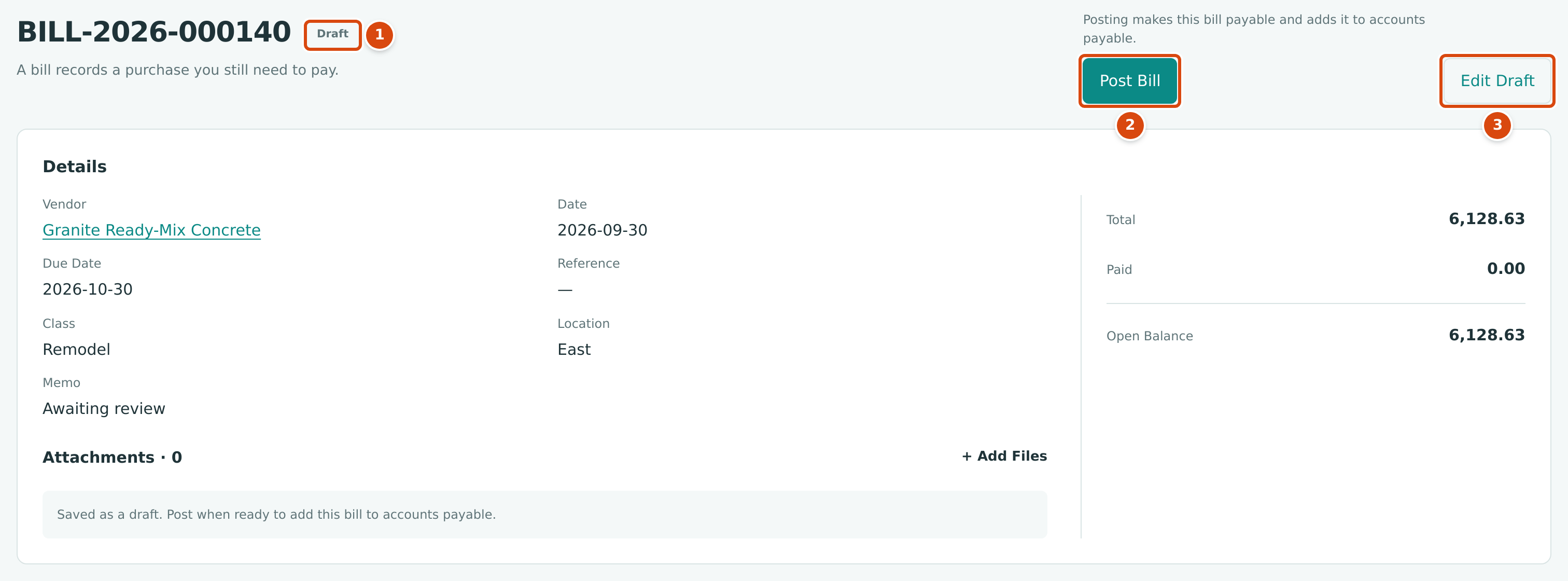
- The Draft status.
- Post Bill posts the draft as it stands.
- Edit Draft reopens the form.
After posting, the bill page shows what is owed and offers the next steps:
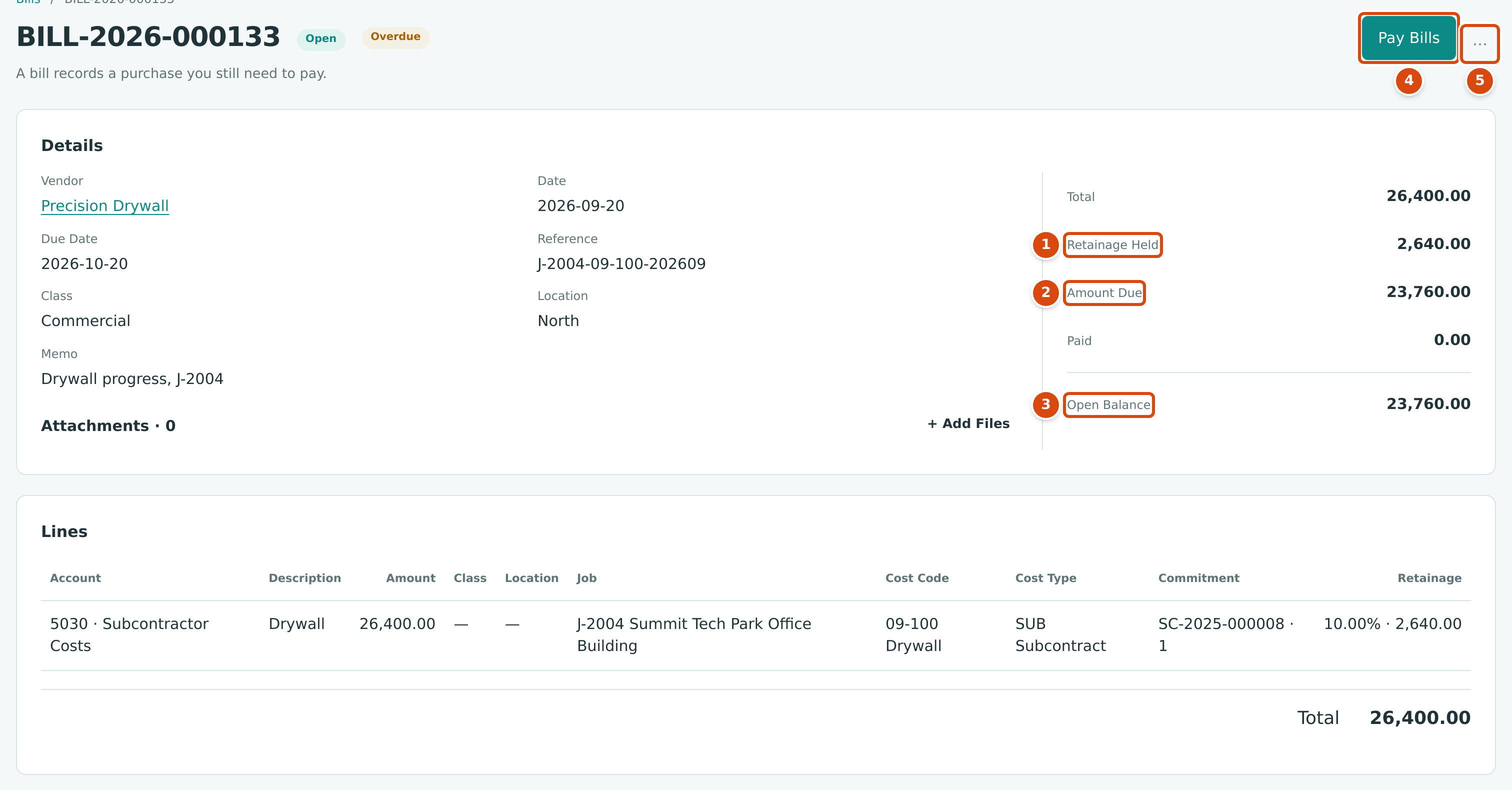
- Retainage Held: the part kept back under the subcontract.
- Amount Due: the total less the retainage held.
- Open Balance: what is still unpaid.
- Pay Bills starts a payment to this vendor (see Paying Bills).
- The ⋯ menu holds Void Bill….
The Posting Entry
Open Posting Entry near the bottom of a posted bill to see the journal entry Structally wrote, with the job coding on each cost line:
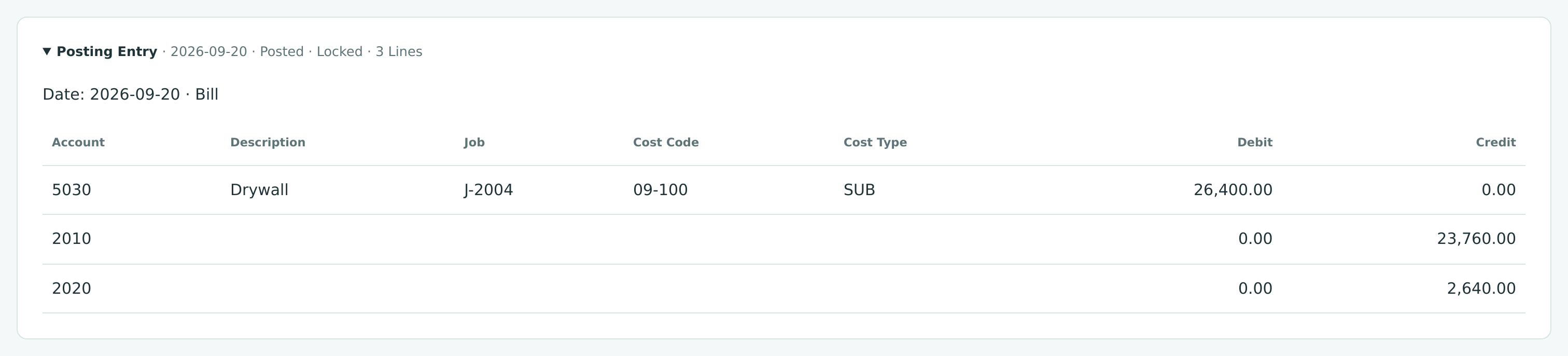
Every bill debits its line accounts and credits Accounts Payable for the amount due. When retainage is held, Retainage Payable is credited for the retained part. A split line posts one debit per allocation.
Review the result on the vendor's page, in the Payables Overview, in the AP Aging report, in the job's Job Costs, and in the commitment's Billed to Date.
Common Mistakes and Troubleshooting
| Message or Symptom | Why It Happens | What to Do |
|---|---|---|
| Vendor must be active. | The vendor was deactivated. | Reactivate it on its page, or choose another vendor. |
| At least one bill line is required. | Every line is empty. | Enter an account and an amount on at least one line. |
| Account 5040 requires job coding. | Your settings require a job on this account. | Tick Job Costing and choose the job, cost code and cost type. |
| Job-coded cost lines need a cost code and a cost type. | A job was chosen without both codes. | Choose a cost code and a cost type, or remove the job. |
| Cost code 06-100 is not assigned to job J-1036. | The code is not assigned to that job. | Pick an assigned code, or assign the code to the job first. |
| Job J-2003 is closed; give an adjustment reason. | The job is On Hold or Closed. | Type an Adjustment Reason on the line. |
| Line 1 needs a job to hold retainage. | A retainage percentage is on a line without a job. | Choose the job, or set the retainage to 0. |
| Line 1 allocations must equal the line amount. | Split rows do not add up to the line. | Adjust the allocations until Remaining is 0.00. |
| Turn on Job Costing or clear the job coding on the lines. | Job Costing was unticked while lines still name jobs. | Tick it again, or clear the job fields. |
| Accounting date must be after the company closing date. | The bill date is in a closed period. | Use a date after the Books Closed date, or ask a Company Admin. |
| Set up retainage in Job Costing Settings before posting bills with retainage. | No Retainage Payable account is set. | Ask a Company Admin to set it up, or remove the retainage. |
| Line 1 exceeds commitment SC-2025-000008 line 1 by 1,250.00. | Overruns are blocked and the line is over. | Amend the commitment, lower the amount, or have a Company Admin or Accountant post it with an override reason. |
| A draft bill cannot be deleted. | There is no discard button for draft bills. | Leave it as a draft (drafts never affect your books) or edit it into the bill you need. |
Related Topics
- Posting, Editing, and Voiding Bills
- Recording an Expense, when you have already paid
- Paying Bills
- Vendor Credits
- Commitments and Releasing Retainage
- Coding Transactions to Jobs