Commitment Amendments
Once a commitment is issued, its lines are frozen: the subcontract or purchase order you sent stays exactly as issued. When the scope changes (the owner adds work, a quantity grows, part of the work is deleted), you record the change as an amendment. An amendment adds or subtracts amounts by cost code and cost type, can link to the owner's change order, and can change the commitment's retainage percentage. Once approved, it changes the commitment's Revised amount, what the vendor can still bill, and the open commitments on the job's budget.
An amendment has two statuses: Draft while you prepare it, and Approved. A draft amendment can be approved or discarded; an approved one is final. To undo an approved amendment, enter another amendment with the opposite amounts.
Before You Begin
- The commitment is Issued. Draft and approved commitments are changed with Edit; closed ones cannot be changed.
- To link a change order, the change order is Approved and on the same job (see Change Orders).
- You need Edit access to Jobs & Costing to create, approve and discard amendments. Company Admins, Accountants and Project Managers have it. See Roles and Permissions.
Navigation
Jobs & Costing → Commitments → open the issued commitment → New Amendment (at the top of the page or on the Amendments card).
Step by Step: Creating an Amendment
- Open the issued commitment and click New Amendment.
- Check the Date (it starts with today; it cannot be before the commitment's date).
- Type the Reason for the change.
- If the change comes from a change order, choose the approved Change Order it belongs to. The list shows the job's approved change orders by number and title (CO- number · title), or No Change Order.
- To change the retainage percentage, type it in New Retainage. Leave it empty to keep the current percentage.
- On each line, choose the Cost Code and Cost Type and type the change as a signed Amount: positive to add, negative to reduce. Use the cost code and cost type of the commitment line you are changing.
- Watch the totals at the top: This Amendment and Revised After update as you type, and Retainage After shows the new percentage.
- Optionally attach the signed change document under Attachments.
- Click Save Amendment. Structally returns to the commitment and confirms with Amendment 1 saved as a draft.
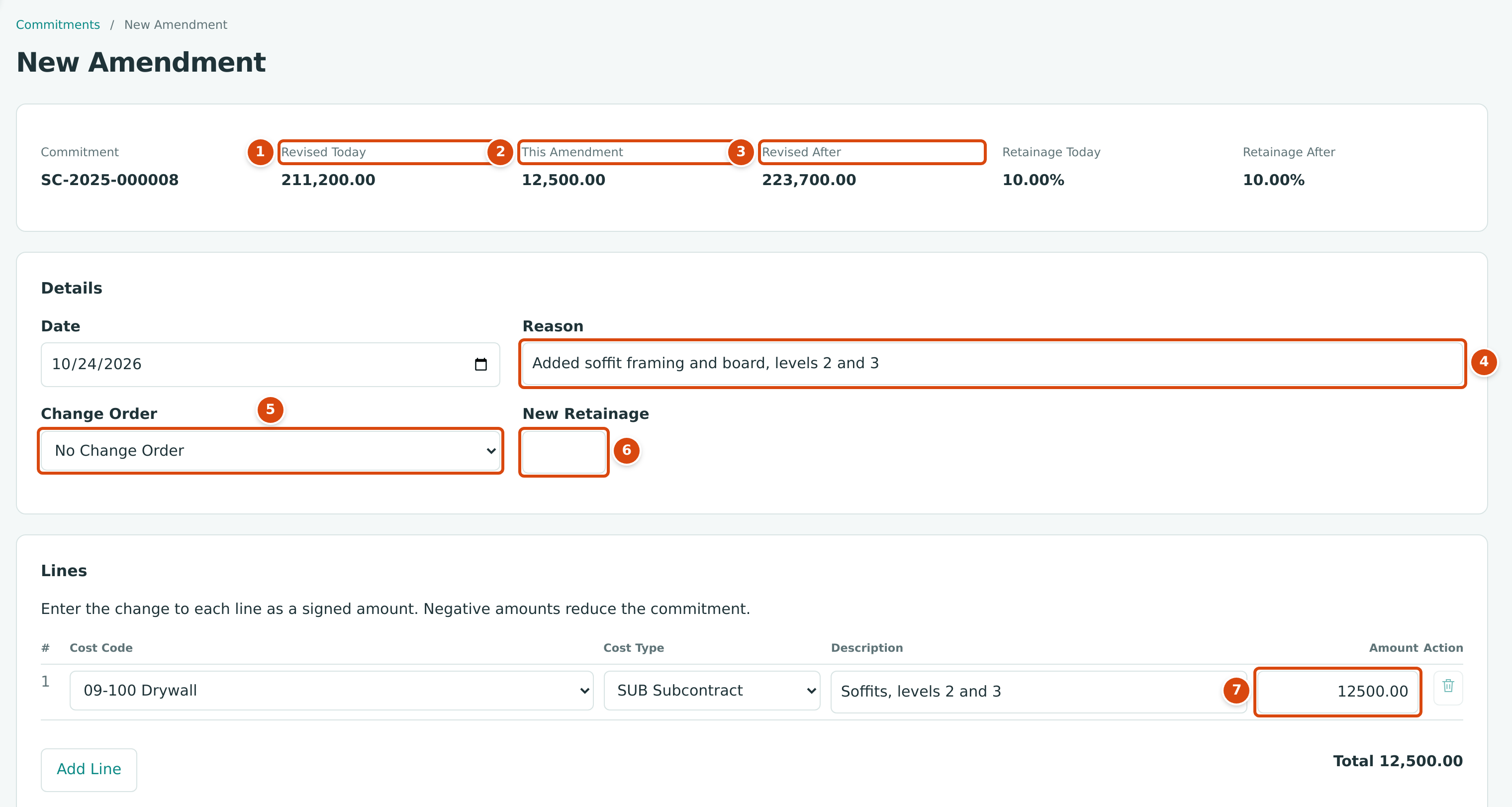
- Revised Today: the commitment's revised amount before this amendment.
- This Amendment: the total of the amendment's lines.
- Revised After: the revised amount once the amendment is approved.
- Reason: required.
- Change Order: an approved change order of the job, or No Change Order. J-2004 has no approved change order yet, so only No Change Order is offered.
- New Retainage: a new percentage for the whole commitment, or empty.
- Amount: the signed change for the line.
An amendment needs at least one line or a new retainage percentage. Its lines are not limited to the commitment's own codes, but the cost code must be assigned to the job.
When the job has an approved change order, choose it in Change Order. The training company, Cedar Ridge Training, amended its electrical subcontract for change order CO-2 this way:
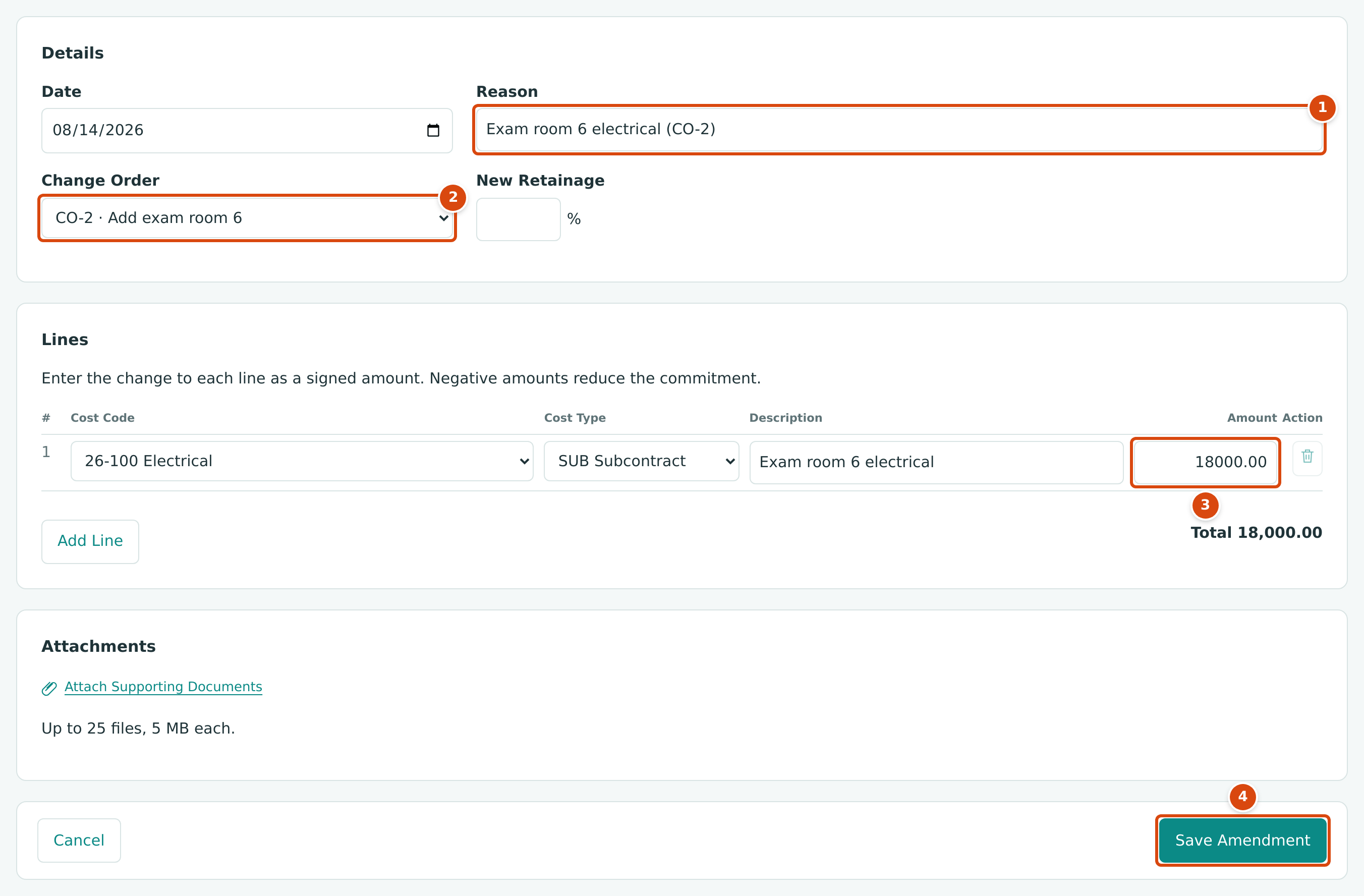
- Reason: Exam room 6 electrical (CO-2).
- Change Order: CO-2 · Add exam room 6, an approved change order of the job.
- Amount: +18,000.00 on 26-100 · SUB, the code and type of the subcontract's line.
- Save Amendment saves the draft.
Approving or Discarding an Amendment
A draft amendment appears on the commitment's Amendments card with two buttons in Actions:
- Approve makes the amendment final. Structally confirms with Amendment 1 approved. The commitment's Amendments and Revised amounts change, and a New Retainage becomes the commitment's Retainage.
- Discard deletes the draft (Amendment 1 discarded.).
After approval, the training company's electrical subcontract shows the amendment in its totals and on its Amendments card:
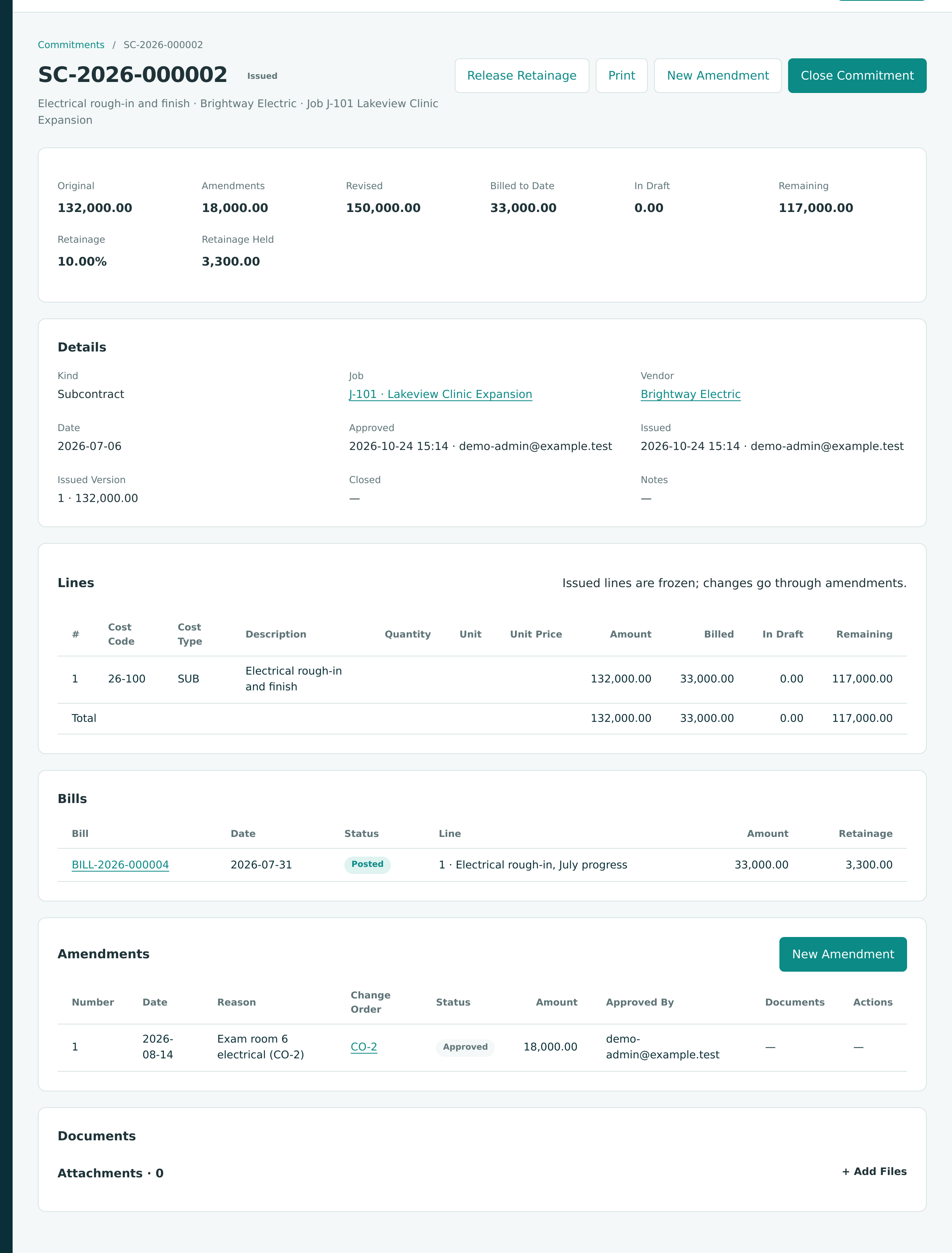
There, Revised is 132,000.00 + 18,000.00 = 150,000.00, and Remaining is 150,000.00 − 33,000.00 billed = 117,000.00.
Draft Amendment Row Not Captured
Neither the sample company nor the training company has a draft amendment left, so the Approve and Discard links cannot be shown in a figure. They appear in the Actions column of a draft amendment's row while the commitment is issued; approved amendments show a dash there, as in the figure above.
The Amendments Card
After approval, the amendment is listed with its details and the commitment's totals include it. SC-2025-000004, the drywall subcontract on the finished job J-2003, has one approved amendment:
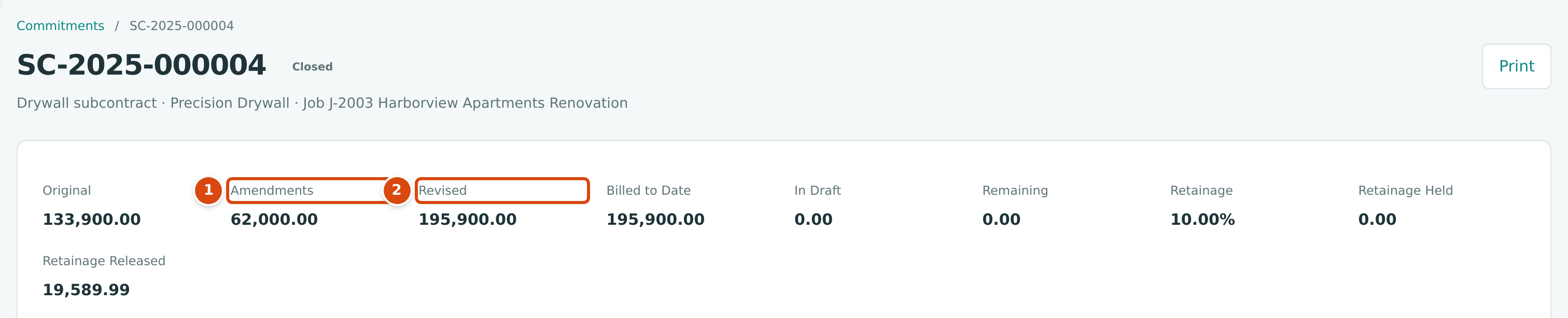
- Amendments: the total of the approved amendments.
- Revised: Original + Amendments.

- Change Order: click it to open the change order.
- Status: Draft or Approved.
- Amount: the amendment's total.
The card lists Number, Date, Reason, Change Order, Status, Amount, New Retainage (when any amendment changes it), Approved By, Documents (the amendment's attachments) and Actions.
How an Approved Amendment Changes the Commitment
- Revised = Original + the approved amendments. Remaining grows or shrinks by the amendment's amount.
- On the Lines table, a line's Remaining includes the approved amendments with the same cost code and cost type, and so does the Commitment list on a bill. A subcontractor can therefore be billed up to the amended amount without an overrun.
- The job's budget page shows the change in Open Commitments.
- The printed commitment shows Approved Amendments and the Revised Total. Its version stays Issued · Version 1; amendments do not create new versions.
- An amendment never changes the job's budget. Budget changes come from budget revisions or approved change orders (see Job Budgets).
- No journal entry is written.
Amendment lines for new cost codes or types
Amendment amounts are matched to commitment lines by cost code and cost type. An amendment line whose code and type are on none of the commitment's lines raises the Revised amount, but there is no commitment line for a bill to be matched to. To add new work, create a new commitment instead.
Field Reference
| Field | Description | Required | Example |
|---|---|---|---|
| Date | The amendment date; not before the commitment's date. | Yes | 10/24/2026 |
| Reason | 1 to 200 characters. | Yes | Added soffit framing and board, levels 2 and 3 |
| Change Order | An approved change order of the same job. | No | No Change Order |
| New Retainage | A new retainage percentage for the commitment, 0 to 100, two decimals. | No | (empty) |
| Cost Code (line) | A cost code assigned to the job. | Yes, on each line | 09-100 Drywall |
| Cost Type (line) | An active cost type. | Yes, on each line | SUB Subcontract |
| Description (line) | Up to 200 characters. | No | Soffits, levels 2 and 3 |
| Amount (line) | The signed change. | Yes, on each line | 12,500.00 |
| Attachments | Up to 25 files, 5 MB each. | No | CO-3 signed.pdf |
Worked Example: Two Amendments in the Sample Company
An increase. On J-2003 Harborview Apartments Renovation, Precision Drywall found concealed water damage behind the walls. Cost change order CO-2 was approved, and Cedar Ridge amended subcontract SC-2025-000004 on August 12, 2025:
| Amount | |
|---|---|
| Original (09-100 · SUB) | 133,900.00 |
| Amendment 1, linked to CO-2 | +62,000.00 |
| Revised | 195,900.00 |
| Billed to date | 195,900.00 |
| Remaining | 0.00 |
A reduction. On J-2002 Pinecrest Middle School Addition, the owner deleted a covered walkway. Roofing subcontract SC-2024-000005 (Overhead Roofing Co) was amended by −31,000.00 with the reason Covered walkway deleted by the owner, linked to CO-3: Original 196,200.00 − 31,000.00 = Revised 165,200.00, and the subcontractor billed exactly 165,200.00.
An illustrative new amendment. The figure at the top shows a draft for J-2004's drywall subcontract SC-2025-000008: +12,500.00 on 09-100 · SUB. Once approved, Revised would become 211,200.00 + 12,500.00 = 223,700.00 and Remaining 158,400.00 + 12,500.00 = 170,900.00. Retainage stays 10.00%.
Common Mistakes and Troubleshooting
| Message or Symptom | Why It Happens | What to Do |
|---|---|---|
| Only an issued commitment can be amended. | The commitment is draft, approved or closed. | Edit a draft (withdraw an approved one first); closed commitments cannot change. |
| An amendment needs at least one line or a retainage change. | No line and no New Retainage. | Add a line or a retainage percentage. |
| Amendment date cannot precede the commitment date. | The date is earlier than the commitment's. | Use a later date. |
| Revised commitment cannot be below the closed unused amount. | The amendment would bring the revised amount below zero. | Reduce the negative amounts. |
| Only an approved change order can be linked. | The change order is not approved. | Approve the change order first, or choose No Change Order. |
| Cost code is not assigned to this job. | The line's code is not on the job. | Assign it to the job, or choose another code. |
| Retainage percent must be from 0 to 100 with at most two decimals. | New Retainage is out of range. | Correct it. |
| No New Amendment button | The commitment is not issued, or you have view access only. | Issue the commitment, or ask for Edit access. |