Import Data
Import Data brings records into Structally from a spreadsheet instead of typing them one by one: your customer and vendor lists, a chart of accounts, items, invoices and bills that are still open in your old system, expenses, credits, a bank statement, job budgets, cost codes and cost types.
Every import works the same way:
- Download the template for what you are importing and fill it in.
- Upload the file. Structally checks every row and shows you a preview, a numbered batch such as IMP-2026-000001. Nothing is created yet.
- Import the rows that are ready. Rows with problems are skipped.
- If something went wrong, undo the import: drafts it created are discarded, expenses reversed and unused records deactivated.
Before You Begin
- To upload, import, cancel or undo you need Edit access to Settings: Company Admins, and Custom users given Settings Edit. With Settings View you can download templates and see past imports only. See Roles and Permissions.
- What your file refers to must already exist and be active in Structally, under the same name or code: accounts, payment terms, items, classes and locations, and for budgets the jobs, cost codes and cost types. Customers and vendors can be created by the import (see Step by Step).
- Job Budgets, Cost Codes and Cost Types are offered only when Jobs & Costing is turned on for the company.
Navigation
Settings → Import Data, or the Import Data card on the Settings overview.
The Page
The page has three parts: Choose a Template, Upload a File and Recent Imports.
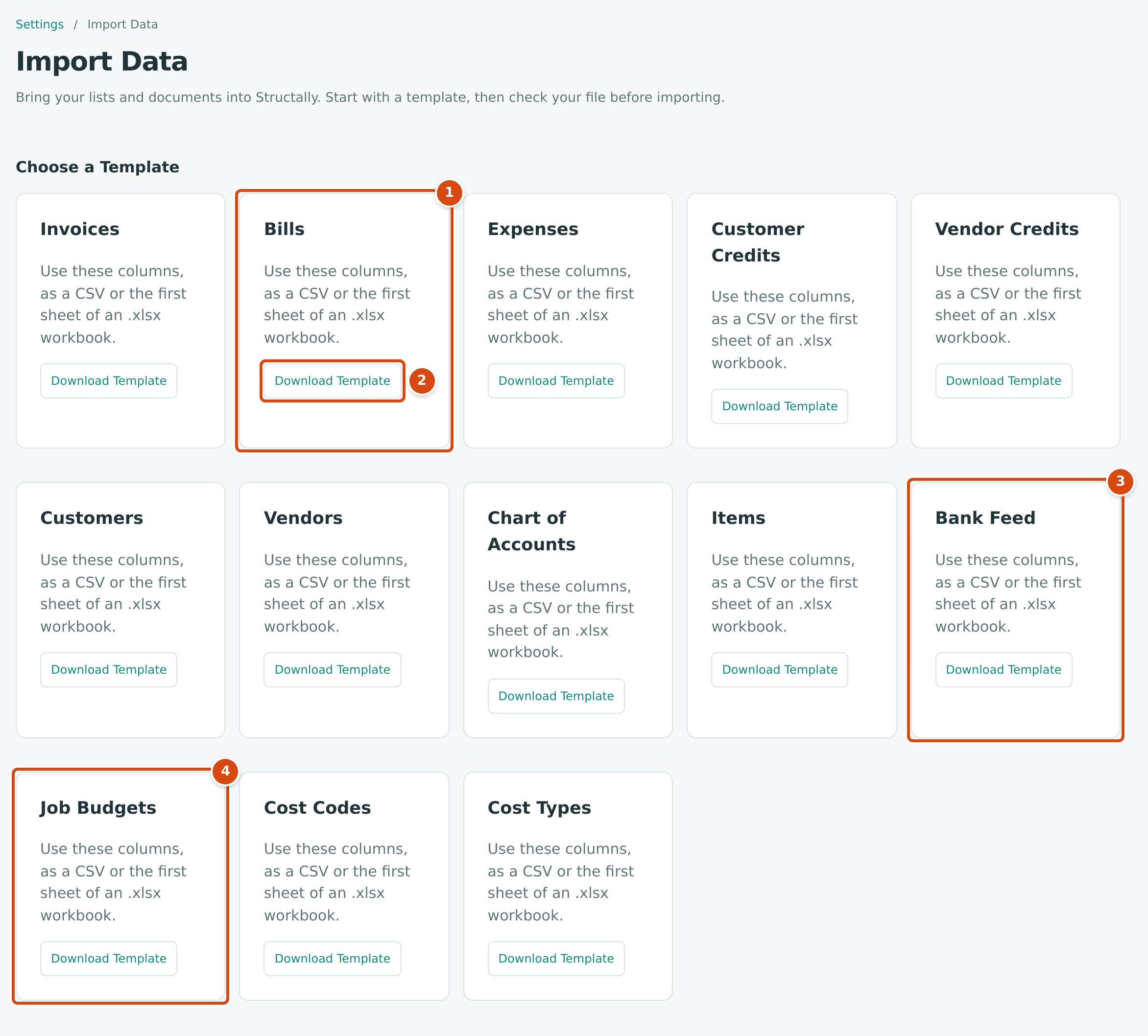
- One card per kind of record, here Bills.
- Download Template saves a CSV file with the right column headings and one example row, named after the kind, for example bills-template.csv.
- Bank Feed imports bank transactions into Banking.
- Job Budgets, Cost Codes and Cost Types appear only with Jobs & Costing.
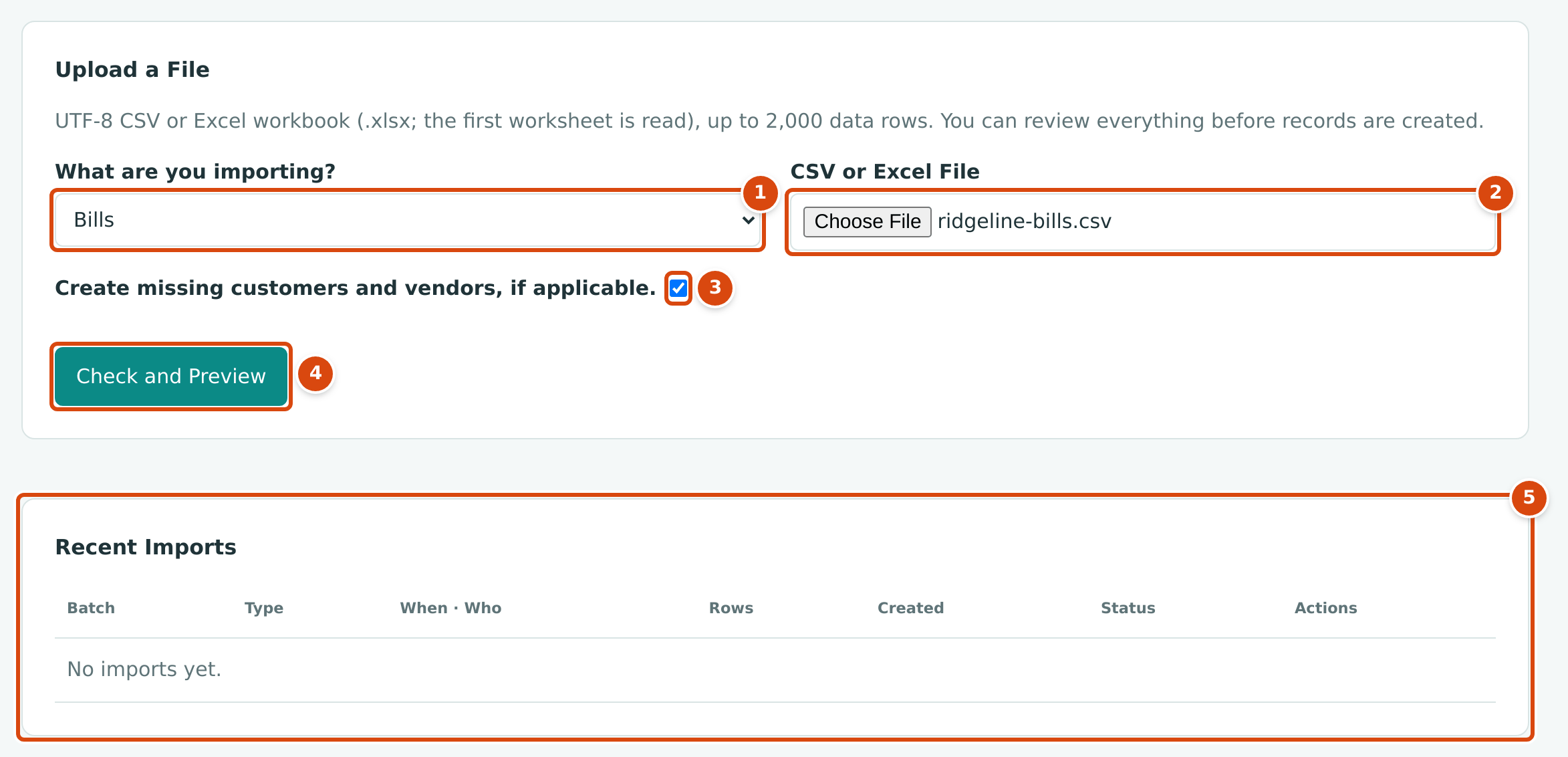
- What are you importing?: the kind of record in the file.
- CSV or Excel File: the file to check.
- Create missing customers and vendors, if applicable.: ticked by default.
- Check and Preview checks the file and opens the preview.
- Recent Imports: your last 50 batches. The sample company has none yet, so it shows No imports yet.
What You Can Import
| Template | Creates | Grouped By | Notes |
|---|---|---|---|
| Invoices | Draft invoices | invoice_ref | Lines use an item, an income account, or both; quantity times rate must equal the amount when all are given. |
| Bills | Draft bills | bill_ref | Lines can use any active account except Accounts Payable. No job coding. |
| Expenses | Posted expenses | expense_ref | paid_from_account must be a bank or credit card account; the vendor may be left blank. |
| Customer Credits | Draft customer credits | credit_ref | Lines use income accounts. |
| Vendor Credits | Draft vendor credits | credit_ref | |
| Customers | Customers | One per row | Code: letters, digits, hyphens and underscores only. |
| Vendors | Vendors | One per row | |
| Chart of Accounts | Accounts | One per row | Code: 1 to 10 letters or digits; parents may be earlier or later in the file; at most 5 levels. |
| Items | Items | One per row | income_account must be an income account. |
| Bank Feed | Bank transactions waiting in Banking | One per row | You choose the Bank Account; amounts are signed (minus for money out). |
| Job Budgets | Draft budgets | budget_ref | The first budget of a job is its original budget; a later one is a revision and needs an approved original. |
| Cost Codes | Cost codes | One per row | general: yes or no. |
| Cost Types | Cost types | One per row | wip_group and sort_order as in the template. |
Draft documents still have to be reviewed and posted in their own areas; imported expenses are posted straight away. Imported bank transactions appear in the bank feed for review (see Reviewing the Bank Feed).
The Template Columns
The first row of your file must contain exactly these column names, in this order. Columns starting with line_ describe one line of a document.
| Template | Columns |
|---|---|
| Invoices | invoice_ref, customer, date, due_date, terms, customer_ref, memo, line_item, line_account, line_description, line_qty, line_rate, line_amount, line_class, line_location |
| Bills | bill_ref, vendor, date, due_date, terms, vendor_ref, memo, line_account, line_description, line_amount, line_class, line_location |
| Expenses | expense_ref, vendor, date, paid_from_account, reference, memo, line_account, line_description, line_amount, line_class, line_location |
| Customer Credits | credit_ref, customer, date, customer_ref, memo, line_account, line_description, line_amount, line_class, line_location |
| Vendor Credits | credit_ref, vendor, date, vendor_ref, memo, line_account, line_description, line_amount, line_class, line_location |
| Customers | name, code, primary_contact, primary_phone, primary_email, secondary_contact, secondary_phone, secondary_email, billing_address, shipping_same_as_billing, shipping_address, terms, taxable, notes |
| Vendors | name, code, primary_contact, primary_phone, primary_email, secondary_contact, secondary_phone, secondary_email, billing_address, terms, notes |
| Chart of Accounts | code, name, role, balance_type, parent_code |
| Items | sku, name, rate, income_account |
| Bank Feed | date, description, amount, reference |
| Job Budgets | budget_ref, job, effective_date, note, line_cost_code, line_cost_type, line_amount, line_hours, line_quantity, line_unit |
| Cost Codes | code, name, general |
| Cost Types | code, name, wip_group, sort_order |
Rules for Every File
- A CSV file saved as UTF-8, at most 1 MB, or an Excel workbook (.xlsx) of at most 5 MB, of which only the first worksheet is read.
- At most 2,000 data rows below the heading row.
- Dates as YYYY-MM-DD, for example 2026-10-15.
- Amounts with at most two decimals; commas between thousands are allowed.
- Yes-or-no columns accept yes, no, true, false, 1 or 0.
- References to existing records ignore capital letters: customers and vendors are matched by name, accounts by code, items by SKU, terms by name, jobs by number, and classes and locations by code or name.
- In the Chart of Accounts template, the role column takes the account role written as in the template's example row (revenue), and balance_type is debit or credit.
- For documents, each row is one line. Rows with the same reference make one document. The document's own columns (customer, date, terms and so on) can be left blank on the second and later rows, but must not differ from the first.
Step by Step
Check a File
- Click Download Template on the card for what you are importing, and fill in the file. Keep the heading row as it is.
- In Upload a File, choose the kind in What are you importing?.
- Click Choose File under CSV or Excel File and pick your file.
- For documents, decide on Create missing customers and vendors, if applicable.: ticked, a customer or vendor name that is not found becomes a new customer or vendor when you import; cleared, such rows are problems.
- For Bank Feed, choose the Bank Account the transactions belong to. The field appears when Bank Feed is chosen.
- Click Check and Preview.
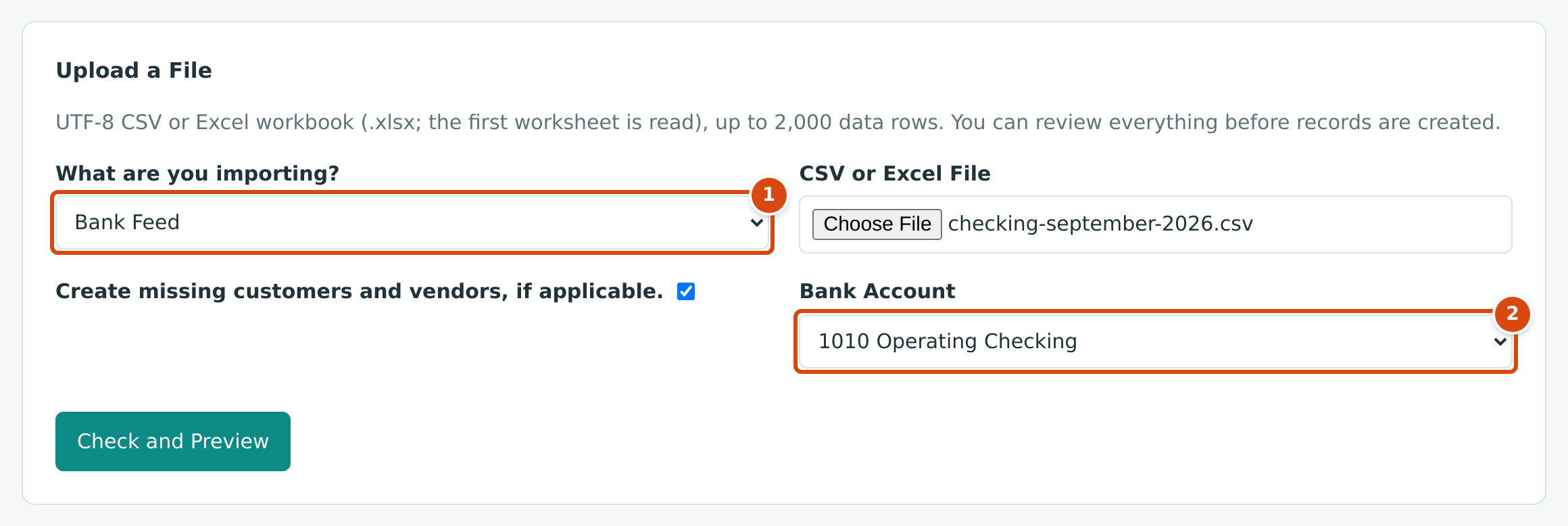
- Bank Feed chosen.
- Bank Account: a bank or credit card account.
If the file itself cannot be read (wrong format, wrong headings, too many rows), Structally says so on the same page and creates nothing. Otherwise it opens the batch's preview.
Review the Preview
The preview page is headed with the batch number and the status Preview, followed by the kind and the file name. It shows:
- four totals: Rows in File, Ready, Problems and New Customers (the customers the import will create);
- Check Your File: a table of every row with Row, Reference, Customer / Vendor, Date, Amount and Check. Check says Ready or Problem with the reason, for example "Vendor Apex Lumber not found" or "Date must be YYYY-MM-DD". Use Problems Only to list just the rows to fix, and All Rows to list everything again. As the page says, A problem on one line skips the whole document.
- Ready to Import, with the import button and Cancel Import.
No Screenshot of a Batch
The sample company has no imports, and checking a file creates a batch, so the preview and results pages are described from the product rather than shown.
Import or Cancel
- To import, click the button under Ready to Import. It names what will be created, for example Import 1 Draft Bill or Import 12 Customers. Only ready rows are imported; Problem groups will be skipped. The button is unavailable when nothing is ready.
- To drop the batch instead, click Cancel Import. The batch is kept with the status Canceled and nothing is created.
To fix problems, correct your file and check it again; the new check is a new batch.
After the Import
The batch's page now shows Import Results, one row per document or record:
| Column | Shows |
|---|---|
| Reference | The document reference, or "Row" and the row number for lists |
| Rows | The file rows it came from |
| Result | Created or Skipped (later Undone or Kept) |
| Created | The number or code of the new record, linked to it |
| Current State | The record's status today, for example Draft, Posted, Active |
| Note | "Created draft", "Posted", "Created", "Skipped because the group has problems" or, for bank transactions, "Already present in Banking" |
Results CSV (on the batch page and in Recent Imports) downloads the same information, named after the batch, for example IMP-2026-000001-results.csv. Its columns are group_ref, row_numbers, status, Created Number, note and problems.
Bank transactions that are already in Banking are skipped, not imported twice.
Undoing an Import
An imported batch (other than a bank feed) has an Undo Import section, also reached with Undo Import in Recent Imports. Before you confirm, it lists what will happen, for example "Will delete 3 draft invoices" or "Will deactivate 2 customers", and under Cannot undo, what will be kept and why.
| Created Record | On Undo |
|---|---|
| Draft invoice, bill, credit or budget | Discarded |
| Document that is no longer a draft | Kept, with a reason such as "Cannot undo posted" |
| Expense | Reversed, dated today, with the memo "Undo" and the batch number; kept if it is matched in Banking or already reversed |
| Customer, vendor, account, item, cost code or cost type (including customers and vendors the import created) | Deactivated if nothing refers to it; otherwise kept, for example "Referenced by INV-2026-000055" |
- Open the batch and go to Undo Import.
- Type the batch number in Type the Batch Number to Confirm.
- Click Undo Import.
The batch's status becomes Undone and the page shows how many records were Deleted, Reversed and Deactivated, and what was Kept. Bank feed imports are not undone here; as the page says, Bank feed imports are undone in Banking.
Statuses
| Batch Status | Meaning |
|---|---|
| Preview | Checked, nothing created yet. |
| Imported | The ready rows were created. |
| Canceled | Dropped without importing. |
| Undone | Imported, then undone. |
Batches are numbered IMP-, the year and a sequence, for example IMP-2026-000001.
Worked Example
Cedar Ridge Contracting receives a two-line invoice from Ridgeline Lumber Supply, RL-4471 dated October 15, 2026, and enters it in a bills template (illustrative):
| bill_ref | vendor | date | due_date | terms | vendor_ref | memo | line_account | line_description | line_amount | line_class | line_location |
|---|---|---|---|---|---|---|---|---|---|---|---|
| RL-4471 | Ridgeline Lumber Supply | 2026-10-15 | Net 30 | RL-4471 | 5040 | Framing lumber | 1840.00 | Residential | North | ||
| RL-4471 | 5040 | Sheathing | 620.00 | Residential | North |
Both rows have the reference RL-4471, so they make one bill. The vendor, the terms Net 30, account 5040, the class Residential and the location North all exist in the sample company. The due date is blank, so Structally works it out from the terms: October 15, 2026 plus 30 days is November 14, 2026. The preview would show Rows in File 2, Ready 2, Problems 0, and the button Import 1 Draft Bill. Importing creates one draft bill for $2,460.00 (1,840.00 + 620.00), to be reviewed and posted under Vendors & Bills. Had the import been a mistake, Undo Import would discard the draft.
Common Mistakes and Troubleshooting
| Message or Symptom | Why It Happens | What to Do |
|---|---|---|
| File must be a CSV or an Excel workbook (.xlsx) | The file is another format, or a damaged workbook. | Save it as CSV (UTF-8) or .xlsx. |
| File must be at most 1 MB / Workbook must be at most 5 MB | The file is too large. | Split it into several files. |
| File must be UTF-8 | The CSV was saved in another character encoding. | Save it as "CSV UTF-8". |
| Wrong header; missing columns: …; extra columns: … | The heading row does not match the template. | Copy the heading row from a fresh template. |
| Wrong header; columns must be in the template order | The columns are all there but in another order. | Put them back in the template order. |
| At most 2,000 data rows are allowed | The file has more than 2,000 rows. | Split it. |
| The file contains no data rows | Only the heading row is filled. | Add your rows. |
| Choose a bank account | Bank Feed was chosen without a Bank Account. | Choose the account. |
| "Vendor … not found" (or Customer) | The name does not match an active vendor and the create option is off. | Fix the name, add the vendor, or tick Create missing customers and vendors, if applicable. |
| "… differs within the document" | A later row of a document has a different customer, date, terms or other header value. | Leave those columns blank on later rows, or make them the same. |
| "Date must be YYYY-MM-DD" | A date is in another format, for example 10/15/2026. | Format dates as 2026-10-15. |
| "Account … must be an income account" | An invoice or customer credit line, or an item, uses a non-income account. | Use an income account. |
| "Duplicate reference within the file" | Two bank feed rows have the same reference. | Make each reference unique, or leave it blank. |
| "Jobs & Costing is not turned on for this company." | A job budget, cost code or cost type file was checked while Jobs & Costing is off. | Jobs & Costing must be turned on for the company first. |
| Type the batch number to confirm | The confirmation does not match the batch number. | Type it exactly, for example IMP-2026-000001. |
| Bank feed imports are undone in Banking | Undo was tried on a bank feed batch. | Deal with the transactions in the bank feed (see Reviewing the Bank Feed). |