| Account | Debit | Credit |
|---|---|---|
| 1635 Trucks | 48,000.00 | |
| 1630 Equipment and Vehicles | 48,000.00 |
Creating and Editing Accounts
Add an account when you need to track something your chart does not cover yet: a new bank account, a loan, a revenue stream or an overhead cost. Add a sub-account when you want more detail under an existing account while still seeing the total, for example each truck under Equipment and Vehicles. You can later rename an account, move it under another parent, or deactivate it when you stop using it.
Accounts are never deleted. An account that has been used keeps its history; you deactivate it instead, and it disappears from pickers while staying in the chart and the reports.
Before You Begin
- You need Edit access to Accounting. Company Admins and Accountants have it; Viewers and Project Managers do not. A Custom role needs Accounting set to Edit. See Roles and Permissions.
- Decide the code. Codes are 1 to 10 letters or digits, and the sample company numbers its accounts by section: 1000s assets, 2000s liabilities, 3000s equity, 4000s income, 5000s direct costs, 6000s expenses.
- Know the role the account needs (see Account Roles).
Navigation
Accounting → Chart of Accounts → Add Account (beside the page title), or an account's page for Edit Account, Add Sub-Account and Deactivate.
Adding an Account
- Open Accounting → Chart of Accounts and click Add Account beside the page title. The Add Account drawer opens on the right.
- Type the Code and the Name.
- Choose the Role.
- Choose the Balance Type that the role requires: Debit for asset, direct cost and expense roles, Credit for liability, equity and income roles. The exceptions are Accumulated Depreciation and Uninstalled Materials Deferral (Credit) and Owner Draws (Debit). Structally does not fill this in for you, and it refuses a balance type that does not match the role.
- Leave Parent Account as None for a main account, or choose a parent to make it a sub-account. After you choose a role, the list offers only accounts that can be its parent.
- Click Add Account at the bottom of the drawer. Structally creates the account as active and opens its account page. Cancel (or ×) closes the drawer without adding anything.
If the account cannot be added, the drawer opens again with what you typed and the reason, so you can correct it and click Add Account again. A Balance Type that does not match the role is the exception: it ends in an error page (see Common Mistakes and Troubleshooting).
Adding a Sub-Account
The quickest way to add a sub-account is from the parent's page:
- Open the parent account (for example 1630) and click Add Sub-Account.
- The Chart of Accounts opens with the Add Account drawer already open, Role set to the parent's role and the parent in Parent Account.
- Type the Code and Name, check the Balance Type, and click Add Account.
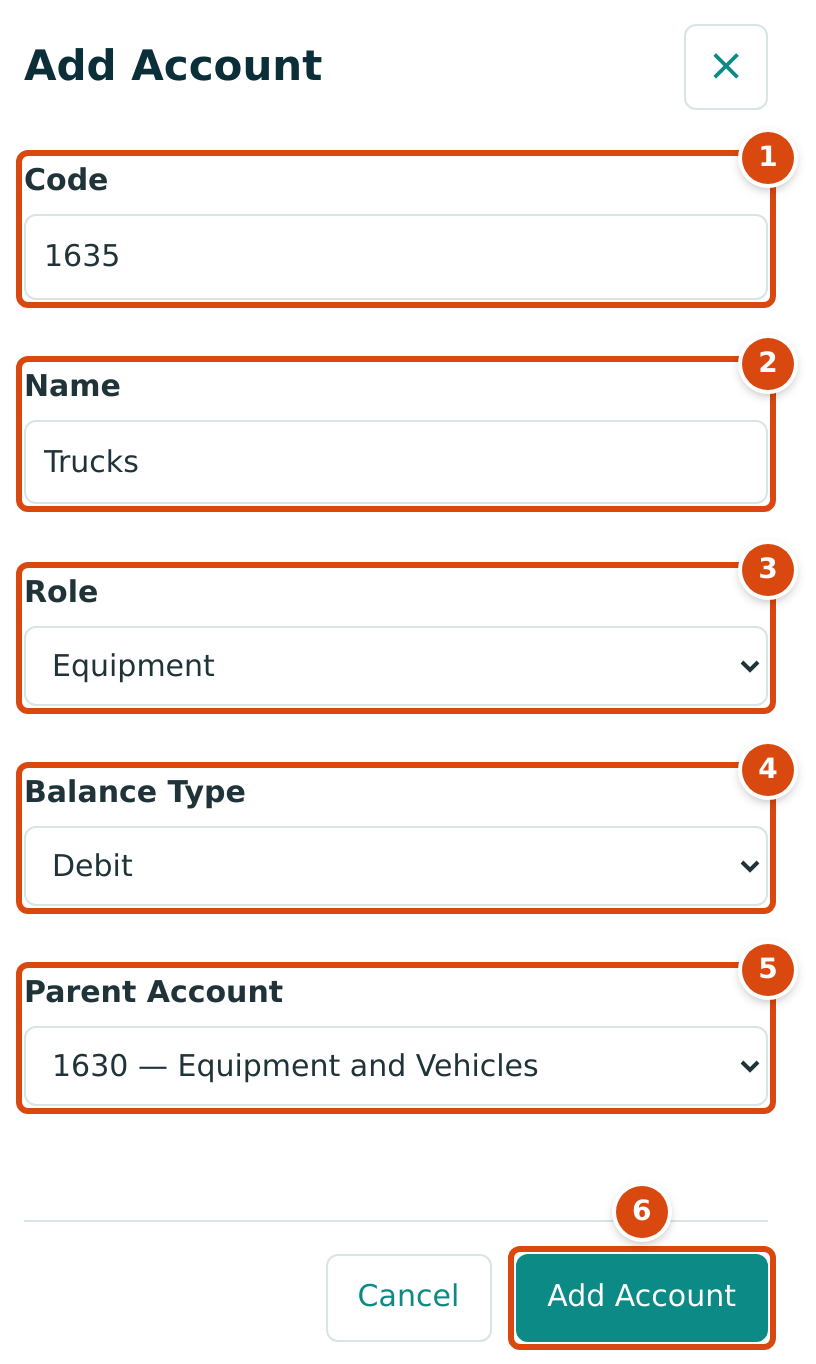
- Code: 1 to 10 letters or digits, not used by any other account.
- Name: up to 100 characters.
- Role: filled from the parent when you start from Add Sub-Account.
- Balance Type: must match the role; Equipment is a debit account.
- Parent Account: the account this one sits under.
- Add Account creates the account.
A parent must be active and in the same group of the financial statements as the new account, and accounts can be at most five levels deep.
Adding an Account While You Enter a Transaction
You do not have to leave a journal entry, bill or expense to add a missing account.
-
In the line's Account picker, type the new account's name. The list shows + Add New followed by what you typed.
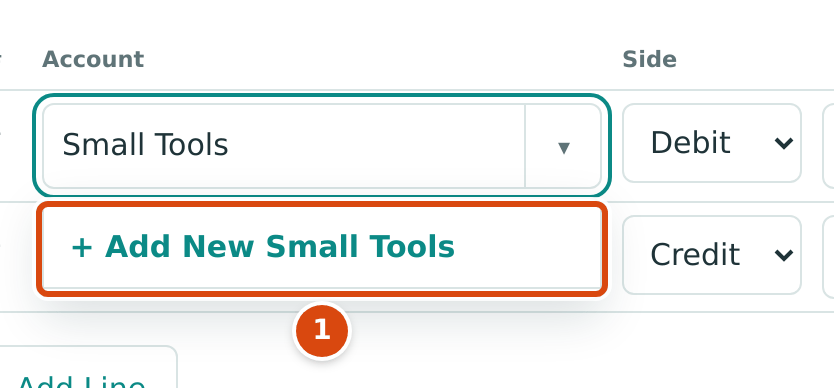
Figure 5-6 Adding an account from a line's Account picker. 1. + Add New opens the New Account panel with the name filled in. -
Click + Add New. In the New Account panel, type the Code, check the Name, and choose the Role.
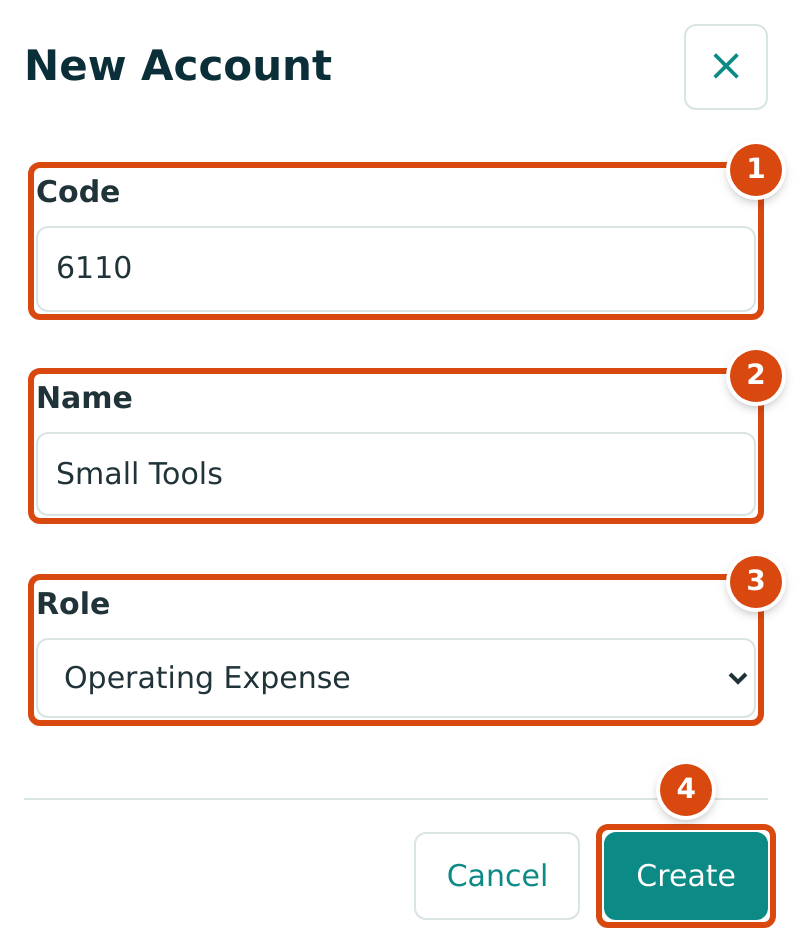
Figure 5-7 The New Account panel. 1. Code: the new account's code. 2. Name: what you typed in the picker; change it if needed. 3. Role: Structally sets the balance type from the role for you. 4. Create adds the account and selects it on the line. -
Click Create. The panel closes and the new account is chosen on the line.
Accounts added this way are main accounts (no parent); move one under a parent later with Edit Account if you want. The Role list can be shorter than on the Chart of Accounts: on invoices and credit memos it offers only Revenue, Other Income and Gain Loss, and on Opening Balances only balance sheet roles other than Opening Balance Equity. + Add New appears only for users with Edit access to Accounting.
Renaming or Moving an Account
- Open the account page and click Edit Account (at the top or in Account Details).
- Change the Name, the Parent Account, or both. Choose None to make it a main account again.
- Click Save Account, or Cancel to leave it unchanged. Structally shows Account updated.
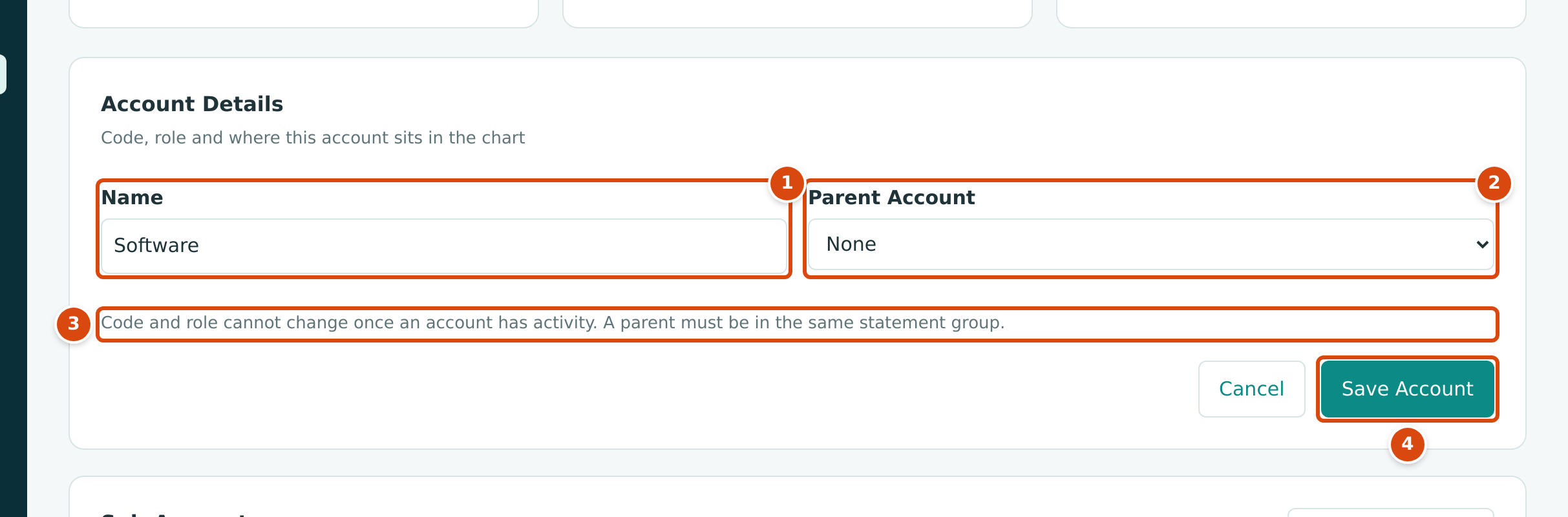
- Name: the new name. It changes everywhere the account appears, including past entries and reports.
- Parent Account: lists only active accounts in the same group of the statements, and never the account itself or its own sub-accounts.
- The reminder that a parent must be in the same statement group.
- Save Account saves the name and the parent together.
Code and role cannot be changed
The edit form changes only the name and the parent. Although the note on the form says code and role cannot change once an account has activity, there is no way to change them on screen even for an unused account. To use a different code or role, add a new account and deactivate the old one.
Moving an account changes only where it sits in the chart and which parent its balance rolls into. Its postings stay on the account.
Deactivating and Reactivating an Account
- Open the account page and click Deactivate.
- Read the confirmation and click Deactivate (or Cancel).
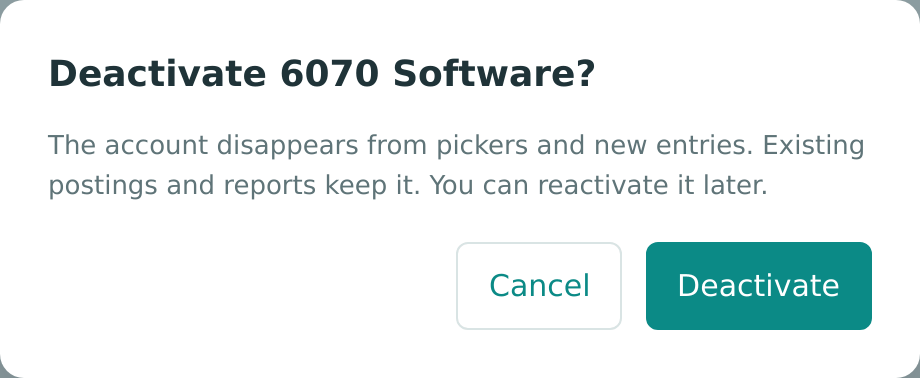
As the dialog says: "The account disappears from pickers and new entries. Existing postings and reports keep it. You can reactivate it later." Structally shows Account updated. and the status changes to Inactive.
To use the account again, open it and click Reactivate, then Reactivate in the dialog ("The account returns to pickers and new entries.").
- Deactivate the sub-accounts first: an account with active sub-accounts cannot be deactivated.
- A sub-account cannot be reactivated while its parent is inactive.
- Deactivating does not move or clear a balance. If the account still holds an amount, post a journal entry to move it first.
- You can still void or reverse earlier transactions that used an inactive account.
Accounts that Structally uses on its own
Do not deactivate your only Payable or Receivable account (or the retainage accounts while you hold retainage). Bills and invoices post to them automatically and are refused while no active one exists. See Keep one active account per control role.
Field Reference
| Field | Description | Required | Example |
|---|---|---|---|
| Code | 1 to 10 letters or digits, unique in the company (capital and small letters count as the same). Cannot be changed later. | Yes | 1635 |
| Name | Up to 100 characters. Can be changed later. | Yes | Trucks |
| Role | What kind of account it is. Cannot be changed later. | Yes | Equipment |
| Balance Type | Debit or Credit; must be the role's balance type. Not shown in the New Account panel, where it is set from the role. | Yes | Debit |
| Parent Account | The account it sits under, or None. Must be active and in the same statement group. | No | 1630 — Equipment and Vehicles |
Worked Example: Tracking Trucks Separately
Cedar Ridge keeps its trucks and its loader in 1630 Equipment and Vehicles. To see the trucks on their own, the accountant adds 1635 Trucks as a sub-account of 1630, as in the figure above:
| Setting | Value |
|---|---|
| Code | 1635 |
| Name | Trucks |
| Role | Equipment (from the parent) |
| Balance Type | Debit |
| Parent Account | 1630 — Equipment and Vehicles |
The new account is at Level 2, and pickers show it as 1635 — Equipment and Vehicles: Trucks. Adding the account posts nothing. To move the trucks' cost into it, post a journal entry. With an illustrative truck cost of $48,000.00:
Afterward the Direct Balance of 1630 is $48,000.00 lower, 1635 shows $48,000.00, and the Combined Balance of 1630 is unchanged, because 1635 rolls up into it.
What Happens After You Save
- No journal entry is written: adding, renaming, moving, deactivating and reactivating accounts change the chart, not the books.
- Each change is recorded in the Audit Log under the commands
create_account,rename_account,set_account_parentandset_account_active, with who made it and when. - A new account appears in the Chart of Accounts and in pickers at once. A renamed account shows its new name everywhere, including on past entries.
Common Mistakes and Troubleshooting
| Message or Symptom | Why It Happens | What to Do |
|---|---|---|
| Account code must be 1 to 10 letters or digits. | The code is empty, too long, or has a space, dash or other symbol. | Use letters and digits only. |
| Account code already in use | Another account (active or inactive) has this code. | Choose another code, or reactivate the existing account. |
| Account name must be 1 to 100 characters. | The name is empty or too long. | Shorten the name. |
| Account 1635 must be in the same statement group as its parent 2010. | The role and the parent's role belong to different parts of the statements. | Choose a parent of the same kind, or None. |
| Parent account 1630 is inactive. | You chose an inactive parent, or reactivated a sub-account under one. | Reactivate the parent first. |
| Account 1635 cannot be placed under 1630: accounts can be at most 5 levels deep. | The move would nest accounts more than five levels deep. | Choose a parent higher in the chart. |
| Account 1630 has active sub-accounts; deactivate them first. | You tried to deactivate a parent. | Deactivate each sub-account, then the parent. |
| Account is already inactive or Account is already active | The page was out of date; someone else changed the account. | Reload the account page. |
| The Add Account drawer opens again after you click Add Account, and the account is not created. | The account was refused, for example because the code is already in use or the parent is in another statement group. | Read the reason, correct the entry and click Add Account again. |
| An error page appears after you click Add Account, and the account is not created. | The Balance Type does not match the role. The list starts at Debit, so a credit role saved with the default fails. | Open the Chart of Accounts again, click Add Account and choose the balance type the role requires (see step 4 above). |
| There is no Add Account button beside the title. | You have View access to Accounting, not Edit. | Ask a Company Admin or Accountant to add the account. |
| + Add New does not appear in an account picker. | You do not have Edit access to Accounting. | Ask a Company Admin or Accountant to add the account. |
Related Topics
- The Chart of Accounts
- Journal Entries
- Opening Balances
- Job Costing Settings, for whether an account takes job coding
- The Audit Log