Roles and Permissions
Every user of a company has one role in that company. The role decides which parts of Structally the user sees and what the user can change. A person who works for several companies can have a different role in each.
Company Admins give roles on Settings → Users & Access (see Users & Access). Structally's own platform staff manage companies from a separate Management Console; that access is not a company role and is not covered here.
Areas and Access Levels
Structally groups its pages into seven areas. A role gives each area one of three levels:
| Level | What It Means |
|---|---|
| No Access | The area is hidden from the navigation. Opening one of its pages shows This Area Is Locked for You. |
| View | The user can open the area's lists, records and reports but cannot create or change anything. |
| Edit | The user can also create, post and correct records in the area, within the limits described below. |
The areas are Customers & Invoices, Vendors & Bills, Jobs & Costing, Banking, Reports, Accounting and Settings. The Home dashboard is open to everyone with access to the company.
The Five Roles
| Area | Company Admin | Accountant | Viewer | Project Manager | Custom |
|---|---|---|---|---|---|
| Customers & Invoices | Edit | Edit | View | Edit | Chosen per user |
| Vendors & Bills | Edit | Edit | View | Edit | Chosen per user |
| Jobs & Costing | Edit | Edit | View | Edit | Chosen per user |
| Banking | Edit | Edit | View | No Access | Chosen per user |
| Reports | Edit | Edit | View | No Access | Chosen per user |
| Accounting | Edit | Edit | View | No Access | Chosen per user |
| Settings | Edit | No Access | No Access | No Access | Chosen per user |
- Company Admin
- Full access to everything, including the company's settings and its users. Some actions are reserved for Company Admins (see below). Every company has at least one.
- Accountant
- Full day-to-day accounting: invoices, bills, payments, banking, reconciliation, journal entries, the chart of accounts, reports, and the whole Jobs & Costing workflow including approvals. No access to Settings.
- Viewer
- Can look at everything except Settings, and change nothing. Useful for owners, lenders' reviewers or outside advisors who only need to read.
- Project Manager
- Works with customers, vendors and jobs: invoices, bills, expenses, payments to vendors and from customers, jobs, budgets, commitments, change orders, forecasts and pay applications. No access to Banking, Reports, Accounting or Settings, and none of the approval steps listed below.
- Custom
- The Company Admin chooses No Access, View or Edit for each area. A Custom user follows the same limits as a Project Manager: no approval steps and no Company Admin actions, whatever levels are chosen.
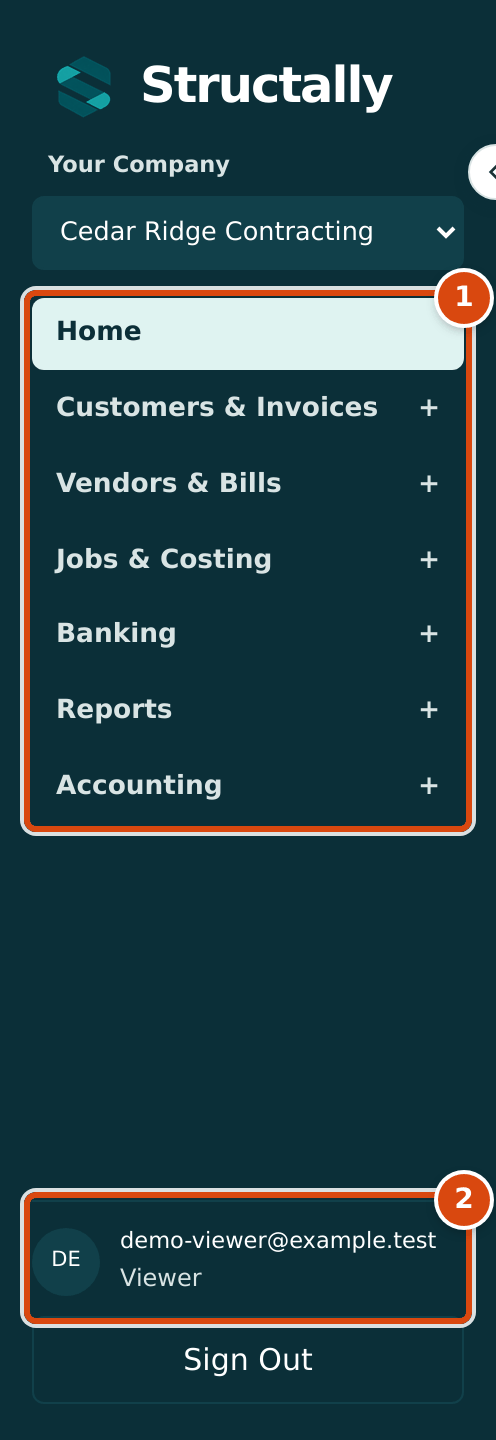
- Only the areas the role can see are listed. A Viewer has no Settings group.
- The user's email and role in this company appear at the bottom of the navigation.
Actions Reserved for Company Admins
These actions need the Company Admin role. A Custom user cannot perform them even with Edit on the area.
| Area | Action |
|---|---|
| Settings | Company Details, Users & Access and Classes & Locations pages (creating, editing, activating and deactivating classes and locations) |
| Jobs & Costing | In Job Costing Settings: account job-costing policies, the Commitment Overruns setting, retainage defaults and retainage accounts, and creating the WIP accounts |
These Settings actions are also closed to Accountants and Viewers, because their roles have no Settings access: setting the Books Closed date, posting Opening Balances, changing or testing Email Sending, and running Import Data. A Custom user who has Edit on Settings can perform them.
Approval Steps
These steps are open to Company Admins and Accountants only. Project Managers and Custom users can prepare the records but cannot complete these steps:
- approving a forecast;
- creating, refreshing, approving, posting or discarding a WIP schedule, and setting or confirming its uninstalled materials;
- approving a schedule of values revision;
- accepting or reversing a pay application;
- approving or rejecting a change order. Anyone with Edit on Jobs & Costing can enter, submit and withdraw one;
- posting a bill line that goes over its commitment when Commitment Overruns is Block, which also needs an override reason on the line (see Entering a Bill).
When a User Has No Access
A user who opens a page of an area their role does not include sees This Area Is Locked for You, with the names of the company's Company Admins to ask:
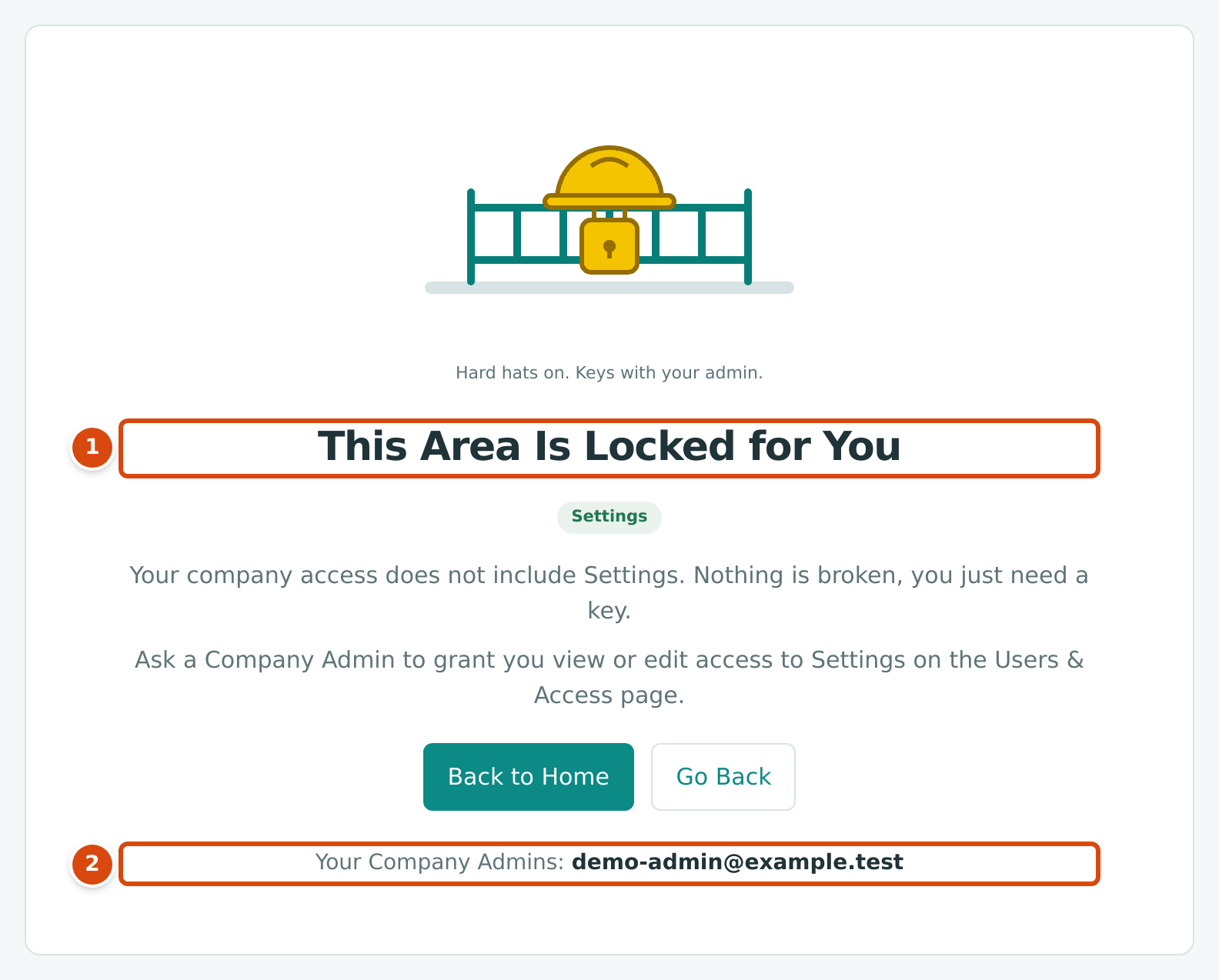
- The page names the locked area (here Settings).
- Your Company Admins lists who can change the user's access.
Buttons for actions a role cannot perform are not shown. If a user reaches an action another way (for example from a bookmark), Structally refuses it and nothing changes.
Suspended and Removed Access
A Company Admin can suspend a user's access or remove it (see Users & Access). While access is suspended or removed, the user cannot open the company at all; their other companies are not affected. Records the user created stay in the company and keep showing who created them in each record's history and in the Audit Log.