Classes & Locations
Classes and locations are two optional tags you put on transactions so you can report profit by something other than the account. A class answers "what kind of work was this?" (in the sample company: Commercial, Remodel and Residential). A location answers "where?" (East, North and South). The Profit and Loss report can then show a column for each class or each location.
The two tags work differently on documents:
- A class is set on each line, so one invoice or bill can split between kinds of work.
- A location is set once per document, for the whole invoice, bill, expense or credit.
- On a journal entry, each line can carry both.
If your company uses other words, such as "Division" instead of "Class" or "Branch" instead of "Location", rename the labels; Structally then uses your words on every form and report.
Before You Begin
- You must be a Company Admin. Classes & Locations is not available to other roles, including Custom users with Settings access. Only Company Admins can create class and location values, also from the pickers on documents. See Roles and Permissions.
Navigation
Settings → Classes & Locations, or the Classes & Locations card on the Settings overview.
The Page
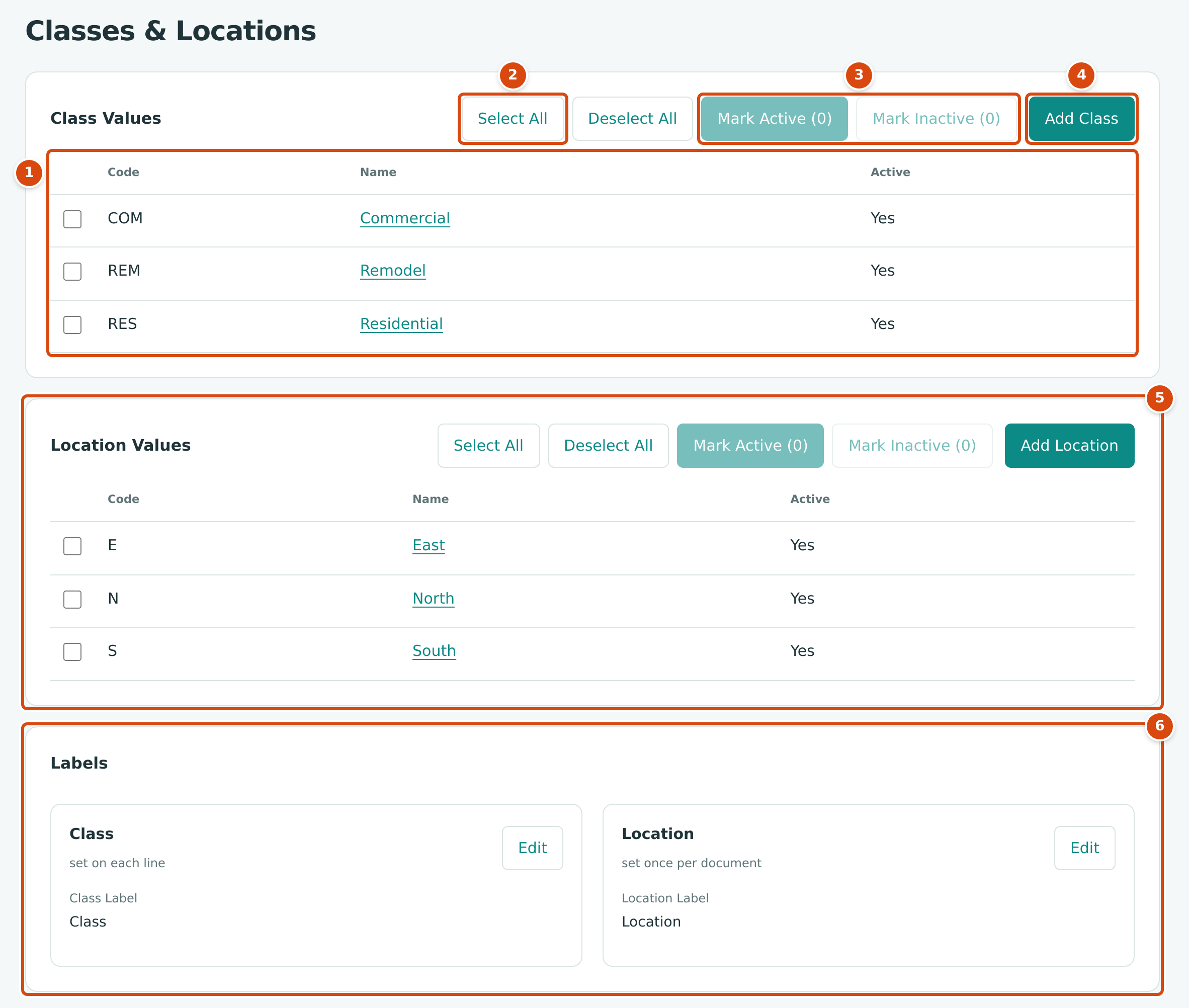
- Class Values: every class value with its Code, Name and whether it is Active. Click a name to open the value.
- Select All and Deselect All tick or clear every row of the table.
- Mark Active and Mark Inactive act on the ticked rows; the number shows how many are ticked.
- Add Class opens the New Class panel.
- Location Values: the same for locations, with Add Location.
- Labels: the names used for the two tags, with a note on how each is assigned (set on each line, set once per document).
Adding a Value
- Click Add Class (or Add Location).
- Enter a Code: 1 to 20 letters, digits or hyphens, for example IND.
- Enter a Name: up to 100 characters, for example Industrial.
- Click Create Class (or Create Location).
Structally confirms with a message such as Class IND added. The new value is active and can be chosen on documents straight away.
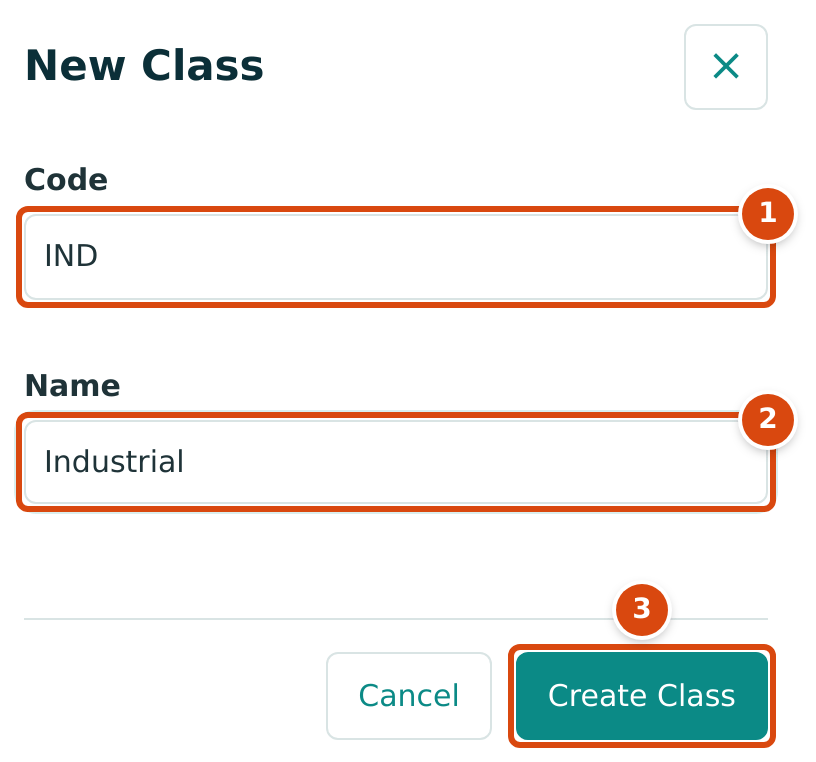
- Code: short and unique among the classes. It cannot be changed later.
- Name: what appears in pickers and reports. It must be unique among the classes.
- Create Class adds the value; Cancel closes the panel.
A Company Admin can also add a value while entering a document: type a new name in the Class or Location picker and choose + Add New.
Marking Values Active or Inactive
Values are never deleted. When you stop using one, mark it inactive: it is no longer offered on new documents, but everything already tagged with it keeps the tag and still reports under it.
- Tick the rows to change, or use Select All.
- Click Mark Inactive (or Mark Active). The button shows how many rows are ticked.
Structally confirms with a message such as 2 values marked inactive.
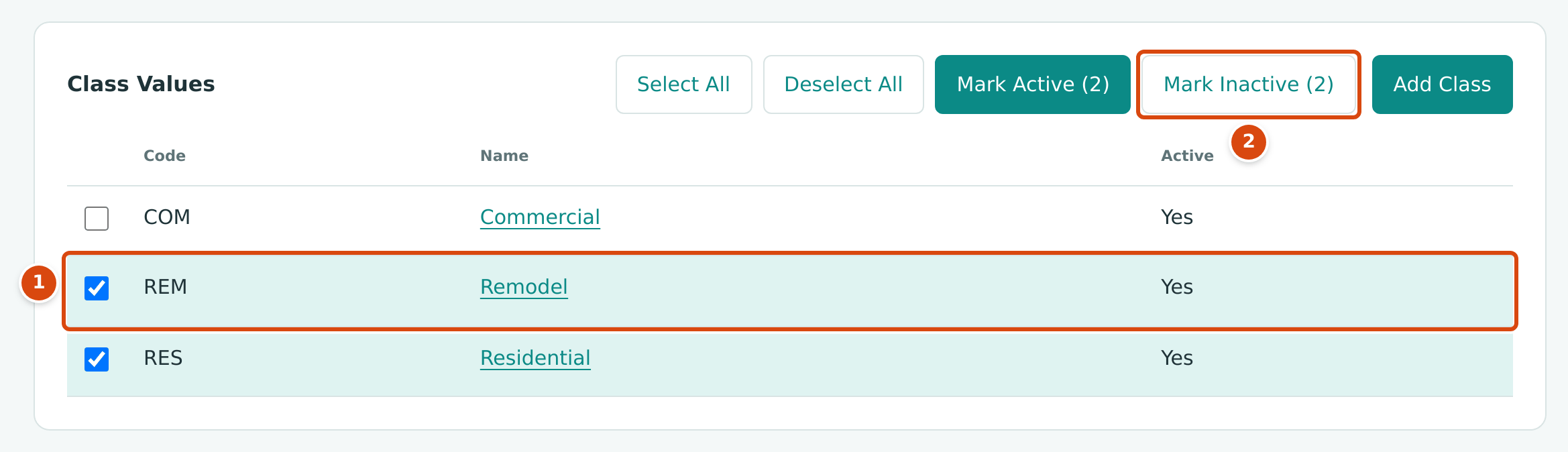
- A ticked row is highlighted.
- Mark Inactive (2) marks both ticked values inactive.
A Value's Own Page
Click a value's name to open its page. It shows the Code, Name, Status and Posted Lines, the number of posted journal lines tagged with the value.
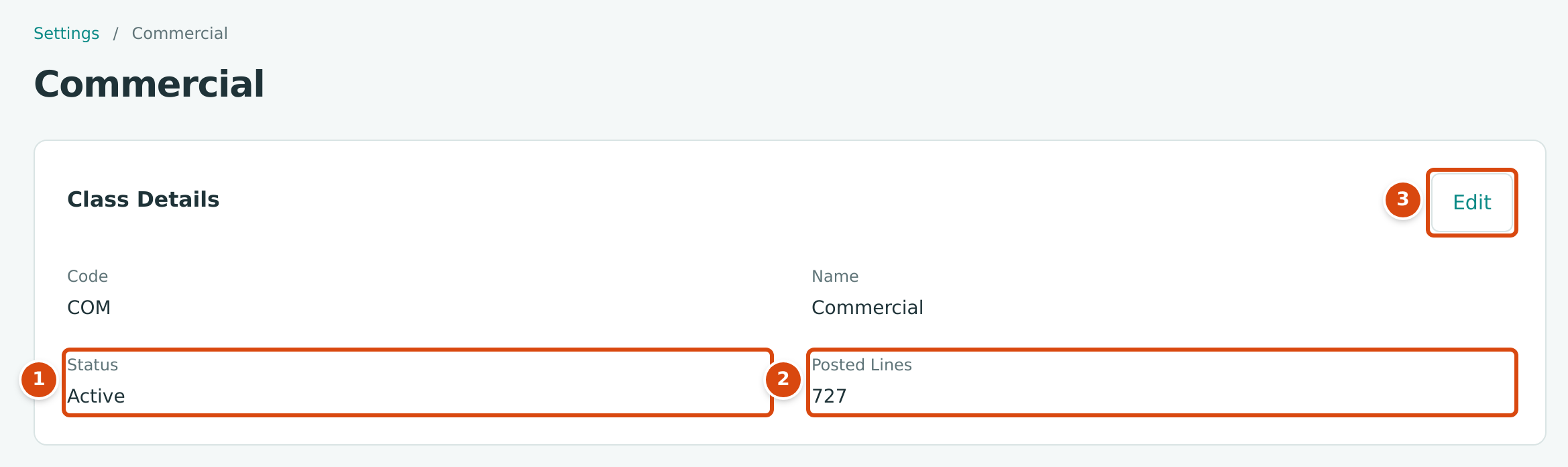
- Status: Active or Inactive.
- Posted Lines: how many posted journal lines carry this class.
- Edit opens the form.
Click Edit to change the Name or tick or clear Active, then click Save. Structally confirms with Class saved. (or Location saved.). The code cannot be changed.
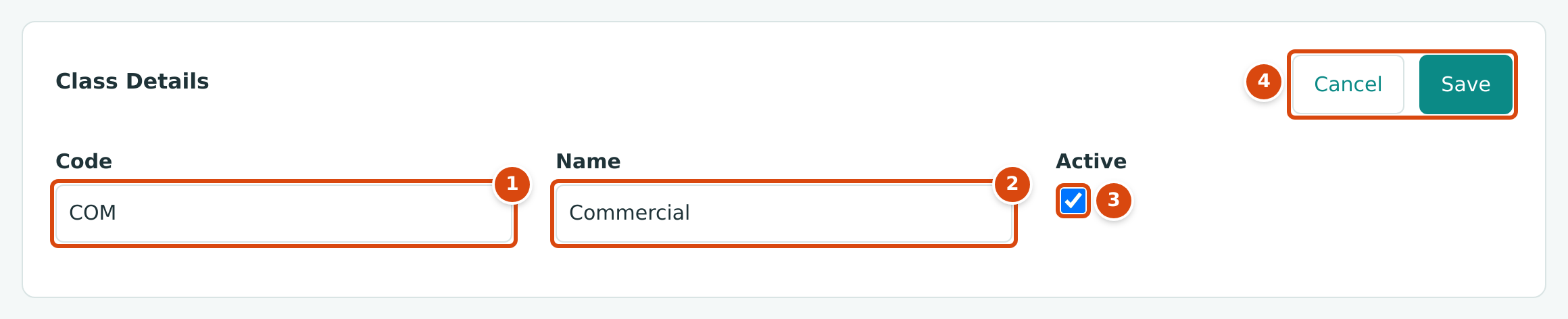
- Code: shown but not editable.
- Name.
- Active.
- Cancel and Save.
Renaming the Labels
- In Labels, click Edit on Class (or Location).
- Type the new label, up to 30 characters.
- Click Save. Structally confirms with Class label saved. (or Location label saved.).
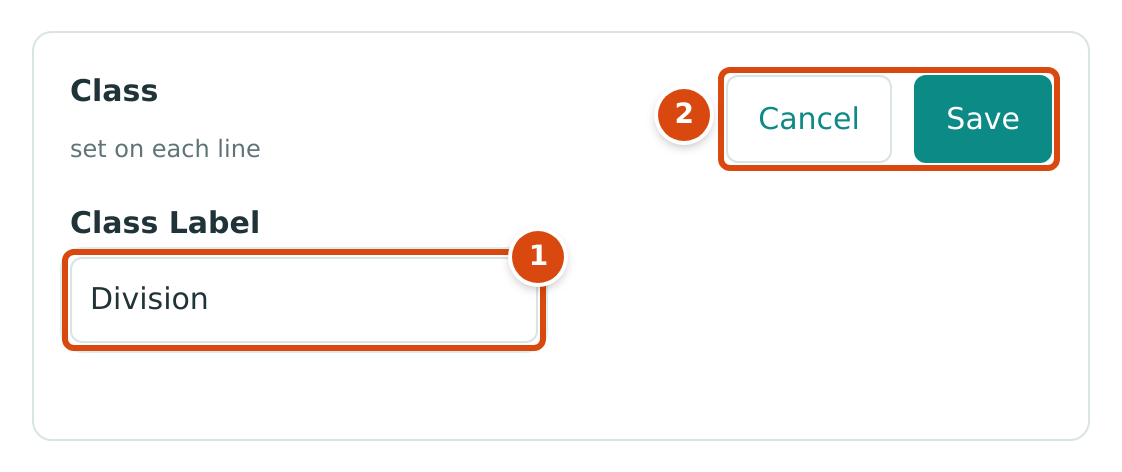
- Class Label: the word used everywhere for classes.
- Cancel and Save.
The label replaces the word on document forms (the line column and the header field, with No followed by the label as the empty choice), on this page (Division Values, Add Division) and in the Profit and Loss columns (By Division). Values and tags already recorded do not change.
Where Classes and Locations Are Used
| Where | Class | Location |
|---|---|---|
| Invoices, bills, customer and vendor credits | On each line | Once, for the document |
| Expenses | On each line | Once, for the expense |
| Journal entries | On each line | On each line |
| Profit and Loss | Display Columns By → By Class | Display Columns By → By Location |
The By choices appear in the Profit and Loss report when the company has at least one active value of that kind, and only on the accrual basis. Opening balances do not carry classes or locations.
When you open a document that uses a value later marked inactive, the value is shown with (Inactive) and is kept; a new document cannot choose it.
Field Reference
| Field | Description | Required | Example |
|---|---|---|---|
| Code | 1 to 20 letters, digits or hyphens; unique within classes (or locations). Fixed once created. | Yes | COM |
| Name | Up to 100 characters; unique within classes (or locations). | Yes | Commercial |
| Active | Whether the value can be chosen on new documents. | Ticked | |
| Class Label | The word used for classes. Up to 30 characters. Default Class. | Yes | Class |
| Location Label | The word used for locations. Up to 30 characters. Default Location. | Yes | Location |
Worked Example
In the sample company, the class Commercial (COM) is on 727 posted lines, as its page shows. A Profit and Loss for September 2026 with Display Columns By set to By Class splits the figures into columns by class, so you can compare the profit of commercial, remodel and residential work.
If the company stopped doing remodels, a Company Admin would tick REM and click Mark Inactive (1). Remodel would disappear from the class pickers on new documents, but its posted lines would keep reporting under Remodel.
What Happens After You Save
- Nothing is posted. New, renamed or inactive values apply to documents from then on.
- Creating values, changing them and marking them active or inactive are recorded in the Audit Log.
Common Mistakes and Troubleshooting
| Message or Symptom | Why It Happens | What to Do |
|---|---|---|
| Code must be 1 to 20 letters, digits or hyphens. | The code is empty, too long or has other characters (such as spaces). | Use letters, digits and hyphens only. |
| Code is already in use. | Another value of the same kind has this code. | Choose another code. |
| Name is already in use. | Another value of the same kind has this name. | Choose another name. |
| Select at least one row. | Mark Active or Mark Inactive was clicked with nothing ticked. | Tick the rows first. |
| Class REM is inactive. | A document form sent a class (or location) that has been marked inactive. | Choose an active value, or mark the value active again. |
| A value is missing from a document's picker. | It is inactive. | Mark it active, or choose another value. |
| Classes & Locations is not in the navigation. | You are not a Company Admin. | Ask a Company Admin. |