| Account | Debit | Credit |
|---|---|---|
| 1100 Accounts Receivable | 120,680.53 | |
| 1110 Retainage Receivable | 13,408.94 | |
| 4010 Construction Revenue (J-2004) | 134,089.47 |
Pay Applications
A pay application (also called an application for payment) is the monthly progress bill of a contract job. For each line of the job's schedule of values you enter the work completed this period and the materials stored on site, and Structally works out the amount completed to date, the retainage the customer holds back and the Current Payment Due.
You prepare the application, send it to the owner or architect for approval, and when it is approved you accept it. Accepting creates and posts one invoice for the period's billing, with its retainage, so the job's receivable and revenue are recorded.
Before You Begin
- The job is Active (an On Hold job can have an application prepared but not accepted) and has an approved schedule of values that matches its revised contract. See Schedules of Values.
- A Retainage Receivable account is set up in Job Costing Settings if the schedule holds retainage.
- To start, edit, send, revise or discard an application you need Edit access to Jobs & Costing (Company Admins, Accountants, Project Managers, and Custom users with Edit there). Only Company Admins and Accountants can accept or reverse an application. See Roles and Permissions.
Navigation
Jobs & Costing → Progress Billing. Start an application with New Application, or open the one in progress with Open Application on the job's row. The job page's Billing card has the same buttons.
The Progress Billing Page
The Progress Billing page lists every Active and On Hold job, with where its billing stands.
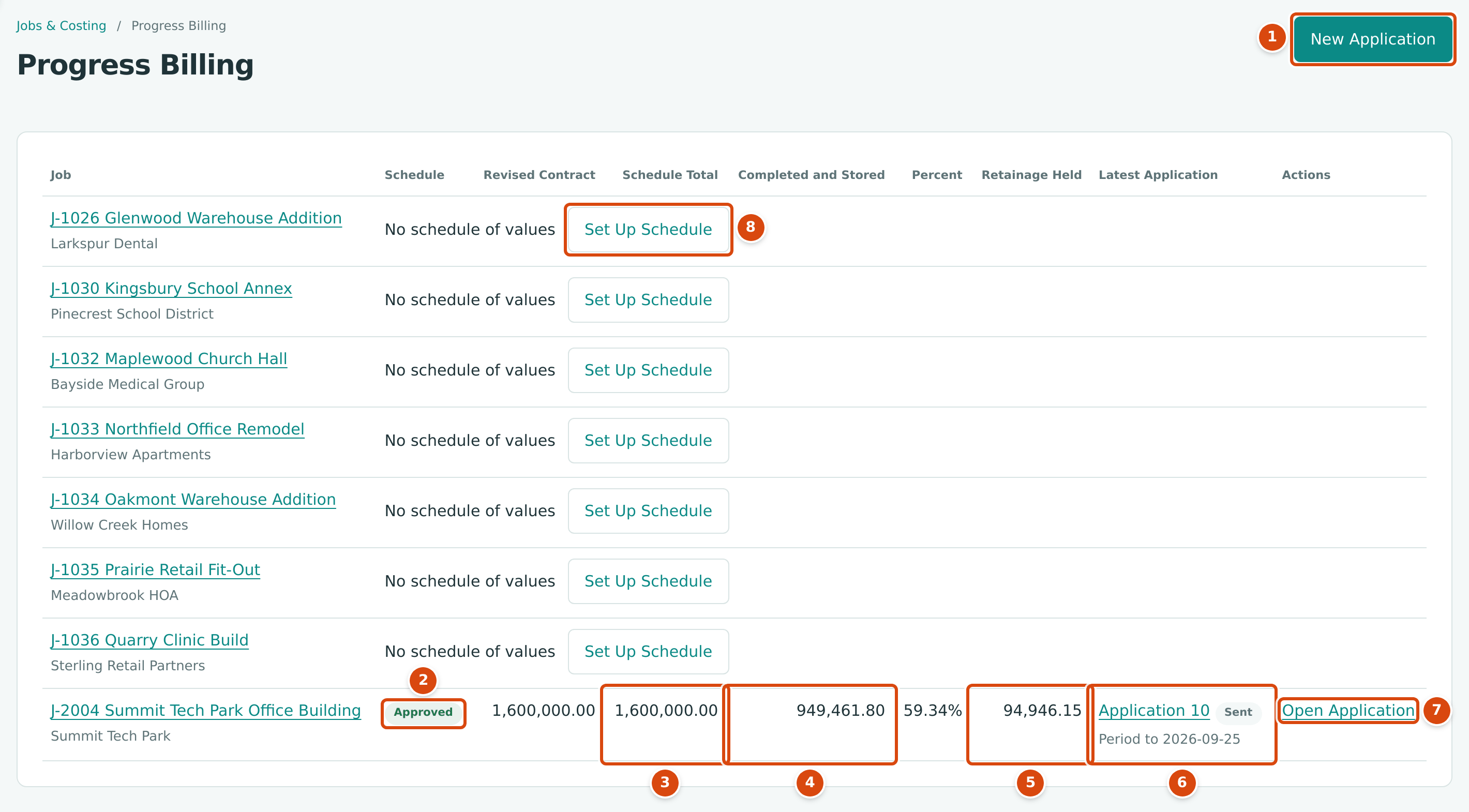
- New Application starts a pay application for any job that is ready to bill.
- Schedule: Approved, Draft or Revision Draft.
- Schedule Total, beside the Revised Contract. A Differs by tag appears when they do not match.
- Completed and Stored: billed to date in accepted applications, with the Percent of the schedule beside it.
- Retainage Held: retainage withheld in accepted applications, less retainage released to the customer.
- Latest Application: its number, status and period.
- Actions: Open Application while one is in progress; otherwise Open Schedule, or Revise Schedule when the schedule differs from the contract.
- Set Up Schedule for a job that has no schedule of values yet.
The Life of a Pay Application
| Status | Meaning | Who Can Act, and How |
|---|---|---|
| Draft | Being prepared. Lines can be edited. | Edit access: Save Draft, Mark as Sent, Discard Draft. Company Admin or Accountant: Accept… |
| Sent | Sent to the owner or architect for approval. Locked. | Edit access: Revise. Company Admin or Accountant: Accept… |
| Superseded | A sent revision that was replaced by a newer revision. | Nothing; follow Replaced by Revision 2. |
| Accepted | Approved for payment. Its invoice is posted. | Company Admin or Accountant: Reverse… (latest accepted application only) |
| Reversed | Accepted and then reversed; its invoice is void. | Nothing; the next new application of the job reuses its number. |
A job has only one application in progress (draft or sent) at a time. Applications are numbered per job (Application 1, 2, 3 …), and each number can have several revisions: Revision 2 replaces a sent Revision 1, and a new revision also follows a reversed application.
Step by Step
Start an Application
- Go to Jobs & Costing → Progress Billing and click New Application.
- Choose the Job. Only active and on-hold jobs with an approved schedule and no application in progress are listed.
- Set the Application Date: the end of the billing period. It starts as the last day of the current month, and must be later than the date of the job's last accepted application.
- Optionally set the Due Date.
- Click Start Application. Structally confirms Application 11 started. and opens the draft with every schedule line and all amounts at zero.
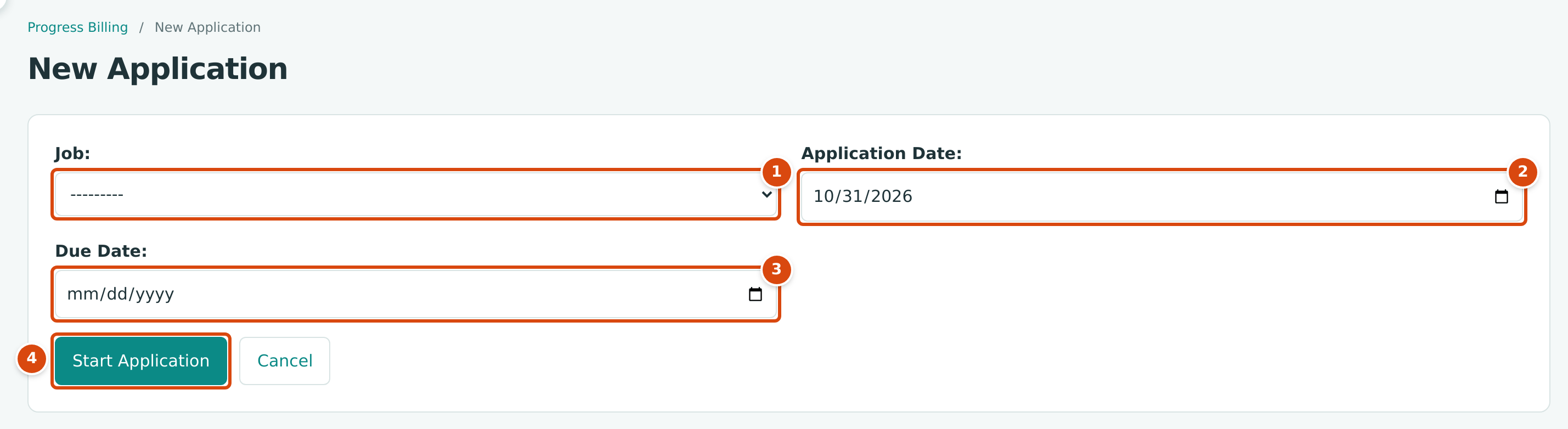
- Job: jobs ready for a new application.
- Application Date: the period end. It becomes the invoice date when the application is accepted.
- Due Date: optional; it becomes the invoice's due date.
- Start Application creates the draft.
Enter the Period's Progress
In a draft, three columns of the Lines table are fields; everything else is worked out as you type.
- For each line, enter Work This Period: the value of work completed on that line in this period. Instead, you can type the line's new Percent complete; Structally then fills Work This Period with the scheduled value times the percent, less what was completed and stored before and what you add to storage now.
- If materials were delivered and stored but not yet installed, enter their value in Added to Storage. They are billed now, with the line's stored materials retainage.
- If materials billed as stored in an earlier application were installed this period, enter their value in Installed from Storage. This moves them from stored to completed work. It is not billed again.
- Watch the row flags. Over 100% means the line would pass its scheduled value; More Than Stored means you installed more than is stored on the line. Both are refused when you save.
- Change the Application Date or Due Date under Details if needed.
- Click Save Draft (Draft saved.) to continue later, or Mark as Sent when the application goes to the owner (Application 11 marked as sent.).
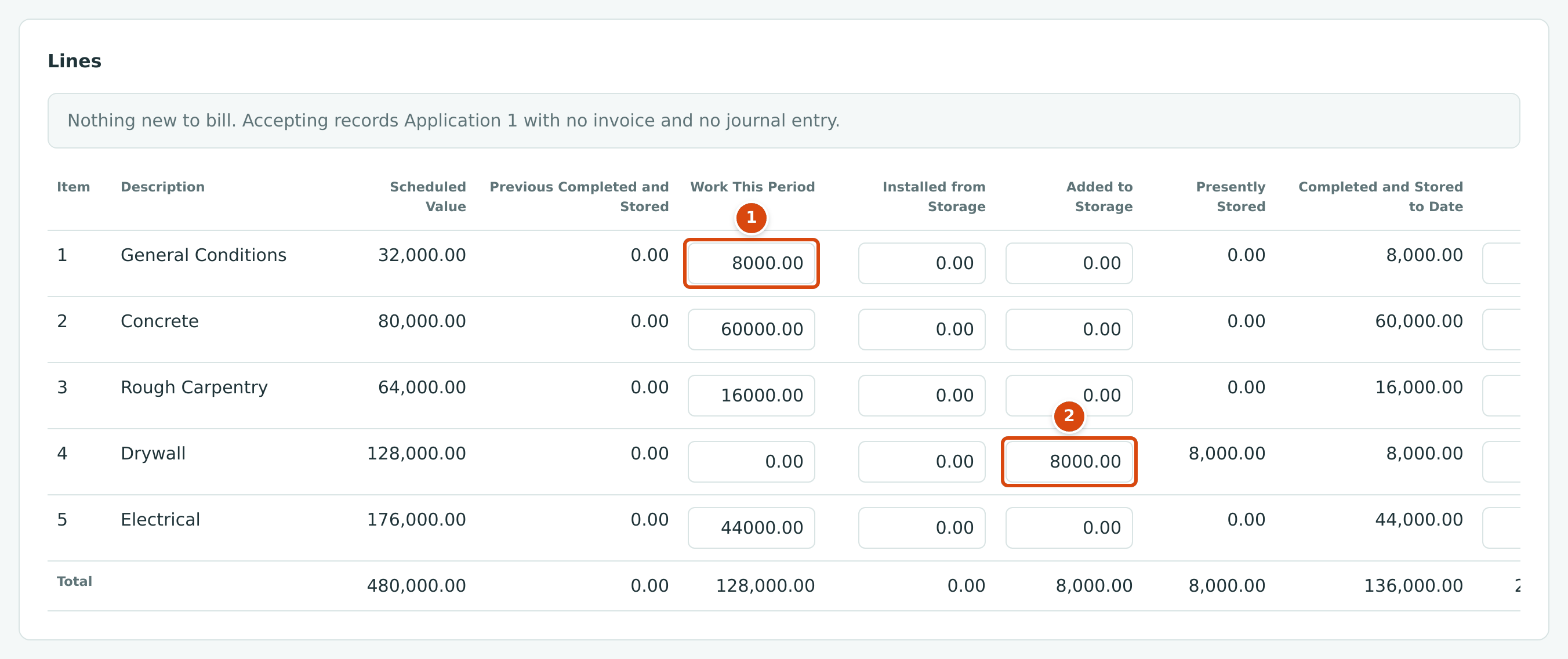
- Work This Period: 8,000.00 of general conditions completed this month.
- Added to Storage: 8,000.00 of drywall delivered and stored, not yet installed. Presently Stored and Completed and Stored to Date follow at once.
The totals, the Percent column and the Summary card update as you type. The notice above the lines does not: it describes the figures last saved. In a new application it reads Nothing new to bill. Accepting records Application 1 with no invoice and no journal entry. until you click Save Draft, as in the figure above.
In the next month's application the drywall was installed. Previous Completed and Stored shows 8,000.00 stored on that line, the stored amount goes into Installed from Storage, and the line added by an approved change order (CO-2 Add exam room 6, tagged From CO-2) is billed for the first time:
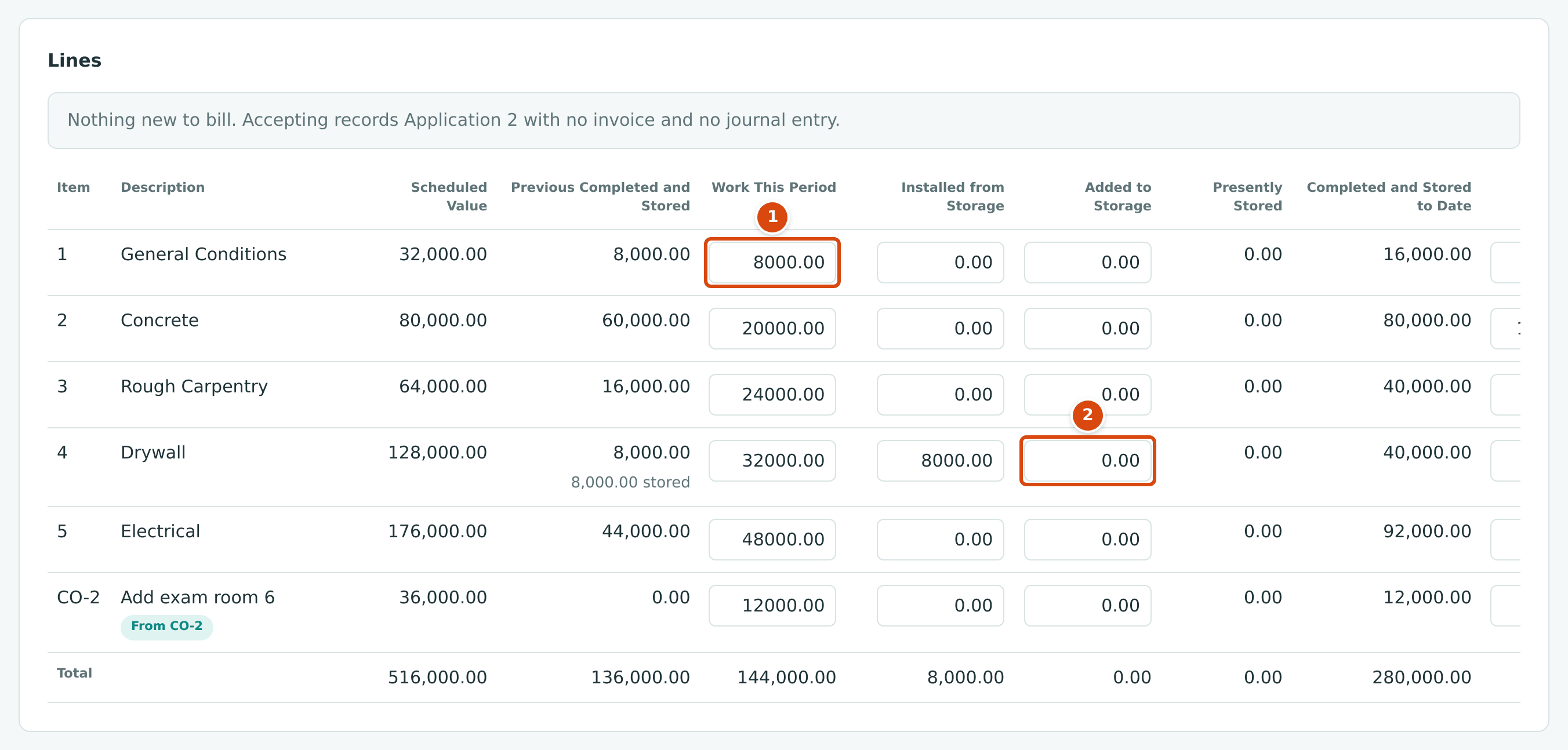
- Work This Period on General Conditions.
- Added to Storage on Drywall is 0.00 this time; the 8,000.00 stored last month is in Installed from Storage beside it.
Read the Application
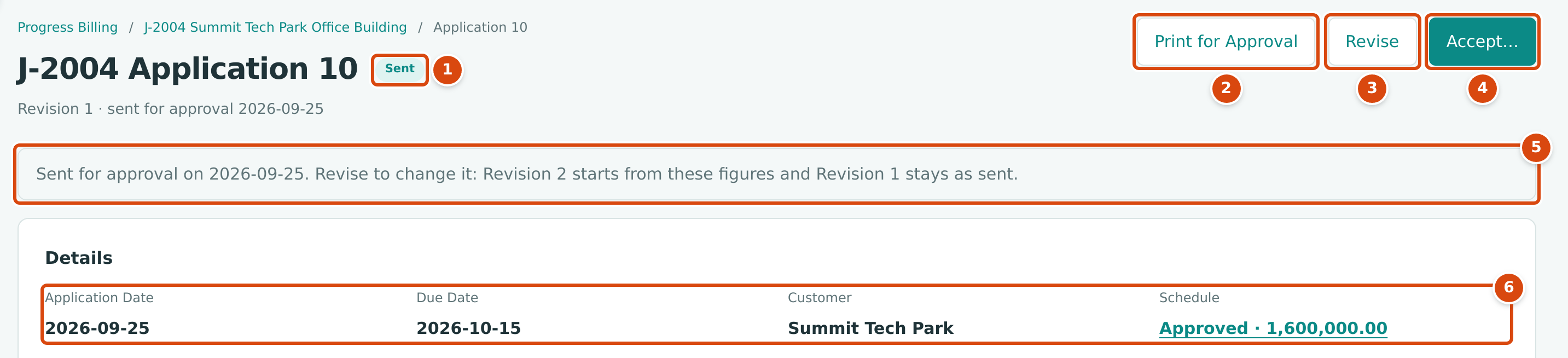
- The status: Draft, Sent, Superseded, Accepted or Reversed, with the revision and when it was prepared, sent or accepted.
- Print for Approval prints the application for the owner (draft or sent only).
- Revise starts the next revision from these figures (sent only).
- Accept… previews and posts the invoice (Company Admins and Accountants).
- The sent banner: a sent application is locked, and revising keeps the sent revision.
- Details: Application Date, Due Date, Customer and the Schedule in force, linked to the schedule page.
The Summary card adds up the whole job to date:
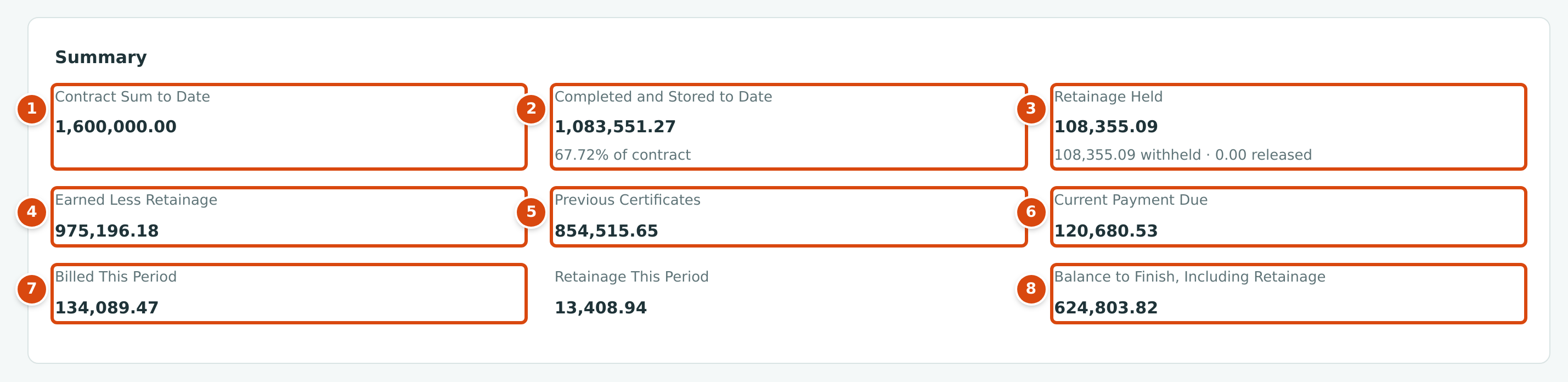
- Contract Sum to Date: the revised contract (original plus approved contract change orders).
- Completed and Stored to Date: all work completed and materials stored, including this period, with its percent of the contract.
- Retainage Held: all retainage withheld to date less retainage already released to the customer.
- Earned Less Retainage: completed and stored to date less retainage held.
- Previous Certificates: what earlier accepted applications certified for payment (their billing less retainage, plus retainage released on them).
- Current Payment Due: earned less retainage minus previous certificates. This is what the customer owes for this application.
- Billed This Period: work this period plus materials added to storage. Beside it, Retainage This Period.
- Balance to Finish, Including Retainage: the contract sum less earned less retainage.
The Lines table shows each schedule line for the period:
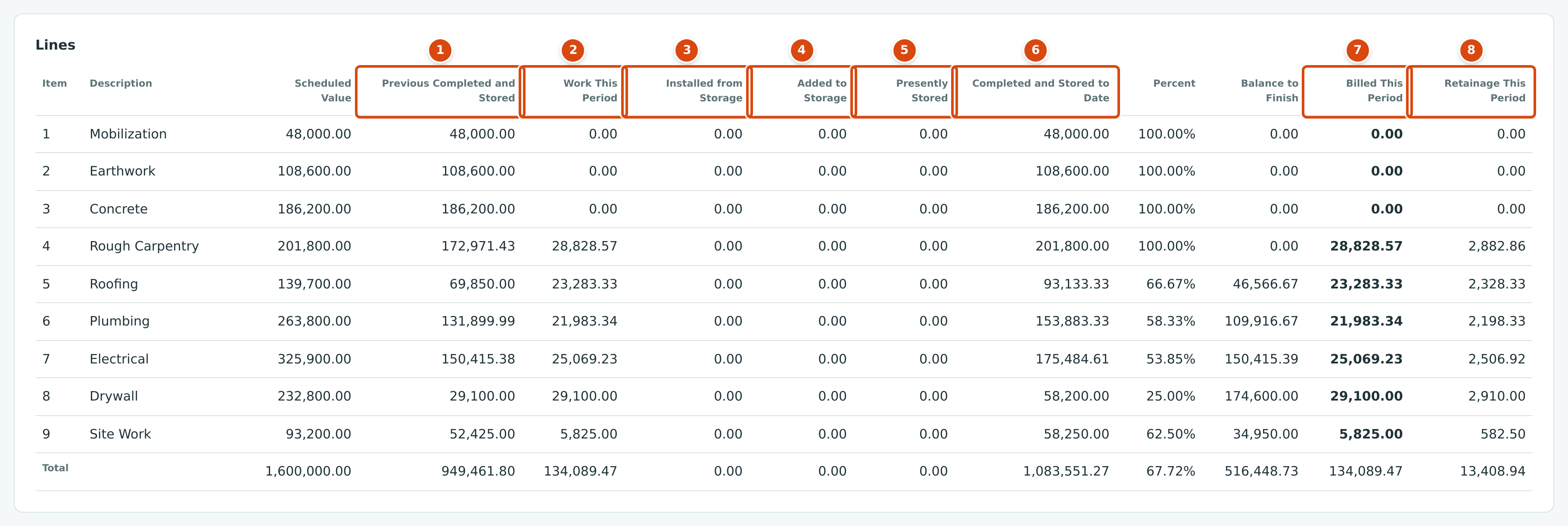
- Previous Completed and Stored: from accepted applications before this one. When materials are still stored, a second line shows how much, for example 33,328.57 stored.
- Work This Period: work completed this period.
- Installed from Storage: previously stored materials installed this period.
- Added to Storage: materials newly stored this period.
- Presently Stored: stored before, plus added, less installed.
- Completed and Stored to Date: previous plus work this period plus added to storage, with Percent of the scheduled value and Balance to Finish after it.
- Billed This Period: work this period plus added to storage.
- Retainage This Period: work this period times the line's work retainage, plus added to storage times its stored materials retainage. When both apply, a second line shows the two parts.
The Versions card at the bottom lists every revision of this application number with its Status, Date, Billed This Period, Current Payment Due and By.

Stored Materials
Materials stored on site can be billed before they are installed. On J-2001 Bayside Medical Office Building, Application 4 billed $33,328.57 of rough carpentry work and $33,328.57 of framing materials stored on site:

- Added to Storage: 33,328.57 of materials delivered but not installed.
- Presently Stored: 33,328.57 now stored on the line.
- Billed This Period: 33,328.57 of work plus 33,328.57 stored = 66,657.14.
- Retainage This Period: 3,332.86 on the work and 3,332.86 on the stored materials, each at 10.00%.
In Application 5 the materials were installed. They move into completed work and are not billed again:

- Previous Completed and Stored: 66,657.14, of which 33,328.57 stored.
- Installed from Storage: 33,328.57.
- Presently Stored: 0.00.
- Billed This Period: 0.00 on this line; installing adds no new billing.
When stored materials are installed, the retainage held on them moves from retainage on stored materials to retainage on completed work. On the printed application, J-2001 Application 4 shows 39,367.19 on completed work and 3,332.86 on stored materials; Application 5 shows 54,401.85 on completed work and 0.00 on stored materials.
Revise a Sent Application
If the owner asks for changes to a sent application:
- Open it and click Revise. Structally confirms Revision 2 started. Revision 1 becomes Superseded and stays exactly as it was sent; Revision 2 is a draft with the same figures.
- Change the lines, then Mark as Sent again.
Discard Draft on Revision 2 (Revision 2 discarded.) returns Revision 1 to Sent. Discarding the draft of a first revision (Draft discarded.) deletes the application and returns you to Progress Billing.
Accept an Application
When the owner approves the application, a Company Admin or Accountant accepts it.
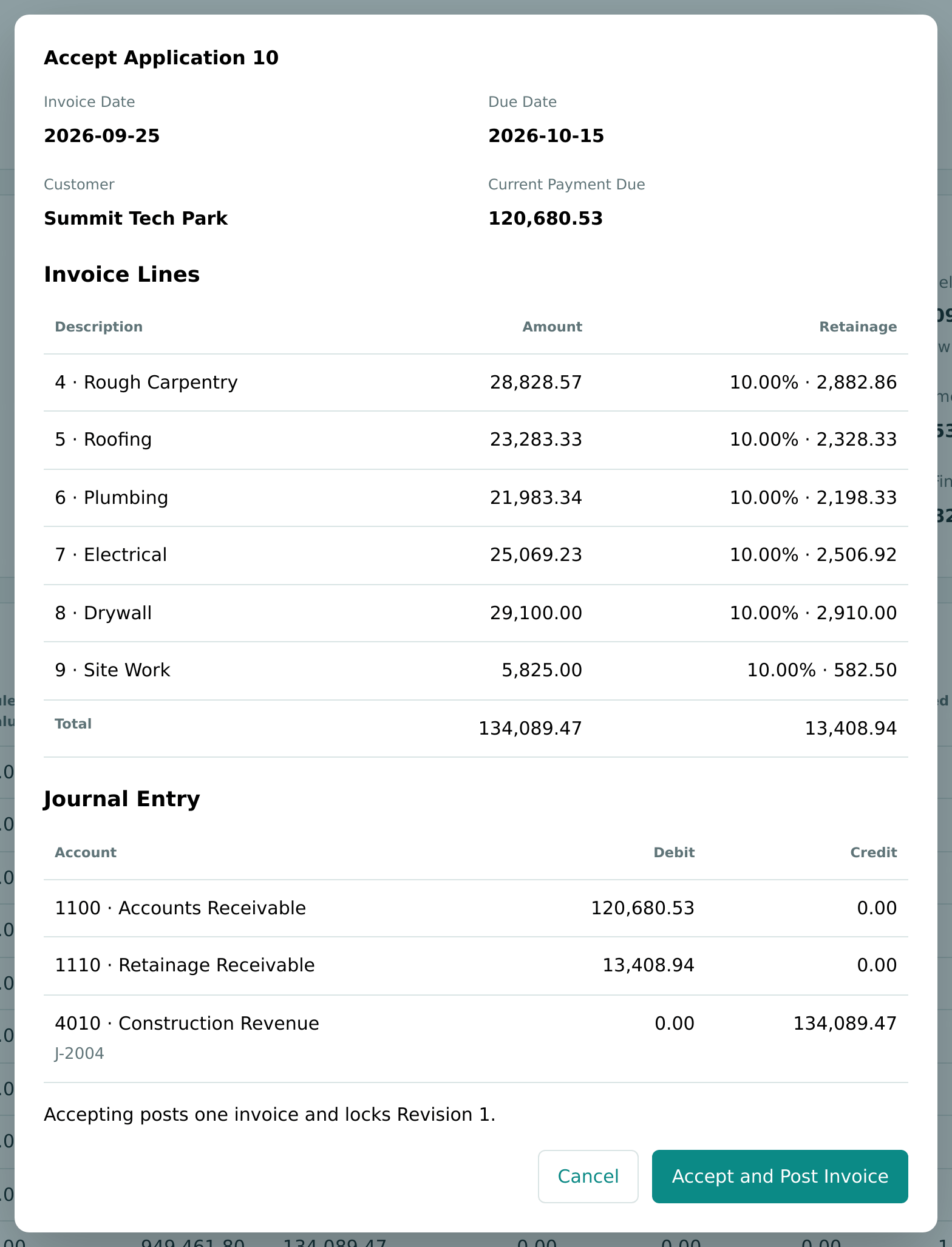
- Open the application (draft or sent) and click Accept…. The dialog previews the invoice and its journal entry.
- Check the Invoice Date (the application date), Due Date, Customer and Current Payment Due.
- Check the Invoice Lines: one line per schedule line billed, described as the item and description (for example 4 · Rough Carpentry), with its retainage. A line that bills both work and newly stored materials becomes two invoice lines, the second ending in · Stored Materials.
- Click Accept and Post Invoice. Structally confirms, for example, Application 10 accepted. INV-2026-000050 was posted to accounts receivable.
Materials added to storage are billed on their own invoice line. In the training company's first application of J-101, the drywall line billed only stored materials, so its invoice line reads 4 · Drywall · Stored Materials:
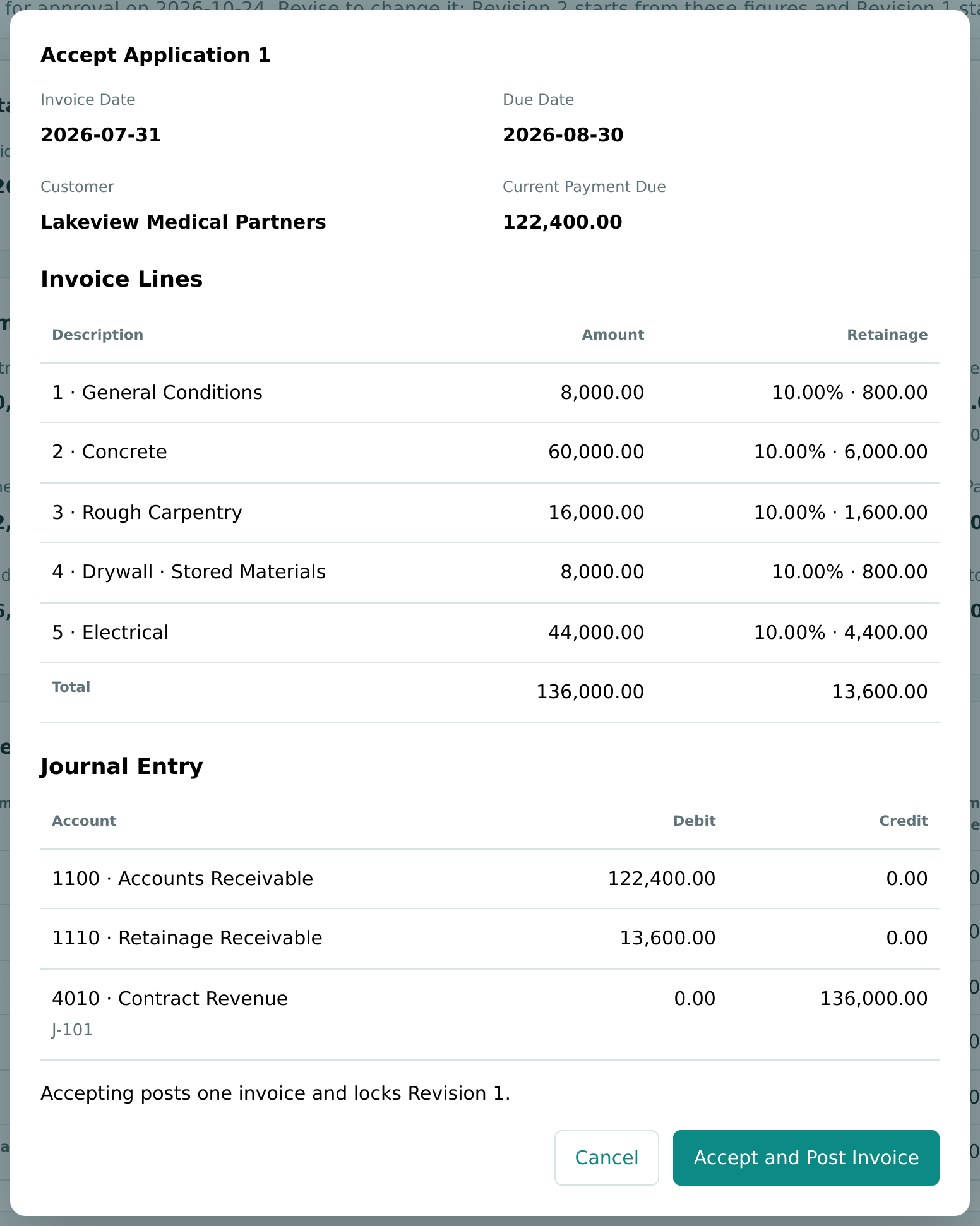
The dialog ends with Accepting posts one invoice and locks Revision 1. If the period bills nothing (only installations from storage, or no progress at all), the dialog says Nothing new to bill. Accepting records Application 11 with no invoice and no journal entry. and the button reads Accept Application.
If the schedule no longer matches the contract, or retainage is not set up, the dialog shows the reason and Accept and Post Invoice stays disabled.
After Acceptance
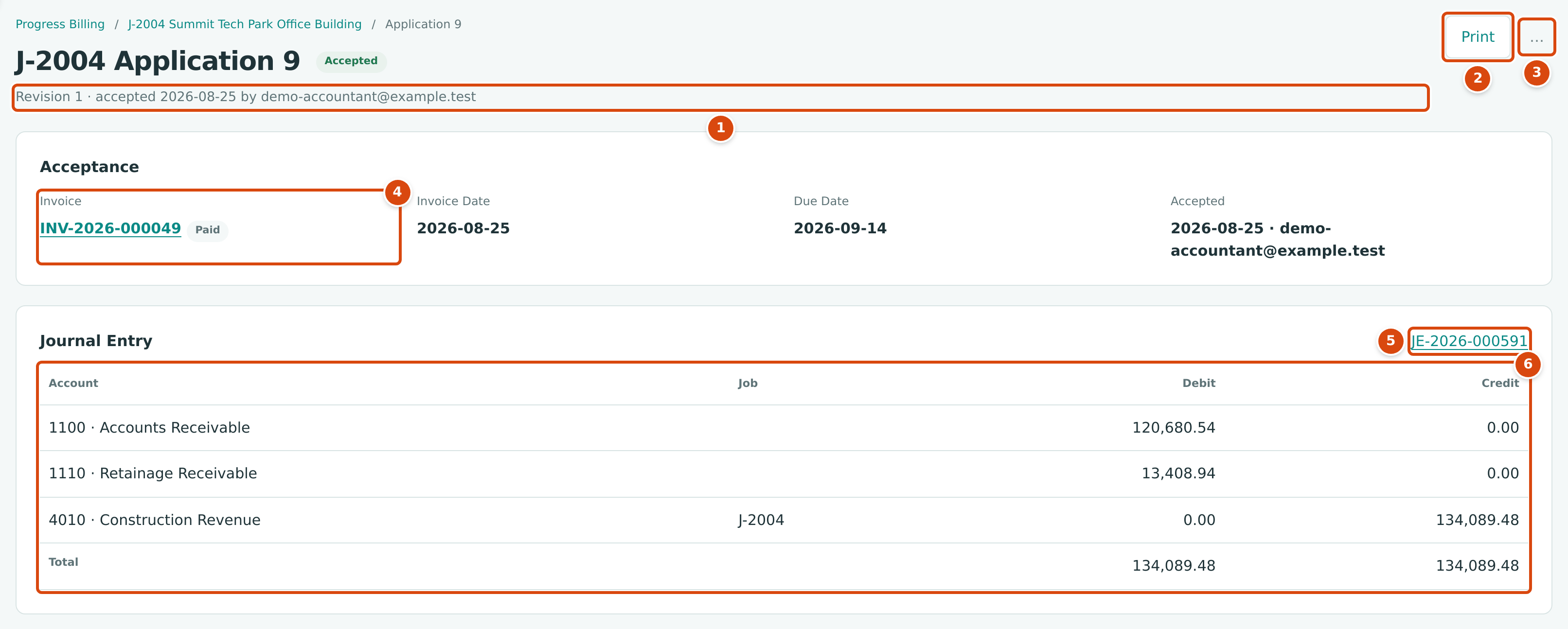
- Who accepted the application, and when.
- Print prints the invoice in the application-for-payment layout.
- The … menu holds Reverse… (Company Admins and Accountants).
- Invoice: the posted invoice and its status.
- The journal entry number; click it to open the entry.
- The entry itself, grouped by account and job.
When the accepted application is the job's latest and nothing is in progress, the page also shows New Application.
Reverse an Accepted Application
Reverse an application when it was accepted by mistake or must be billed differently. Only the job's latest accepted application can be reversed.
- Open it, click … and choose Reverse….
- Check the Reversal Date (it starts as today, or the invoice date if that is later) and add a Memo if you like.
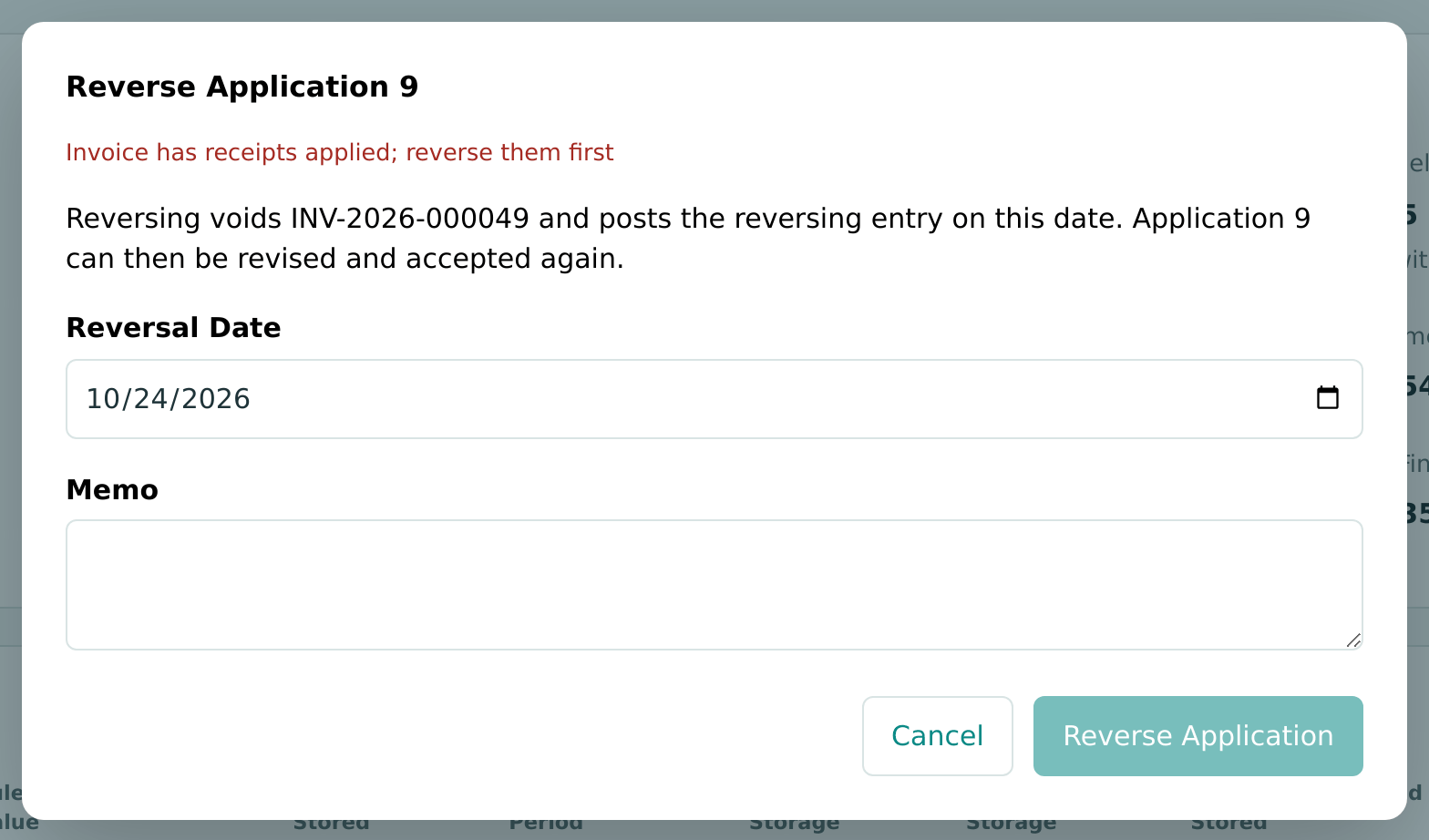
- Click Reverse Application. Structally voids the invoice with a reversing entry on the reversal date and confirms, for example, Application 9 reversed. INV-2026-000049 was voided.
The invoice cannot be reversed while payments, credits or retainage releases are applied to it. The dialog then shows the reason and the button stays disabled:
After a reversal, start a New Application for the job: it reuses the same application number with the next revision, starting from the same previous figures.
Print the Application
Print for Approval (draft or sent) and Print (accepted) open a two-page application for payment in your company's Document Design. Use your browser's print command or Print at the bottom to print it or save it as PDF.
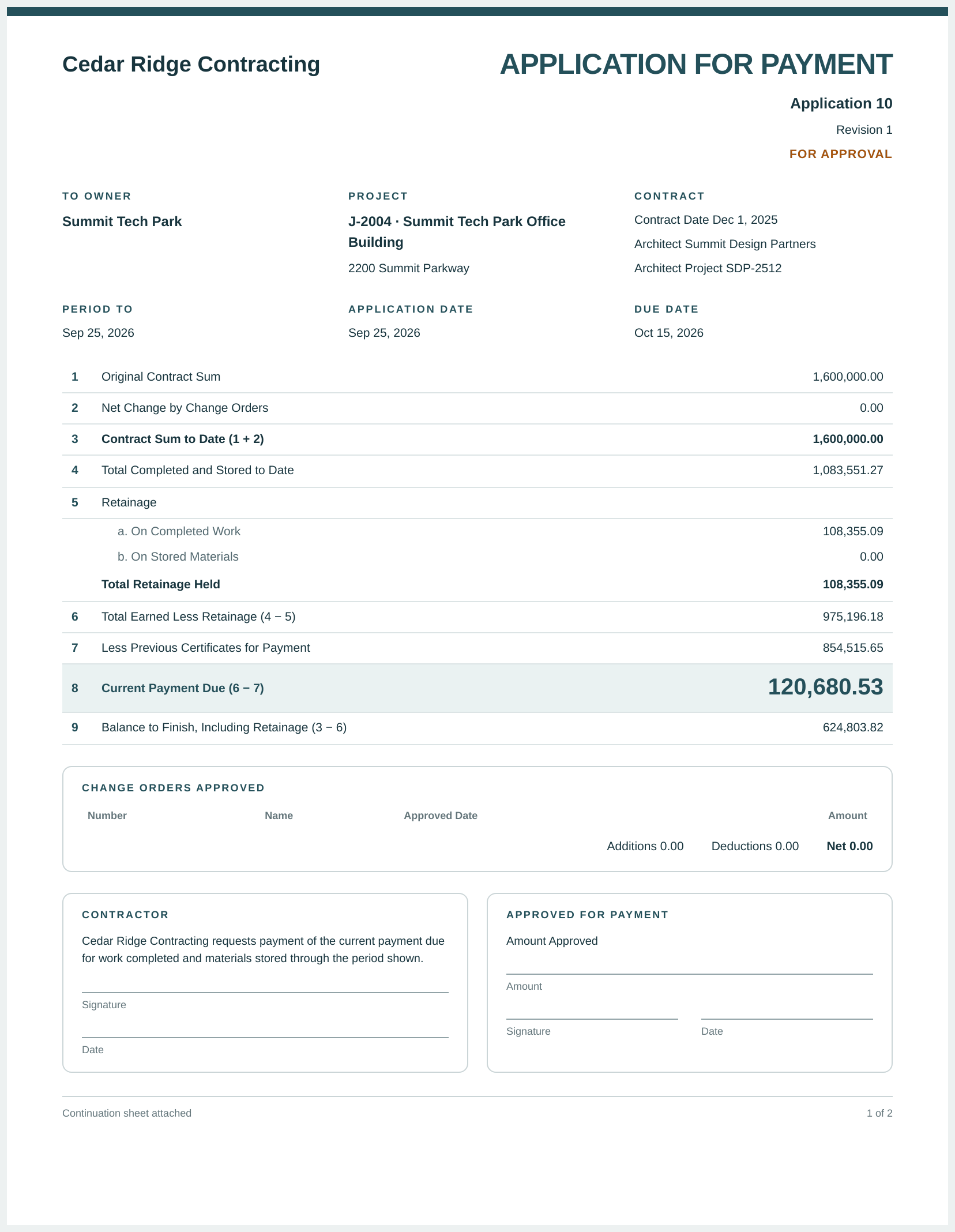
Page 1, Application for Payment, shows:
- the identity: Application 10 and Revision 1 with FOR APPROVAL before acceptance; after acceptance, the invoice number, Pay Application 9 · Revision 1 and the invoice status;
- To Owner (the customer and billing address), Project (job and job address) and Contract (contract date, architect and architect project number from the schedule);
- Period To, Application Date and Due Date;
- the numbered summary: 1 Original Contract Sum, 2 Net Change by Change Orders, 3 Contract Sum to Date, 4 Total Completed and Stored to Date, 5 Retainage (a. On Completed Work, b. On Stored Materials, c. Less Retainage Released with the release invoice numbers, when there are any, and Total Retainage Held), 6 Total Earned Less Retainage, 7 Less Previous Certificates for Payment, 8 Current Payment Due and 9 Balance to Finish, Including Retainage;
- Change Orders Approved: each approved contract change order with its approved date and amount, and the Additions, Deductions and Net;
- signature blocks for the Contractor and Approved for Payment.
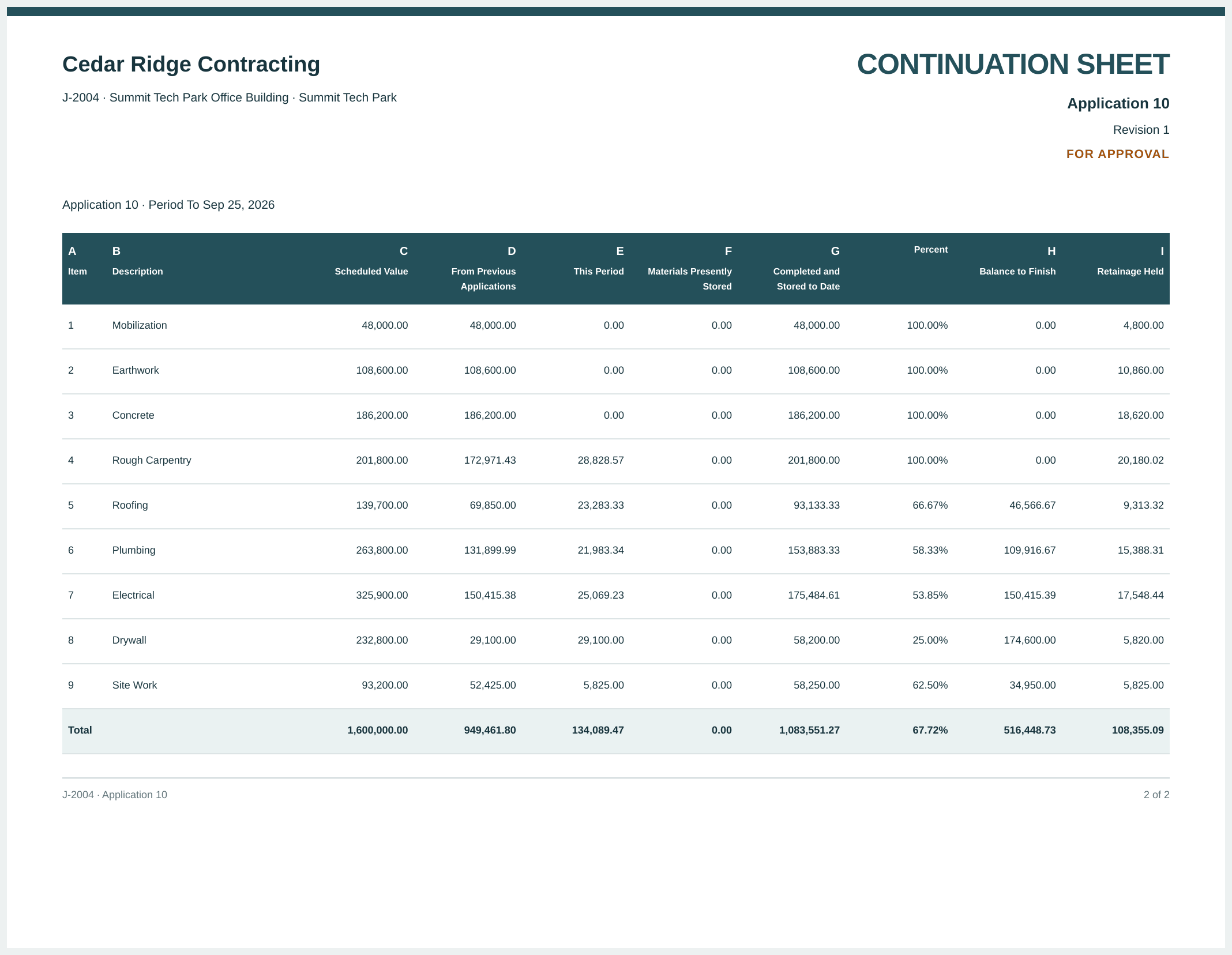
Page 2, the Continuation Sheet, has one row per schedule line:
| Column | Meaning |
|---|---|
| A Item | The schedule line number. |
| B Description | The line description; change-order lines add From CO-n. |
| C Scheduled Value | The line's value on the schedule. |
| D From Previous Applications | Work completed in earlier applications (stored materials are in F). |
| E This Period | Work this period plus materials installed from storage. |
| F Materials Presently Stored | Stored and not yet installed. |
| G Completed and Stored to Date | D + E + F. |
| Percent | G divided by C. |
| H Balance to Finish | C - G. |
| I Retainage Held | Retainage withheld on the line to date, less any released. |
Notes under the table explain installed materials (for example This period (E) includes 33,328.57 of stored materials installed on line 4, billed on Application 4; it adds no new billing.) and released retainage.
The Job's Billing Card
The Billing card on the job page summarizes the same figures and the receivables they created:
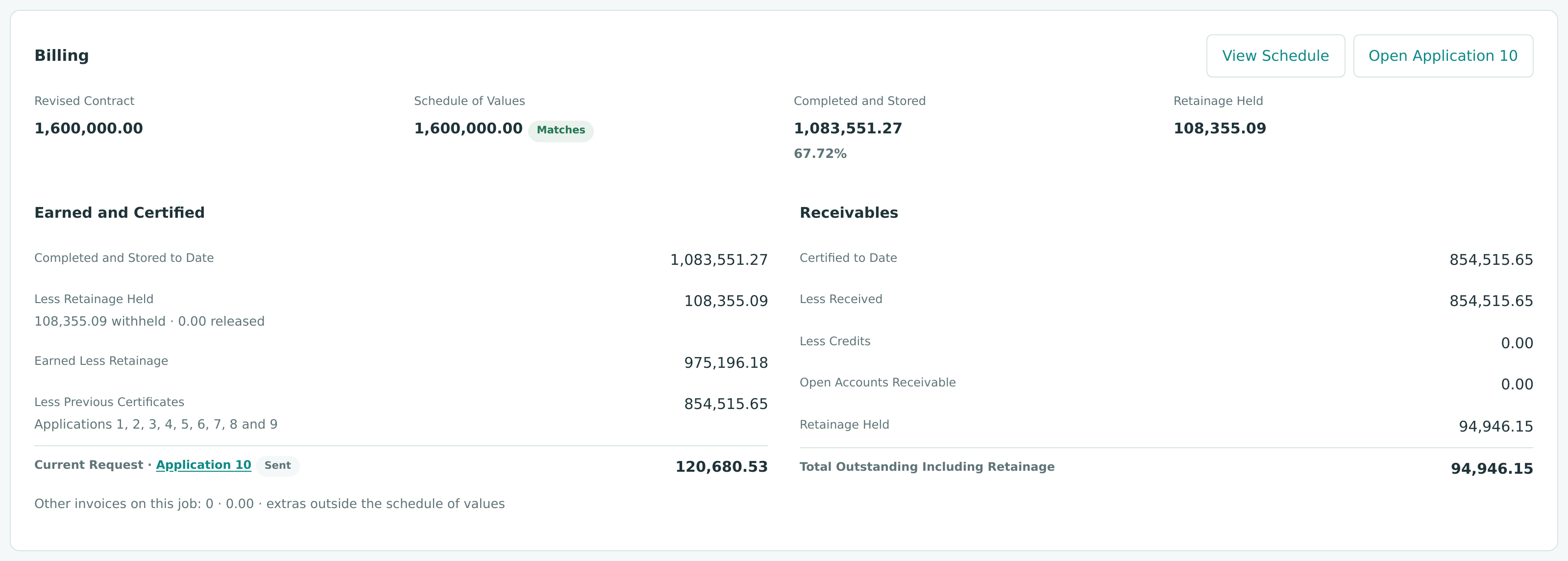
Earned and Certified follows the application in progress (or the latest accepted one): completed and stored, retainage held, earned less retainage, previous certificates (naming the applications) and the Current Request. Receivables covers accepted applications: Certified to Date, Less Received, Less Credits, Open Accounts Receivable, Retainage Held and Total Outstanding Including Retainage.
Field Reference
| Field | Description | Required | Example |
|---|---|---|---|
| Job | An active or on-hold job with an approved schedule and no application in progress. | Yes | J-2004 Summit Tech Park Office Building |
| Application Date | The period end. Must be after the job's last accepted application date. Becomes the invoice date. | Yes | 09/25/2026 |
| Due Date | Optional due date for the invoice; not before the application date. | No | 10/15/2026 |
| Work This Period (line) | Work completed on the line this period; zero or more, two decimals. | No | 28,828.57 |
| Installed from Storage (line) | Previously stored materials installed this period; not more than presently stored. | No | 33,328.57 |
| Added to Storage (line) | Materials newly stored this period; billed now. | No | 33,328.57 |
| Percent (line) | Type a percent complete to fill Work This Period. | No | 66.67 |
| Reversal Date | The date of the entry that voids the invoice. | To reverse | 10/24/2026 |
| Memo | A note on the reversing entry. | No | Billed in error |
Worked Example: J-2004 Application 10
Job J-2004 Summit Tech Park Office Building has a contract of $1,600,000.00 with 10.00% retainage on every line. Applications 1 to 9 are accepted; Application 10, for the period to September 25, 2026, was sent on September 25, 2026.
Line 4, Rough Carpentry:
| Item | Amount |
|---|---|
| Scheduled value | 201,800.00 |
| Previous completed and stored | 172,971.43 |
| Work this period | 28,828.57 |
| Completed and stored to date (172,971.43 + 28,828.57) | 201,800.00 (100.00%) |
| Balance to finish | 0.00 |
| Retainage this period (10.00% × 28,828.57 = 2,882.857, rounded) | 2,882.86 |
Retainage is rounded half up on each line, so the period's retainage is the sum of the six line amounts, 2,882.86 + 2,328.33 + 2,198.33 + 2,506.92 + 2,910.00 + 582.50 = $13,408.94 (10% of the $134,089.47 total would round to $13,408.95).
The summary:
| Summary Line | Calculation | Amount |
|---|---|---|
| Contract Sum to Date | Original contract, no approved changes | 1,600,000.00 |
| Completed and Stored to Date | 949,461.80 before + 134,089.47 this period | 1,083,551.27 (67.72%) |
| Retainage Held | 94,946.15 before + 13,408.94 this period | 108,355.09 |
| Earned Less Retainage | 1,083,551.27 - 108,355.09 | 975,196.18 |
| Previous Certificates | Earned less retainage of Applications 1 to 9 | 854,515.65 |
| Current Payment Due | 975,196.18 - 854,515.65 | 120,680.53 |
| Balance to Finish, Including Retainage | 1,600,000.00 - 975,196.18 | 624,803.82 |
The Current Payment Due equals the period's billing less its retainage: $134,089.47 - $13,408.94 = $120,680.53.
What Happens After You Accept
| Draft or Sent | Accepted | |
|---|---|---|
| Invoice | None | One posted invoice dated the application date, reference Application 10, memo Pay Application 10 · J-2004 Summit Tech Park Office Building · period to the date |
| Journal entry | None | Posted and locked |
| Accounts receivable | Unchanged | Increased by the current payment due |
| Retainage receivable | Unchanged | Increased by the period's retainage |
| Billed to date on the schedule | Unchanged | Increased by the period's billing |
| Can be changed | Draft: yes. Sent: revise it. | No; reverse it |
The invoice is an ordinary invoice of the customer: you send it, receive payment on it and see it in the AR Aging. It carries a Pay Application 10 tag and the note Billed by J-2004 Pay Application 10. To void it, reverse the pay application. While the invoice is open, its … menu says Void is not available: reverse Pay Application 10 instead.
The Posting Entry
The Posting Entry
Accepting debits Accounts Receivable for the current payment due and Retainage Receivable for the retainage, and credits each schedule line's revenue account for the period's billing, coded to the job. The preview of J-2004 Application 10:
The entry actually posted for Application 9 (JE-2026-000591, shown in the figure above) is the same shape: 1100 debit 120,680.54, 1110 debit 13,408.94, 4010 credit 134,089.48. Reversing an application posts the opposite entry on the reversal date.
Common Mistakes and Troubleshooting
| Message or Symptom | Why It Happens | What to Do |
|---|---|---|
| The job is not in the Job list of New Application. | It has no approved schedule, an application is already in progress, or the job is not active or on hold. | Approve the schedule, or open the application in progress. |
| Finish the application in progress first. | The job already has a draft or sent application. | Open it with Open Application. |
| Approve the schedule of values before preparing an application. | The job's schedule has no approved revision. | Approve the schedule first. |
| Application date must be after 08/25/2026, the date of Application 9. | The date is on or before the last accepted application's date. | Use a later period end. |
| Due date cannot be before the application date. | The due date is earlier than the application date. | Correct the due date. |
| Line 4 would reach 100.01% of its scheduled value. (row flag Over 100%) | Completed and stored to date would pass the scheduled value. | Lower the amounts, or revise the schedule through a change order. |
| Line 4 installs 5,000.00 from storage; 3,000.00 is stored. (row flag More Than Stored) | You installed more than is stored on the line. | Lower Installed from Storage. |
| Line 4 amounts must be zero or more with at most two decimals. | A negative amount or more than two decimals. | Correct the amount. |
| Schedule total 2,536,000.00 does not equal the revised contract 2,501,000.00. | The contract changed and the schedule was not revised. | Revise and approve the schedule, then accept. |
| Job J-2004 is on hold; make it active to accept the application. | The job is On Hold. | Set the job back to Active. |
| Set up retainage in Job Costing Settings before posting invoices with retainage. | No Retainage Receivable account exists. | Ask a Company Admin to create it in Job Costing Settings. |
| Only the latest accepted application can be reversed; Application 10 is later. | A later application has been accepted. | Reverse the later one first. |
| Invoice has receipts applied; reverse them first | A customer payment is applied to the invoice. | Reverse the receipt first. See Receiving Customer Payments. |
| Invoice has credits applied; unapply them first | A credit is applied to the invoice. | Unapply the credit first. |
| Invoice has retainage releases; reverse them first | Retainage of the invoice was released. | Reverse the release first. See Releasing Retainage. |
| This record was changed by someone else. Reload the page and try again. | Another user changed the application. | Reload and repeat. |
| There is no Accept… button. | You are not a Company Admin or Accountant, or the application is not draft or sent. | Ask a Company Admin or Accountant. |
| An earlier application cannot be found. | Pages link only to the latest application of each job. | Open its invoice (the invoice's reference is Application and the number) and print it from there, or see Gaps below. |
Gaps in This Area
No List of a Job's Earlier Applications
Structally has no screen that lists all pay applications of a job. The Progress Billing page, the schedule and the job's Billing card link only to the latest or current application, so once a later application exists, an earlier one can be reached only through its own address. Its invoice (reference Application and the number) remains easy to find in the invoice list.
Related Topics
- Schedules of Values
- Change Orders
- Retainage and Releasing Retainage
- Receiving Customer Payments
- Sending and Printing Invoices
- WIP Schedules, which compare billings with costs