Choosing a Company
Each company in Structally keeps its own books: its own chart of accounts, customers, vendors, jobs and reports. Nothing is shared between companies. One sign-in can have access to several companies (for example an operating company and a second entity), with a different role in each.
When you have access to more than one company, Structally asks which one to open after you sign in, and lets you switch from any page.
Before You Begin
- You are signed in (see Signing In).
- A Company Admin of each company has given you access on Settings → Users & Access. Your role in each company decides what you see there (see Roles and Permissions).
Navigation
The Your Companies page opens after you log in when you have access to more than one company. To come back to it later, open your main Structally address, or use Back to Your Companies on a page that cannot be found. To change company from inside a company, use Your Company at the top of the navigation.
The Your Companies Page
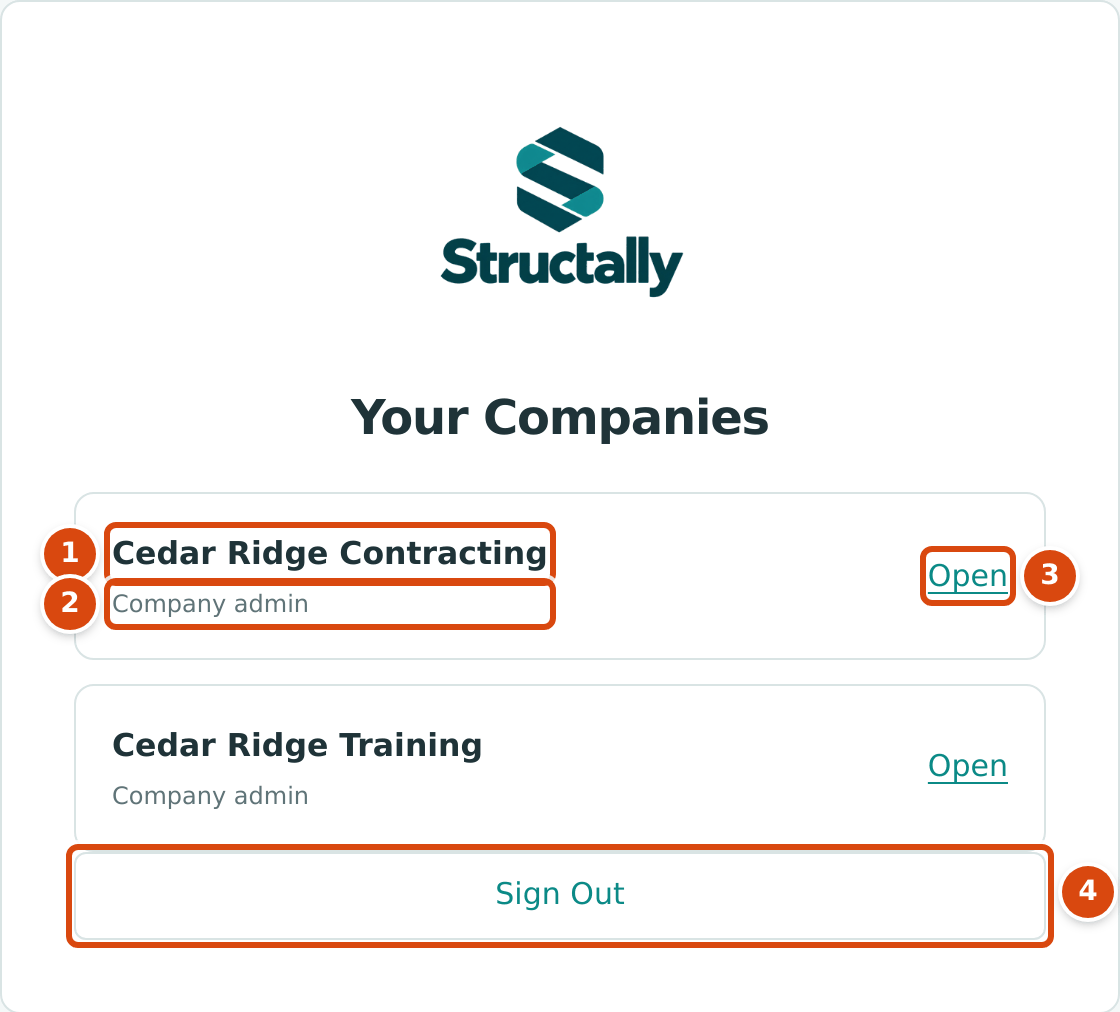
- The company's name. Companies are listed in alphabetical order.
- Your role in that company.
- Open takes you to the company's Home dashboard.
- Sign Out ends your session.
- Find the company in the list.
- Click Open. The company's Home dashboard opens, and the navigation shows the areas your role in that company allows.
If you have access to only one company, Structally skips this page and opens that company's Home dashboard straight after you log in.
Suspended Companies
A company that Structally has suspended stays on the list, but its card shows This company is suspended, contact support instead of Open, and its pages cannot be opened. Your other companies are not affected. Contact your Structally representative or your Company Admin about the suspension.
No Screenshot of a Suspended Company
The sample companies are active, so a suspended company's card cannot be shown. It looks like the cards above, with the sentence This company is suspended, contact support in place of the Open link.
When you have no access to any company yet, the page shows No company access. and the Sign Out button.
Switching Companies
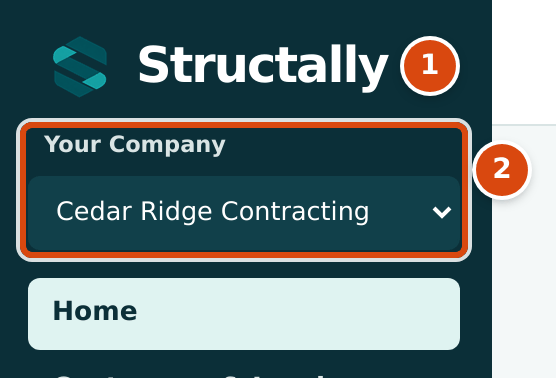
- The Structally logo opens the company page (see below).
- Your Company shows the company you are in. Choose another company from the list to switch.
- Click Your Company at the top of the navigation.
- Choose the other company. Structally opens it at once; there is no button to confirm.
Structally keeps you in the same part of the product where it can: switching from the Invoices list, or from an invoice, opens the Invoices list of the other company; switching from Home opens the other company's Home; switching from a report opens the other company's Reports page, and from a Jobs & Costing page its Jobs & Costing Overview. Your role in the other company applies at once. If it does not include that area, you see This Area Is Locked for You (see Finding Your Way Around).
The list shows only active companies. A suspended company is not offered here.
Each browser tab shows one company at a time, and the name of the company is always visible: in Your Company, and next to the page title when the navigation is hidden. Check it before you enter anything.
The Company Page
Clicking the Structally logo at the top of the navigation opens a short page for the company you are in.
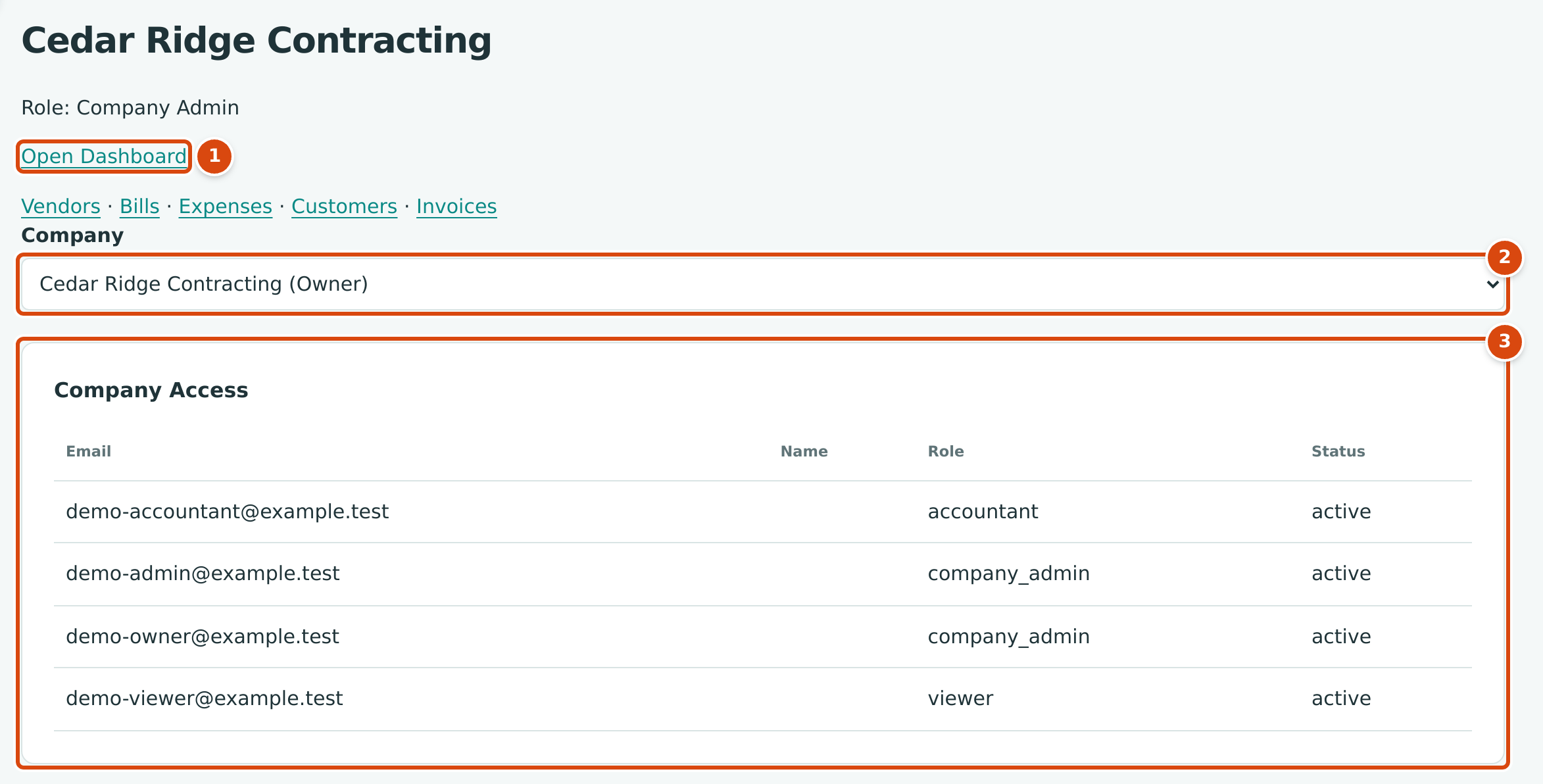
- Open Dashboard opens the company's Home dashboard. Below it are quick links to Vendors, Bills, Expenses, Customers and Invoices.
- Company: another way to switch companies. Each company is listed with your role in it.
- Company Access: shown to Company Admins only, a plain list of the users with access to this company, with their role and status. Manage users on Users & Access instead, which uses the product's full role names.
Most work starts from the Home dashboard rather than this page.
Worked Example
In the sample data, the Company Admin demo-admin@example.test has access to two
companies, Cedar Ridge Contracting and Cedar Ridge Training, so the
Your Companies page opens after each sign-in (see the first figure). The
Accountant demo-accountant@example.test has access to Cedar Ridge Contracting
only, so signing in opens its Home dashboard directly.
Working on the Invoices list of Cedar Ridge Contracting, the Company Admin chooses Cedar Ridge Training in Your Company. The Invoices list of Cedar Ridge Training opens. Choosing Cedar Ridge Contracting again returns to its Invoices list.
What Happens After You Choose a Company
| Result | |
|---|---|
| The page that opens | Open goes to the company's Home dashboard; Your Company goes to the same list in the other company, or its Home. |
| The navigation | Shows only the areas your role in this company can see. |
| Your sign-in | Unchanged. Switching does not sign you out. |
| Remembered choices | Filters remembered on the Audit Log and Users & Access pages are kept separately for each company. Line column widths you set on entry forms follow you into every company. |
Common Mistakes and Troubleshooting
| Message or Symptom | Why It Happens | What to Do |
|---|---|---|
| We Can't Find That Page with The link may be old, or it may point to a company you don't have access to. | The link points to a company you have no active access to (never given, suspended, removed, or the company itself is suspended), or to a page that does not exist. | Click Back to Your Companies and open the company from the list. Ask a Company Admin if a company is missing. |
| This company is suspended, contact support on a company card | Structally has suspended the company. | Contact your Company Admin or Structally. |
| No company access. | You have no active access to any company. | Ask the Company Admin who invited you. |
| A company is missing from Your Company | The list shows active companies only. A suspended company appears only on Your Companies, without Open. | Open Your Companies to see its state. |
| This company is being updated. Try again in a minute. | Structally is applying an update to the company. | Wait a minute and reload the page. |
| This company is being moved. Try again in a few minutes. | Structally is moving the company. You can still open pages, but saving is paused. | Wait a few minutes, then save again. |
| This Area Is Locked for You after switching | Your role in the other company does not include the area you were in. | Use the navigation to go to an area you can open, or ask that company's Company Admin. |
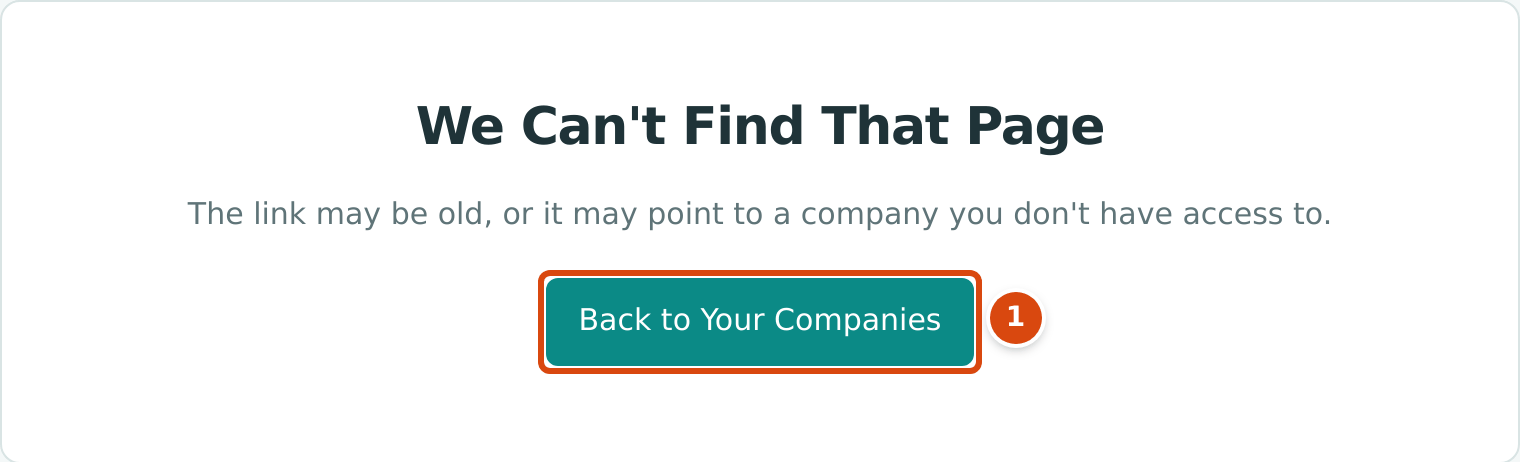
- Back to Your Companies returns to the company list.