| Account | Debit | Credit |
|---|---|---|
| 1100 Accounts Receivable | 29,394.00 | |
| 4010 Construction Revenue (J-1026), Roofing (square) | 22,100.00 | |
| 4010 Construction Revenue (J-1026), Site supervision (hour) | 10,560.00 | |
| 1110 Retainage Receivable | 3,266.00 |
Creating an Invoice
An invoice records a sale your customer still needs to pay: a month of service work, a repair call, a fixed-price job billed in stages. Creating the invoice records the revenue in the right income accounts (and, for construction work, on the right job) on the invoice date, and adds what the customer owes to accounts receivable until the customer pays.
Create an invoice by hand for service work, time and materials and any job that is not billed through a schedule of values. Contract jobs that bill through a schedule of values get their invoices from pay applications instead; you add only separate extra work to them by hand (see Jobs Billed Through a Schedule of Values).
Before You Begin
- The customer exists, or you add it from the invoice (see Adding a Customer While You Enter an Invoice).
- The income accounts you will use exist in the Chart of Accounts. Items are optional (see Items).
- For job coding: Jobs & Costing is turned on for your company and the job is Active. See Coding Transactions to Jobs.
- For retainage: a Retainage Receivable account is set up in Job Costing Settings.
- You need Edit access to Customers & Invoices. Company Admins, Accountants and Project Managers have it; Viewers do not. See Roles and Permissions.
Navigation
Customers & Invoices → Invoices → New Invoice, or Create → New Invoice at the top of any page. New Invoice on the overview and on a customer's page opens the same form.
The New Invoice Form
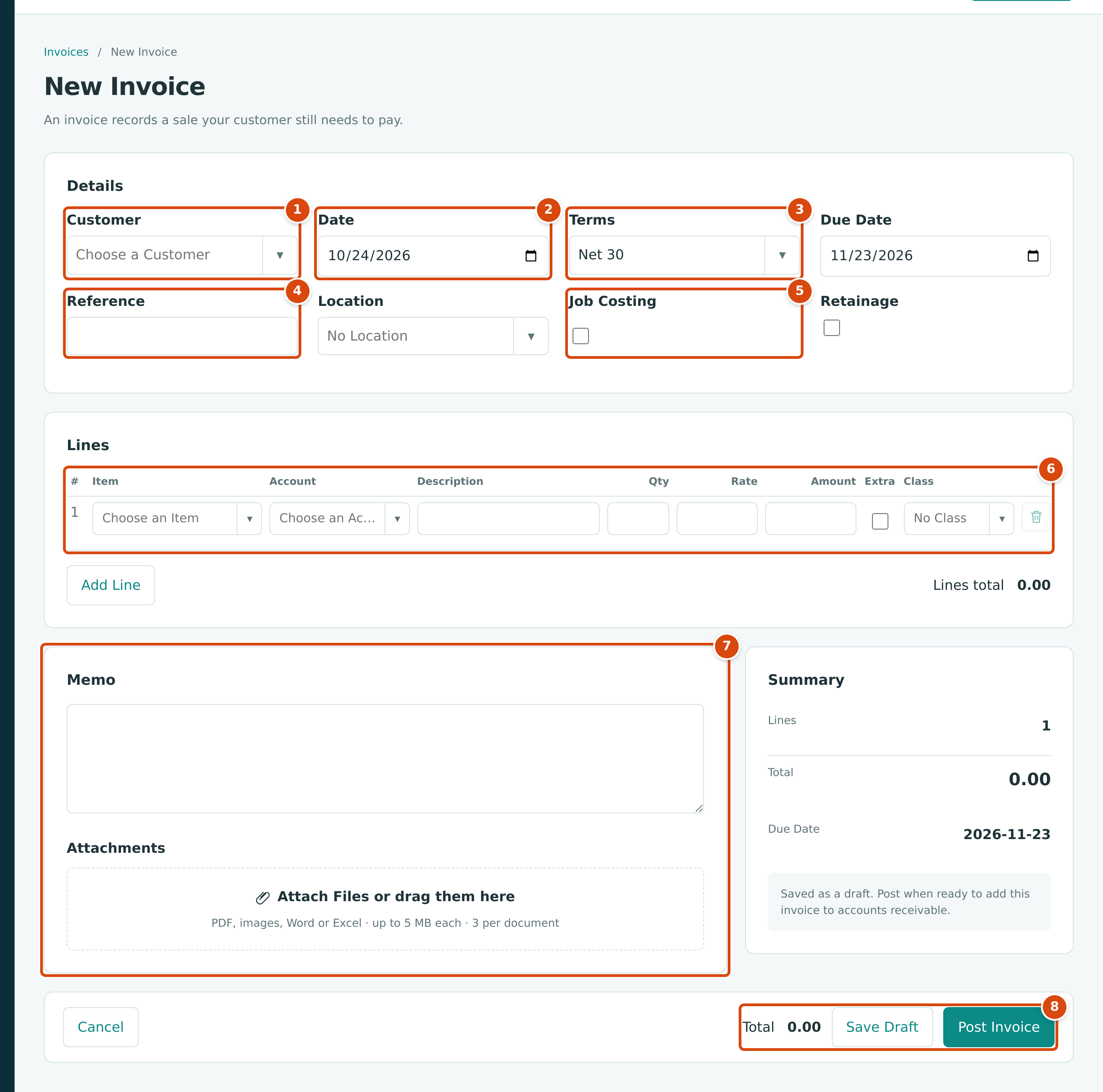
- Customer: who you are billing. Type to search; only active customers are listed.
- Date: the invoice date. It is the accounting date of the sale and starts as today.
- Terms and Due Date: the terms work out the due date from the invoice date. You can change either one.
- Reference: the customer's purchase order or reference number. It prints on the invoice as Your Reference.
- Job Costing and Retainage: switches that add job and retainage columns to the lines. They appear only when Jobs & Costing is turned on (and, for Retainage, a Retainage Receivable account is set up).
- Lines: what you are billing, one row per item or account.
- Memo and Attachments: a note and supporting files.
- Total, Save Draft and Post Invoice: the running total and the two ways to finish.
The Summary card beside the memo repeats the number of lines, the Total and the Due Date as you type.
Step by Step
Enter the Details
- Open Customers & Invoices → Invoices and click New Invoice.
- In Customer, start typing the customer's name and choose it from the list. Choosing a customer does not fill anything else in.
- Set Date to the invoice date.
- Check Terms. It starts with your company's default terms (Net 30 in the sample company), not with the terms saved on the customer, so pick the customer's terms if they differ. Due Date follows the terms and the date; you can also type a due date yourself, and it then stays as typed.
- In Reference, type the customer's purchase order number, if any.
- Optionally choose a Location for the whole invoice.
Enter the Lines
Each line is either an item or an account with an amount.
- To bill an item, choose it in Item. Structally fills in the Account, Description, a Qty of 1.00 and the Rate. Change Qty to the number of units; Amount is worked out as quantity × rate.
- To bill without an item, choose the Account (an income account such as 4040 — Service and Repair Revenue) and type the Amount, or a Qty and a Rate.
- Type or adjust the Description. It is what the customer reads on the invoice.
- Optionally choose a Class for the line.
- Click Add Line for each additional item or account; the trash icon removes a line. Lines total and the footer Total update as you type.
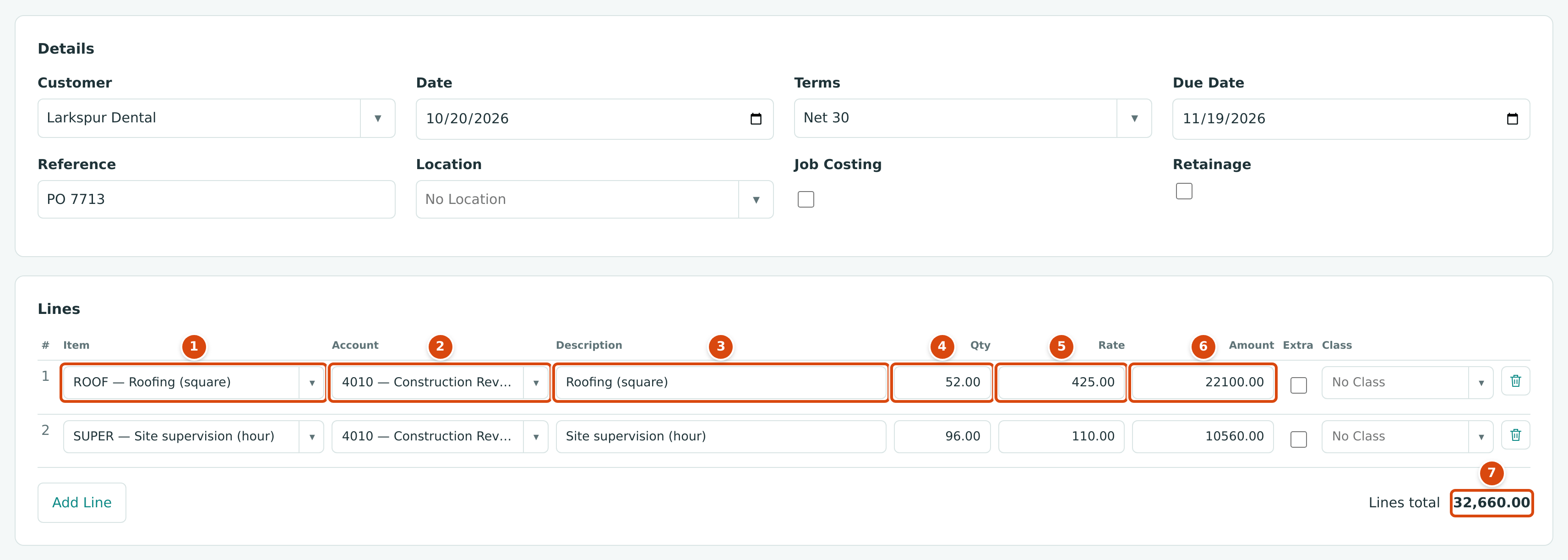
- Item: here ROOF — Roofing (square).
- Account: filled from the item, 4010 — Construction Revenue. Only income accounts are offered.
- Description: filled with the item's name.
- Qty: the number of units, up to two decimals.
- Rate: filled from the item; you can change it for this invoice.
- Amount: 52.00 × 425.00 = 22,100.00, worked out for you.
- Lines total adds up every line.
Finish: Save Draft or Post Invoice
- Click Save Draft to keep the invoice without touching your books. Drafts have the status Draft in the Invoices list and are counted in the Draft Invoices tile of the overview. You can change anything on a draft except the customer.
- Click Post Invoice to record it. Posting adds the invoice to accounts receivable and writes its journal entry. A posted invoice cannot be edited; to correct one, void it and enter it again (see Posting, Editing, and Voiding Invoices).
Structally confirms with a message such as Invoice INV-2026-000056 saved as a draft. or Invoice INV-2026-000056 posted to accounts receivable. and opens the invoice. Invoice numbers are assigned automatically as INV-year-sequence.
Coding Revenue to a Job
Tick Job Costing to record a line's revenue on a job. The lines gain a Job column and a Split column. Revenue lines take a job only: there are no cost code or cost type columns on an invoice.
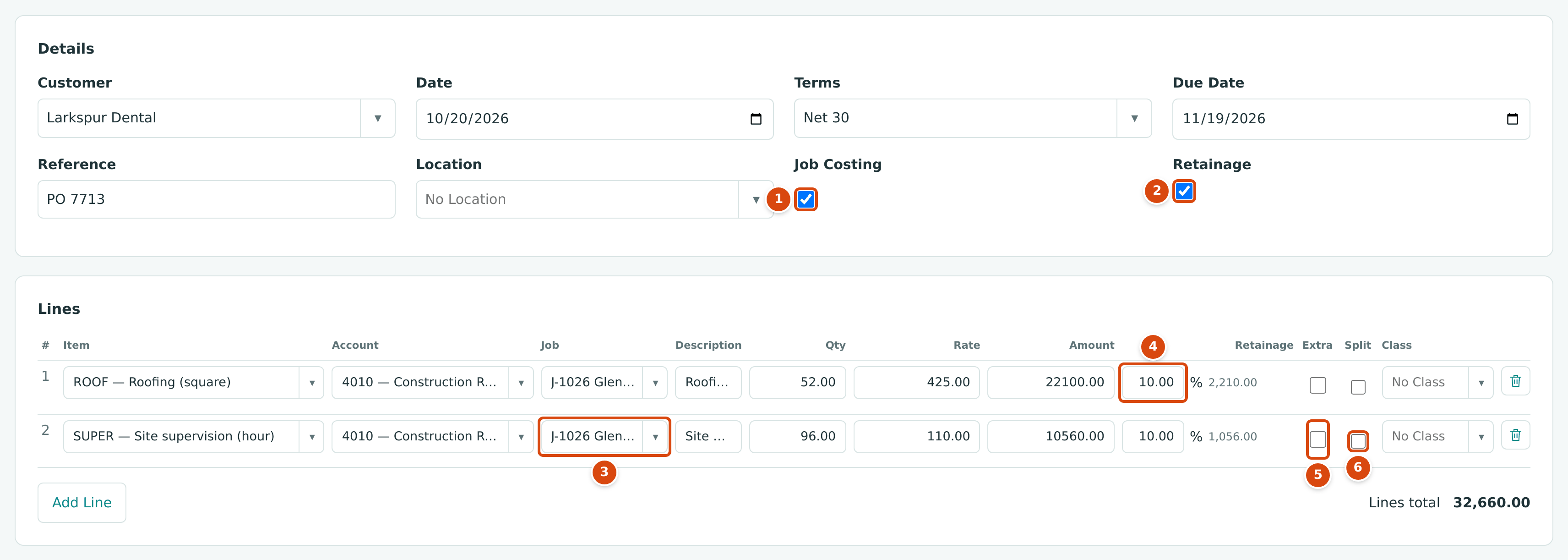
- Job Costing turned on.
- Retainage turned on by Structally when the job was chosen, because the job has a billing retainage percentage (see Holding Retainage on an Invoice).
- Job: the job the revenue belongs to. Only Active jobs are listed.
- Retainage: the job's billing retainage percentage, with the amount held shown beside it.
- Extra: marks separate work on a job billed through a schedule of values.
- Split: shares one line among several jobs.
- Tick Job Costing.
- On each line that belongs to a job, choose the Job. Lines that are not job revenue can stay without a job.
- Check the Retainage column, which may have been filled in for you.
Splitting a Line Among Jobs
Tick Split on a line to divide its amount among allocation rows (up to 20), each with its own Job, description and amount. Use it when one line of the invoice covers more than one job. The allocations must add up exactly to the line amount; each allocation posts as its own revenue line. A split line cannot hold retainage, because retainage needs a job on the line itself.
Jobs Billed Through a Schedule of Values
When at least one job in your company has an approved schedule of values, invoice lines show an Extra tick box. A job with an approved schedule of values bills its contract through pay applications, so Structally refuses a hand-made invoice line on that job unless the line is ticked Extra: work outside the contract, such as an owner-requested addition.

- Account: an income account.
- Job: J-2004 Summit Tech Park Office Building, which bills through its schedule of values.
- Amount: the price of the extra work.
- Extra: ticked, so the line is accepted as work outside the schedule.
Without the tick, saving or posting stops with Line 1: J-2004 bills its contract through its schedule of values. Tick Extra for separate work outside the schedule. Extra lines show an Extra label on the invoice page.
Holding Retainage on an Invoice
Retainage is the part of each billing the customer keeps back until the work is accepted, often 5% or 10%. With retainage on an invoice line, the customer owes only the Amount Due now; the retained part is billed later with a retainage release.
- Tick Retainage, or let Structally tick it: choosing a job that has a Billing Retainage percentage turns Retainage on and fills in that percentage, unless you have already turned the switch on or off yourself on this form.
- Check the percentage on each line, from 0 to 100. Set it to 0.00 on lines the customer does not retain. The amount held appears beside the percentage.
- A line that holds retainage must have a job.
The footer then shows both the Total and the Amount Due (the total less the retainage held):

- Total: everything billed. This is the revenue recorded.
- Amount Due: what the customer owes now.
Unticking Retainage after percentages are filled in asks Turn off Retainage and clear the retainage on every line? first.
Adding a Customer While You Enter an Invoice
You do not have to leave the invoice to add a missing customer.
- In Customer, type the new customer's name. The list starts with + Add New followed by what you typed.
- Click + Add New. The New Customer panel opens with the name filled in.
- Complete Name (required) and any of Code, Primary Contact, Phone, Email, Billing Address, Terms and Taxable, then click Create Customer. The panel closes and the new customer is selected on the invoice.
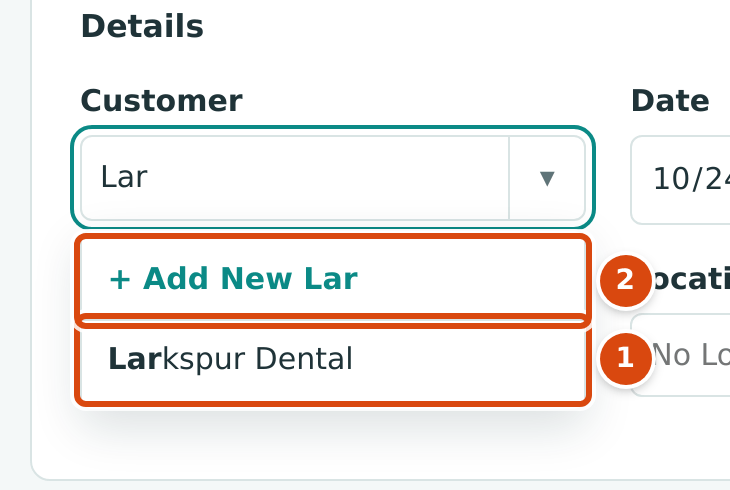
- An existing customer that matches what you typed.
- + Add New opens a short form to create the customer.
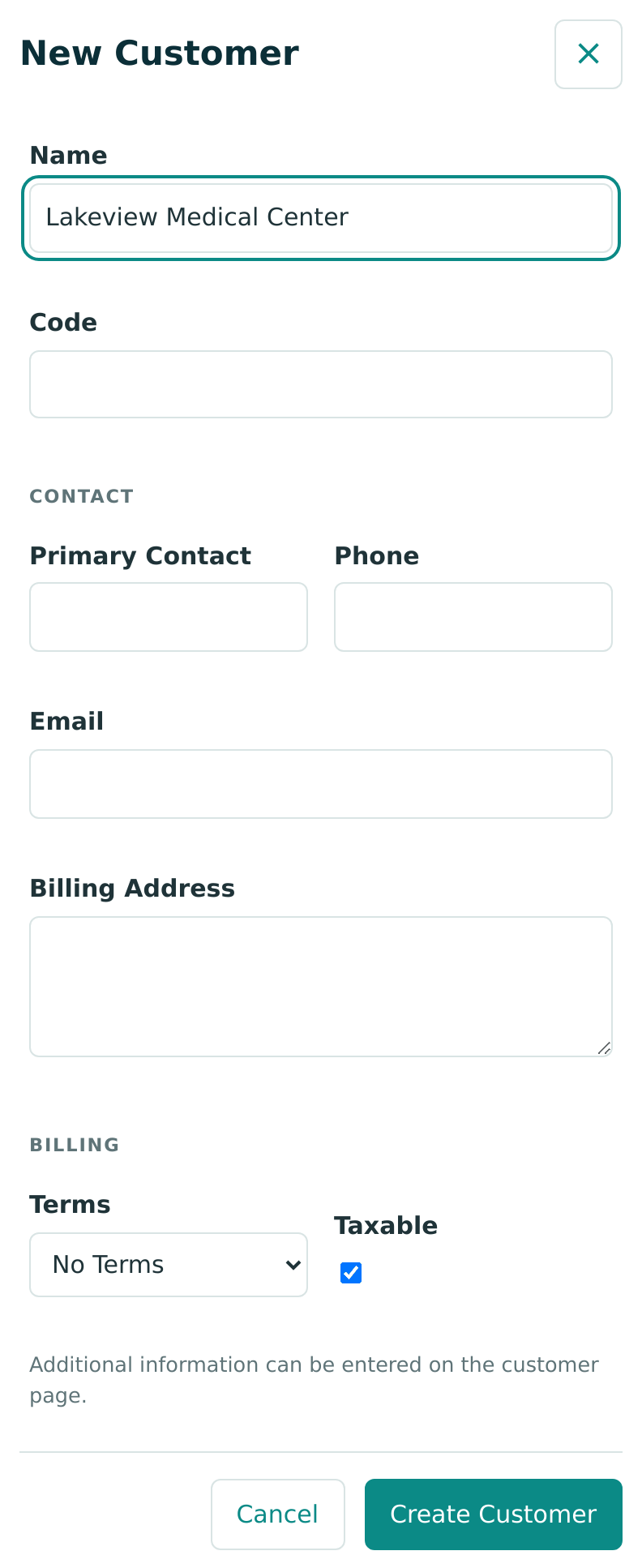
Items, income accounts, payment terms, classes and locations can be added the same way from their own lists, if your role allows creating them. Complete the customer's other details later on its page (see Managing Customers).
Memo and Attachments
- Memo is a note of up to 240 characters. It shows on the invoice page and, if your Document Design is set to show it, on the printed invoice.
- Attachments keeps supporting files with the invoice: PDF, images, Word or Excel, up to 5 MB each and 3 per invoice. Click Attach Files or drag files onto the box. You can add files later on the invoice page with + Add Files, and attach them to the email when you send the invoice.
Field Reference
| Field | Description | Required | Example |
|---|---|---|---|
| Customer | The customer billed. Active customers only. Cannot be changed after the first save. | Yes | Larkspur Dental |
| Date | Invoice date and accounting date. Must be after the Books Closed date to post. | Yes | 10/20/2026 |
| Terms | Payment terms used to work out the due date. Starts with the company default. | No | Net 30 |
| Due Date | When payment is due. Drives the Overdue status and the AR Aging report. An invoice without a due date is never overdue. | No | 11/19/2026 |
| Reference | The customer's purchase order or reference, up to 60 characters. Prints as Your Reference when your Document Design shows it. | No | PO 7713 |
| Location | A location for the whole invoice, for reports by location. | No | North |
| Job Costing | Shows the Job and Split columns. | No | Ticked |
| Retainage | Shows the Retainage percentage column. | No | Ticked |
| Item (line) | A product or service; fills the account, description, quantity and rate. | No | ROOF — Roofing (square) |
| Account (line) | The income account credited. Needed when no item is chosen. | With no item | 4010 — Construction Revenue |
| Job (line) | The active job the revenue belongs to. | With job costing | J-1026 Glenwood Warehouse Addition |
| Description (line) | What the customer reads on the invoice line. | No | Roofing (square) |
| Qty and Rate (line) | Units and price per unit, entered together. Amount is their product. | No | 52.00 × 425.00 |
| Amount (line) | The line total, positive, up to two decimals. | Yes, or Qty and Rate | 22,100.00 |
| Retainage (line) | Percent of the line held back, from 0 to 100. Needs a job on the line. | No | 10.00 |
| Extra (line) | Marks work outside the schedule of values on a job that bills through one. | On such jobs | Ticked |
| Split (line) | Divides the line among allocation rows by job. | No | Ticked |
| Class (line) | A class for the line, for reports by class. | No | Commercial |
| Memo | A note shown on the invoice. | No | October roofing progress |
| Attachments | PDF, image, Word or Excel files, up to 5 MB each and 3 per invoice. | No | Roofing-sheet.pdf |
Worked Example: Roofing Work With Retainage
On October 20, 2026, Cedar Ridge bills Larkspur Dental for roofing on job J-1026 Glenwood Warehouse Addition, under the customer's purchase order PO 7713. The job's Billing Retainage is 10%, and the terms are Net 30.
| Line | Arithmetic | Amount | Retainage (10%) |
|---|---|---|---|
| ROOF — Roofing (square) | 52.00 × 425.00 | 22,100.00 | 2,210.00 |
| SUPER — Site supervision (hour) | 96.00 × 110.00 | 10,560.00 | 1,056.00 |
| Total | 32,660.00 | 3,266.00 | |
| Amount Due (32,660.00 − 3,266.00) | 29,394.00 |
You choose Larkspur Dental, set the date to October 20, 2026 (the due date becomes November 19, 2026), type PO 7713, add the two item lines, tick Job Costing and choose J-1026 on both lines. Structally turns on Retainage at 10.00%. The form shows Total 32,660.00 and Amount Due 29,394.00, as in the figures above. Posting records this entry:
All $32,660.00 is revenue now. Larkspur Dental owes $29,394.00 by November 19; the $3,266.00 waits in Retainage Receivable until you bill it with a retainage release. Without retainage, the whole $32,660.00 would be debited to Accounts Receivable.
The sample company holds a similar invoice for Larkspur Dental without retainage, posted on September 29, 2026: INV-2026-000054, for 47 squares of roofing and 181 hours of site supervision. Its page and posting entry appear in the next section.
What Happens After You Save or Post
| Draft (Save Draft) | Posted (Post Invoice) | |
|---|---|---|
| Status | Draft | Open, shown with Unpaid, Partly Paid or Overdue; later Paid. |
| Journal entry | None | One balanced entry on the invoice date, locked |
| Accounts receivable and the customer's balance | Unchanged | Increased by the amount due |
| Revenue and job revenue | Unchanged | Recorded |
| Can be changed | Yes, with Edit Draft (except the customer) | No; void it and enter it again |
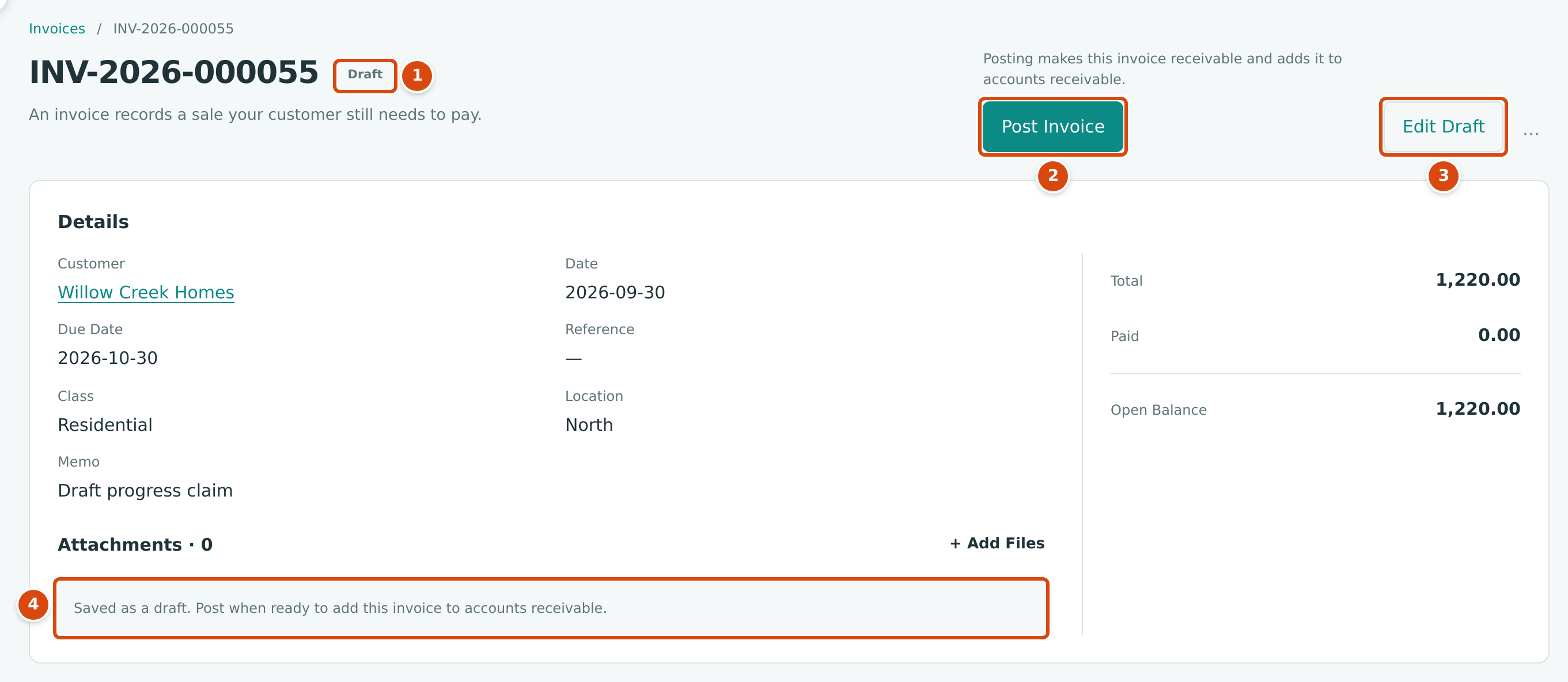
- The Draft status.
- Post Invoice posts the draft as it stands.
- Edit Draft reopens the form.
- The reminder that the draft has not reached accounts receivable.
After posting, the invoice page shows what is owed and offers the next steps:
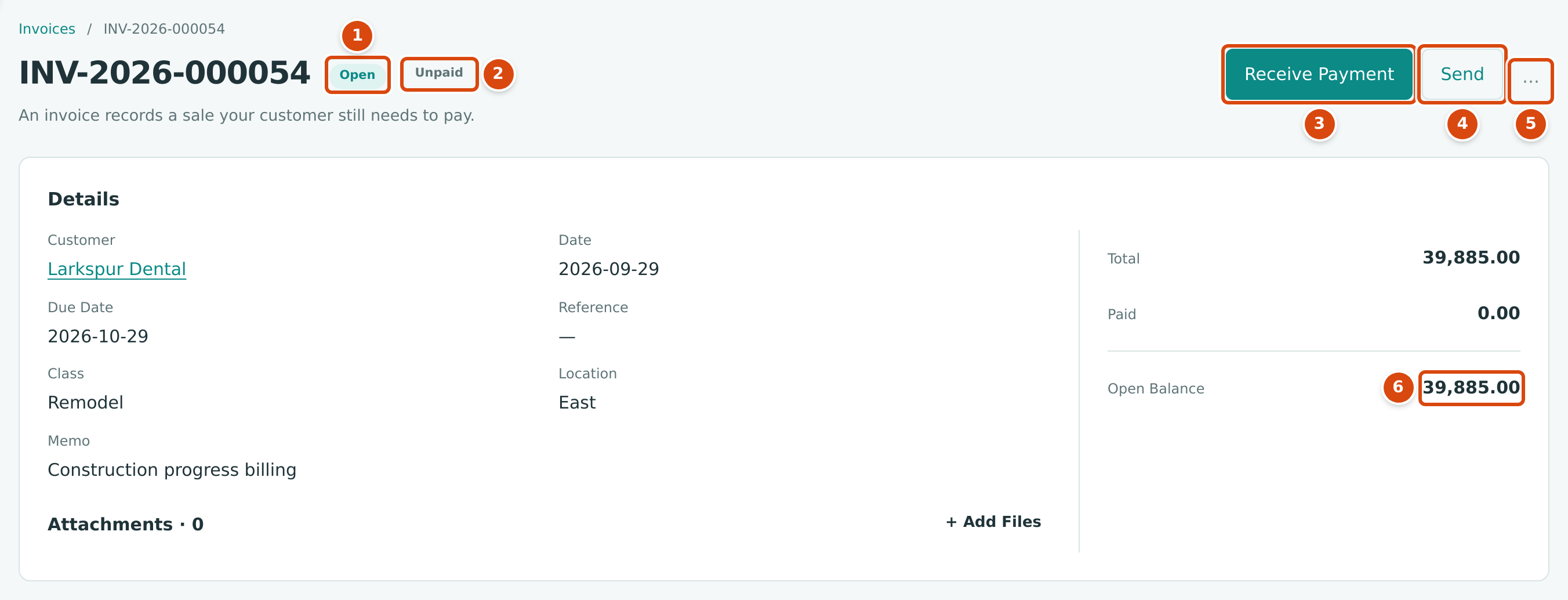
- Open: the invoice is posted and not fully paid.
- Unpaid: nothing has been received yet. It changes to Partly Paid after a partial payment, and to Overdue once the due date has passed.
- Receive Payment starts a receipt for this invoice (see Receiving Customer Payments).
- Send emails the invoice (see Sending and Printing Invoices).
- The ⋯ menu holds Print and Void Invoice….
- Open Balance: what the customer still owes on this invoice.
The Posting Entry
Open Posting Entry near the bottom of a posted invoice to see the journal entry Structally wrote, with the job on each revenue line:
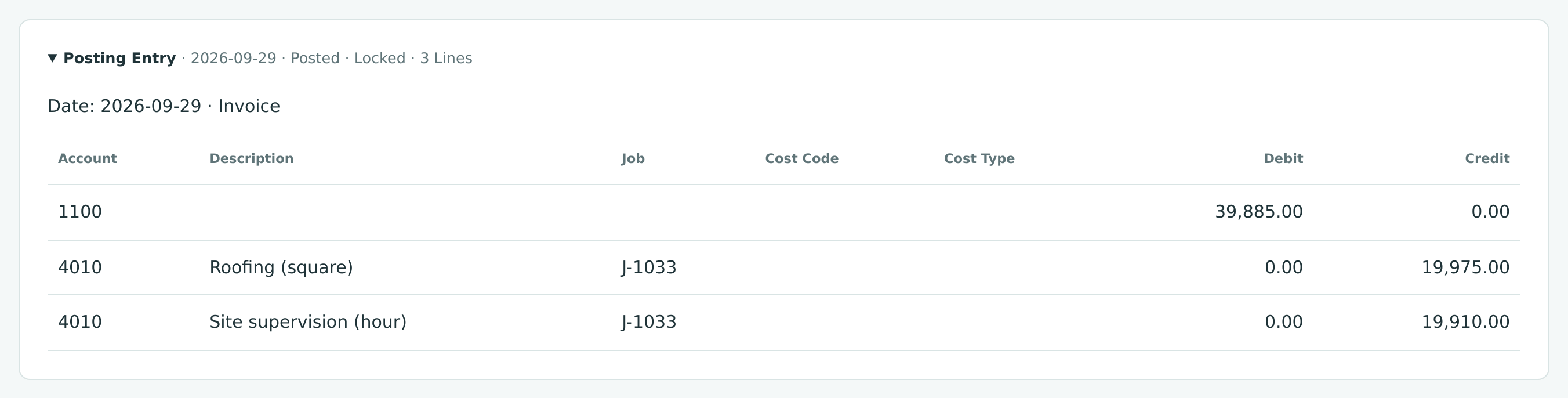
Every invoice debits Accounts Receivable for the amount due and credits its line accounts. When retainage is held, Retainage Receivable is debited for the retained part. A split line posts one credit per allocation.
Review the result on the customer's page, in the Receivables Overview, in the AR Aging report and in the Profit and Loss.
Common Mistakes and Troubleshooting
| Message or Symptom | Why It Happens | What to Do |
|---|---|---|
| Customer must be active. | The customer was deactivated. | Reactivate it on its page, or choose another customer. |
| Choose an account or an item. | A line has an amount but neither an item nor an account. | Choose an item or an income account, or remove the line. |
| Enter an amount or a quantity and rate. | A line has an account but no amount. | Type the amount, or a quantity and a rate. |
| Quantity and rate must be given together. | Only one of Qty and Rate is filled on a line without an item. | Fill in both, or clear both and type an amount. |
| Line 1 needs a job to hold retainage. | A retainage percentage is on a line without a job, or on a split line. | Choose the job, or set the retainage to 0. |
| Line 1: J-2004 bills its contract through its schedule of values. Tick Extra for separate work outside the schedule. | The line's job bills through an approved schedule of values. | Tick Extra if the work is outside the contract; bill contract work with a pay application. |
| Turn on Job Costing or clear the job coding on the lines. | Job Costing was unticked while lines still name jobs. | Tick it again, or clear the jobs. |
| Turn on Retainage or clear the retainage on the lines. | Retainage was unticked while lines still hold a percentage. | Tick it again, or clear the percentages. |
| Retainage percent must be from 0 to 100 with at most two decimals. | The percentage is out of range. | Correct it. |
| Line 1 allocations must equal the line amount. | Split rows do not add up to the line. | Adjust the allocations. |
| Add at least one allocation or untick Split. | Split is ticked on a line with no allocation rows. | Add allocations or untick Split. |
| Account 4020 cannot carry job coding. | Your Job Costing Settings exclude the account from job coding. | Remove the job from the line, or use another account. |
| Accounting date must be after the company closing date. | The invoice date is in a closed period. | Use a date after the Books Closed date, or ask a Company Admin. |
| Set up retainage in Job Costing Settings before posting invoices with retainage. | No Retainage Receivable account is set. | Ask a Company Admin to set it up, or remove the retainage. |
| A document can have at most 3 attachments. or Attachments must be at most 5 MB. | Too many or too large files. | Attach at most three files of 5 MB or less. |
| A job is missing from the Job list. | Only Active jobs can take revenue. | Check the job's status in Jobs & Costing. |
| A draft invoice cannot be deleted. | There is no discard button for draft invoices. | Leave it as a draft (drafts never affect your books) or edit it into the invoice you need. |