Books Closed
The Books Closed date (the Closed Through date on this page) protects finished periods. Once you set it, Structally refuses anything that would put an entry into your books dated on or before that date: posting a document or journal entry, reversing or voiding one, posting opening balances or a WIP schedule. Reports for the closed period therefore stay exactly as you reviewed them, for example after you have sent financial statements to your lender or filed a tax return.
You normally move the date forward once a month, after the month's work is done and reviewed (see The Month-End Routine).
Before You Begin
- To set, change or clear the date you need Edit access to Settings: Company Admins, and Custom users given Settings Edit. Accountants have no Settings access, so a Company Admin closes the books. With Settings View you can see the date only. See Roles and Permissions.
Navigation
Settings → Books Closed, or the Books Closed Through card on the Settings overview.
The Page
The page, headed Books Closed, has one card: Closed Through.
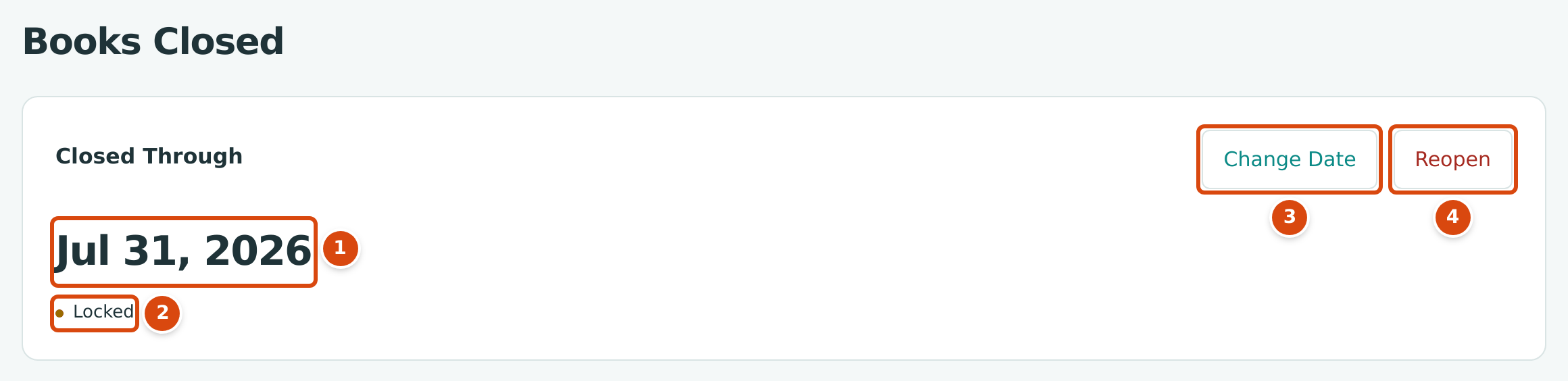
- The current closed date. Open when no period is closed.
- Locked when a date is set; No closed period otherwise.
- Change Date opens the Lock Date editor in the card. It reads Set a Date when no period is closed.
- Reopen clears the closed date, opening every period. It asks for confirmation first, and it is shown only while a period is closed.
Step by Step
Close a Period or Move the Date
- Open Settings → Books Closed.
- Click Change Date (or Set a Date) at the top of the Closed Through card. The card shows the Lock Date field with Cancel and Save.
- In Lock Date, enter the last day of the period you are closing, for example September 30, 2026.
- Click Save. Cancel closes the editor and keeps the current date.
The page shows the new date and Locked. Saving does not ask for confirmation, and there is no separate confirmation message. The date cannot be later than today in the company's time zone; a later date is refused and the editor stays open with the message.
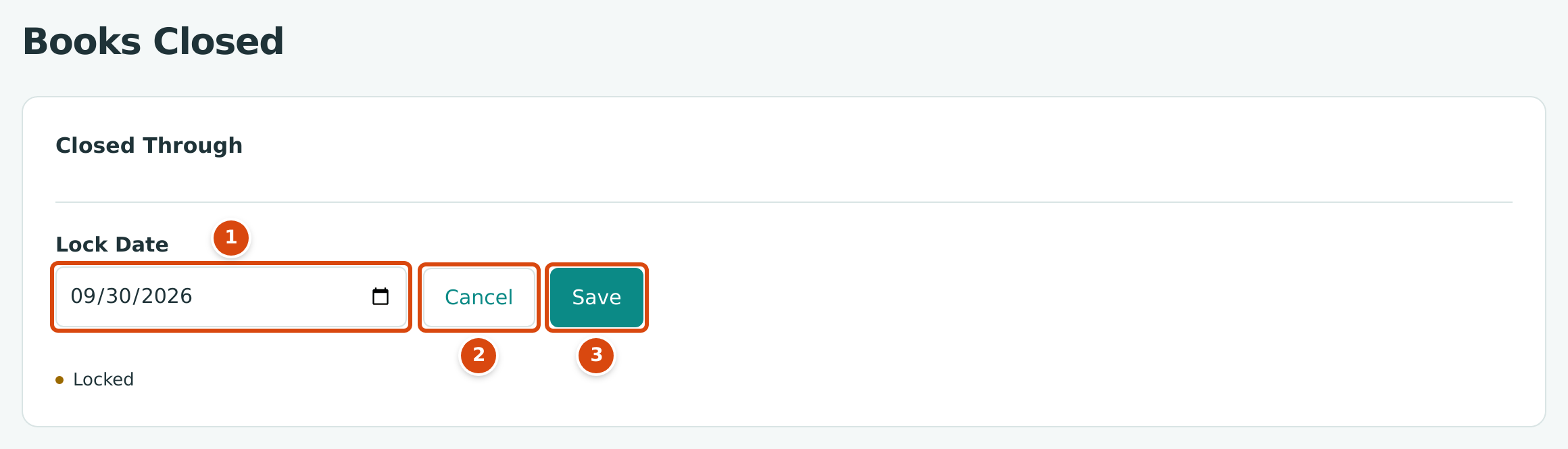
- Lock Date: the new closed date.
- Cancel closes the editor without changing the date.
- Save saves the new date.
Reopen or Move the Date Back
- To reopen only part of a closed period, click Change Date, enter an earlier Lock Date and click Save. For example, change July 31, 2026 to June 30, 2026 to reopen July.
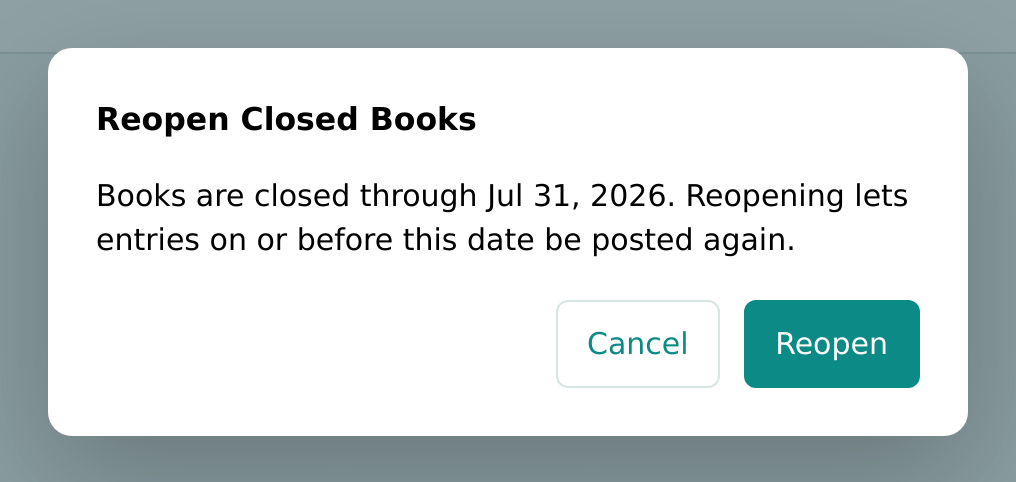
- To reopen everything, click Reopen. The Reopen Closed Books dialog asks you to confirm; click Reopen in the dialog to clear the closed date, or Cancel to keep it. The page then shows Open and No closed period.
An empty Lock Date also reopens everything
If you clear the Lock Date field and click Save, the closed date is cleared just as Reopen would clear it, but without the confirmation dialog.
Close the period again as soon as you have made your correction.
What a Closed Period Blocks
| Action | Allowed When the Date Is… | Refusal Message |
|---|---|---|
| Posting any document or journal entry (invoices, bills, expenses, payments, receipts, deposits, transfers, credits, refunds, bank entries, journal entries, job cost transfers, retainage releases) | After the closed date | Accounting date must be after the company closing date. |
| Reversing a journal entry, payment, receipt, deposit, transfer, expense or refund, or voiding an invoice, bill or credit | Dated after the closed date | Accounting date must be after the company closing date; 2026-07-31 is on a closed period. (with the date you entered) |
| Posting opening balances, which are dated the day before the books start | After the closed date | Accounting date must be after the company closing date. |
| Posting a WIP schedule | Its cutoff is after the closed date | Accounting date must be after the company closing date. |
Things a closed period does not block:
- Saving and editing drafts, whatever their date. A draft dated in a closed period simply cannot be posted until you change its date or reopen the period.
- Reading anything: reports, registers and documents for a closed period stay available.
- Correcting a mistake in a closed period. Reverse or void the entry with a date after the closed date; the correction then lands in the open period, and the closed period's figures do not change (see Reversing and Correcting Transactions).
The Month-End Routine
A routine that fits how Structally works, for closing month M:
- Finish the transactions. Post the month's invoices, bills, expenses, payments and deposits. Check the drafts listed under Needs Attention on the Home dashboard.
- Reconcile the bank. Import the bank statement, review the bank feed and reconcile each bank and credit card account through the last day of M.
- Post the adjustments. Enter the month's adjusting journal entries, such as depreciation.
- Post job costing results. If you use Jobs & Costing, approve the month's forecasts and create, approve and post the WIP schedule with a cutoff of the last day of M. Do this before closing: a WIP schedule cannot be posted once its cutoff is closed.
- Review. Run the Trial Balance, the Tie-Out, the Profit and Loss and the Balance Sheet for M.
- Close. On Settings → Books Closed, click Change Date, enter the last day of M in Lock Date and click Save.
The training exercise F: Closing the Month works through a full month end in the sample company.
Worked Example
The sample company's books are closed through July 31, 2026, and today in the sample company is October 24, 2026.
- A bill dated August 15, 2026 can still be posted, because August is open.
- A posted bill dated July 20, 2026 turns out to be wrong. Voiding it with the date July 31, 2026 is refused with Accounting date must be after the company closing date; 2026-07-31 is on a closed period. Voiding it dated October 24, 2026 is accepted: the void entry is dated October 24, 2026 and the July figures do not change. (Bill and dates are illustrative.)
- When August and September are reconciled and reviewed, the Company Admin clicks Change Date, enters September 30, 2026 in Lock Date and clicks Save, as in the second figure. A date after October 24, 2026 would be refused, because it is in the future.
What Happens After You Save
- From that moment, everyone in the company is held to the new date, in every area.
- The change is recorded in the Audit Log.
- The Books Closed Through card on the Settings overview shows the new date.
Common Mistakes and Troubleshooting
| Message or Symptom | Why It Happens | What to Do |
|---|---|---|
| Lock date cannot be in the future. (under Lock Date, with the editor still open) | The date is after today in the company's time zone. | Enter today or an earlier date and click Save again. |
| Accounting date must be after the company closing date. | The document, entry, opening balances or WIP schedule is dated on or before the closed date. | Date it after the closed date, or ask a Company Admin to move the date back. |
| Accounting date must be after the company closing date; 2026-07-31 is on a closed period. | A reversal or void is dated on or before the closed date. | Enter a date after the closed date. |
| Reversal date cannot be earlier than the journal entry date. | A reversal or void is dated before the entry it reverses. | Use a date on or after the original date. |
| There is no Change Date (or Set a Date) or Reopen button on the Closed Through card. | You have Settings View, not Edit. | Ask a Company Admin. |
| There is no Reopen button, only Set a Date. | No period is closed, so there is nothing to reopen. | Nothing; the card shows Open and No closed period. |
| Clicking Reopen does not reopen the books at once. | Reopen first asks for confirmation in the Reopen Closed Books dialog. | Click Reopen in the dialog, or Cancel to keep the date. |
| The Settings group is missing from the navigation. | Your role has no Settings access (for example Accountant). | Ask a Company Admin to close the books. |