Reports
The Reports area turns your posted transactions into the statements and checks you use to run the business and close each month: the Balance Sheet, Profit and Loss and Cash Flow; the Trial Balance, General Ledger and Journal for the detail behind them; the Tie-Out report that proves the books agree with themselves; the AP and AR aging reports; and customer statements.
Reports only read your books. Opening, running, exporting or printing a report never posts, changes or deletes anything, so you can run them as often as you like, for any date.
How the Pieces Fit Together
- Record your work in the other areas. Every posted bill, invoice, expense, payment, receipt, deposit, transfer, journal entry and WIP schedule writes a balanced journal entry. Reports read those posted entries; drafts never appear.
- Check the books. Run the Tie-Out report as of the date you are closing. It confirms that debits equal credits, that the balance sheet balances, and that the AP, AR, retainage, undeposited funds and cash flow figures agree with their accounts.
- Read the financial statements. The Balance Sheet shows what the company owns and owes at a date, the Profit and Loss what it earned and spent over a period, and the Cash Flow why cash went up or down.
- Drill into the detail. An account code on a statement opens the General Ledger for that account; a date there opens the journal entry, and a number opens the bill, invoice or payment behind it. The Trial Balance and Journal give the same detail for all accounts at once.
- Follow up what is owed. The aging reports show unpaid bills and invoices by age, and a customer statement lists one customer's activity and balance for a period.
Before You Begin
- Reports show posted transactions only. Post your bills, invoices and other documents first; a draft has no effect on any report.
- You need View or Edit access to Reports. Company Admins, Accountants and Viewers have it; Project Managers do not. See Who Can Use Reports.
Navigation
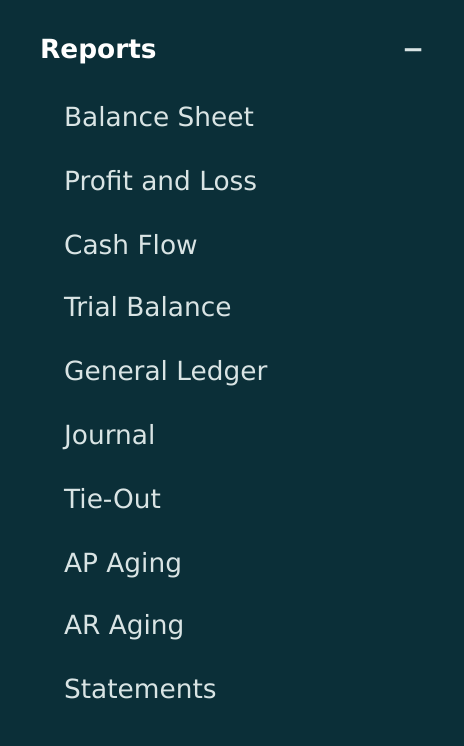
Reports in the navigation opens the Reports page. The group also lists each report: Balance Sheet, Profit and Loss, Cash Flow, Trial Balance, General Ledger, Journal, Tie-Out, AP Aging, AR Aging and Statements. The Home dashboard's View Reports → link opens the same page.
The Reports Page
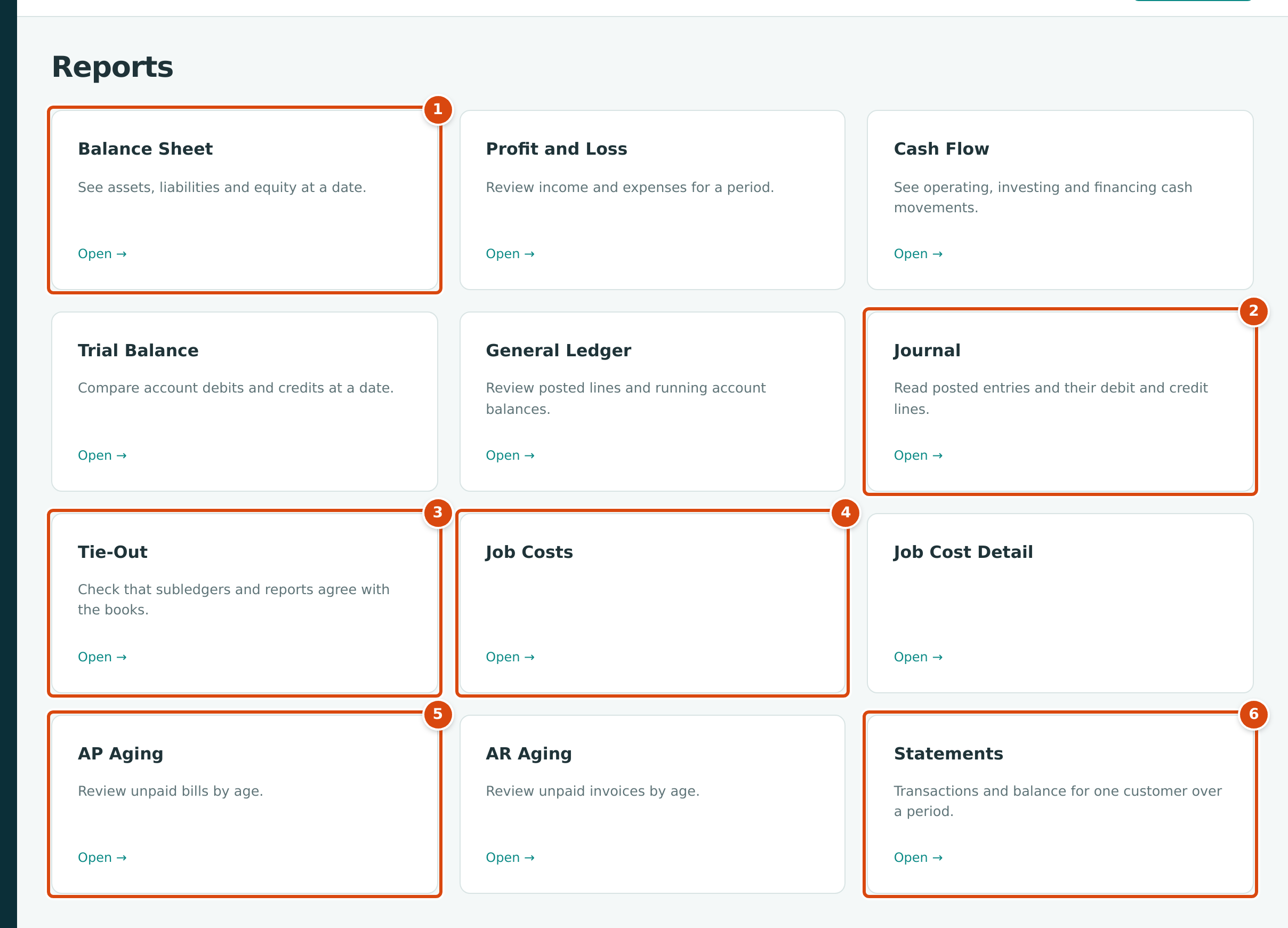
- Balance Sheet: "See assets, liabilities and equity at a date." Each card names a report and says what it is for; click the card or Open →.
- Journal: "Read posted entries and their debit and credit lines."
- Tie-Out: "Check that subledgers and reports agree with the books."
- Job Costs and Job Cost Detail appear only when Jobs & Costing is turned on for the company and at least one job is Active, On Hold or Closed. They are explained in the Jobs & Costing chapter.
- AP Aging and AR Aging: unpaid bills and unpaid invoices by age.
- Statements: "Transactions and balance for one customer over a period."
Every Report at a Glance
| Report | What It Answers | Dates | Page |
|---|---|---|---|
| Balance Sheet | What the company owns, owes and is worth at a date, optionally by month, quarter or year. | As Of (and From for columns) | Balance Sheet |
| Profit and Loss | Income, costs and net income for a period; by month, quarter, year, class, location, item or job; compared with another period; accrual or cash basis. | Start and End | Profit and Loss |
| Cash Flow | Why cash changed over a period: operating, investing and financing. | Start and End | Cash Flow |
| Trial Balance | Every account's debit or credit balance at a date, and whether debits equal credits. | As Of | Trial Balance |
| General Ledger | Every posted line in one account (or all accounts) over a period, with running balances. | Start and End | General Ledger |
| Journal | Every posted journal entry in a period, with all its lines. | Start and End | Journal Report |
| Tie-Out | Whether the books agree with themselves and with the AP, AR, retainage, undeposited funds and cash figures. | As Of | Tie-Out |
| Job Costs and Job Cost Detail | Job cost by job, cost code and cost type, and the posted lines behind it. | Period | Job Cost Reports |
| AP Aging | Unpaid bills by vendor and age. | As Of | Aging Reports |
| AR Aging | Unpaid invoices by customer and age. | As Of | Aging Reports |
| Statements | One customer's charges, credits and balance over a period, with open items by age. | Start and End | Customer Statements |
The Report Frame
Every report in this chapter uses the same frame: a title with Print and Export CSV, an options bar, and a report sheet.
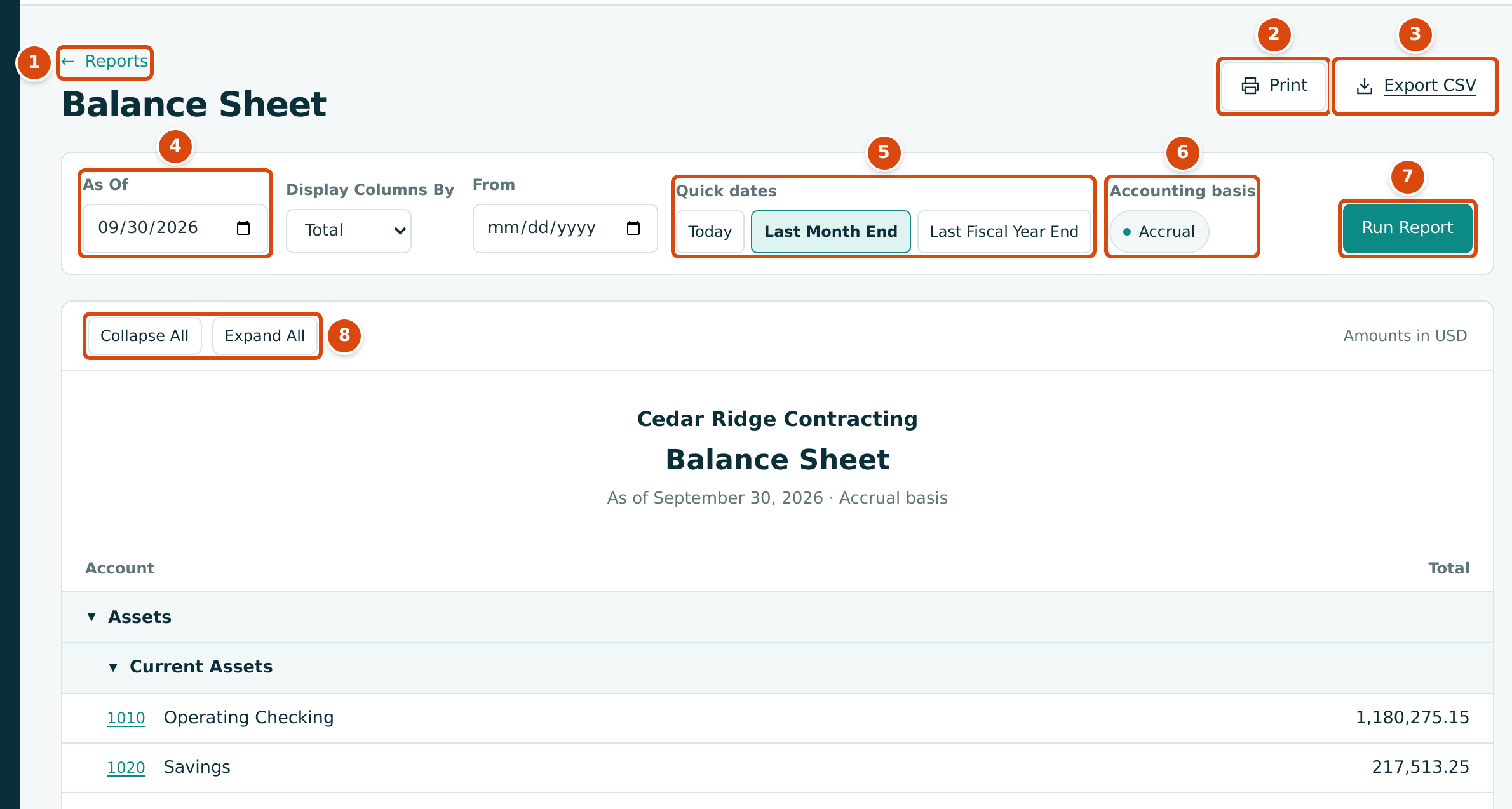
- Reports takes you back to the Reports page. When you opened the report from a link in another report, this reads Back to Report instead.
- Print opens your browser's print dialog for the report.
- Export CSV downloads the report as a spreadsheet file.
- The report date: As Of for reports at a date, or Start and End for reports over a period.
- Ready-made dates. Reports at a date offer Quick dates: Today, Last Month End and Last Fiscal Year End. Reports over a period offer Report period: This Month, Last Month, This Fiscal Year and Last Fiscal Year. Clicking one runs the report at once; the one that matches the dates on screen is highlighted.
- Accounting basis: every report is on the accrual basis. Only the Profit and Loss lets you switch to Cash (see Accrual and Cash Basis).
- Run Report runs the report for the dates and options you entered.
- Collapse All and Expand All fold or open every section of the sheet.
Below the options, the report sheet names the company, the report and its dates, for example As of September 30, 2026 · Accrual basis or July 1, 2026–September 30, 2026 · Accrual basis. Click the ▼ beside a section or a parent account to fold it; Structally remembers which sections you folded on that report while your browser tab stays open.

- The basis and the moment the report was run, for example Accrual basis · Run Saturday, October 24, 2026 at 6:12 PM.
- A check or note for the report: the Balance Sheet says Balance sheet balances (or Balance sheet is out of balance), the Trial Balance Debits equal credits, and the Profit and Loss explains its % change rule when one is shown.
Choosing Dates
- Open the report. A report at a date opens as of today; a report over a period opens for the first day of this month through today. The sample company's transactions end on September 30, 2026, so pick dates on or before then to see figures.
- Type or pick the As Of date, or the Start and End dates, or click one of the ready-made dates.
- Click Run Report.
The dates and options are part of the page address, so you can bookmark a report or send its link to another user of the company.
Ready-made dates reset the other options
A ready-made date runs the report with only its dates. It keeps the account on the General Ledger and the basis on the Profit and Loss, but other options such as Display Columns By and Compare To go back to their defaults. Choose the dates first, then the other options.
Drilling Down
Underlined codes and amounts are links:
- An account code on the Balance Sheet, Profit and Loss or Trial Balance opens the General Ledger for that account. From a report at a date (Balance Sheet, Trial Balance), the ledger runs from the start of that date's fiscal year to the date; from the Profit and Loss, it covers the report's period (or the column's period).
- In the General Ledger and Journal, a date opens the journal entry and a number (such as BILL-2026-000133) opens the bill, invoice, payment or other record that posted it.
- In the Tie-Out, an underlined Books amount opens the AP Aging, AR Aging or Cash Flow behind the check. In the aging reports, a name opens the vendor or customer and Detail lists their open documents.
The page you land on shows Back to Report, which returns you to the report with the same dates and options.
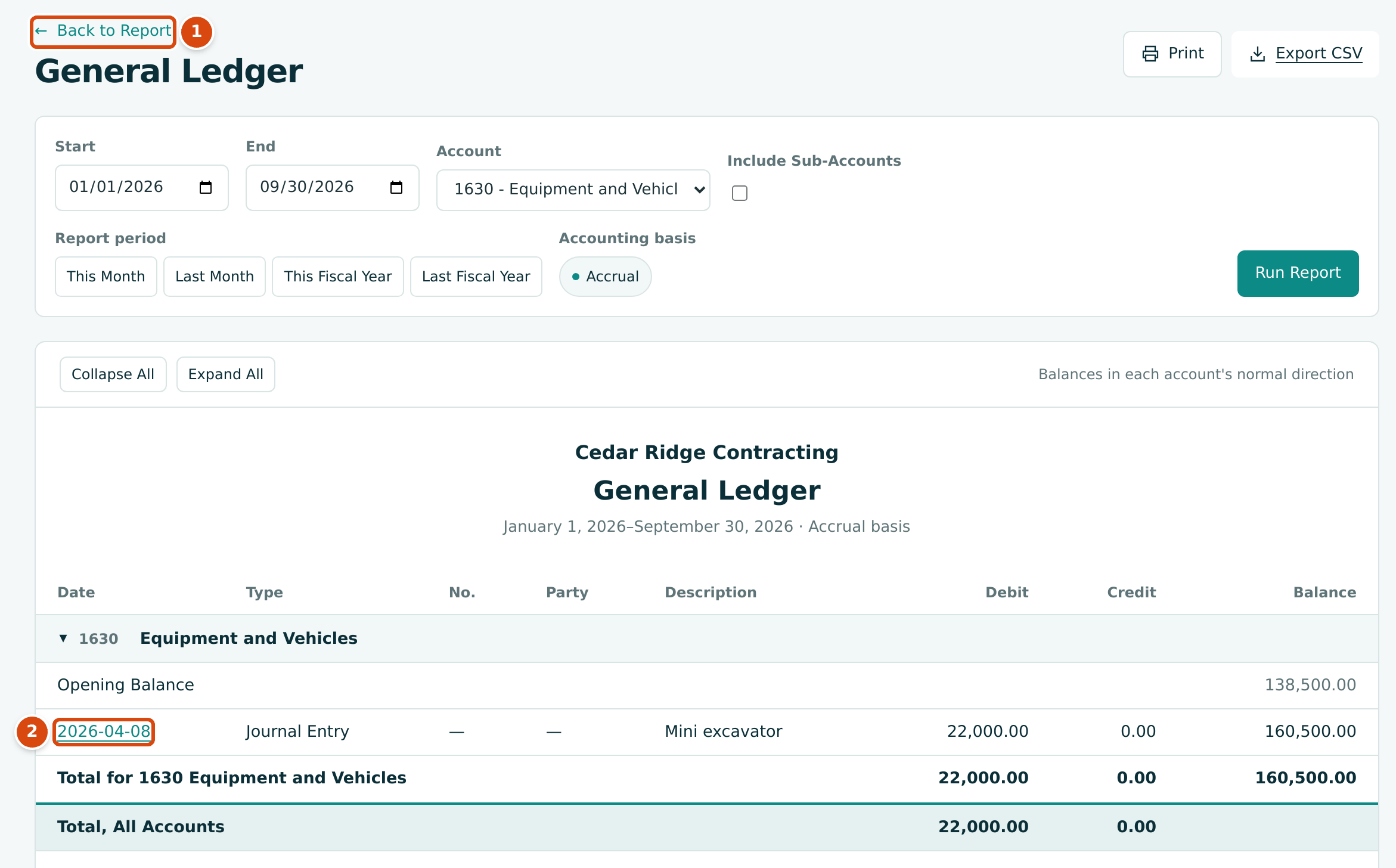
- Back to Report returns to the Balance Sheet.
- The entry date opens the journal entry that posted the line.
Links into other areas
A drill-down link can open a page in another area: journal entries are in Accounting, bills in Vendors & Bills, invoices in Customers & Invoices. If your role has no access to that area, the page shows This Area Is Locked for You.
Export CSV and Print
- Export CSV downloads the report exactly as run, as a comma-separated file
that opens in Excel or any spreadsheet program. Amounts have two decimals and
no thousands separators. The file name says what it holds, for example
balance-sheet-2026-09-30.csvorprofit-and-loss-2026-07-01-2026-09-30.csv. The Balance Sheet, Profit and Loss and Trial Balance files add Row Type and Level columns so you can tell account rows from subtotals. Export CSV is hidden while the options show an error, and on Statements until you choose a customer. - Print prints the report sheet: company name, title, dates, the table and the footer. The navigation, the options bar and the buttons are left out. Sections you folded stay folded on paper, so click Expand All first if you want every line. Choose your browser's Save as PDF destination to keep a PDF.
Accrual and Cash Basis
Structally keeps its books on the accrual basis: income counts when you invoice it and costs count when you are billed, whether or not money has changed hands. Every report shows the accrual figures, and the options bar shows Accounting basis with a fixed Accrual label.
The Profit and Loss is the one report that can also show the cash basis, where invoices and bills count only when, and as far as, they are paid. See Accrual or Cash.
Classes, Locations, Items and Jobs
Reports do not have class, location or job filters. Instead, the Profit and Loss can show one column per class, location, item or job through Display Columns By, with an Unassigned column for amounts posted without one (see Columns by Class, Location, Item or Job). Job-by-job cost detail with job, cost code and cost type choices is in Job Cost Reports.
Who Can Use Reports
Access follows the Reports access level of your role (see Roles and Permissions). Reports are read-only, so View and Edit allow the same things.
| Role | Reports Access | What It Allows |
|---|---|---|
| Company Admin | Edit | Open, run, export and print every report. |
| Accountant | Edit | The same as a Company Admin. |
| Viewer | View | The same: every report can be opened, run, exported and printed. |
| Project Manager | No Access | The Reports group and the Home dashboard's View Reports → link are not shown. Opening a report shows This Area Is Locked for You. |
| Custom | As set for the user | View or Edit opens every report; No Access hides them. |
Job Costs and Job Cost Detail follow Jobs & Costing access instead, and the Profit and Loss offers By Job only to users who can view Jobs & Costing.
Pages in This Section
- Balance Sheet: assets, liabilities and equity at a date, with columns by month, quarter or year, and how retainage and WIP accounts appear.
- Profit and Loss: income and expenses for a period, with time and dimension columns, comparisons, percentages and the cash basis.
- Cash Flow: operating, investing and financing cash, and how to tie it to the change in cash on the Balance Sheet.
- Trial Balance: every account's balance at a date and the debit and credit totals.
- General Ledger: posted lines and running balances by account.
- Journal Report: every posted entry in a period with its lines.
- Tie-Out: the checks that prove the books agree, and what to do when one does not.
- Aging Reports: AP Aging and AR Aging, with the detail for one vendor or customer.
- Customer Statements: one customer's activity and balance for a period.