Schedules of Values
A schedule of values divides a job's contract into billable lines, such as Mobilization, Earthwork and Concrete, each with a scheduled value. Every month you bill the work completed on each line through a pay application, and the customer pays against the same lines. In Structally the schedule also decides, line by line, which revenue account the billing goes to and how much retainage the customer holds back.
Each job has one schedule of values. The schedule is kept in revisions: the approved revision is the one in force for billing, and you change the schedule by starting a new revision and approving it.
Before You Begin
- The job is Active or On Hold and has a customer. See Creating and Managing Jobs.
- The job has its Original Contract Amount set: a schedule cannot be approved without it.
- Check the job's Billing Retainage. New schedule lines start with that percentage for both work and stored materials. Its default comes from Customer Invoices under Default Retainage in Job Costing Settings.
- To bill retainage, a Retainage Receivable account is set up in Job Costing Settings. See Retainage.
- To set up, edit, revise or discard a schedule you need Edit access to Jobs & Costing (Company Admins, Accountants, Project Managers, and Custom users with Edit there). Only Company Admins and Accountants can approve a schedule or a revision. See Roles and Permissions.
Navigation
Jobs & Costing → Progress Billing, then Set Up Schedule, Open Schedule or Revise Schedule on the job's row. Once a schedule is approved you can also open the job and click View Schedule in its Billing card.
How Schedules Work
- Set Up Schedule starts revision 1 as a draft. The schedule's status is Draft.
- You enter the lines and click Approve (or Save Draft to finish later). Approving needs the schedule total to equal the job's revised contract. The schedule is now Approved, and pay applications can be prepared from it.
- When the contract changes, an approved Contract change order with a positive amount adds its own line to the schedule automatically.
- For any other change you click Revise Schedule. A new draft revision starts from the approved lines while the approved revision stays in force (status Revision Draft). Approving the new revision replaces the old one, which becomes Superseded.
The Progress Billing page lists every active and on-hold job with its schedule status:

- Set Up Schedule starts revision 1 of the job's schedule as a draft. It appears only for users with Edit access to Jobs & Costing.
Step by Step
Set Up a Schedule
- Go to Jobs & Costing → Progress Billing and click Set Up Schedule on the job's row. Structally confirms Schedule of values started. and opens the draft. The draft is empty, except that every approved Contract change order with an amount above zero is already there as a CO- line.
- Under Details, fill in Contract Date, Architect and Architect Project Number if you want them on the printed pay application. The Customer comes from the job.
- Click Add Line for each part of the contract, and fill in the line:
- Item: the line number the customer sees, such as 1, 2, 3 (up to 20 characters, different on every line);
- Description: what the line covers;
- Scheduled Value: the part of the contract price for this line, more than zero;
- Revenue Account: the income account the billing of this line posts to;
- Work Retainage and Stored Materials Retainage: the percentages the customer holds back on work completed and on materials stored on this line.
- Watch the Contract card. Schedule Total shows Matches when the lines add up to the Revised Contract, or Over by or Short by an amount when they do not.
- Click Save Draft to keep your work (Draft saved.), or Approve to save and approve in one step (Schedule of values approved.). Only Company Admins and Accountants see Approve.
To remove a line from a draft, click × at the end of its row. To throw the whole draft away, click Discard Draft: Structally confirms Draft discarded., deletes the schedule and returns you to Progress Billing.
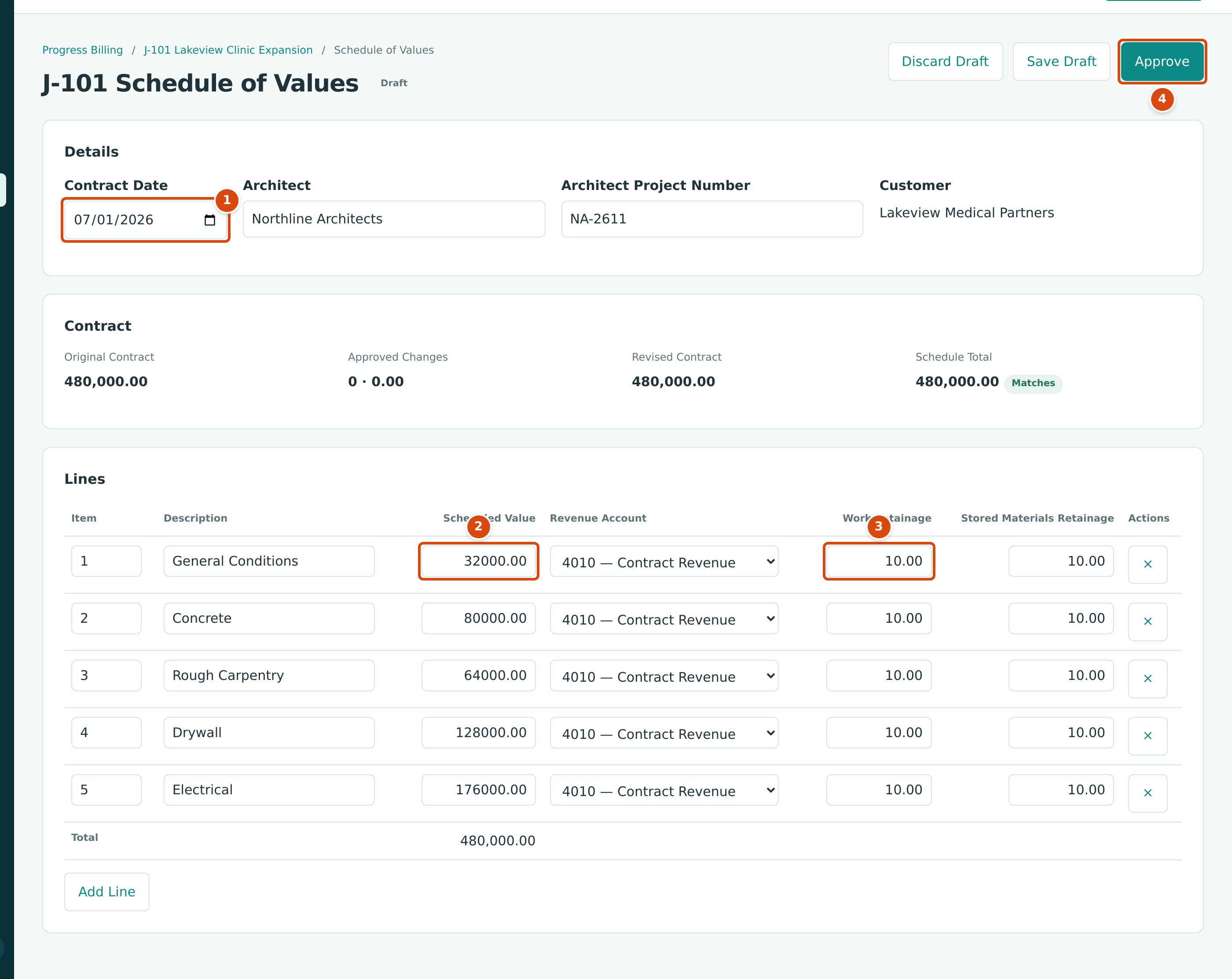
- Contract Date, with Architect and Architect Project Number beside it: they print on the pay application.
- Scheduled Value of each line. The five lines total 480,000.00, so Schedule Total shows Matches against the 480,000.00 contract.
- Work Retainage, here 10.00, followed by Stored Materials Retainage. Both start at the job's Billing Retainage.
- Approve saves and approves the draft. Save Draft and Discard Draft are beside it.
In a revision draft the buttons read Discard Revision, Save Draft and Approve Revision, and the lines also show Billed to Date.
Read an Approved Schedule
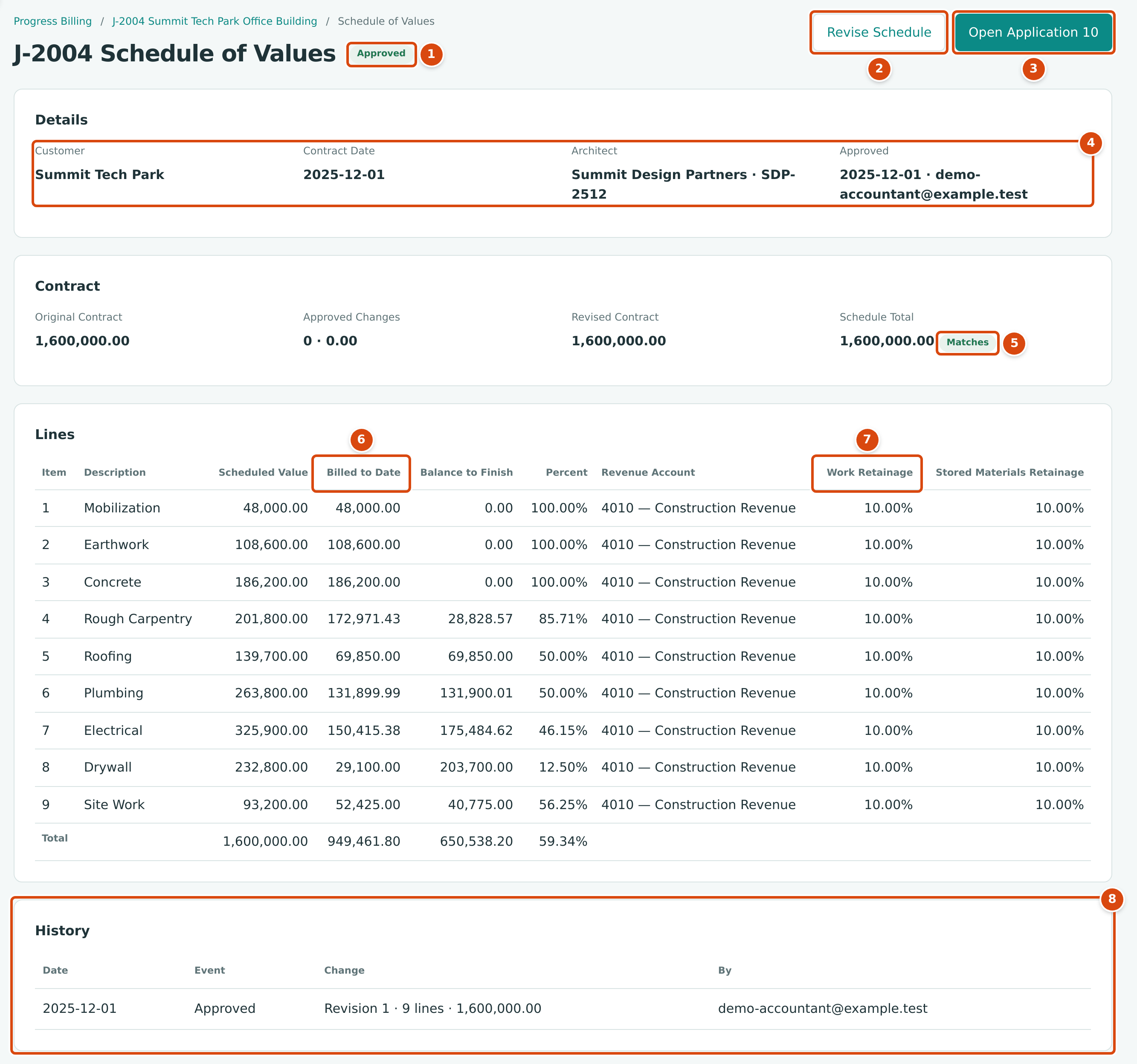
- The schedule status: Draft, Approved or Revision Draft.
- Revise Schedule starts a new draft revision from these lines.
- Open Application 10 opens the pay application in progress. When there is none, the button is New Application.
- Details: customer, contract date, architect and project number, and who approved the revision in force.
- Schedule Total compared with the Revised Contract (Original Contract plus Approved Changes). It must show Matches.
- Billed to Date: work completed and materials stored on each line in accepted pay applications, with Balance to Finish and Percent beside it.
- Work Retainage and Stored Materials Retainage for each line, next to its Revenue Account.
- History: each approved revision (with its line count and total) and each line added by a change order.
Revising an Approved Schedule
Revise the schedule when the contract changes in a way that does not add its own line (for example a deduction), when you need to split or rename lines, or when retainage rates change.
- Open the schedule and click Revise Schedule. Structally confirms Revision 2 started. The heading shows Revision Draft and the line Revision 2 · started … · Revision 1 stays in force until this one is approved.
- Change the lines. Pay applications keep using the approved revision until the new one is approved.
- Click Approve Revision (Revision 2 approved.). The old revision becomes Superseded and the history records the approval. Or click Discard Revision (Revision 2 discarded.) to keep the old one.
Rules for a revision:
- A line that has been billed cannot be removed, and its scheduled value cannot go below its billed to date. The row shows Below Billed to Date while it is lower.
- Lines that came from change orders keep their item, description, scheduled value and revenue account. Only their two retainage percentages can change.
- Only one draft revision can be open at a time.
When an approved contract change order lowers the contract, the schedule total no longer matches. The Lines card then explains it, for example CO-3 Covered walkway deleted by the owner reduced the contract by 35,000.00 on 2025-04-12. Revise the schedule and lower existing lines by 35,000.00 before the next application is accepted. The Progress Billing page marks the job Differs by the amount and offers Revise Schedule.
Change Order Lines
When a Contract change order with an amount above zero is approved on a job that has a schedule, Structally adds a line to the approved revision (and to a draft revision, if one is open):
- Item: CO- and the change order number, for example CO-2;
- Description: the change order's title, with a From CO-2 tag;
- Scheduled Value: the change order's contract amount;
- Revenue Account: the active revenue account with the lowest code (4010 Construction Revenue in the sample company);
- Work Retainage and Stored Materials Retainage: the job's Billing Retainage.
Because the line equals the contract change, the schedule keeps matching the revised contract. The change order's page links to the new line under Schedule Line.
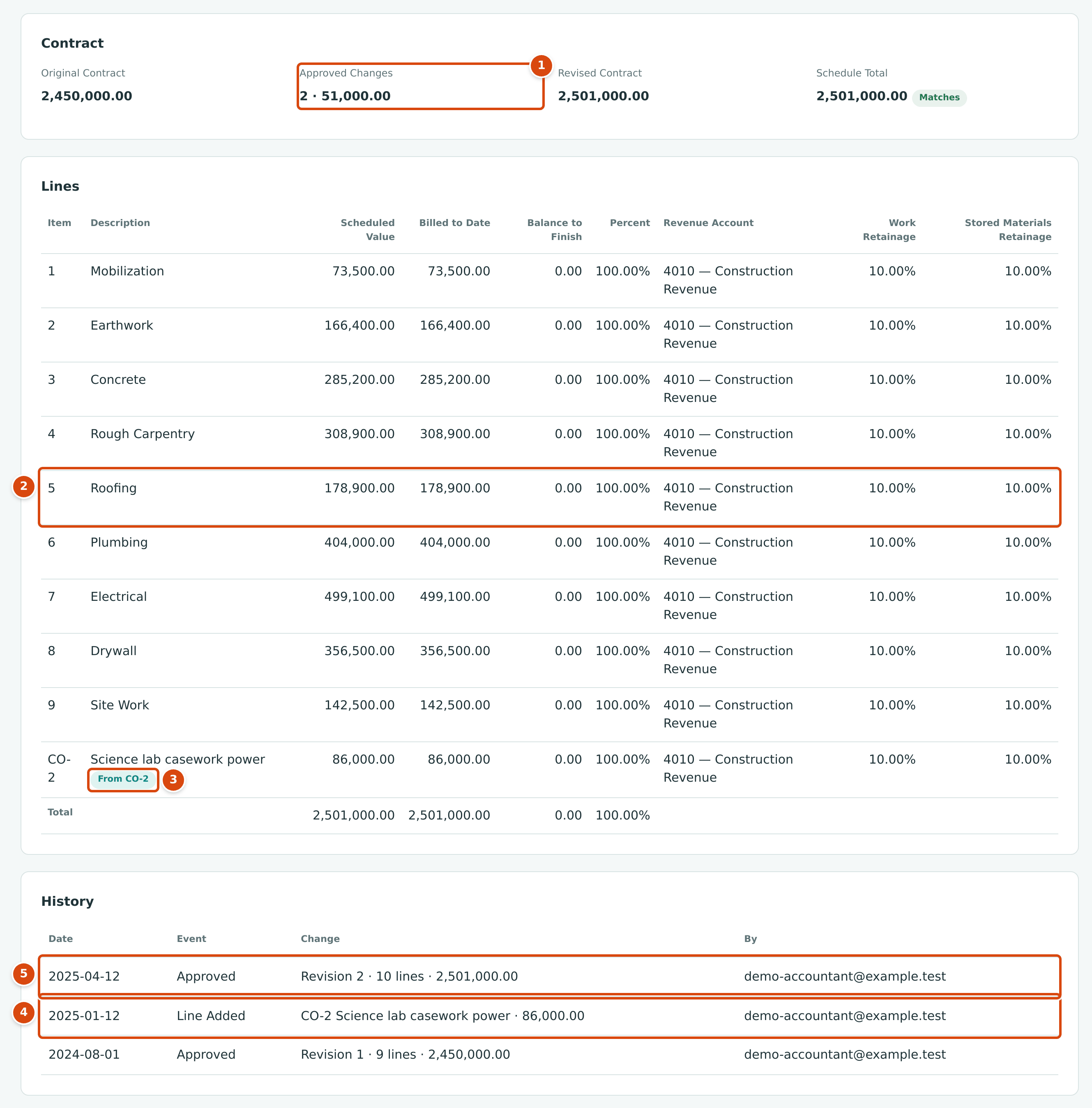
- Approved Changes: two approved contract change orders, net 51,000.00.
- The Roofing line, lowered in revision 2 after the negative change order.
- The From CO-2 tag on the line the change order added.
- Line Added: CO-2 joined the schedule when the change order was approved.
- Approved revision 2, the revision now in force.
Billing a Job Through Its Schedule: The Extra Flag
Once a job has an approved schedule of values, the job's contract is billed only through pay applications. An ordinary invoice line (or credit memo line) coded to that job is refused with Line 1: J-2004 bills its contract through its schedule of values. Tick Extra for separate work outside the schedule.
Tick Extra on the line when the invoice really is for separate work outside the contract, such as a small service call the customer orders directly. The Extra column appears on invoice and credit memo lines when Job Costing is on and the company has at least one approved schedule.

- Job: J-2004 is billed through its schedule of values.
- Extra marks the line as work outside the schedule, so the invoice can be saved.
Extra invoices do not count as billed to date on the schedule. The job's Billing card counts them separately, for example Other invoices on this job: 0 · 0.00 · extras outside the schedule of values. See Creating an Invoice.
Field Reference
| Field | Description | Required | Example |
|---|---|---|---|
| Contract Date | The date of the contract with the owner. Prints on the pay application. | No | 12/01/2025 |
| Architect | The architect's name, up to 120 characters. Prints on the pay application. | No | Summit Design Partners |
| Architect Project Number | Up to 40 characters. Prints on the pay application. | No | SDP-2512 |
| Item (line) | The line number, 1 to 20 characters, different on every line. | Yes | 4 |
| Description (line) | What the line covers, 1 to 240 characters. | Yes | Rough Carpentry |
| Scheduled Value (line) | The part of the contract for this line: more than zero, two decimals at most. | Yes | 201,800.00 |
| Revenue Account (line) | An active revenue account. The billing of this line is credited to it. | Yes | 4010 — Construction Revenue |
| Work Retainage (line) | Percent held back on work completed on this line, 0 to 100. Starts at the job's Billing Retainage. | Yes | 10.00 |
| Stored Materials Retainage (line) | Percent held back on materials stored on this line, 0 to 100. | Yes | 10.00 |
Worked Example: A Change-Order Line and a Revision on J-2002
Job J-2002 Pinecrest Middle School Addition had an original contract of $2,450,000.00.
- August 1, 2024. Revision 1 was approved with 9 lines totaling $2,450,000.00, matching the contract. Roofing was $213,900.00. Every line held 10.00% retainage.
- January 12, 2025. CO-2 Science lab casework power, +$86,000.00, was approved. Structally added line CO-2 for $86,000.00 to revision 1. The schedule total and the revised contract both became $2,536,000.00.
- April 12, 2025. CO-3 Covered walkway deleted by the owner, -$35,000.00, was approved. The revised contract became $2,501,000.00, but the schedule still totaled $2,536,000.00: over by $35,000.00.
- April 12, 2025. Revision 2 lowered Roofing by $35,000.00, from $213,900.00 to $178,900.00, and was approved: 10 lines totaling $2,501,000.00. Revision 1 became Superseded.
| Revision 1 after CO-2 | Revision 2 | |
|---|---|---|
| Nine original lines | 2,450,000.00 | 2,415,000.00 |
| of which Roofing | 213,900.00 | 178,900.00 |
| CO-2 Science lab casework power | 86,000.00 | 86,000.00 |
| Schedule total | 2,536,000.00 | 2,501,000.00 |
| Revised contract | 2,501,000.00 after CO-3 | 2,501,000.00 |
The schedule figure above shows the result: Approved Changes 2 · 51,000.00, every line billed to 100.00%, and the history of both approvals and the added line.
What Happens After You Save or Approve
| Draft or Revision Draft | Approved | |
|---|---|---|
| Journal entry | None | None |
| Pay applications | Use the revision in force (none before the first approval) | Prepared from this revision |
| Can be changed | Yes, until approved | No; revise it |
| Schedule total | Can differ from the revised contract | Equals the revised contract at approval |
No Journal Entry
A schedule of values never posts. Its revenue accounts and retainage percentages are used when a pay application is accepted: each billed line is credited to its revenue account, and its retainage is debited to Retainage Receivable. See Pay Applications.
Common Mistakes and Troubleshooting
| Message or Symptom | Why It Happens | What to Do |
|---|---|---|
| Schedule total 1,632,000.00 does not equal the revised contract 1,600,000.00. | The lines do not add up to the original contract plus approved contract changes. | Adjust the lines until Schedule Total shows Matches. |
| Job J-2004 has no original contract amount. Set it on the job before approving the schedule. | The job's Original Contract Amount is empty. | Edit the job and enter it. |
| Schedules of values need an active or on hold job. | The job is Draft, Closed or Archived. | Activate the job, or reopen it. |
| Job J-2004 has no customer. (with your job's number) | The job has no customer. | Edit the job and choose the customer. |
| Job J-2004 already has a schedule of values. | A job has one schedule; revise it instead. | Open the existing schedule. |
| Line 3 item must be 1 to 20 characters. or Line 3 description must be 1 to 240 characters. | A line is missing its item or description. | Fill in or shorten the field. |
| Line 3 scheduled value must be more than zero with at most two decimals. | The value is empty, zero, negative or has more than two decimals. | Enter a positive amount. |
| Line 3 revenue account must be an active revenue account. | No revenue account, or an inactive one. | Choose an active revenue account. |
| Retainage percent must be from 0 to 100 with at most two decimals. | A retainage percentage is out of range. | Enter a value from 0 to 100. |
| Item 4 is used twice. | Two lines have the same item number. | Renumber one of them. |
| Line 5 has been billed and cannot be removed. | You removed a line that has billing. | Keep the line; lower it no further than its billed to date. |
| Line 5 cannot be lower than its billed to date, 178,900.00. | A scheduled value is below what was already billed. | Raise it to at least the billed to date. |
| Approve the schedule of values before revising it. | There is no approved revision yet. | Finish and approve the first draft. |
| Finish or discard the open schedule revision first. | A draft revision is already open. | Open the schedule and approve or discard the draft. |
| This record was changed by someone else. Reload the page and try again. | Another user saved the schedule after you opened it. | Reload and make your change again. |
| There is no Approve button. | Only Company Admins and Accountants can approve. | Save the draft and ask one of them. |
| Revise Schedule and New Application show on a closed job's schedule. | The schedule page offers them for any job with an approved schedule. | On a closed job, Revise Schedule still starts a draft revision, but approving it is refused with Schedules of values need an active or on hold job., and the New Application form does not offer closed jobs. Discard such a draft with Discard Revision, or reopen the job first if it really needs more billing. |