Job Budgets
A job budget is the cost you plan to spend on a job, broken down by cost code and cost type: for J-2004, 211,200.00 of drywall subcontract (09-100 · SUB), 169,000.00 of concrete materials (03-300 · MAT), and so on. Structally compares it with the cost you actually post and the commitments you have issued, so you see early which parts of a job are running over.
A job has one original budget and any number of revisions. Each is a separate record with its own lines, effective date and status, and must be approved before it counts. The revised budget is the original plus every approved revision.
| Budget Kind | Use It For | Rule |
|---|---|---|
| Original | The budget the job starts with, usually the estimate. | One per job. Its lines cannot be negative, and it must total more than zero. |
| Owner Change | Scope the owner added or removed, usually through a change order. | Lines can be positive or negative. |
| Internal Transfer | Moving budget between cost codes or types without changing the total. | The lines must net to zero. |
Before You Begin
- The job is Draft, Active or On Hold. Closed and archived jobs' budgets cannot change.
- The cost codes you budget are assigned to the job (see Assigning Cost Codes to a Job).
- You need Edit access to Jobs & Costing to create, edit and approve budgets. Company Admins, Accountants and Project Managers have it. See Roles and Permissions.
Navigation
Jobs & Costing → Budgets → click the job. From a job's page, use View Budget or Add Budget on the Budget card.
The Budgets List
The Budgets list shows every job that is not archived, with its budget totals as of today.

- Job: click it to open the job's budget page.
- Original: the approved original budget.
- Revised: the original plus every approved revision effective by today.
- Actual to Date: cost posted to the job through today.
- Remaining Budget: Revised less Actual to Date.
- Pending Revisions: the number of draft budgets waiting for a decision.
The Status column shows the job's status. Jobs without a budget show 0.00 budgets, so their remaining budget is negative by their whole cost. The contract jobs at the end of the sample company's list have budgets:

- J-2004 Summit Tech Park Office Building: 468,510.26 of budget left.
The Job's Budget Page
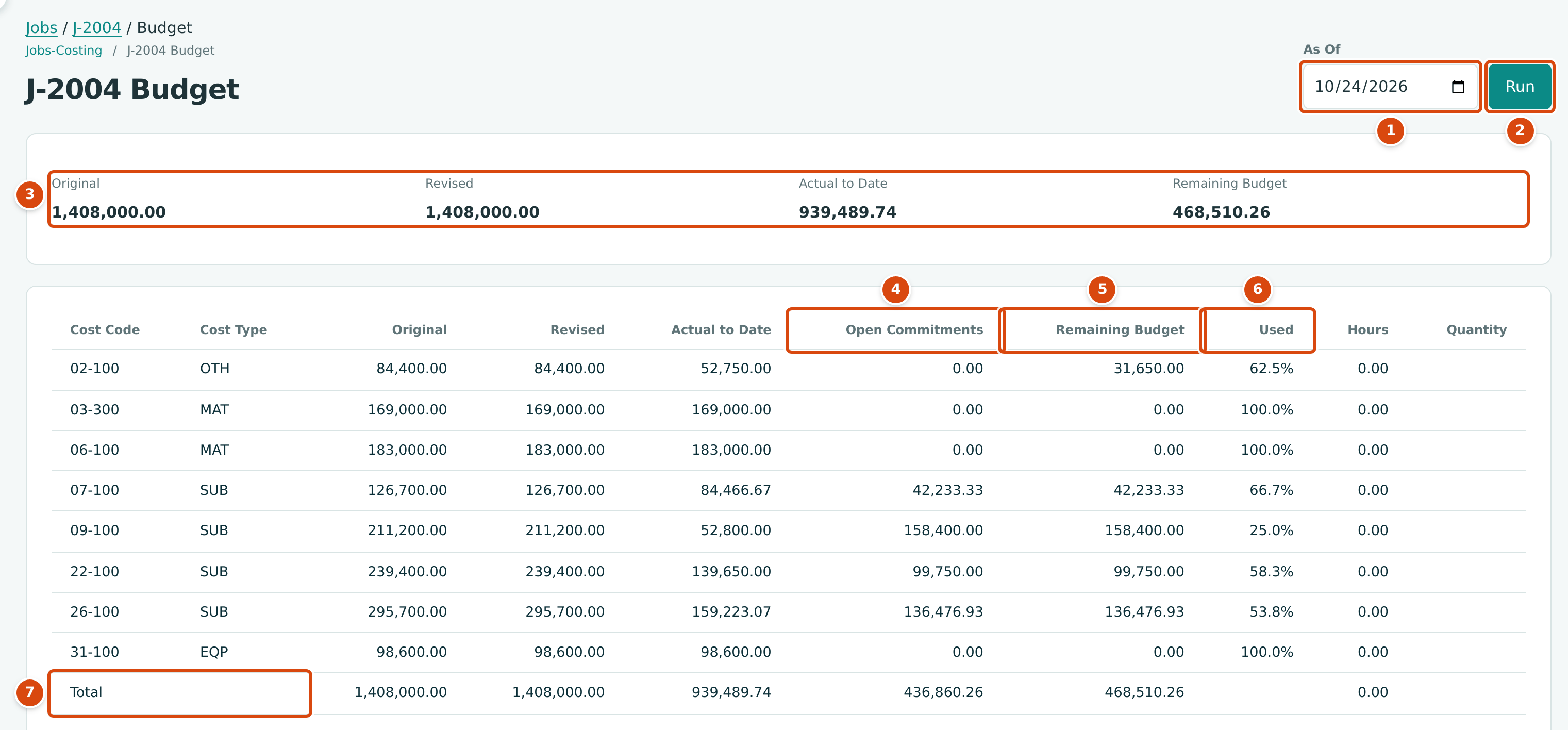
- As Of: the date the page is calculated for. It starts with today.
- Run recalculates the page for the date.
- The totals: Original, Revised, Actual to Date and Remaining Budget.
- Open Commitments: what is left to bill on issued commitments for the cost code and type.
- Remaining Budget: Revised less Actual to Date.
- Used: Actual to Date as a percentage of Revised.
- Total of every column.
Each row is one cost code and cost type. A row appears when it has a budget, posted cost or an open commitment, so cost posted outside the budget shows up too (with 0.00 budgeted). The columns:
| Column | What It Shows |
|---|---|
| Original | The approved original budget for the row. |
| Revised | The original plus approved revisions effective on or before As Of. |
| Actual to Date | Cost posted to the job in the row's code and type, through As Of. |
| Open Commitments | Issued commitments (with approved amendments) less what has been billed against them. It is shown for information and is not subtracted from Remaining Budget. |
| Remaining Budget | Revised − Actual to Date. Negative when the row is over budget. |
| Used | Actual to Date ÷ Revised, or a dash when nothing is budgeted. |
| Hours and Quantity | The budgeted hours and quantity (with its unit), when entered. A Quantity Total line per unit follows the table. |
Export CSV downloads the table, with the same columns and totals, as J-2004-budget.csv.
Viewing the Budget as of an Earlier Date
Change As Of and click Run. Revisions effective after the date and costs posted after it are left out. For example, J-2002 as of December 31, 2024 shows the original budget of 2,180,500.00 as the revised budget too: its two owner changes were approved in January and April 2025, and its internal transfer nets to zero.

- As Of set to 12/31/2024.
The Revisions Card
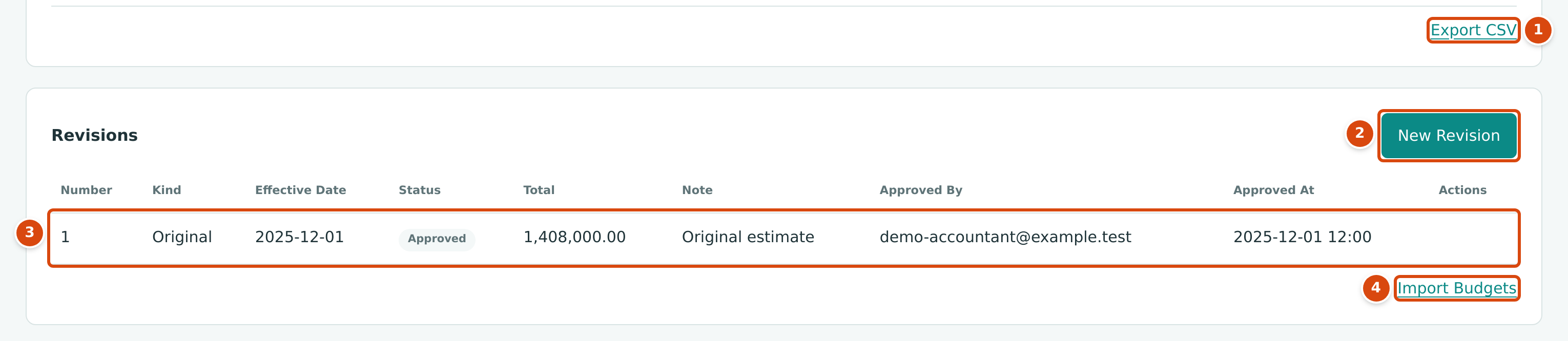
- Export CSV for the table above.
- New Revision (or New Original Budget when the job has none) opens the budget form.
- A budget: Number, Kind, Effective Date, Status, Total, Note, Approved By, Approved At and Actions.
- Import Budgets opens Settings → Import Data for job budgets (users with Edit access to Settings only).
Step by Step: Entering the Original Budget
- Open the job and click Add Budget on the Budget card (or New Original Budget on the budget page). The New Budget form opens with Kind set to Original.
- Set the Effective Date, usually the job's start date, and an optional Note.
- On the first line, choose the Cost Code and Cost Type and type the Amount.
- Optionally enter Hours, or a Quantity with its Unit (for example 300 CY of concrete).
- Click Add Line for each further code and type. Each code and type pair can appear only once.
- Click Save Budget. The budget is saved as a Draft and the budget page opens.
- Approve it (see Approving, Rejecting or Withdrawing a Budget).
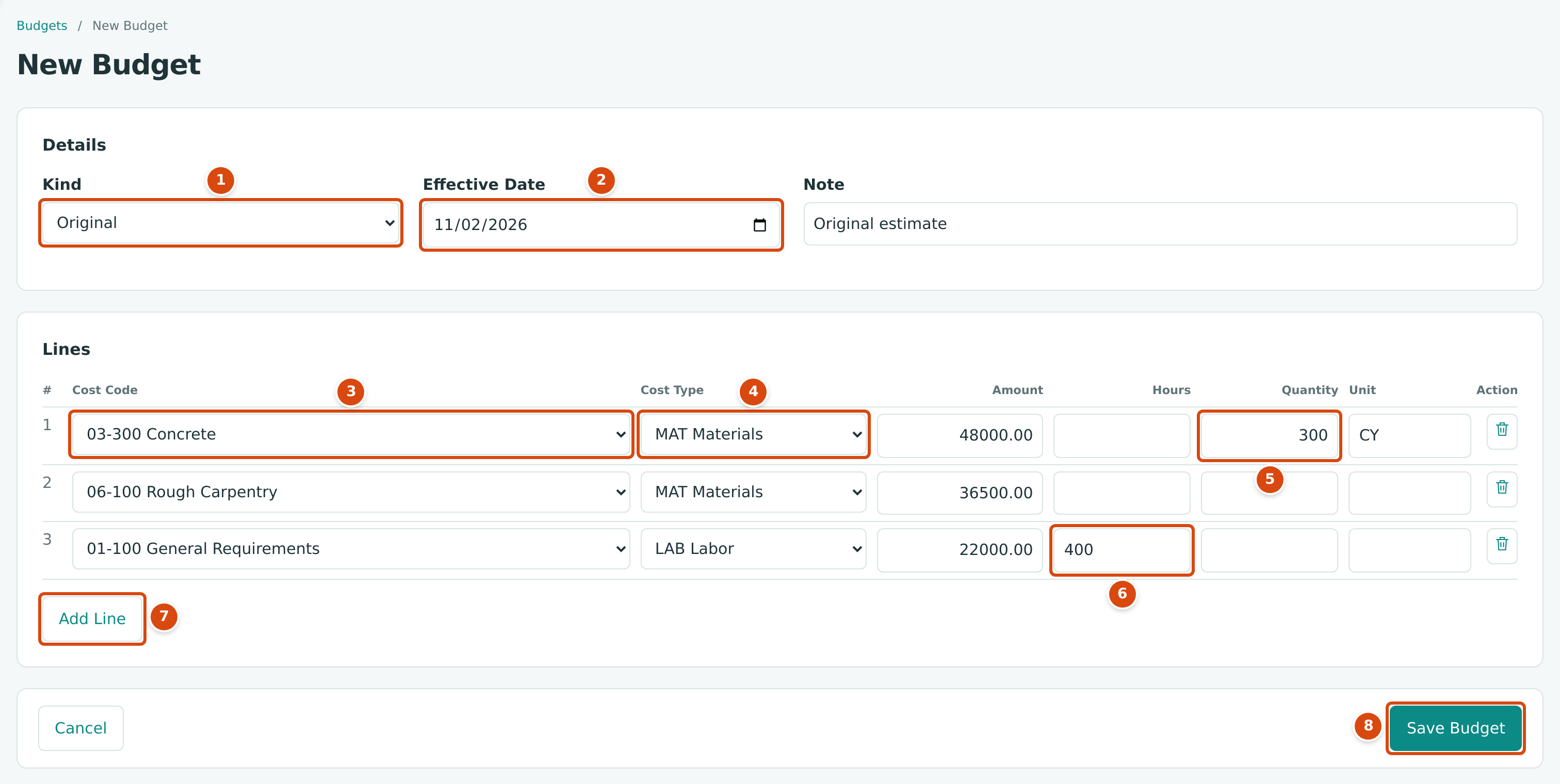
- Kind: only Original is offered while the job has no original budget.
- Effective Date: the budget counts from this date.
- Cost Code: only the codes assigned to the job.
- Cost Type: the active cost types.
- Quantity (with Unit): optional.
- Hours: optional.
- Add Line adds a row (up to 50 on the form).
- Save Budget saves the draft.
Step by Step: Adding a Revision
The original budget must be approved first.
- On the job's budget page, click New Revision.
- Choose the Kind: Owner Change or Internal Transfer.
- Set the Effective Date (not before the original's) and a Note.
- Enter the change on each line as a signed amount: positive to add budget, negative to remove it. An internal transfer's lines must add up to 0.00.
- Click Save Budget, then approve the revision.
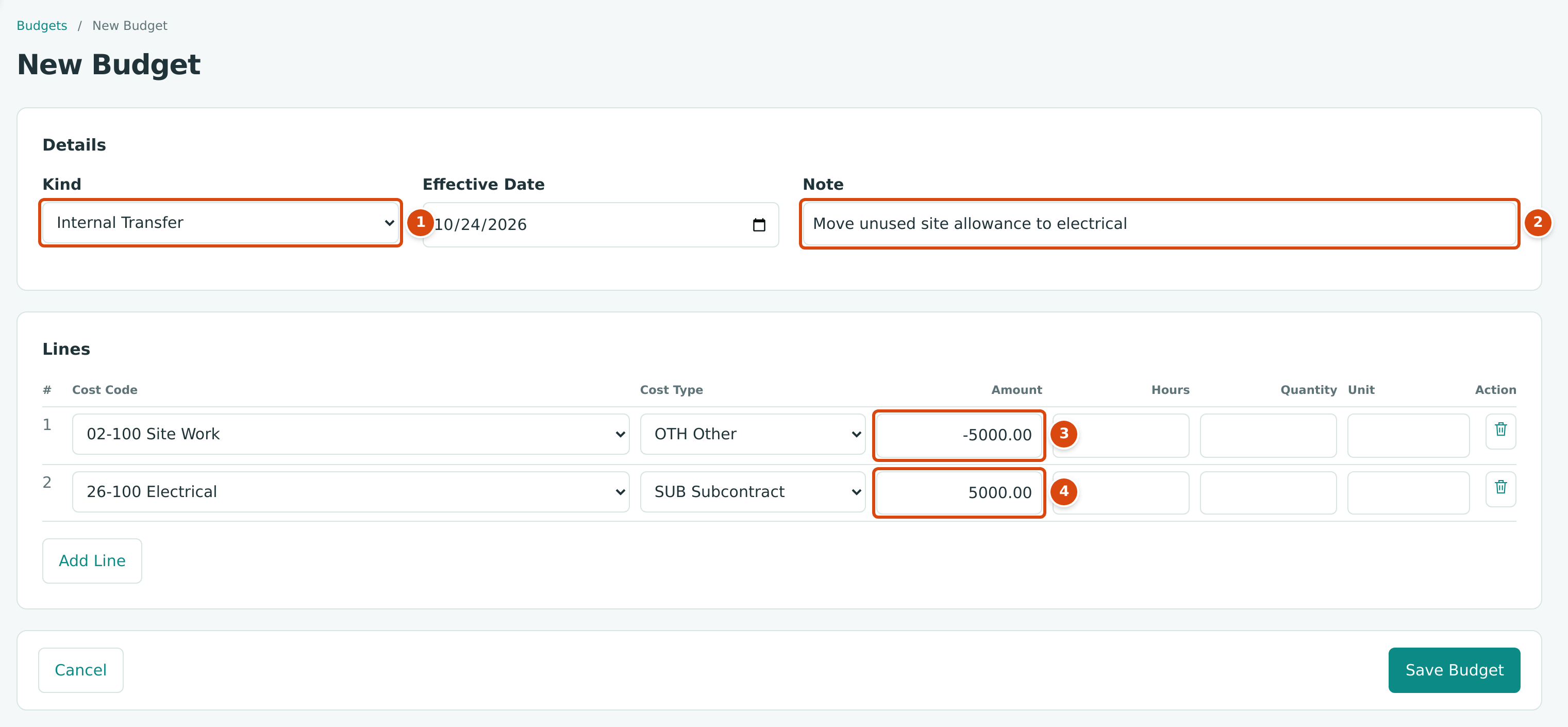
- Kind: Owner Change or Internal Transfer.
- Note: why the budget changes.
- The amount taken from 02-100 · OTH.
- The amount added to 26-100 · SUB. The lines net to zero.
Revisions from change orders
When a change order with cost lines is approved, Structally adds an approved budget revision for it automatically: an Owner Change (or an Internal Transfer for an internal-transfer change order) with the change order's date, lines and title. See Change Orders.
Approving, Rejecting or Withdrawing a Budget
A draft budget's row in the Revisions card has an Edit link and three buttons in Actions. Every budget in Cedar Ridge Contracting is already approved, so the figure comes from the training company, Cedar Ridge Training:
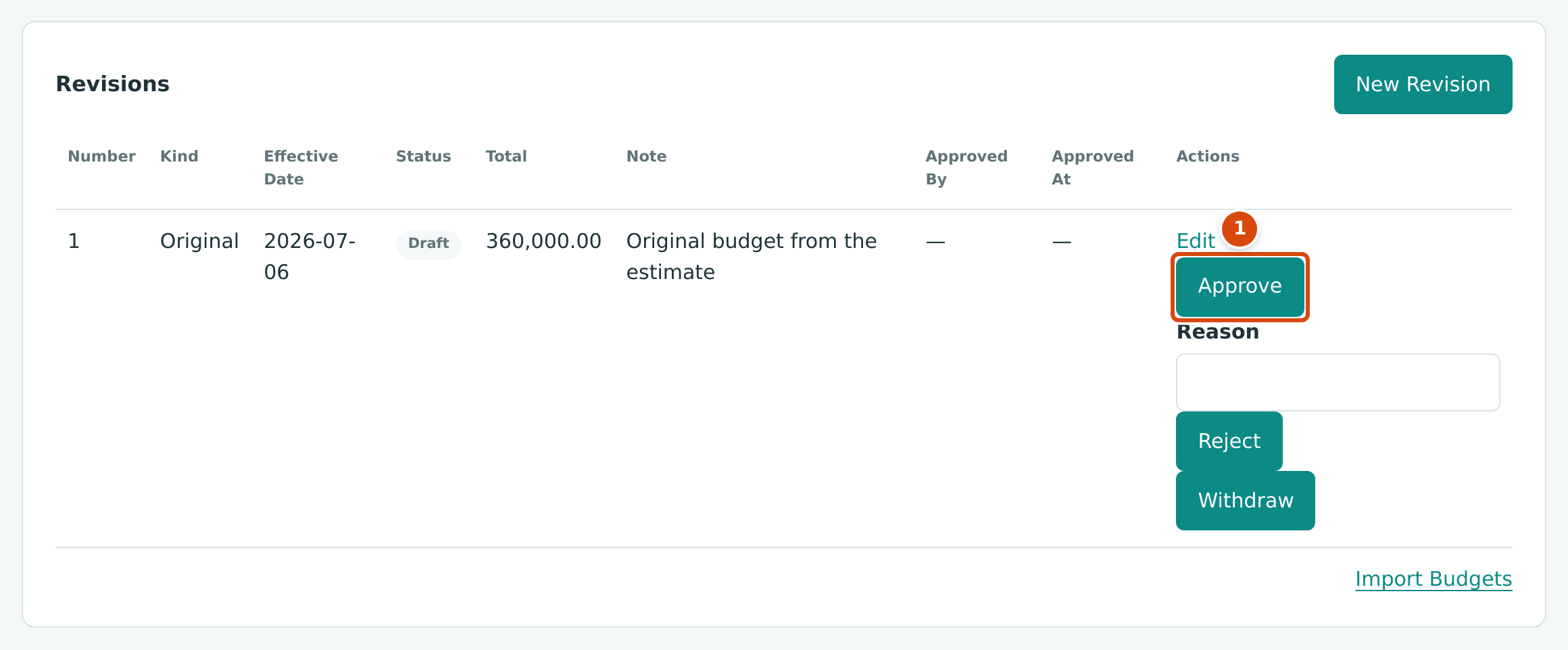
- Approve makes the draft count. Edit sits above it; Reject, with its Reason box, and Withdraw below it.
- Edit reopens the draft in the budget form.
- Approve makes the budget count from its effective date. Approved By and Approved At are filled in.
- Reject needs a Reason, typed in the box above the button.
- Withdraw takes the draft out of consideration.
Approved, rejected and withdrawn budgets cannot be edited or changed again. A rejected or withdrawn original budget lets you enter a new original. Draft budgets cannot be deleted; withdraw a draft you do not need.
Field Reference
| Field | Description | Required | Example |
|---|---|---|---|
| Kind | Original, Owner Change or Internal Transfer. Fixed once saved. | Yes | Internal Transfer |
| Effective Date | The date from which an approved budget counts. A revision cannot be dated before the original. | Yes | 10/24/2026 |
| Note | Up to 200 characters. Shown in the Revisions card. | No | Move unused site allowance to electrical |
| Cost Code (line) | A cost code assigned to the job. | Yes | 26-100 Electrical |
| Cost Type (line) | An active cost type. Each code and type pair once per budget. | Yes | SUB Subcontract |
| Amount (line) | The budget (original) or the change (revision), two decimals. | Yes | 5000.00 |
| Hours (line) | Budgeted hours, not negative. | No | 400 |
| Quantity and Unit (line) | Budgeted quantity, not negative, with a unit of up to 10 characters. | No | 300 CY |
Worked Example: J-2004 and J-2002
J-2004 Summit Tech Park Office Building. The original budget, number 1, effective December 1, 2025, equals the job's estimate of 1,408,000.00 across eight code and type pairs (see the budget page figure). As of October 24, 2026:
| Row | Revised | Actual to Date | Remaining Budget | Used |
|---|---|---|---|---|
| 09-100 · SUB Drywall | 211,200.00 | 52,800.00 | 158,400.00 | 52,800.00 ÷ 211,200.00 = 25.0% |
| 02-100 · OTH Site Work | 84,400.00 | 52,750.00 | 31,650.00 | 62.5% |
| Total | 1,408,000.00 | 939,489.74 | 468,510.26 |
The drywall row also shows Open Commitments of 158,400.00: subcontract SC-2025-000008 (211,200.00) less the 52,800.00 billed. The remaining budget and the open commitment are equal, so the rest of the drywall budget is already committed to Precision Drywall.
J-2002 Pinecrest Middle School Addition shows each kind of revision:
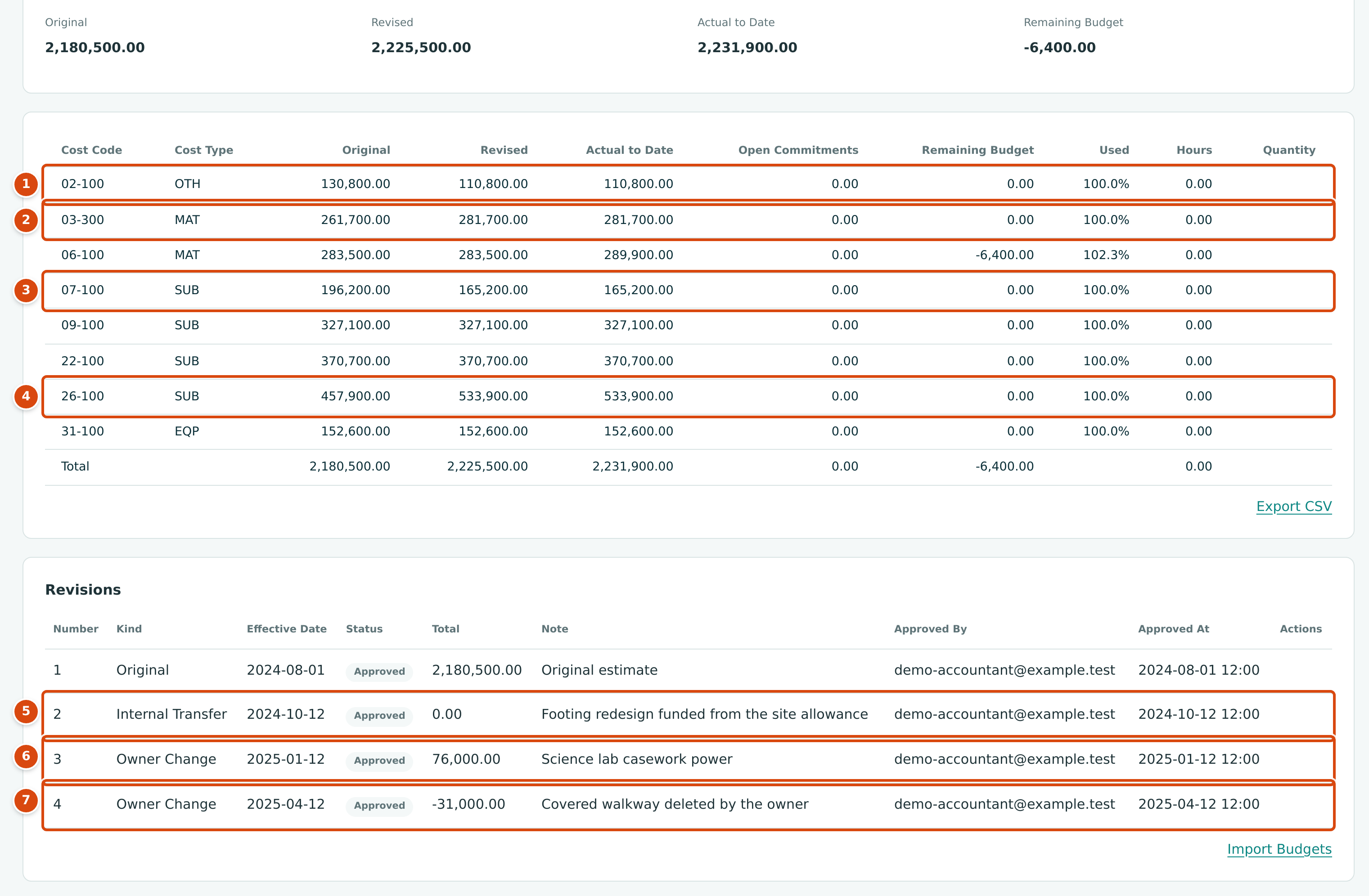
- 02-100 · OTH: 130,800.00 original, 110,800.00 revised (−20,000.00).
- 03-300 · MAT: 261,700.00 original, 281,700.00 revised (+20,000.00).
- 07-100 · SUB: 196,200.00 original, 165,200.00 revised (−31,000.00).
- 26-100 · SUB: 457,900.00 original, 533,900.00 revised (+76,000.00).
- Budget 2, Internal Transfer, total 0.00: Footing redesign funded from the site allowance (rows 1 and 2).
- Budget 3, Owner Change, +76,000.00: Science lab casework power (row 4).
- Budget 4, Owner Change, −31,000.00: Covered walkway deleted by the owner (row 3).
Revised budget: 2,180,500.00 + 0.00 + 76,000.00 − 31,000.00 = 2,225,500.00. Actual cost of 2,231,900.00 leaves a remaining budget of −6,400.00, all in 06-100 · MAT, which is 102.3% used.
What Happens After You Save or Approve
| Draft (Save Budget) | Approved (Approve) | |
|---|---|---|
| Counts in Revised and Remaining Budget | No | Yes, from its effective date |
| Shown in Pending Revisions | Yes | No |
| Can be edited | Yes, with Edit | No |
| Journal entry | None | None. Budgets never post to your books. |
Approved budgets feed the job page's Budget card, the Overview, Forecasts and the Job Cost Reports.
Common Mistakes and Troubleshooting
| Message or Symptom | Why It Happens | What to Do |
|---|---|---|
| Approve the original budget before adding a revision. | The original is still a draft (the New Revision button shows as soon as an original exists). | Approve the original first. |
| Job already has an original budget. | A draft or approved original exists. | Add a revision instead. |
| Revision effective date cannot precede the original budget. | The revision is dated before the original. | Use a later date. |
| An original budget must total more than zero. | The original's lines add up to zero or less. | Enter the budget amounts. |
| Original budget lines cannot be negative. | A negative amount on an original. | Use positive amounts; use a revision to reduce. |
| An internal transfer must net to zero. | The transfer's lines do not add up to 0.00. | Make the decreases equal the increases. |
| Duplicate cost code and cost type. | The same pair is on two lines. | Combine the lines. |
| Cost code is not assigned to this job. | A line uses a code the job does not have. | Assign the code to the job first. |
| A unit is required with a quantity. | A quantity was entered without a unit. | Type the unit, such as CY or SF. |
| Hours and quantity cannot be negative. | A negative hours or quantity. | Enter zero or more. |
| A reason is required to reject a budget. | Reject was clicked with an empty Reason. | Type the reason. |
| Budgets cannot change on a closed or archived job. | The job is closed or archived. | Reopen the job if the change is justified. |
| A job's Remaining Budget is negative although nothing looks wrong | The job has no approved budget, or cost was posted to codes it did not budget. | Approve a budget, or add a revision for the unbudgeted rows. |