Jobs & Costing
Jobs & Costing is Structally's construction module. It tracks every job (a project you perform for a customer) from setup to closeout: the work categories you cost it by, the budget you planned, the subcontracts and purchase orders you signed, the costs and revenue you posted, the changes the owner approved, the progress billings you sent, and the month-end forecast and work-in-progress (WIP) figures for your financial statements.
Everything in the module rests on the ordinary accounting in Structally. A job cost is not a separate record: it is a line of a posted bill, expense, vendor credit or journal entry that carries a job, a cost code and a cost type. Job revenue is an invoice or credit memo line that carries a job. Budgets, commitments and change orders are planning records; they never post to your books on their own.
The module must be turned on
Jobs & Costing is a module that Structally platform staff turn on or off for each company in the Structally Management Console. New companies start with it turned on. When it is off, the sidebar shows Jobs & Costing with a lock icon, every module page says Jobs & Costing is not turned on for this company., and the Job Costing switch disappears from bills, expenses, invoices and journal entries. Turning the module off deletes nothing; your jobs and job coding come back when it is turned on again. When the module is turned on, Structally adds the seven standard cost types (LAB, BUR, MAT, SUB, EQP, OVH and OTH) if they are missing.
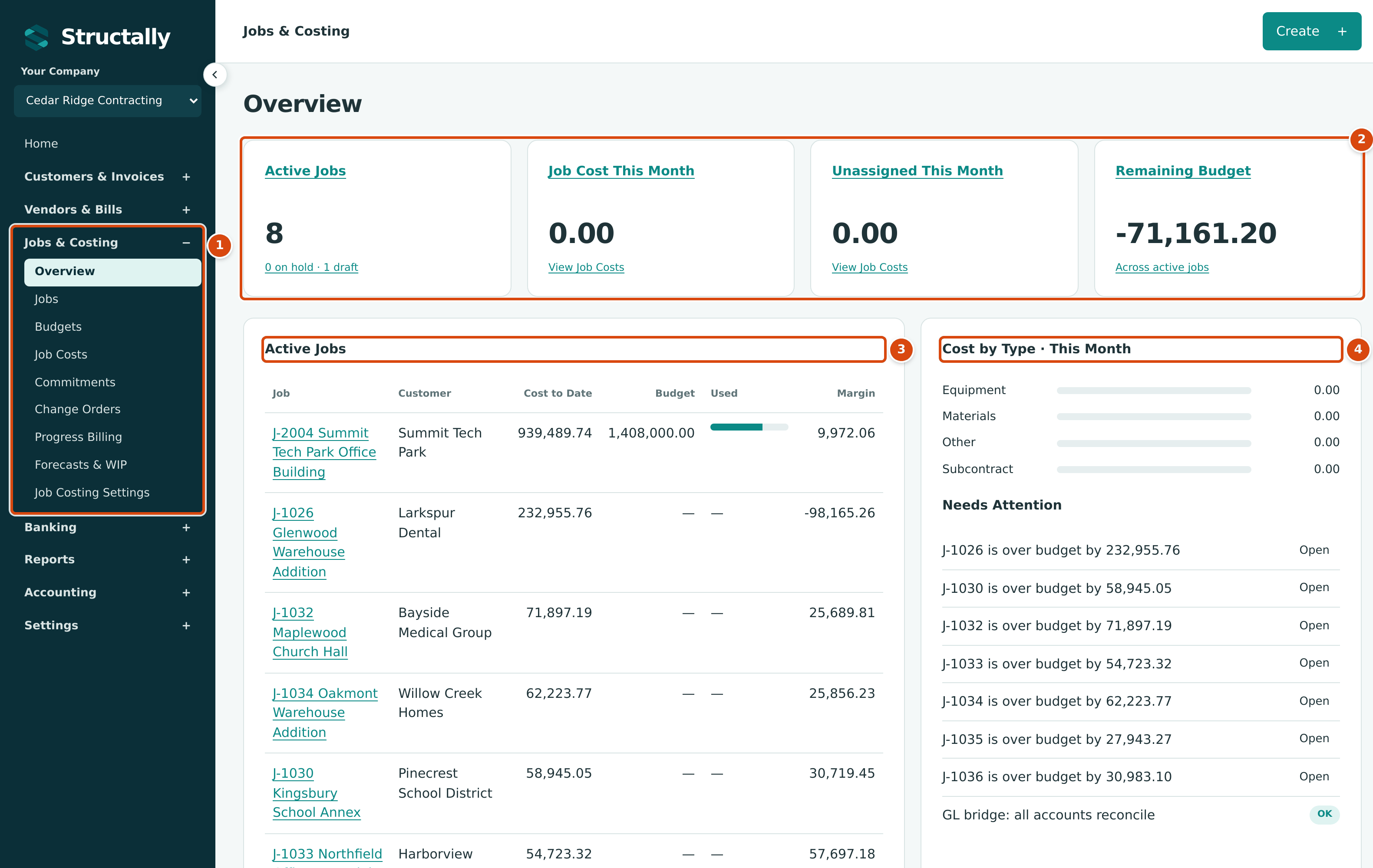
- The Jobs & Costing group in the sidebar lists every page of the module.
- The Overview tiles: active jobs, job cost this month, unassigned cost and remaining budget.
- Active Jobs: cost to date, budget and margin for each active job.
- Cost by Type · This Month and Needs Attention.
How the Pieces Fit Together
A contract job in the sample company, J-2004 Summit Tech Park Office Building, moves through these steps. A small service job may use only the first four.
| Step | What You Do | Where | What It Affects |
|---|---|---|---|
| 1. Set up | Create cost codes, check the standard cost types, decide which accounts are job cost accounts and set the retainage defaults. | Job Costing Settings, Cost Codes and Cost Types | Which codes, types and accounts can be used on job-coded lines |
| 2. Job | Create the job with its customer, contract amount, estimate, billing retainage and cost codes, then activate it. | Creating and Managing Jobs, Closing and Reopening Jobs | Whether the job accepts coded costs and revenue |
| 3. Budget | Enter and approve the original budget by cost code and cost type; add revisions later. | Job Budgets | Budget against actual, remaining budget |
| 4. Commitments | Issue subcontracts and purchase orders; amend them as scope changes. | Commitments, Commitment Amendments | Committed cost, open commitments |
| 5. Costs | Post bills, expenses and vendor credits coded to the job; match subcontractor bills to commitment lines and hold retainage. | Coding Transactions to Jobs, Entering a Bill | Job cost, commitment billed to date, retainage payable |
| 6. Change orders | Record and approve owner changes; approval revises the contract and adds a budget revision. | Change Orders | Revised contract, revised budget |
| 7. Billing | Build the schedule of values and bill the owner with pay applications that hold retainage. | Schedules of Values, Pay Applications | Job revenue, accounts and retainage receivable |
| 8. Retainage | Release the retainage you held from subcontractors and the retainage the owner held from you. | Retainage, Releasing Retainage | Retainage payable and receivable |
| 9. Forecasts | Each month, estimate the final cost of each job. | Forecasts | Projected profit or loss |
| 10. WIP | Each month, approve and post the WIP schedule that adjusts revenue to the percentage of completion. | WIP Schedules | Costs and billings in excess, recognized revenue |
Review the results at any time in Job Costs and Cost Transfers and the Job Cost Reports.
Who Can Use Jobs & Costing
Access follows the Jobs & Costing area of each user's access (see Roles and Permissions):
| Role | What They Can Do Here |
|---|---|
| Company Admin | Everything, including the account and retainage settings that only a Company Admin can change. |
| Accountant | Everything except the Company Admin settings (job cost accounts, commitment overruns, default retainage, and creating retainage and WIP accounts). |
| Project Manager | Edit access to Jobs & Costing: create and change jobs, cost codes, budgets and commitments, and approve budgets, commitments and amendments. Not the Company Admin settings, and not the approvals reserved for Company Admins and Accountants, such as approving forecasts and WIP schedules. |
| Viewer | Read-only: every page, no buttons that change anything. |
| Custom | Whatever level the Company Admin set for the Jobs & Costing area: none, view or edit, with the same limits as a Project Manager. |
Pages in This Section
- The Jobs & Costing Overview: the module's dashboard of tiles, active jobs and items that need attention.
- Job Costing Settings: cost codes and types, job cost accounts, commitment overruns, default retainage and WIP accounts.
- Cost Codes and Cost Types: create, edit, activate and assign the codes you cost jobs by.
- Creating and Managing Jobs: the Jobs list, the New Job form and the job page.
- Closing and Reopening Jobs: job statuses and what each one allows.
- Coding Transactions to Jobs: job, cost code and cost type on bills, expenses, credits, invoices and journal entries.
- Job Budgets: original budgets, revisions, approval and budget against actual.
- Commitments: subcontracts and purchase orders from draft to closed.
- Commitment Amendments: change an issued commitment.
- Change Orders, Schedules of Values, Pay Applications, Retainage, Releasing Retainage, Job Costs and Cost Transfers, Forecasts, WIP Schedules and Job Cost Reports: billing, month-end and reporting.