Finding Your Way Around
Every page in Structally is built from the same parts: the navigation on the left, a top bar, and the page itself. Lists, record pages and entry forms also work the same way in every area, so once you know one, you know them all. This page shows those common parts using the sample company's invoices; the area chapters then describe each screen in detail.
Before You Begin
- You are signed in and have opened a company (see Signing In and Choosing a Company).
- What you see depends on your role: areas your role cannot see are left out of the navigation, and buttons for actions you cannot perform are not shown (see Roles and Permissions).
The Page Layout
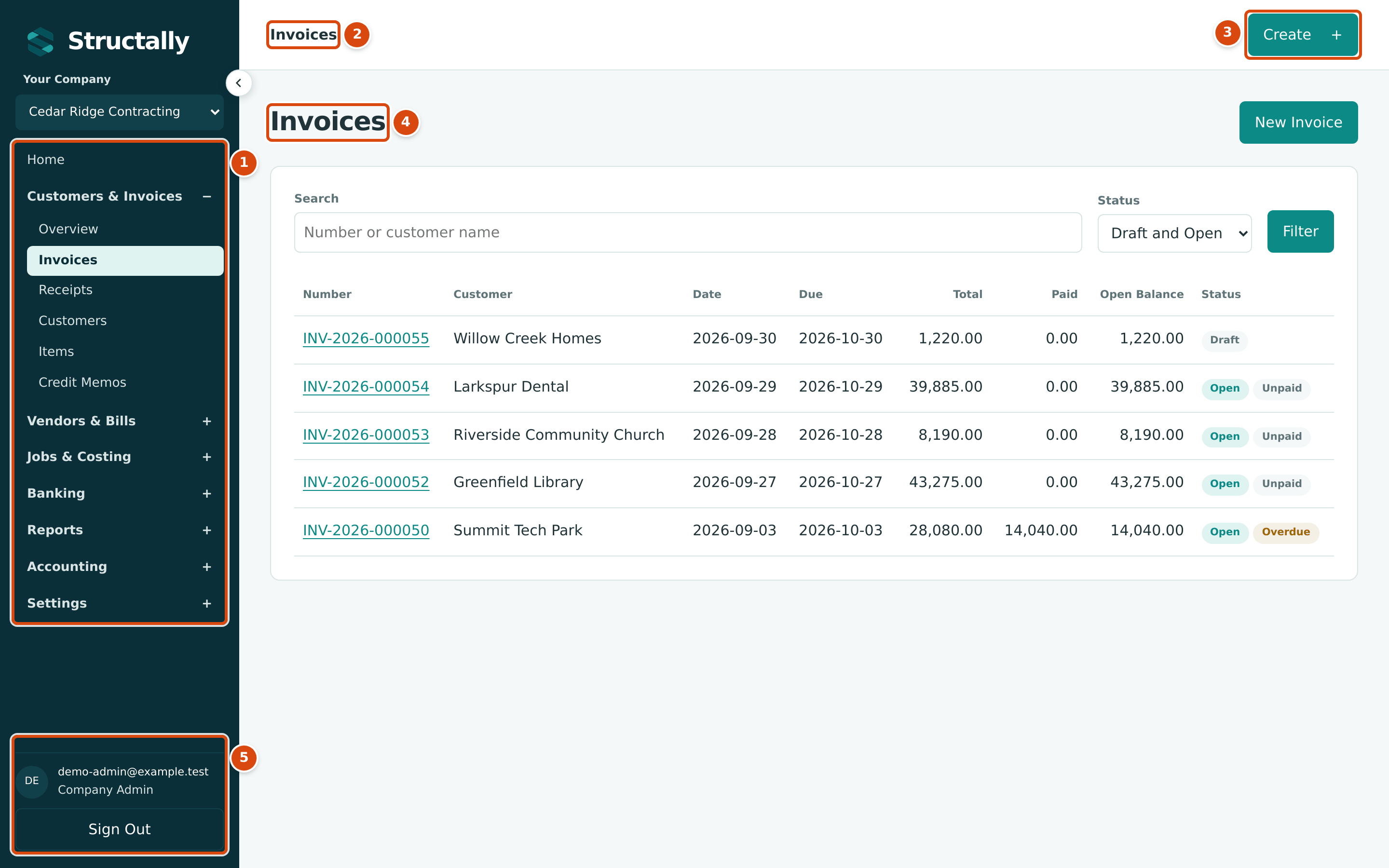
- The navigation: Home and one group for each area you can see.
- The top bar names the section you are in.
- Create starts the most common entries from any page.
- The page heading, with the page's own buttons on the right (here New Invoice).
- Who is signed in, your role in this company, and Sign Out.
Above the navigation, Your Company shows the company you are working in (see Choosing a Company).
The Navigation
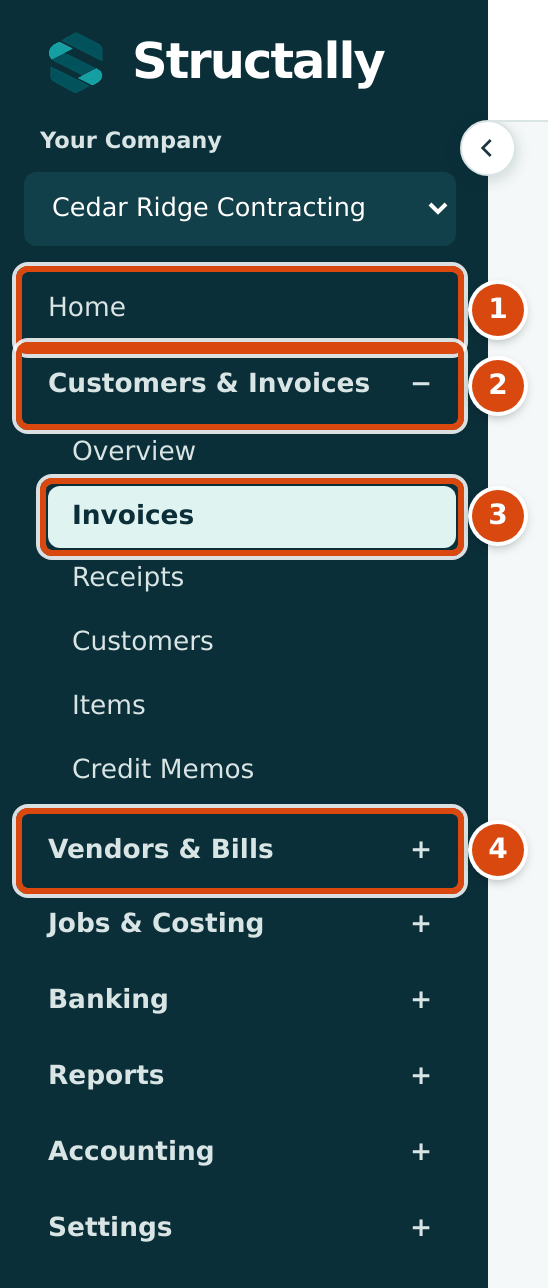
- Home opens the Home dashboard.
- An open group. Click its name to go to the area's main page; click − to fold it.
- The page you are on is highlighted.
- A folded group. Click + to show its pages without leaving the page you are on.
The group of the page you are on opens by itself, and the navigation keeps its scroll position as you move from page to page. The areas and their pages are listed in Introduction to Structally.
Jobs & Costing appears only when the module is turned on for your company. When it is off, the navigation shows Jobs & Costing with a padlock and the hint Jobs & Costing is not turned on for this company. Structally turns modules on for a company; ask your Company Admin.
Hiding the Navigation
Click the arrow button at the edge of the navigation (Hide Navigation) to make room for wide tables. The navigation shrinks to a rail of section icons:
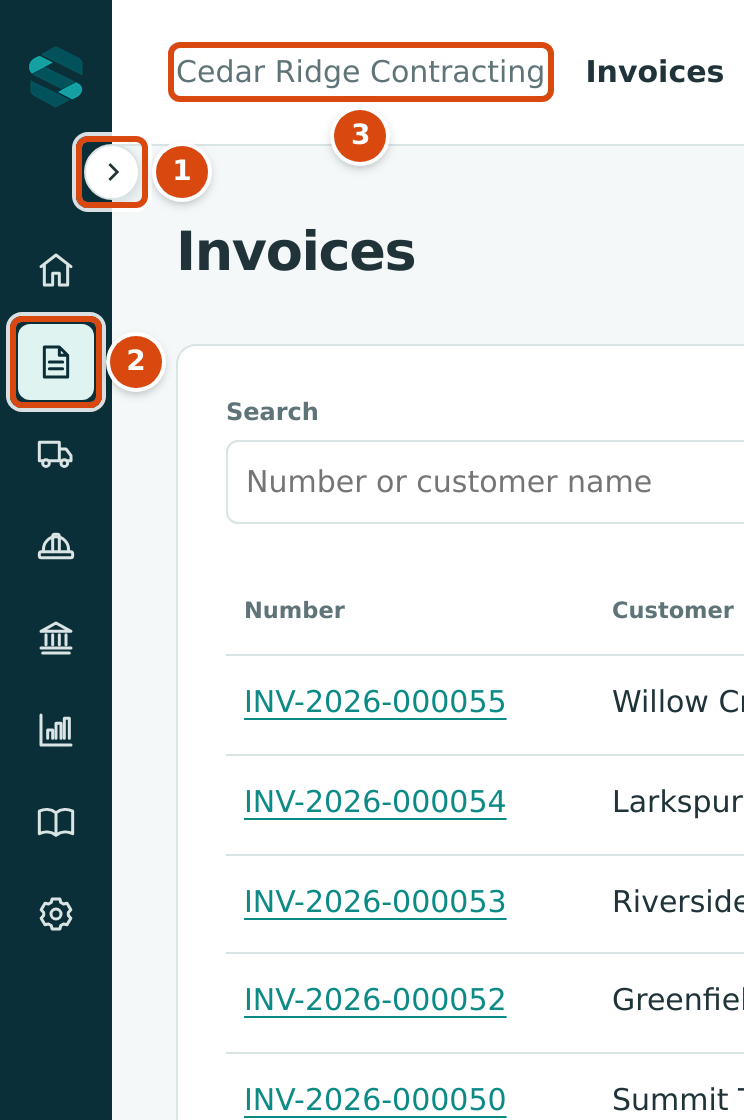
- Show Navigation brings the full navigation back.
- Each icon opens an area; hover over it to see its name. The area you are in is highlighted.
- With the navigation hidden, the company name appears in the top bar.
Your browser remembers the choice, so the navigation stays hidden or shown on every page until you change it. The rail does not include Your Company or Sign Out; show the navigation to use them.
In a browser window 900 pixels wide or narrower (a tablet, for example), the navigation is hidden and the top bar shows a Menu button that opens it.
The Top Bar and the Create Menu
Create opens a menu of the most common entries. It lists only the entries your role can make, and it does not appear at all if you can make none of them.
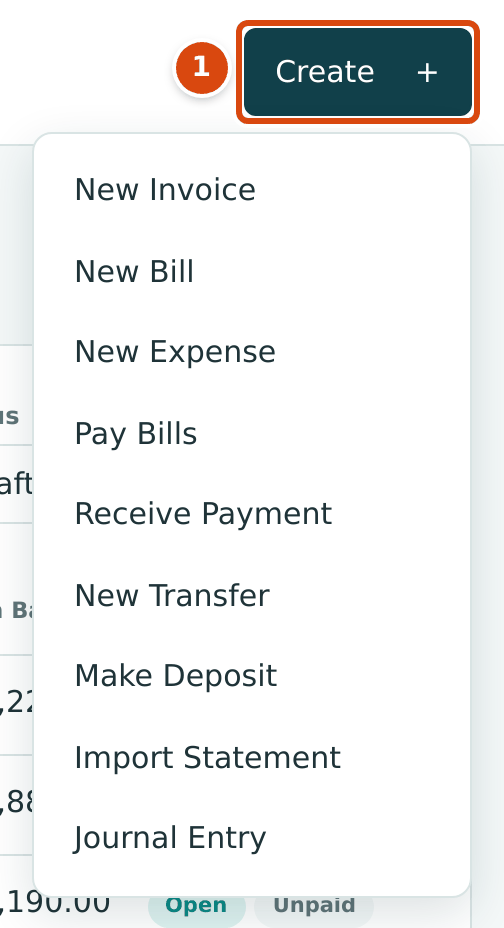
- Create opens and closes the menu.
| Menu Item | Opens | Shown When You Have Edit Access To |
|---|---|---|
| New Invoice | A new invoice | Customers & Invoices |
| New Bill | A new bill | Vendors & Bills |
| New Expense | A new expense | Vendors & Bills |
| Pay Bills | Paying bills | Vendors & Bills |
| Receive Payment | Receiving a customer payment | Customers & Invoices |
| New Transfer | A new transfer | Banking |
| Make Deposit | A new deposit | Banking |
| Import Statement | The Bank Feed page, to import a bank statement | Banking |
| Journal Entry | A new journal entry | Accounting |
The Help Menu
Where your Structally site offers this guide online, the top bar also has a round ? button to the left of Create. It opens a menu with Help Center, this guide, and User Guide (PDF), the same guide as one PDF. Both open in a new browser tab, so the page you were on stays open. Where the site does not offer the guide online, the button is not shown (as in the screenshots of this guide).
Lists
Each kind of record has a list page: Invoices, Bills, Vendors, Jobs and so on.
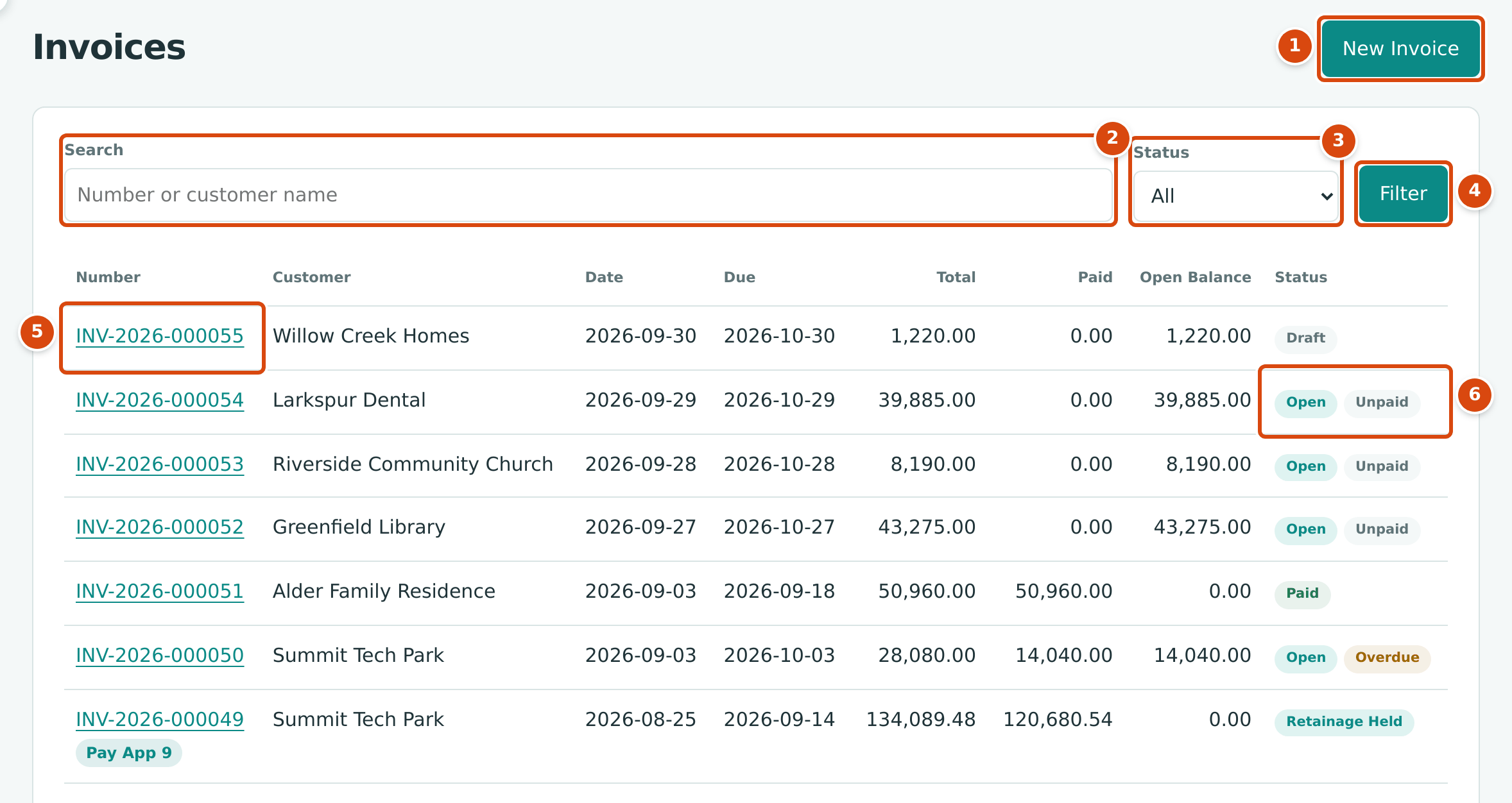
- The button that creates a new record of this kind.
- Search: part of a number or a name. The placeholder says what is searched, here Number or customer name.
- Status: which records to show. Invoices, bills, vendor credits and credit memos start with Draft and Open; choose All to include paid and void ones.
- Filter applies the search and status.
- The number opens the record.
- Status pills (see Statuses and Lifecycles).
Document lists are sorted newest first and show 25 rows to a page. Below the last row, Previous, the page count and Next move between pages:

A list with nothing to show says so, for example No invoices yet with Your records will appear here., and offers the button to create the first one if your role allows it.
The Audit Log and Users & Access lists remember the filters you last used, separately for each company, and apply them the next time you open the page. Other lists start from their default filter each time.
Record Pages
Clicking a record's number opens its page.
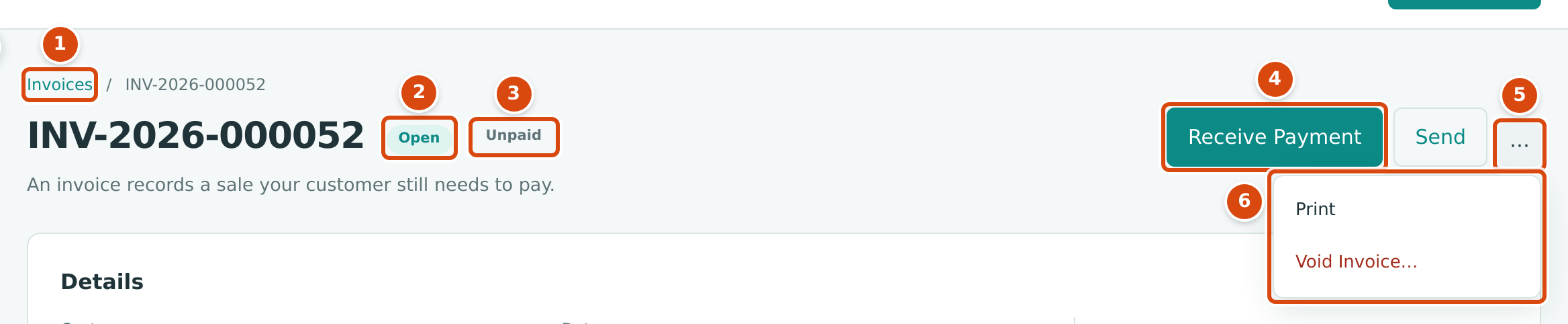
- The breadcrumb: click the first part to go back to the list.
- The record's status.
- A second pill for invoices and bills that are open: Unpaid, Partly Paid or Overdue.
- The main actions for the record in its current status, here Receive Payment and Send.
- ⋯ (More Actions) holds less frequent actions.
- The menu: here Print and Void Invoice…. An action that ends in … opens a panel or dialog before anything happens.
Below the heading, a Details card shows the record's fields and amounts, and cards below it show the lines and related records (for example the payments applied to an invoice). When you opened the record from a report, a Back to Report link above the breadcrumb returns you to the report.
At the bottom of a posted record, two folded panels show its accounting and its history. Click a panel's title to open it:
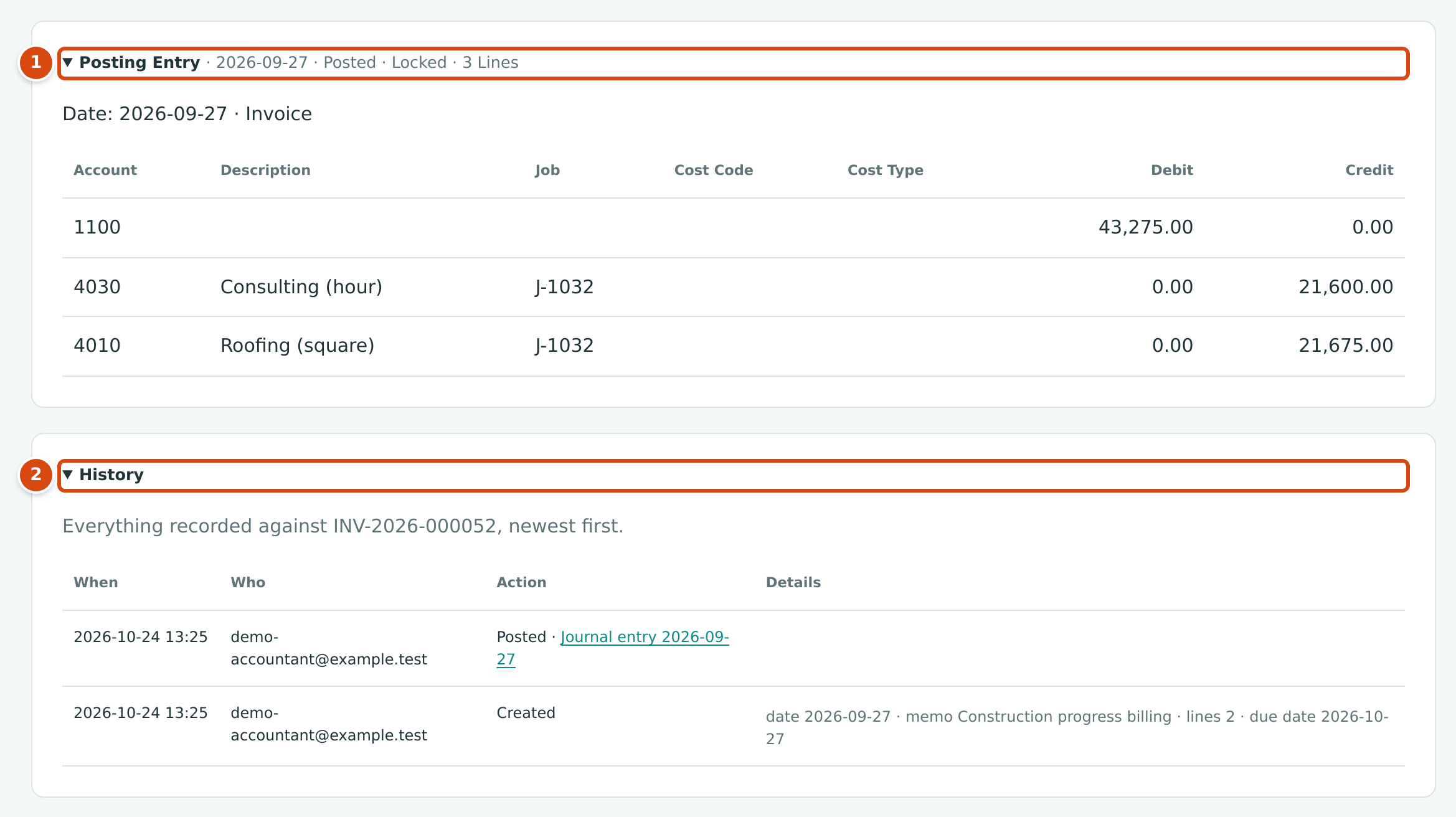
- Posting Entry: the journal entry the record wrote, with its date, the words Posted and Locked, and its lines.
- History: Everything recorded against the record, newest first: when, who, the action and its details, with links to the journal entries written.
See How Structally Records Transactions for what the posting entry means.
Forms
Searchable Pickers
Fields that choose from a list (vendor, customer, account, job, cost code, terms, class, location and so on) are searchable pickers. Click the field and start typing; the list narrows to the entries that contain what you typed, with the matching letters in bold.
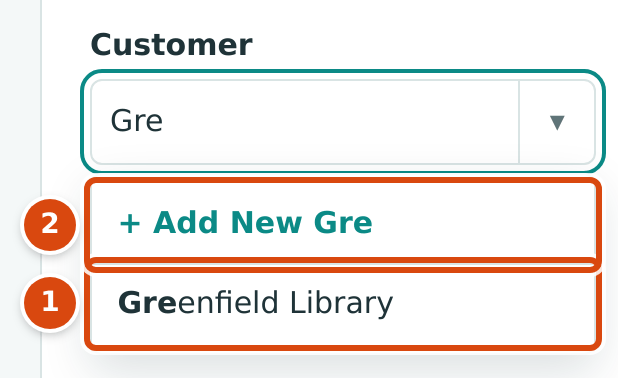
- A matching entry. Click it, or use the arrow keys and press Enter.
- + Add New followed by what you typed creates a new entry without leaving the form.
Press Escape to close the list without choosing.
+ Add New appears in the vendor, customer, terms, account, item, class and location pickers when your role can create that kind of entry. It opens a creation panel with the name already filled in:
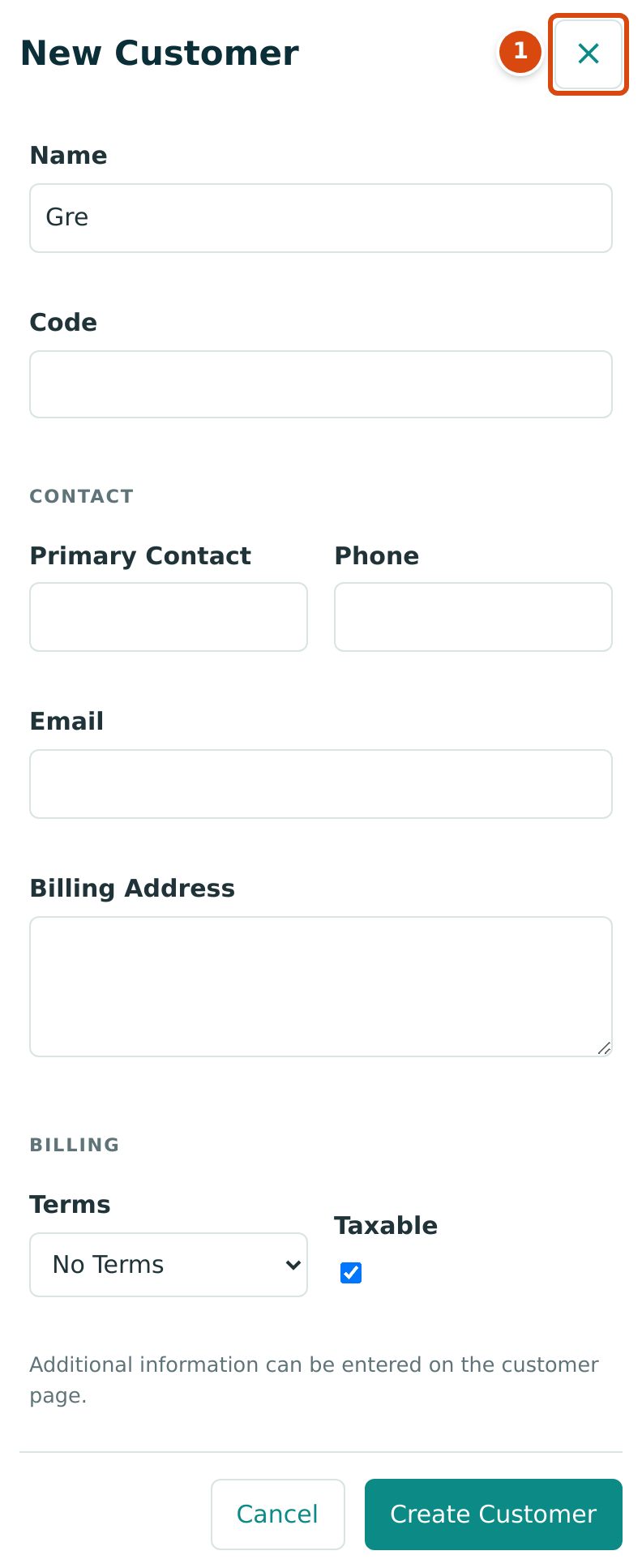
- × closes the panel without creating anything, like Cancel or the Escape key.
Fill in the panel and click its create button (here Create Customer). The panel closes and the new entry is chosen in the picker.
Required Fields and Saving
Structally does not mark required fields with an asterisk. If a required entry is missing when you save, nothing is saved and the field is pointed out, by your browser or by a message under the field such as This field is required.

- Cancel leaves the form without saving.
- The running total of the lines.
- Save Draft keeps the document without affecting your books.
- Post Invoice (on a bill, Post Bill, and so on) saves and posts it.
Expenses have one button, Save Expense, because an expense is posted when it is saved. Payments, receipts, transfers, deposits and journal entries are also posted as soon as you save them. See How Structally Records Transactions.
After you click a save or post button, it is disabled until the page responds, so a double-click cannot save the same document twice.
When the page reloads, a message at the top confirms what happened, for example that a bill was posted. Click × to dismiss it; confirmations disappear by themselves after eight seconds, while error messages stay until you close them.
Line Tables and Column Widths
Documents with lines (invoices, bills, expenses, credits, journal entries, opening balances, budgets, commitments, amendments and change orders) have Add Line below the lines and a remove button on each line.
You can widen a column by dragging the boundary at the right edge of its heading. Structally saves the widths for you, for that kind of form, and uses them in every company you work in. After you change a width, a Reset Column Widths link appears next to Add Line; it restores the standard widths and reloads the page.
Save before resetting the columns
Reset Column Widths reloads the form. Anything you typed and did not save may be lost, so save a draft first.
Attachments
Most documents can hold attachments: the vendor's invoice, a receipt photo, a signed change order.

- Click Attach Files or drag files onto the box. The note gives the limits: PDF, images, Word or Excel · up to 5 MB each · 3 per document (25 on job, commitment and commitment amendment forms).
On a saved record, the Details card shows Attachments with a count, + Add Files while there is room, and for each file Download and Remove. Company Admins and Accountants can add and remove attachments, as can Project Managers and Custom users with Edit access to any area that holds documents. Everyone who can open the record can download its attachments.
Drawers and Dialogs
Actions that need a little more information open a drawer, a panel over the page. For example, Void Invoice… opens:
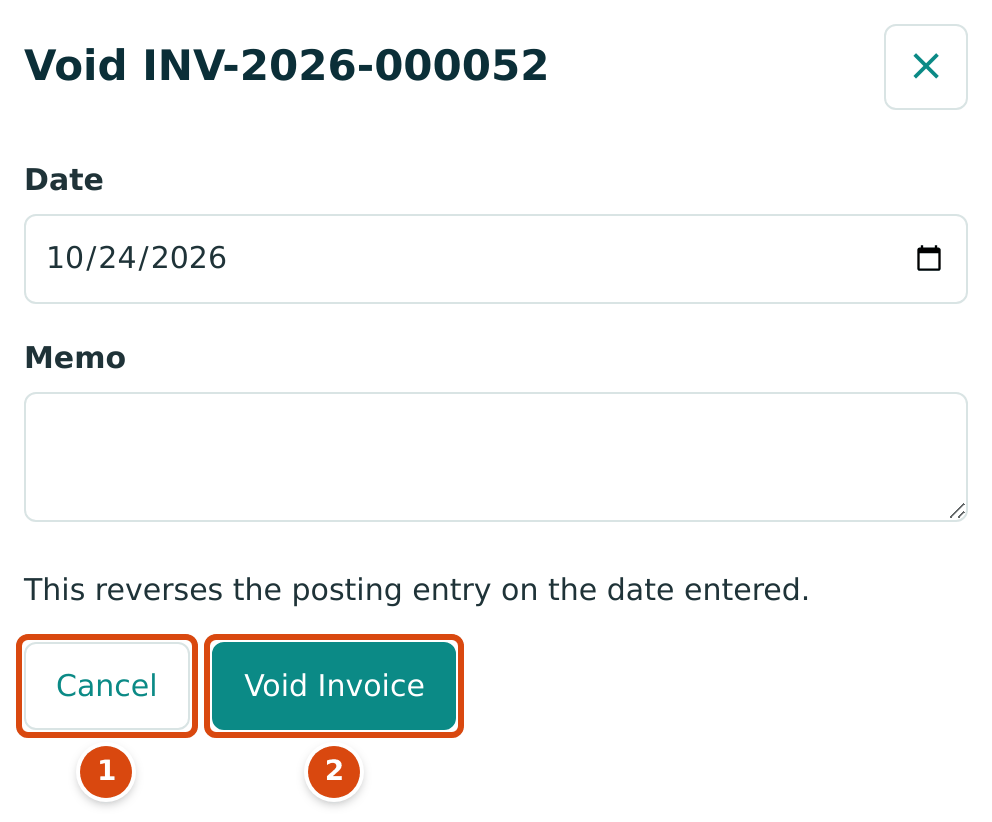
- Cancel closes the drawer; nothing changes. ×, the Escape key and a click on the shaded page do the same.
- The button that carries out the action.
Status changes on jobs, commitments, change orders and forecasts ask for confirmation in a dialog. The dialog explains the effect; some also ask for a reason and refuse to continue without one (on a job: Enter a reason.).
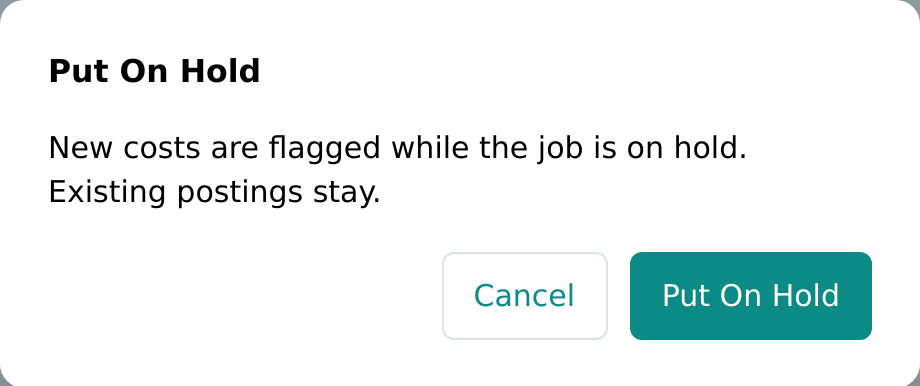
Click Cancel (or press Escape) to leave everything as it was, or the action's own button (here Put On Hold) to go ahead.
Locked Areas
If you open a page of an area your role does not include, for example from a bookmark or a link someone sent you, Structally shows:
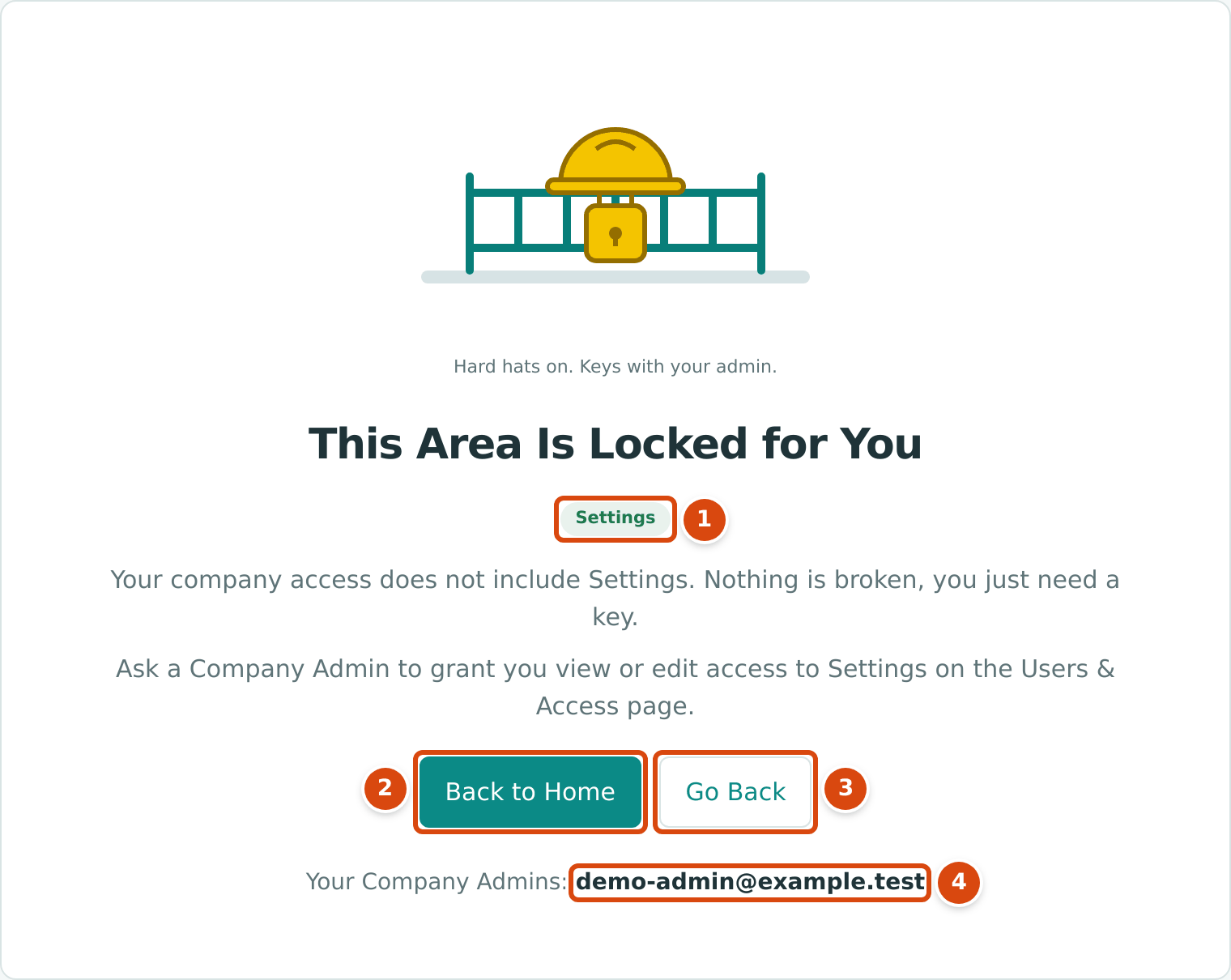
- The area that is locked.
- Back to Home opens the Home dashboard.
- Go Back returns to the page you came from.
- Your Company Admins: who can change your access.
Pages reserved for Company Admins (such as Company Details and Users & Access) say This page is for Company Admins only. A user with view-only access who tries to change a record sees Write Access Required with You can view this company's accounting records.
Notices
Structally sometimes posts a notice for all companies or for your company, for example about planned maintenance. A notice opens in a panel over the page, on company pages and on Your Companies, and shows:
- its kind, Announcement or Attention, its title and its message;
- From Structally (a notice for every company) or From Structally support (a notice for your company), with the date it starts.
| Notice Type | Buttons | Effect |
|---|---|---|
| Information only | Got It | The notice closes and does not appear again. |
| Needs your acknowledgment | Remind Me Tomorrow and I Understand | I Understand closes it for good. Remind Me Tomorrow hides it for 24 hours. |
Until you answer it, the notice appears again on each page you open. When several notices are waiting, they appear one at a time, oldest first.
No Screenshot of a Notice
No notice is active in the sample company, so the notice panel cannot be shown. It appears over the page with the parts and buttons described above.