Customer Statements
A customer statement lists everything that changed one customer's balance over a period: the opening balance, each invoice, receipt, credit memo and refund, and the closing balance, with the amount due split by age. Use it to answer "what do we owe you?" calls, to chase overdue amounts, or to give a customer a summary of their account. For construction customers it also shows the retainage they are holding.
Before You Begin
- The customer exists and has posted invoices or payments.
- You need View or Edit access to Reports. Opening invoices and receipts from the statement needs access to Customers & Invoices. See Who Can Use Reports.
Navigation
Reports → Statements, or Statement on a customer's page (Customers & Invoices → Customers → the customer).
Step by Step
- Open Reports → Statements. Until you choose a customer, the page says Choose a customer to run the statement.
- In Customer, type part of the name and choose the customer. Only active customers are listed.
- Enter Start and End, or click a Report period button. The period starts as your fiscal year to date.
- Click Run Report.
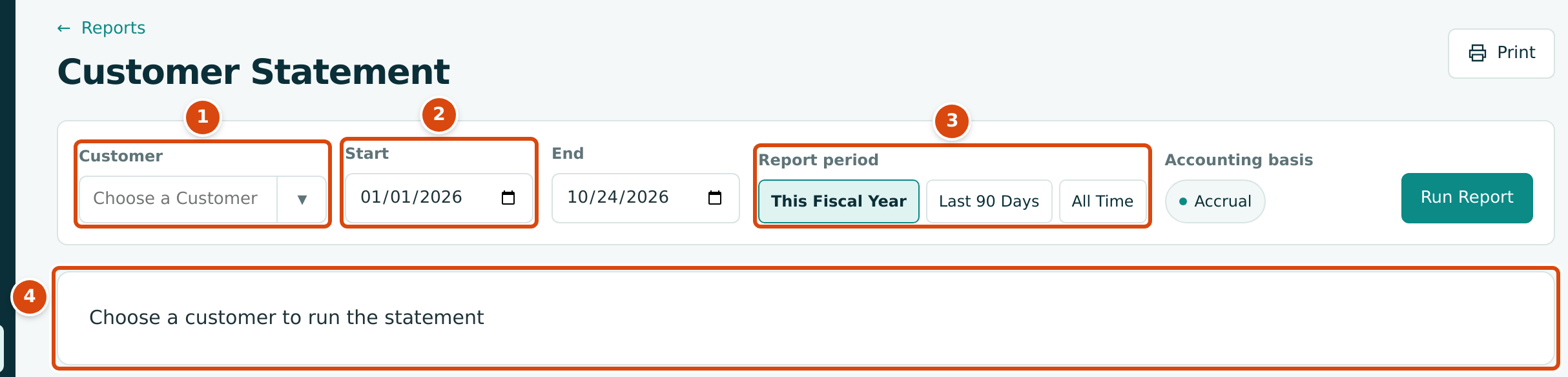
- Customer: a searchable list of your active customers.
- Start and End: the statement period.
- Report period: This Fiscal Year (the start of the fiscal year to today), Last 90 Days (90 days ago to today) and All Time (the customer's first transaction to today).
- The message shown until a customer is chosen. Export CSV appears once the statement has run.
From a customer's page, Statement opens the statement for that customer from the start of the fiscal year to today, and the back link reads Back to followed by the customer's name.

- Statement opens this customer's statement.
Reading the Statement
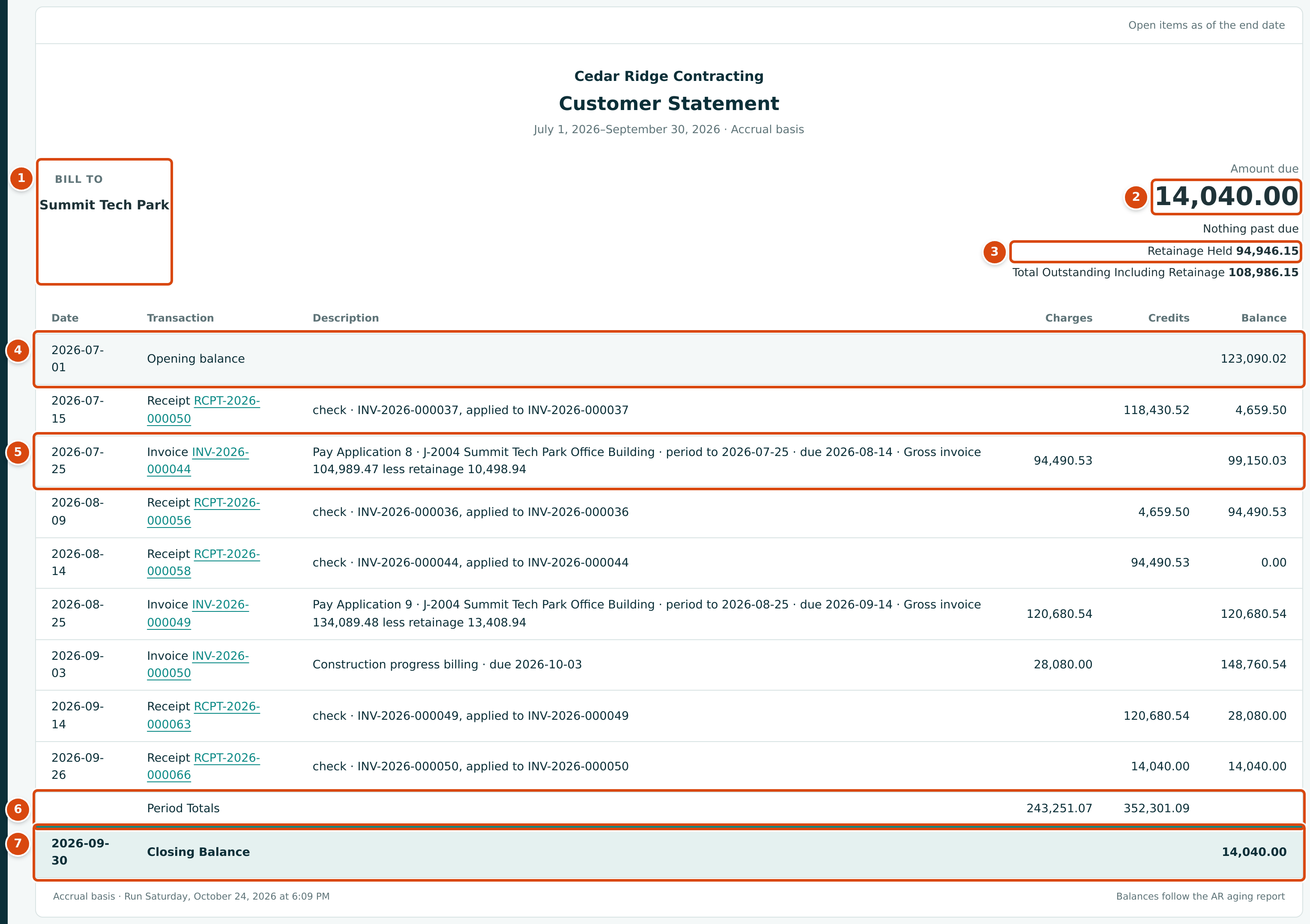
- Bill To: the customer's name, and their primary contact, phone, email and billing address when recorded.
- Amount due: the closing balance. Under it: the customer's terms, and the amount past due or Nothing past due.
- Retainage Held and Total Outstanding Including Retainage: shown when the customer holds retainage on your invoices.
- Opening balance: what the customer owed at the end of the day before Start.
- A transaction: an invoice charges the amount due on it. The description gives the memo, the due date and, when retainage was held, the gross invoice and the retainage.
- Period Totals: the Charges and Credits columns added up.
- Closing Balance: Opening balance + Charges − Credits, at the End date.
| Transaction | Column | Amount and Description |
|---|---|---|
| Invoice | Charges | The amount due (the invoice total less retainage held). Description: the memo, due and the due date, and Gross invoice … less retainage … when retainage was held. A retainage release invoice reads Retainage release · followed by the invoices released. |
| Receipt | Credits | The full receipt amount. Description: the method and reference, and applied to the invoices it paid. |
| Credit memo | Credits | The credit memo total. |
| Refund | Charges | A refund paid to the customer, which raises their balance back. |
Only posted documents appear. Draft and voided invoices and credit memos, and reversed receipts and refunds, are left out. Each number opens the document.
Open Items by Age
A second sheet below the statement breaks the amount due down by age at the End date. It uses the same rules as the AR Aging report, and its footer says Balances follow the AR aging report.
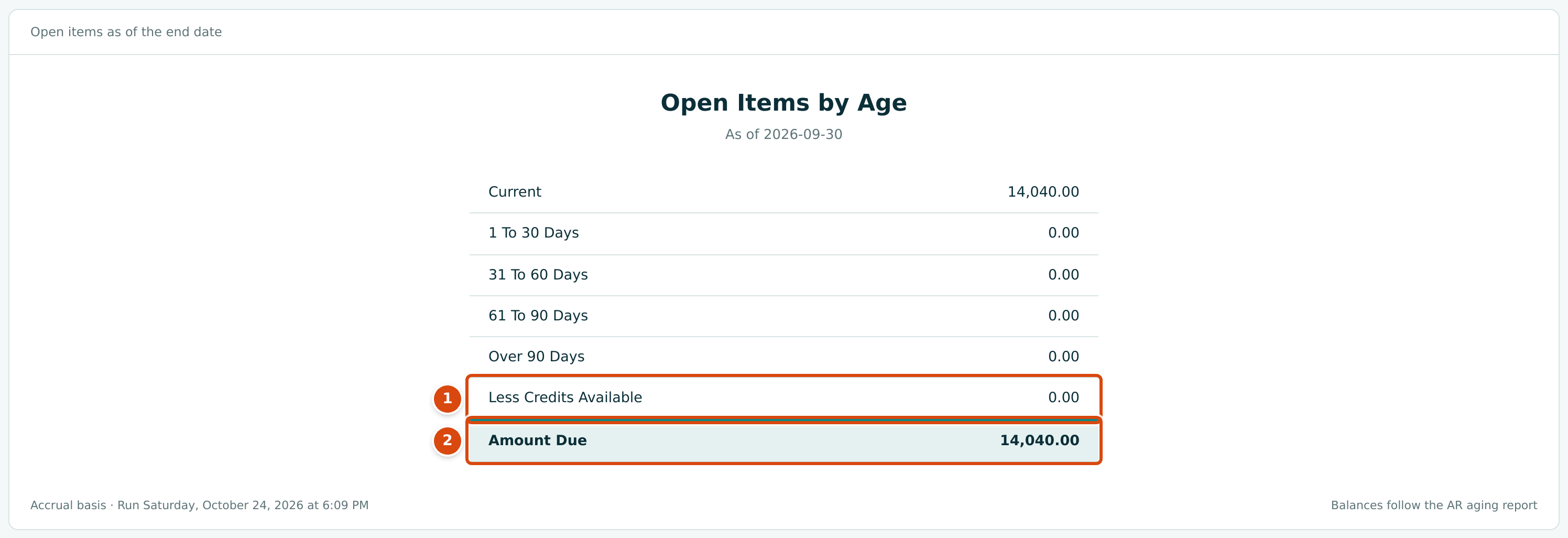
- Less Credits Available: receipts and credit memos not yet applied to an invoice, which reduce the amount due.
- Amount Due: the total of the age rows less the credits; here 14,040.00, the same as the statement's closing balance.
The rows are Current, 1 To 30 Days, 31 To 60 Days, 61 To 90 Days, Over 90 Days, Less Credits Available and Amount Due.
Worked Example: Summit Tech Park, Third Quarter 2026
Run the statement for Summit Tech Park from 07/01/2026 to 09/30/2026:
| Item | Amount |
|---|---|
| Opening balance on July 1, 2026 | $123,090.02 |
| Charges: three invoices (94,490.53 + 120,680.54 + 28,080.00) | $243,251.07 |
| Credits: five receipts | $352,301.09 |
| Closing Balance (123,090.02 + 243,251.07 − 352,301.09) | $14,040.00 |
| Retainage Held | $94,946.15 |
| Total Outstanding Including Retainage (14,040.00 + 94,946.15) | $108,986.15 |
Pay Application 8 (INV-2026-000044) shows how retainage appears: the gross invoice was 104,989.47, the customer held 10,498.94 of retainage, and the statement charges the 94,490.53 due now. Retainage held on this and earlier pay applications makes up the $94,946.15 of Retainage Held, which Summit Tech Park pays once you release the retainage. The $14,040.00 due is the unpaid half of INV-2026-000050, not due until October 3, 2026, so the statement says Nothing past due.
Printing, Saving and Sending
- Print prints the statement and the Open Items by Age, without the navigation, the options or the buttons. To send a statement by email, choose your browser's Save as PDF destination, then attach the PDF to an email from your own email program.
- Export CSV downloads the statement's rows (Date, Transaction,
Description, Charges, Credits, Balance, with Opening Balance,
Period Totals and Closing Balance rows) as, for example,
customer-statement-C-000010-2026-07-01-2026-09-30.csv, named with the customer's number.
Statements Are Not Emailed from Structally
Structally does not email statements and does not run statements for several customers at once. Run, print or save one statement at a time.
Common Mistakes and Troubleshooting
| Message or Symptom | Why It Happens | What to Do |
|---|---|---|
| Choose a customer to run the statement | No customer is chosen. | Choose one in Customer and click Run Report. |
| Start must be on or before end. | Start is after End. | Swap the dates. |
| A customer is not in the list. | The customer is inactive. | Reactivate them on their page (see Managing Customers), or open the statement from their page. |
| An invoice is missing. | It is a draft or void, or dated outside the period. | Post it, or widen the period. |
| The closing balance is lower than the customer thinks they owe. | Retainage held is not in the amount due. | Read Total Outstanding Including Retainage. |
| Export CSV is missing. | No customer has been chosen yet. | Run the statement first. |