| Account | Debit | Credit |
|---|---|---|
| 2100 Company Credit Card | 3,808.62 | |
| 1010 Operating Checking | 3,808.62 |
Transferring Funds
A transfer records money moving between two of your own accounts: from checking to savings, from savings back to checking, or from a bank account to a company credit card to pay the card. A transfer is not income or an expense; it only moves the balance from one account to the other, so your total cash (or what you owe on the card) changes and nothing else does.
Before You Begin
- Both accounts exist and are active. The From Account must have the Cash role; the To Account can have the Cash or Credit Card role. See Bank and Cash Accounts.
- You need Edit access to Banking. Company Admins and Accountants have it; Viewers can open transfers but not make them; Project Managers have no Banking access. See Roles and Permissions.
Navigation
Banking → Transfers → New Transfer, or Create → New Transfer.
A transfer can also be created for you from the bank feed, when you categorize a statement line as a transfer (see Reviewing the Bank Feed).
The Transfers List
Banking → Transfers lists every transfer, newest first.
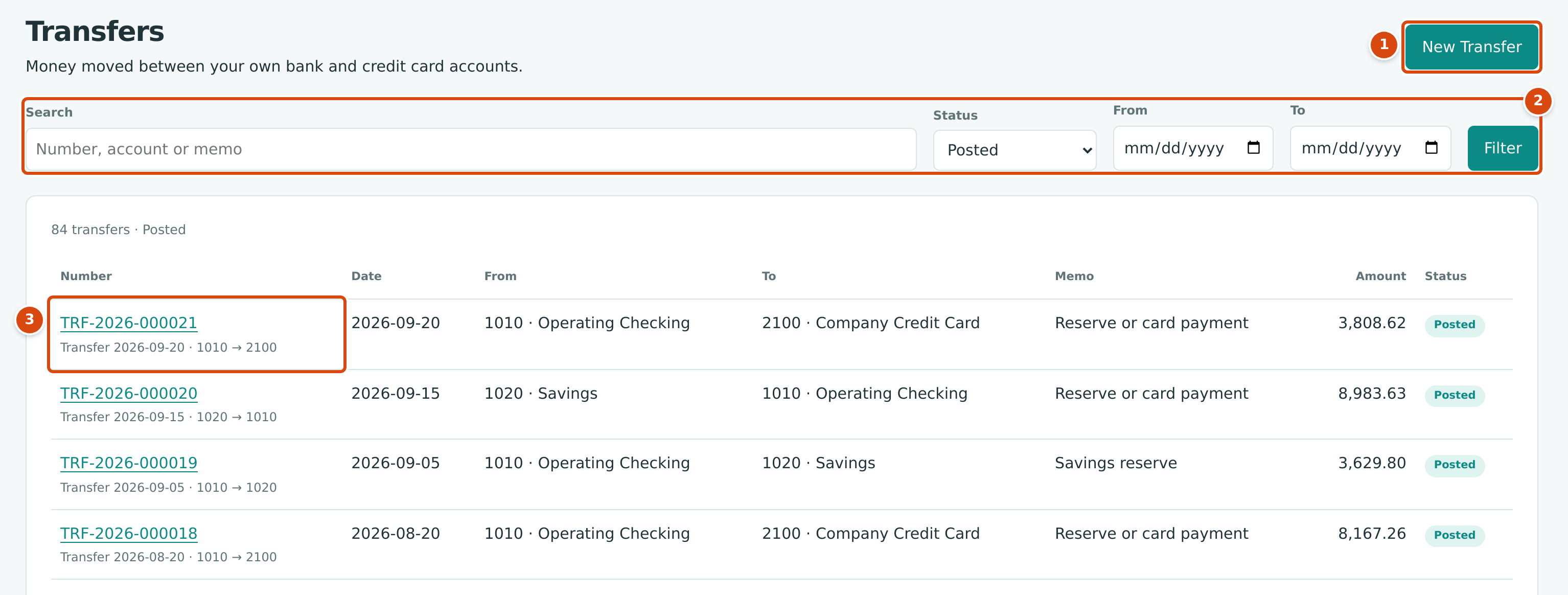
- New Transfer starts a transfer.
- Search (a number, an account code or name, or a memo), Status (Posted, Reversed or All), From and To dates, then Filter.
- Each transfer shows its number and, below it, its label: the date and the two account codes, for example Transfer 2026-09-20 · 1010 → 2100. The other columns are Date, From, To, Memo, Amount and Status.
Step by Step
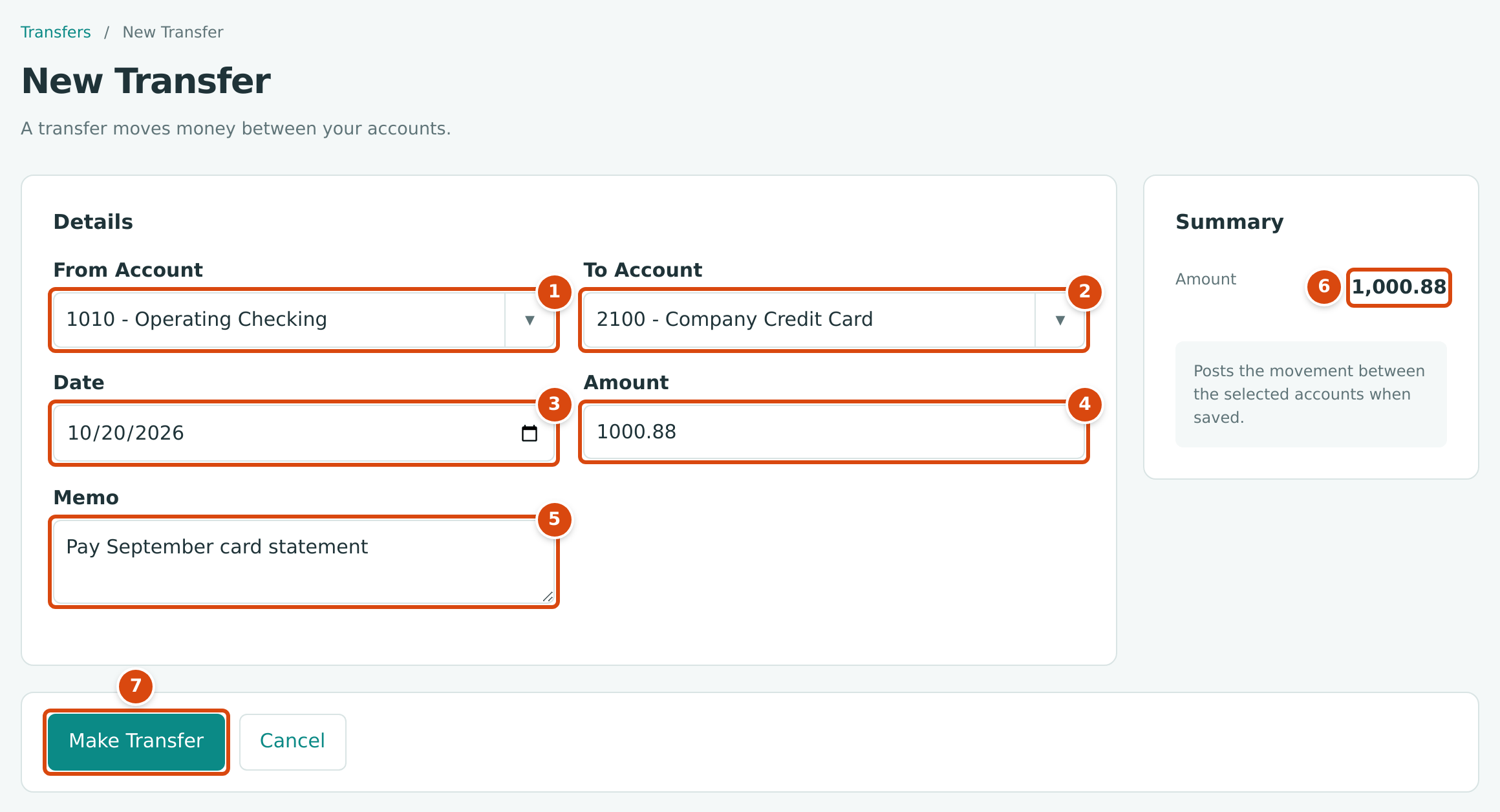
- From Account: where the money leaves. Cash accounts only.
- To Account: where the money arrives. Cash or Credit Card accounts.
- Date: the transfer date. It starts as today.
- Amount: a positive amount.
- Memo: an optional note. It also becomes the journal entry's description.
- Summary Amount repeats the amount as you type.
- Make Transfer posts the transfer. Cancel leaves without saving.
- Open Banking → Transfers and click New Transfer.
- In From Account, choose the account the money comes out of, for example 1010 - Operating Checking.
- In To Account, choose the account the money goes into, for example 2100 - Company Credit Card to pay the card, or 1020 - Savings.
- Set Date to the day the bank moved the money.
- Type the Amount.
- Optionally type a Memo, such as Pay September card statement.
- Click Make Transfer. Structally posts the transfer and opens it.
Field Reference
| Field | Description | Required | Example |
|---|---|---|---|
| From Account | The account the money leaves. Active Cash accounts. | Yes | 1010 - Operating Checking |
| To Account | The account the money arrives in. Active Cash or Credit Card accounts, not the From Account. | Yes | 2100 - Company Credit Card |
| Date | Transfer date and accounting date. Must be after the Books Closed date. | Yes | 10/20/2026 |
| Amount | A positive amount with up to two decimals. | Yes | 1,000.88 |
| Memo | A note of up to 120 characters. Used as the journal entry description; without a memo the description is Transfer followed by the two account codes. | No | Pay September card statement |
Worked Example: Paying the Company Credit Card
On September 20, 2026, Cedar Ridge Contracting paid $3,808.62 from 1010 Operating Checking to 2100 Company Credit Card. Before the payment the card owed $3,808.62 (its register shows the balance rising to 3,808.62 with that day's charges), so the payment brings the card to $0.00:
| Amount | |
|---|---|
| Card balance before the payment | 3,808.62 |
| Transfer from checking | − 3,808.62 |
| Card balance after the payment | 0.00 |
The transfer posts this entry: the card account is debited, which reduces what the company owes, and the checking account is credited, which reduces cash.
The form in the figure above pays the card's next balance the same way: $1,000.88 from 1010 to 2100 on October 20, 2026, the ending balance of the card's September statement.
What Happens After You Make a Transfer
- The transfer is numbered automatically as TRF-year-sequence (for example TRF-2026-000021) and has the status Posted. Its page title is its label, Transfer 2026-09-20 · 1010 → 2100.
- Its journal entry is posted and locked: the To Account is debited and the From Account credited.
- Both accounts' registers show the movement. When the banks' statements are imported, the transfer matches a line on each account in the bank feed.
- A posted transfer cannot be edited. To correct one, reverse it and enter it again.
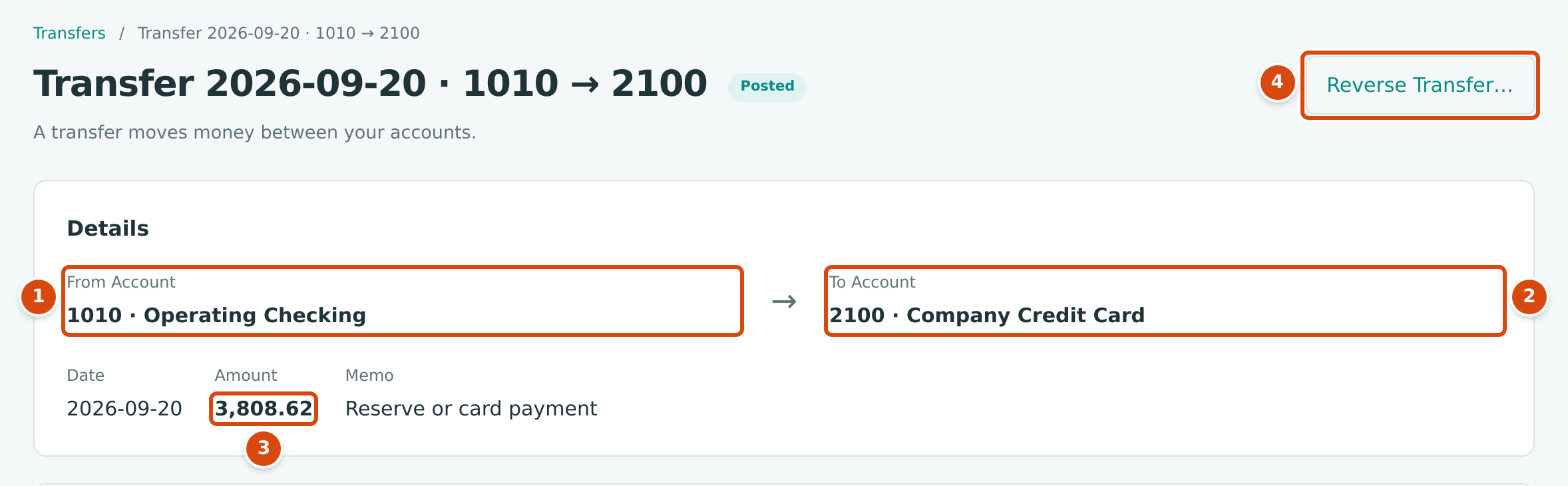
- From Account: 1010 Operating Checking.
- To Account: 2100 Company Credit Card.
- Amount: 3,808.62.
- Reverse Transfer… undoes the transfer (see below).
The Posting Entry
Open Posting Entry near the bottom of the transfer:
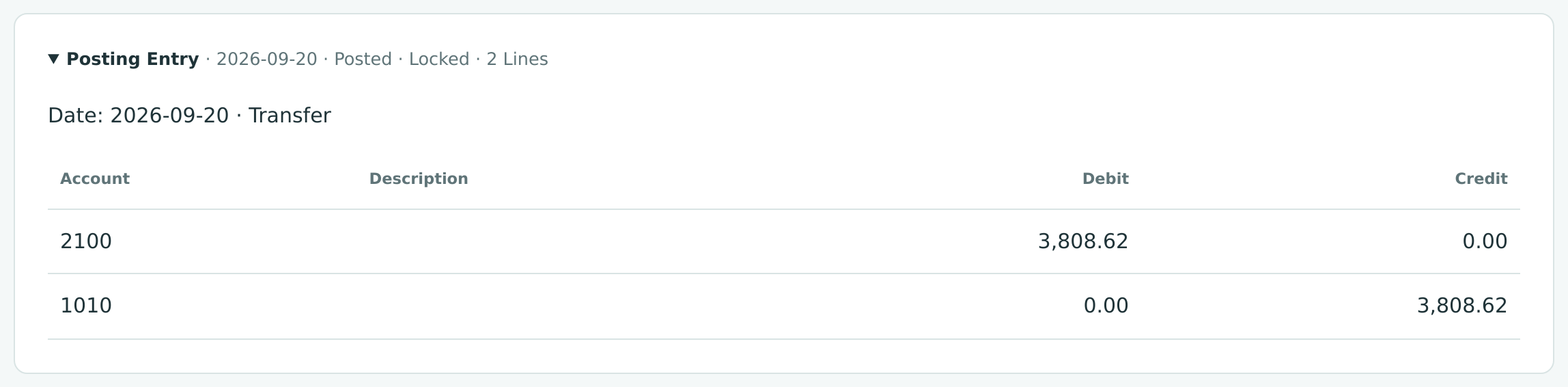
Every transfer debits the To Account and credits the From Account with the same amount. A transfer between two Cash accounts leaves your total cash unchanged; a transfer to a Credit Card account lowers both cash and the card balance.
Reversing a Transfer
- Open the transfer and click Reverse Transfer….
- Set Date (it starts as today) and optionally a Memo.
- Click Reverse Transfer.
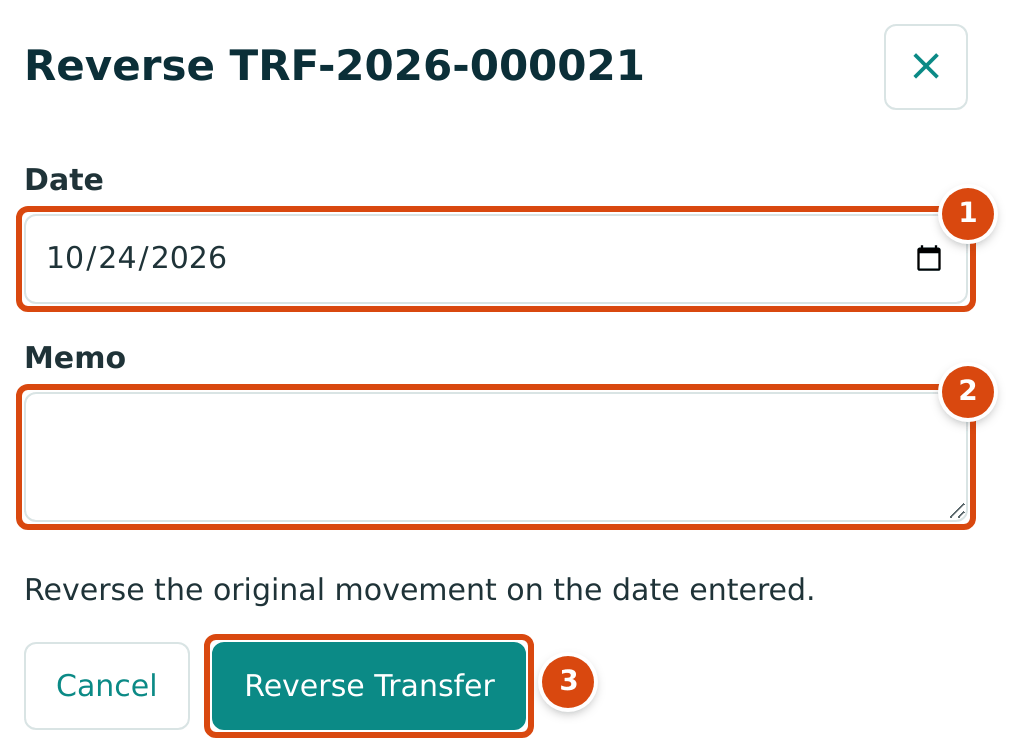
- Date: the date of the reversal entry; not earlier than the transfer date.
- Memo: why the transfer is reversed.
- Reverse Transfer posts the reversal; Cancel closes the panel.
Structally posts a reversal entry that mirrors the original (debit the From Account, credit the To Account). The transfer's status becomes Reversed and a Reversal Entry section appears on its page.
Unmatch first
A transfer matched to a bank feed line cannot be reversed. In the sample company every transfer is matched and cleared, so reversing one would first need its reconciliation reopened, the line uncleared and then unmatched. A transfer created by categorizing a bank line is undone from the line instead, with Undo Categorization.
Common Mistakes and Troubleshooting
| Message or Symptom | Why It Happens | What to Do |
|---|---|---|
| Transfers move money from a cash account to a cash or credit card account | The From Account is not a Cash account, or the To Account is neither Cash nor Credit Card. | Choose a Cash account to send from. To record card spending, use an expense. |
| Transfer accounts must differ | The same account is chosen twice. | Choose two different accounts. |
| Accounting date must be after the company closing date. | The date is in a closed period. | Use a date after the Books Closed date. |
| Entry is matched to a bank line; unmatch it first | The transfer is matched in the bank feed. | Unmatch the bank line, then reverse. |
| Transfer is already reversed | The transfer was reversed before. | Nothing to do. |
| Reversal date cannot be earlier than the journal entry date. | The reversal date is before the transfer date. | Use the transfer date or later. |
| Moving receipts out of Undeposited Funds with a transfer. | A transfer does not mark receipts as deposited. | Use Make Deposit instead. |