Importing Bank Statements
Importing a statement brings your bank's own record of an account into Structally. Download the statement from your bank's website as a CSV file (a plain spreadsheet file), then import it into the account's Bank Feed. Each row of the file becomes a bank line that you then review: match it to what is already in your books, or categorize it. Imported lines are also what you clear when you reconcile with the Imported Bank Statement method.
Importing posts nothing to your books. It only adds lines for review.
Before You Begin
- The bank or card account exists with the Cash or Credit Card role and is active. See Bank and Cash Accounts.
- You have the statement as a CSV file saved in UTF-8 (the usual export format), at most 1 MB and 2,000 rows.
- You need Edit access to Banking. Company Admins and Accountants have it. Viewers see Read-only access. An accountant can import a statement. See Roles and Permissions.
Navigation
Banking → Bank Feed → Import Statement on the account's card. Create → Import Statement opens the Bank Feed page, and each account's Bank Transactions page also has an Import Statement button.
The Bank Feed Page
Banking → Bank Feed shows one card for each active bank and credit card account.
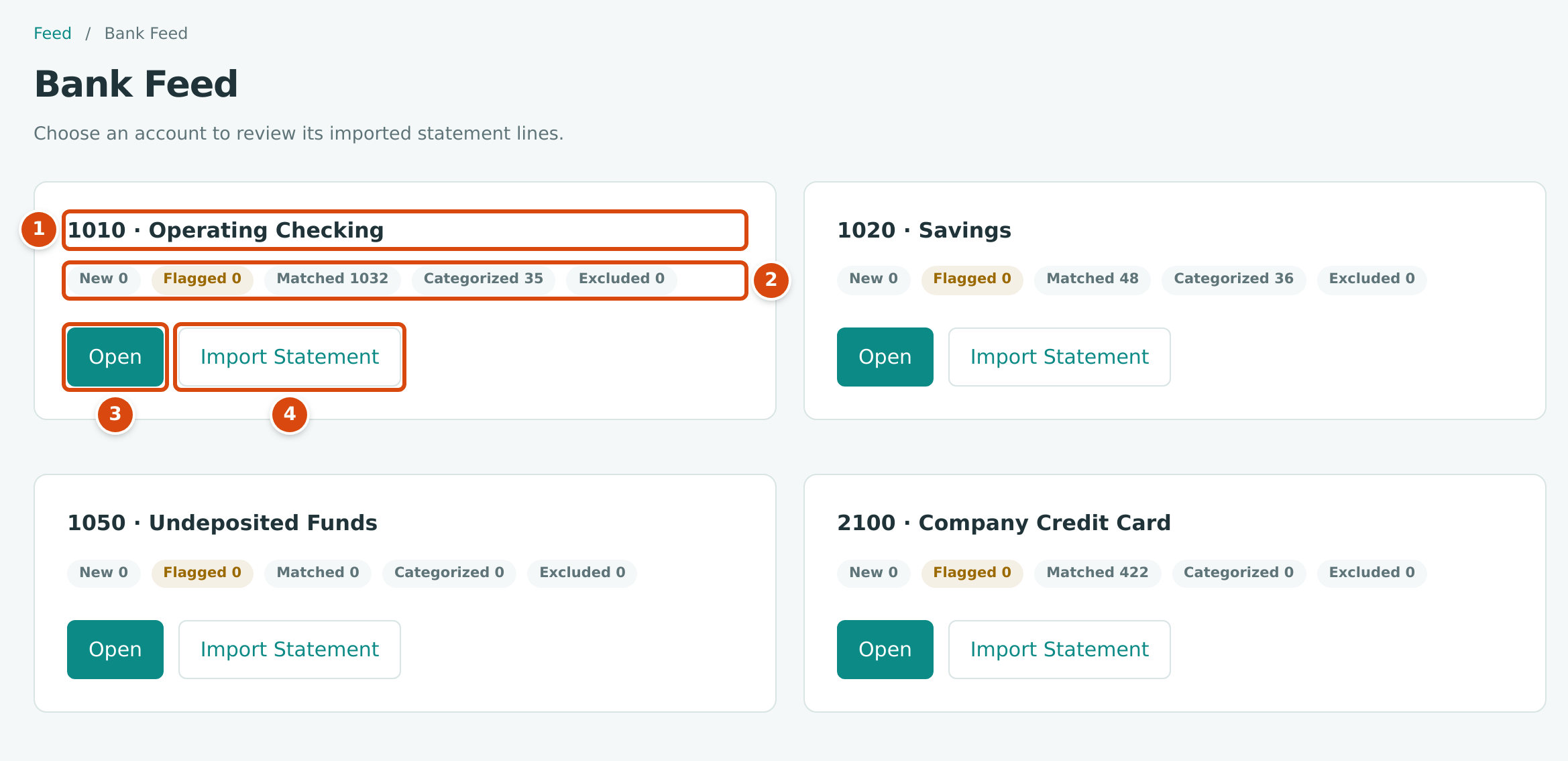
- The account.
- How many of its lines are New, Flagged, Matched, Categorized and Excluded. New and flagged lines are waiting for review.
- Open shows the account's lines (see Reviewing the Bank Feed).
- Import Statement imports a statement into this account.
Preparing the File
Structally accepts two kinds of CSV file.
A standard file imports straight away. Its first row (the header) has exactly these column names, in any order, with any capitalization:
| Column | Contents | Required |
|---|---|---|
date |
The transaction date as YYYY-MM-DD, for example 2026-09-04. | Yes |
amount |
A signed amount with at most two decimals and no thousands separators or currency symbols, for example -23330.53. Not zero. | Yes |
description |
The bank's description, up to 240 characters. | Yes |
external_id |
The bank's own unique transaction number, up to 120 characters. Strongly recommended: it is how Structally recognizes a row it already has. | No |
No other columns are allowed in a standard file.
Any other CSV with at least three columns opens the Map Statement Columns
page, where you say which column holds what. Most bank exports take this route,
including the September statement the sample company's setup produced, whose
columns are date, description, amount and reference.
Which way the amount points
For a bank or cash account, a positive amount is money in (a deposit) and a negative amount is money out (a check, a card payment, a fee). For a credit card account it is the other way round: a positive amount is a charge, which increases what you owe, and a negative amount is a payment to the card. If your card statement shows charges in a "money out" column, check the signs in the preview before you import.
Step by Step
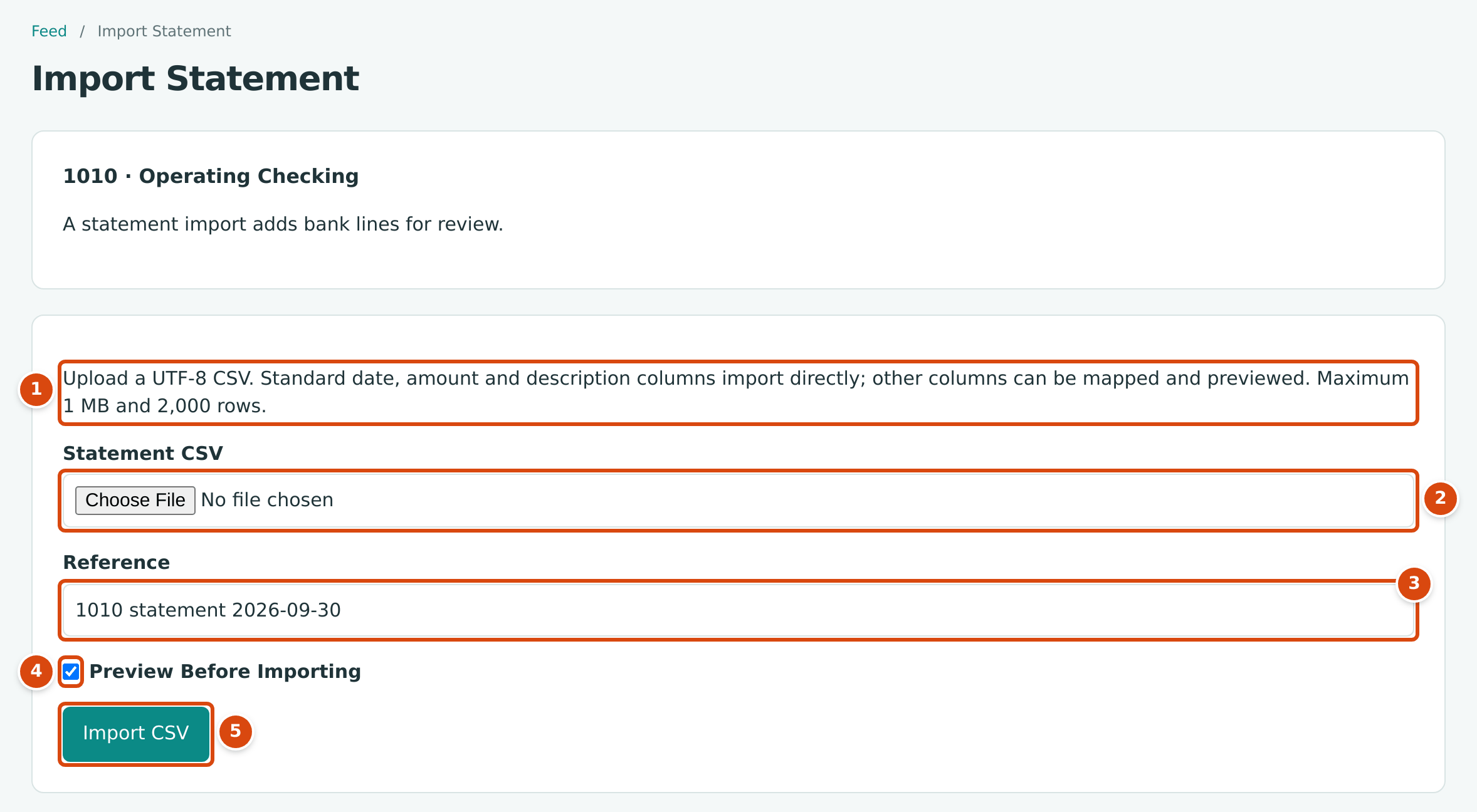
- The rules for the file: UTF-8 CSV, at most 1 MB and 2,000 rows.
- Statement CSV: choose the file.
- Reference: a name for this import, shown on the batch and as the account's latest import.
- Preview Before Importing: tick to see every row before anything is added.
- Import CSV: imports a standard file, or opens the mapping and preview page.
- Open Banking → Bank Feed and click Import Statement on the account's card.
- In Statement CSV, choose the file you downloaded.
- In Reference, type a name you will recognize, such as 1010 statement 2026-09-30.
- Tick Preview Before Importing. We recommend it for every import: it shows exactly which rows will be added, skipped or flagged.
- Click Import CSV.
- A standard file without Preview Before Importing is imported at once, and the Statement Batch page opens.
- Otherwise the Map Statement Columns page opens.
Importing a Standard File Directly
The training company Cedar Ridge Training imported its August and September 2026 checking statement as a standard file. Its first rows:
date,description,amount,external_id
2026-08-12,CHECK 1001,-16000.00,FVB-0812-001
2026-08-12,CHECK 1002,-6000.00,FVB-0812-002
2026-08-26,DEPOSIT,100000.00,FVB-0826-001
2026-09-30,MONTHLY SERVICE CHARGE,-25.00,FVB-0930-001
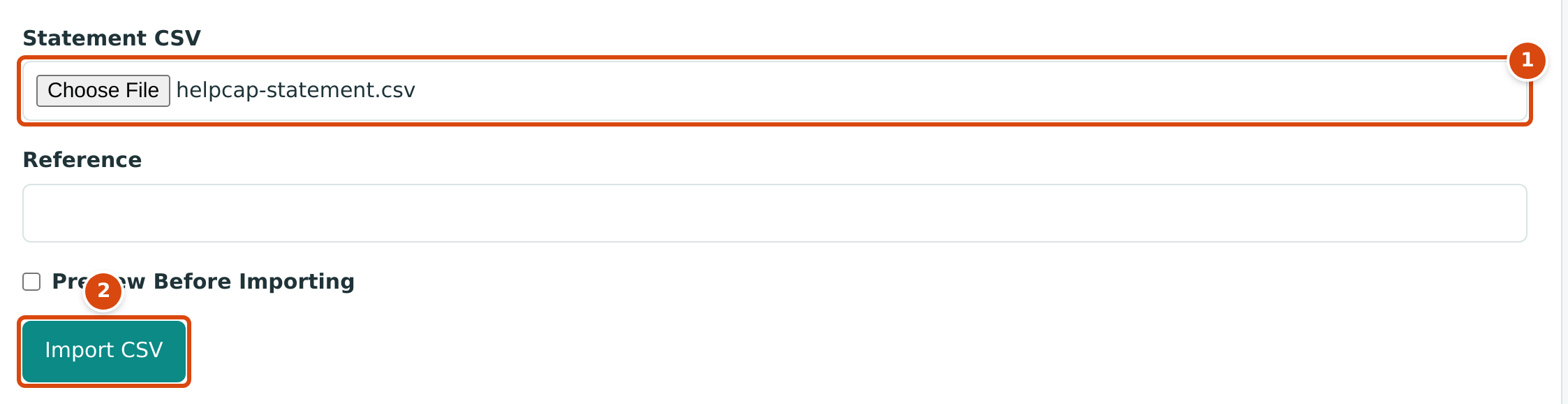
- Statement CSV with the file chosen.
- Import CSV. With Preview Before Importing unticked, a standard file is imported at once.
The Statement Batch page then opens with every row of the file:
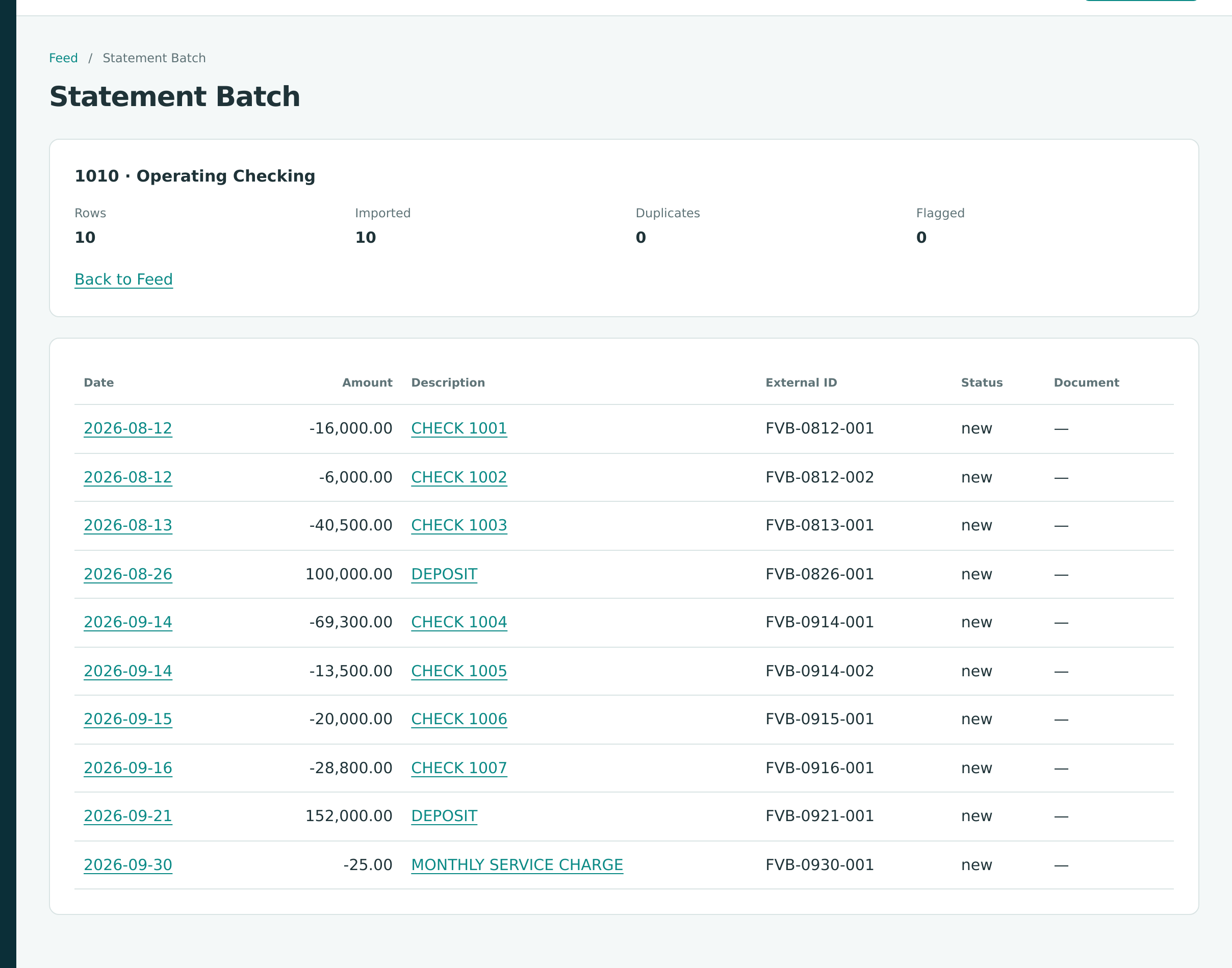
No Reference was typed, so the batch shows none and the account's Bank Transactions page reads Latest import: Statement. The ten lines are reviewed in Reviewing the Bank Feed.
Map the Columns and Preview
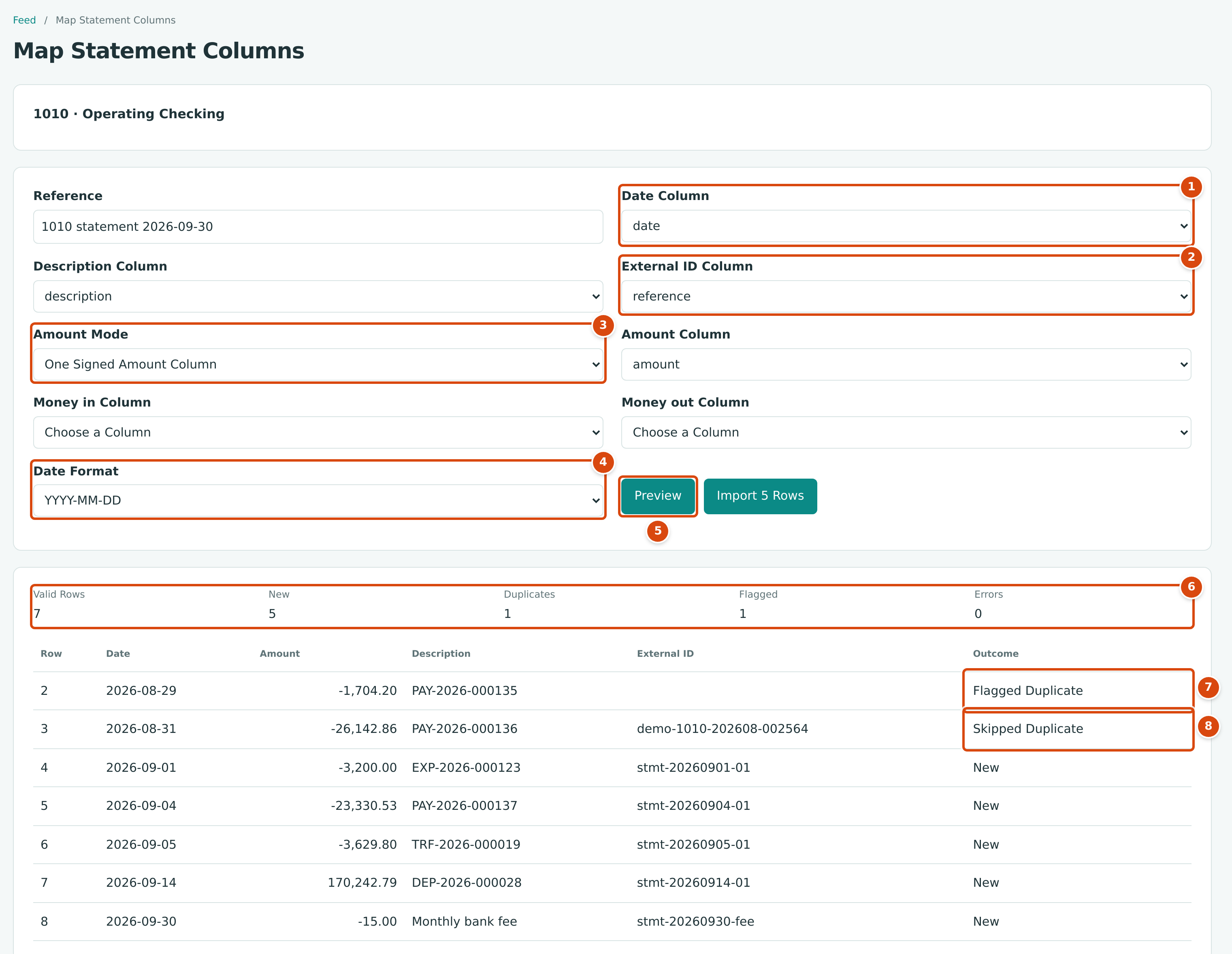
- Date Column, and next to it Description Column: which columns hold the date and the description.
- External ID Column: the column with the bank's transaction number, or Not in File.
- Amount Mode: One Signed Amount Column, or Separate Money in and Money out Columns, with the matching Amount Column or Money in Column and Money out Column.
- Date Format: YYYY-MM-DD, MM/DD/YYYY or DD/MM/YYYY.
- Preview refreshes the preview after you change the mapping.
- The counts: Valid Rows, New, Duplicates, Flagged and Errors.
- Flagged Duplicate: looks like a line already in the feed; it will be imported but flagged for you to check.
- Skipped Duplicate: its external ID is already in the feed; it will not be imported.
- Check the columns Structally chose. It guesses from the header names: a column whose name contains date for the date; description, details, memo, payee, narrative or name for the description; amount for a signed amount; deposit, credit, money in, inflow or paid in for money in; withdrawal, debit, money out, outflow or paid out for money out; and id, external id, fitid, transaction id, reference or ref for the external ID. It also guesses MM/DD/YYYY when the first date looks like 09/04/2026.
- Correct any column or the date format, then click Preview.
- Read the preview. Each row shows its Row number in the file, Date, Amount, Description, External ID and Outcome: New, Flagged Duplicate, Skipped Duplicate, or an error message.
- When Errors is 0, click Import N Rows. The Statement Batch page opens.
In a mapped file, amounts may include thousands separators, spaces, a leading dollar sign, or parentheses for negative amounts, for example (1,704.20). With Separate Money in and Money out Columns, each row must fill one of the two columns, not both; the amount is money in minus money out.
The Import button counts new rows only
Import N Rows shows the New count. Flagged rows are imported as well, with the status Flagged. In the figure above, Import 5 Rows adds six lines: five new and one flagged.
Fix Errors Before Importing
A row with a problem shows the message in its Outcome, the messages are also listed above the table, and the import button stays disabled until Errors is 0. Correct the file and import it again, or correct the mapping and click Preview.
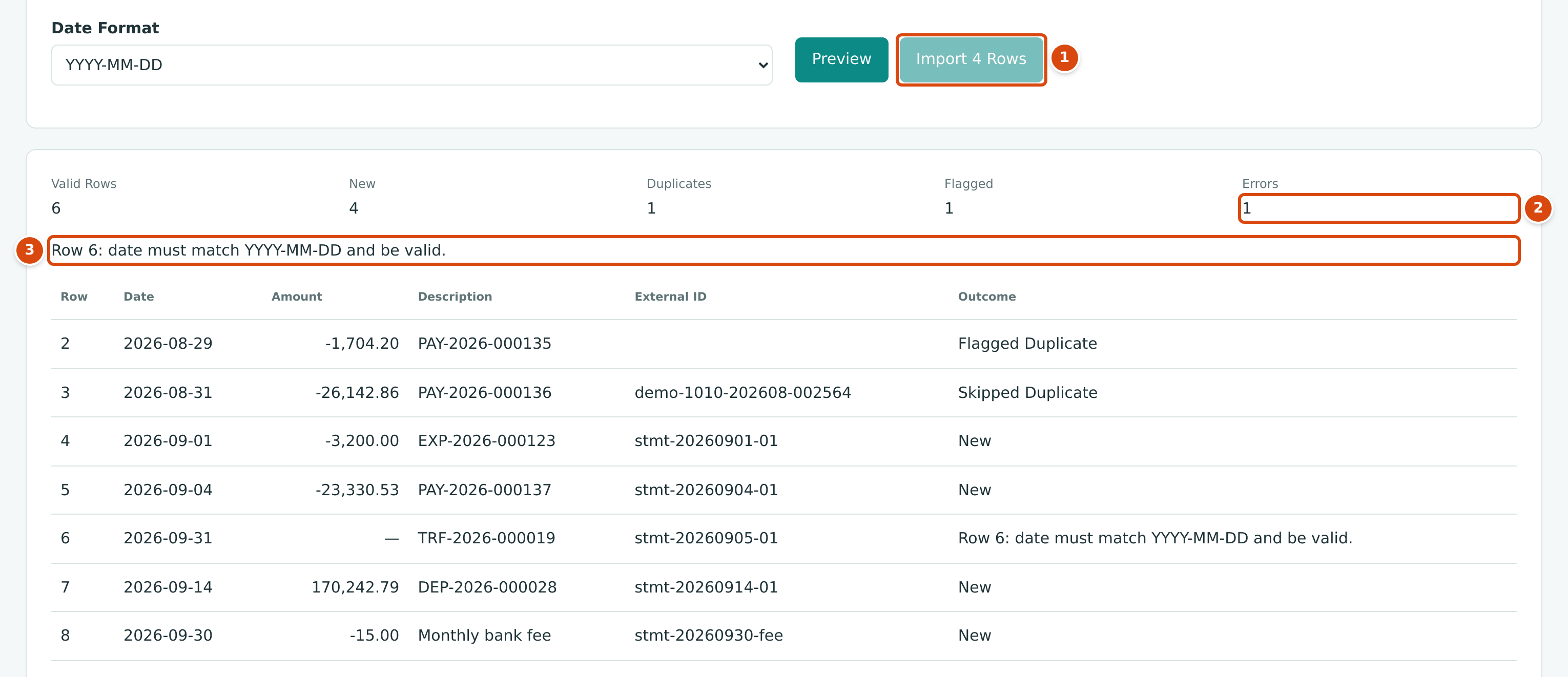
- The import button is disabled while there are errors.
- Errors: 1.
- The message names the row in the file: Row 6: date must match YYYY-MM-DD and be valid. (2026-09-31 is not a real date.)
How Duplicates Are Handled
Bank downloads often overlap the previous one. Structally compares every row with the lines already in this account's feed (including excluded lines), never with the other rows of the same file:
| The Row | Outcome | What Happens |
|---|---|---|
| Has an external ID that is already in this account's feed | Skipped Duplicate | Not imported. Counted under Duplicates. |
| Has no external ID, and its date, amount and description match a line already in the feed (ignoring capitals and extra spaces) | Flagged Duplicate | Imported with the status Flagged, linked to the line it resembles. You then Keep it or Exclude it (see Reviewing the Bank Feed). |
| Anything else | New | Imported with the status New, ready for review. |
A row with an external ID is never flagged: the external ID decides. Two rows of the same file with the same external ID are an error.
Worked Example: An Overlapping Checking Download
The September checking download in the figures above repeats the last two August rows, which were imported with the August statement:
| Row | Date | Amount | External ID | Outcome |
|---|---|---|---|---|
| 2 | 2026-08-29 | -1,704.20 | (none) | Flagged Duplicate: same date, amount and description as the August line for PAY-2026-000135 |
| 3 | 2026-08-31 | -26,142.86 | demo-1010-202608-002564 | Skipped Duplicate: that external ID is already in the feed |
| 4 to 8 | September | stmt-… | New |
The counts read Valid Rows 7, New 5, Duplicates 1, Flagged 1, Errors 0 (5 + 1 + 1 = 7). Importing would add six lines: the five new September rows and one flagged line, which you would then exclude because the August line already covers it.
The Statement Batch
Every import is kept as a batch. After an import the batch page opens; you can return to it from any of its lines with the Batch link on the account's Bank Transactions page.
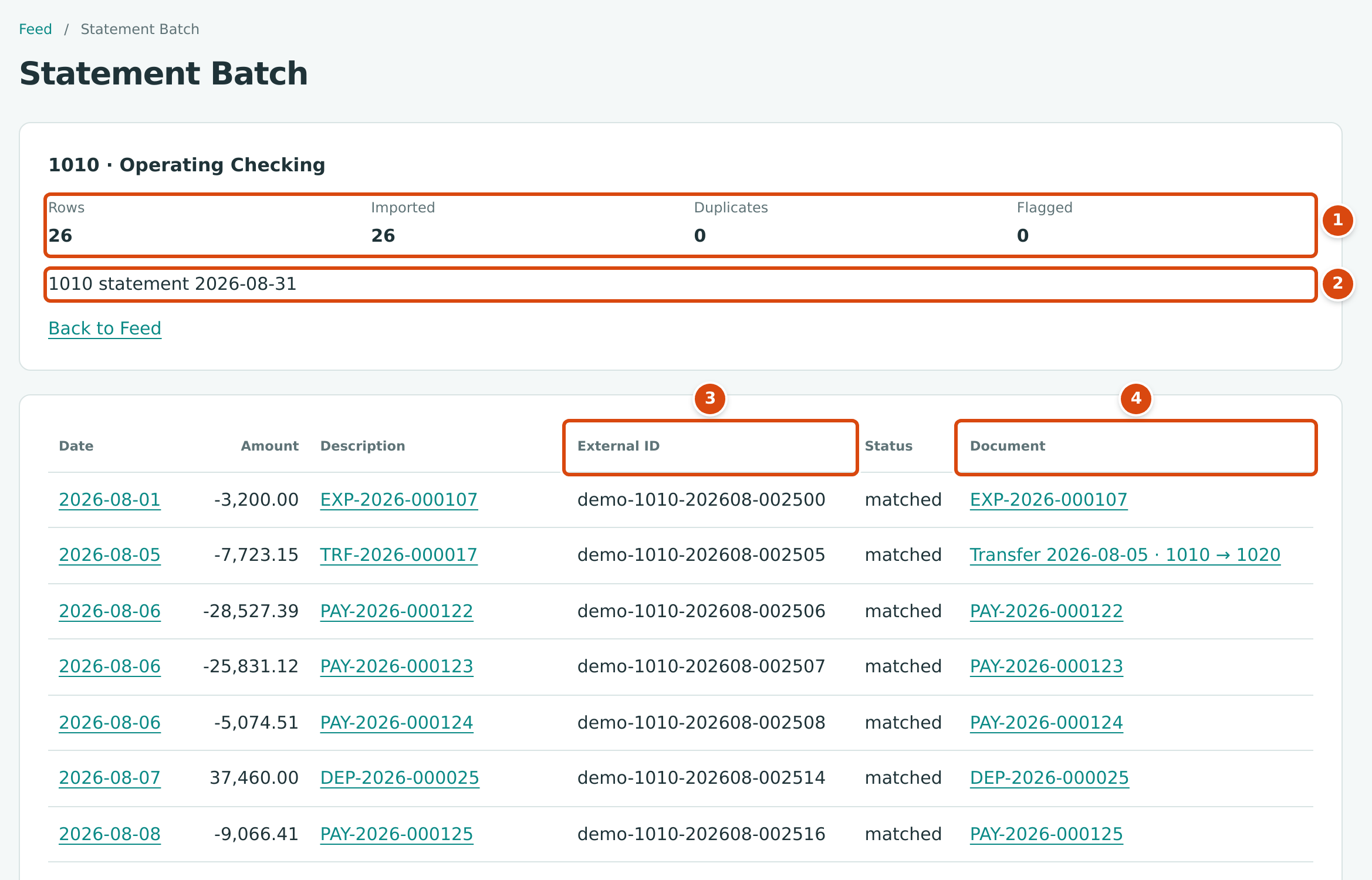
- Rows (valid rows in the file), Imported (new lines), Duplicates (skipped) and Flagged.
- The Reference typed at import.
- External ID: the bank's transaction number of each line.
- Document: the posting each line is matched or categorized to. Click it to open the document.
The sample company's statements were imported when the company was set up: one batch per account per month, from October 2023 to August 2026 for 1010 Operating Checking and to September 2026 for 1020 Savings and 2100 Company Credit Card. The September 2026 checking statement has not been imported yet; the example above previews part of it.
An import cannot be undone as a whole. To get rid of a line you do not want, Exclude it in the bank feed.
Common Mistakes and Troubleshooting
| Message or Symptom | Why It Happens | What to Do |
|---|---|---|
| Row 1: file must be at most 1 MB. | The file is too large. | Download a shorter period, or split the file. |
| Row 1: file must be UTF-8. | The file was saved in another text encoding. | Save it again as "CSV UTF-8" from your spreadsheet program. |
| Row 1: missing required columns: amount, description. (for example) | The file has fewer than three columns and is not a standard file. | Export with date, amount and description columns. |
| Row 1: a header and data rows are required. or Row 2: at least one data row is required. | The file is empty or has only a header. | Check the export. |
| Row 7: column count does not match the header. (for example) | A row has fewer cells than the columns you mapped (or, in a standard file, a different number of cells). | Fix the row in the file; check for commas inside unquoted text. |
| Row 5: date must be YYYY-MM-DD and valid. | A standard file has another date format or an impossible date. | Use YYYY-MM-DD, or preview and choose the Date Format. |
| Row 6: date must match MM/DD/YYYY and be valid. (for example) | The mapped date format does not fit the row. | Choose the right Date Format and click Preview. |
| Row 4: amount must be a signed decimal with at most two places, without separators or symbols. | A standard file has commas, a currency sign or more than two decimals. | Remove them, or preview and map the file. |
| Row 4: amount must be a signed decimal with at most two places. | A mapped amount cannot be read. | Fix the amount in the file. |
| Row 4: amount is required. | The mapped amount cell is empty. | Fill it in, or use separate money in and money out columns. |
| Row 4: both money in and money out are filled. | A row has values in both columns. | Keep only one. |
| Row 4: amount must not be zero. | Zero-amount rows (such as balance lines) cannot be imported. | Delete those rows from the file. |
| Row 9: external_id repeats row 3. (for example) | Two rows of the file have the same external ID. | Remove the repeated row. |
| Duplicate external id within the batch | A standard file has the same external_id twice. |
Remove the repeated row. |
| Row 2002: at most 2,000 data rows are allowed. | The file is too long. | Split it into smaller periods. |
| Choose a different column for each field. | Two fields are mapped to the same column. | Map each field to its own column. |
| A credit card's charges show under Money Out in the preview with a minus sign. | The card statement's charge column was mapped as money out. | For a card account, map charges so they come in positive (see the note above). |