Settings
Settings holds the choices that apply to the whole company rather than to one customer, vendor or job: the name and address printed on your documents, how those documents look, how invoices are emailed, which periods are closed, the balances your books start with, the classes and locations you report by, who can sign in, and the files you import from other systems.
Most of these pages are set once when the company starts and then visited only occasionally. The exception is Books Closed, which you move forward every month after you finish the month's work.
Navigation
Settings → Overview in the navigation, or the Settings icon (the gear) in the narrow icon bar.
The Settings Overview
The overview groups the settings pages into three sections, Company, Books and People & Data. Each card names the page, says what it is for, and shows the current value where there is one. Click a card to open its page.
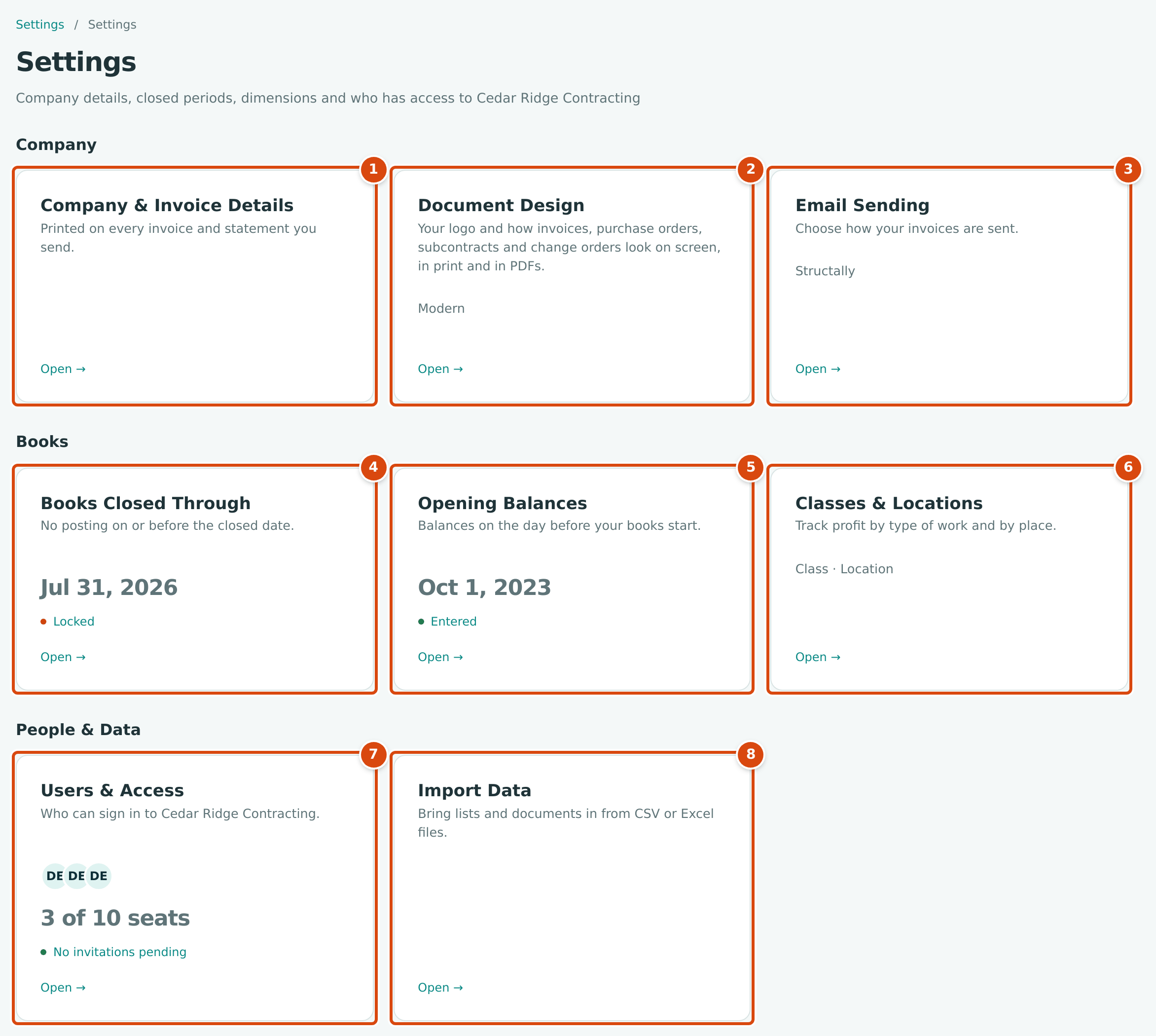
- Company & Invoice Details: the legal name, address, contact details and tax ID printed on your documents, plus the date format and time zone. Shows the legal name once one is entered.
- Document Design: your logo and the look of invoices, purchase orders, subcontracts and change orders. Shows the layout in use (Modern).
- Email Sending: how invoices are emailed. Shows the sending method (Structally or Your SMTP Account).
- Books Closed Through: the date through which nothing can be posted. Shows the date and Locked, or Open and No closed period.
- Opening Balances: the balances your books start with. Shows the books start date and Entered, or Not entered and Books start not set.
- Classes & Locations: the two reporting tags you can put on transactions. Shows their current names (Class · Location).
- Users & Access: who can sign in to the company. Shows the first users' initials, the seats in use (3 of 10 seats) and how many invitations are still pending.
- Import Data: brings lists and documents in from CSV or Excel files.
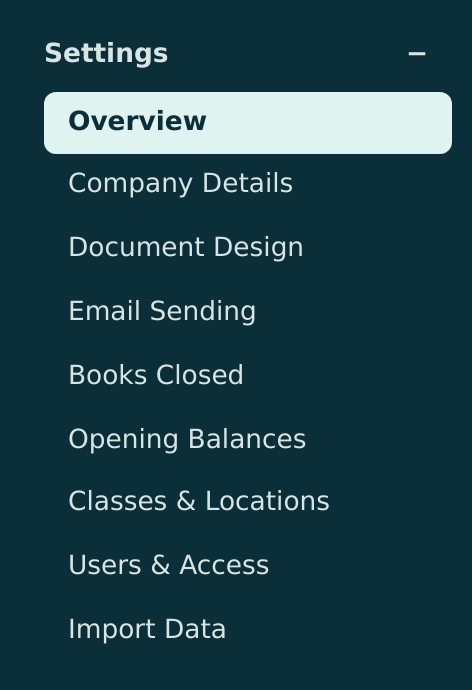
The same pages are listed under Settings in the navigation. The navigation uses short names: Company Details opens the page headed Company & Invoice Details. The Books Closed Through card opens the page headed Books Closed, the name the navigation uses.
Who Can Open Each Page
Settings is one of the seven access areas (see Roles and Permissions). Only the Company Admin role includes it; Accountants, Viewers and Project Managers have no Settings access, so the Settings group is not in their navigation and opening a settings page shows This Area Is Locked for You. A Custom user gets whatever level a Company Admin chose for Settings.
Three pages are for Company Admins only, whatever level a Custom user has: Company & Invoice Details, Classes & Locations and Users & Access. Their cards and navigation links are hidden from everyone else.
| Page | Company Admin | Custom, Settings View | Custom, Settings Edit |
|---|---|---|---|
| Overview | Opens | Opens, without the three Company Admin cards | Opens, without the three Company Admin cards |
| Company & Invoice Details | Views and edits | Locked | Locked |
| Document Design | Views and edits | Views | Views and edits |
| Email Sending | Views, edits and sends a test | Views | Views, edits and sends a test |
| Books Closed | Views and changes | Views | Views and changes |
| Opening Balances | Views and posts | Sees the balancing account only | Views and posts |
| Classes & Locations | Views and edits | Locked | Locked |
| Users & Access | Views and edits | Locked | Locked |
| Import Data | Downloads templates, imports and undoes | Downloads templates and sees past imports | Downloads templates, imports and undoes |
Job costing policies, retainage accounts and the WIP accounts are not on these pages; they are in Job Costing Settings under Jobs & Costing. Payment terms are under Accounting (see Payment Terms).
Setting Up a New Company
A new company usually works through Settings in this order:
- Company & Invoice Details: enter the legal name, address, phone, email and tax ID, and check the time zone and date format. Documents and emails use these from the start.
- Document Design: upload your logo and choose the layout, accent color and the wording of each document.
- Email Sending: decide whether invoices go out through Structally or through your own email account, and send a test email.
- Classes & Locations: rename the labels if your company uses other words, and add the values you will report by.
- Opening Balances: enter the balance sheet as of the day before your books start.
- Import Data: bring in customers, vendors, items and other lists from your old system.
- Users & Access: add the people who will work in the company and give each a role.
- Books Closed: once a month is finished and reviewed, close it.
The training exercise A: Setting Up a New Company and Setting Up a New Company cover the same steps together with the rest of the product.
Pages in This Section
- Company Details: legal name, address, contact details, tax ID, date format and time zone, and where each appears.
- Document Design: logo, layout, accent color and the wording of invoices, purchase orders, subcontracts and change orders, with previews.
- Email Sending: sending invoices through Structally or your own email account, the default subject and message, and the test email.
- Books Closed: closing a period so nothing can be posted, reversed or voided on or before its last day, and the month-end routine.
- Opening Balances: entering the balances your books start with.
- Classes & Locations: the two reporting tags, their values and their labels.
- Users & Access: adding users, roles and custom access, suspending and removing access, invitations, passwords and seats.
- Import Data: templates, checking a file, importing, results and undoing an import.
- Settings Reference: every setting in one table.