Banking
Banking is where you look after the money in your bank accounts, cash accounts and company credit cards. Payments you receive from customers and payments you make to vendors are recorded in their own areas; Banking is where that money reaches the bank, moves between your own accounts, and is checked against what the bank says happened.
Banking works only with accounts whose Role in the Chart of Accounts is Cash or Credit Card. In the sample company these are 1010 Operating Checking, 1020 Savings, 1050 Undeposited Funds and 2100 Company Credit Card. See Bank and Cash Accounts.
How the Pieces Fit Together
Money moves through Banking in this order:
- Money comes in. When a customer pays, you record the payment with Receive Payment and choose the account the money goes to. Cedar Ridge Contracting records every customer check in 1050 Undeposited Funds, a holding account for checks that are not at the bank yet.
- Receipts go to the bank. When you take the checks to the bank, Make Deposit moves the receipts you select from the holding account into the bank account, as one deposit, just as the bank will show it.
- Money goes out. Bill payments (Pay Bills) and expenses are recorded in Vendors & Bills. Within Banking you transfer funds between your own accounts (for example from checking to savings, or to pay the credit card) and record refunds to customers or from vendors.
- The bank's record comes in. Import the bank statement as a CSV file. Each statement row becomes a line in the Bank Feed.
- Each line is reviewed. In the bank feed you match a line to the payment, deposit or transfer already in your books, or categorize it (for example a bank fee) so Structally records it, or exclude it.
- The account is reconciled. Reconciliation compares your books with the bank statement: you clear the lines that appear on the statement until the difference is 0.00, then complete it. A paper or PDF statement can be reconciled without importing anything.
- Registers show the result. An account register lists every posted movement in an account with a running balance and shows which movements have been cleared.
The Banking Page
Click Banking in the navigation to open the Banking page. The Banking group in the navigation also lists every Banking page, including Refunds, which has no card on the Banking page itself.
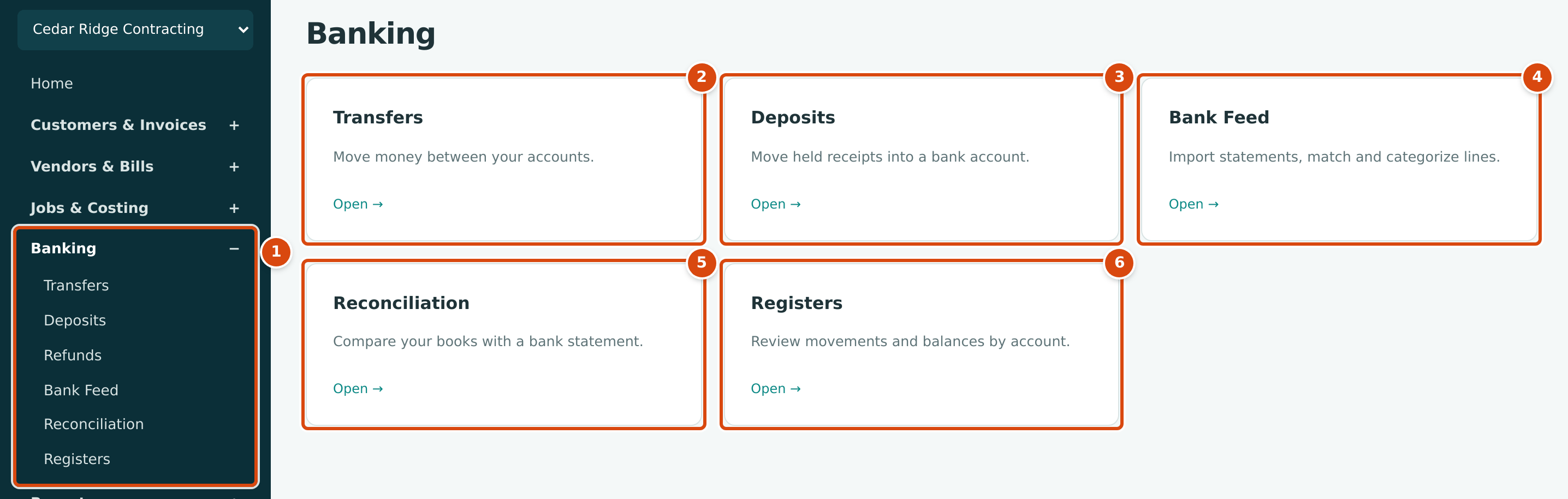
- The Banking group in the navigation: Transfers, Deposits, Refunds, Bank Feed, Reconciliation and Registers.
- Transfers: Move money between your accounts.
- Deposits: Move held receipts into a bank account.
- Bank Feed: Import statements, match and categorize lines.
- Reconciliation: Compare your books with a bank statement.
- Registers: Review movements and balances by account.
The Create menu at the top of every page also offers New Transfer, Make Deposit and Import Statement to users who can make changes in Banking.
Who Can Use Banking
| Role | Banking Access |
|---|---|
| Company Admin | Everything in Banking. |
| Accountant | Everything in Banking. |
| Viewer | Can open every Banking page and read it. Buttons that change anything are hidden. |
| Project Manager | No access. Banking is locked for this role. |
| Custom | What the user's Banking level allows: No Access, View or Edit. A vendor refund also needs Edit on Vendors & Bills, and a customer refund Edit on Customers & Invoices. |
Pages in This Section
- Bank and Cash Accounts: which accounts Banking uses, Undeposited Funds, adding a bank or card account, and where balances show.
- Making Deposits: move held customer receipts into a bank account, and reverse a deposit.
- Transferring Funds: move money between your own bank and credit card accounts, and reverse a transfer.
- Recording a Refund: pay a customer back, or record money a vendor pays back, against a credit or an overpayment.
- Importing Bank Statements: bring a bank statement CSV into the bank feed, map its columns and handle duplicates.
- Reviewing the Bank Feed: match, categorize, exclude and restore statement lines.
- Reconciling an Account: agree your books with a bank or card statement.
- Account Registers: every movement in one account with its running balance and cleared status.