| Account | Debit | Credit |
|---|---|---|
| 6500 Depreciation Expense (North) | 500.00 | |
| 6500 Depreciation Expense (South) | 500.00 | |
| 1640 Accumulated Depreciation | 1,000.00 |
Journal Entries
A journal entry records a transaction as debits and credits to accounts. Every posted bill, invoice, expense, payment, deposit and transfer already writes its own journal entry, so you post a manual journal entry only for what no other screen records: monthly depreciation, prepaid insurance used up, the interest and principal of a loan payment, an owner draw, an accrual, or a correction that moves an amount from one account to another.
The Journal Entries page is also where you look up any posted entry, whatever created it.
Before You Begin
- The accounts you will use exist and are active (see Creating and Editing Accounts).
- The entry date is after the Books Closed date. In the sample company the books are closed through July 31, 2026.
- To post or reverse, you need Edit access to Accounting: Company Admins and Accountants have it, a Custom role can. Viewers can open the journal and entries but not post. Project Managers have no Accounting access. See Roles and Permissions.
Navigation
Accounting → Journal Entries → New Journal Entry, or Create → Journal Entry at the top of any page.
The Journal Entries List
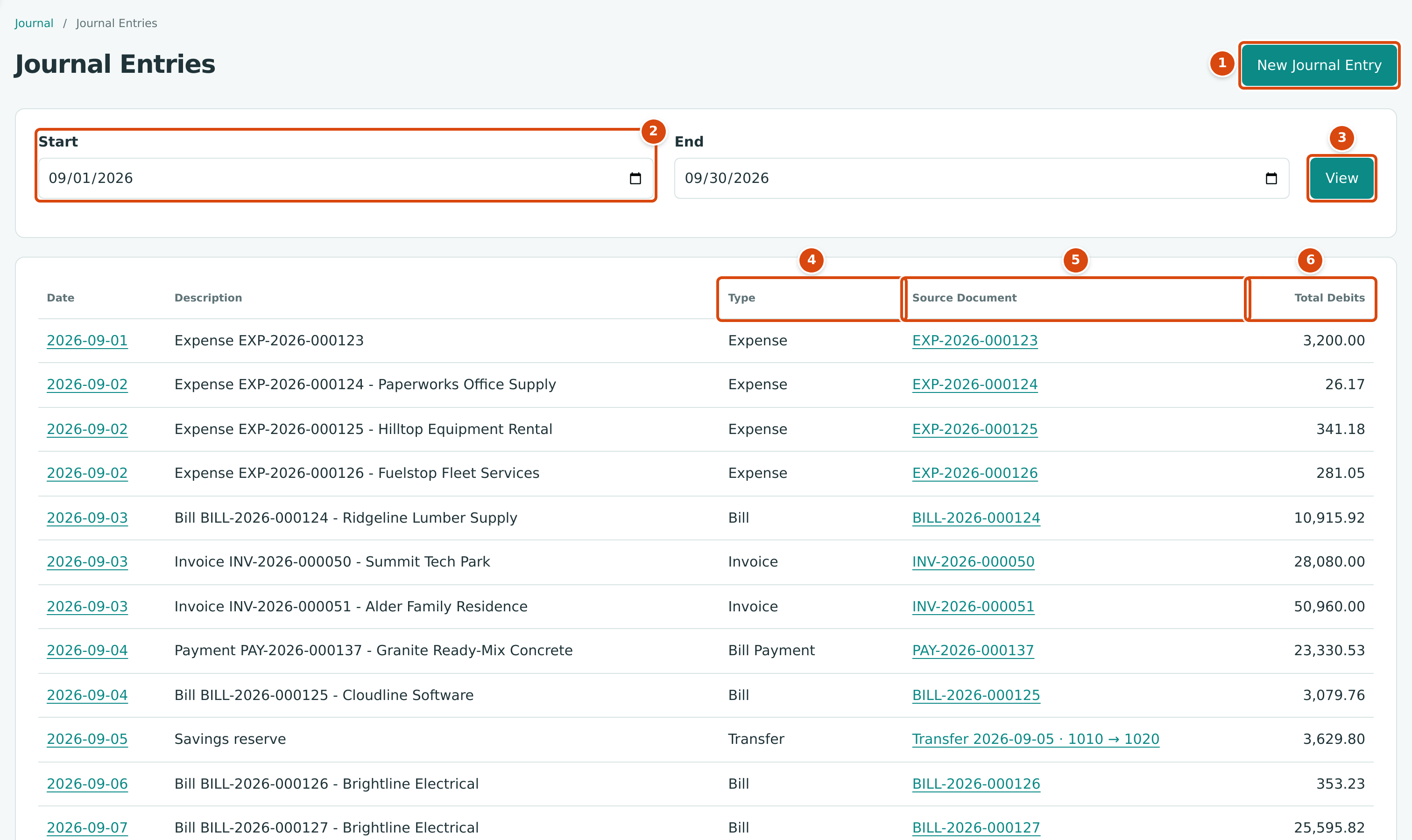
- New Journal Entry, beside the page title, starts a manual entry (Edit access only).
- Start and End: the period to list. The page opens on the current month up to today.
- View, at the end of the same row, lists the entries dated in the period.
- Type: what created the entry, such as Expense, Bill, Invoice, Bill Payment, Transfer or Journal Entry for a manual entry.
- Source Document: a link to the bill, invoice, payment or other record that posted the entry; — for manual entries.
- Total Debits: the entry's total (its debits equal its credits).
Click the Date of an entry to open it. Every posted entry in the period is listed, oldest first, including voids and reversals (types such as Bill Void and Payment Reversal). If nothing was posted in the period, the list says No entries in this period; because the page opens on the current month, choose earlier dates to see past activity.
The list shows at most 2,000 entries. For a longer period an amber notice says Showing the first 2,000 of (the number) entries, with an Open Journal Report button, and the last row says how many more entries are not shown. Narrow the dates, or use the Journal report and its export to see them all.
The Journal report
Reports → Journal shows posted entries with their debit and credit lines in one report. See Journal Report.
Posting a Journal Entry
Enter the Details
- Open Accounting → Journal Entries and click New Journal Entry beside the page title.
- Set Date to the accounting date of the entry. It starts as today.
- Type a Description, for example Monthly depreciation. It is the entry's name in the journal and in reports.
- Optionally click Attach Supporting Documents to add a schedule or statement (up to 3 files of 5 MB each: PDF, JPG, PNG, HEIC, Word, Excel or CSV).
Enter the Lines
The form starts with two lines, the first set to Debit and the second to Credit.
- On each line choose the Account, the Side (Debit or Credit) and the Amount.
- Optionally type a line Description and choose a Class and a Location for reports by class and location.
- Click Add Line for each additional line; the trash icon removes a line.
- Watch the totals above the lines: Debits, Credits, and Balanced once they agree.
- Click Post Journal Entry. Structally posts the entry and opens its page. Cancel returns to the list without posting.
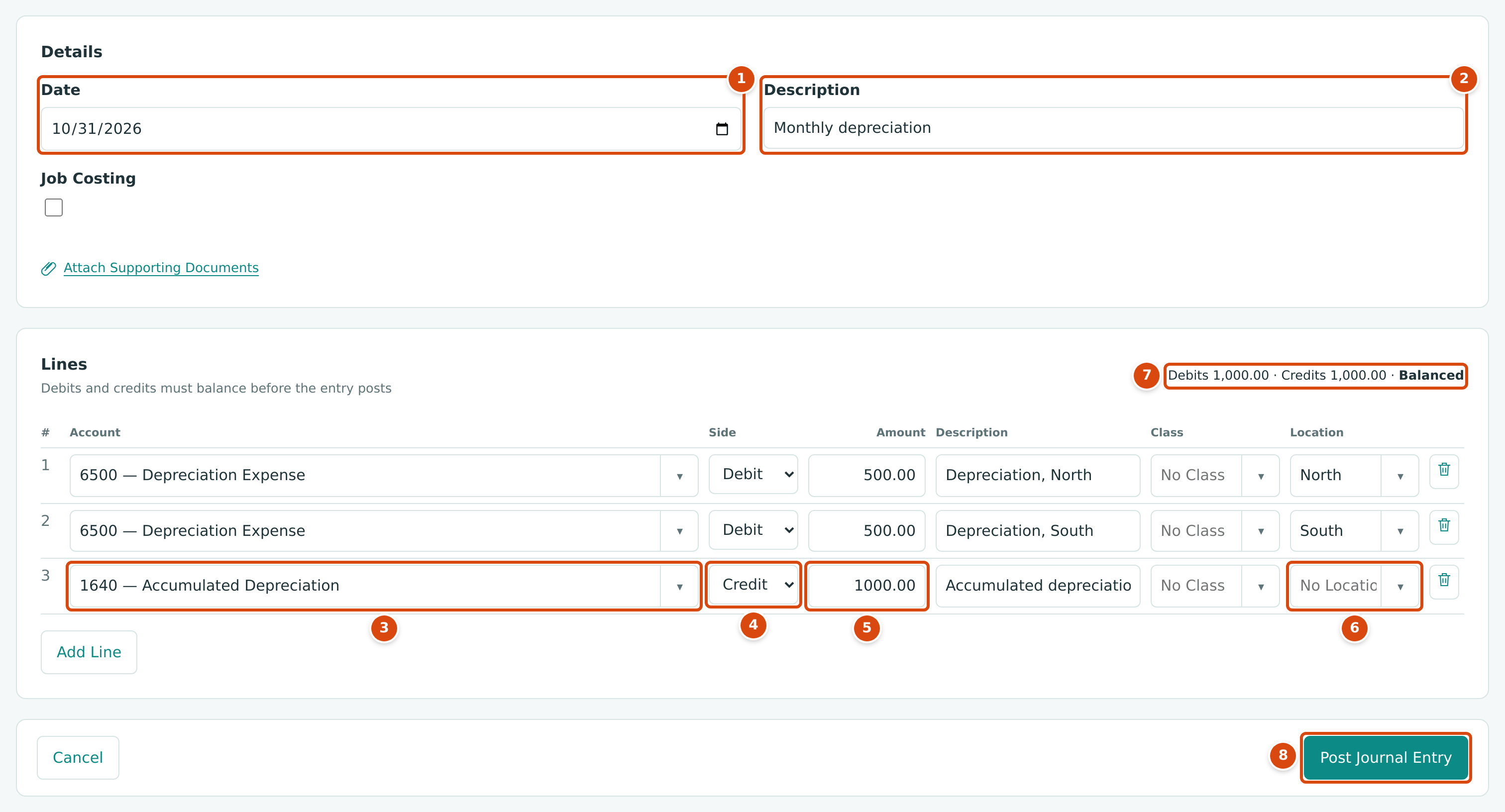
- Date: the accounting date.
- Description: the name of the entry.
- Account: the account for this line. Only active accounts are listed.
- Side: Debit or Credit.
- Amount: a positive amount with up to two decimals.
- Location (and Class): optional, for reports by location and class.
- The running totals and the balance check.
- Post Journal Entry posts the entry.
An entry must balance to post. While it does not, the totals show by how much:

- Out of balance by 100.00: fix the amounts before you post. If you post anyway, Structally refuses with Debits and credits must balance exactly.
Accounts that journal entries cannot use
Some accounts accept postings only from their own documents. A journal entry to a WIP account (such as 1400 Costs in Excess of Billings) is refused with Account 1400 accepts postings only from WIP schedules., and one to 2020 Retainage Payable or 1110 Retainage Receivable with a similar message. Avoid 2010 Accounts Payable and 1100 Accounts Receivable too: an entry there is not linked to any vendor or customer, so the aging reports stop agreeing with the account, which the Tie-Out report will show. Use a bill, invoice, credit or payment instead.
Coding Lines to Jobs
When Jobs & Costing is turned on, the form has a Job Costing box. Tick it to add Job, Cost Code and Cost Type columns, for example to move a cost from one job to another or to charge a job for company equipment.
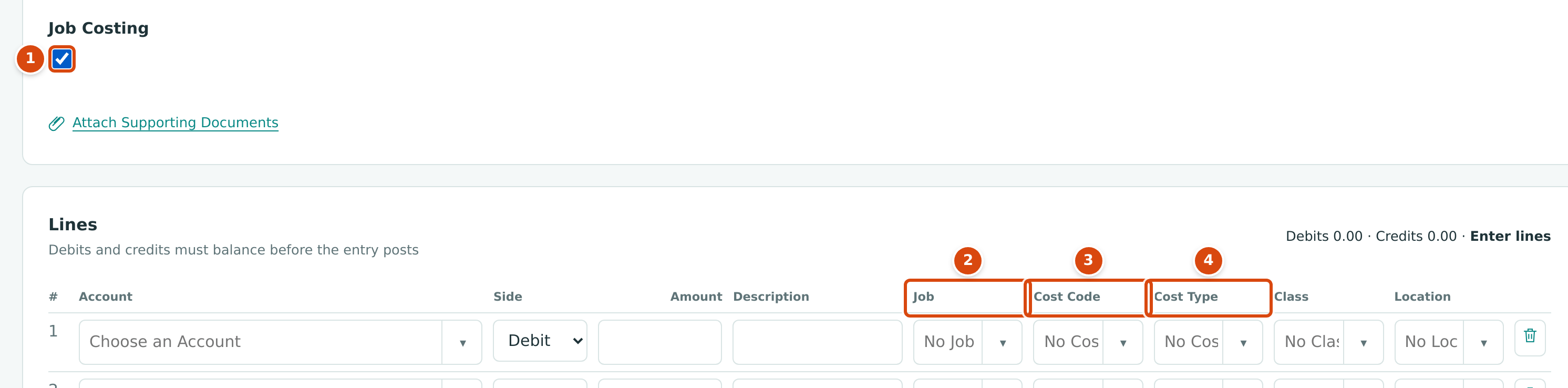
- Job Costing ticked.
- Job: an active job, or one On Hold or Closed (which then needs an Adjustment Reason on the line).
- Cost Code: one of the codes assigned to the job.
- Cost Type: labor, materials, subcontract and so on.
The same coding rules apply as on bills: whether an account can or must carry a job comes from Job Costing Settings, and a job-coded direct cost line needs both a cost code and a cost type. Journal lines cannot be split. To move a cost between jobs you can also use the job cost transfer on Job Costs and Cost Transfers. See Coding Transactions to Jobs.
Field Reference
| Field | Description | Required | Example |
|---|---|---|---|
| Date | The accounting date. Must be after the Books Closed date. | Yes | 10/31/2026 |
| Description | The entry's name, up to 200 characters. | No | Monthly depreciation |
| Job Costing | Shows the job columns. Only when Jobs & Costing is on. | No | Ticked |
| Attach Supporting Documents | Up to 3 files, 5 MB each. | No | Depreciation schedule.xlsx |
| Account (line) | An active account. | Yes | 6500 — Depreciation Expense |
| Side (line) | Debit or Credit. | Yes | Debit |
| Amount (line) | At least 0.01, up to two decimals. | Yes | 500.00 |
| Description (line) | Up to 100 characters. | No | Depreciation, North |
| Job, Cost Code, Cost Type (line) | Job coding, with Job Costing ticked. | When the account requires it | J-2004 · 31-100 · EQP |
| Adjustment Reason (line) | Why a line goes to an on-hold or closed job. | For on-hold or closed jobs | Late equipment charge |
| Class, Location (line) | For reports by class and location. The column names follow your company's labels. | No | North |
An entry needs at least two lines and can have up to 50.
Worked Example: Monthly Depreciation
Cedar Ridge depreciates its equipment by $1,000.00 a month and splits the expense equally between its North and South locations. The entry it posted on September 30, 2026 is in the sample company:
| Line | Account | Side | Amount | Location |
|---|---|---|---|---|
| 1 | 6500 Depreciation Expense | Debit | 500.00 | North |
| 2 | 6500 Depreciation Expense | Debit | 500.00 | South |
| 3 | 1640 Accumulated Depreciation | Credit | 1,000.00 |
Debits: 500.00 + 500.00 = 1,000.00. Credits: 1,000.00. The entry balances, and the totals show Balanced. The October entry in the figure above is the same with the date 10/31/2026.
The Entry
Depreciation Expense rises by $1,000.00 on the Profit and Loss, half for each location, and Accumulated Depreciation (a credit account under Assets) reduces the book value of the equipment by $1,000.00.
What Happens After You Post
- The entry is posted and locked on its date. It cannot be edited or deleted; to correct it, reverse it (below) and post a new one.
- It appears in the journal, the General Ledger, the Trial Balance and the financial statements.
- The Audit Log records it under
post_journal_entry, and the entry's History shows who posted it.
The Journal Entry Page
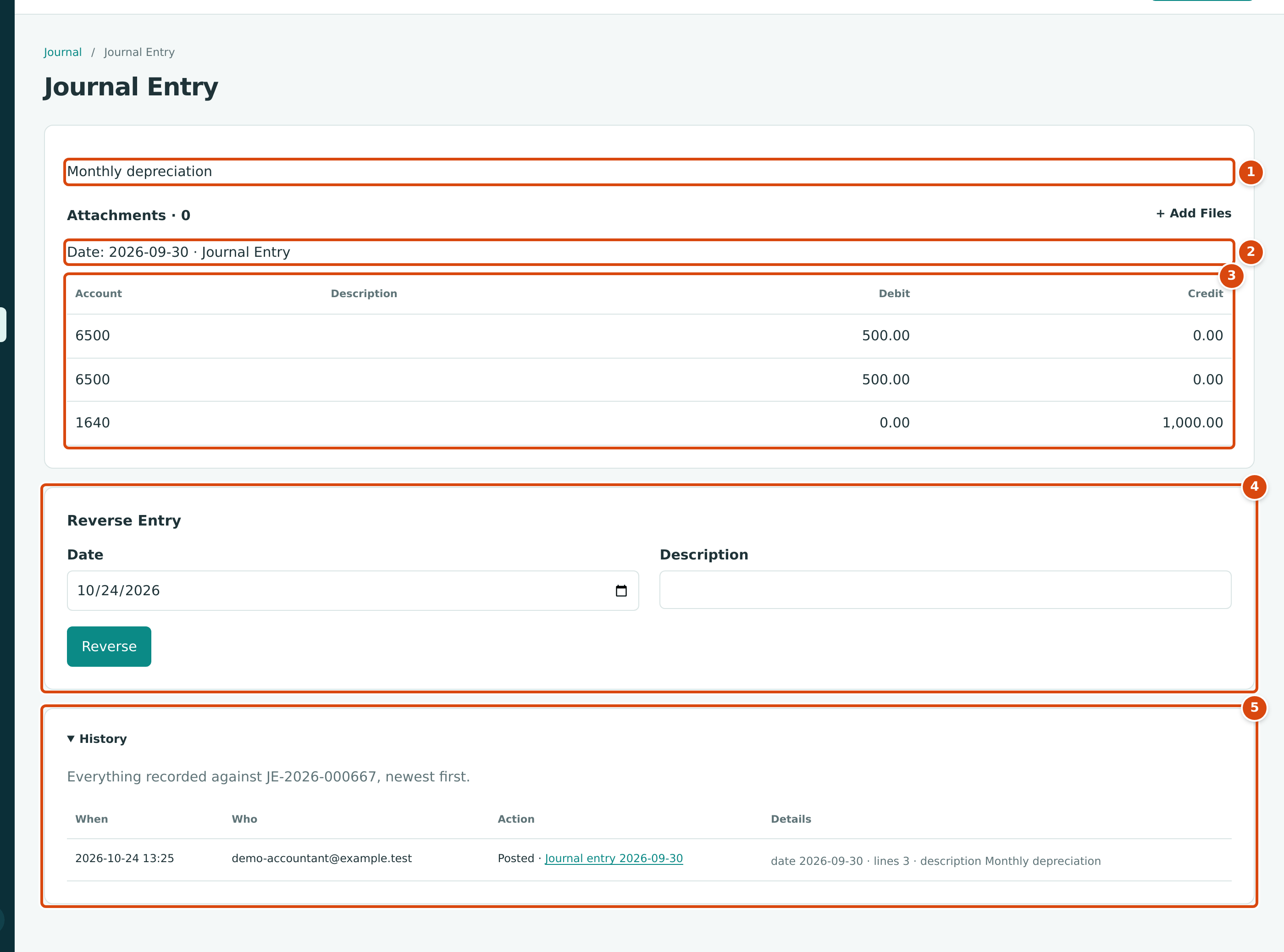
- The entry's description.
- The date and the type (Journal Entry for a manual entry).
- The lines, by account code, with the job columns when a line is job-coded.
- Reverse Entry: reverses a manual entry (Edit access only).
- History: who posted the entry and when. The note names the entry's number, here JE-2026-000667.
An entry that a document posted shows Source document: with a link to that document instead of the Reverse Entry form. Attachments with + Add Files lets you add supporting files later.
Reversing a Journal Entry
A posted entry is corrected by reversing it: Structally posts a second entry with the same lines on the opposite sides, so the two cancel out.
- Open the entry and find Reverse Entry below its lines.
- Set Date to the date the reversal should post (it starts as today). It cannot be earlier than the entry's own date, and must be after the Books Closed date.
- Optionally type a Description for the reversing entry.
- Click Reverse.
The page reloads with a Reversal Entry link to the new entry, and the Reverse Entry form is gone: an entry can be reversed only once. The reversing entry's page links back with Original Entry, and its type in the journal is Journal Entry Reversal.
Reversing the September Depreciation (Illustrative)
Reversing the entry above on October 24, 2026 would post:
| Account | Debit | Credit |
|---|---|---|
| 6500 Depreciation Expense (North) | 500.00 | |
| 6500 Depreciation Expense (South) | 500.00 | |
| 1640 Accumulated Depreciation | 1,000.00 |
The September entry stays in September; the reversal takes effect on its own date, so September's reports are unchanged.
The Reverse Entry form appears only on manual entries. Entries posted by a bill, invoice, payment or other document are corrected through that document, and opening balance and job cost transfer entries have no reverse action on screen. See Reversing and Correcting Transactions.
Common Mistakes and Troubleshooting
| Message or Symptom | Why It Happens | What to Do |
|---|---|---|
| Debits and credits must balance exactly. | The debits and credits differ. | Fix the amounts until the totals show Balanced. |
| Accounting date must be after the company closing date. | The date is on or before the Books Closed date. | Use a later date, or ask a Company Admin about Books Closed. |
| Account 1400 accepts postings only from WIP schedules. | A WIP account is on a line. | Let the WIP schedule post it. |
| Account 2020 accepts postings only from bills and retainage releases. | Retainage Payable is on a line. | Record retainage through bills and retainage releases. |
| Turn on Job Costing or clear the job coding on the lines. | Lines name jobs but Job Costing is not ticked. | Tick it, or clear the job fields. |
| Account 6010 cannot carry job coding. | The account is not set up for job costs. | Remove the job, or change the account's setting in Job Costing Settings. |
| Account 5040 requires job coding. | Your settings require a job on this account. | Tick Job Costing and choose the job, cost code and cost type. |
| Job-coded cost lines need a cost code and a cost type. | A job was chosen without both codes. | Choose a cost code and a cost type. |
| A document can have at most 3 attachments. | More than three files were attached. | Attach at most three. |
| Reversal date cannot be earlier than the journal entry date. | The reversal is dated before the entry. | Use the entry's date or later. |
| Accounting date must be after the company closing date; 2026-07-15 is on a closed period. | The reversal date is in a closed period. | Date the reversal after the Books Closed date. |
| Entry is matched to a bank line; unmatch it first | The entry is matched to a bank feed line. | Unmatch it in the Bank Feed, then reverse. |
| The journal list is empty. | The page opens on the current month. | Change Start and End and click View. |
| No Reverse Entry form on an entry. | It was posted by a document, it is already reversed, or you have View access only. | Correct the document instead, or follow the Reversal Entry link. |