Job Costing Settings
Job Costing Settings is the one page where you set up how Jobs & Costing works for your company. It holds the lists of cost codes and cost types, decides which accounts can carry job costs or job revenue (and whether a job is required on them), sets what happens when a bill goes over a commitment, sets the retainage percentages that new subcontracts, purchase orders and jobs start with, and creates the retainage and WIP accounts that billing and month-end need.
Set it up once, before you enter the first job. Most companies change it rarely afterwards.
Before You Begin
- Jobs & Costing is turned on for your company (see Jobs & Costing).
- Anyone with access to Jobs & Costing can open the page.
- Adding and changing cost codes and cost types needs Edit access to Jobs & Costing: Company Admins, Accountants and Project Managers have it.
- Job Cost Accounts, Commitment Overruns, Default Retainage, the retainage account buttons and Create Accounts for WIP can be changed only by a Company Admin. Everyone else sees these cards read-only. See Roles and Permissions.
Navigation
Jobs & Costing → Job Costing Settings. The Cost Codes and Cost Types tiles on the Overview also open it.
The Page at a Glance
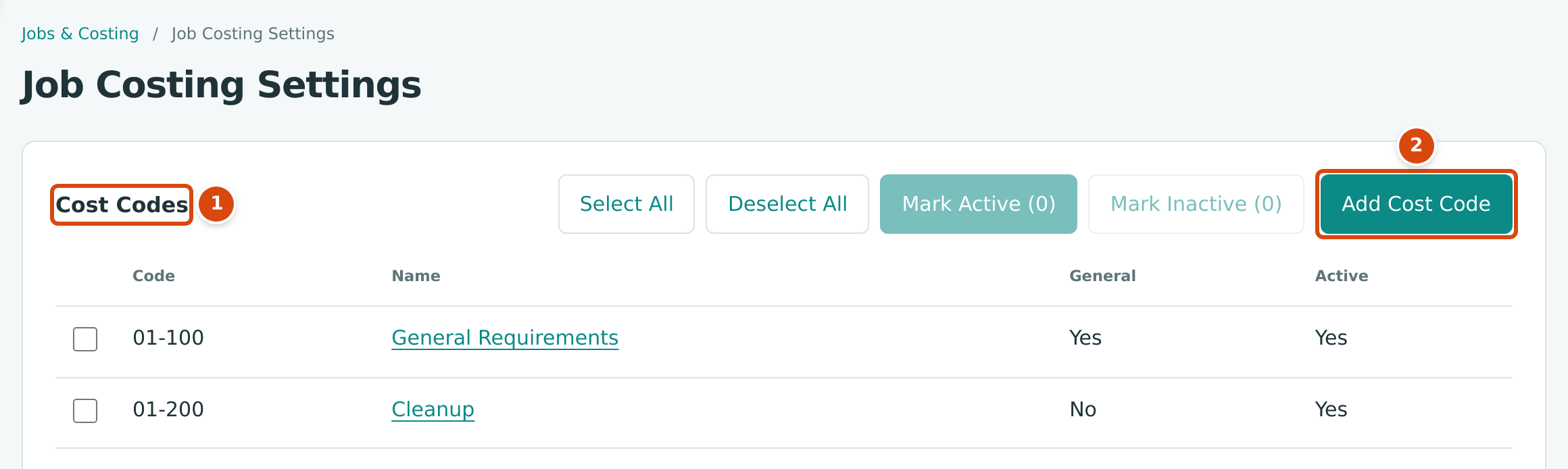
- Cost Codes, followed further down by Cost Types: the lists you code job lines with.
- Add Cost Code (and Add Cost Type on the next card) open a short form in a side panel.
The page has six cards, from top to bottom:
| Card | What It Holds | Who Can Change It |
|---|---|---|
| Cost Codes | Your work categories, such as 03-300 Concrete. | Edit access to Jobs & Costing |
| Cost Types | The kinds of cost, such as LAB Labor or SUB Subcontract. | Edit access to Jobs & Costing |
| Job Cost Accounts | For each cost and revenue account: whether it is a direct cost, revenue or excluded account, and whether job coding is optional or required. | Company Admin |
| Commitment Overruns | Warn or Block when a bill goes over a commitment. | Company Admin |
| Default Retainage | The retainage percentages new commitments and jobs start with, and the Retainage Payable and Retainage Receivable accounts. | Company Admin |
| WIP Accounts | The seven accounts the WIP schedule posts to. | Company Admin |
Cost Codes and Cost Types
A cost code is a work category (a phase or trade) such as 06-100 Rough Carpentry. A cost type is the kind of cost within it, such as MAT Materials or SUB Subcontract. Every job-coded cost line carries one of each, so job cost reports can show, for example, how much of the drywall budget went to subcontractors.
The cards list every code and type with its settings, a Select All / Deselect All pair, Mark Active and Mark Inactive buttons for the ticked rows, and Add Cost Code / Add Cost Type. Click a name to open its own page. All of this is described in Cost Codes and Cost Types.
Job Cost Accounts
The Job Cost Accounts card decides which accounts can carry job coding:
- Direct Cost: lines on the account can carry a job, cost code and cost type, and count as job cost.
- Revenue: lines can carry a job (but no cost code or cost type) and count as job revenue.
- Excluded: lines on the account can never carry job coding.
For Direct Cost accounts, Coding says whether a job is Optional or Required on every line that uses the account.
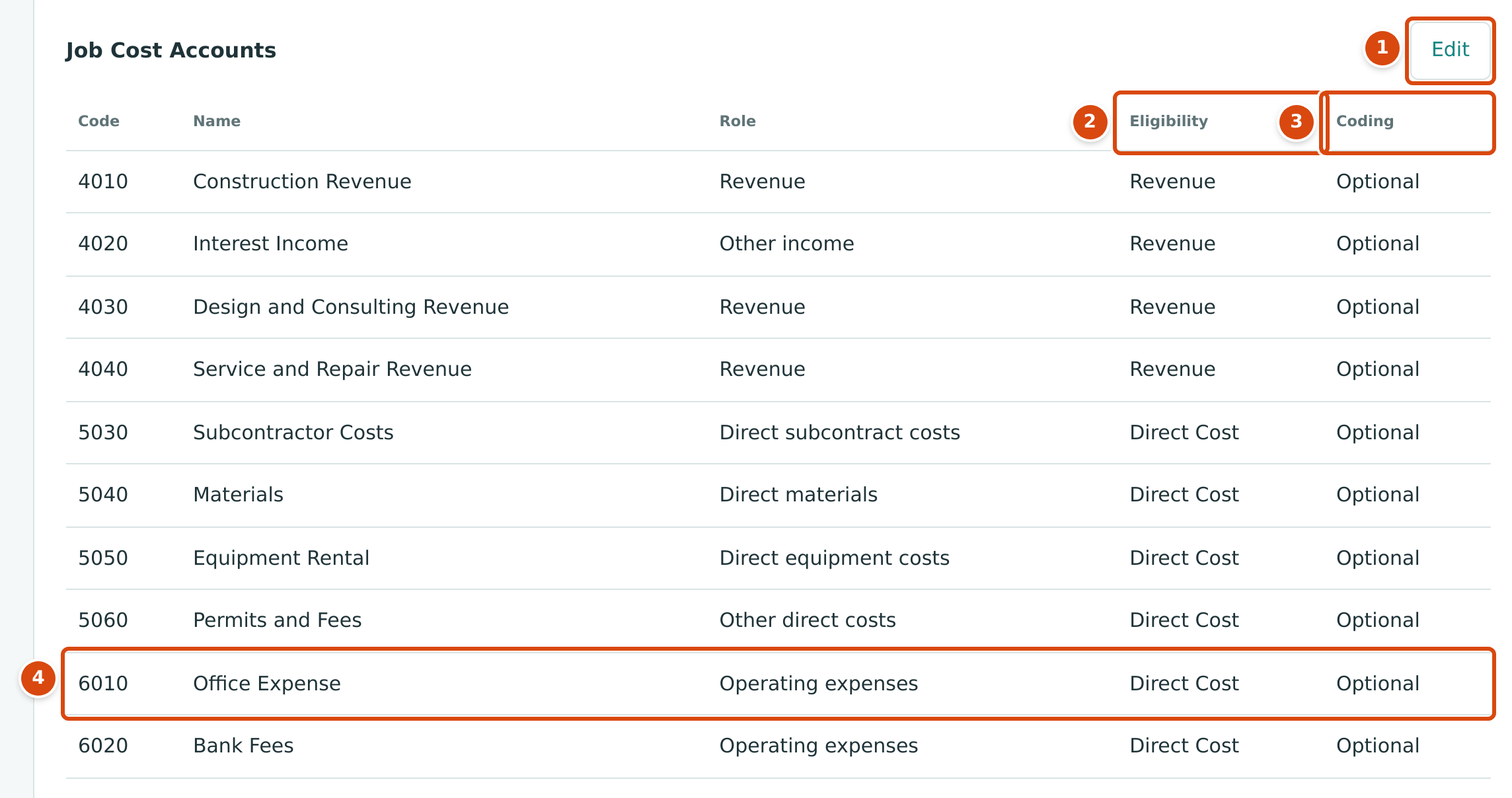
- Edit (Company Admins only) turns the card into a form.
- Eligibility: Direct Cost, Revenue or Excluded.
- Coding: Optional or Required.
- An operating expense account, 6010 Office Expense. Operating expenses are Direct Cost accounts unless you exclude them, so overhead can be charged to a job when you want to.
Which Accounts Are Listed, and Their Defaults
The card lists every active account whose role makes it a cost or revenue account, plus any account that already has its own setting. Each account starts with a default that comes from its role in the Chart of Accounts:
| Account Role | Default Eligibility | Default Coding |
|---|---|---|
| Direct materials, subcontract, equipment, labor and other direct costs (5030 to 5060 in the sample company) | Direct Cost | Optional |
| Operating expenses, depreciation, interest and tax expense and other expenses (6010 to 6600) | Direct Cost | Optional |
| Income accounts, such as Revenue and Other income (4010 to 4040) | Revenue | Optional |
| All other accounts: bank, receivables, payables, retainage, equity and so on | Excluded (not listed) | — |
The WIP accounts (such as 4100 WIP Revenue Adjustment) are never listed; their setting cannot change.
Changing Job Cost Accounts
-
Click Edit on the Job Cost Accounts card. Each row shows two lists.
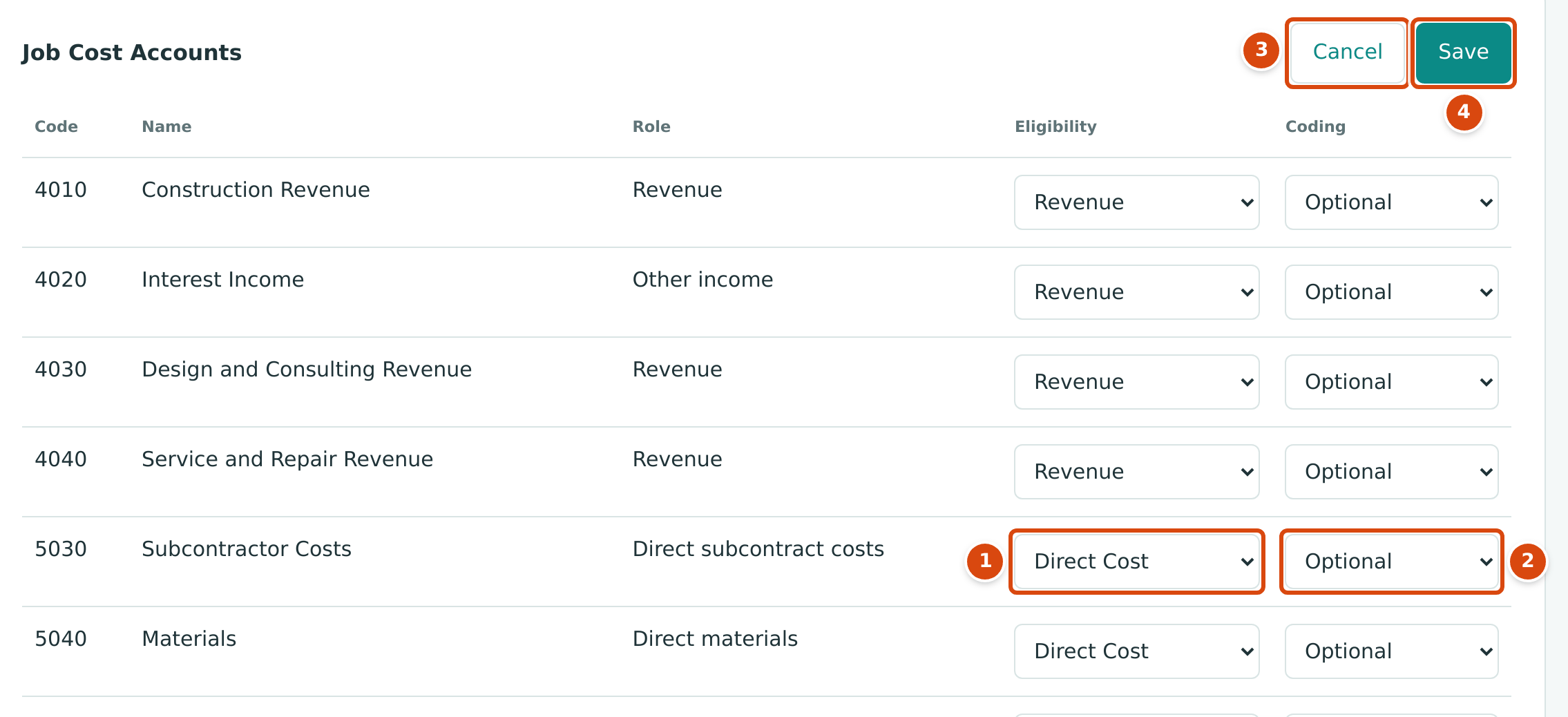
Figure 7-8 Job Cost Accounts in edit mode. 1. Eligibility for the account. 2. Coding for the account. 3. Cancel leaves without saving. 4. Save saves every row you changed in one step. -
Change Eligibility and Coding on the rows you need. For example, set 6030 Rent to Excluded if you never charge rent to jobs, or set 5040 Materials to Required if every materials cost must name a job.
-
Click Save. If an eligibility does not match the account's role (a revenue account set to Direct Cost, or a cost account set to Revenue), Structally asks you to check first:
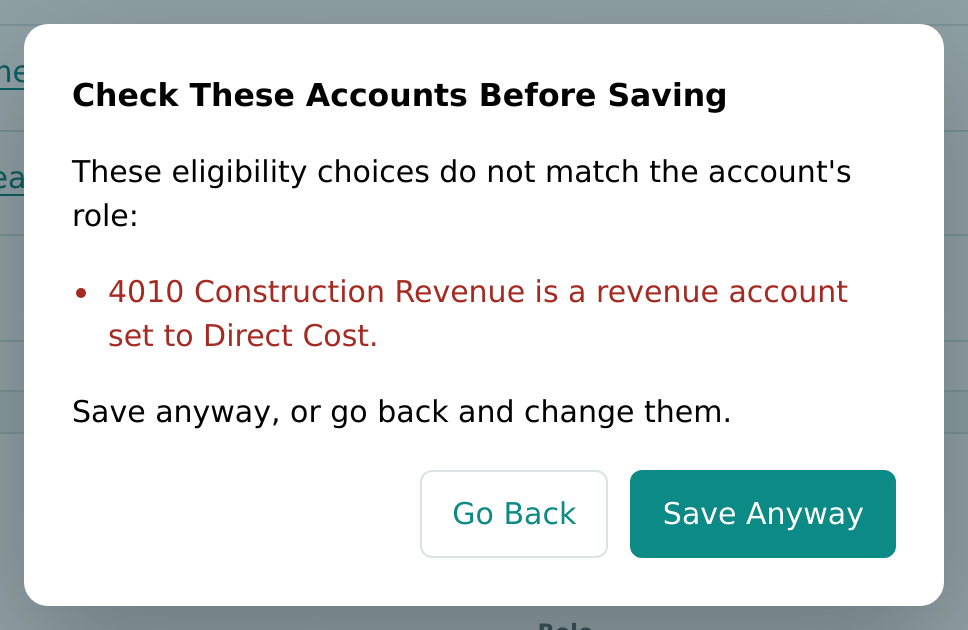
Figure 7-9 The check that appears when an eligibility does not match the account's role. Click Go Back to correct it, or Save Anyway to keep your choice.
Structally confirms with Job cost accounts saved: 2 changed. (the number of rows you changed), or No changes to save.
Excluding an account that already has job coding
You cannot set an account to Excluded once posted lines on it carry job coding. Structally refuses with Account 6030 carries job-coded lines and cannot be excluded. The setting applies to new postings only; it never changes lines already posted.
Commitment Overruns
Commitment Overruns decides what happens when you post a bill whose line, matched to a commitment line, is more than what is left on that commitment line.
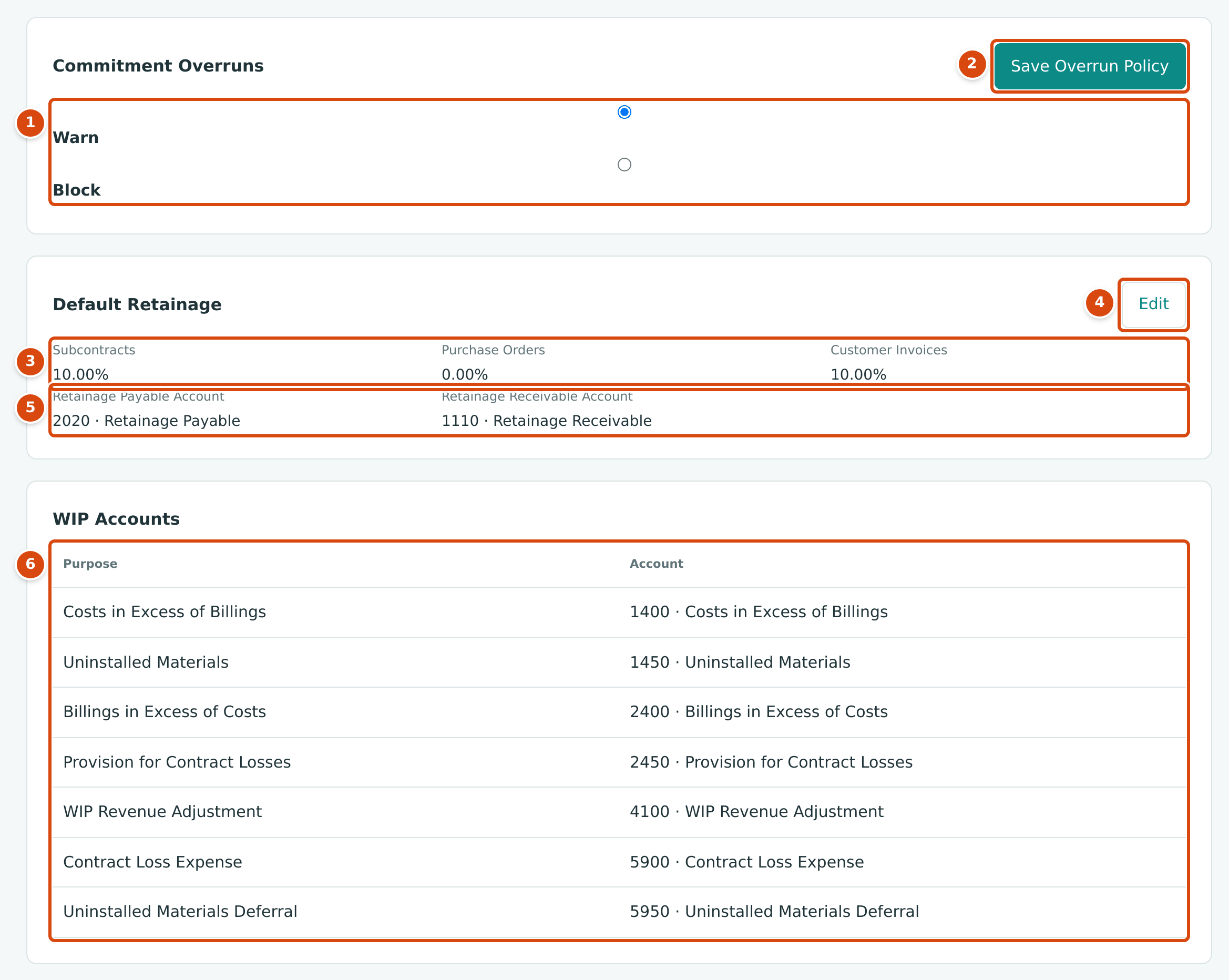
- Warn or Block.
- Save Overrun Policy saves the choice.
- The default retainage percentages.
- Edit opens the percentages for changes.
- The Retainage Payable Account and Retainage Receivable Account.
- The WIP Accounts with the account used for each purpose.
| Choice | What Happens |
|---|---|
| Warn (the default) | The bill posts. The amount over is recorded on the bill line and appears in commitment and job cost reports as a commitment overrun. |
| Block | Posting is refused with a message such as Line 1 exceeds commitment SC-2025-000008 line 1 by 1,250.00. A Company Admin or Accountant can post it anyway with an Override Reason; other users must ask them or amend the commitment first. |
To change it, choose Warn or Block and click Save Overrun Policy. Structally confirms with Commitment overrun policy saved. The bill side is described in Entering a Bill.
Default Retainage
Retainage is the part of each billing that is held back until the work is accepted. The Default Retainage card holds three starting percentages:
| Setting | Used For | Default |
|---|---|---|
| Subcontracts | The Retainage of a new subcontract. | 10.00% |
| Purchase Orders | The Retainage of a new purchase order. | 0.00% |
| Customer Invoices | The Billing Retainage of a new job, which new pay applications and invoice lines for that job start with. | 10.00% |
Changing a default affects only commitments and jobs created afterwards. Each commitment and job keeps its own percentage, which you can change on it.
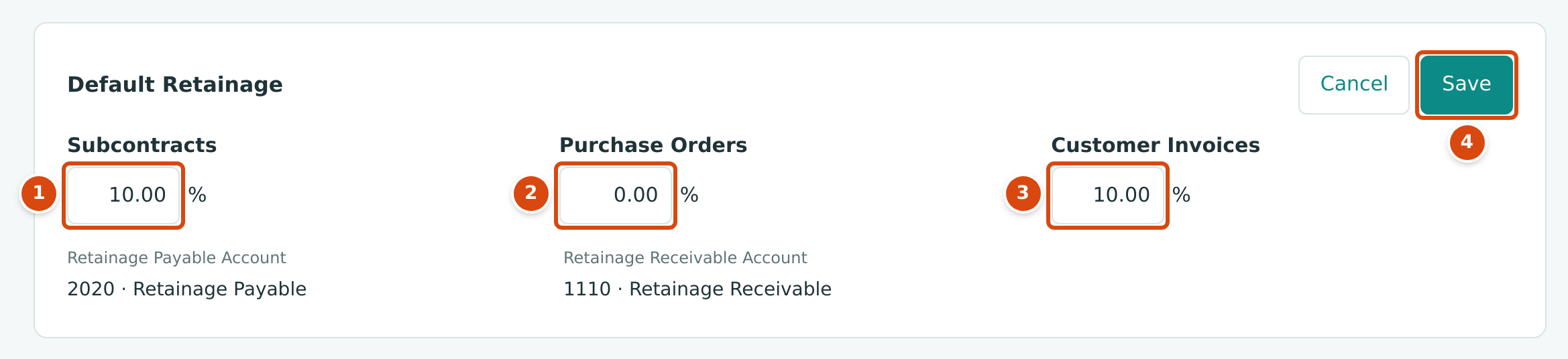
- Subcontracts percentage.
- Purchase Orders percentage.
- Customer Invoices percentage.
- Save. Cancel, beside it, leaves without saving.
- Click Edit on the Default Retainage card.
- Type each percentage from 0 to 100, with up to two decimals.
- Click Save. Structally confirms with Default retainage saved.
Retainage Accounts
Bills can hold retainage only when the company has a Retainage Payable account, and invoices only when it has a Retainage Receivable account. The card shows each account (2020 · Retainage Payable and 1110 · Retainage Receivable in the sample company). When one is missing, a Company Admin sees a Create Account button in its place. Clicking it creates the account with the first free code from 2020 to 2099 (Retainage Payable) or from 1110 to 1199 (Retainage Receivable) and confirms with, for example, Retainage Payable account 2020 created.
WIP Accounts
The WIP schedule posts to seven accounts, one for each purpose: Costs in Excess of Billings, Uninstalled Materials, Billings in Excess of Costs, Provision for Contract Losses, WIP Revenue Adjustment, Contract Loss Expense and Uninstalled Materials Deferral. The card shows the account used for each purpose, or a dash when it is missing.
When any is missing, a Company Admin sees Create Accounts. It creates every missing account with the first free code in its range and confirms with WIP accounts ready: followed by the seven codes.
| Purpose | Code Range | Sample Company |
|---|---|---|
| Costs in Excess of Billings | 1400 to 1449 | 1400 |
| Uninstalled Materials | 1450 to 1499 | 1450 |
| Billings in Excess of Costs | 2400 to 2449 | 2400 |
| Provision for Contract Losses | 2450 to 2499 | 2450 |
| WIP Revenue Adjustment | 4100 to 4199 | 4100 |
| Contract Loss Expense | 5900 to 5949 | 5900 |
| Uninstalled Materials Deferral | 5950 to 5999 | 5950 |
What Other Users See
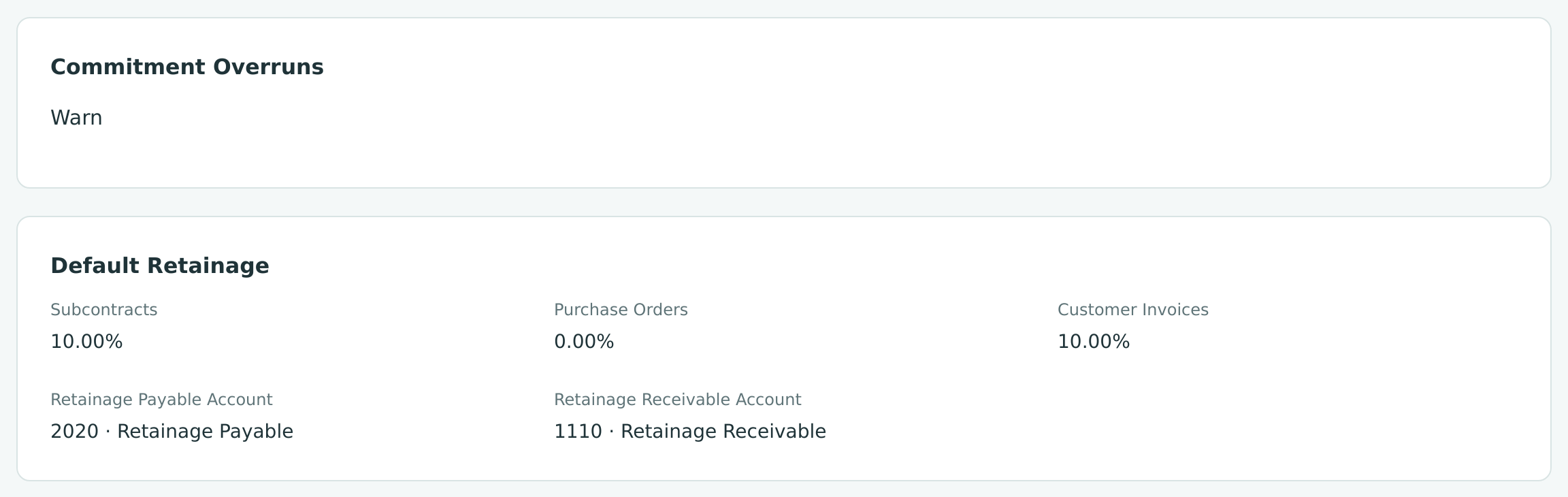
Users who are not Company Admins see the account, overrun and retainage settings without Edit or Save buttons:
Field Reference
| Setting | Choices | Default | Effect | Who Can Change It |
|---|---|---|---|---|
| Eligibility (per account) | Direct Cost, Revenue, Excluded | From the account's role (see above) | Whether lines on the account can carry job coding, and whether they count as job cost or job revenue | Company Admin |
| Coding (per account) | Optional, Required | Optional | Required makes a job mandatory on every line of a Direct Cost account | Company Admin |
| Commitment Overruns | Warn, Block | Warn | Whether bills over a commitment post or are refused | Company Admin |
| Subcontracts | 0 to 100% | 10.00% | Starting retainage of new subcontracts | Company Admin |
| Purchase Orders | 0 to 100% | 0.00% | Starting retainage of new purchase orders | Company Admin |
| Customer Invoices | 0 to 100% | 10.00% | Starting billing retainage of new jobs | Company Admin |
| Retainage Payable Account | Create Account | — | Lets bills hold retainage | Company Admin |
| Retainage Receivable Account | Create Account | — | Lets invoices hold retainage | Company Admin |
| WIP Accounts | Create Accounts | — | Lets WIP schedules post | Company Admin |
Worked Example: Requiring a Job on Materials
Cedar Ridge Contracting buys materials only for jobs. To make sure no materials bill is posted without a job, the Company Admin opens Job Cost Accounts, clicks Edit, sets 5040 Materials to Direct Cost · Required, and clicks Save. Structally confirms Job cost accounts saved: 1 changed.
From then on, Structally refuses a bill line on 5040 that has no job: Account 5040 requires job coding. The user ticks Job Costing and chooses the job, cost code and cost type (see Coding Transactions to Jobs). Lines posted before the change are not affected. (This example is illustrative; the sample company keeps every account at Optional.)
Common Mistakes and Troubleshooting
| Message or Symptom | Why It Happens | What to Do |
|---|---|---|
| No Edit button on Job Cost Accounts or Default Retainage | Only a Company Admin can change these settings. | Ask a Company Admin. |
| Coding applies to direct cost accounts only. | Required was chosen for a Revenue or Excluded account. | Set Coding to Optional, or make the account Direct Cost. |
| Account 6030 carries job-coded lines and cannot be excluded. | Posted lines on the account already carry job coding. | Leave it as Direct Cost; use Optional coding. |
| Retainage percent must be from 0 to 100 with at most two decimals. | A default retainage is out of range or has too many decimals. | Enter a value such as 10 or 7.5. |
| No free account code from 2020 to 2099 for Retainage Payable. | Every code from 2020 to 2099 is already used by another account. | Review the accounts in that range in the Chart of Accounts. |
| Set up retainage in Job Costing Settings before posting bills with retainage. (on a bill) | There is no Retainage Payable account. | Click Create Account beside Retainage Payable Account. |
| There is no button to add the standard cost types | Structally adds them when the module is turned on. | Add any missing type with Add Cost Type. |