| Account | Debit | Credit |
|---|---|---|
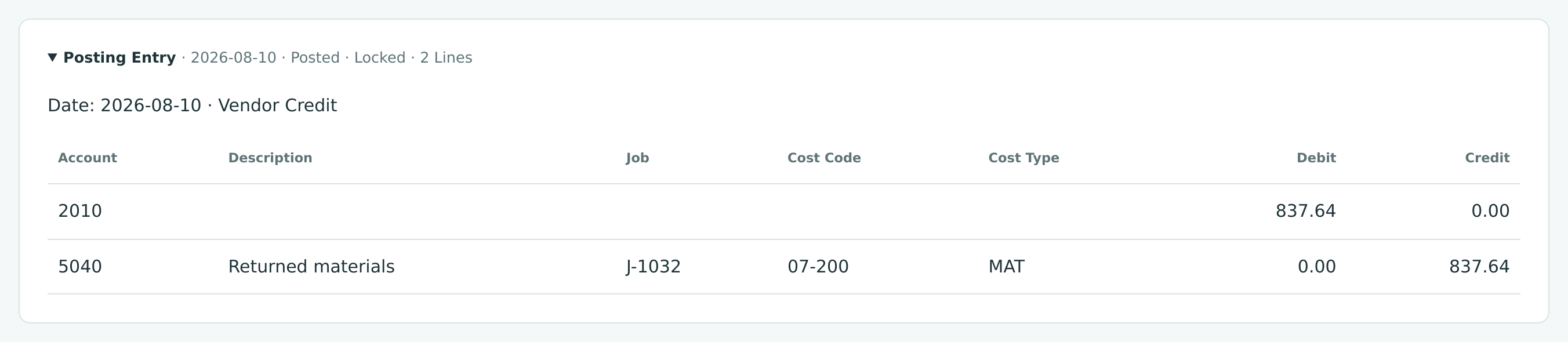
| 2010 Accounts Payable | 837.64 | |
| 5040 Materials (J-1032 · 07-200 · MAT) | 837.64 |
Vendor Credits
A vendor credit records an amount a vendor owes you: materials you returned, a volume rebate, a price correction, a credit note the vendor sent for an overbilled invoice. Posting the credit reduces accounts payable and takes the amount back off the accounts (and jobs) it came from. You then apply the credit to one or more of the vendor's open bills, so you pay less. A credit you will not use against a bill can be refunded in Banking.
Before You Begin
- The vendor exists and is active.
- You need Edit access to Vendors & Bills to create, post, apply, unapply or void credits (Company Admins, Accountants, Project Managers, and Custom users with Edit). Viewers can open credits but see no buttons. See Roles and Permissions.
- Posting and voiding dates must be after the Books Closed date.
Navigation
Vendors & Bills → Vendor Credits → New Vendor Credit.
Step by Step
Enter the Credit
- Open Vendors & Bills → Vendor Credits and click New Vendor Credit.
- In Vendor, choose the vendor. If it has an issued commitment, Structally turns on Commitments and Job Costing, as on a bill.
- Set Date to the date on the vendor's credit note. It is the accounting date of the credit.
- In Reference, type the vendor's credit note or return number.
- Optionally choose a Location.
- On each line, choose the Account the credit reduces (usually the account the original purchase was charged to), type a Description and the Amount. With Job Costing on, choose the Job, Cost Code and Cost Type so the job's cost goes down too. Click Add Line for more.
- Optionally add a Memo and attach the credit note.
- Click Save Draft to keep it without posting, or Post Vendor Credit to post it now.
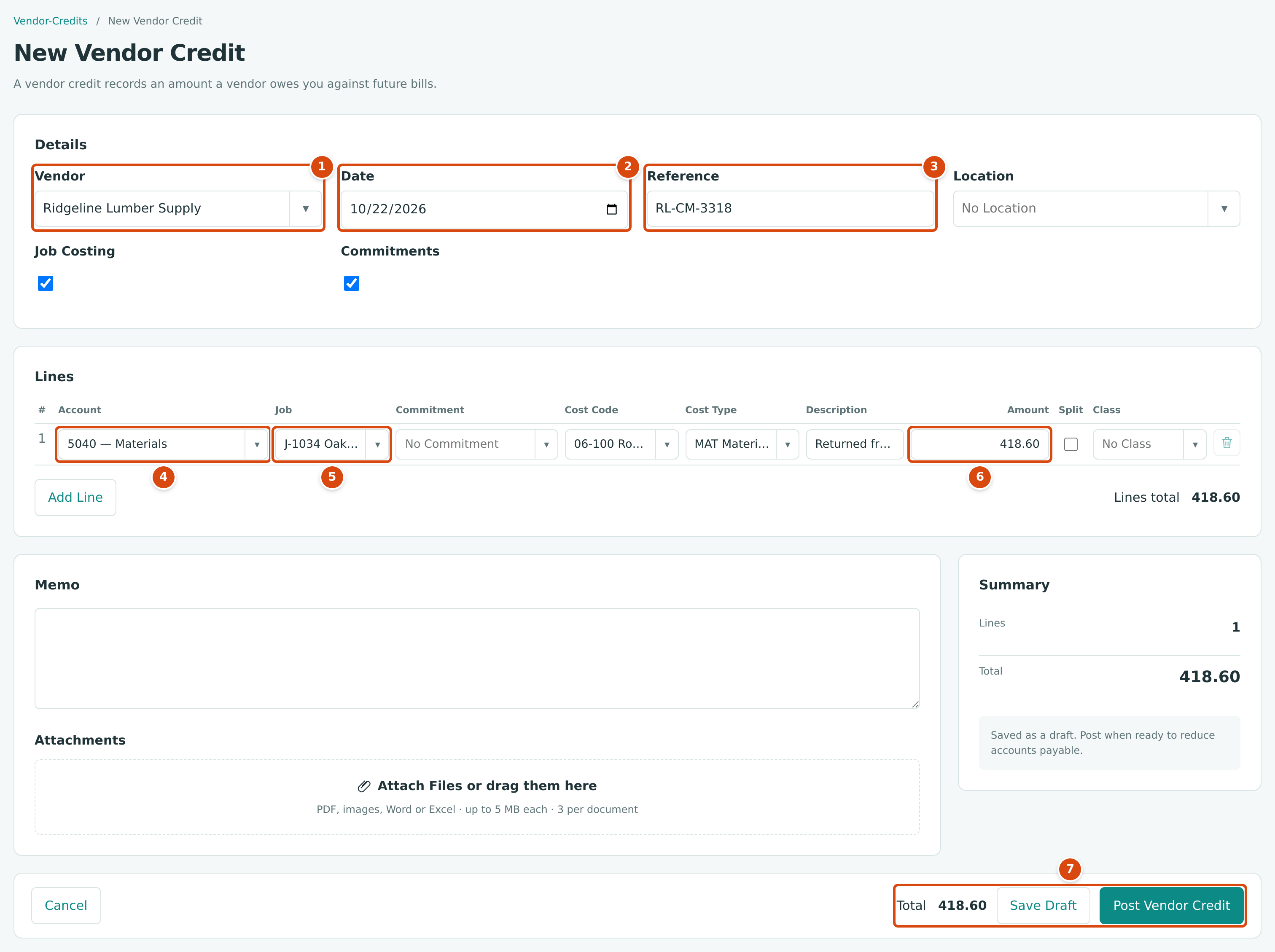
- Vendor: the vendor who owes you. Ridgeline has an issued purchase order, so Commitments came on with Job Costing.
- Date: the credit note's date.
- Reference: the vendor's credit note number.
- Account: the account the credit reduces, here 5040 — Materials.
- Job, then Cost Code and Cost Type: the job cost to reduce.
- Amount: the credited amount.
- Total, Save Draft and Post Vendor Credit.
Structally confirms with Vendor credit VCR-2026-000005 saved as a draft. or Vendor credit VCR-2026-000005 posted to accounts payable. (with the next number) and opens the credit. Credit numbers are assigned automatically as VCR-year-sequence.
Edit or Post a Draft
A draft has the status Draft and no journal entry. Open it and:
- click Edit Draft to change anything except the vendor, then Save Draft;
- or click Post Vendor Credit. The note beside the button reads Posting this vendor credit reduces accounts payable.
There is no button on screen to discard a draft credit. A draft you do not need stays in the list as Draft and never affects your books.
Field Reference
| Field | Description | Required | Example |
|---|---|---|---|
| Vendor | The vendor who owes you. Active vendors only. Cannot be changed after the first save. | Yes | Ridgeline Lumber Supply |
| Date | Credit date and accounting date. | Yes | 10/22/2026 |
| Reference | The vendor's credit note or return number, up to 60 characters. | No | RL-CM-3318 |
| Location | A location for the whole credit. | No | North |
| Job Costing | Shows the job, cost code, cost type and split columns. | No | Ticked |
| Commitments | Shows the Commitment column. A posted credit line matched to a commitment line reduces that commitment's billed to date. | No | Ticked |
| Account (line) | The account the credit reduces. Not Accounts Payable or a retainage account. | Yes | 5040 — Materials |
| Job, Cost Code, Cost Type (line) | The job cost the credit reduces. | With job costing | J-1034 · 06-100 · MAT |
| Description (line) | What the credit is for, up to 100 characters when posted. | No | Returned framing lumber, 12 bundles |
| Amount (line) | A positive amount with up to two decimals. | Yes | 418.60 |
| Class (line) | A class for reports by class. | No | Commercial |
| Memo, Attachments | An internal note; the credit note file (up to 5 MB each, 3 per credit). | No | RL-CM-3318.pdf |
Applying a Credit to Bills
A posted credit with a Remaining amount shows an Apply Credit button at the top and an Apply Credit section on its page.
- Open the credit and click Apply Credit.
- Set Date: the date of the application. It cannot be earlier than the credit date or the date of a bill you apply it to.
- In the table of the vendor's open bills, type in Allocate how much of the credit goes to each bill.
- Click Apply Credit.
Applying posts no journal entry: accounts payable was already reduced when the credit was posted. It only settles the bill. The bill's Paid grows and its Open Balance falls; a bill with nothing left becomes Paid. When the whole credit is used, its status becomes Applied and Remaining shows 0.00.
Apply Credit Form Not Shown
Every vendor credit in the sample company is already fully applied, so the Apply Credit section cannot be shown with real data. It has a Date field, the vendor's open bills with Number, Date, Due, Balance and Allocate, an Allocated total and the Apply Credit button.
The credit's page lists each application, and the bill shows the credit under Credits Applied:
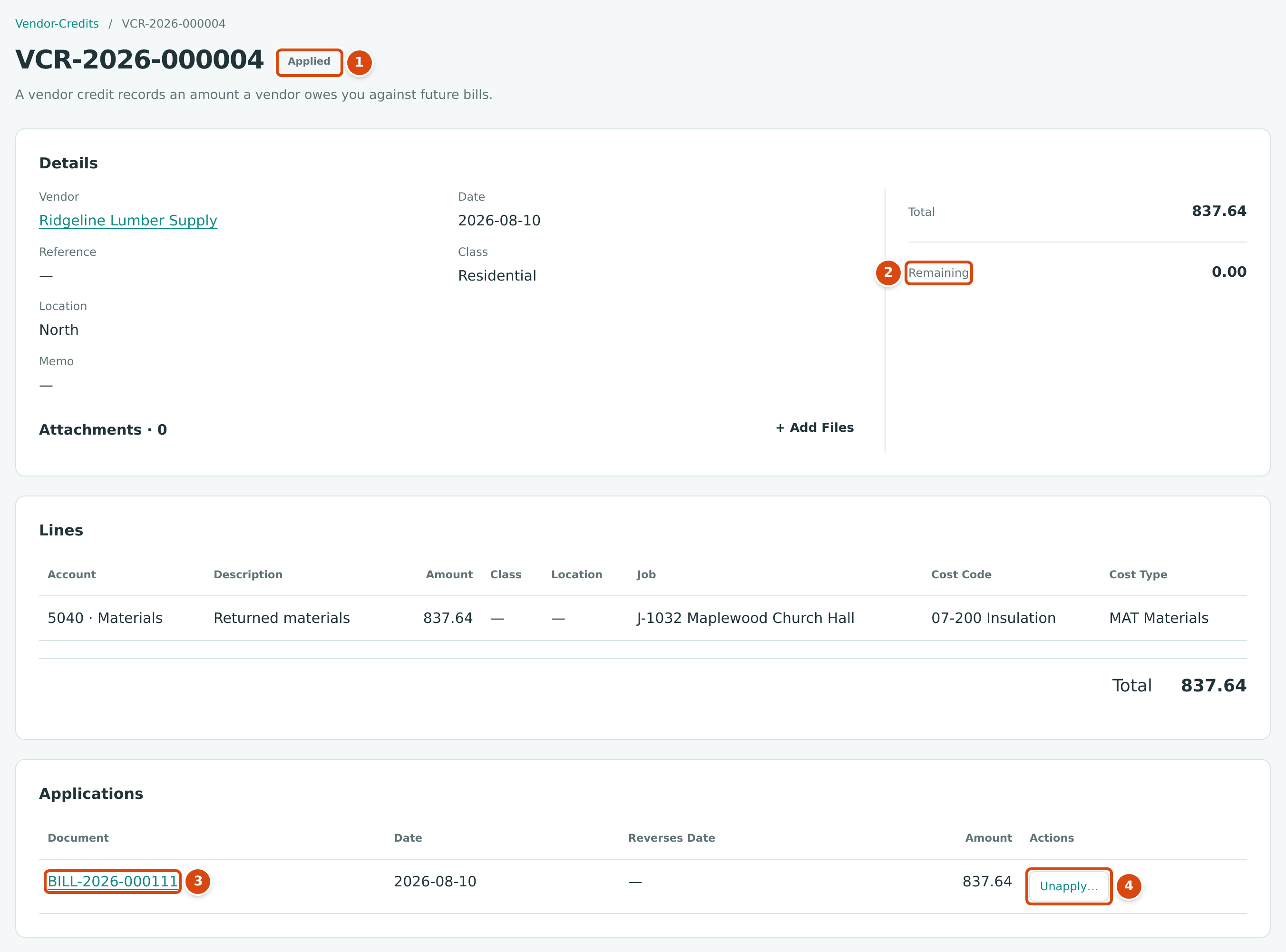
- The status: Draft, Open, Applied (fully used) or Void.
- Remaining: what is left to apply or refund.
- Applications: each bill the credit was applied to, with the date.
- Unapply… takes the credit off that bill.
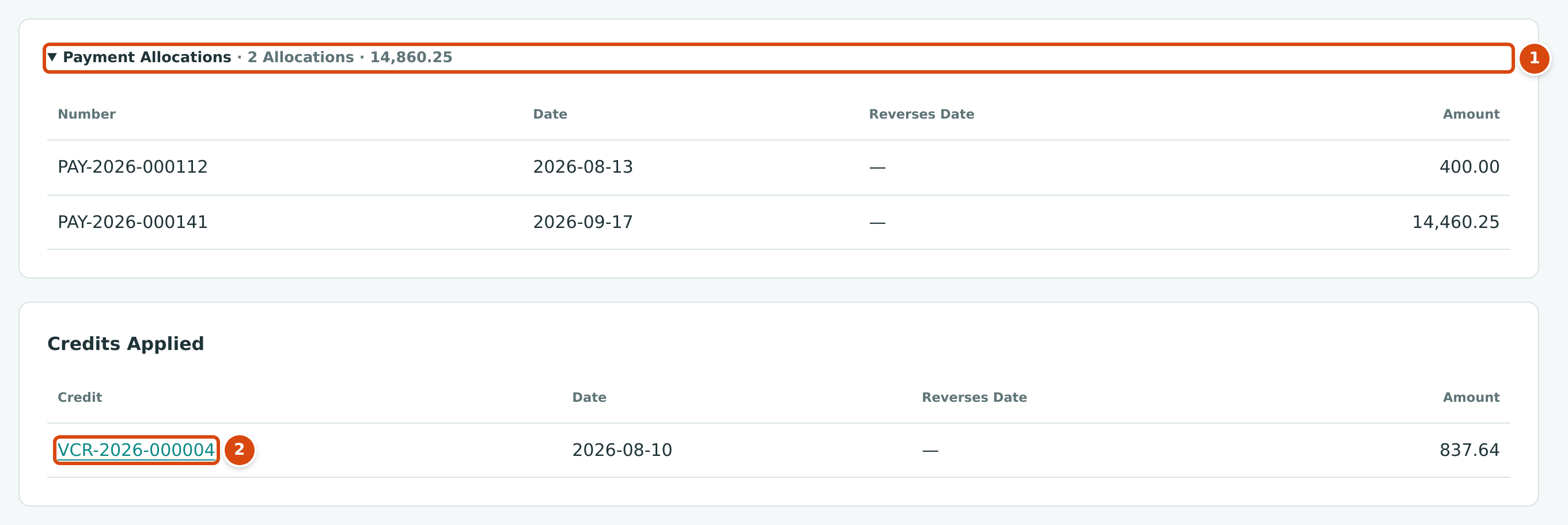
- Payment Allocations: the payments applied to the bill.
- Credits Applied: the vendor credit applied to the bill.
Unapplying a Credit
- Open the credit. In Applications, click Unapply… on the bill's row.
- Set Date: it starts as today and cannot be earlier than the application.
- Click Unapply.
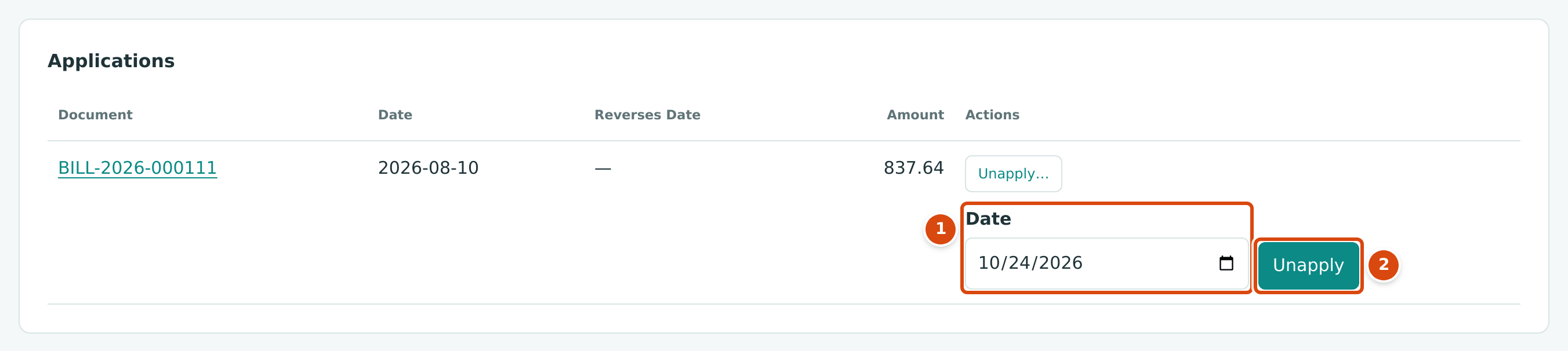
- Date of the unapply.
- Unapply removes the application.
Structally adds a negative row dated on the unapply date, with the original date in Reverses Date. The bill owes that amount again (a Paid bill becomes Open), and the credit is Open again with that amount Remaining. No journal entry is posted.
Voiding a Vendor Credit
Void a posted credit that was entered by mistake. Voiding posts the mirror image of the credit's entry on the date you choose and sets the status to Void.
A credit can be voided only when it is Open and nothing is applied or refunded from it:
| Condition | If Not, Structally Says |
|---|---|
| No application to a bill remains. | Vendor credit has applications; unapply them first |
| No refund draws on it. | Vendor credit has refunds; reverse them first |
| It is Open. | Only open vendor credits can be voided |
| Its entry is not matched to a bank feed line. | Entry is matched to a bank line; unmatch it first |
- Open the credit and click ⋯ → Void Vendor Credit…. An Applied credit has no ⋯ menu: unapply it first.
- Enter the Date of the reversing entry (not before the credit date, after the Books Closed date) and a Memo.
- Click Void Vendor Credit. The drawer reads This reverses the posting entry on the date entered. The drawer works like the bill's (see Voiding an Open Bill).
The reversing entry appears on the credit as Reversal Entry, type Vendor Credit Void: it credits Accounts Payable and debits the line accounts (and jobs) for the credit's total.
Refunding a Credit
When the vendor sends you money instead of letting you use the credit against a bill, record a vendor refund in Banking. The refund settles the credit's Remaining amount; it appears under Refunds on the credit's page. See Recording a Refund.
The Vendor Credits List
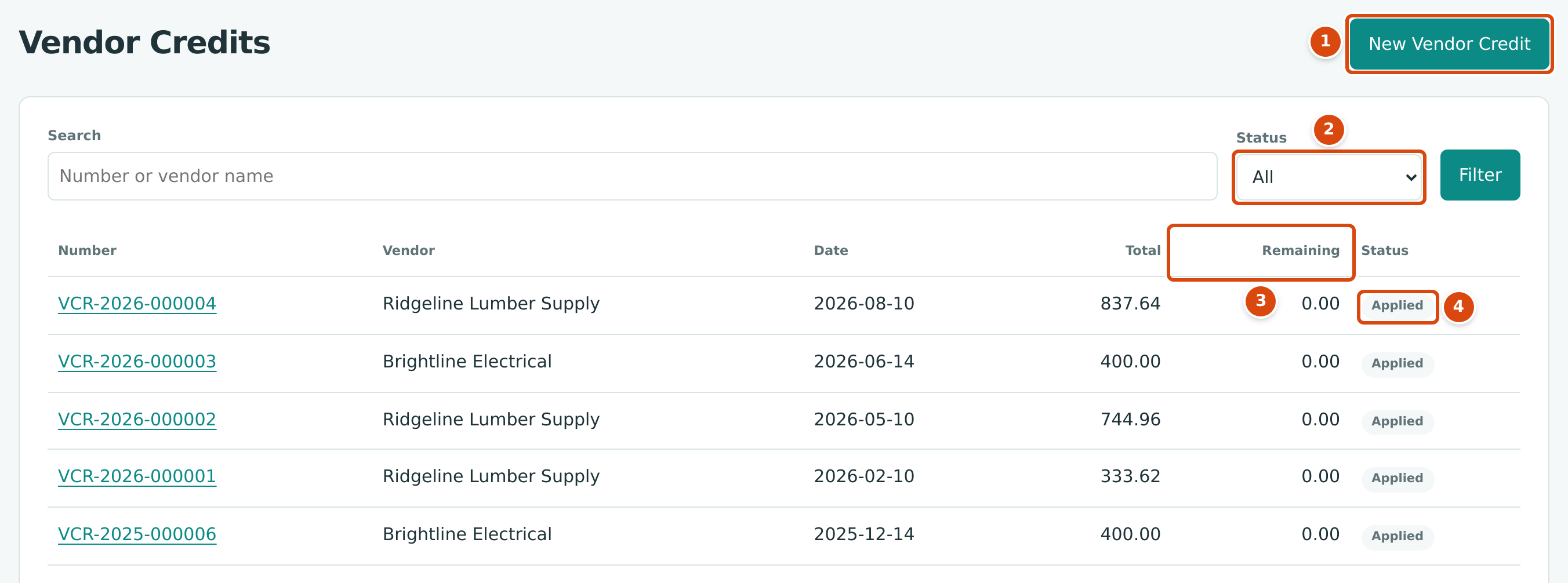
- New Vendor Credit opens the form.
- Status: Draft and Open (the default), Draft, Open, Applied, Void or All. Fully applied credits appear only under Applied or All.
- Remaining: what is still available to apply or refund.
- The credit's status.
Search finds credits by number or vendor name.
Worked Example: A Materials Return Applied to the Next Bill
On August 10, 2026, Ridgeline Lumber Supply credited Cedar Ridge $837.64 for returned materials on job J-1032 Maplewood Church Hall. The credit VCR-2026-000004 has one line on 5040 Materials, coded to J-1032, cost code 07-200 Insulation, cost type MAT.
The Posting Entry
Posting a vendor credit debits 2010 Accounts Payable for the total and credits each line's account, with its job coding, on the credit date:
The same day the whole credit was applied to Ridgeline's bill BILL-2026-000111 (total $15,697.89). The bill was then settled in three parts:
| Settled By | Date | Amount |
|---|---|---|
| VCR-2026-000004 (credit applied) | 2026-08-10 | 837.64 |
| PAY-2026-000112 (unapplied part of an earlier payment) | 2026-08-13 | 400.00 |
| PAY-2026-000141 (payment) | 2026-09-17 | 14,460.25 |
| Total | 15,697.89 |
837.64 + 400.00 + 14,460.25 = 15,697.89, so the bill is Paid and the credit is Applied with 0.00 remaining. J-1032's materials cost is $837.64 lower from August 10.
What Happens After You Post, Apply or Void
| Post | Apply | Unapply | Void | |
|---|---|---|---|---|
| Journal entry | Debit AP, credit line accounts, on the credit date | None | None | Reversing entry on the void date |
| Credit status | Open | Applied when fully used | Open | Void |
| Vendor's balance | Reduced by the credit | Unchanged (already reduced) | Unchanged | Increased back |
| The bill | — | Open balance reduced; Paid when settled | Owes the amount again | — |
| Job costs | Reduced for job-coded lines | Unchanged | Unchanged | Restored |
Common Mistakes and Troubleshooting
| Message or Symptom | Why It Happens | What to Do |
|---|---|---|
| At least one vendor credit line is required. | Every line is empty. | Enter an account and an amount. |
| Vendor credit lines cannot use the accounts payable account. | A line uses Accounts Payable. | Choose the account the credit reduces. |
| Vendor must be active. | The vendor is inactive. | Reactivate the vendor. |
| Application date is before credit date | The application is dated before the credit. | Use the credit date or later. |
| Application date is before bill date | The application is dated before a bill. | Use the bill's date or later. |
| Application exceeds bill balance | More is allocated than the bill owes. | Allocate at most the bill's Balance. |
| Applications exceed vendor credit remaining | The allocations add up to more than Remaining. | Lower the allocations. |
| Vendor credit has no remaining amount | The credit is fully used. | Unapply it from a bill first to move it. |
| Unapply date is before application date | The unapply is dated before the application. | Use the application date or later. |
| Vendor credit has applications; unapply them first | You tried to void an applied credit. | Unapply each application, then void. |
| Vendor credit has refunds; reverse them first | A refund draws on the credit. | Reverse the refund in Banking first. |
| Accounting date must be after the company closing date. | The credit or void date is in a closed period. | Use a date after the Books Closed date. |
| A credit you entered is not in the list. | It is fully applied; the list opens on Draft and Open. | Set Status to Applied or All. |
| A draft credit cannot be deleted. | There is no discard button for drafts. | Leave it as a draft; it never affects your books. |