Managing Customers
A customer is anyone you invoice: a property owner, a general contractor, a school district. Every invoice, receipt and credit memo belongs to one customer, so the customer record is where you see what that customer owes, what is late, what credit they have with you, and everything you have billed and collected.
Add a customer before you invoice them, or add one from the invoice itself without leaving the form. Keep the email address and billing address current: Structally uses them when it sends and prints invoices.
Before You Begin
- To add, edit, deactivate or reactivate customers you need Edit access to Customers & Invoices. Company Admins, Accountants and Project Managers have it; Viewers can open the list and the customer pages only. See Roles and Permissions.
- Payment terms you want to record on the customer exist in Payment Terms, or you add them from the form if you have Edit access to Accounting.
Navigation
Customers & Invoices → Customers.
The Customers List
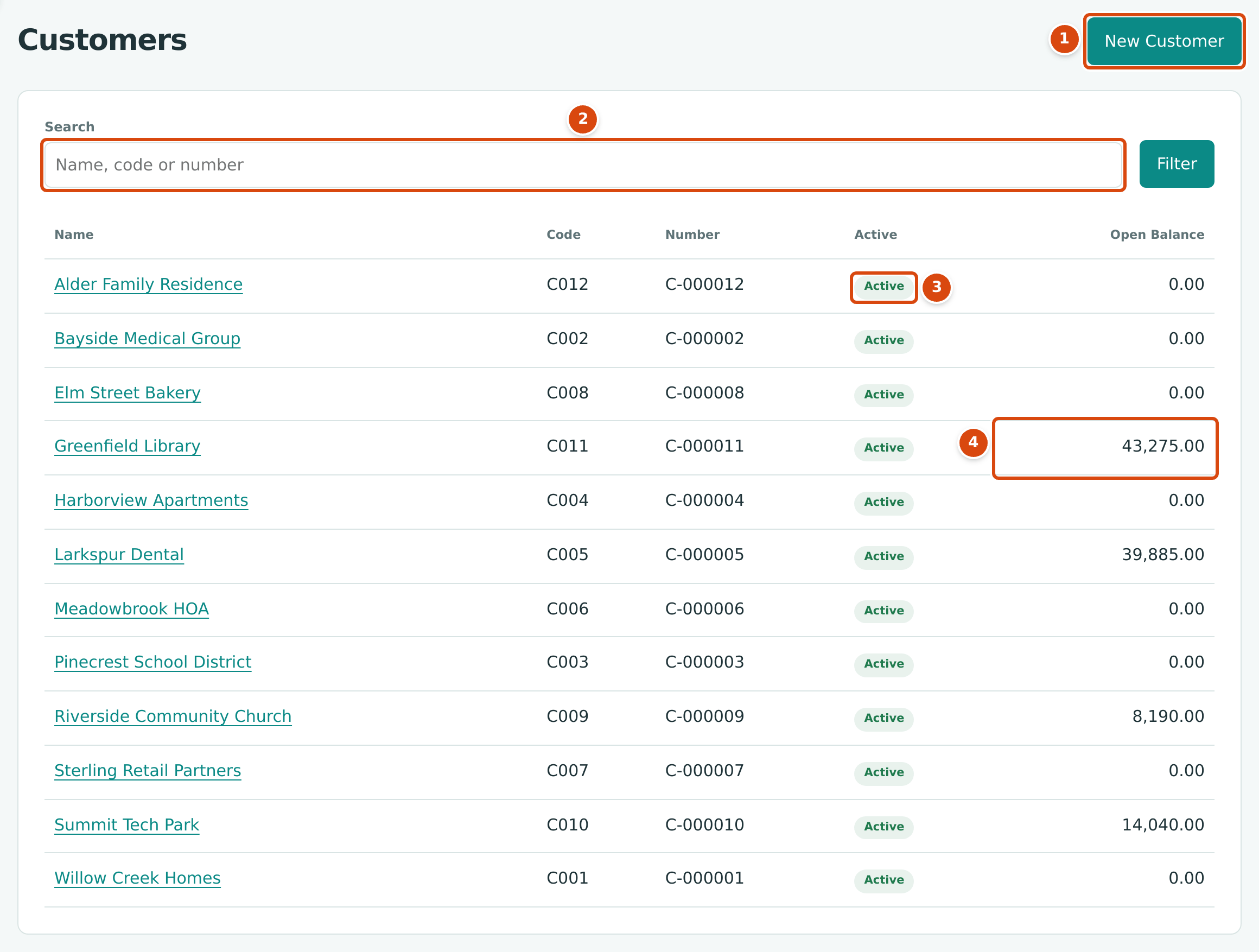
- New Customer opens the form for a new customer.
- Search finds customers by name, code or number. Click Filter to run it.
- Active or Inactive: whether new documents can be created for the customer.
- Open Balance: what the customer owes today.
The list shows active and inactive customers together, in name order, 25 to a page. Click a name to open the customer's page.
Open Balance is the unpaid amount of the customer's posted invoices, less any receipts not yet applied to an invoice and any credit memo amounts not yet used. It leaves out retainage the customer is holding. A negative figure means the customer has credit with you.
Adding a Customer
- Open Customers & Invoices → Customers and click New Customer.
- Type the Name as you want it to appear on invoices.
- Fill in the other fields you need (see the figure and the Field Reference).
- Click Save. The customer's page opens. Cancel returns to the list without saving.
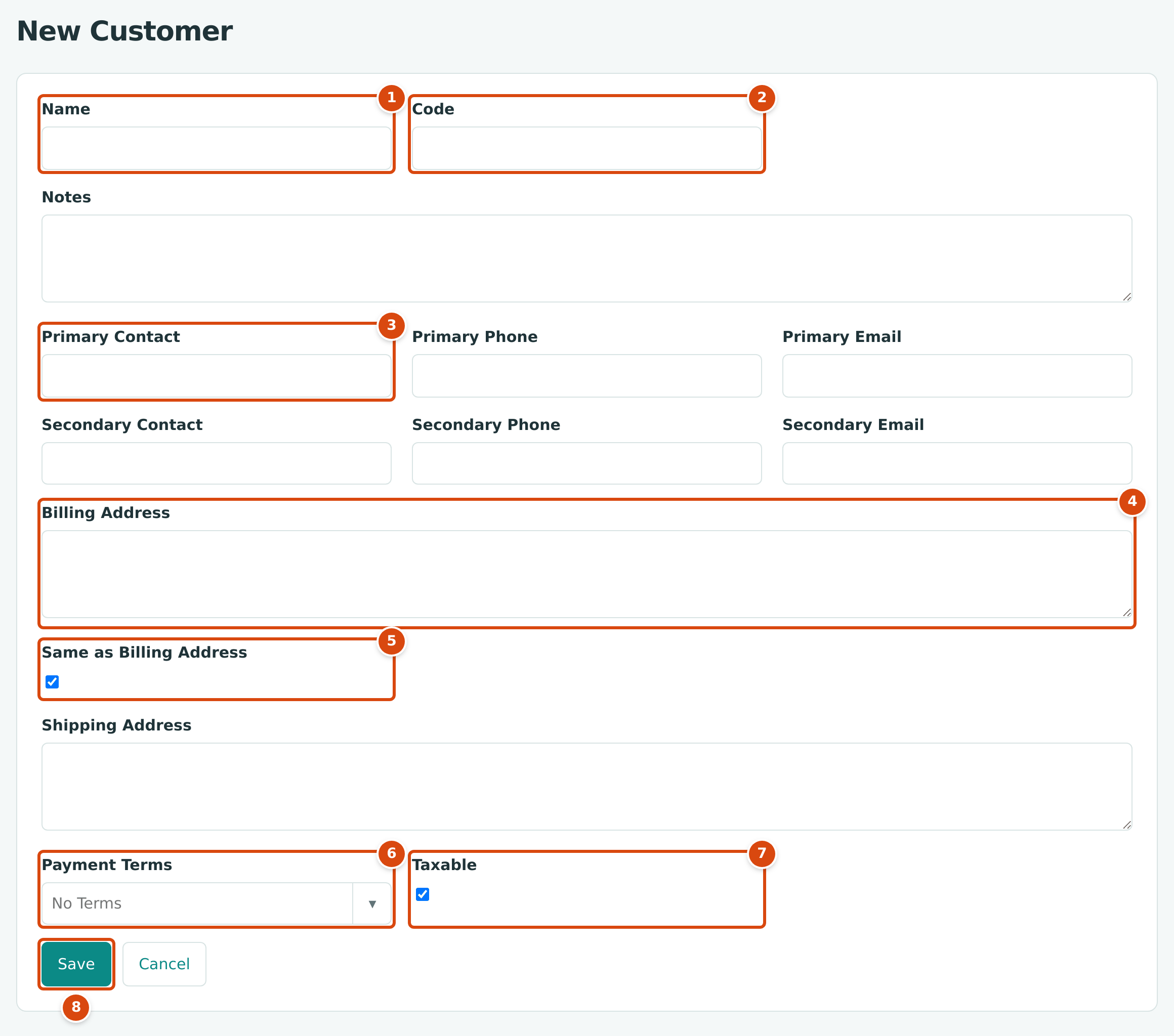
- Name: required, up to 100 characters.
- Code: an optional short code of your own, such as C014. It must be unique.
- Primary Contact, with Primary Phone and Primary Email beside it. The primary email is the address an invoice is sent to.
- Billing Address: printed under Bill To on the invoice.
- Same as Billing Address: leave it ticked when goods and crews go to the billing address; untick it to type a separate Shipping Address.
- Payment Terms: the terms you agreed with this customer, for reference.
- Taxable: a flag you can record for the customer.
- Save creates the customer.
Structally numbers each customer automatically (C-000013, C-000014 and so on). The number and the code appear under the name on the customer's page.
Adding a customer while you write an invoice
In the Customer list of a new invoice, credit memo or payment, type the name and choose + Add New. A short New Customer panel asks for the name, code, contact, email, billing address, terms and the taxable flag; Create Customer adds the customer and selects it. See Adding a Customer While You Enter an Invoice.
The Customer Page
Click a customer in the list, or a customer's name on any invoice, receipt or report, to open the customer's page.
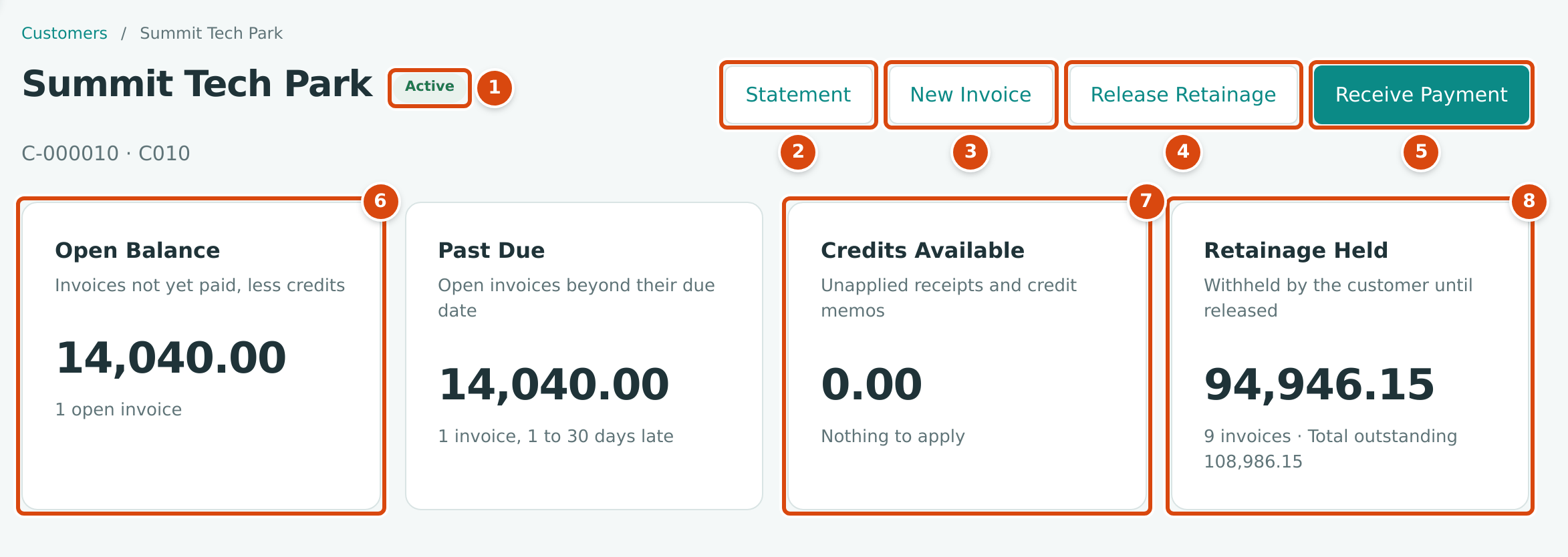
- The status, Active or Inactive. Under the name are the customer number and code.
- Statement opens the Customer Statement for this customer, from the start of the fiscal year to today.
- New Invoice opens the New Invoice form.
- Release Retainage bills retainage this customer is holding (see Releasing Retainage). It appears only while retainage is held.
- Receive Payment opens Receive Payment with this customer's open invoices loaded. It appears only while the customer has an unpaid invoice.
- Open Balance: invoices not yet paid, less credits, with the number of open invoices.
- Credits Available: receipts not yet applied and credit memo amounts not yet used, ready to apply to invoices.
- Retainage Held: retainage the customer withheld on posted invoices and you have not yet billed back, with the total still outstanding including it.
The second tile, Past Due, is the part of the open balance on invoices past their due date; its note names the oldest bracket, such as 1 invoice, 1 to 30 days late. The Retainage Held tile appears only when your company has a Retainage Receivable account (set in Job Costing Settings). Except for Statement, the buttons need Edit access.
New Invoice does not choose the customer for you
New Invoice on the customer's page opens a blank New Invoice form. Choose the customer in the Customer list as usual.
Recent Activity
The Recent Activity card lists the customer's posted invoices, receipts, credit memos and refunds, newest first. Drafts are not listed.
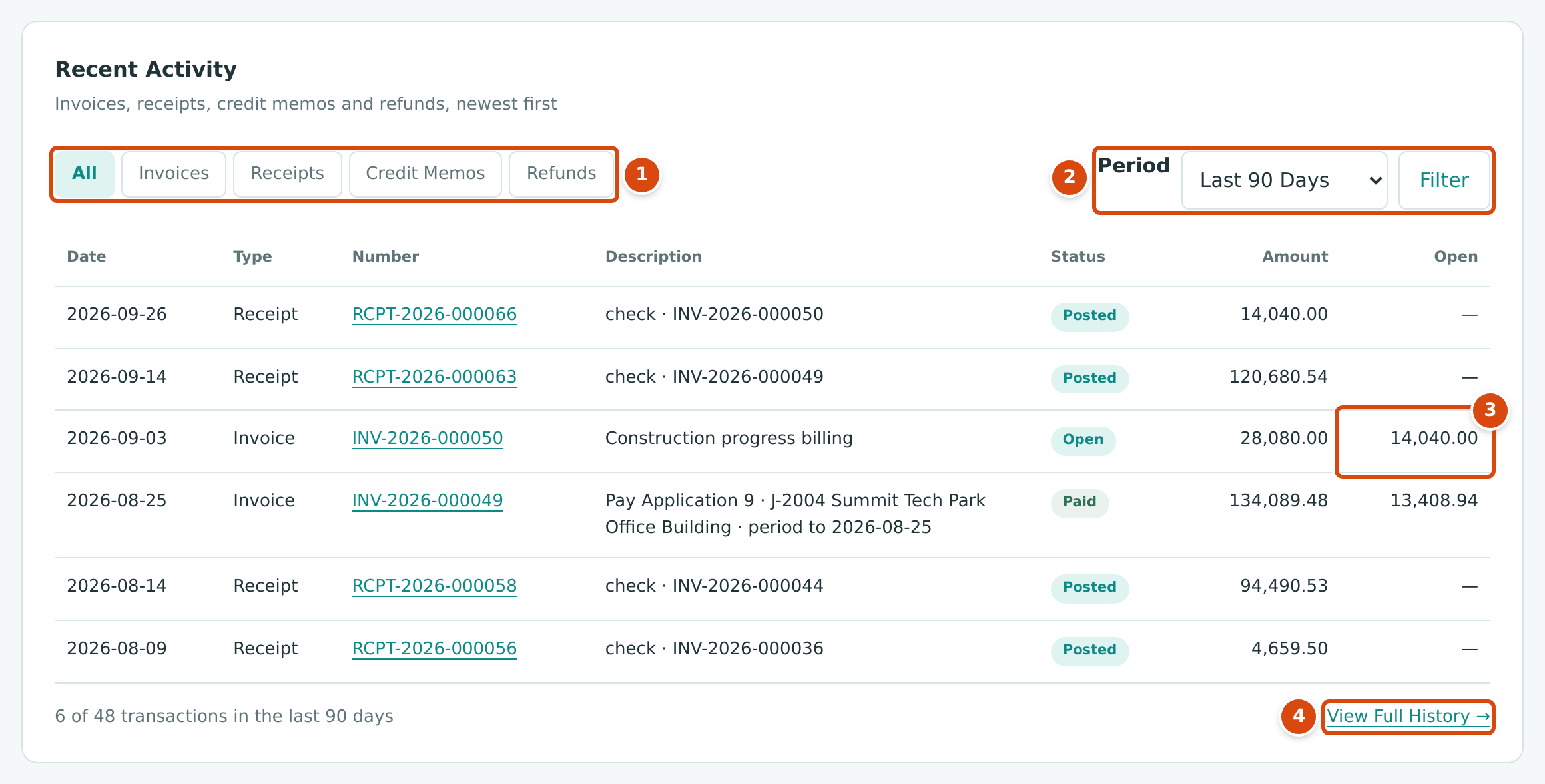
- The type buttons show All transactions, or only Invoices, Receipts, Credit Memos or Refunds.
- Period: Last 12 Months (the default), Last 90 Days, This Fiscal Year or All Time. Click Filter to apply it.
- Open: what is still open on an invoice or credit memo. For an invoice it is the total less the receipts and credits applied, so retainage withheld on the invoice is included; that is why a Paid pay-application invoice can show an open amount.
- View Full History shows all time. The note beside it counts the transactions shown and the customer's total.
Each number opens the transaction. For receipts and refunds the Description shows the method and reference; for invoices and credit memos it shows the memo.
Editing a Customer's Details
The Customer Details card lists the contacts, addresses, Payment Terms, Taxable, Code and Notes. To change them:
- On the customer's page, click Edit Details. The card turns into a form.
- Change the fields.
- Click Save. Structally confirms Customer updated. Cancel discards your changes.
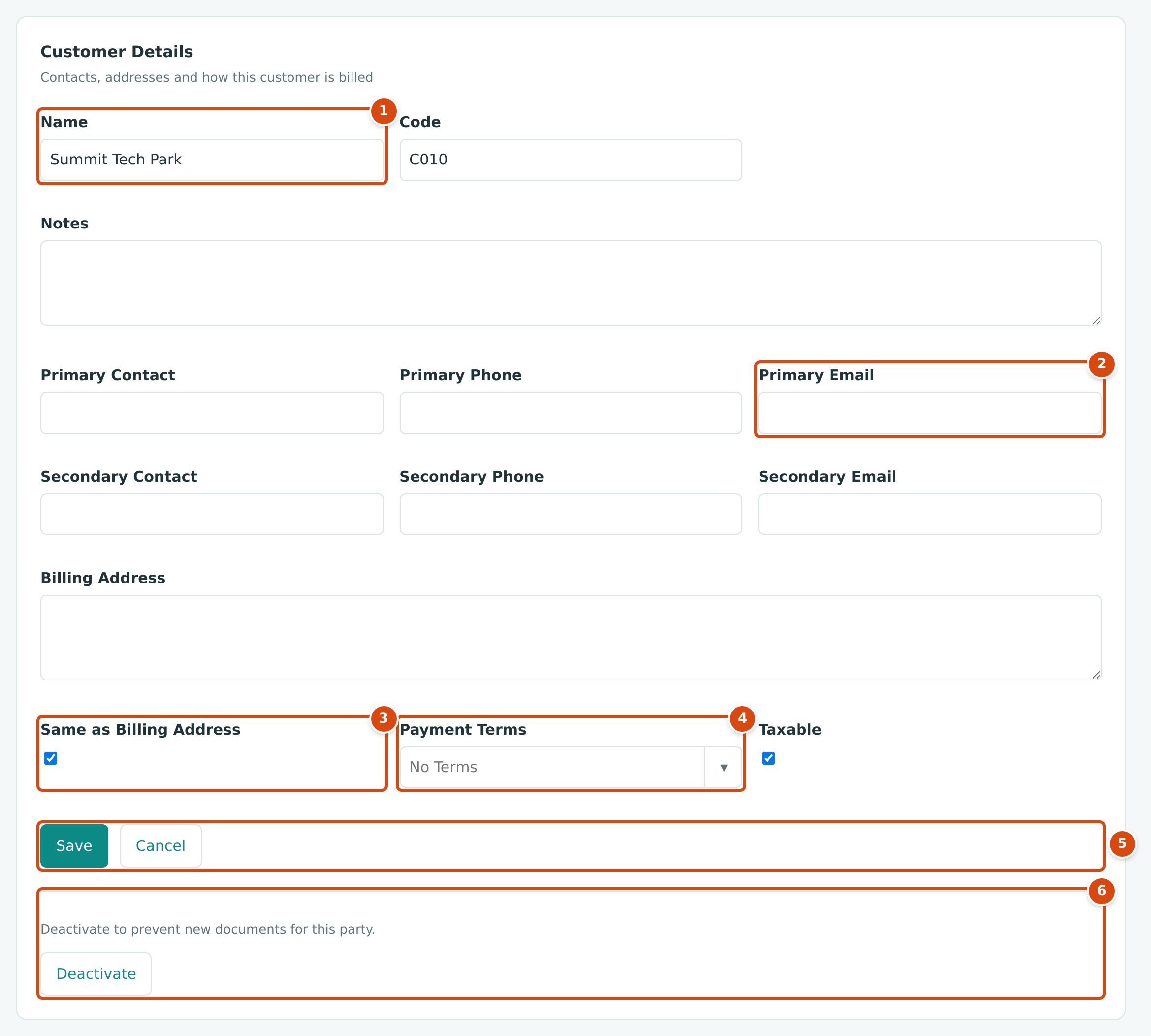
- Name and the other fields are the same as on the New Customer form.
- Primary Email: the address invoices are sent to.
- Same as Billing Address: while it is ticked the Shipping Address field is hidden.
- Payment Terms: the customer's agreed terms.
- Save and Cancel.
- The Deactivate section (see below).
A changed name or address is used from then on: invoices you print or send later show the new details, including invoices posted earlier.
Deactivating and Reactivating a Customer
Deactivate a customer you no longer work with. Nothing is deleted: the customer keeps their history, balances and documents, stays in the Customers list with the Inactive status, and still appears in reports.
- On the customer's page, click Edit Details.
- Under Deactivate to prevent new documents for this party. click Deactivate. Structally confirms Customer deactivated.
An inactive customer is no longer offered in the Customer list of New Invoice, New Credit Memo or Receive Payment, and Structally refuses to save or post an invoice or credit memo, or to record a receipt, for that customer.
To bring the customer back, open Edit Details again and click Reactivate under Reactivate to allow new documents for this party. Structally confirms Customer reactivated.
Collect before you deactivate
Check the Open Balance and Credits Available tiles first. Customers cannot be deleted, and receipts cannot be recorded for an inactive customer.
Field Reference
| Field | Description | Required | Example |
|---|---|---|---|
| Name | The customer's name on invoices, statements and reports. Up to 100 characters. | Yes | Lakeview Medical Center |
| Code | Your own short code. Letters, digits, hyphens and underscores, up to 50 characters, unique. Searchable in the list. | No | C013 |
| Notes | Internal notes, shown on the customer's page. | No | Billing contact changes in January |
| Primary Contact, Primary Phone, Primary Email | The main contact. Primary Email fills the To field when you send an invoice. | No | Dana Ruiz · (555) 014-2290 · ap@example.com |
| Secondary Contact, Secondary Phone, Secondary Email | A second contact, for your reference. | No | |
| Billing Address | Printed under Bill To on invoices. | No | 410 Lakeview Drive |
| Same as Billing Address | Ticked by default. Untick it to enter a Shipping Address. | No | Ticked |
| Shipping Address | A separate delivery address, for your reference. | No | |
| Payment Terms | The terms agreed with the customer. New invoices start with your company's default terms instead, so choose the customer's terms on the invoice when they differ. | No | Net 15 |
| Taxable | Ticked by default. A flag kept on the customer; Structally does not add sales tax to invoices. | No | Ticked |
Common Mistakes and Troubleshooting
| Message or Symptom | Why It Happens | What to Do |
|---|---|---|
| Customer code already in use | Another customer, active or inactive, has the same code. | Choose a different code, or leave Code empty. |
| Customer code must contain only letters, digits, hyphens and underscores. | The code has a space or another character. | Remove spaces and punctuation, for example C-013 or C013. |
| Enter a valid email address. | An email field is not a complete address. | Correct it, or leave it empty. |
| Customer must be active. | You tried to save or post an invoice or credit memo, or record a receipt, for an inactive customer. | Reactivate the customer first. |
| A customer is missing from the Customer list of a new invoice. | The customer is inactive. | Reactivate it on its page, or check the spelling in the Customers list. |
| The customer's Payment Terms did not appear on a new invoice. | New invoices always start with the company default terms. | Choose the terms on the invoice. |
Related Topics
- Creating an Invoice
- Receiving Customer Payments
- Credit Memos
- Customer Statements and Aging Reports
- Releasing Retainage
- Import Data, to add many customers at once