Email Sending
When you send a posted invoice to a customer, Structally emails it with the invoice PDF attached. Email Sending decides how that email leaves Structally and what it says by default:
- Send Through Structally (the standard choice) sends from Structally's own mail service, under your company's name, with replies going to your company email.
- Use Your SMTP Account sends through your own mail server, from your own address.
The page also holds the Default Subject and Default Message that fill in the send form for every invoice, and a Send Test Email button to check that sending works.
Before You Begin
- To change these settings or send a test you need Edit access to Settings: Company Admins, and Custom users given Settings Edit. With Settings View you can read the page only. See Roles and Permissions.
- Enter your company Email in Company Details. Replies to invoices sent through Structally go there, and the test email is sent to it.
- For your own account: the mail server's host name, port and security setting, and the username and password of the mailbox, from your email provider.
Navigation
Settings → Email Sending, or the Email Sending card on the Settings overview.
The Page
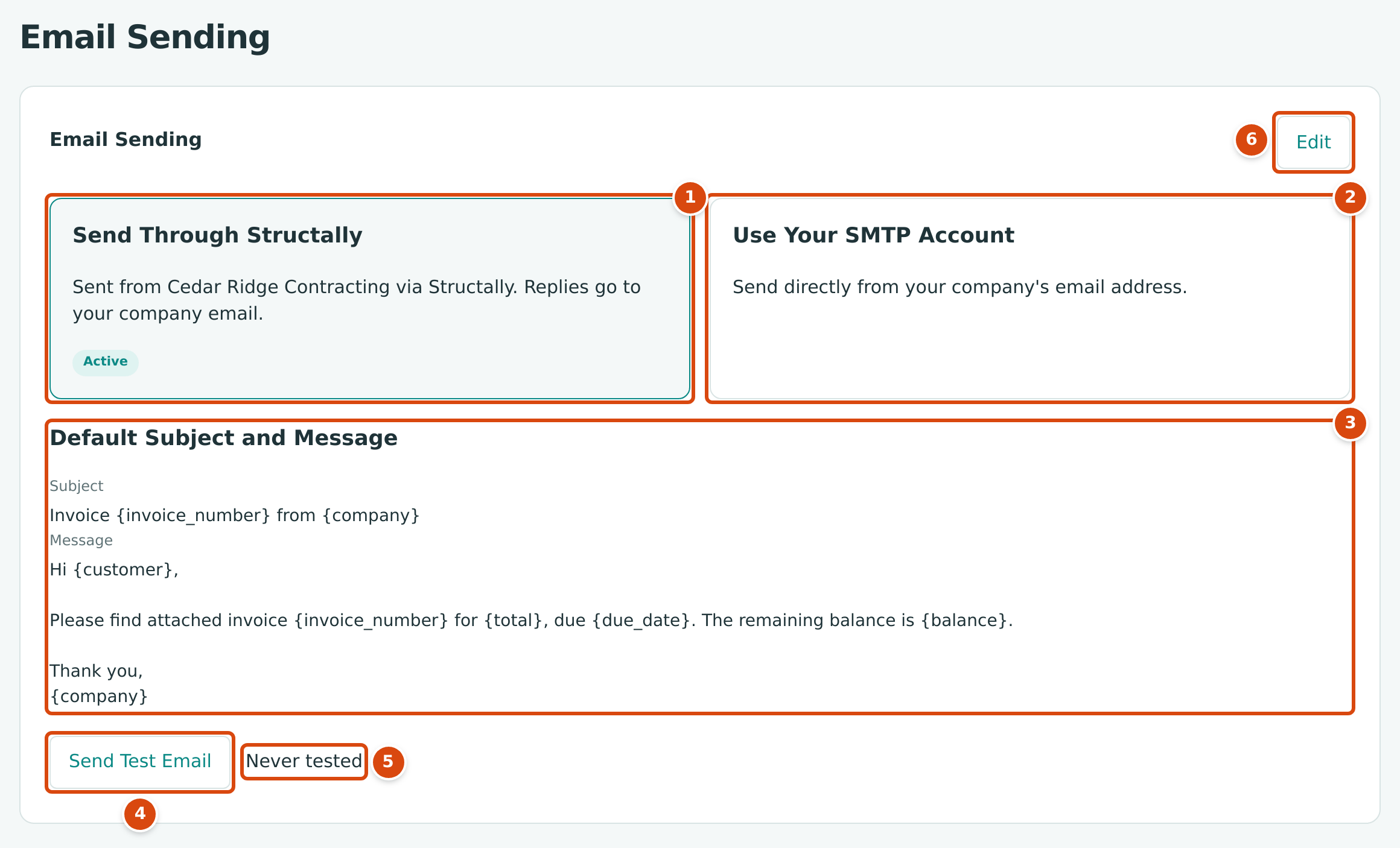
- Send Through Structally, marked Active: "Sent from Cedar Ridge Contracting via Structally. Replies go to your company email."
- Use Your SMTP Account: "Send directly from your company's email address." When it is the active method, the card also lists the Sender and the SMTP Host, port and security.
- Default Subject and Message: the wording every invoice email starts with.
- Send Test Email sends a test with the saved settings.
- The result of the last test, or Never tested.
- Edit opens the settings form.
If You Change Nothing
A new company sends through Structally with the default subject and message shown above, so you can email invoices without visiting this page. Each email:
- comes from your legal name (or the company name) followed by "via Structally", at a Structally email address;
- has your company Email as its reply-to address, so a customer who clicks Reply writes to you. If the company has no email in Company Details, there is no reply-to address.
Step by Step: Sending Through Your Own Account
- Open Settings → Email Sending and click Edit.
- Click Use Your SMTP Account. The server fields appear.
- Enter the SMTP Host, Port and Security your provider gives you.
- Enter the Username and Password of the mailbox.
- Enter the Sender Name and Sender Email customers should see.
- Check the Default Subject and Default Message (see below).
- Click Save. Structally confirms with Email settings saved.
- Click Send Test Email and check the result next to the button.
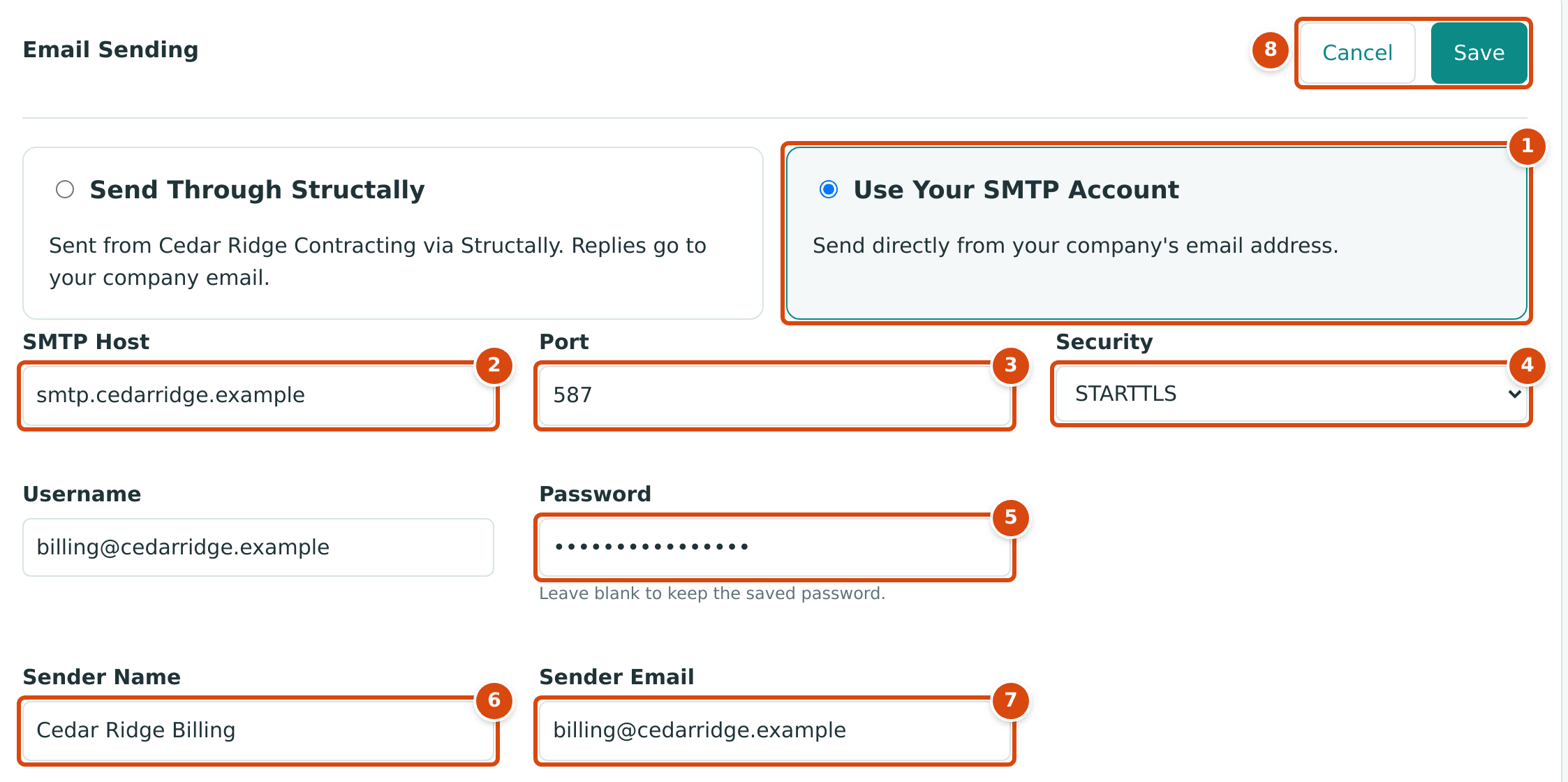
- Use Your SMTP Account chosen.
- SMTP Host: your provider's outgoing mail server. Required for this method.
- Port: 587 unless your provider says otherwise.
- Security: STARTTLS or TLS, as your provider specifies.
- Password: the saved password is never shown again. Leave blank to keep the saved password.
- Sender Name: the name customers see. Optional.
- Sender Email: the address the email comes from. Required for this method.
- Cancel and Save.
To go back to sending through Structally, click Edit, choose Send Through Structally and click Save. The server details stay saved but are not used.
The Default Subject and Message
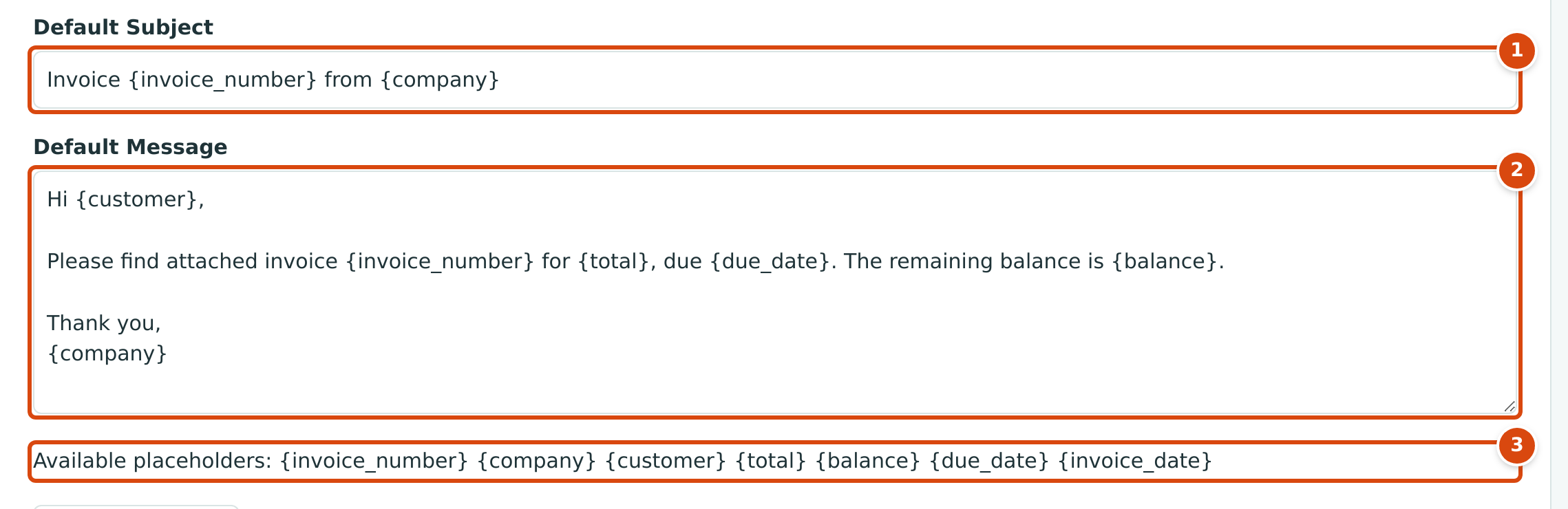
- Default Subject: up to 200 characters. Required.
- Default Message: the body of the email. Required.
- The placeholders you can use in either.
When you open the send form of a posted invoice, Structally fills its Subject and Message from these defaults, replacing each placeholder with that invoice's value. You can still change the wording of each email before you send it.
| Placeholder | Replaced With |
|---|---|
| {invoice_number} | The invoice number, such as INV-2026-000050 |
| {company} | Your legal name, or the company name when no legal name is entered |
| {customer} | The customer's name |
| {total} | The invoice total, such as 28,080.00 |
| {balance} | What is still unpaid on the invoice today |
| {due_date} | The due date, written as YYYY-MM-DD |
| {invoice_date} | The invoice date, written as YYYY-MM-DD |
A word in braces that is not in this list is left as you typed it.
Sending a Test Email
Send Test Email sends a short email with the subject "Structally test email" and the text "This is a test email from" your company name, to the company Email in Company Details, using the saved method. Save your changes before you test; the test does not use what is still in the form.
The line next to the button then shows the date and time of the test and its result: "delivered to" the address, or the error your mail server returned (for example a rejected username or password). It keeps showing the last result until the next test.
Field Reference
| Field | Description | Required | Example |
|---|---|---|---|
| Send Through Structally / Use Your SMTP Account | How invoice emails are sent. | Yes | Send Through Structally |
| SMTP Host | Your outgoing mail server. | With your own account | smtp.cedarridge.example |
| Port | A number from 1 to 65535. | Yes | 587 |
| Security | STARTTLS or TLS. | Yes | STARTTLS |
| Username | The mailbox sign-in name, if your server needs one. | No | billing@cedarridge.example |
| Password | The mailbox password. Blank keeps the saved one. | No | (hidden) |
| Sender Name | The name shown as the sender. | No | Cedar Ridge Billing |
| Sender Email | The address the email comes from. | With your own account | billing@cedarridge.example |
| Default Subject | Starting subject of every invoice email. Up to 200 characters. | Yes | Invoice {invoice_number} from {company} |
| Default Message | Starting text of every invoice email. | Yes | Hi {customer}, … |
Worked Example
Cedar Ridge Contracting keeps the standard settings. When it sends invoice INV-2026-000050 (Summit Tech Park, total $28,080.00, due October 3, 2026, of which $14,040.00 is still unpaid on October 24, 2026), the send form starts with:
- Subject: Invoice INV-2026-000050 from Cedar Ridge Contracting
- Message: Hi Summit Tech Park, Please find attached invoice INV-2026-000050 for 28,080.00, due 2026-10-03. The remaining balance is 14,040.00. Thank you, Cedar Ridge Contracting
The email comes from "Cedar Ridge Contracting via Structally". Because the sample company has no email in Company Details yet, it has no reply-to address; entering one there makes customer replies go to it.
What Happens After You Save
- The method and the default wording apply to every invoice email sent from then on. An email already queued keeps the subject, message and sending method it was queued with. Nothing is posted.
- Each change of these settings and each test is recorded in the Audit Log.
Common Mistakes and Troubleshooting
| Message or Symptom | Why It Happens | What to Do |
|---|---|---|
| Required for your SMTP account. | Use Your SMTP Account is chosen without an SMTP Host or Sender Email. | Fill both, or choose Send Through Structally. |
| Set the company email before sending a test email. | Company Details has no Email. | Enter it in Company Details. |
| The test result shows an error from the mail server. | The host, port, security, username or password does not match your provider's settings. | Check each with your provider, save, and test again. |
| The password field is empty after saving. | The saved password is never shown. | Leave it blank to keep it; type a new one only to change it. |
| Customers' replies do not reach you. | No company Email is entered (with Send Through Structally). | Enter it in Company Details. |
| A placeholder appears in braces in the email. | It is misspelled or not in the list. | Use one of the placeholders listed above. |
| There is no Edit or Send Test Email button. | You have Settings View, not Edit. | Ask a Company Admin. |
Related Topics
- Sending and Printing Invoices
- Company Details
- Document Design, for the attached invoice PDF
- Settings Reference