| Account | Debit | Credit |
|---|---|---|
| 4010 Construction Revenue (J-1033), Roofing (square) | 19,975.00 | |
| 4010 Construction Revenue (J-1033), Site supervision (hour) | 19,910.00 | |
| 1100 Accounts Receivable | 39,885.00 |
Posting, Editing, and Voiding Invoices
An invoice moves through a short life: it is saved as a Draft, posted to become Open, and becomes Paid when receipts and credit memos settle it. A draft can be changed freely because it has not touched your books. A posted invoice is locked; to correct it you void it, which reverses its journal entry, and then enter a new invoice. This page covers the Invoices list, the statuses, posting and editing drafts, and voiding.
Before You Begin
- To post, edit or void invoices you need Edit access to Customers & Invoices. Company Admins, Accountants and Project Managers have it. Viewers can open invoices and print them, nothing more. See Roles and Permissions.
Navigation
Customers & Invoices → Invoices, then click an invoice number.
The Invoices List
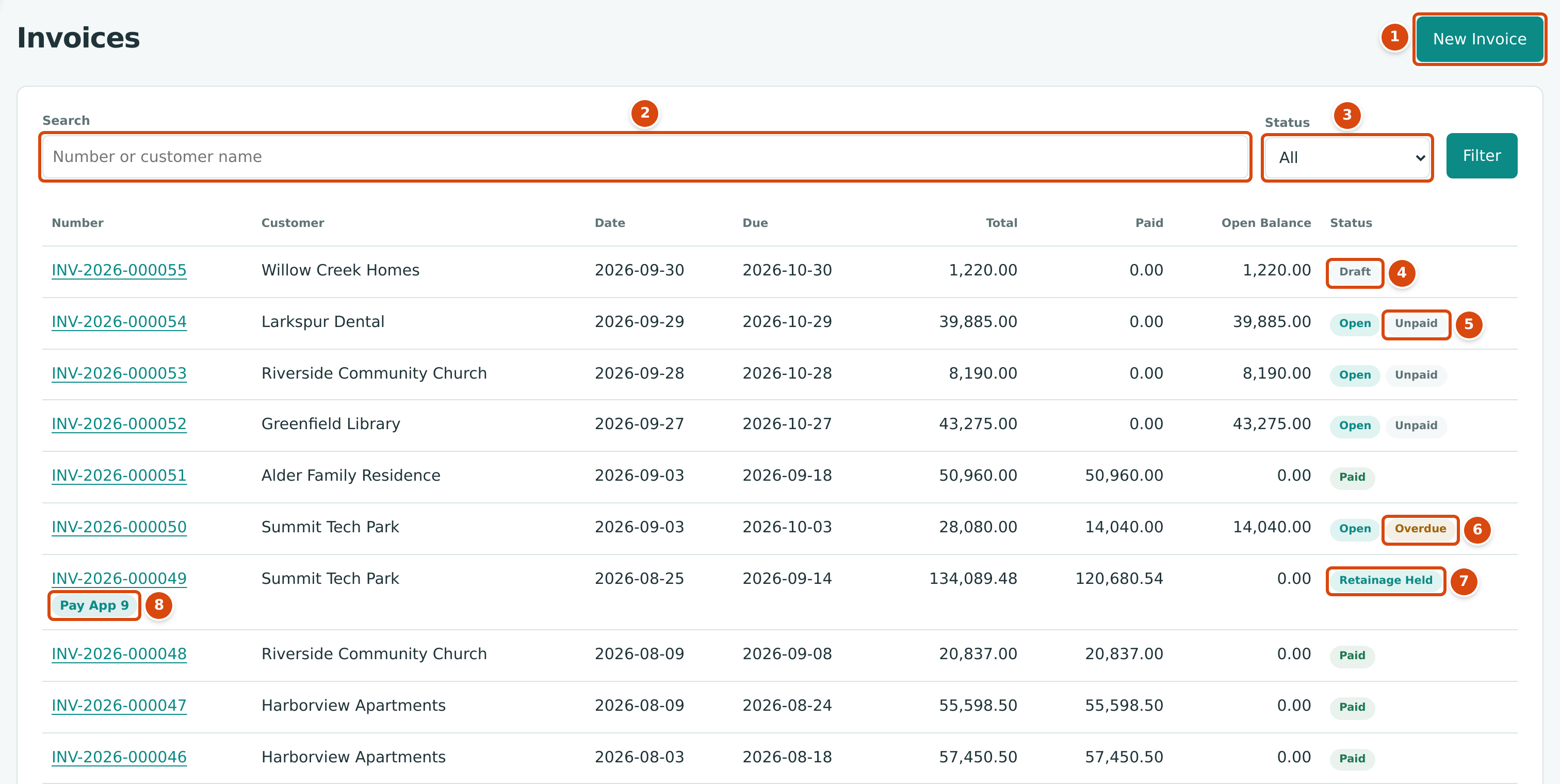
- New Invoice opens the New Invoice form.
- Search finds invoices by number or customer name.
- Status filters the list. Click Filter to apply it.
- Draft: saved, not posted.
- Open with Unpaid: posted, nothing received yet.
- Open with Overdue: posted and past its due date.
- Retainage Held: paid, except for retainage the customer still holds.
- Pay App 9: the invoice was created by pay application 9 of its job.
The list shows the newest invoices first, 25 to a page, with the Total, how much has been Paid and the Open Balance still owed (both leave out retainage held). Invoices that bill released retainage carry a Retainage Release tag.
The Status filter offers:
| Choice | Shows |
|---|---|
| Draft and Open (the default) | Drafts and posted invoices that are not fully paid. |
| Draft | Drafts only. |
| Open | Posted invoices not fully paid. |
| Overdue | Open invoices whose due date is before today. |
| Partly Paid | Open invoices not yet due that have received a receipt or credit. |
| Paid | Fully settled invoices, including those with retainage still held. |
| Void | Voided invoices. |
| All | Everything. |
Invoice Statuses
| Status | Meaning | What You Can Do |
|---|---|---|
| Draft | Saved but not posted. No journal entry; the customer's balance is unchanged. | Post Invoice, Edit Draft, print. |
| Open | Posted and not fully paid. A second label tells you more: Unpaid (nothing received), Partly Paid (part received, not yet due) or Overdue (past the due date, whether or not part was paid). | Receive Payment, Send, print, Void Invoice…. |
| Paid | The amount due is fully settled by receipts and credit memos. | Send, print. To void, first undo the payments. |
| Retainage Held | Shown instead of Paid while the customer still holds retainage you have not yet billed back. | Bill the retainage with Release Retainage. |
| Void | Voided. Its posting entry has been reversed. | View and print only. |
After an invoice has been emailed successfully, a Sent label also appears next to its status on the invoice page.
A Paid invoice goes back to Open if a receipt applied to it is reversed or unapplied, or a credit memo applied to it is unapplied.
The Invoice Page
The invoice page brings everything about one invoice together:
- the status labels and the action buttons at the top;
- Details: customer, dates, reference, class, location, memo, attachments, and the amounts (Total, Retainage Held, Amount Due, Paid and Open Balance);
- Lines, with the job on each line when job costing is used, and the retainage held per line;
- Retainage Releases, on an invoice that holds retainage;
- Deliveries, once the invoice has been emailed;
- Receipt Allocations and Credits Applied: the receipts and credit memos that paid it;
- Posting Entry, Reversal Entry (after voiding) and History, which you open by clicking them.
See the figures in Creating an Invoice for a draft and an open invoice.
Posting a Draft
- Open Customers & Invoices → Invoices, set Status to Draft if needed, and click the draft's number.
- Check the details and lines. The page reads Posting makes this invoice receivable and adds it to accounts receivable.
- Click Post Invoice.
Structally confirms Invoice INV-2026-000055 posted to accounts receivable. The invoice becomes Open and its posting entry is written on the invoice date (not on the day you post). The customer must still be active, and the invoice date must be after the Books Closed date.
Editing a Draft
- On the draft's page, click Edit Draft.
- Change what you need. The customer cannot be changed.
- Click Save Draft. There is no Post button on this form: post from the invoice page afterward.
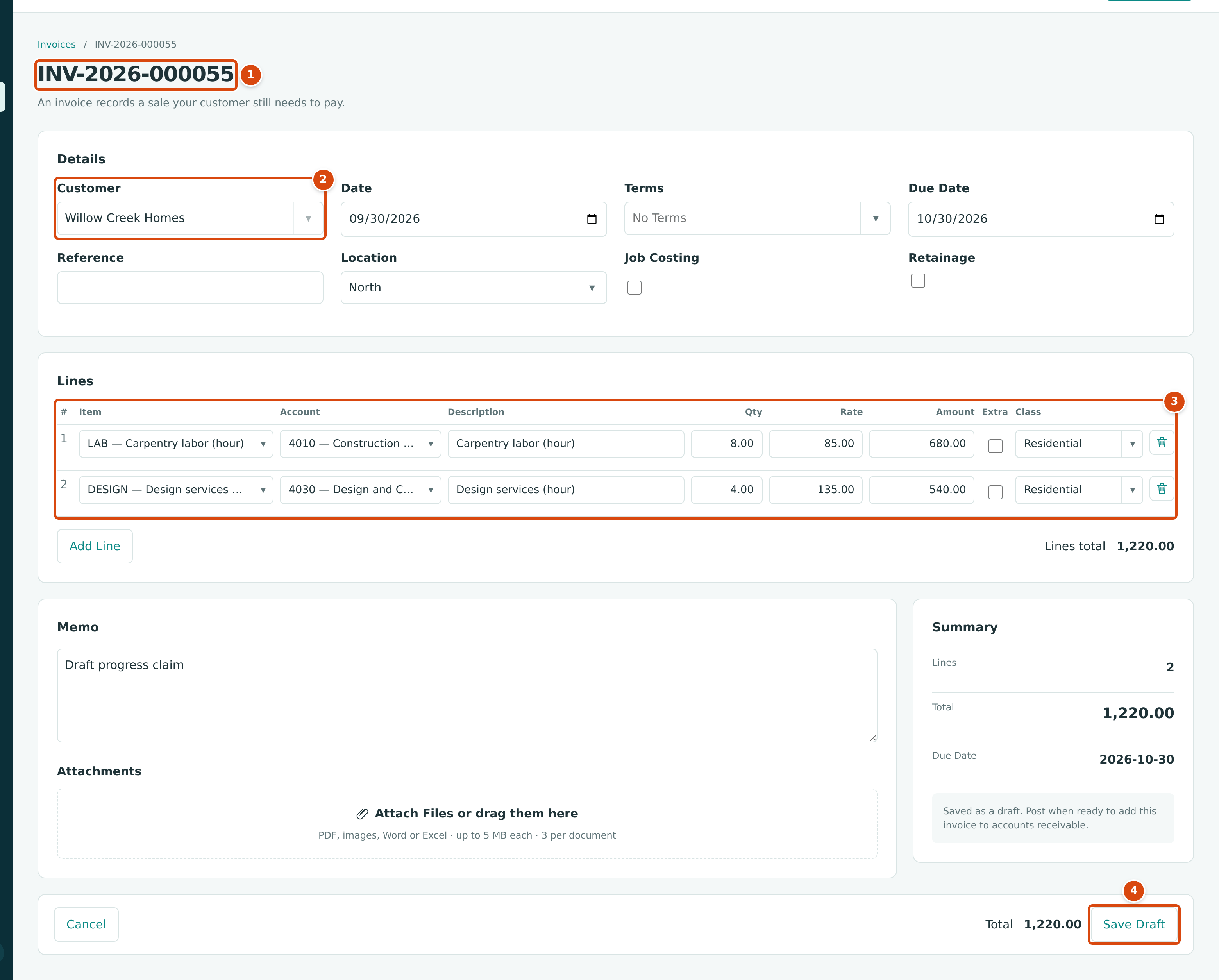
- The form is titled with the invoice number.
- Customer is shown but cannot be changed. To bill another customer, start a new invoice.
- The lines, as saved. Change, add or remove lines as on a new invoice.
- Save Draft keeps the changes; the invoice stays a draft.
Draft invoices cannot be deleted. A draft never affects your books, so leaving an unwanted draft does no harm; you can also edit it into the invoice you need.
Voiding an Invoice
Voiding cancels a posted invoice. Structally writes a reversal entry that undoes the posting entry on the date you choose, and the invoice becomes Void. The invoice keeps its number and stays in the list for your records. Voiding cannot be undone; to bill again, create a new invoice.
An invoice can be voided only when:
- it is Open;
- no receipt is applied to it: unapply or reverse the receipt first;
- no credit memo is applied to it: unapply it first;
- no posted retainage release bills its retainage;
- it was not created by an accepted pay application (see Invoices Billed by a Pay Application).
To void an invoice:
- Open the invoice and click ⋯ at the top right.
- Click Void Invoice….
- Set the Date of the reversal. It starts as today; it cannot be earlier than the invoice date or fall in a closed period.
- Optionally explain why in Memo.
- Click Void Invoice. Cancel closes the panel without voiding.
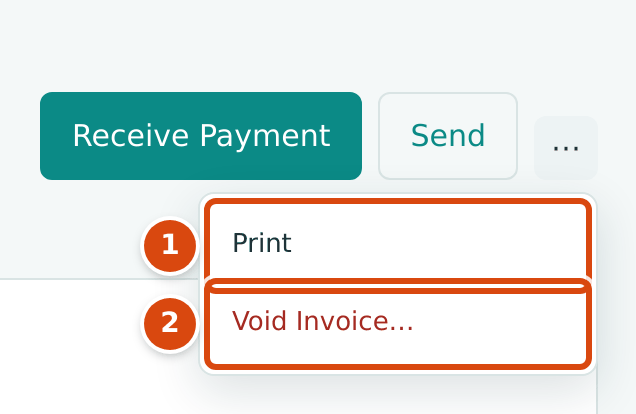
- Print opens the print view.
- Void Invoice… opens the void panel. It is offered only while the invoice is Open.
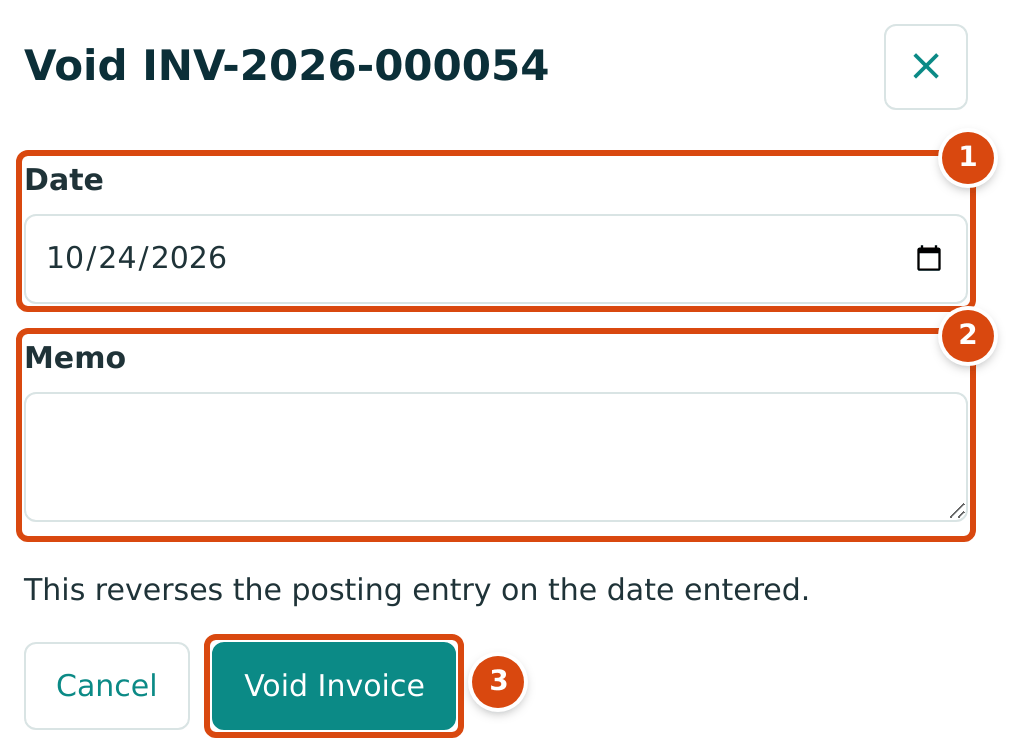
- Date: the accounting date of the reversal.
- Memo: an optional note, used as the reversal entry's description.
- Void Invoice voids the invoice.
The invoice page then shows the Void status and a Reversal Entry. Its Open Balance still shows the amount that was due (the total less any retainage held), although the customer owes nothing on it; go by the Void status.
The Reversal Entry
The reversal entry is the posting entry with debits and credits swapped. For example, voiding INV-2026-000054 (39,885.00, no retainage) would post:
An invoice that held retainage also credits Retainage Receivable for the retained part. The original entry stays in the books, so both appear in the General Ledger.
Voiding a retainage release works the same way, except that the menu item reads Reverse Release… (see Releasing Retainage).
Invoices Billed by a Pay Application
On contract jobs, accepting a pay application creates and posts its invoice. Such an invoice carries a Pay Application tag, and its page explains how to correct it.
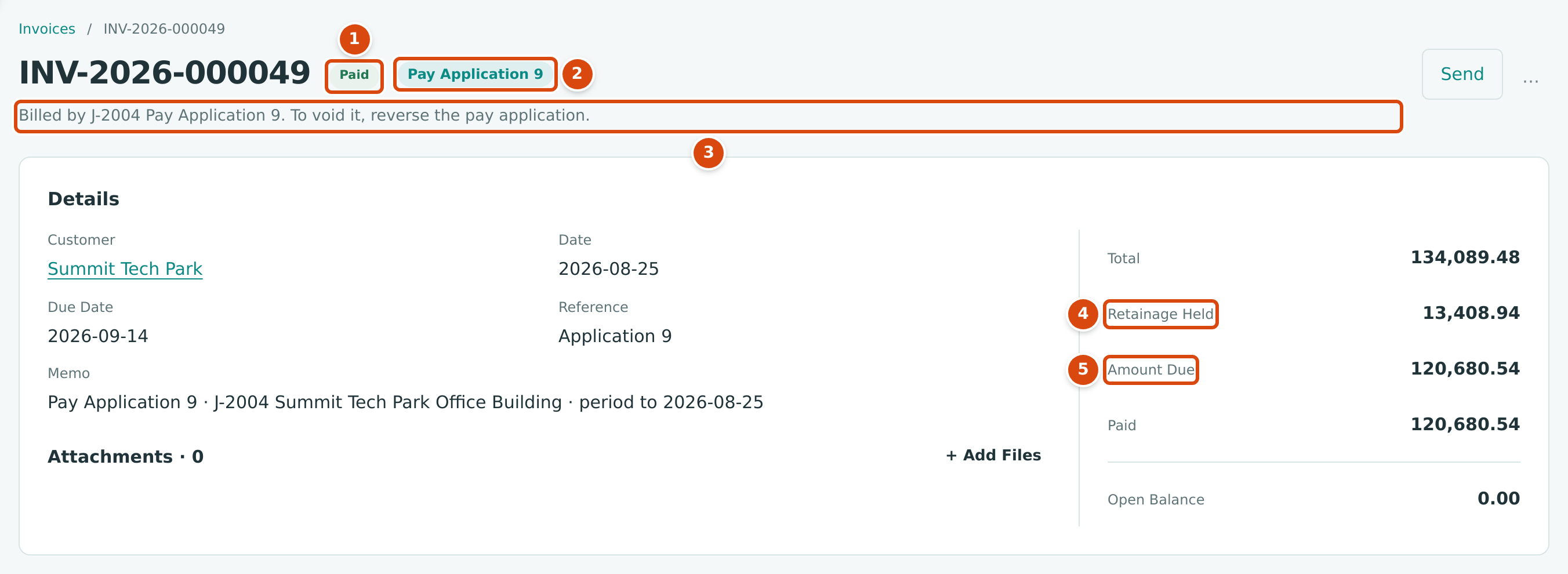
- The status. Here the invoice is Paid; in the Invoices list the same invoice shows Retainage Held.
- Pay Application 9: the pay application that billed it.
- Billed by J-2004 Pay Application 9. To void it, reverse the pay application.
- Retainage Held: what the customer kept back, 10% of the work billed.
- Amount Due: the total less the retainage held.
You cannot void such an invoice. While it is Open, the ⋯ menu shows Void is not available: reverse Pay Application 9 instead. in place of Void Invoice…, and Structally refuses a void with Invoice INV-2026-000049 is billed by J-2004 Pay Application 9; reverse the pay application instead. Reverse the pay application in Jobs & Costing instead; see Pay Applications.
The Posting Entry of a Pay Application Invoice
The invoice posts like any invoice with retainage: Accounts Receivable for the amount due, Retainage Receivable for the retainage, and a revenue credit for each schedule-of-values line billed, all on the job.
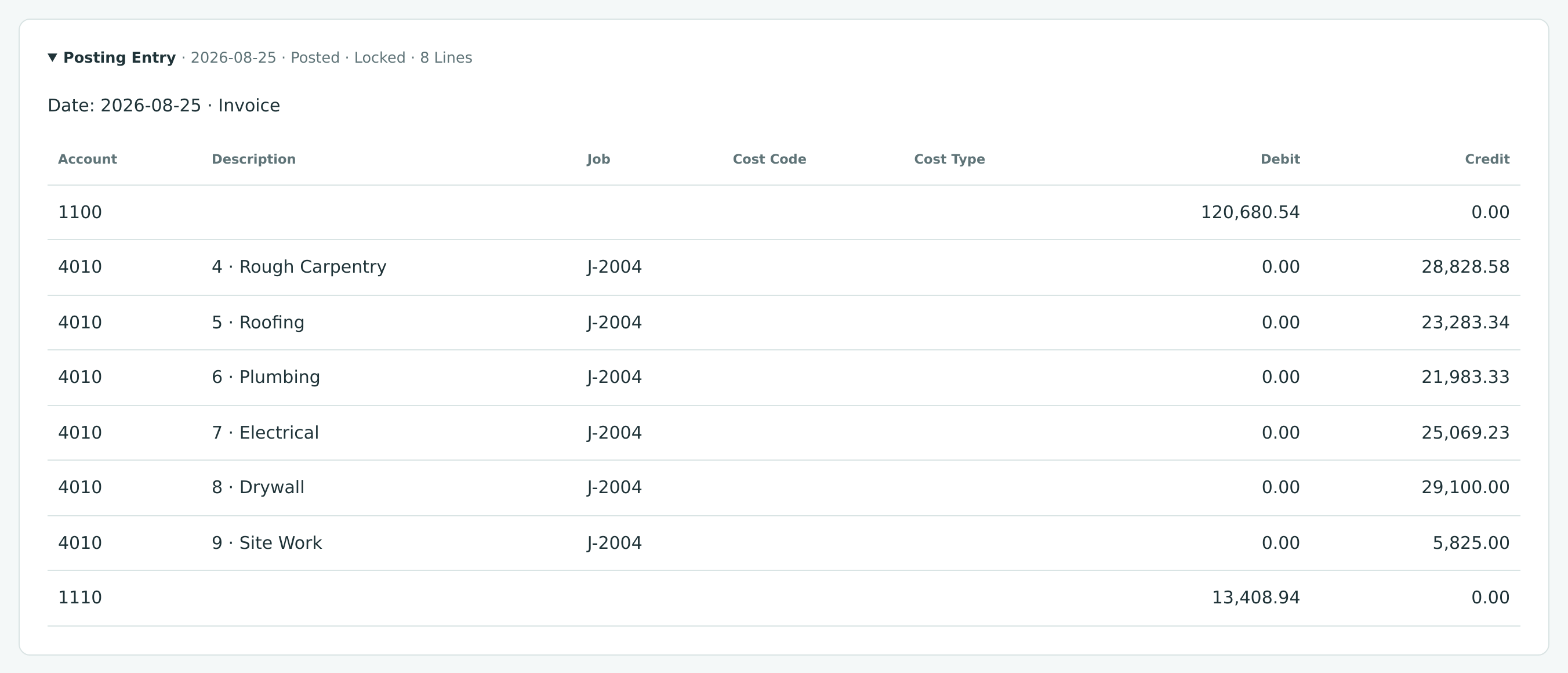
Here 134,089.48 of work billed less 13,408.94 retainage leaves 120,680.54 due from Summit Tech Park.
Common Mistakes and Troubleshooting
| Message or Symptom | Why It Happens | What to Do |
|---|---|---|
| Only draft invoices can be changed | The edit address of a posted invoice was opened. | Void the invoice and enter a new one. |
| Invoice has receipts applied; reverse them first | A receipt is applied to the invoice. | Unapply the allocation on the receipt, or reverse the receipt, then void. |
| Invoice has credits applied; unapply them first | A credit memo is applied to the invoice. | Unapply it on the credit memo's page, then void. |
| Invoice has retainage releases; reverse them first | A posted retainage release bills this invoice's retainage. | Reverse the release first. |
| Invoice INV-2026-000049 is billed by J-2004 Pay Application 9; reverse the pay application instead. | The invoice was created by a pay application. | Reverse the pay application in Jobs & Costing. |
| Only open invoices can be voided | The invoice is a draft or is already void. | Drafts need no voiding: they never reached your books. |
| Entry is matched to a bank line; unmatch it first | The invoice's entry is matched in the bank feed. | Unmatch it in Reviewing the Bank Feed. |
| Reversal date cannot be earlier than the journal entry date. | The void date is before the invoice date. | Use the invoice date or later. |
| Accounting date must be after the company closing date; 2026-01-15 is on a closed period. | The void date is in a closed period. | Use a date after the Books Closed date. |
| Customer must be active. | Posting a draft for a customer who was deactivated. | Reactivate the customer, then post. |
| Class REM is inactive. | A class on the draft was deactivated after saving. | Edit the draft to choose an active class, or reactivate the class. |
| There is no Void Invoice… in the menu. | The invoice is not Open, or a pay application billed it. | See the conditions above. |